How to Back Up and Restore Your Work
Papr keeps your PDFs, documents and spreadsheets in your browser. The Back up and restore dialog saves all of them to one file, and puts them back when you need them, in this browser or in another one.
Step by step
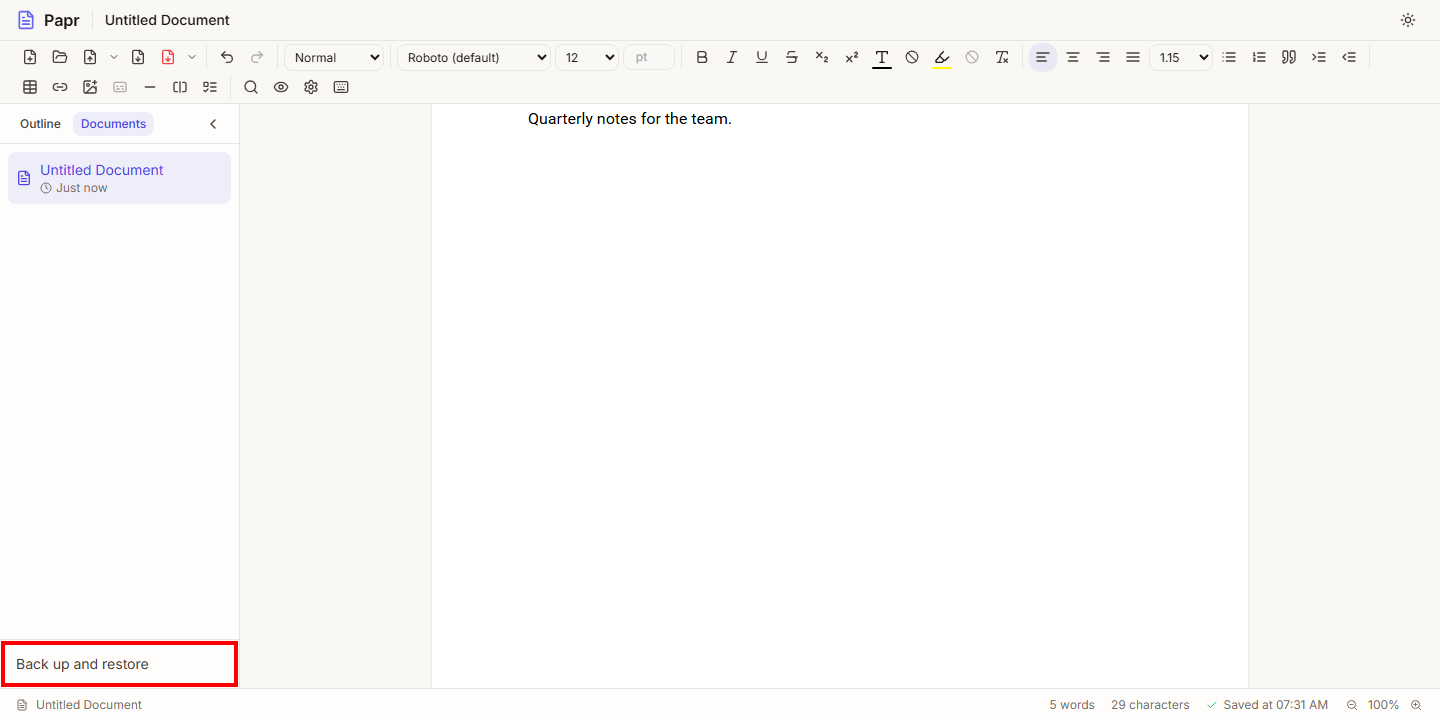
1.Open the dialog
In the Documents or Sheets editor, click Back up and restore at the bottom of the sidebar. In the PDF editor, open Recent sessions and click the same button. On a phone, the button is in the More menu.
2.See what the browser keeps
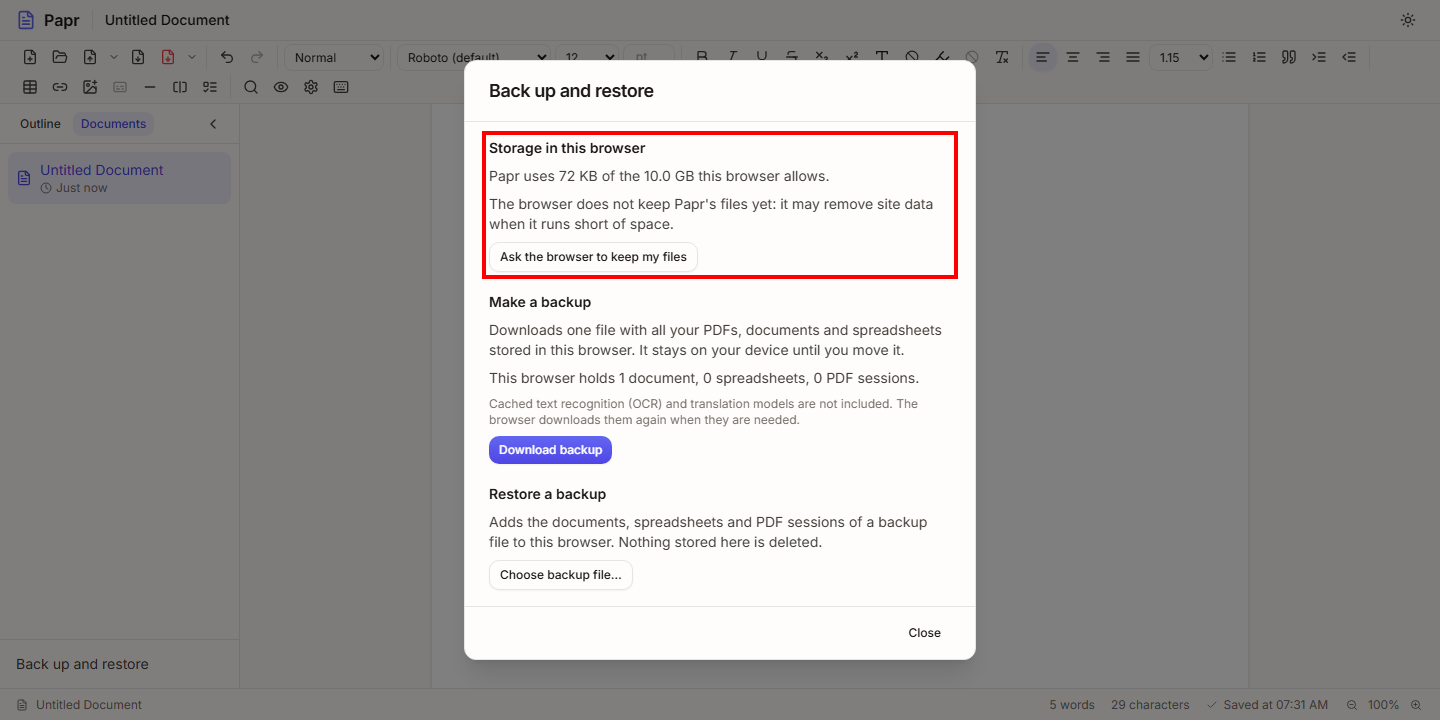
The top section, Storage in this browser, shows how much space Papr uses and whether the browser keeps Papr's files. The dialog does not change anything here.
3.Make a backup
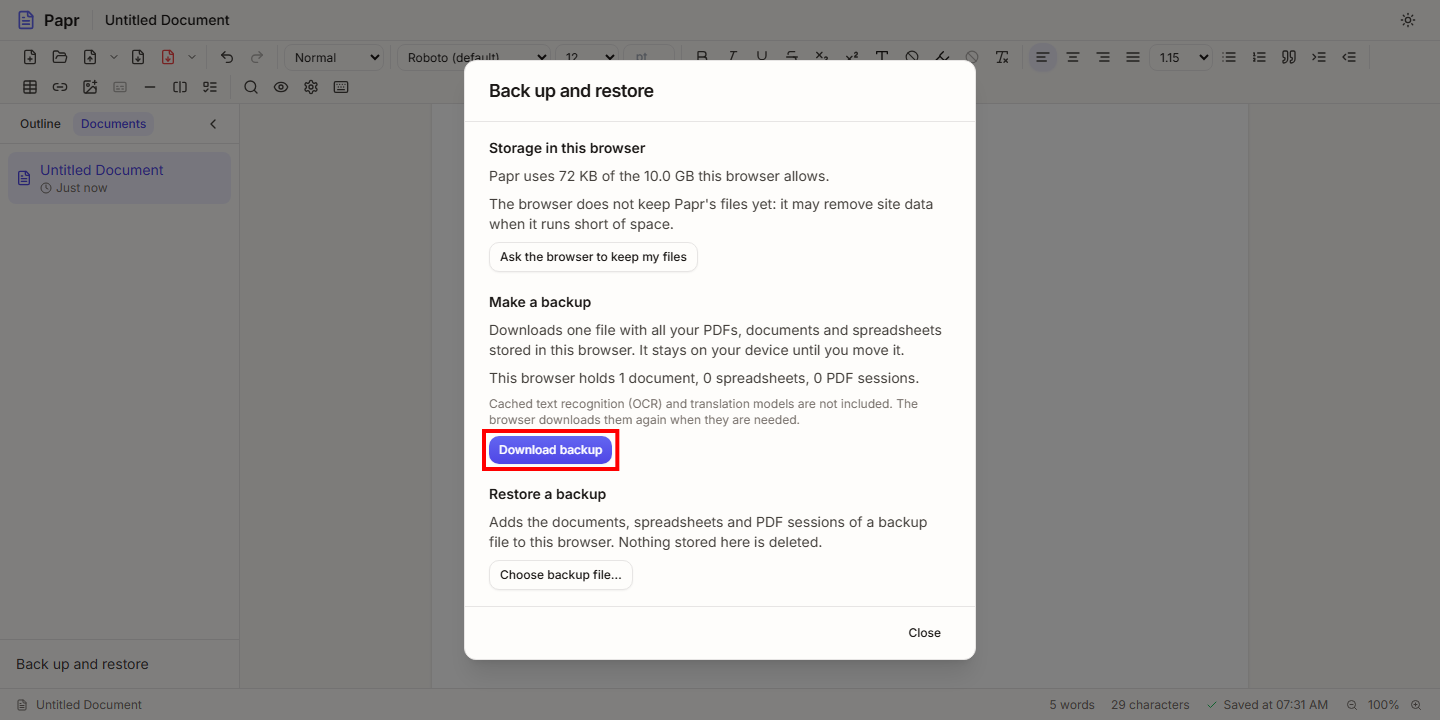
Click Download backup. The dialog first counts what the browser holds, such as 1 document, 0 spreadsheets, 0 PDF sessions, and the browser saves the backup file to your downloads. The file stays on your device until you move it.
4.Restore a backup
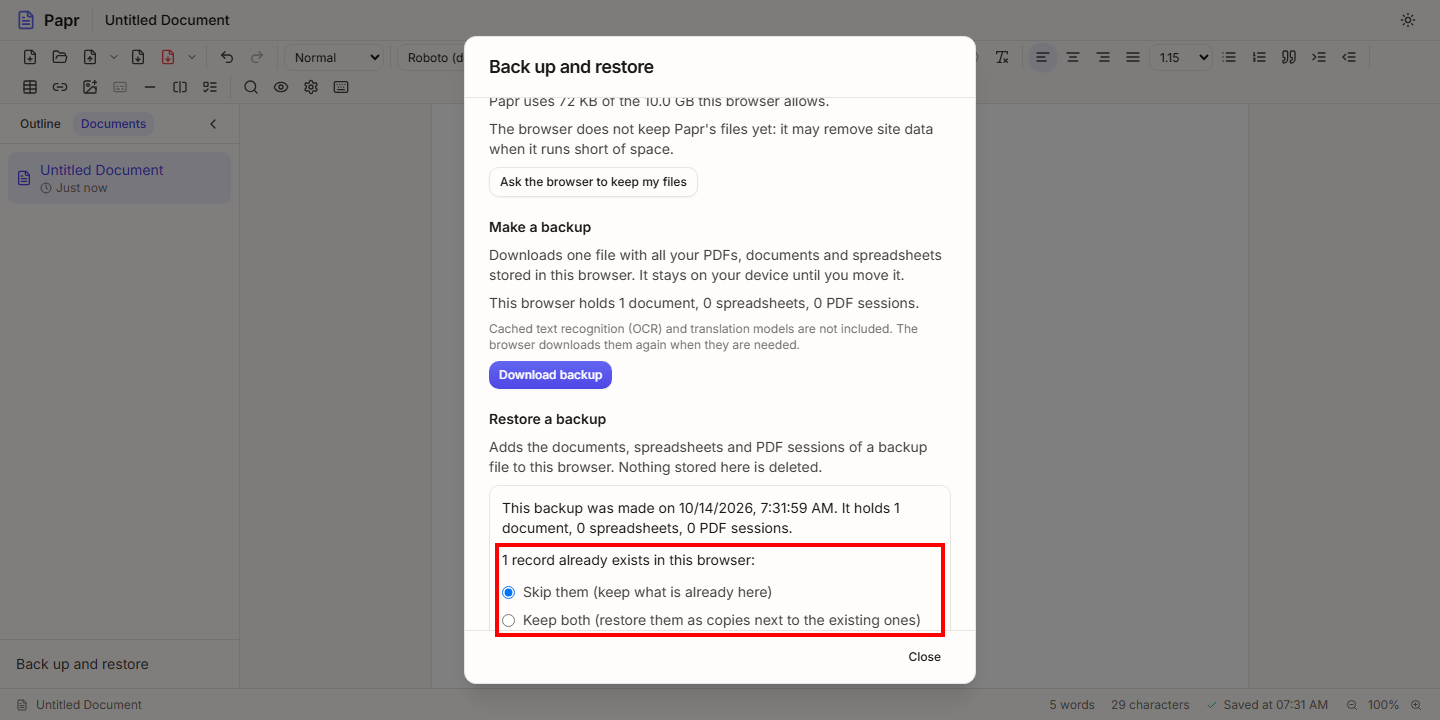
Click Choose backup file… and pick the file. The dialog shows when the backup was made and what it holds. If a record already exists in this browser, choose what happens to it: Skip them (keep what is already here), the default, or Keep both (restore them as copies next to the existing ones). Then click Restore to confirm.
5.Open it from the PDF editor
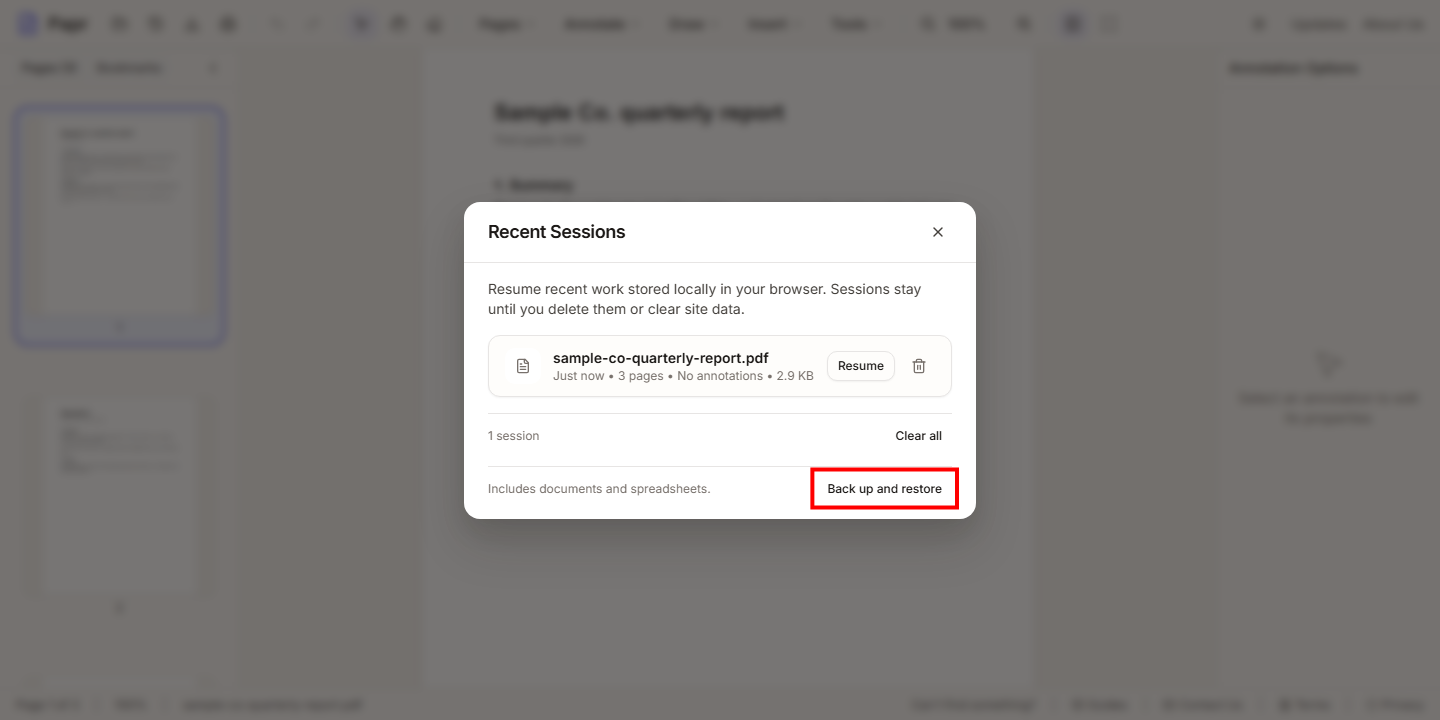
In the PDF editor, open Recent sessions from the toolbar and click Back up and restore in the dialog's footer. It is the same dialog, and it covers documents and spreadsheets as well as PDFs.
What goes in the file
A backup is one ZIP file. It holds every document, every spreadsheet and every PDF session stored in this browser:
- Documents and spreadsheets: their text, formatting, sheets and formulas as they were saved.
- PDF sessions: the PDF itself, with its annotations, bookmarks and page information.
- Password-protected PDFs stay encrypted inside the file. Papr does not keep the password, so you need it to open the PDF again.
Not included: the text recognition (OCR) data and the translation models. Papr downloads them again when you need them.
What a restore does
- Nothing is overwritten or deleted. Records that already exist are skipped, or restored as copies, as you chose.
- Nothing is restored until you confirm. The dialog lists what the file holds and waits for the Restore button.
- Records that cannot be restored are left out. The dialog lists each one, with the reason, before you restore.
Ask the browser to keep your files
A browser may remove a site's data to free up space. When Storage in this browser says it does not keep Papr's files, the button Ask the browser to keep my files asks it to. The browser decides: it may say no, and some browsers decide on their own, based on how much you use Papr. A backup is still the safe copy.
Tips
- A backup is a copy, not a sync. Make a new one after you change work you want to keep.
- Restore into a browser that has none of your files, and nothing has to be skipped or copied.
Try it on your own file
Everything in this guide happens in your browser tab. Your file stays on your device.
Open the PDF editor