How to Add a Signature to PDF Online Free
Need to add a signature image to a PDF? Papr lets you insert a drawn or typed signature image directly into your document, and your file never leaves your browser.
Why Add a Signature Image with Papr?
Adding a signature image saves time and hassle — no printing, scanning, or mailing required. Many online tools require accounts and upload your documents to their servers. Papr keeps everything local, giving you complete privacy and control.
- Total Privacy: Documents stay on your device, never uploaded
- Multiple Options: Draw or type your signature image
- No Account Needed: Add a signature image instantly without creating an account
Step-by-Step: Adding a Signature Image
Step 1: Open Your PDF
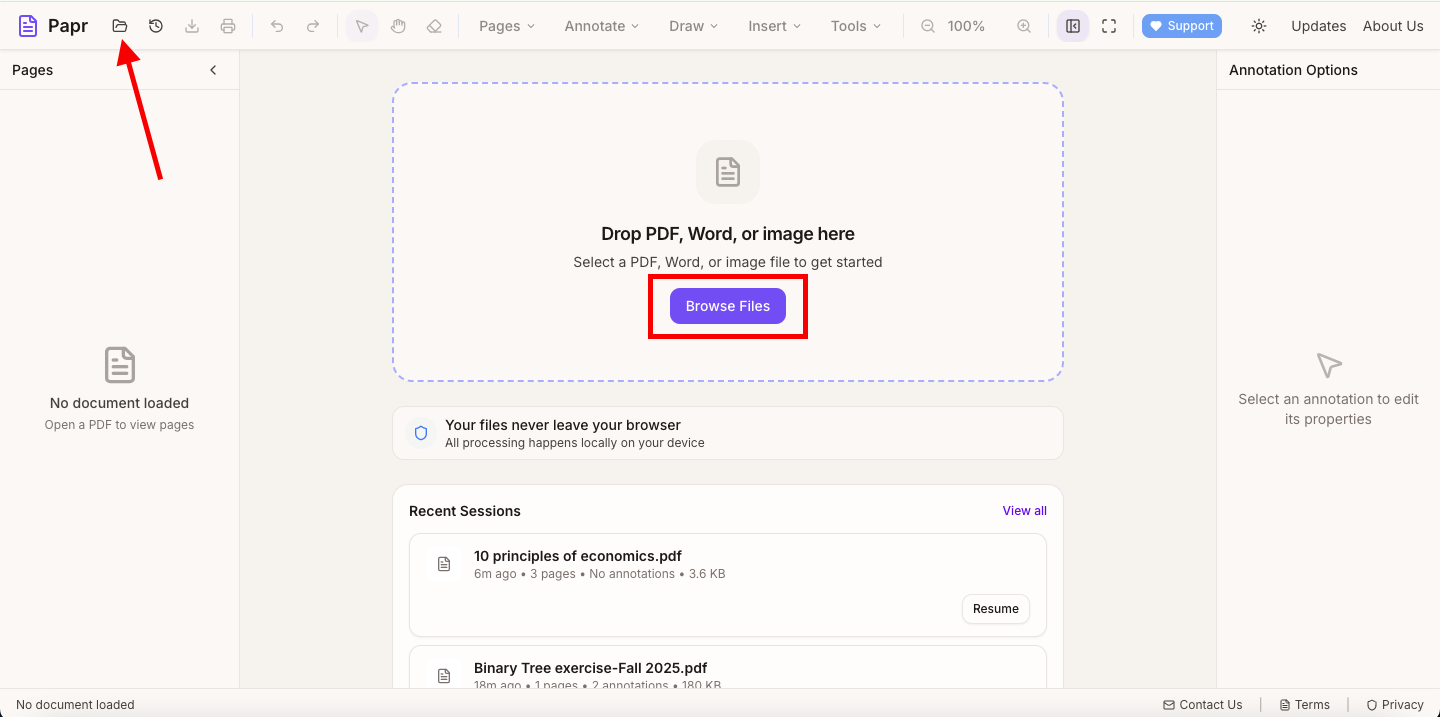
Launch the Papr editor and open the PDF where you want to place a signature image. Click the "Open file" button in the top toolbar or drag your file onto the page.
Step 2: Navigate to the Signature Line
Scroll through your document to find where a signature image is needed. Many forms have a clearly marked signature line or box.
Step 3: Open the Signature Tool
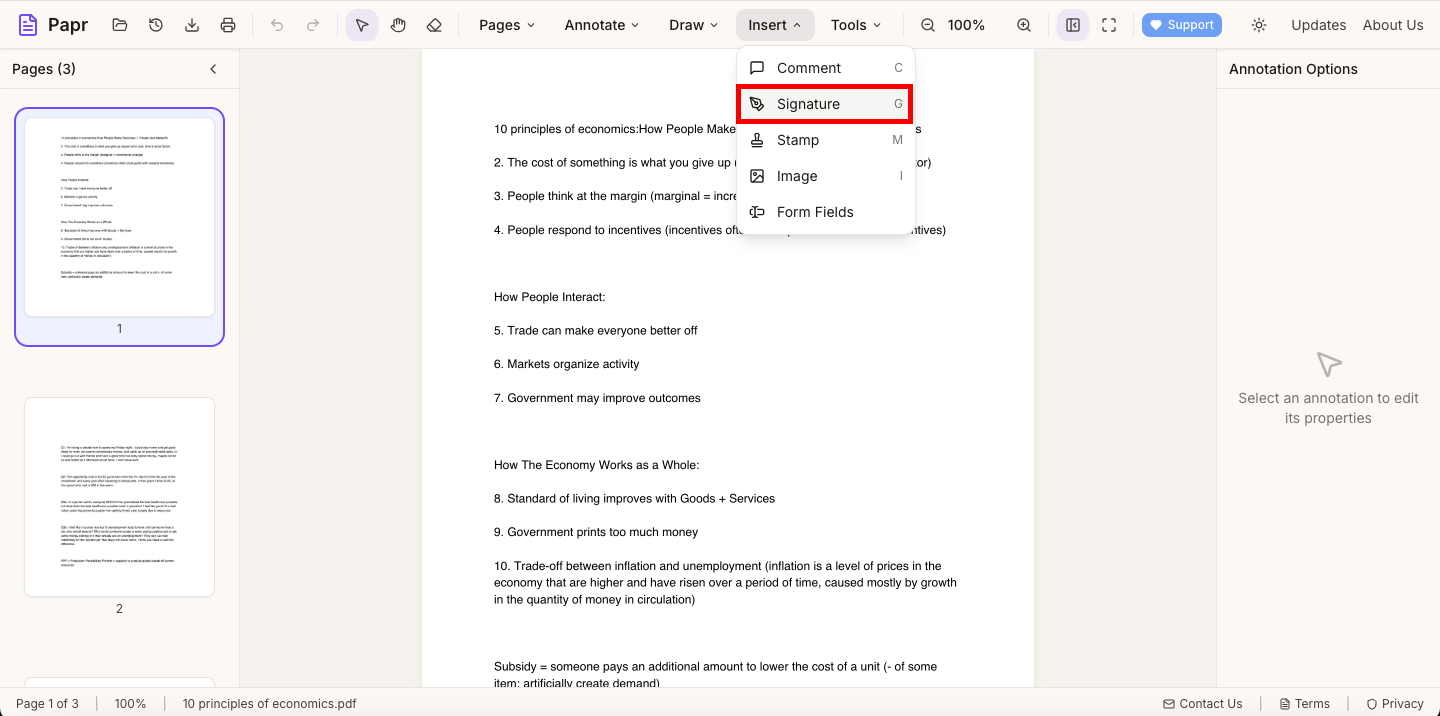
In the top toolbar, open the Insert dropdown and select Signature. This opens the signature panel where you can create your signature image.
Step 4: Create Your Signature Image
You have several options for creating your signature image:
- Draw: Use your mouse, trackpad, or touchscreen to draw your signature image
- Type: Enter your name and choose from handwriting-style fonts to generate a signature image

Step 5: Place and Resize
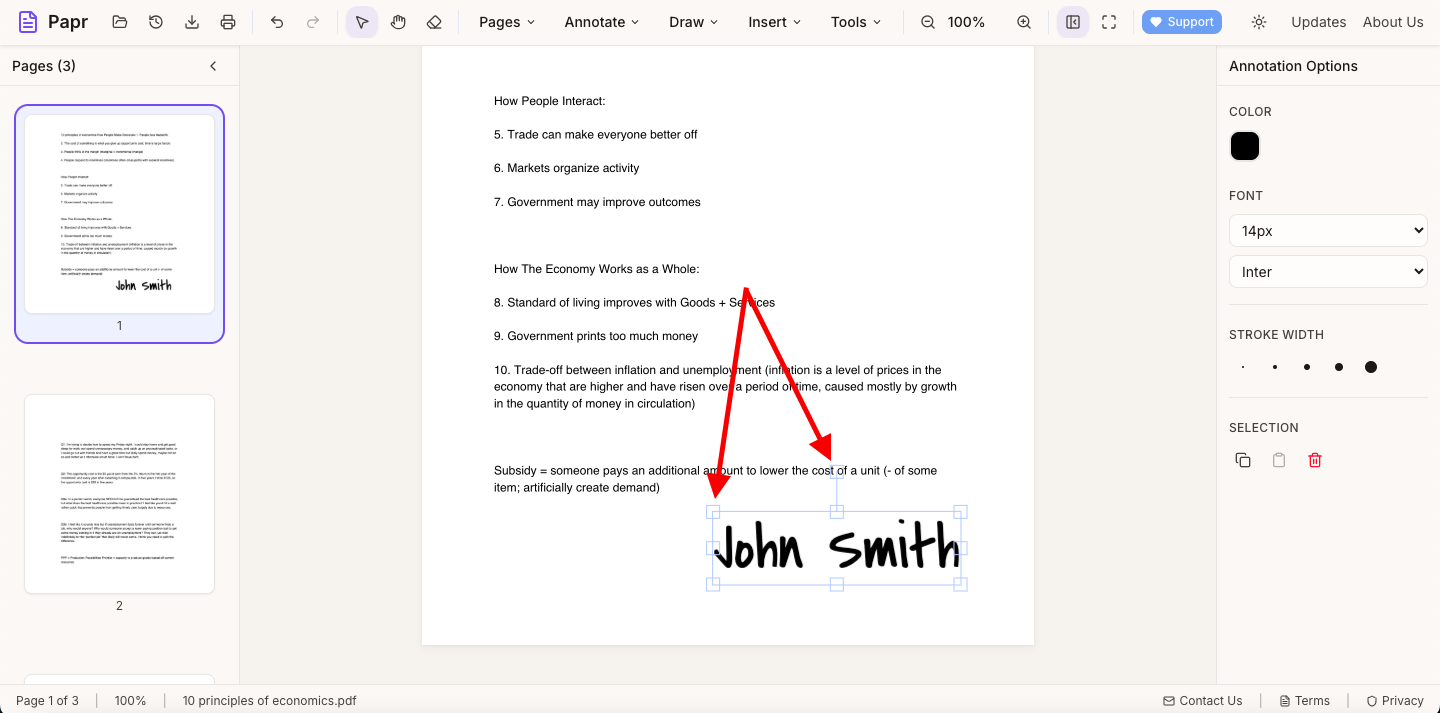
Click on the document where you want your signature image to appear. Drag the corners to resize it, and drag the signature image itself to reposition it exactly where needed.
Step 6: Save Your PDF
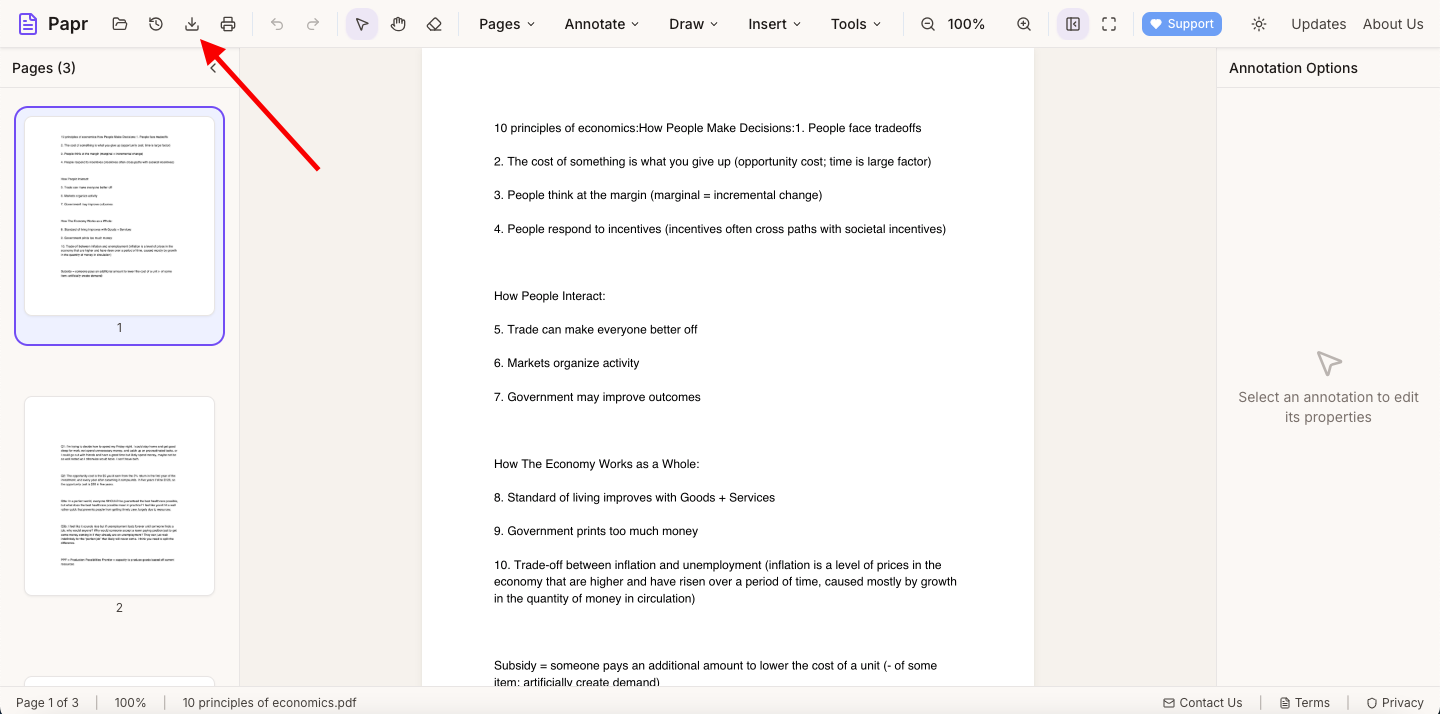
Once your signature image looks right, click Export in the top toolbar to save your document. The signature image becomes part of the PDF.
Tips for Better Signature Images
- Use a stylus or touchscreen: Drawing with your finger on a touchscreen or a stylus produces more natural-looking signature images.
- Try the typed option: If you struggle with drawing, typed signature images in script fonts look professional and consistent.
- Add initials too: Some documents require initials on multiple pages. Create a separate initial stamp for quick application.
A Quick Note About Signature Images
Papr adds a visual signature image to your PDF. It does not provide identity verification, consent workflows, or audit trails. If you need a formal e-signature process, a dedicated e-signature service may be a better fit.
Common Use Cases
- Internal approvals and reviews
- Business letters and announcements
- Client intake forms and questionnaires
- School permission slips
- HR acknowledgments and onboarding packets
- Invoices, quotes, and simple agreements
Ready to Add a Signature Image?
Try adding a signature image to PDFs with Papr. It's free and your documents stay private.
Open Papr Editor