How to Create Fillable PDF Forms Online Free
Add text boxes, checkboxes, radio buttons and dropdowns to a PDF, so the people you send it to can fill it in with any PDF reader.
Step by step
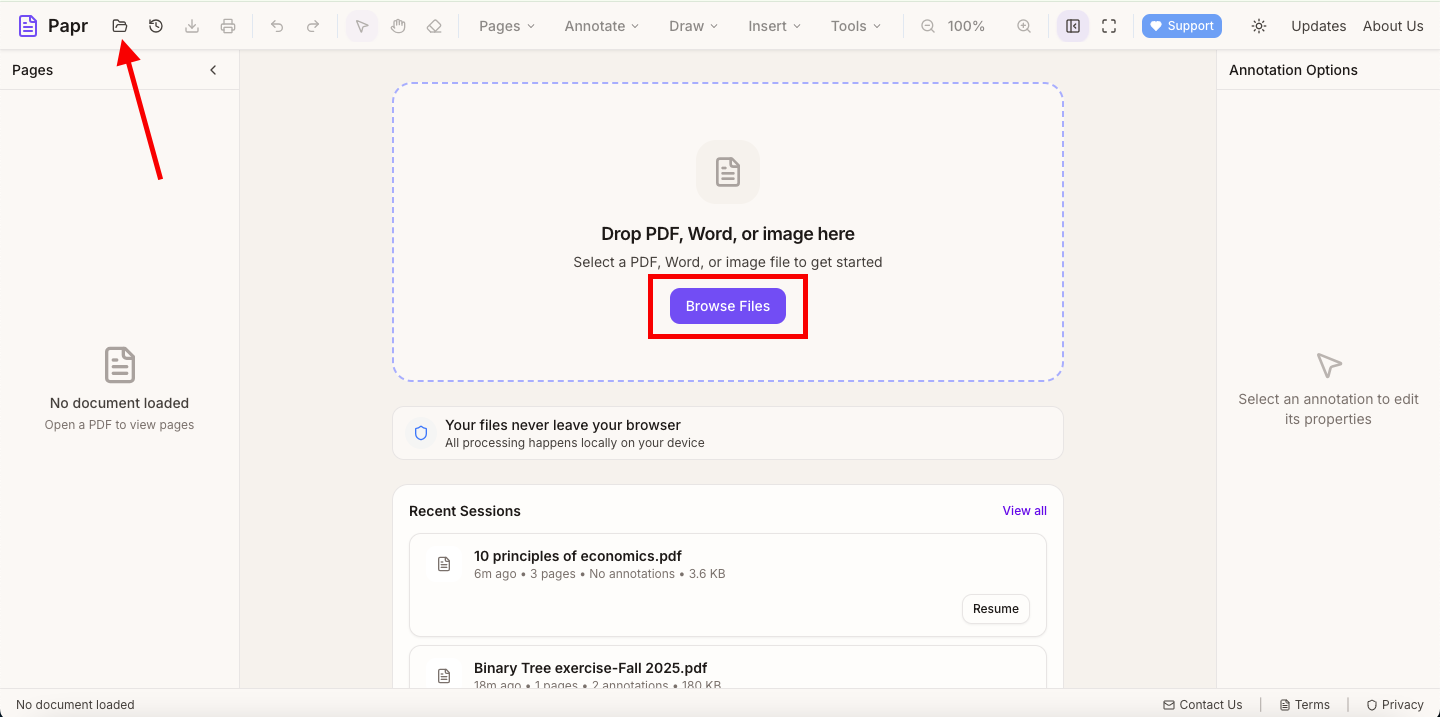
1.Open the PDF
Click Open file in the toolbar, or drop the PDF onto the page. Use the file you want people to fill in.
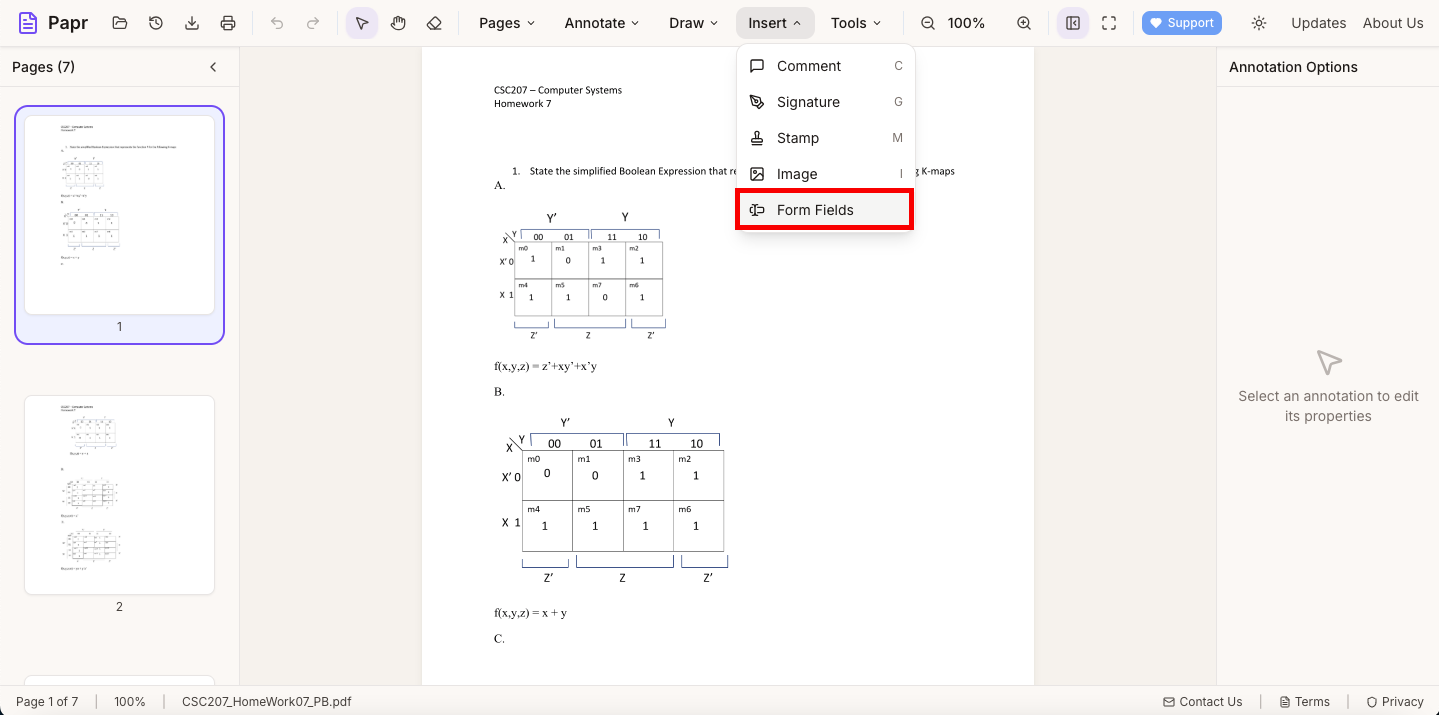
2.Open Form Fields
Open the Insert menu and click Form Fields. The Insert Form Field dialog opens.
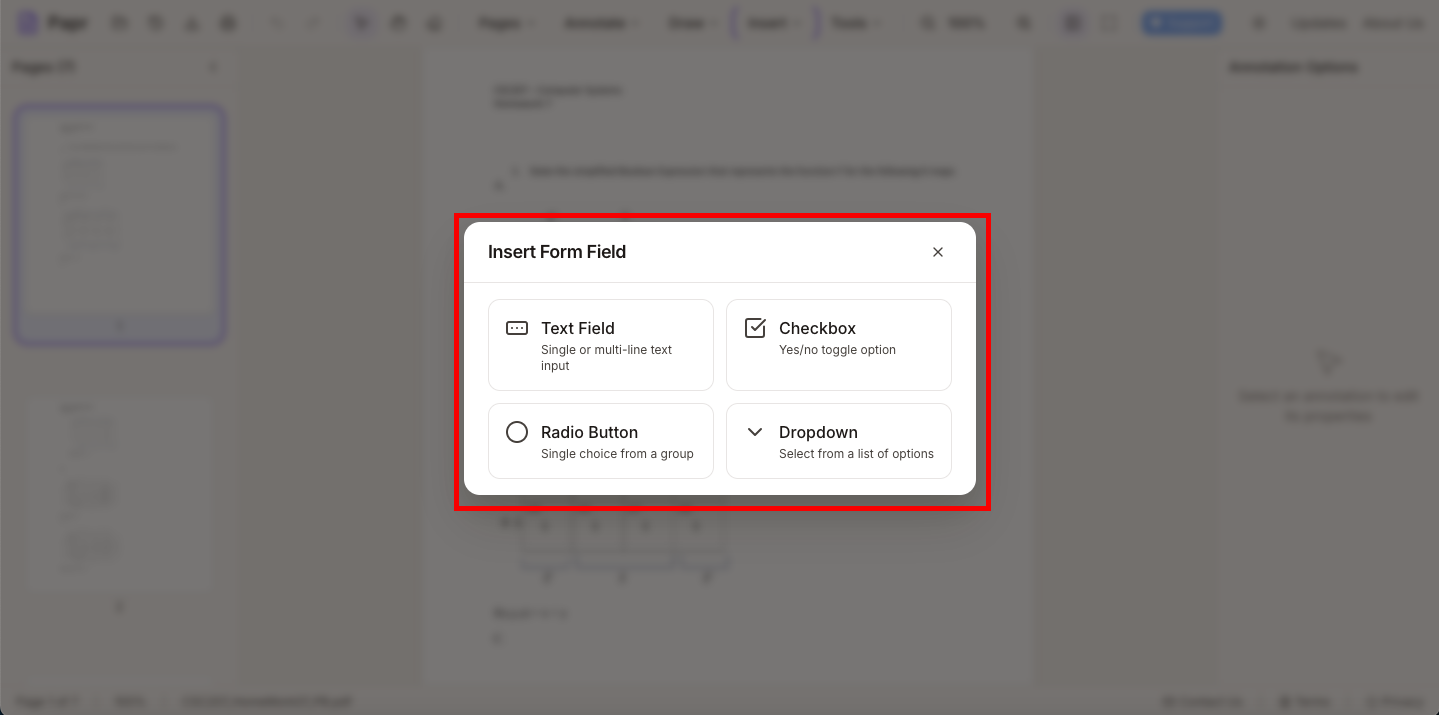
3.Choose a field type
Choose the type of field: Text Field for one or several lines of text, Checkbox for a yes-or-no choice, Radio Button to pick one option from a group, or Dropdown to pick from a list. Then place it on the page.
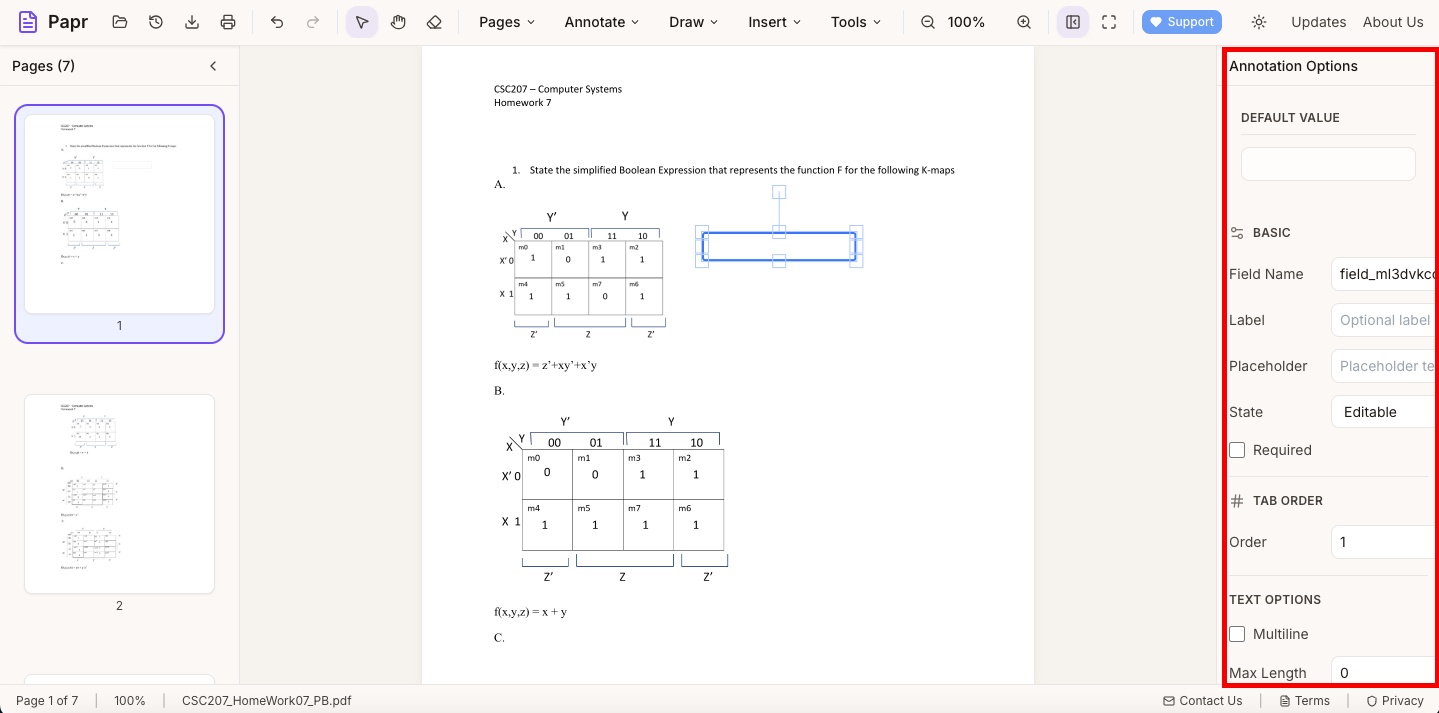
4.Set the field's details
Select a field to change its settings in the panel on the right. The panel holds the field's name, its label and placeholder, whether it is required, and its tab order, which is the order the Tab key moves through the fields.
5.Check the layout
Scroll through every page. Make sure the fields line up with the labels they belong to, and that a reader has room to type.
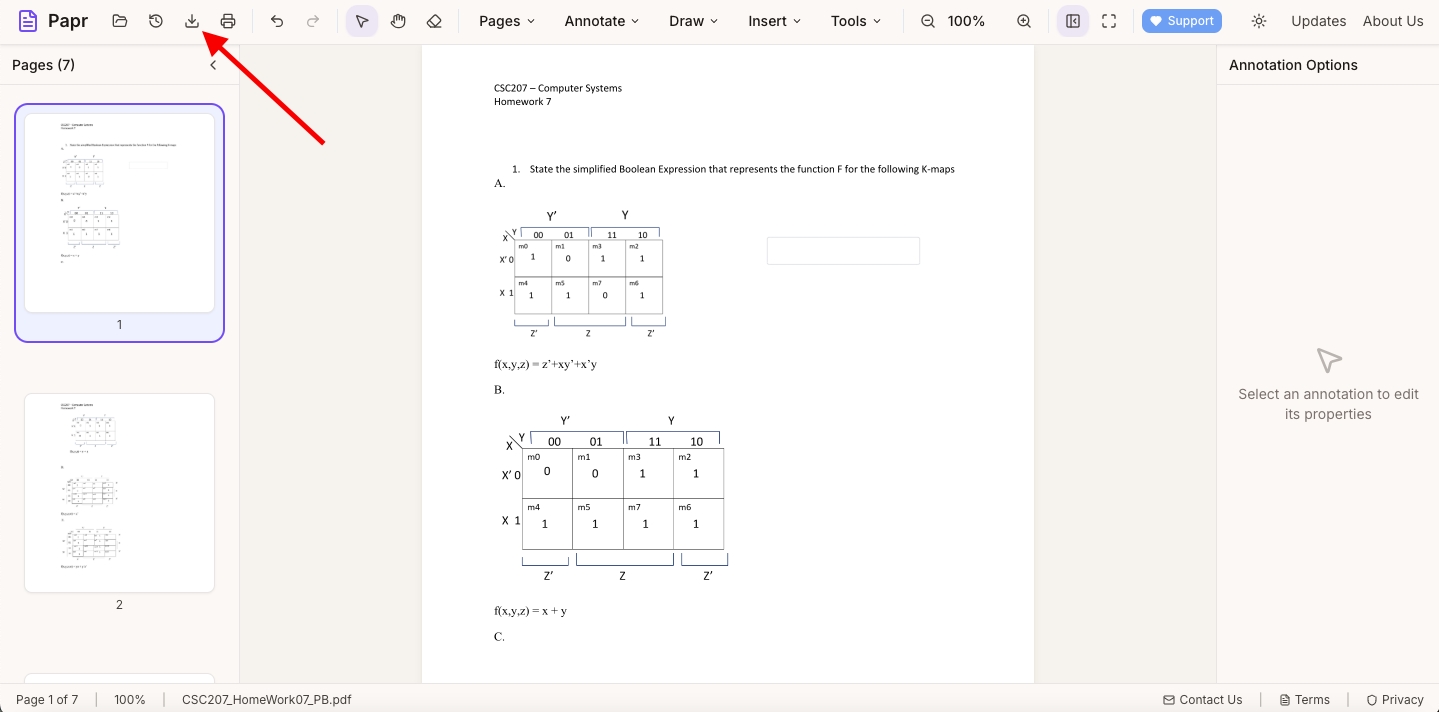
6.Export the form
Click Export in the toolbar and save the file. The fields stay fillable in the exported PDF.
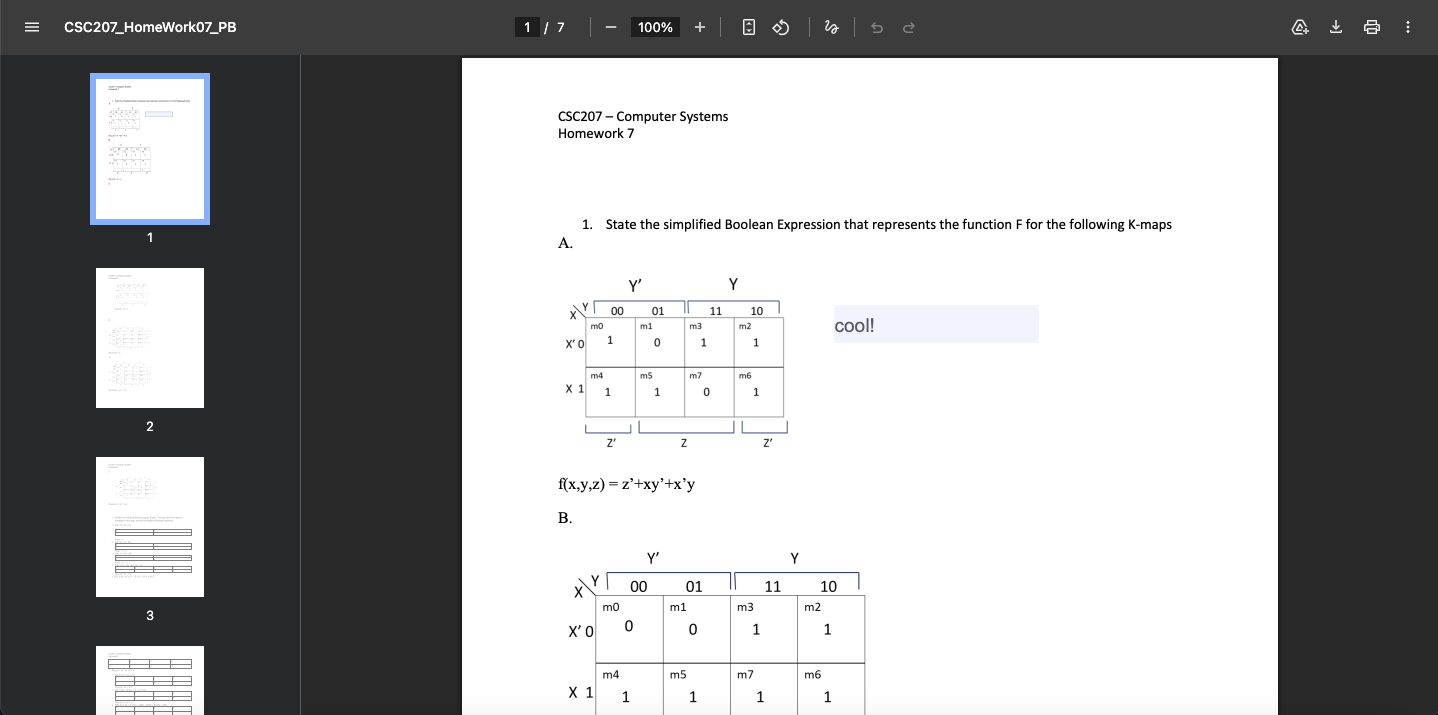
Filling it in
Send the exported file. The person who fills it in opens it in a PDF reader such as Chrome or Acrobat, types into the fields and saves a copy.
Try it on your own file
Everything in this guide happens in your browser tab. Your file stays on your device.
Open the PDF editor