How to Password Protect a PDF Online Free
Encrypt a PDF with a password, so a reader needs the password to open it. The encryption uses AES-256 and runs in your browser; the password is never stored.
Step by step
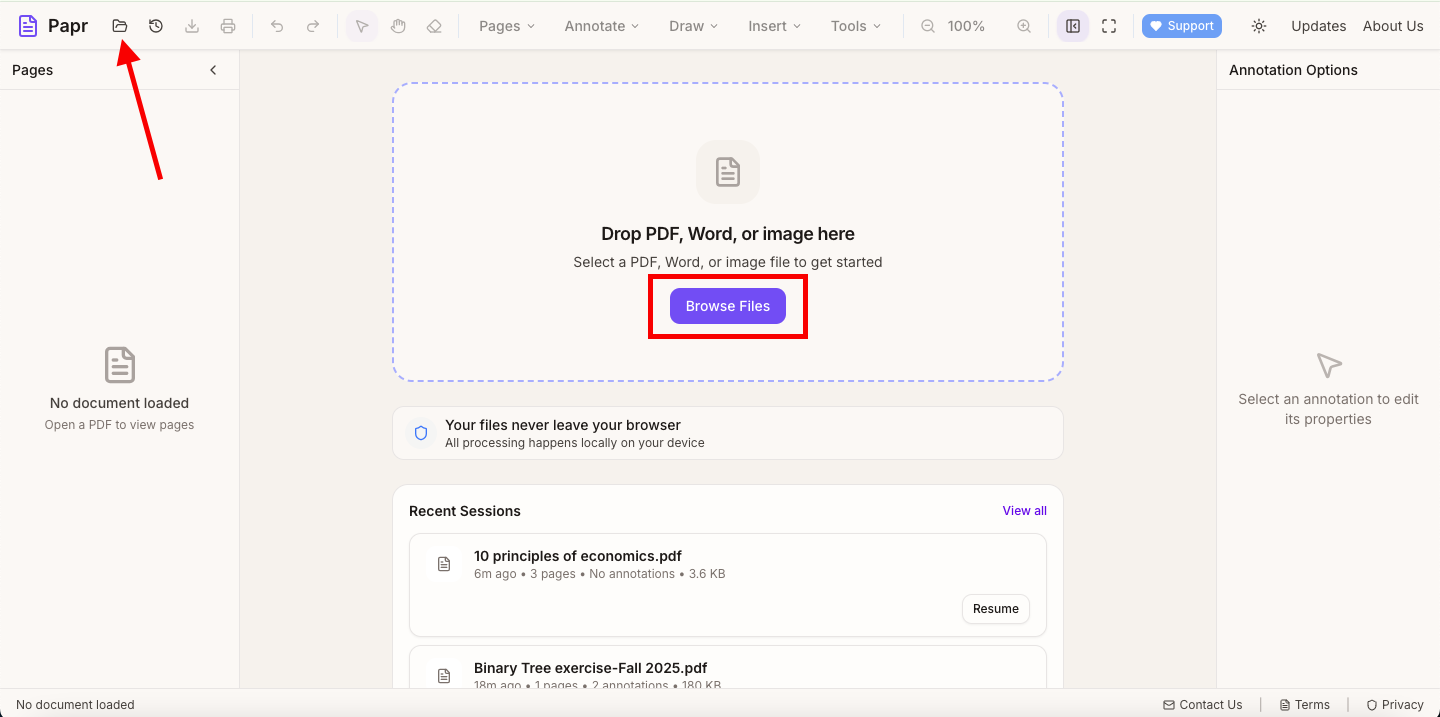
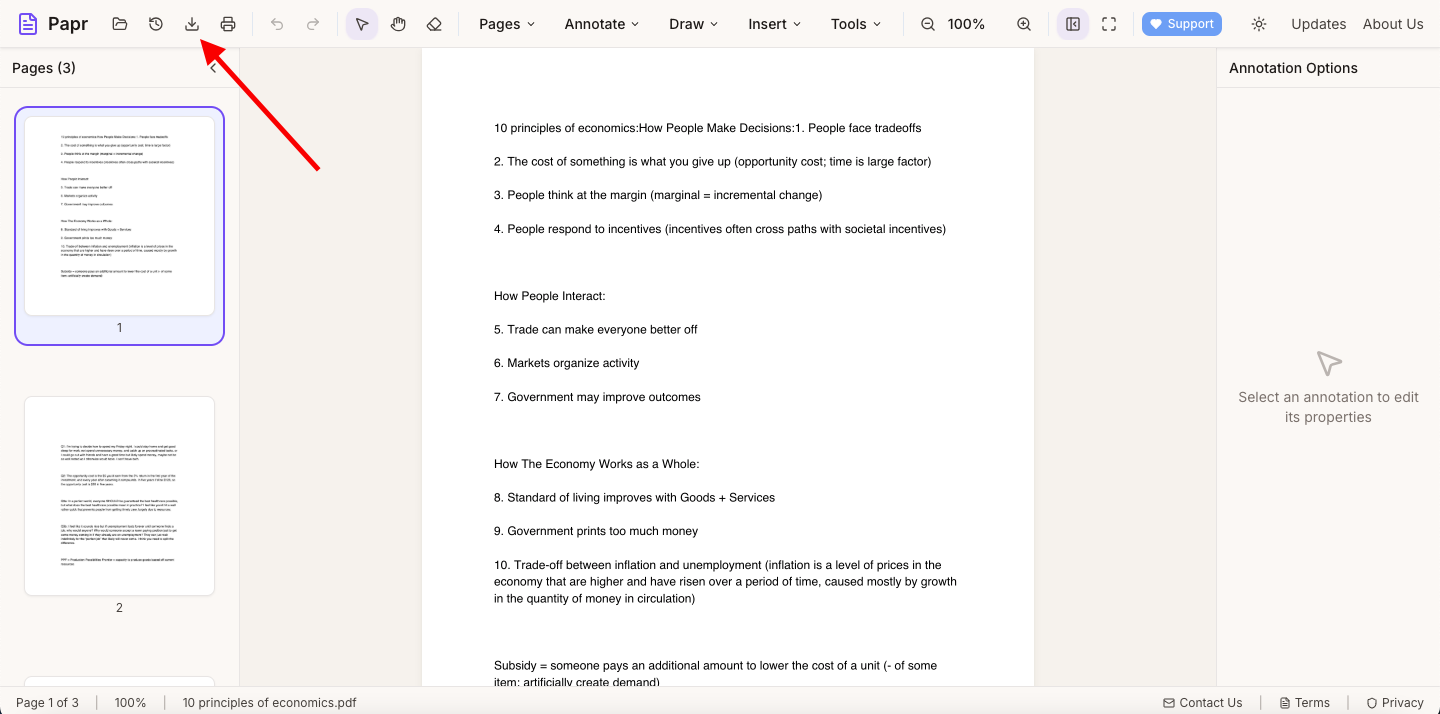
1.Open the PDF
Click Open file in the toolbar, or drop the PDF onto the page.
2.Open Password Protect
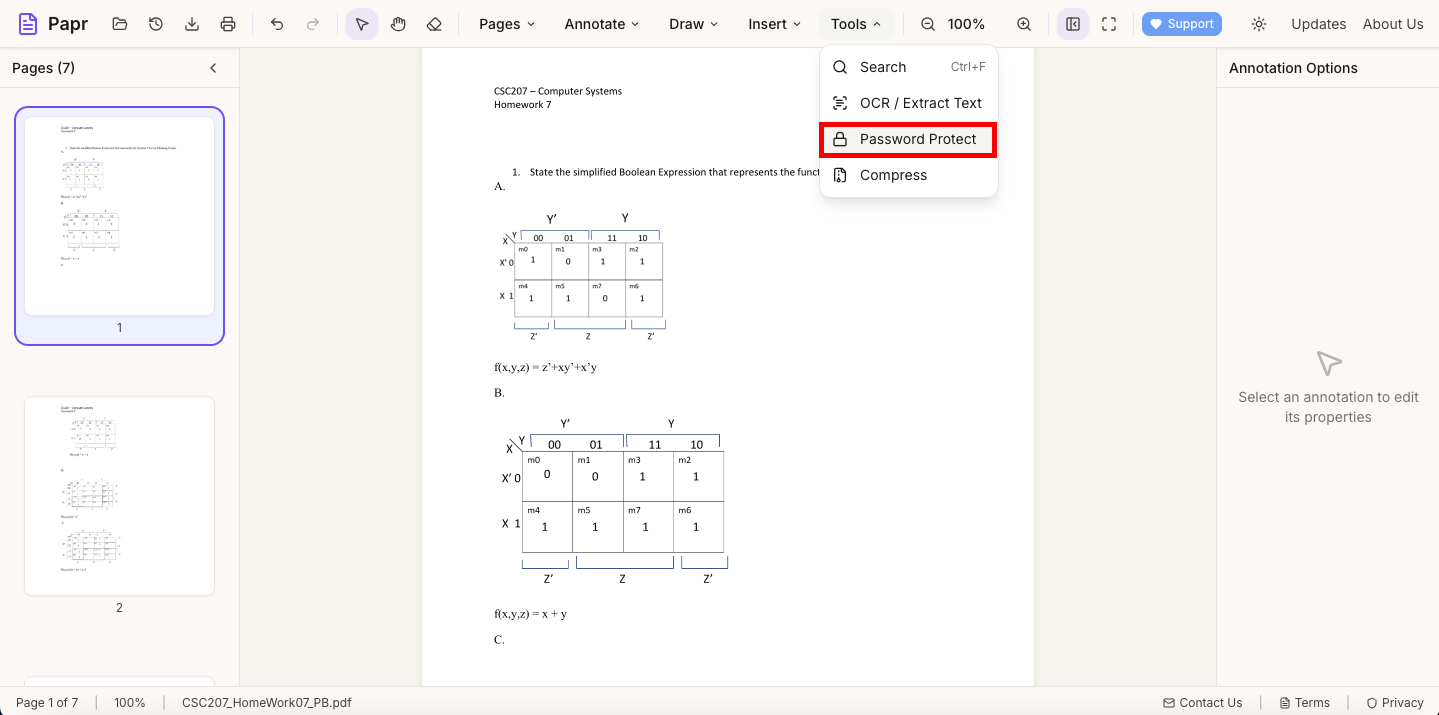
Open the Tools menu and click Password Protect. The export dialog opens with the password settings.
3.Tick Password protect
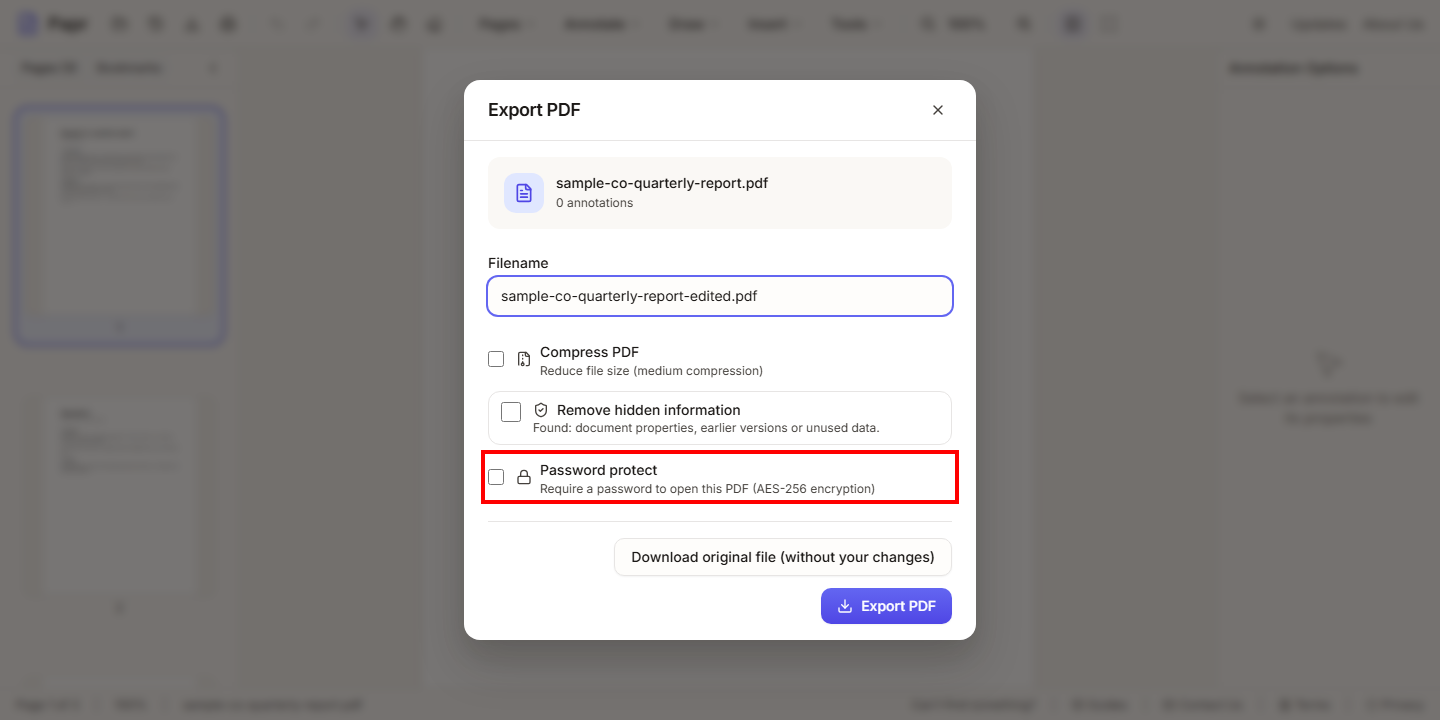
In the Export PDF dialog, make sure Password protect is ticked. The password fields appear under it.
4.Type the password
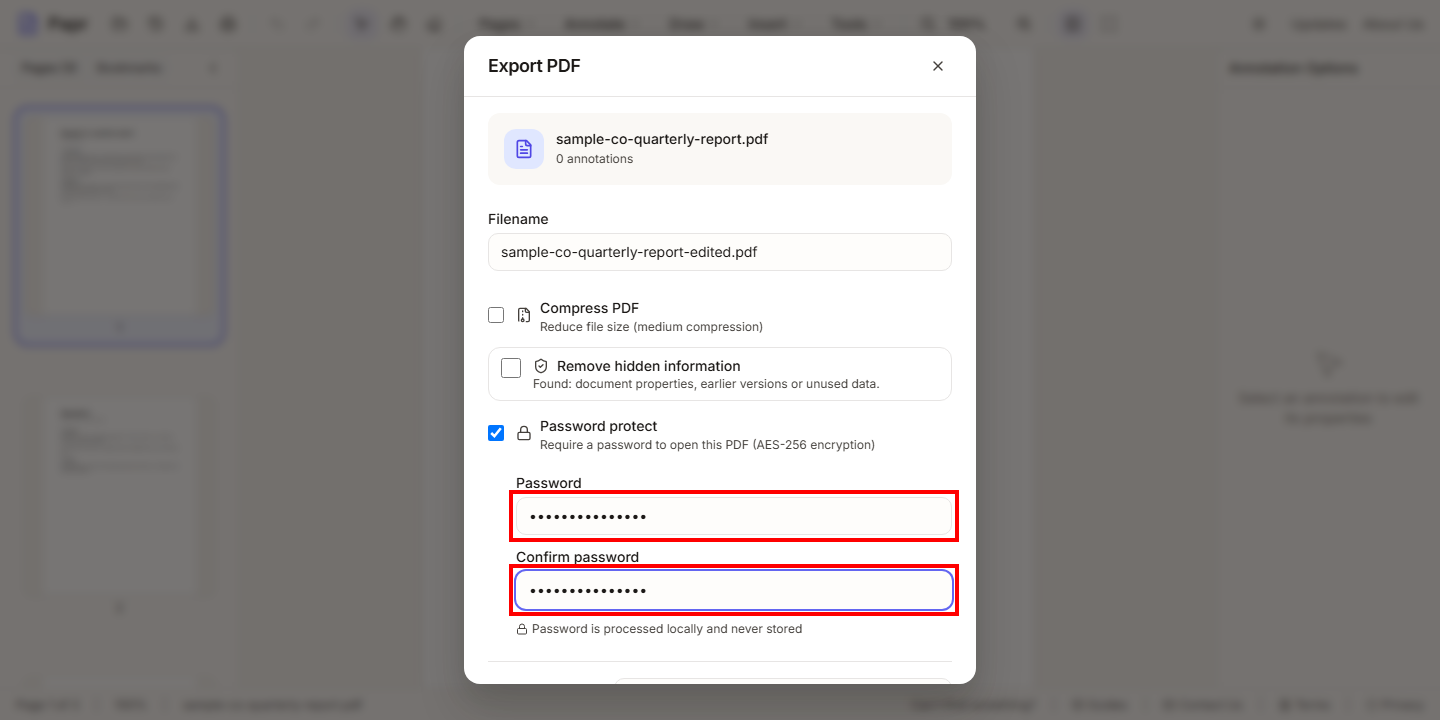
Type the password in Password, and type it again in Confirm password. The two must match. A password cannot contain a comma.
5.Export the protected PDF
Click Export in the toolbar. In the dialog, click Export Protected PDF. The encrypted file is saved to your device.
How the protection works
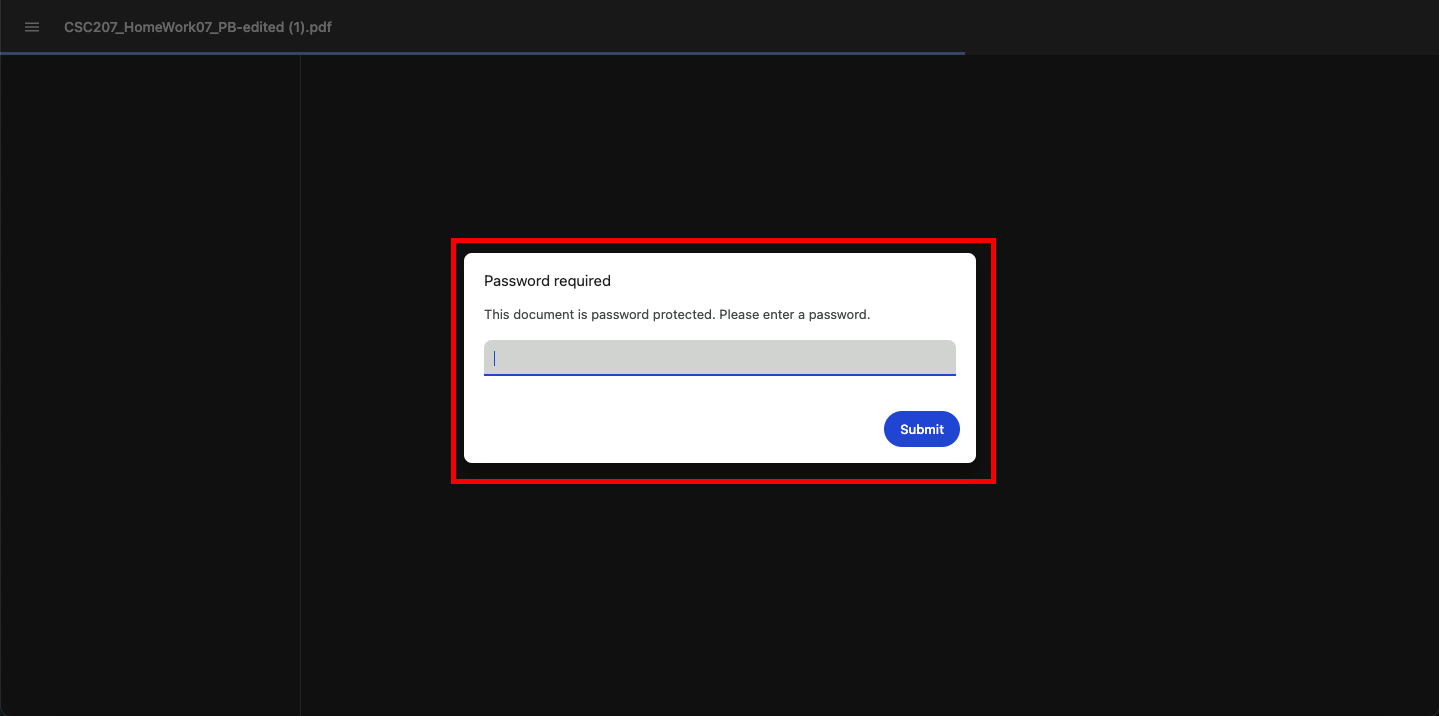
The file is encrypted with AES-256, the standard for PDF 2.0 files. Current readers such as Acrobat, Chrome, Firefox and Preview ask for the password. Without it, the file cannot be opened.
If you open a password-protected PDF in Papr, enter its password once. Papr then edits an unlocked copy in your browser. The export is unprotected unless you set a password again, and the export dialog ticks Password protect for you when the document arrived protected.
Tips for a strong password
- Send the password separately from the file, for example in a text message if you email the PDF.
Try it on your own file
Everything in this guide happens in your browser tab. Your file stays on your device.
Open the PDF editor