How to Remove Hidden Information and Metadata from a PDF
A PDF can carry more than its pages show: the author and dates, scripts, attached files, hidden layers and earlier versions. Remove hidden information finds these in the file and removes the kinds you choose from the copy you export. Your document is not uploaded.
Step by step
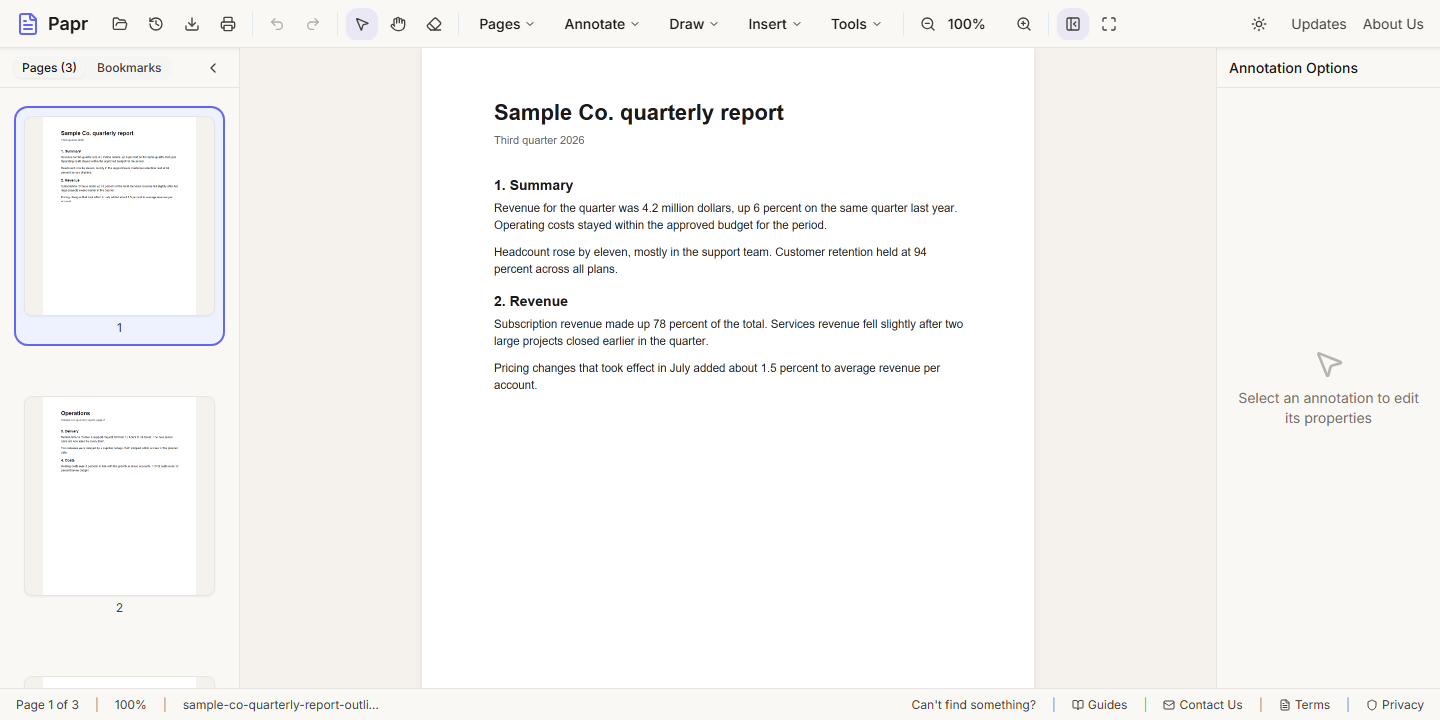
1.Open the PDF
Click Open file in the toolbar, or drop the PDF onto the page.
2.Open Remove Hidden Information
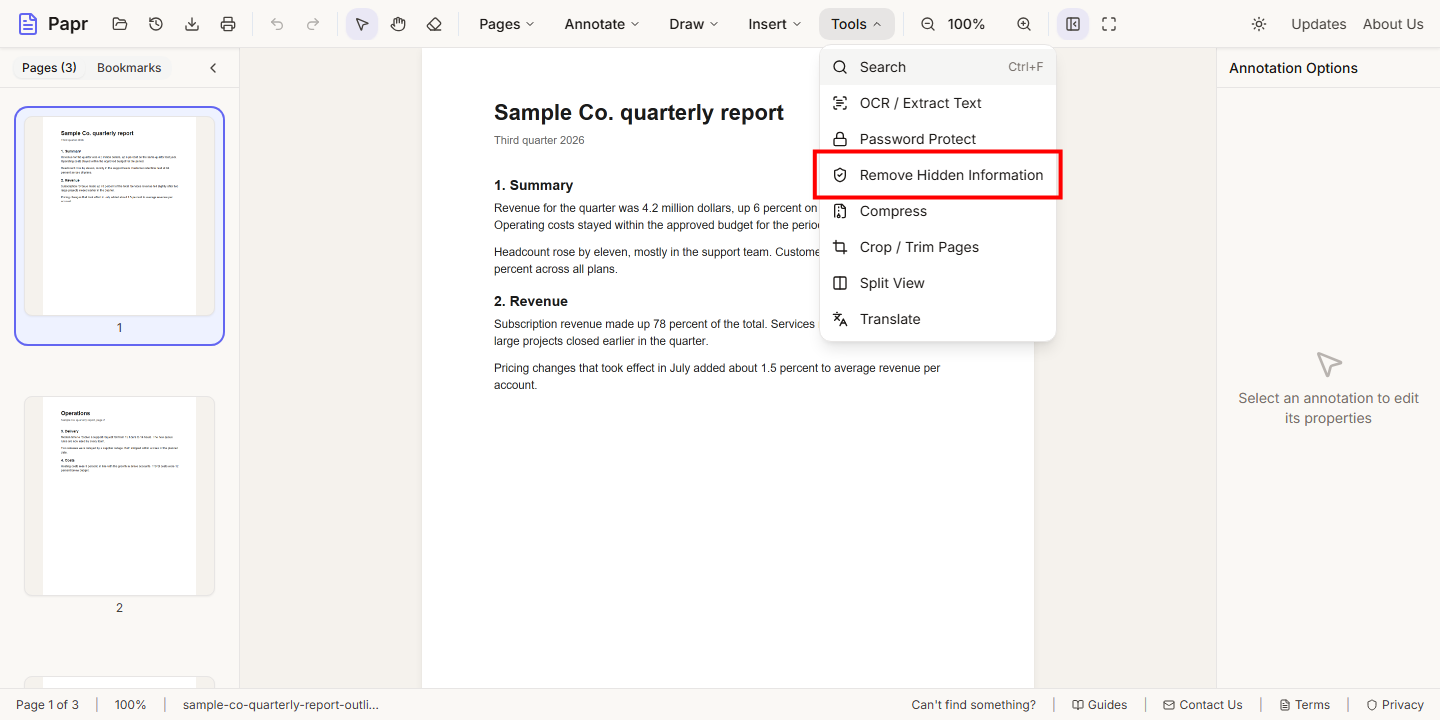
Open the Tools menu and click Remove Hidden Information. On a phone, use the More sheet. The export dialog opens with the section switched on, and Papr checks the file as it opens.
3.Read what was found
The section starts with a line that lists what the file holds, for example Found: document properties, earlier versions or unused data, 3 bookmarks. Below it, each kind has a checkbox and its count. Tick the kinds you want removed and leave out the ones you want to keep.
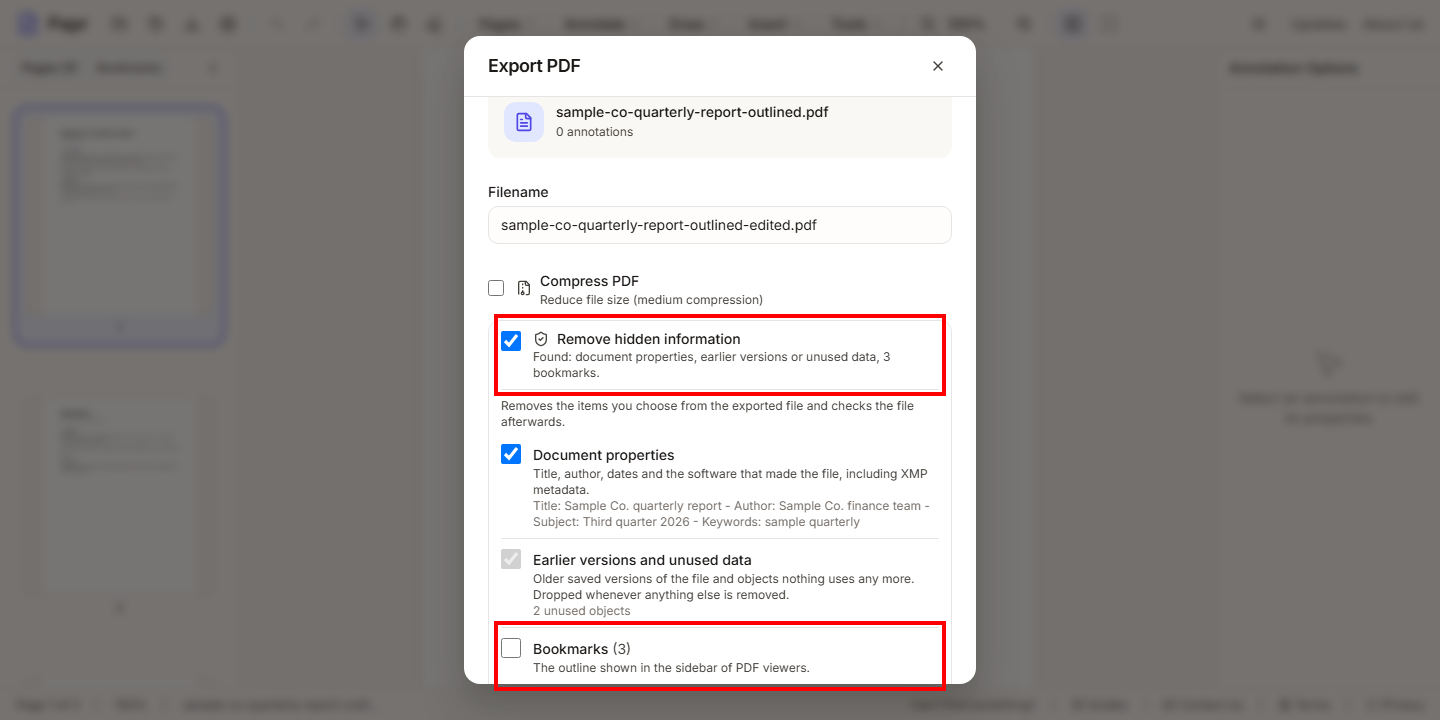
Four kinds are off by default, because people usually want to keep them: bookmarks, comments already in the file, form fields and links. The other kinds are on. Earlier versions and unused data is always removed when anything else is, because removing anything rewrites the file.
4.Export the clean copy
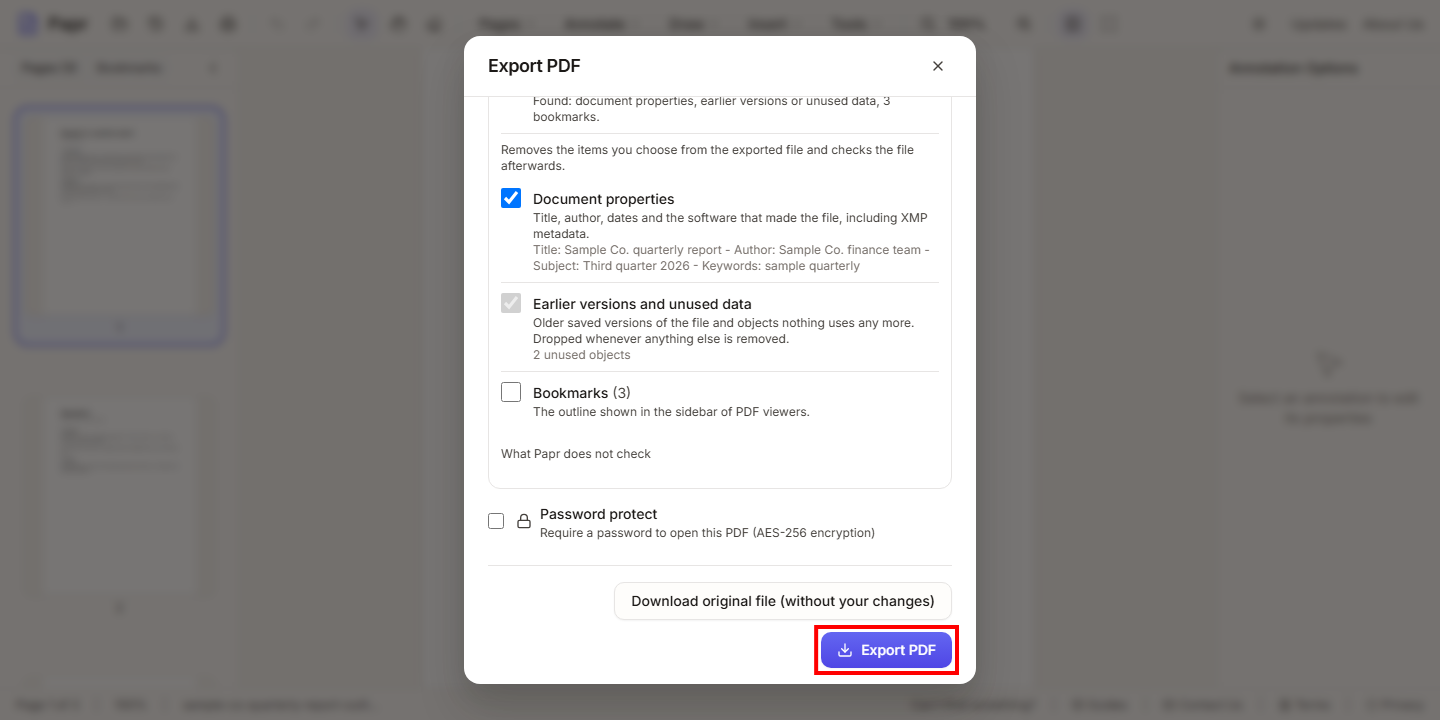
Click Export PDF. Papr removes the chosen items and reads the new file again. If anything you chose is still in it, the export stops, nothing is downloaded, and a message says what was left. When Compress PDF is also ticked, the check runs again on the compressed file.
What it finds
- Document properties: the title, author, subject, dates and the software that made the file, including the XMP metadata.
- JavaScript: scripts that run when the file or a page is opened, or when a field is used.
- Attached files: files stored inside the PDF, including file-attachment notes.
- Page thumbnails: small preview pictures, which can show a page as it was when it was saved.
- Private application data: data other programs stored in the file for their own use.
- Hidden layers: drawings, text and images on layers that are switched off. The layers stay in the file, renamed and empty.
- Earlier versions and unused data: older saved versions of the file, and objects nothing uses any more.
- Bookmarks: the outline shown in the sidebar of PDF viewers.
- Comments and markup already in the file: notes and highlights saved by other programs. What you add in Papr is drawn into the pages and stays.
- Form fields: fillable fields become plain page content. They look the same but can no longer be filled in.
- Links to web and email addresses: links that open a web page or an email address. Links to pages of the document stay.
What it does not check
A clean result is not a guarantee. Papr does not look at:
- text hidden by its colour, size or position, for example white text on a white page;
- content covered by other objects or placed outside the page;
- what is inside images, such as people, names or places;
- metadata stored inside embedded fonts, images and annotation appearances;
- digital signatures, XFA forms, and 3D, video and sound content.
Things to know
- JavaScript and form fields: when you remove them, form calculations that rely on scripts stop working. Interactive comments, widgets and images you added in Papr are then exported as static pictures that are always visible.
- Unreadable files: if Papr cannot read the file to check it, nothing can be removed. Switch the section off to export without removing anything.
- Redaction is separate: redacting removes the text and pictures under your marks, not the metadata. Use this section for the metadata, and redaction for the content.
Tips
- Keep your original file. The copy you send is the one with the hidden information removed.
- Do the redaction first, then export with this section ticked, so both are applied to the same copy.
Try it on your own file
Everything in this guide happens in your browser tab. Your file stays on your device.
Open the PDF editor