Save a PDF as PDF/A in Papr
PDF/A is the form of PDF made for keeping a document for many years. This guide shows how to save a PDF as PDF/A-2b in the PDF editor, what the option turns off, and what to do when the file is refused.
What PDF/A is
A PDF/A file carries its fonts inside the file, describes its colours itself, and holds no scripts, attached files or password. Those are the rules that let a file be opened and shown the same way in years to come.
Save a PDF as PDF/A
1.Open the Export dialog
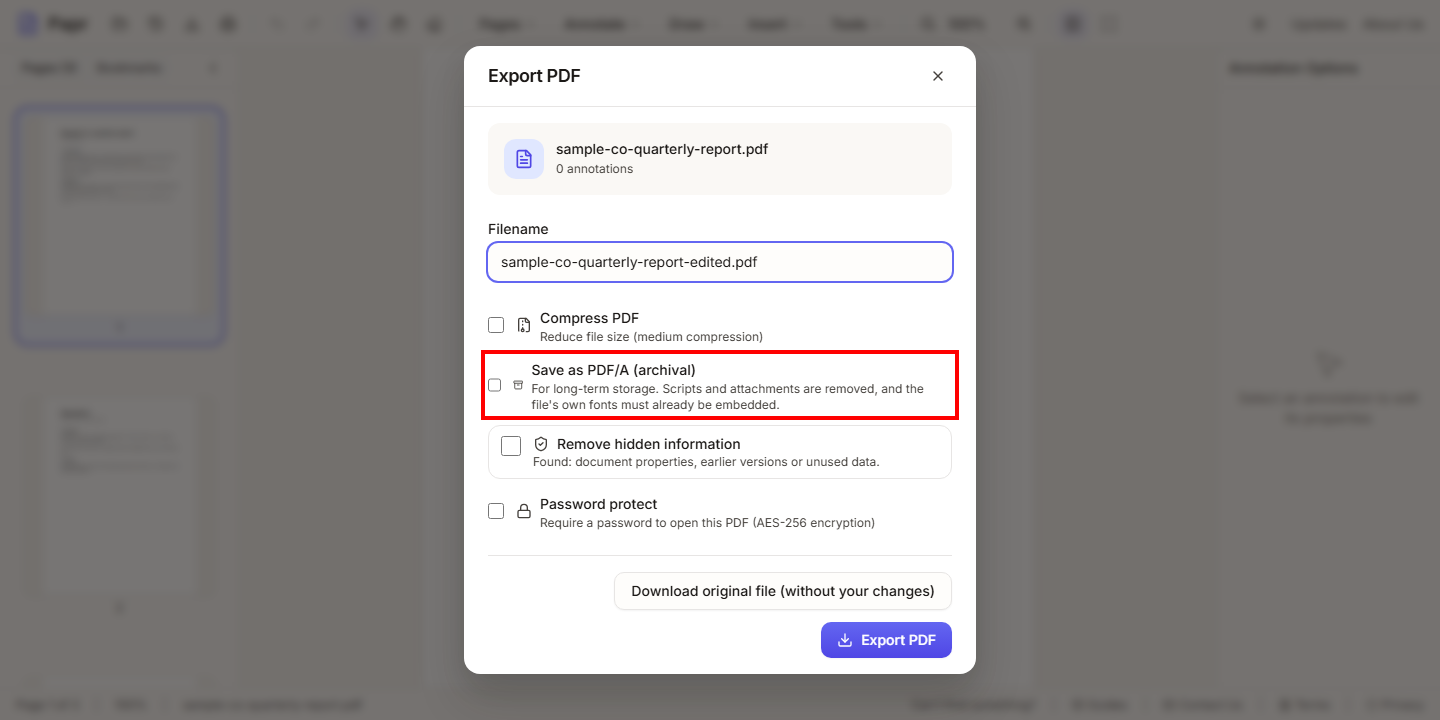
Open the PDF, then choose Export in the toolbar. The Export PDF dialog opens. Below the file name is the Save as PDF/A (archival) option. Its help text reads "For long-term storage. Scripts and attachments are removed, and the file's own fonts must already be embedded." Tick the option to save a PDF/A copy.
2.Tick Save as PDF/A
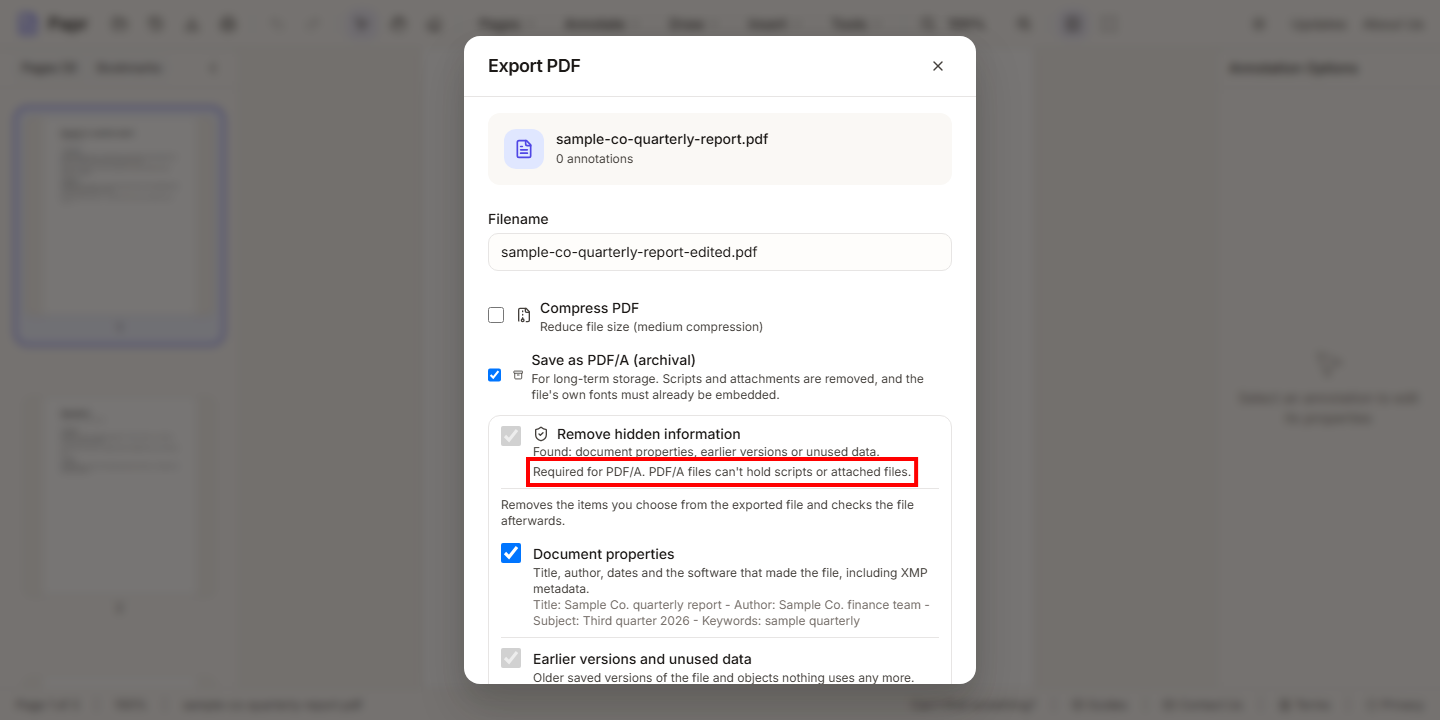
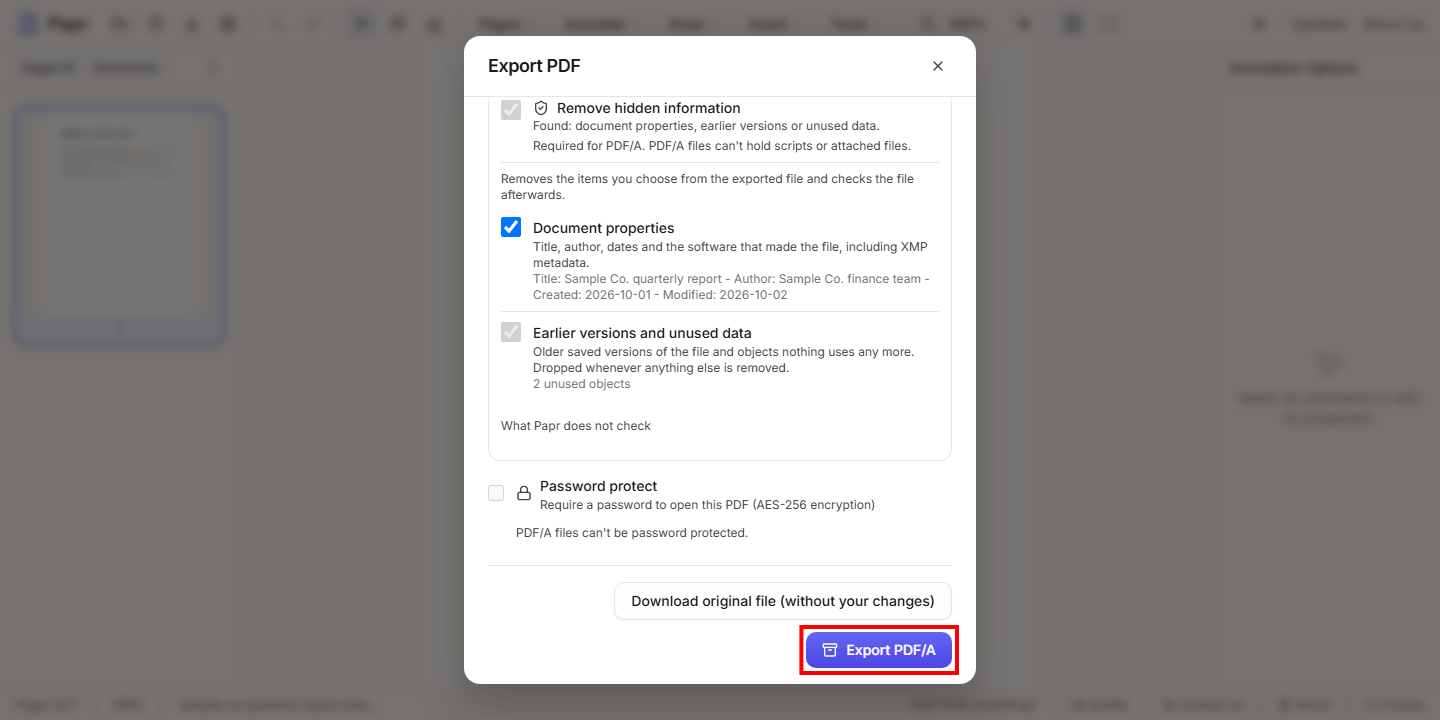
Once the option is ticked, the button at the foot of the dialog reads Export PDF/A. The Remove hidden information section switches on by itself. Its scripts and attached files choices are fixed on, because a PDF/A file cannot hold them, and the note under the section says so. The other choices in that section keep the settings you made there. Document properties is ticked by default, as it is in Remove hidden information, and the text under it lists what it removes.
3.Password protection and comments turn off
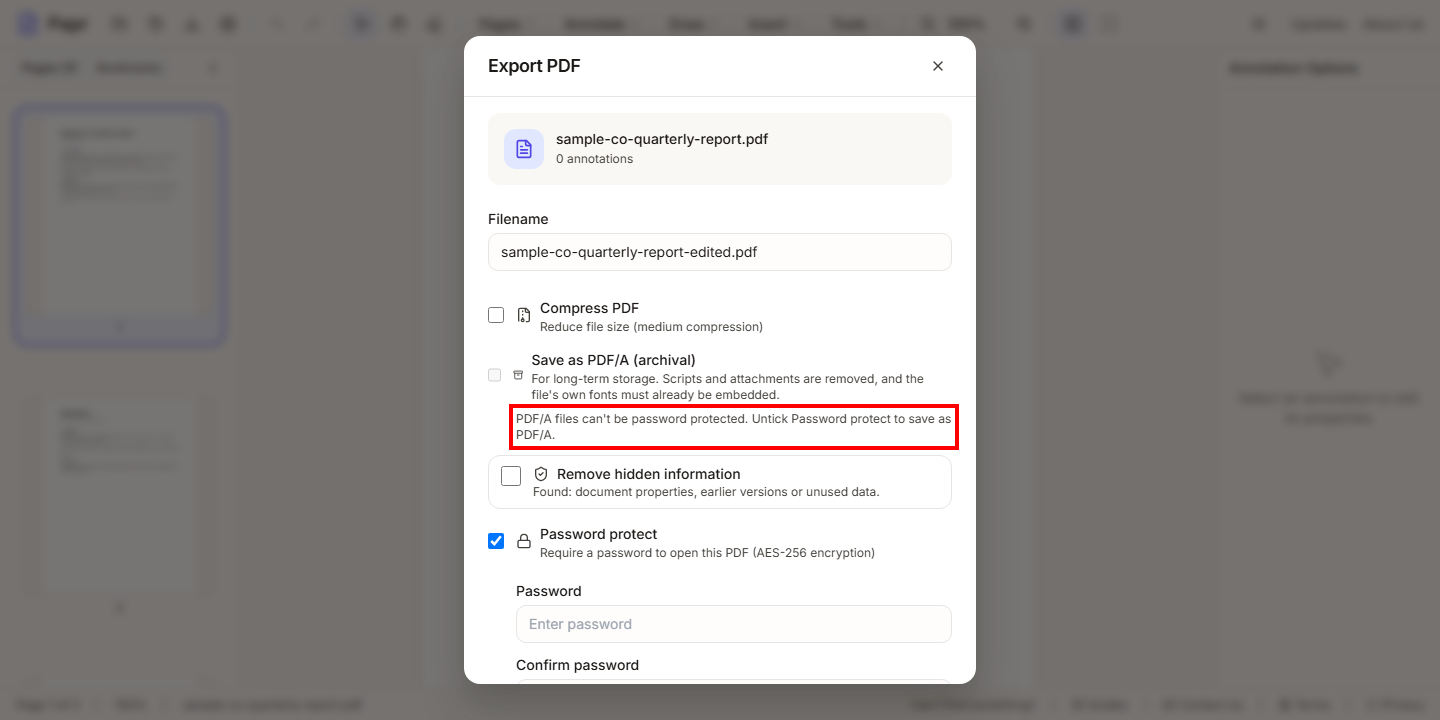
A PDF/A file cannot be password protected. Ticking Save as PDF/A unticks Password protect and leaves it unavailable. If you tick Password protect first, the PDF/A option is unavailable and says why. Untick the password option to save as PDF/A.
Comments with text are the other change. A PDF/A file cannot hold scripts, so when the file has such comments, they are saved as pictures, and the Interactive comments option is turned off.
4.A font that is not embedded stops the export
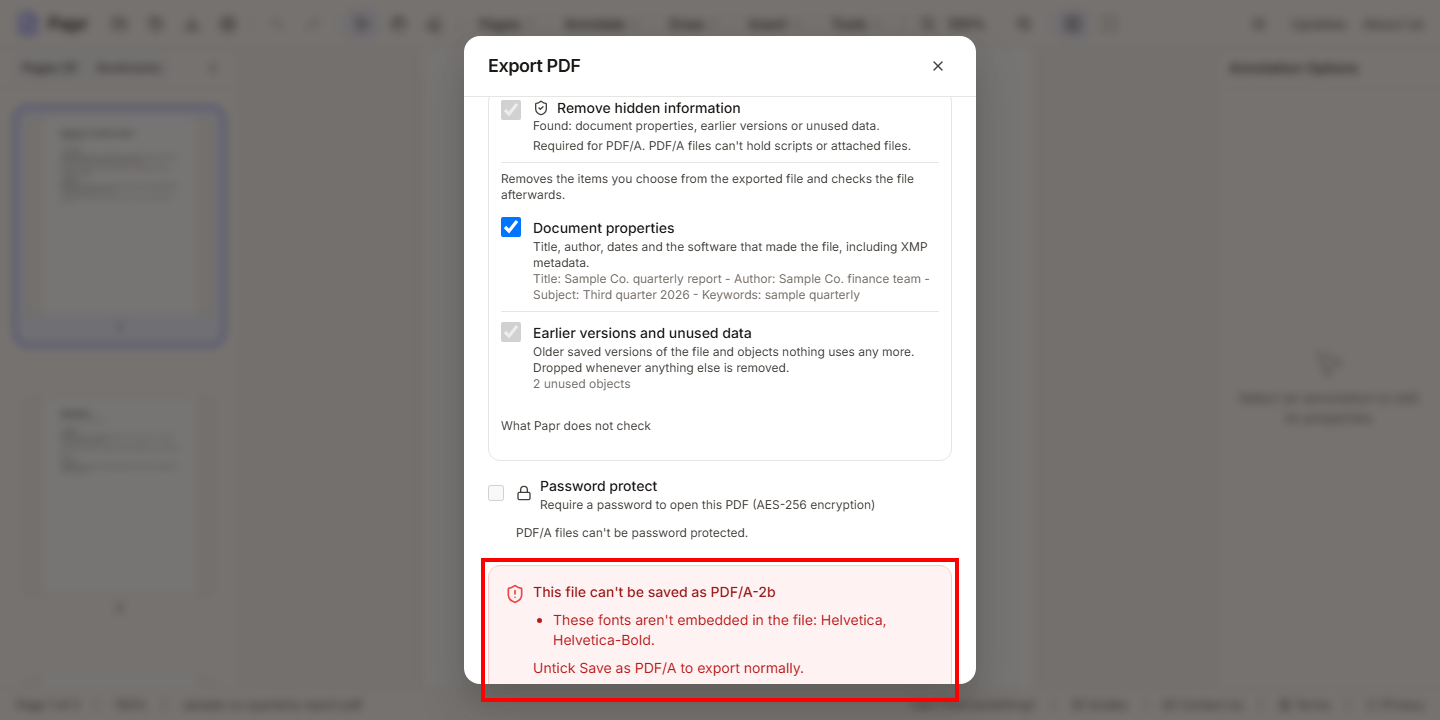
Papr checks the finished file before it is handed out. A font that is not embedded in the file is a reason to refuse it. A PDF made with the standard fonts, such as Helvetica, is refused, and the dialog names the fonts: These fonts aren't embedded in the file: Helvetica, Helvetica-Bold. Nothing is downloaded.
To export the file normally, untick Save as PDF/A, and choose Export PDF. To keep the PDF/A option, create the PDF again from its source with its fonts embedded, then open it here.
5.Export a file whose fonts are embedded
A PDF whose text uses fonts embedded in the file passes the check. With Save as PDF/A ticked, the Export PDF/A button is ready. Choose it to download the PDF/A-2b file. Papr reads the saved file again before it is handed out. The message that follows confirms it, for example PDF/A file exported successfully (PDF/A-2b).
Good to know
Try it on your own file
Everything in this guide happens in your browser tab. Your file stays on your device.
Open the PDF editor