How to Redact Sensitive Information in PDFs Online Free
Remove confidential words and pictures from a PDF before you share it. Redaction is applied when you export, and it removes the content under the marks from the exported file.
Step by step
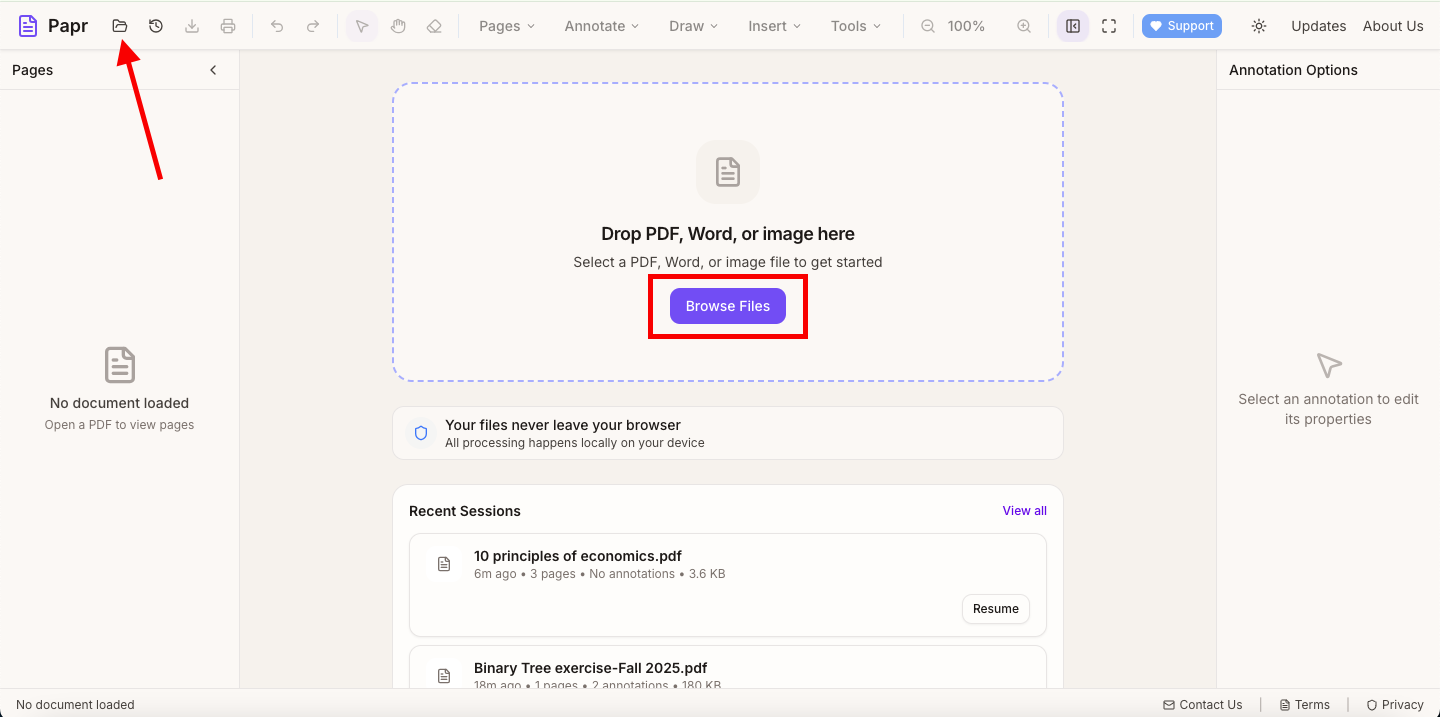
1.Open the PDF
Click Open file in the toolbar, or drop the PDF onto the page. Work on a copy: a redaction is permanent in the exported file, and the original stays as it was.
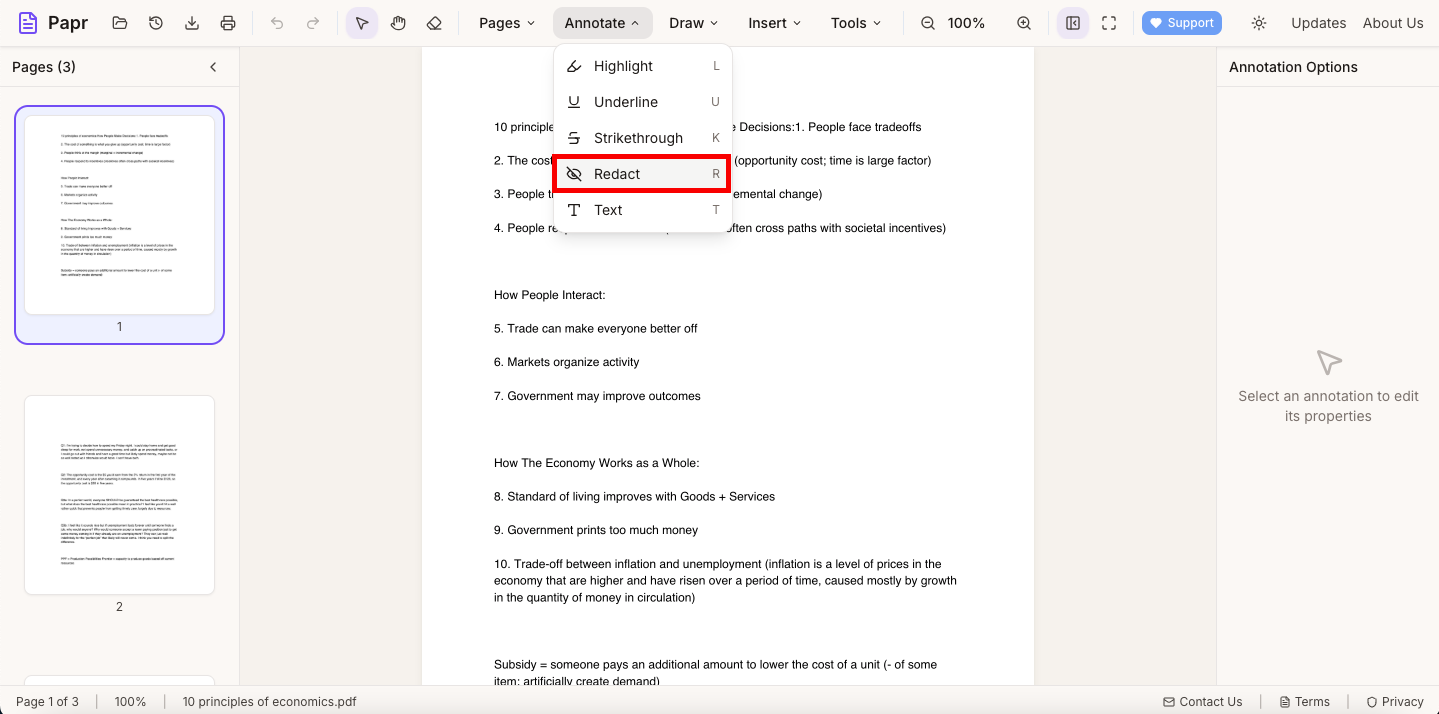
2.Choose Redact
Open the Annotate menu and click Redact. The keyboard shortcut is R.
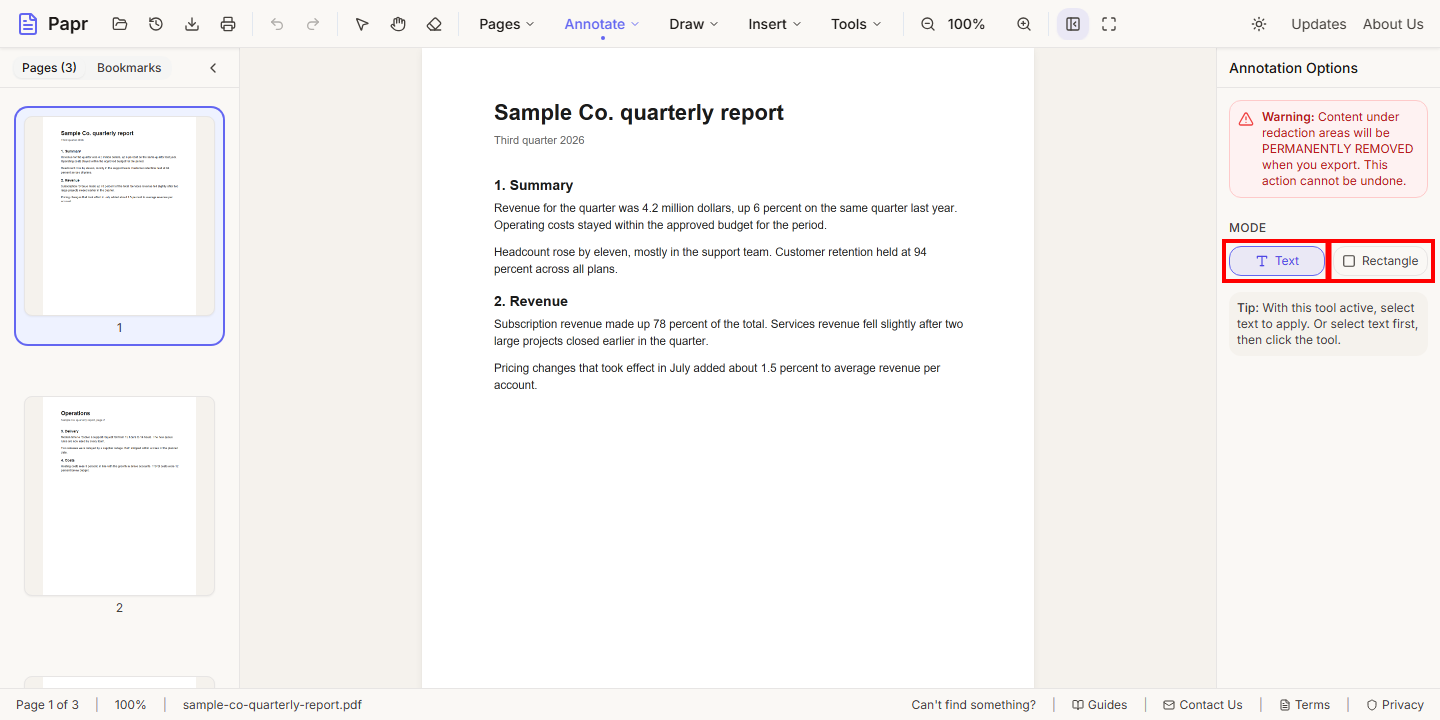
3.Mark what to remove
Choose a mode in the Annotation Options panel. Text marks words: select them, and the mark is applied. Rectangle marks an area: drag a box over text, a picture or a figure.
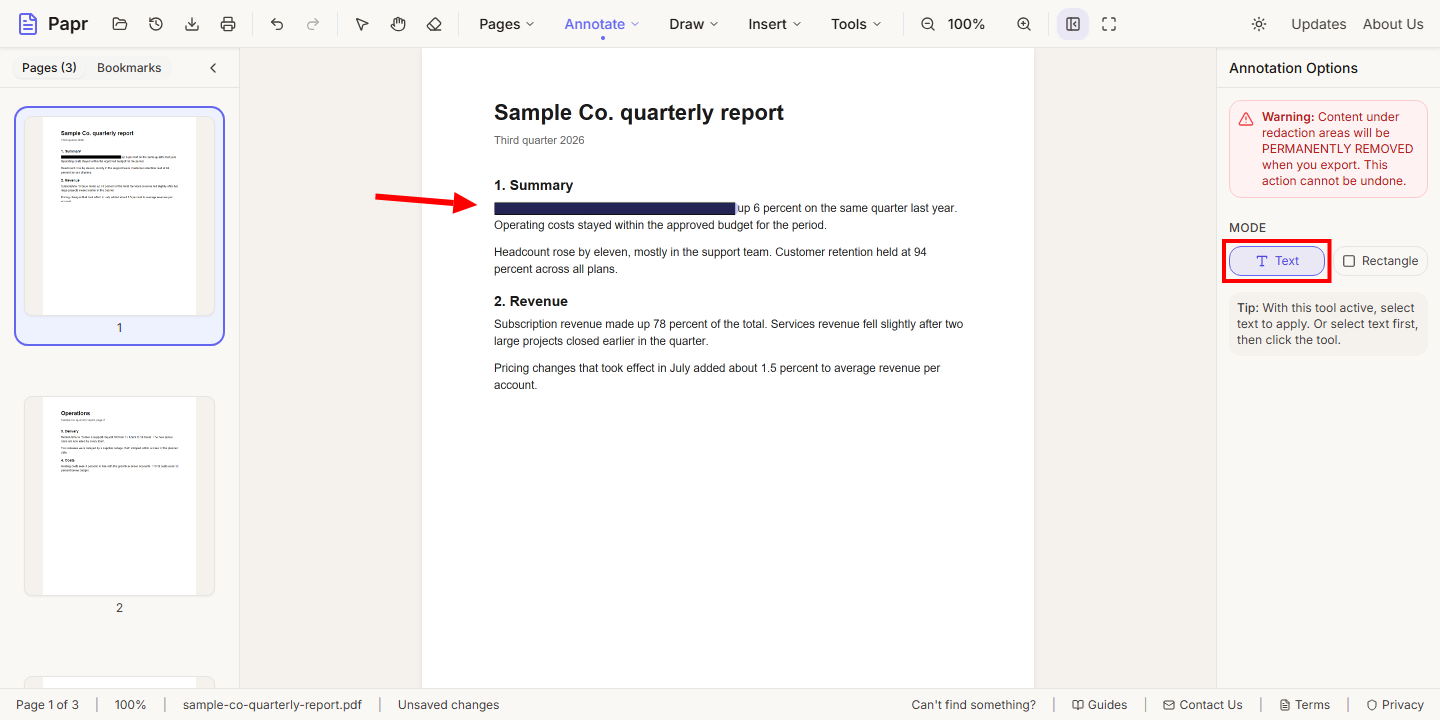
4.Mark words by selecting them
In Text mode, select the words first. Papr marks them, and the mark shows on the page as a black bar.
5.Review every page
Scroll through the whole document before you export. Check the headers, the footers and any appendix, because the same name or number can appear more than once.
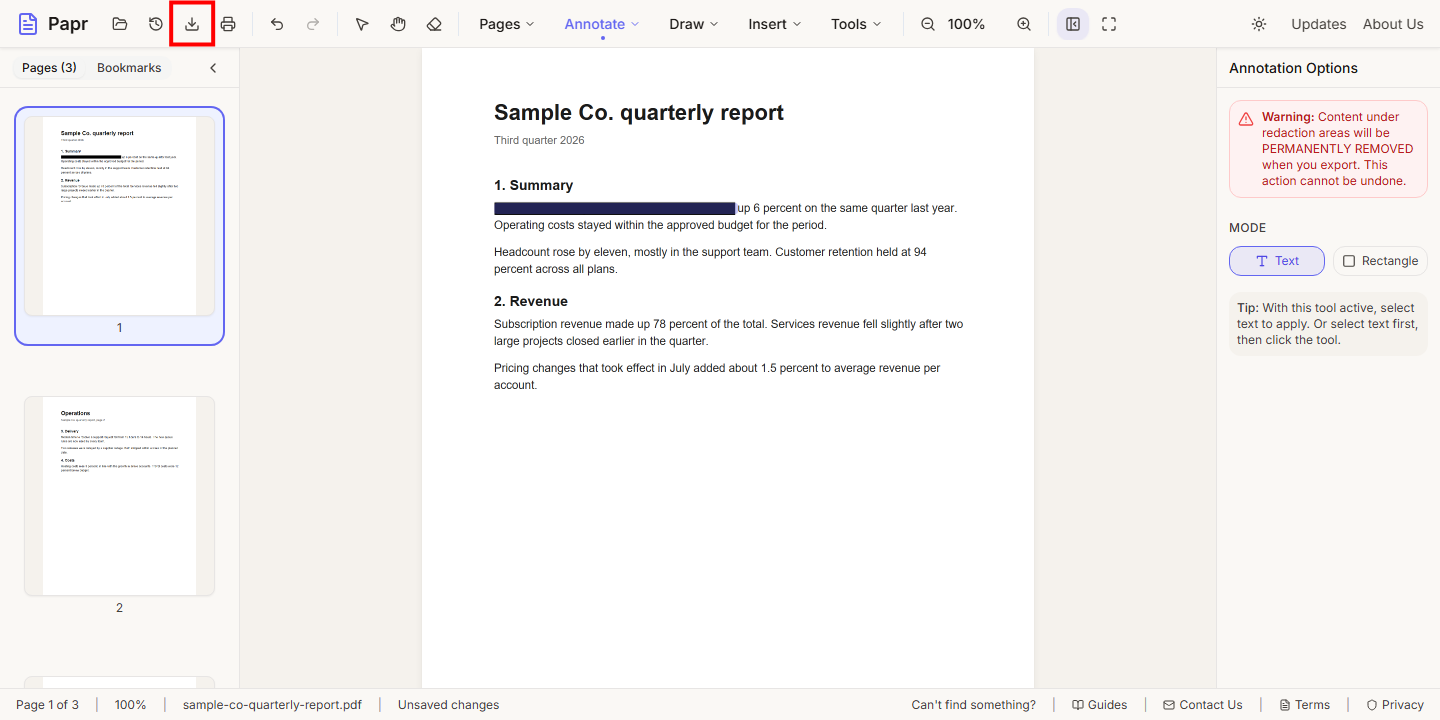
6.Confirm and export
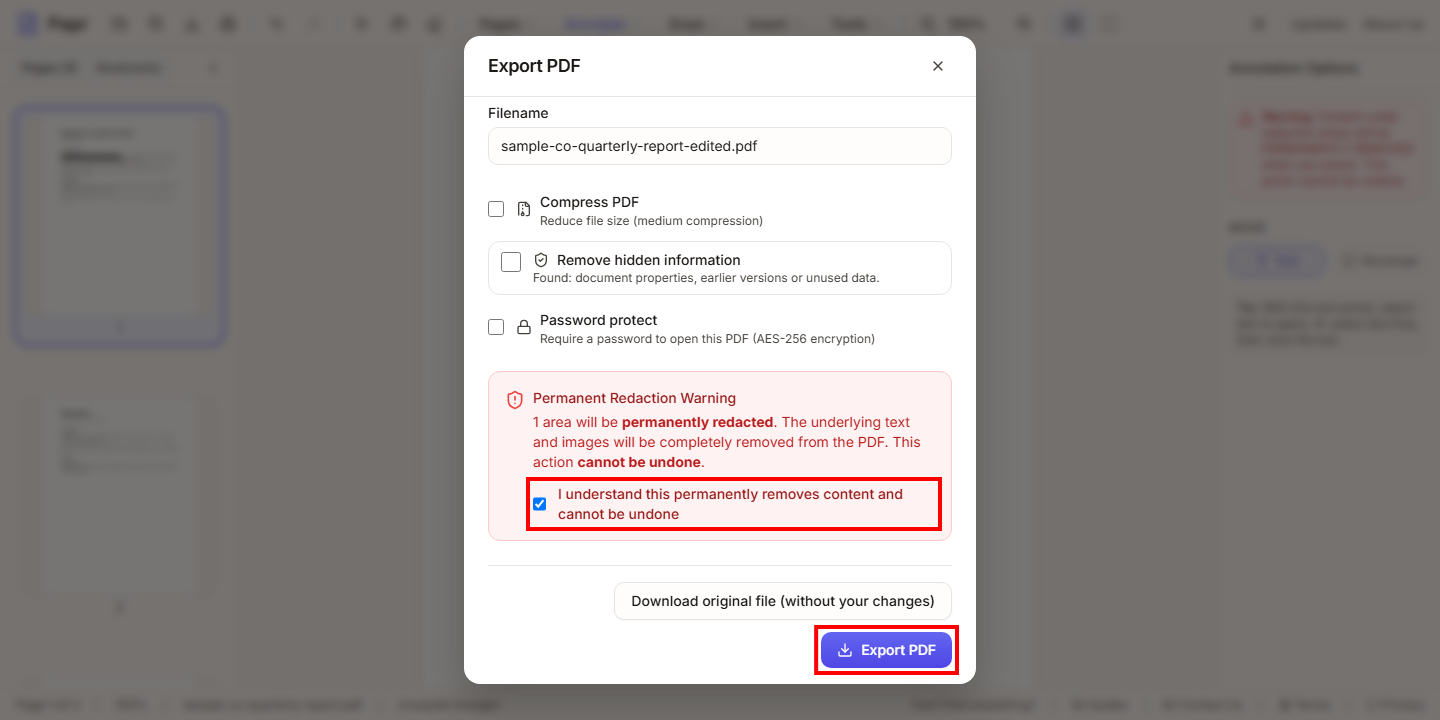
Click Export in the toolbar. The export dialog shows a permanent redaction warning and how many areas will be removed. Tick I understand this permanently removes content and cannot be undone, then click Export PDF. Until you tick it, the button reads Confirm Redaction to Export and cannot be clicked.
What the exported file loses
The export removes three things under each redacted area:
- the text under the area;
- the images and vector artwork under the area, where the artwork is touched by it;
- Papr's own content under the area, including any comment, form field or link.
On the redacted pages, the alternate text PDFs keep for those words is removed too: the ActualText, Alt and E entries, their copies in the document structure, and the page thumbnails.
Tips
- Keep the original file. A redaction cannot be undone in the exported copy.
- Redact the content first, then tick Remove hidden information in the same export to remove the metadata and any other kinds you choose.
Try it on your own file
Everything in this guide happens in your browser tab. Your file stays on your device.
Open the PDF editor