How to Annotate and Markup PDFs Online Free
Highlight a passage, underline a figure, draw a shape or write a note on a page. The markup is saved in the document, and it is exported with the file.
The tools
- Annotate: Highlight, Underline, Strikethrough, Text and Edit Text.
- Draw: Pen for freehand marks, and Shape for rectangles, circles, arrows and lines.
- Insert: Comment for a note on a spot, and Widget for a chart or table. The Insert menu also holds Signature, Stamp and Image.
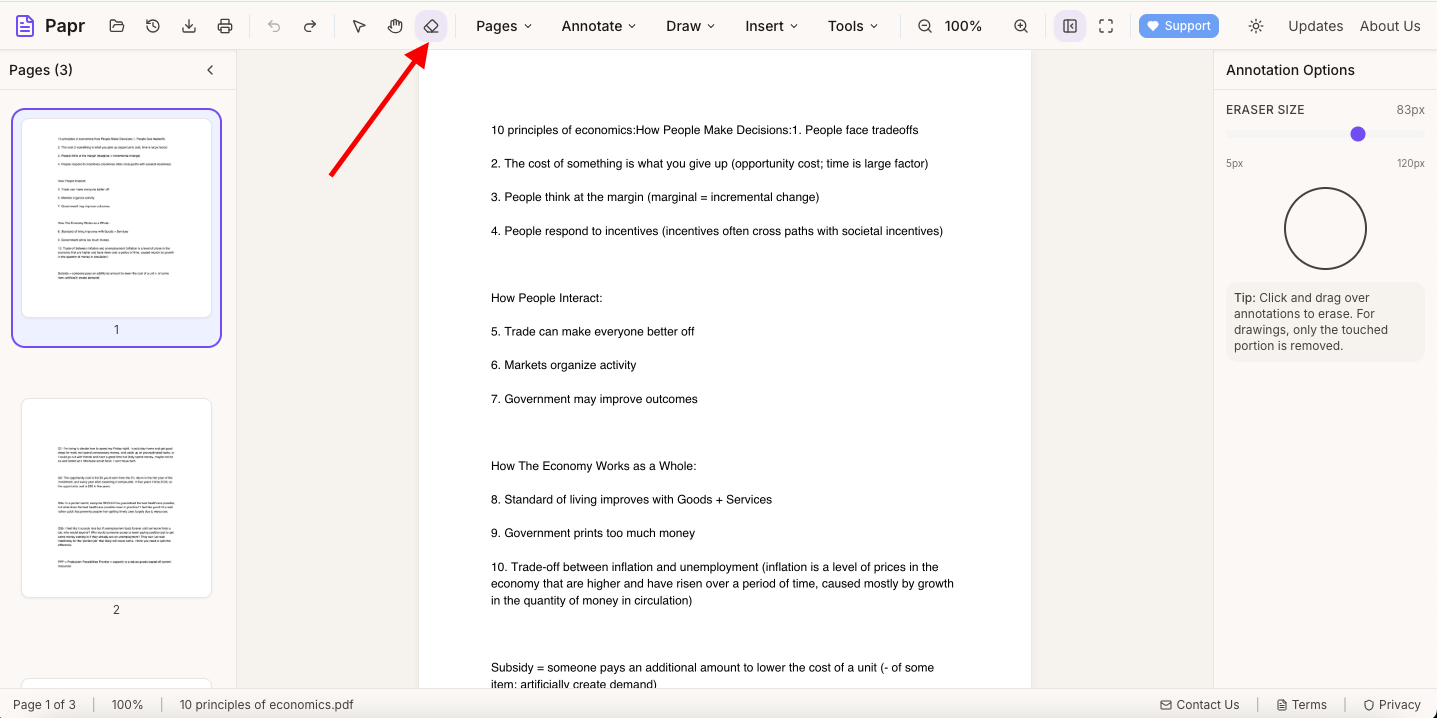
- Eraser: the eraser button in the toolbar rubs out ink and markup, such as a pen stroke or a highlight.
Step by step
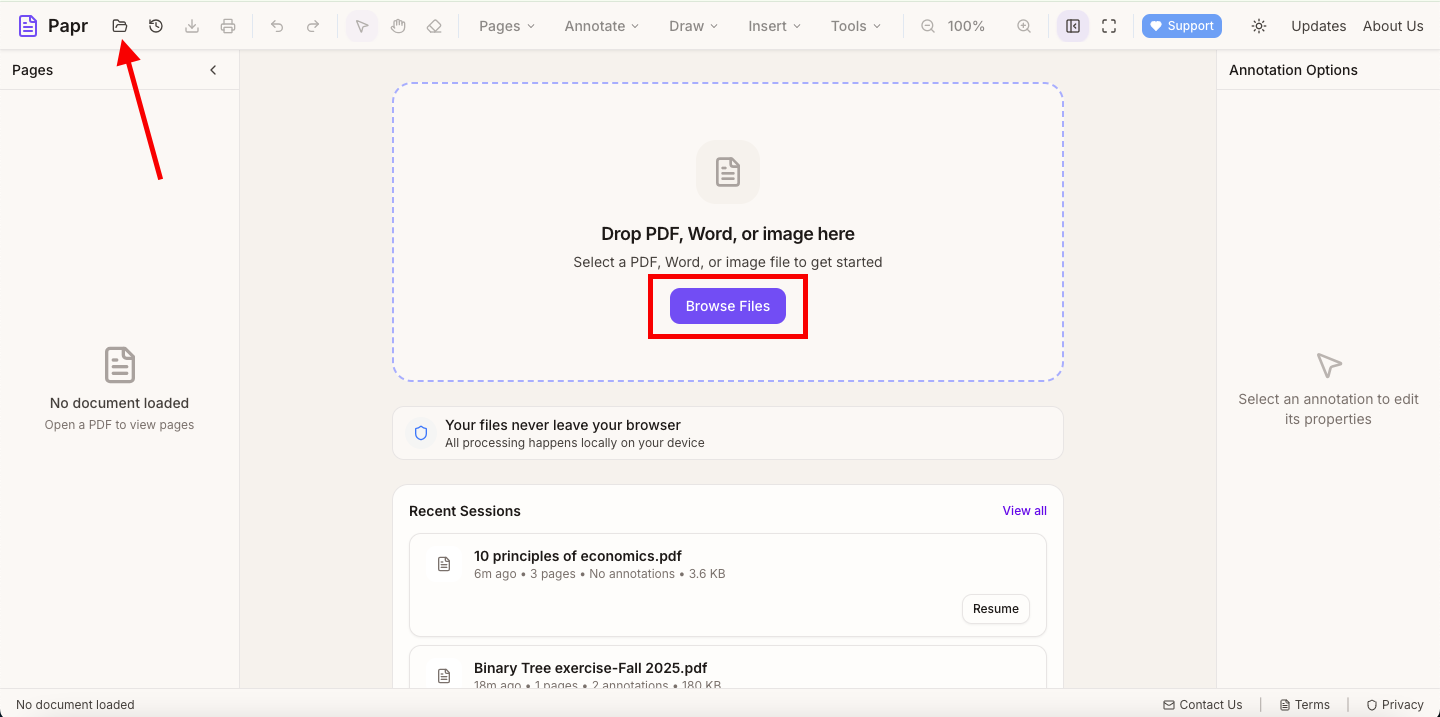
1.Open the PDF
Click Open file in the toolbar, or drop the PDF onto the page. The document opens in the viewer, ready to mark up.
2.Choose a tool
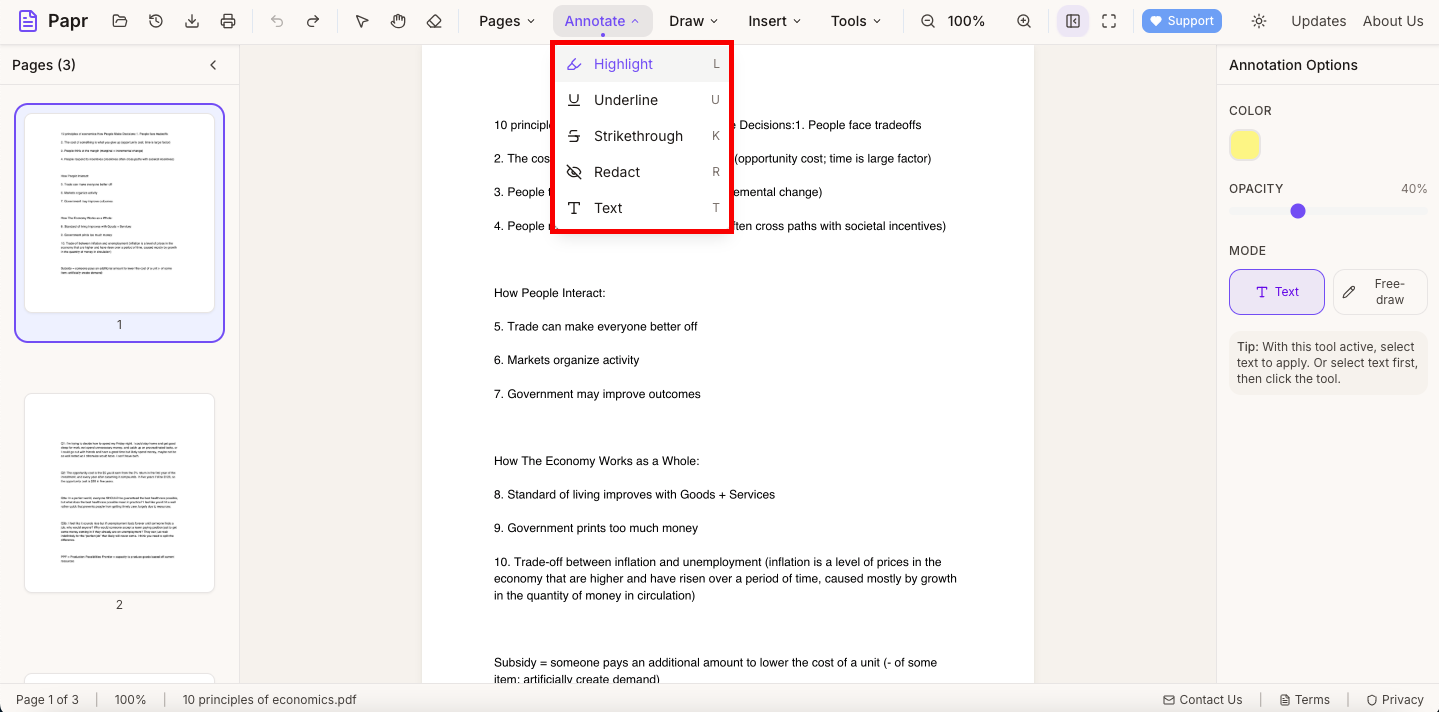
Open the Annotate menu for the text markup tools, or the Draw menu for the Pen and Shape. Choose the tool, and pick a color if you want one. The keyboard shortcut for each tool is shown next to its name.
3.Mark up the page
For a highlight or underline, select the words first. For a shape or the Pen, drag on the page. Choose another tool when you are done, or press Escape to return to the Select tool.
4.Erase a mistake
Choose the Eraser from the toolbar, and drag over a stroke or a highlight to remove it. The eraser only removes ink and markup. To remove a text box, a stamp or a shape, select it and press Delete.
5.Export the annotated PDF
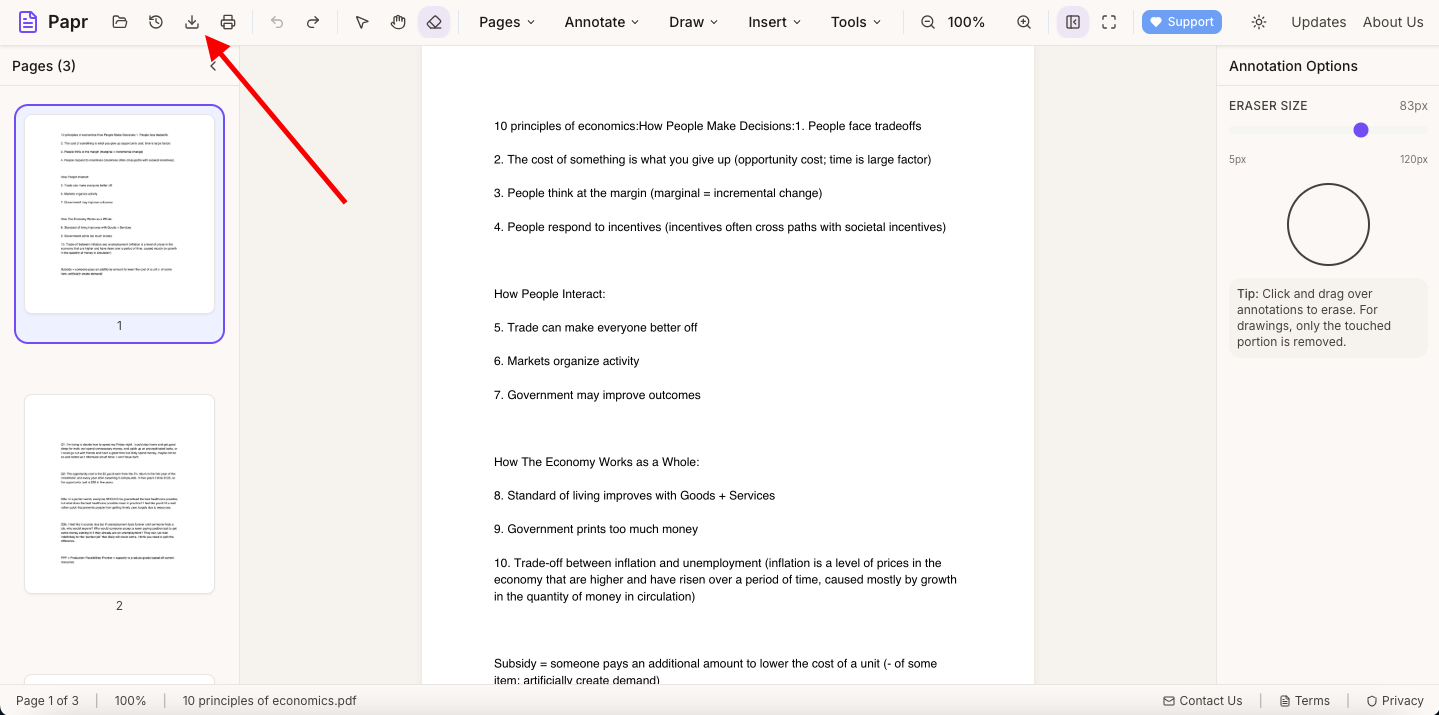
Click Export in the toolbar and save the file. The markup is part of the exported PDF, so it shows in any PDF reader.
Tips
- Pair a highlight with a comment when you need to say why a passage matters.
- Use an arrow shape to point at the part of a figure that needs attention.
- Mark up only the points that matter, so the page stays clear.
Try it on your own file
Everything in this guide happens in your browser tab. Your file stays on your device.
Open the PDF editor