How to Add a Signature to PDF Online Free
Put a drawn or typed signature on a page. Papr adds it as a picture of your signature, and the file never leaves your browser.
Step by step
1.Open the PDF
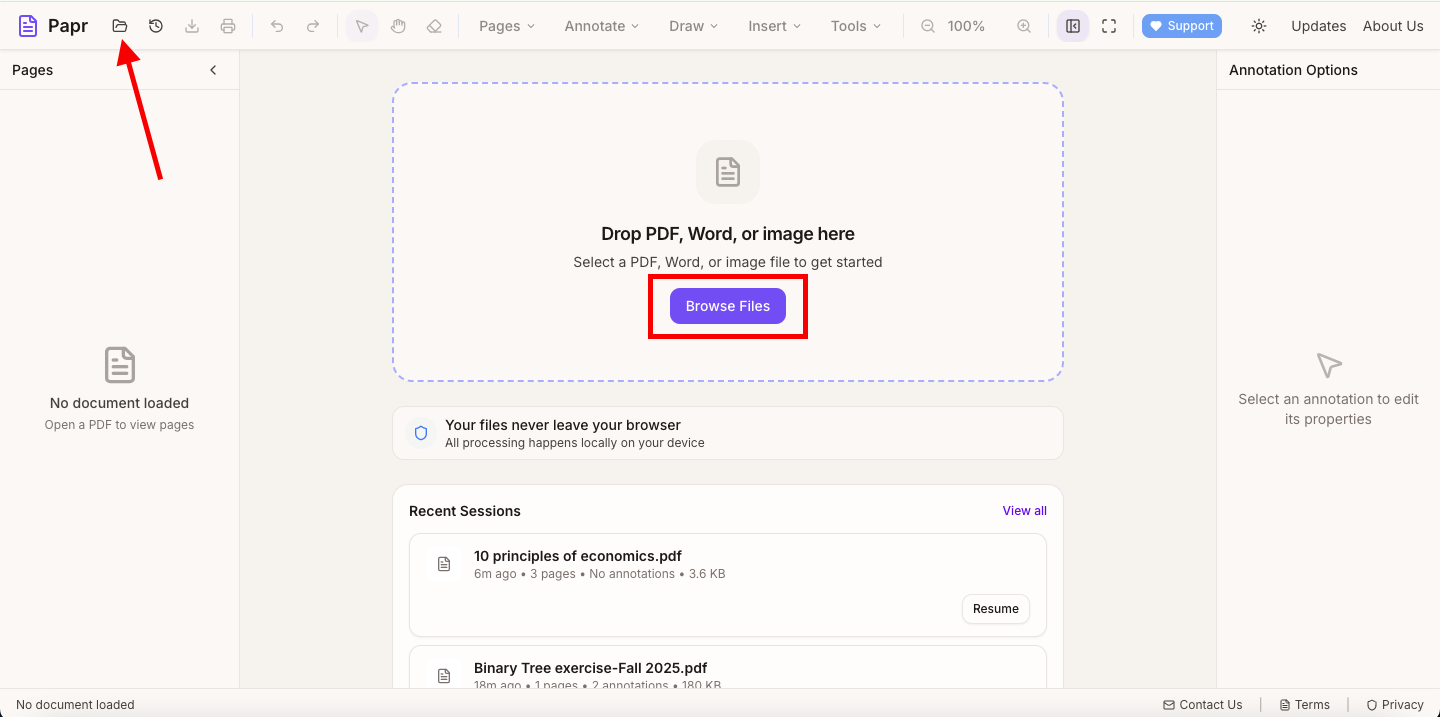
Click Open file in the toolbar, or click Browse Files in the middle of the screen. You can also drop the PDF onto the page.
2.Find the signature line
Scroll to the page with the line or box where the signature goes. Papr places the signature wherever you click, so you can put it on the line itself.
3.Choose Signature
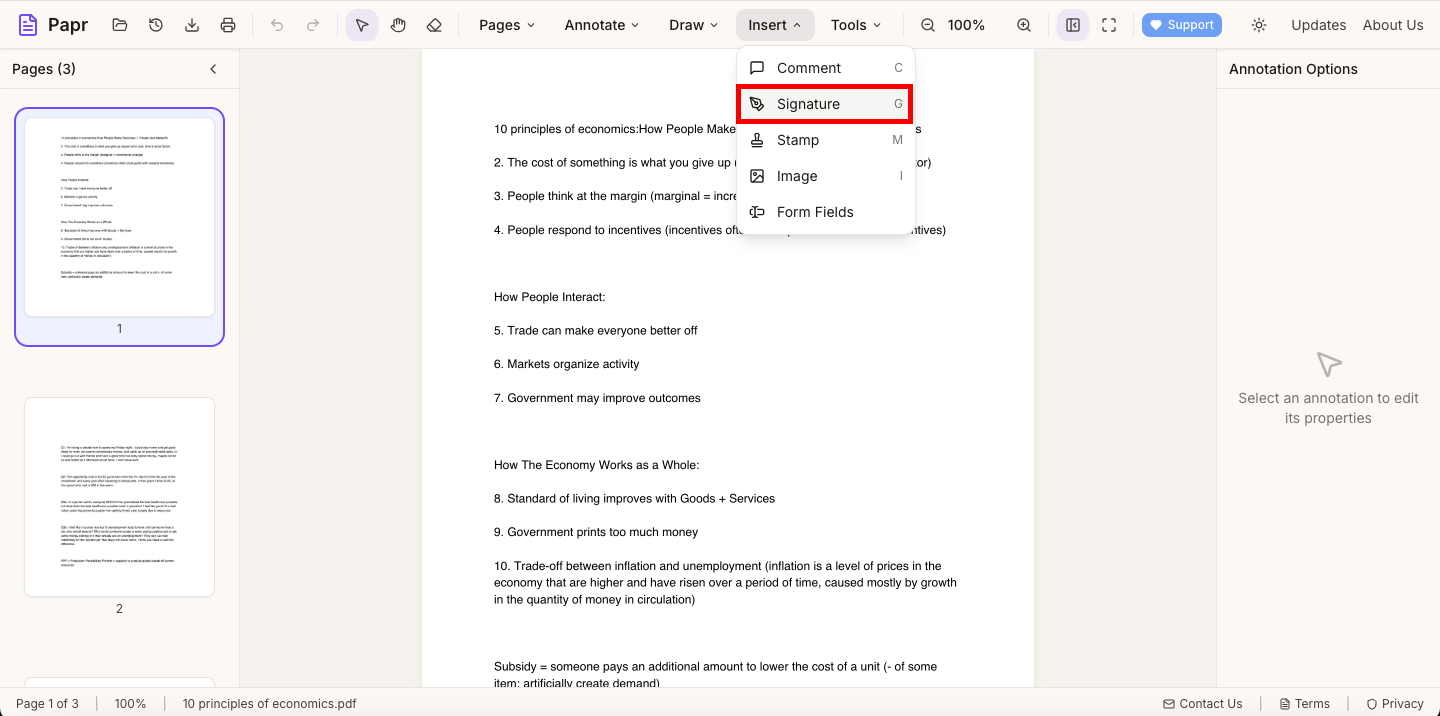
Open the Insert menu and click Signature. The keyboard shortcut is G. The Create Signature dialog opens.
4.Draw or type the signature
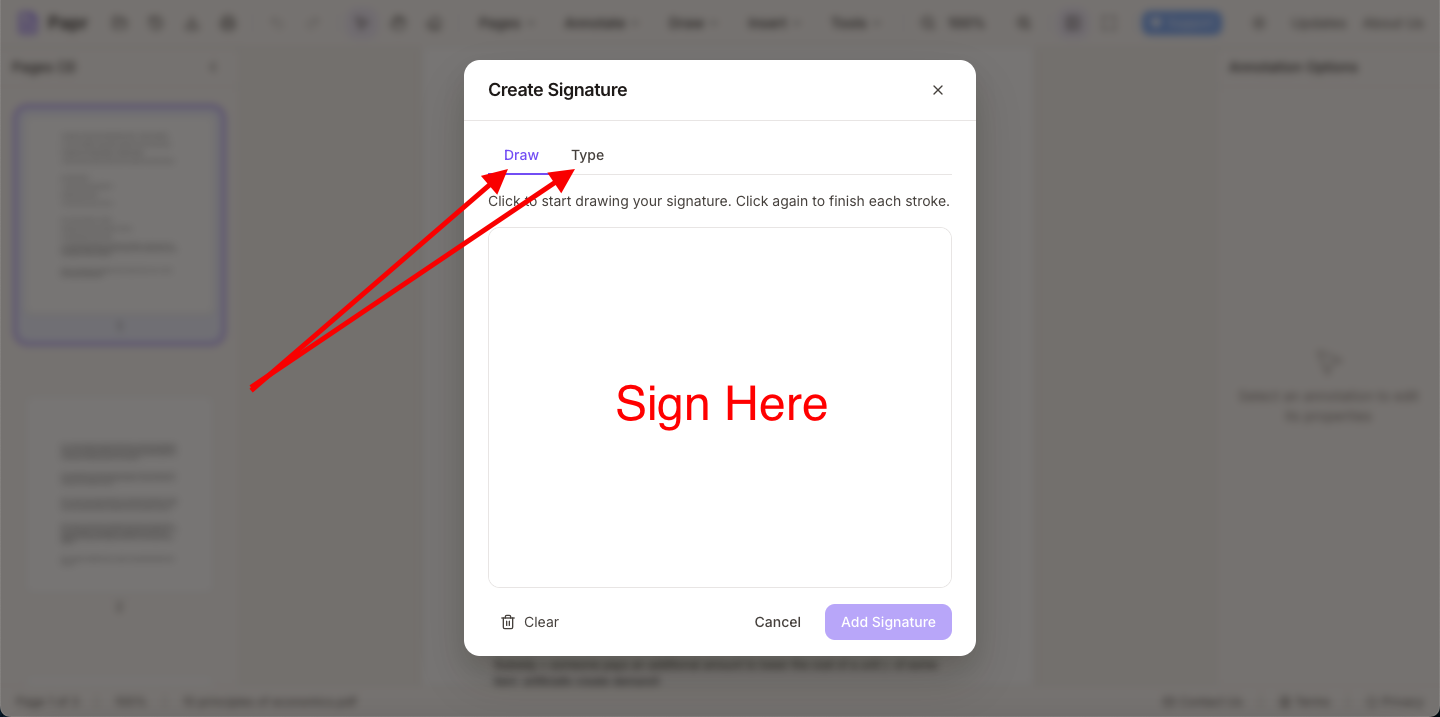
On the Draw tab, sign with the mouse, a trackpad or a finger. Click once to start a stroke, and click again to finish it. On the Type tab, enter your name and pick a script style. Use Clear to start again, then click Add Signature.
5.Place and resize it
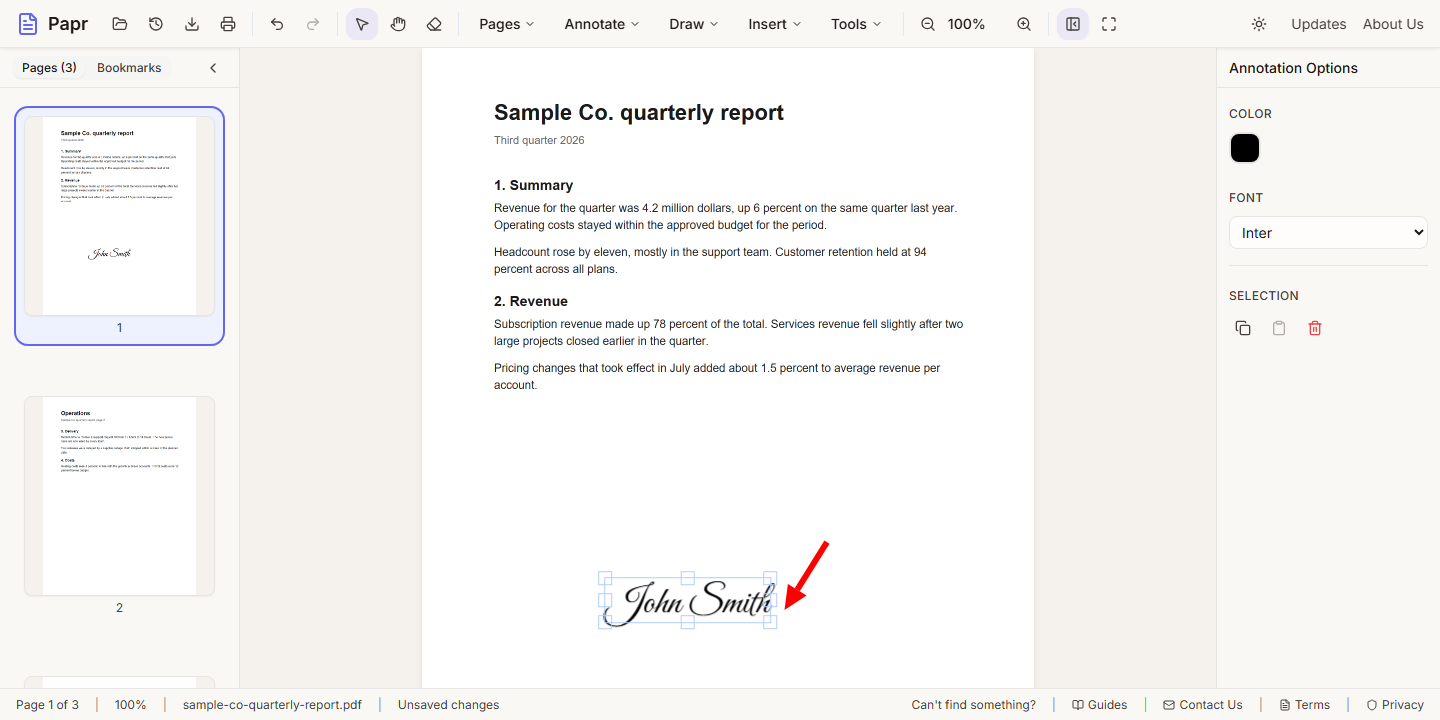
After you click Add Signature, click the page where the signature should go. Drag the signature to move it, or drag one of its corner handles to make it larger or smaller.
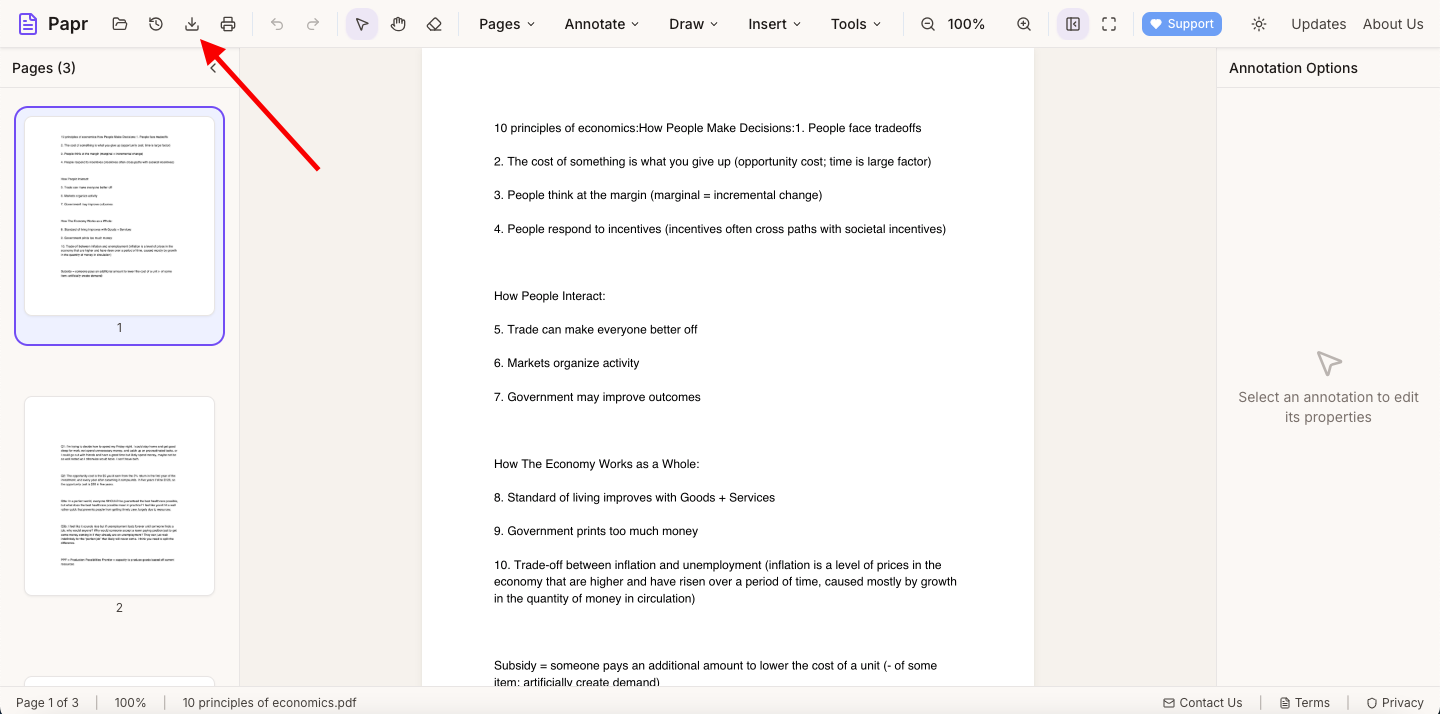
6.Export the signed PDF
Click Export in the toolbar and save the file. The signature is part of the exported PDF.
Tips
- A stylus or a touchscreen gives a more natural line than a mouse.
- For initials on many pages, make a separate signature with just the initials, and place it each time.
Try it on your own file
Everything in this guide happens in your browser tab. Your file stays on your device.
Open the PDF editor