How to Add Comments to PDFs Online Free
Need review notes without drawing on the page? A comment pins a note to one spot. You can edit the note later, mark it as resolved, and export it with the file.
Step by step
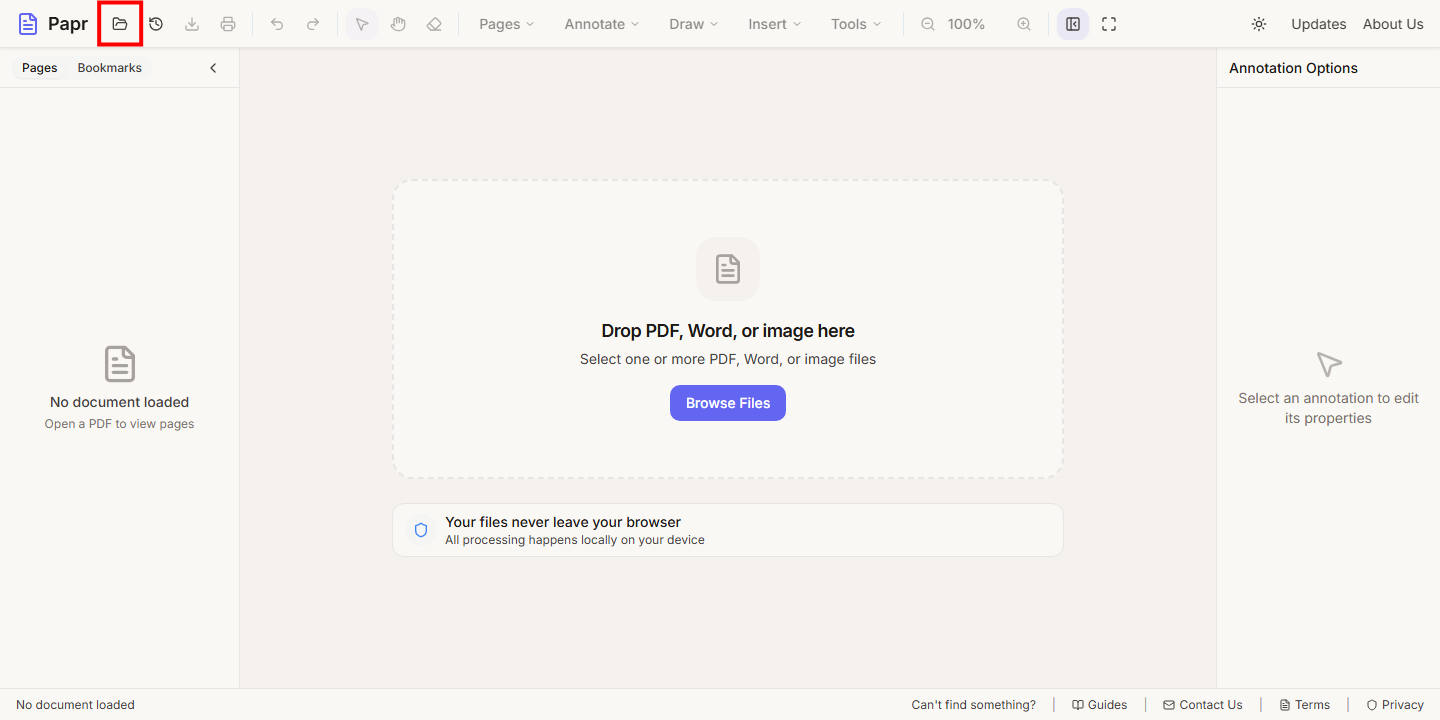
1.Open the PDF
Click Open file in the toolbar, or click Browse Files in the middle of the screen. You can also drop the PDF onto the page. The document opens in the viewer.
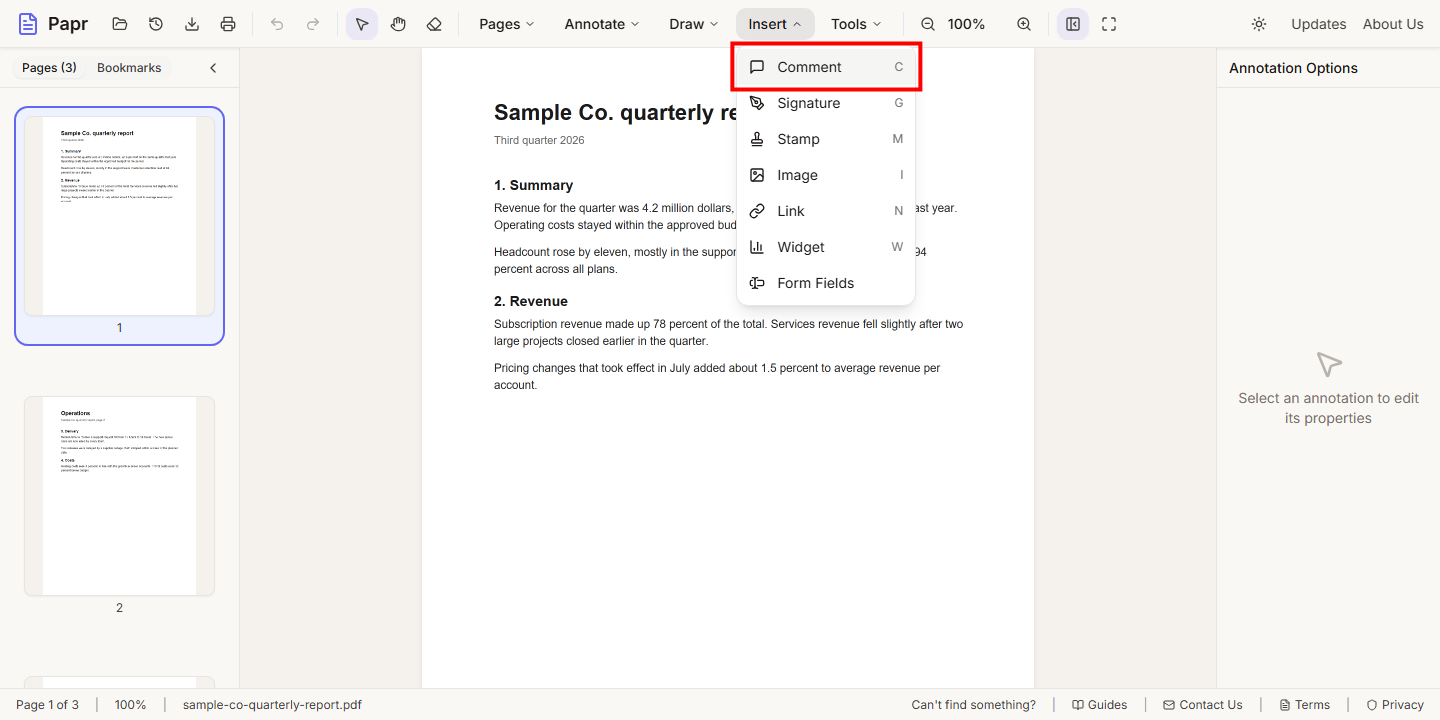
2.Choose Comment
Open the Insert menu and click Comment. The keyboard shortcut is C.
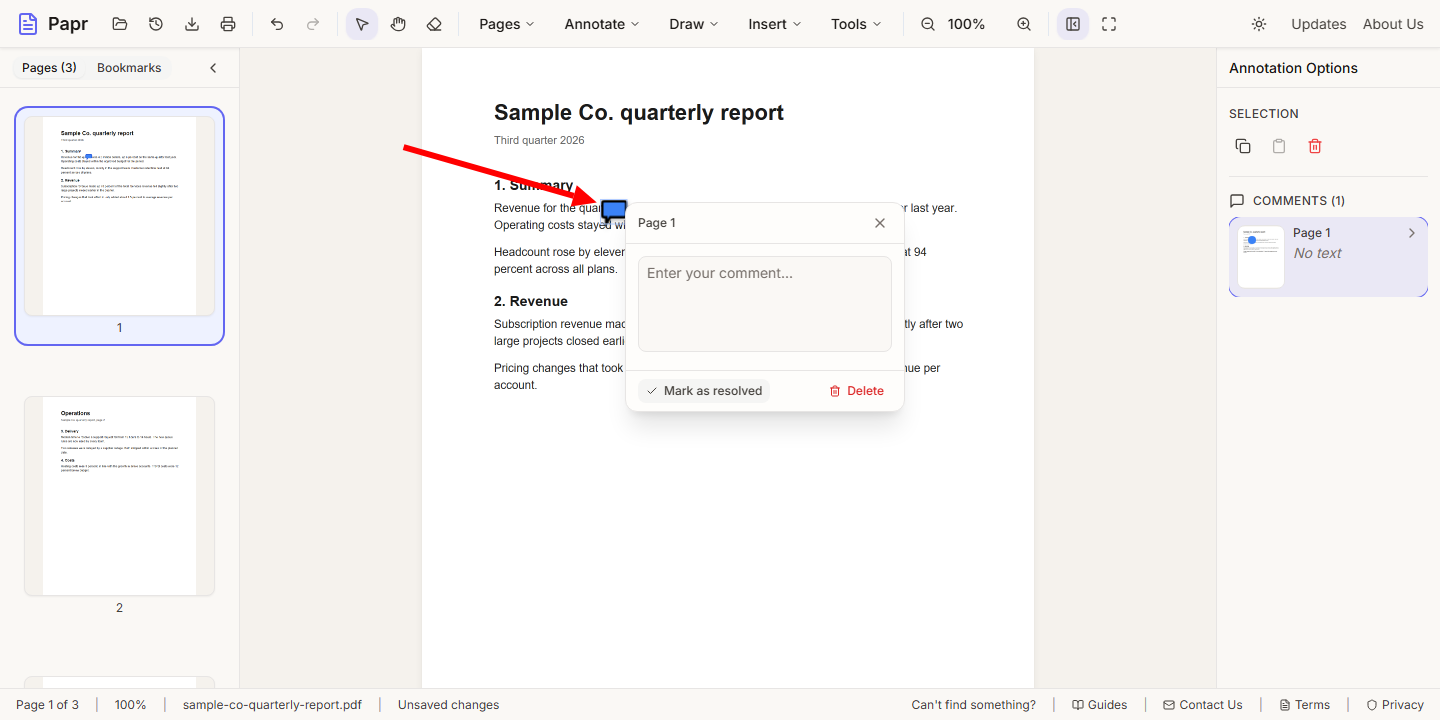
3.Click where the note belongs
Click the page at the spot the note is about. Papr places a comment marker there and opens a note box beside it.
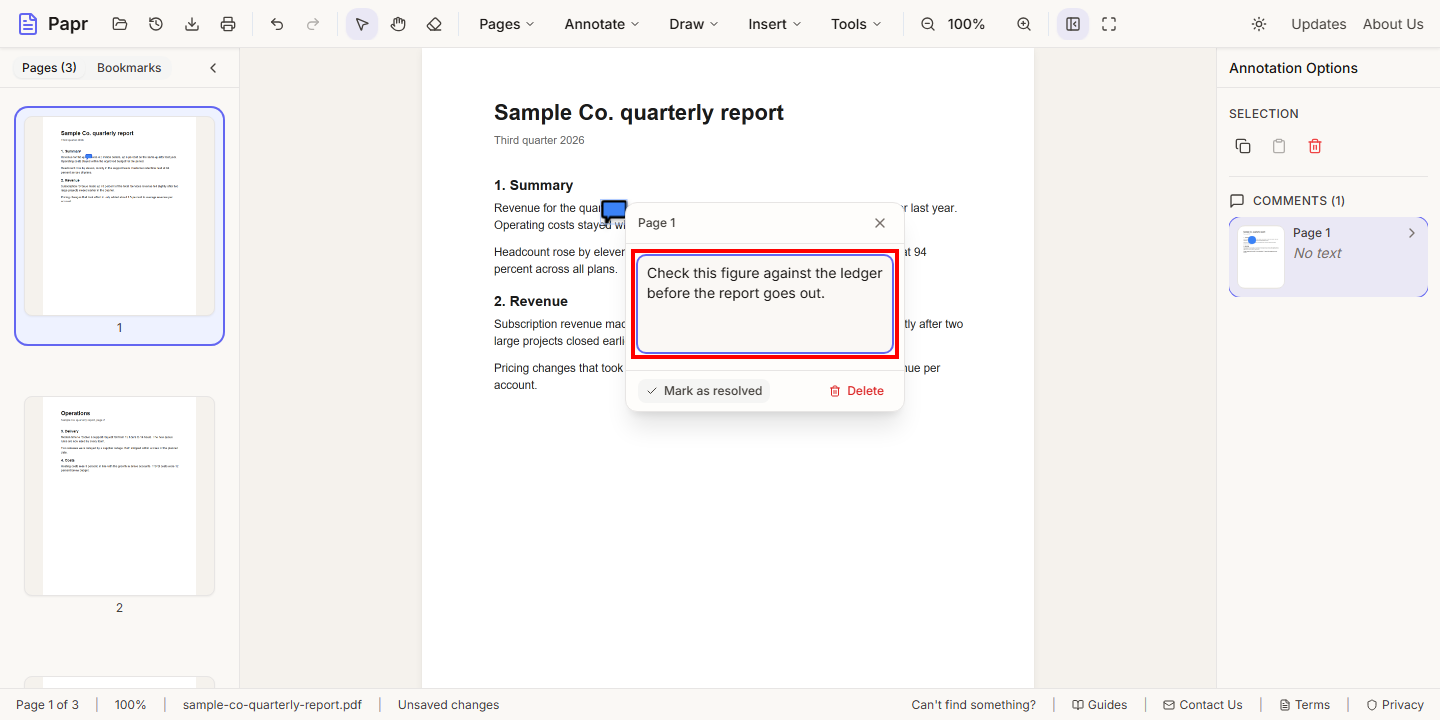
4.Write the note
Type your feedback in the note box. A comment that covers one point is easier to close later.
5.Close the note to save it
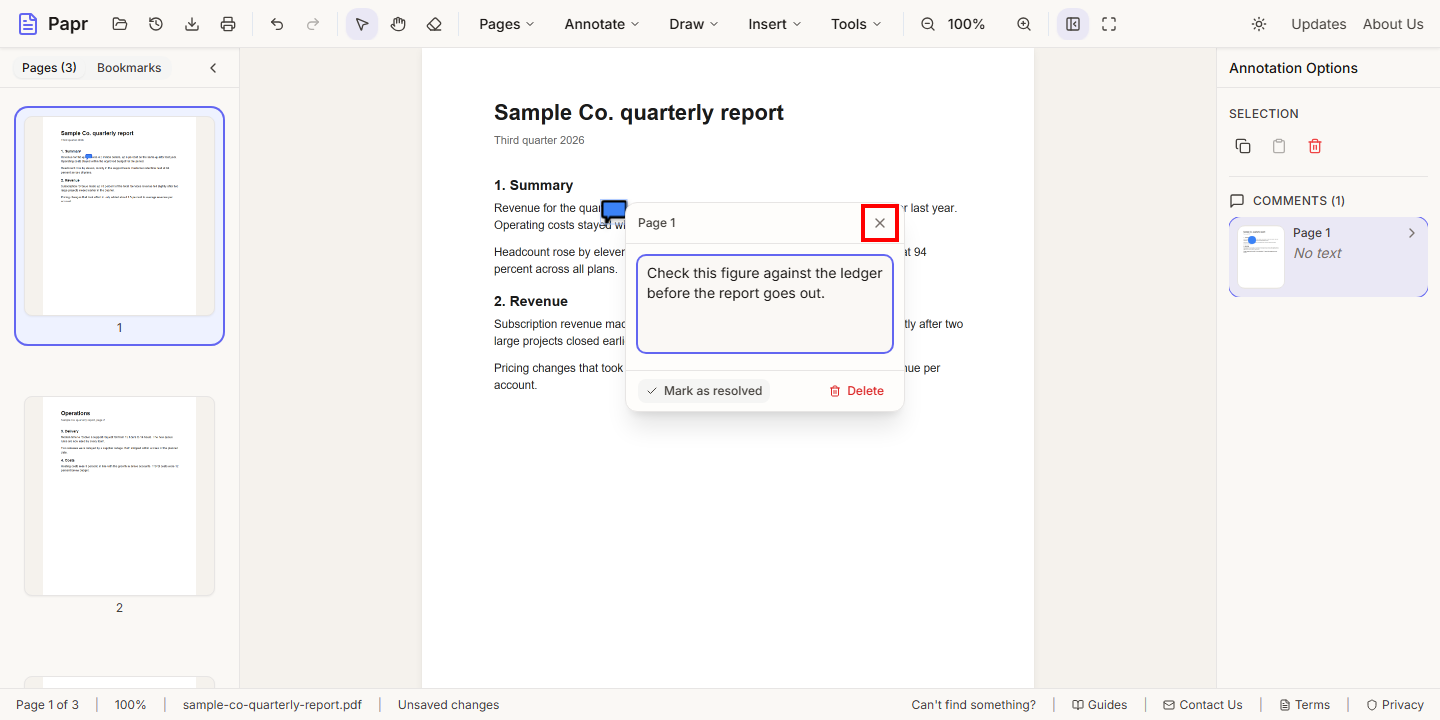
Click Close (the × in the corner of the note). Papr saves the text and lists the comment under Comments in the Annotation Options panel on the right.
6.Reopen the note and resolve it
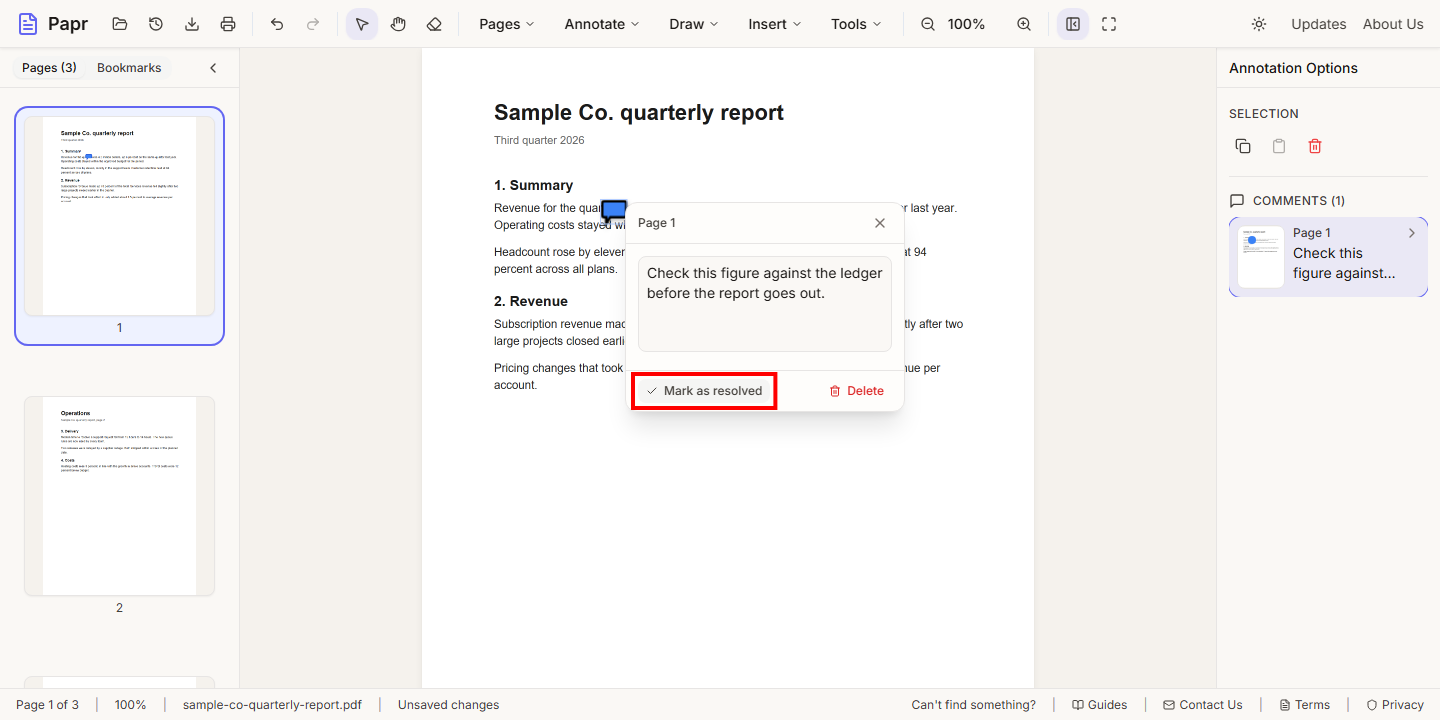
Click the comment marker again to reopen the note. When the point is dealt with, click Mark as resolved.
7.Check the list of comments
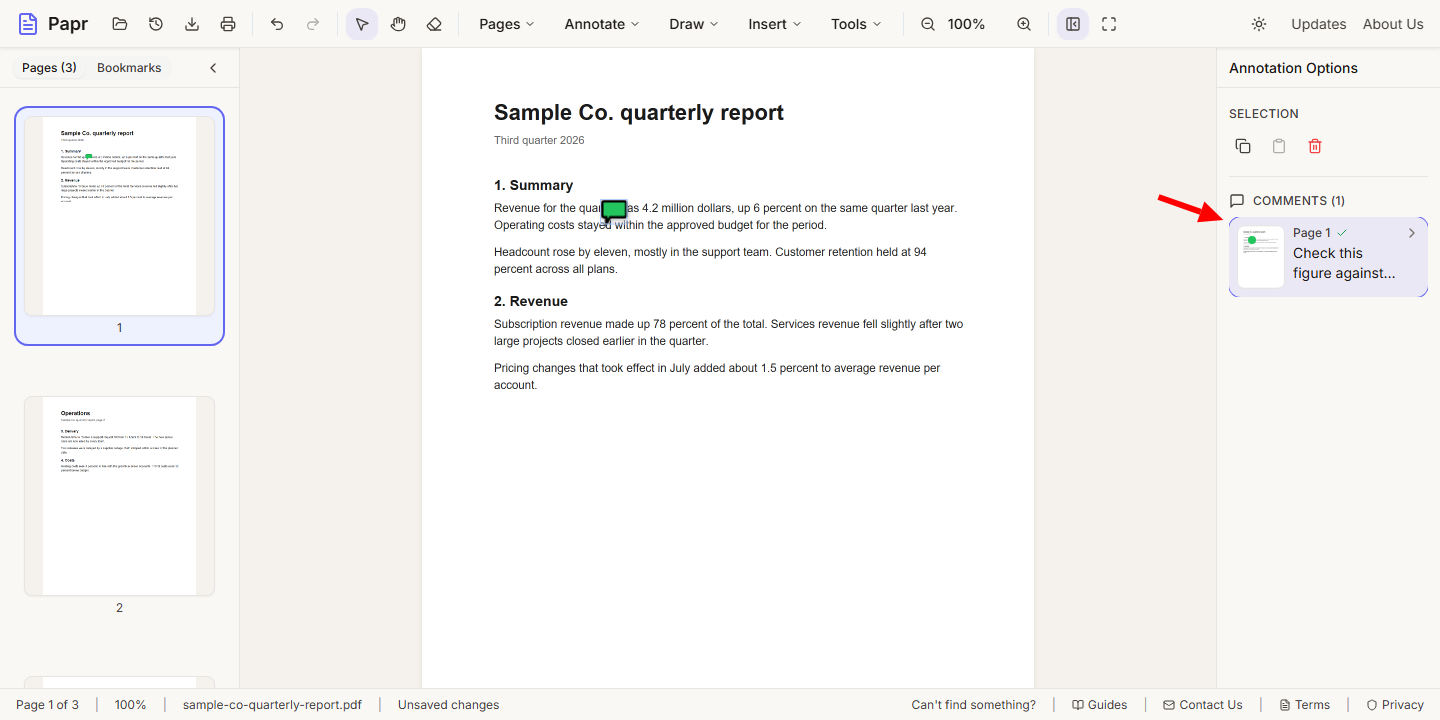
A resolved comment shows a check mark in the Comments list, and its marker on the page turns green. The list is in the Annotation Options panel on the right, so you can see what is still open.
8.Export with the comments
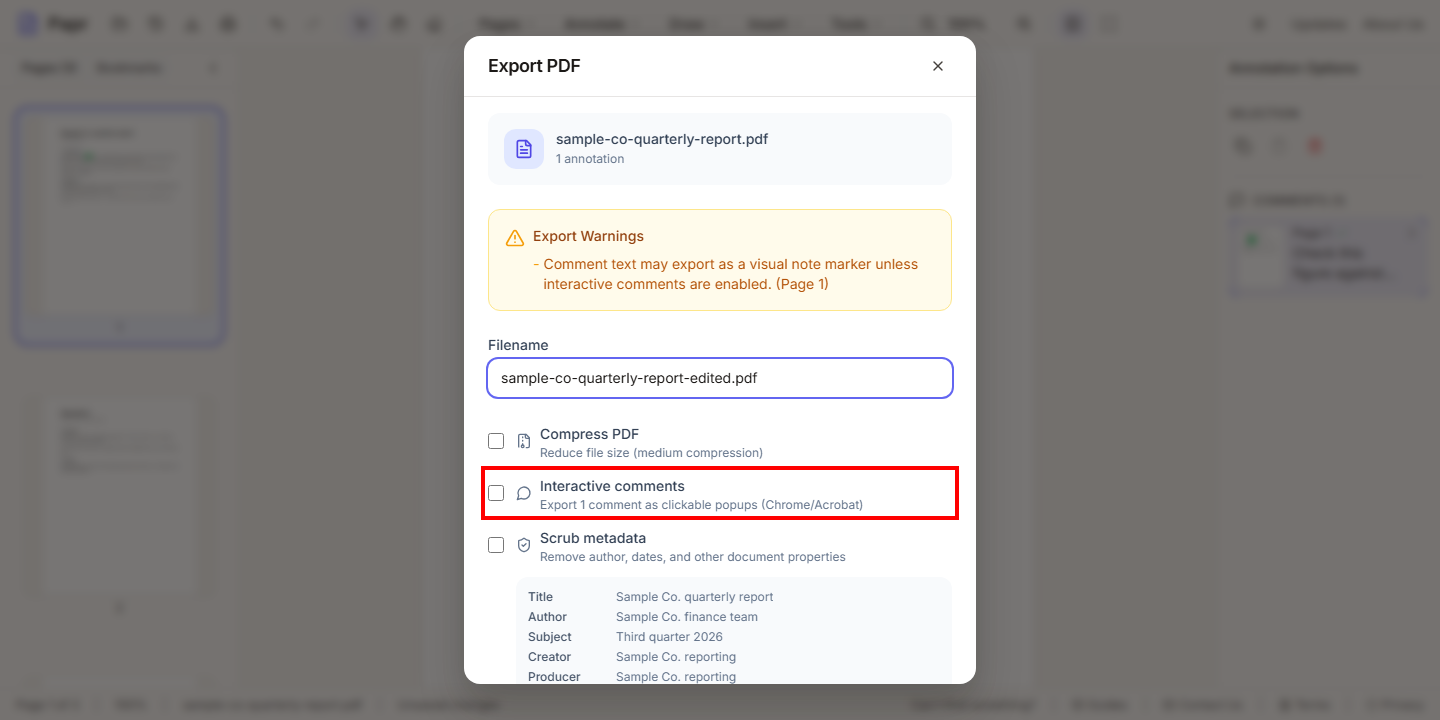
Click Export in the toolbar. In the Export dialog, tick Interactive comments to keep each note as a clickable popup in Chrome or Acrobat. The option appears once a comment has text.
Tips
- Use one comment for each issue, so each one can be resolved on its own.
- Resolve comments as the work is done, so the open ones stand out.
- Pair a highlight with a comment when you need both the words and an explanation.
Try it on your own file
Everything in this guide happens in your browser tab. Your file stays on your device.
Open the PDF editor