Accessibility Check, Alt Text and PDF/A
The Docs editor can check a document for common problems that make it hard to read with a screen reader or with poor eyesight. It can also add alt text to pictures, set the document language, and export a PDF/A copy for long-term archiving. The check runs in your browser.
Step by step
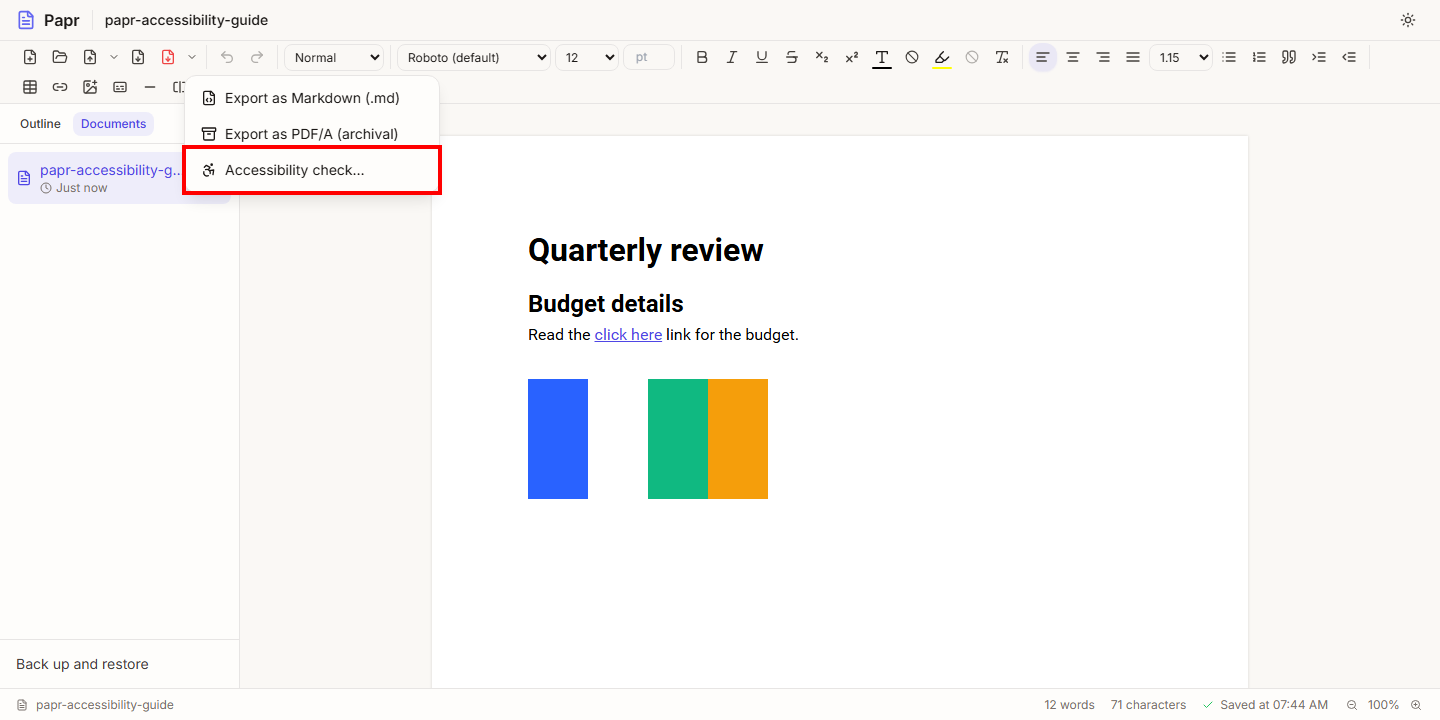
1.Open the accessibility check
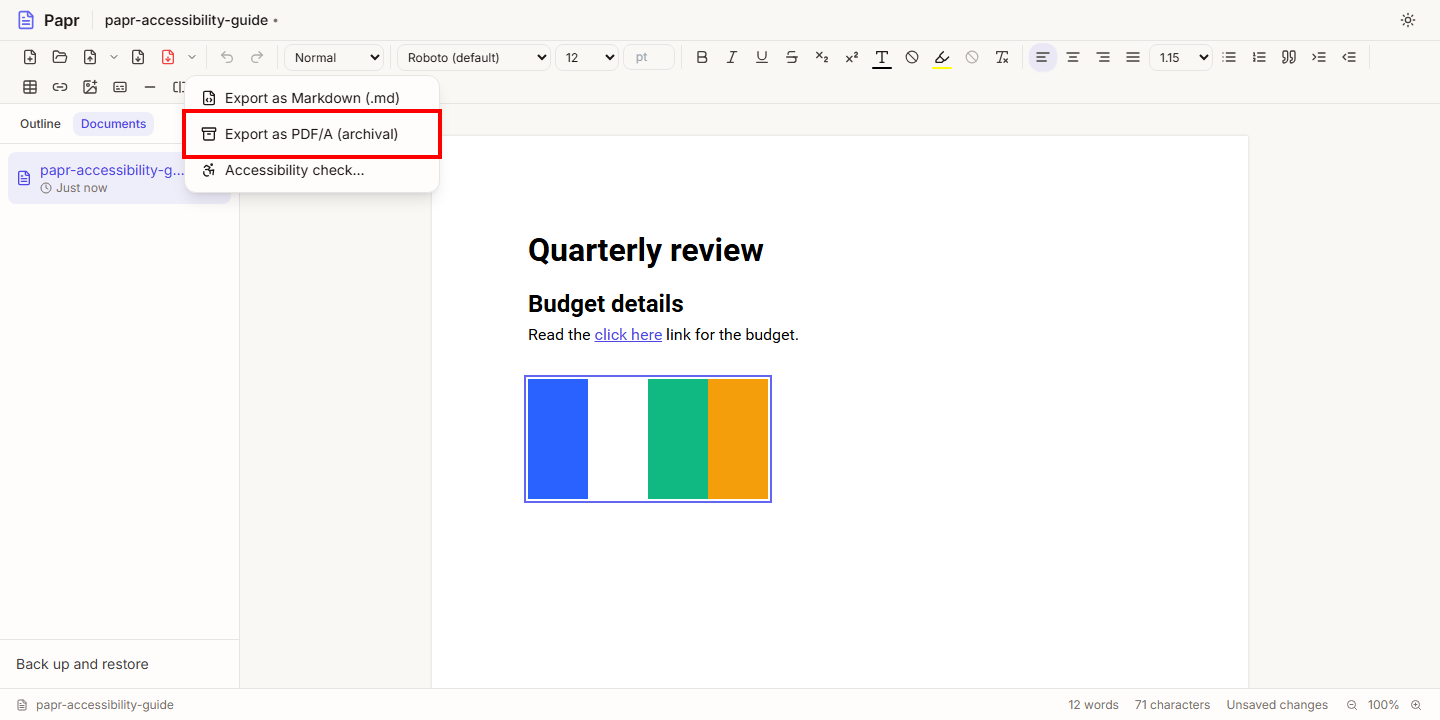
Click the small arrow beside the PDF export button, which is labelled More export options. Then click Accessibility check….
2.Read the problems
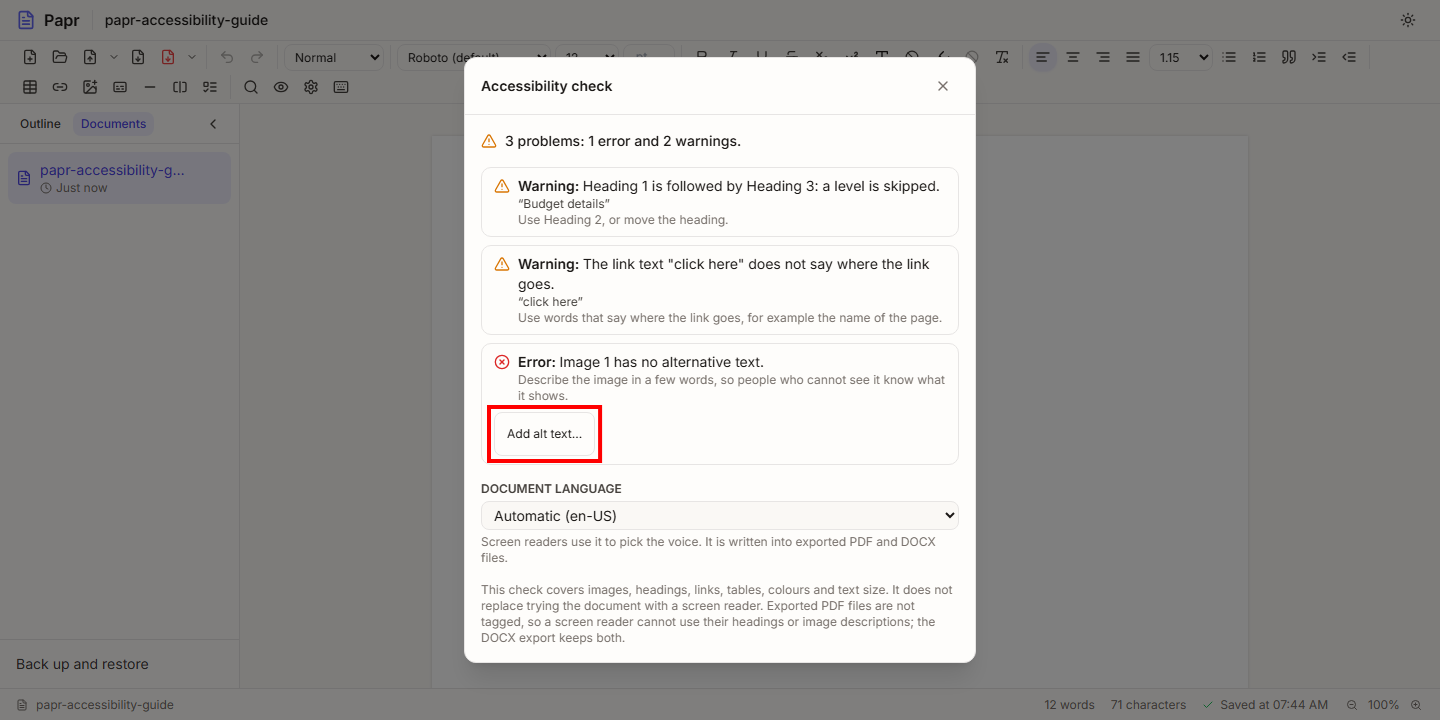
The check lists each problem with its place in the document and a short fix. Errors are marked with a red cross and warnings with a triangle. Click Add alt text… under a picture to describe it. The fix for the other problems is written under each one.
3.Set the document language
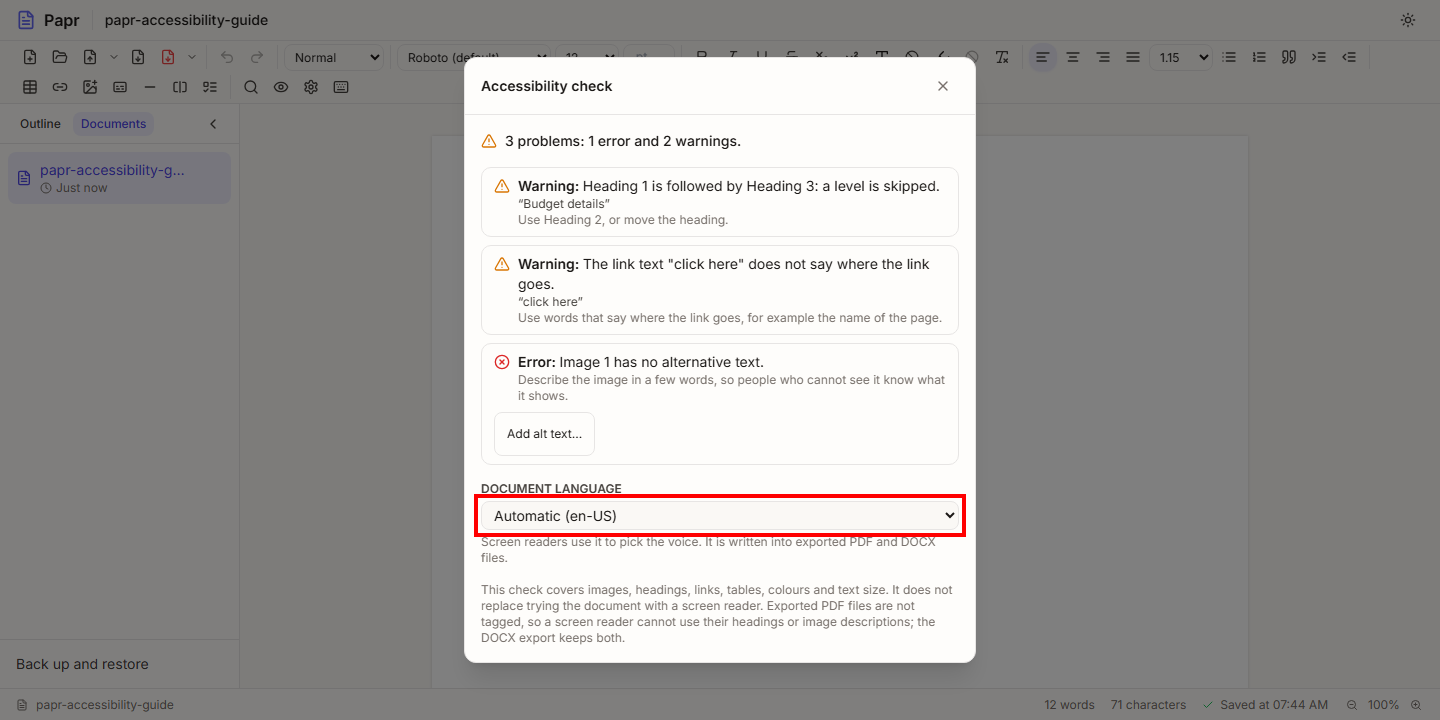
Under the list, choose the language of the text, or leave it on Automatic. Screen readers use the language to pick the voice. The choice is written into the PDF and DOCX files you export.
4.Add alt text to a picture
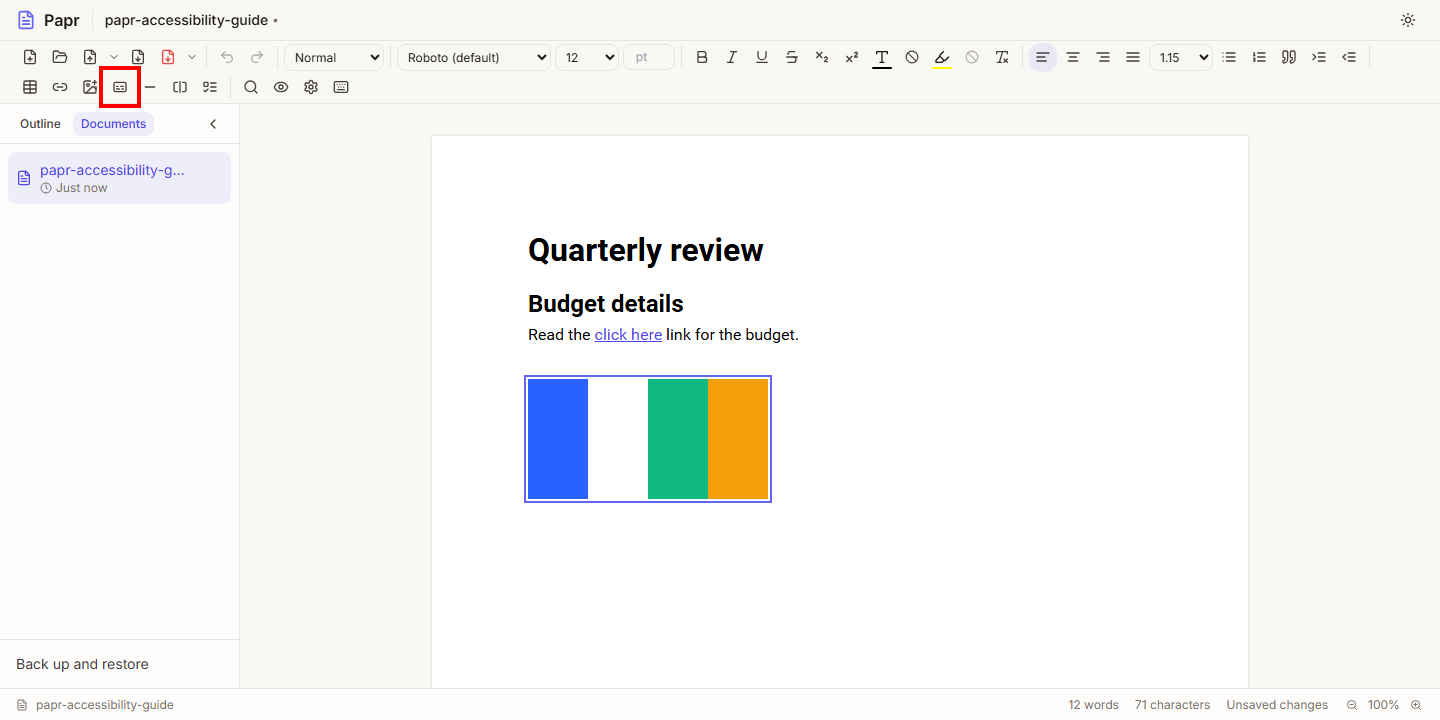
Click a picture in the document to select it. Then click the Alt text button in the toolbar, and type a few words that describe the picture. A short description works best.
5.Export as PDF/A
For a copy to keep for many years, open More export options and click Export as PDF/A (archival). The Sheets editor has the same option in its File menu.
What the check looks for
- Pictures with no alternative text, which is an error.
- Headings that skip a level, empty headings, and a document that does not start with a Heading 1.
- Links whose text is a web address, or a phrase such as click here that does not say where the link goes.
- Tables with no header row.
- Colours and text size: text with too little contrast against its background, and text smaller than 9 pt.
- The title: a document with no title, or one still called Untitled Document.
Where alt text goes
Alt text is kept in the document and in both exports. In the DOCX export Word shows it as the picture's description. The PDF files Papr writes are tagged, so a screen reader reads each picture's description, and the headings, lists, tables and links of the document, from the PDF as well. When every picture has a description, no heading is empty and no heading level is skipped, the PDF is also marked as PDF/UA, the standard for accessible PDF files.
What PDF/A is
PDF/A is a version of PDF meant for long-term storage: a file that looks the same when it is opened years later, with its fonts and colour information included. The export writes PDF/A-2b. Papr checks the structure of the file it writes and was tested with the veraPDF checker, but it does not certify your file. A tool such as veraPDF can check the file you export.
Try it on your own file
Everything in this guide happens in your browser tab. Your file stays on your device.
Open the PDF editor