Markdown in Papr Docs
Papr Docs reads and writes Markdown, the plain-text format that many notes and README files use. You can open a Markdown file, save a document as one, or paste Markdown text and have it formatted. The conversion happens in your browser.
Import a Markdown file
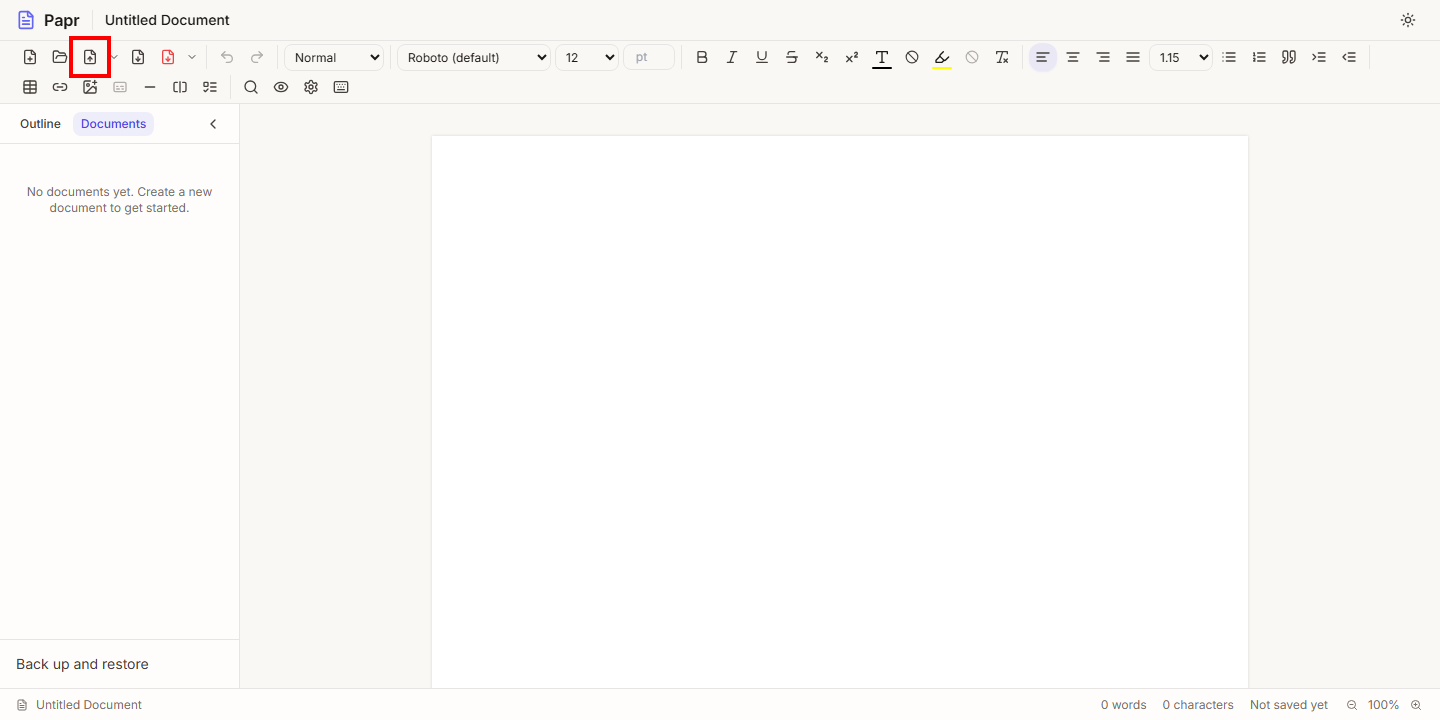
1.Find Import
Click the Import button in the toolbar. Its tooltip reads Import DOCX or Markdown.
2.Choose the .md file
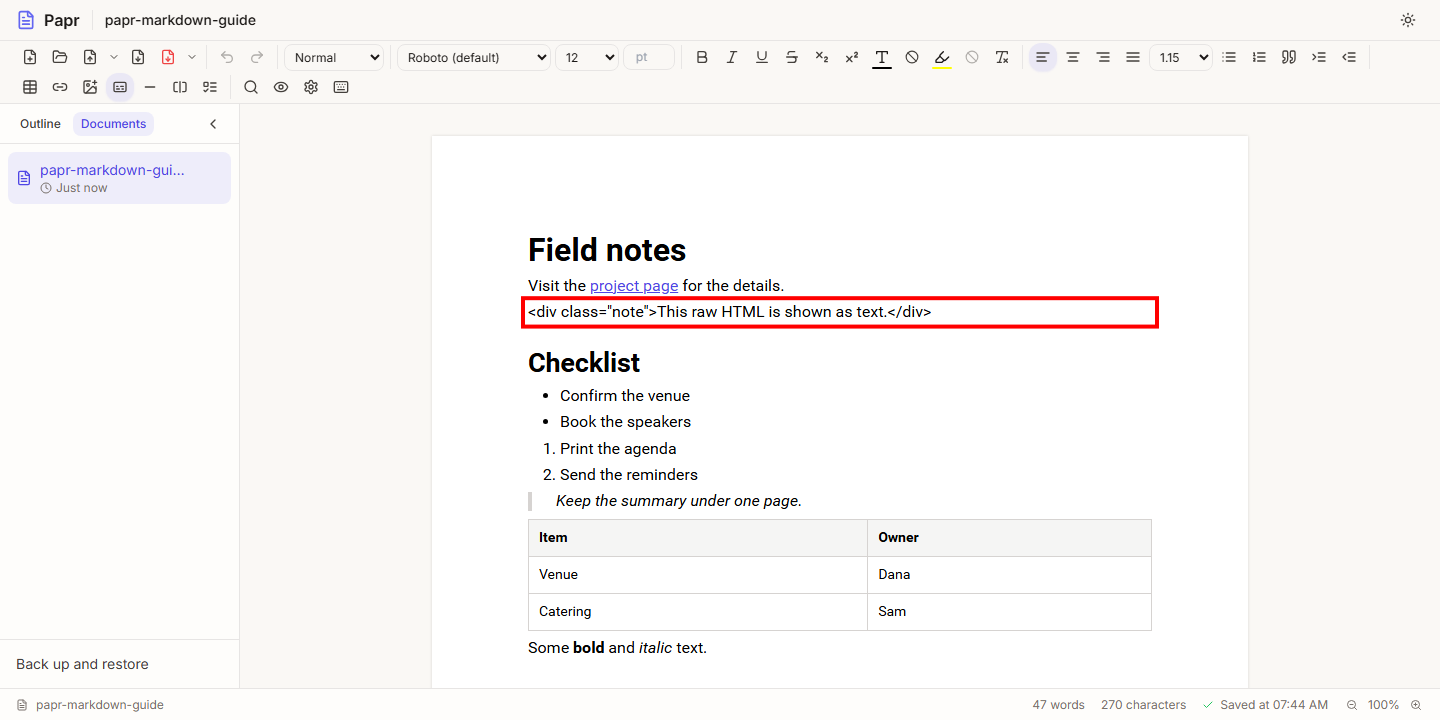
Choose a .md file. It opens as a new document, and the document you have open is saved first, so nothing is replaced. The headings, lists, links, quotes, code blocks and tables become formatted text.
Export as Markdown
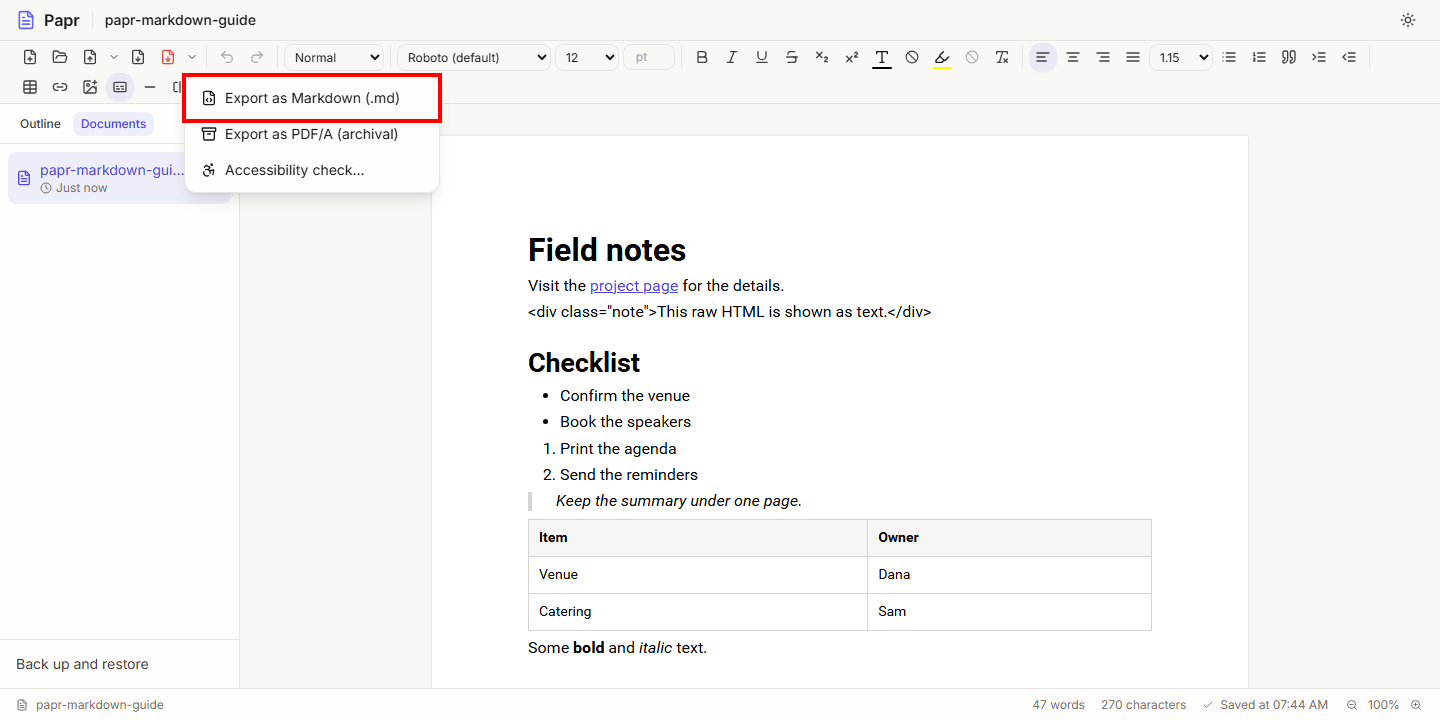
3.Choose Export as Markdown
Click the small arrow beside the PDF export button, which is labelled More export options. Then click Export as Markdown (.md). The file downloads, and any part Markdown cannot hold is listed in the export notes that appear after it.
The export notes list what Markdown cannot hold, for example:
- underline, highlight, and text colour, font and size;
- subscript and superscript, and text alignment;
- merged table cells, and the header, footer and page setup.
Paste Markdown
4.Paste text that is clearly Markdown
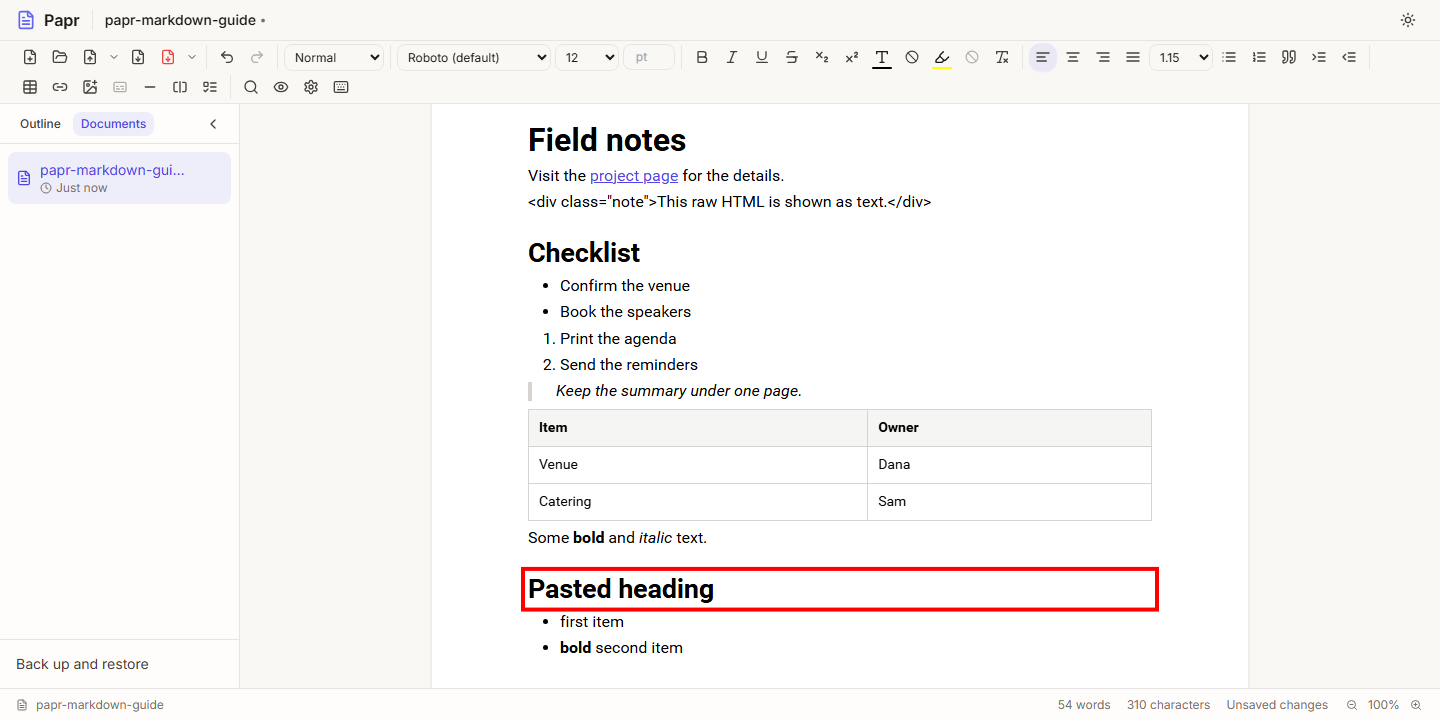
Copy plain text that uses Markdown, such as a line starting with ## or a list with dashes, and paste it. Papr formats it as it goes in. The rule is careful: only text that clearly uses Markdown is converted. Text with formatting from a web page or a word processor is pasted with that formatting, as before.
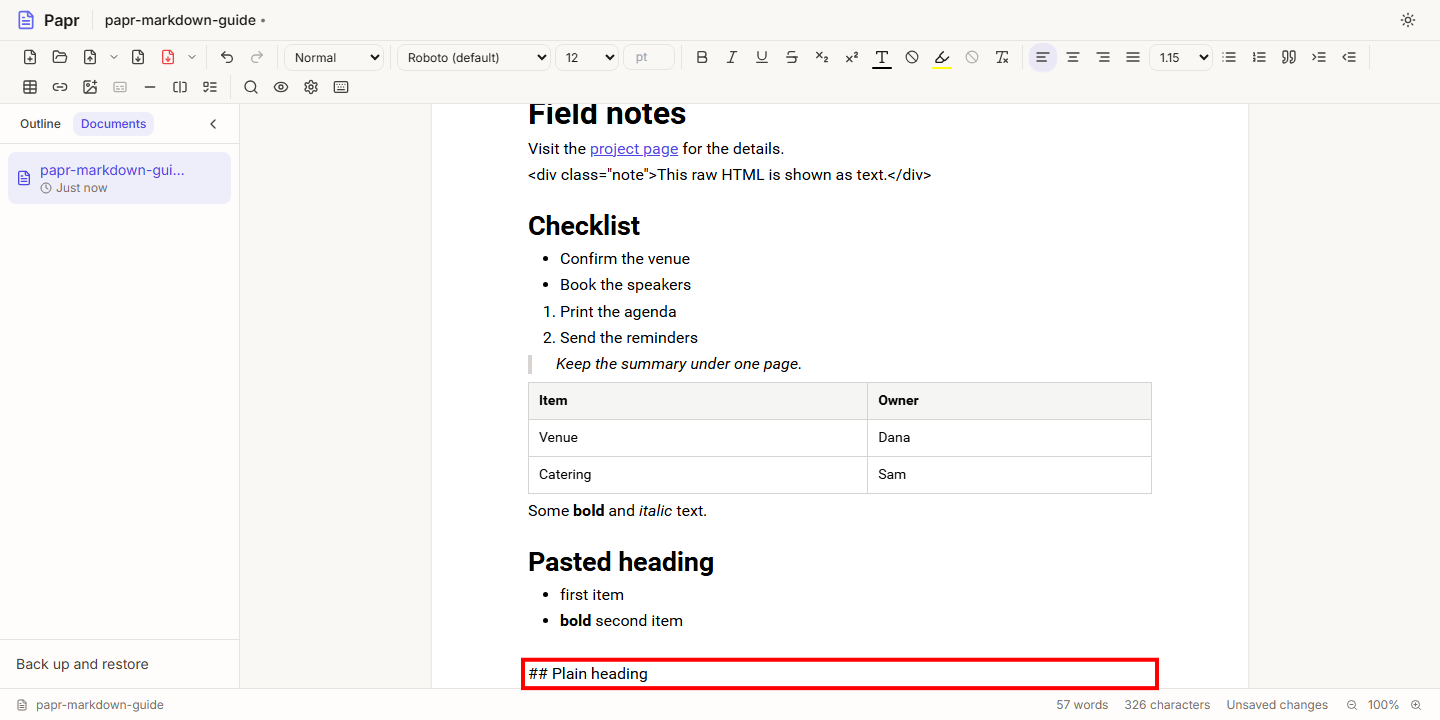
5.Paste as plain text
To keep the text exactly as copied, paste it with Ctrl+Shift+V (Cmd+Shift+V on a Mac). The Markdown symbols stay as they are.
Try it on your own file
Everything in this guide happens in your browser tab. Your file stays on your device.
Open the PDF editor