How to Convert PDF Files Online Free
The Convert dialog does three jobs in one place: it converts a PDF to another format, it converts files to PDF, and it runs a queue of conversions. Everything runs in your browser.
Step by step
1.Open the PDF
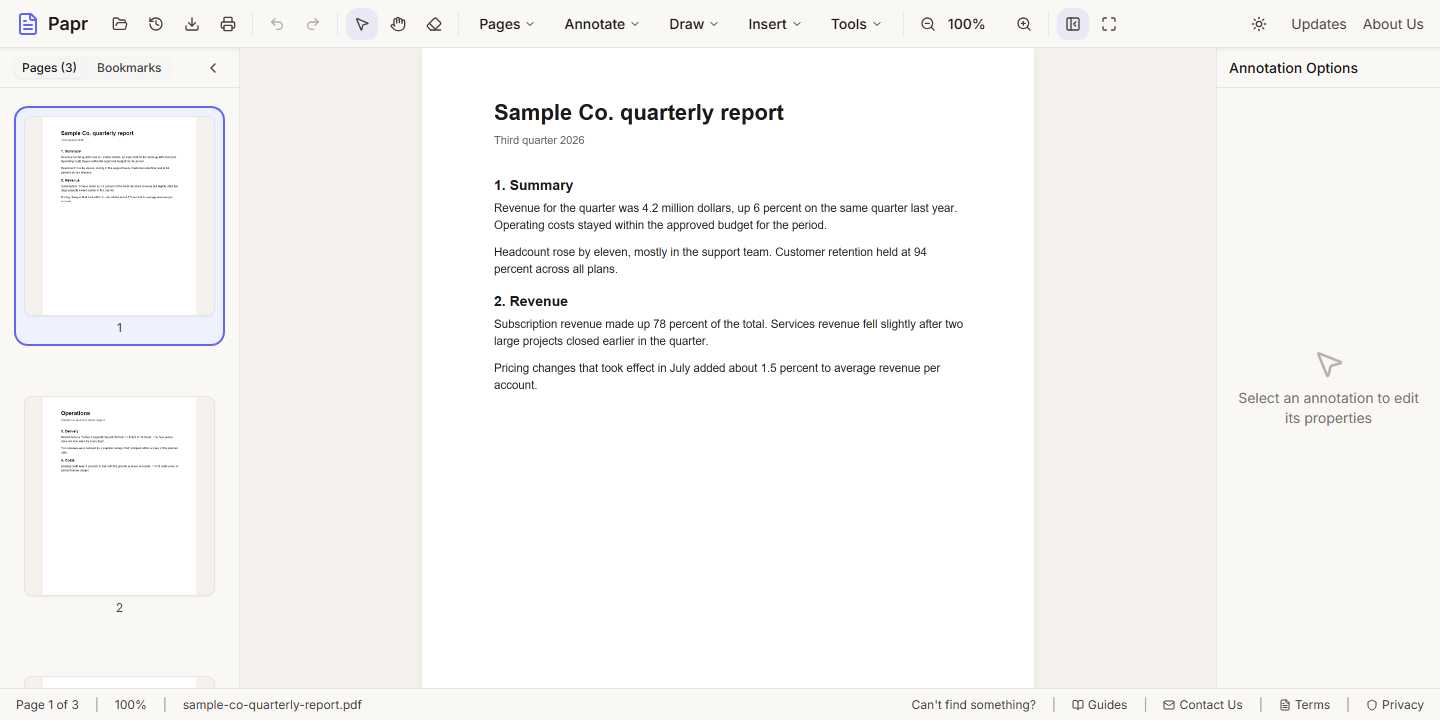
Click Open file in the toolbar, or drop the PDF onto the page.
2.Open Convert
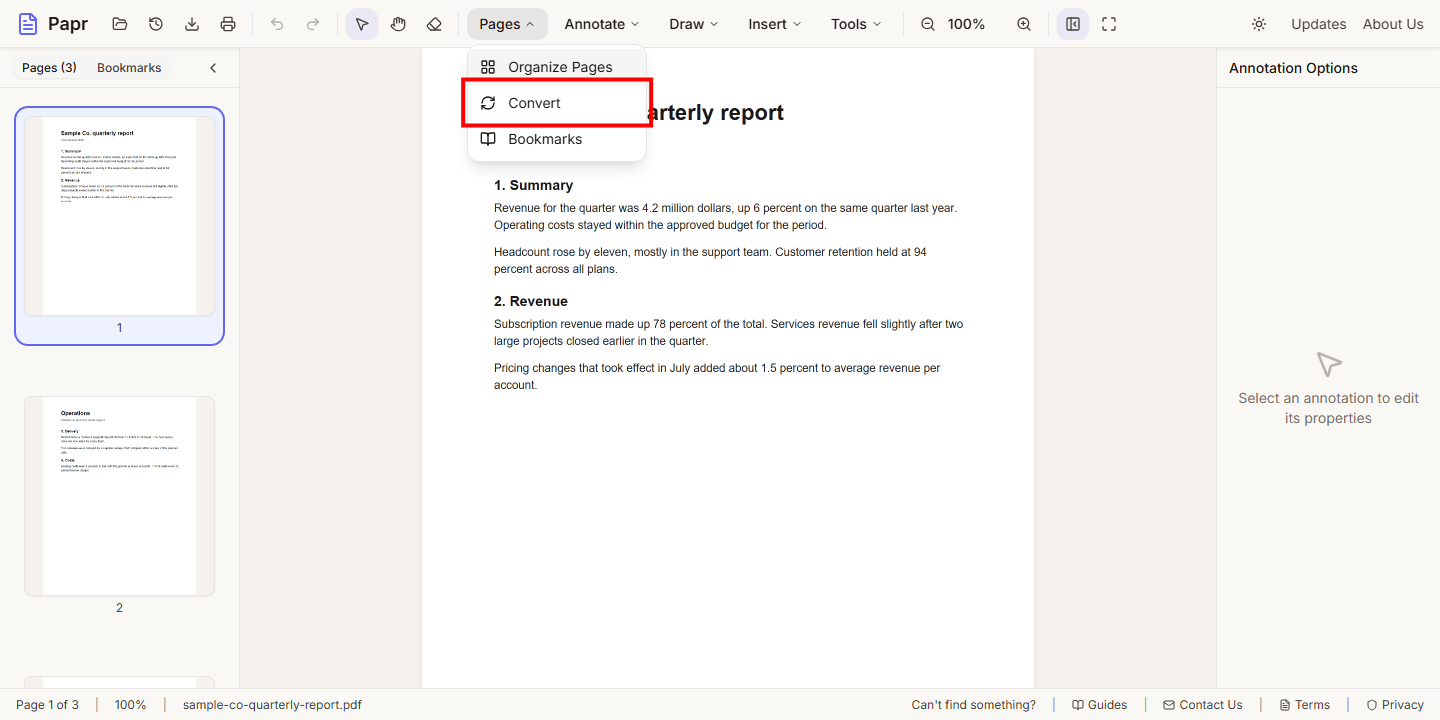
Open the Pages menu and click Convert. The dialog is titled Convert Document, with three tabs: From PDF, To PDF and Batch.
3.Choose the format
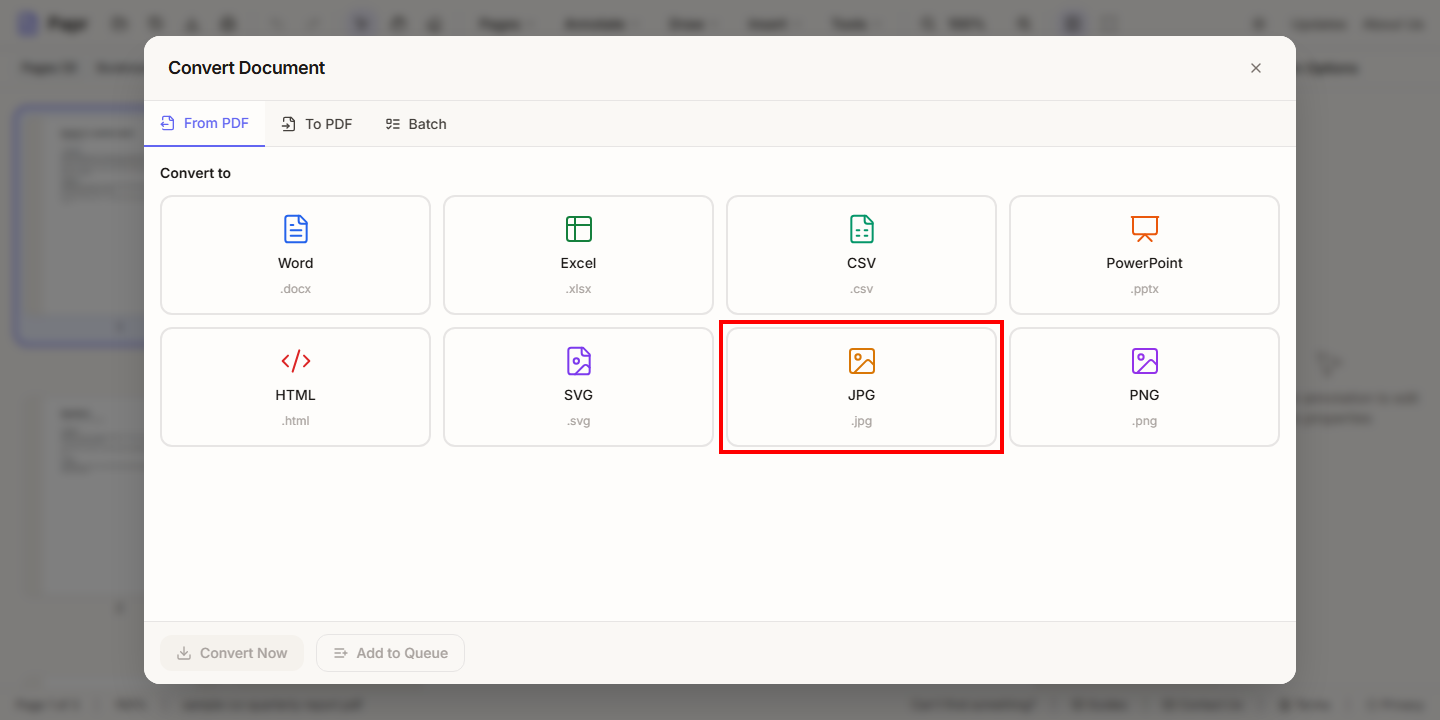
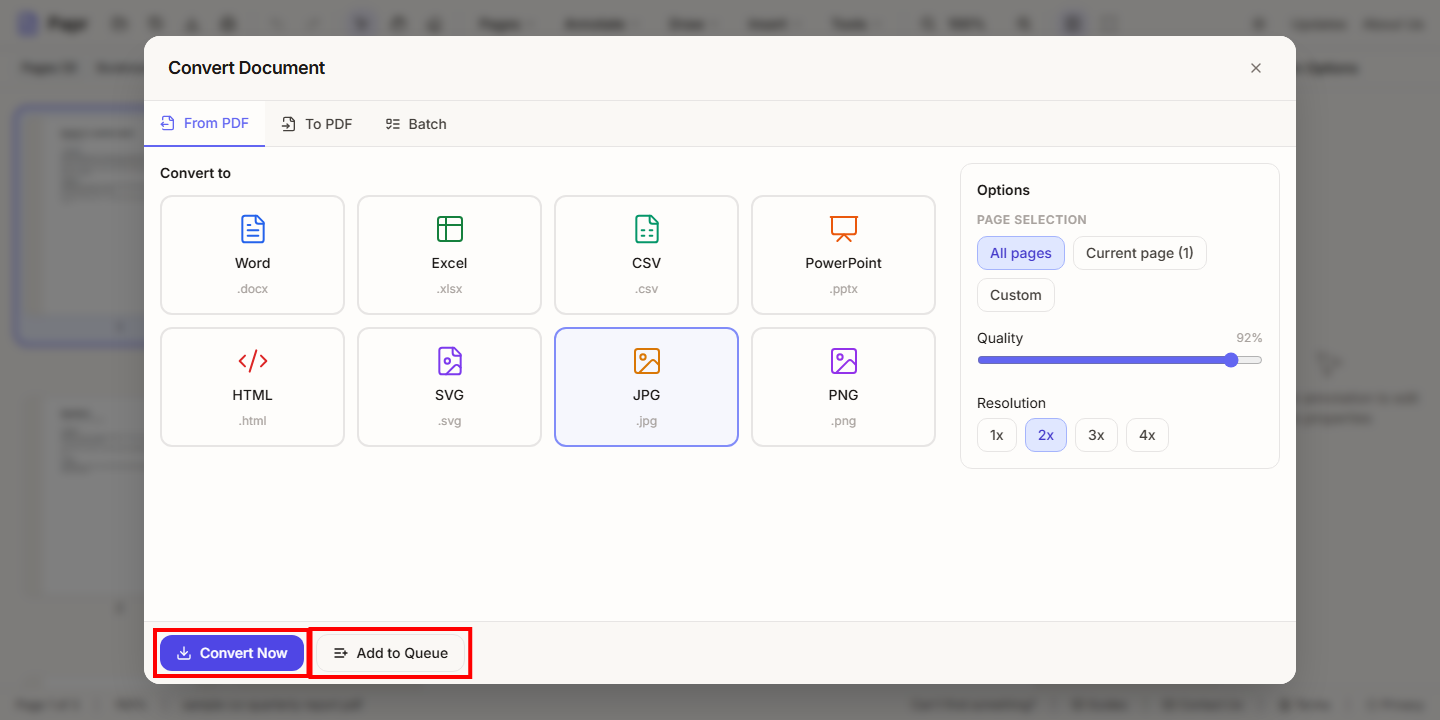
On the From PDF tab, click the format you want: Word (.docx), Excel (.xlsx), CSV (.csv), PowerPoint (.pptx), HTML (.html), SVG (.svg), JPG (.jpg) or PNG (.png).
4.Set the options
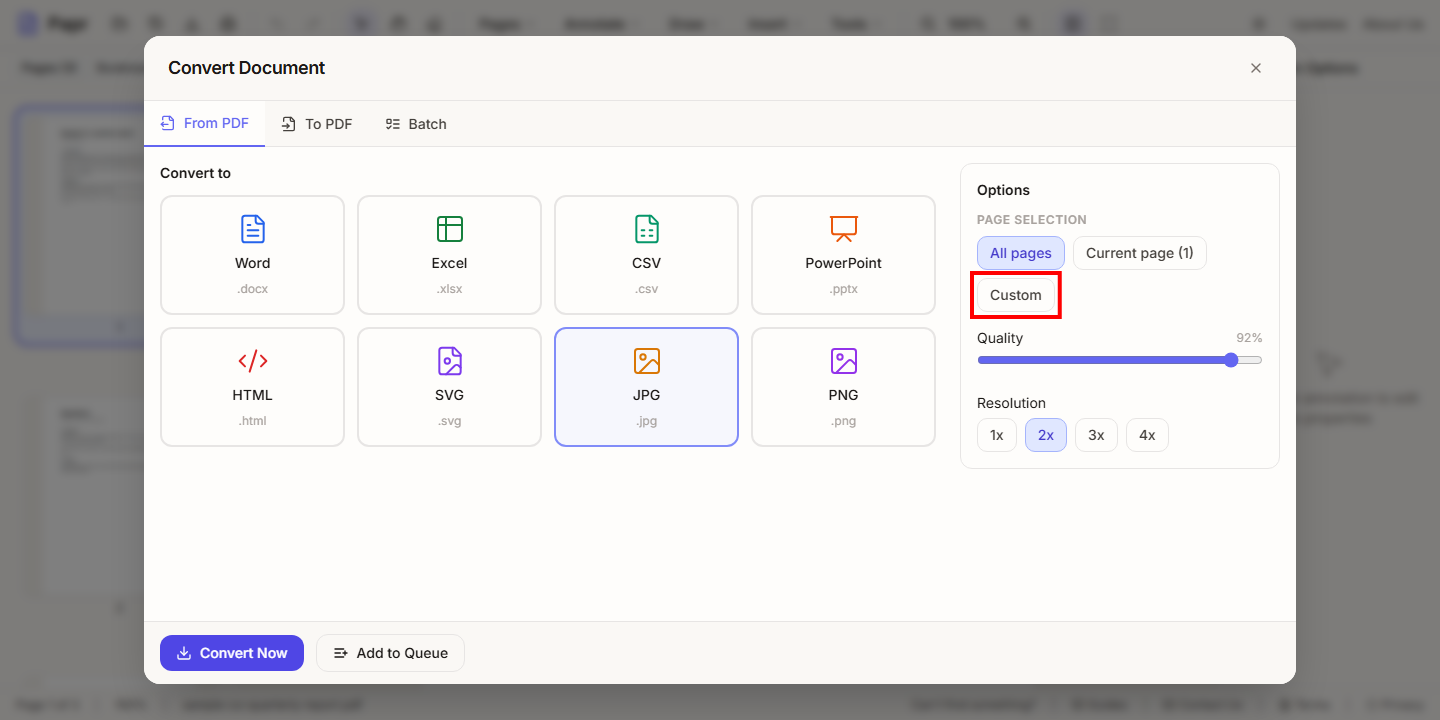
Choose the pages: All pages, Current page (1), or Custom for a range. Images have a quality slider and a resolution. Word has the options Preserve formatting, Include images and Detect tables.
5.Convert now, or add to the queue
Click Convert Now to convert and download the result straight away. Click Add to Queue to keep the job and run it later with others.
6.Switch to To PDF
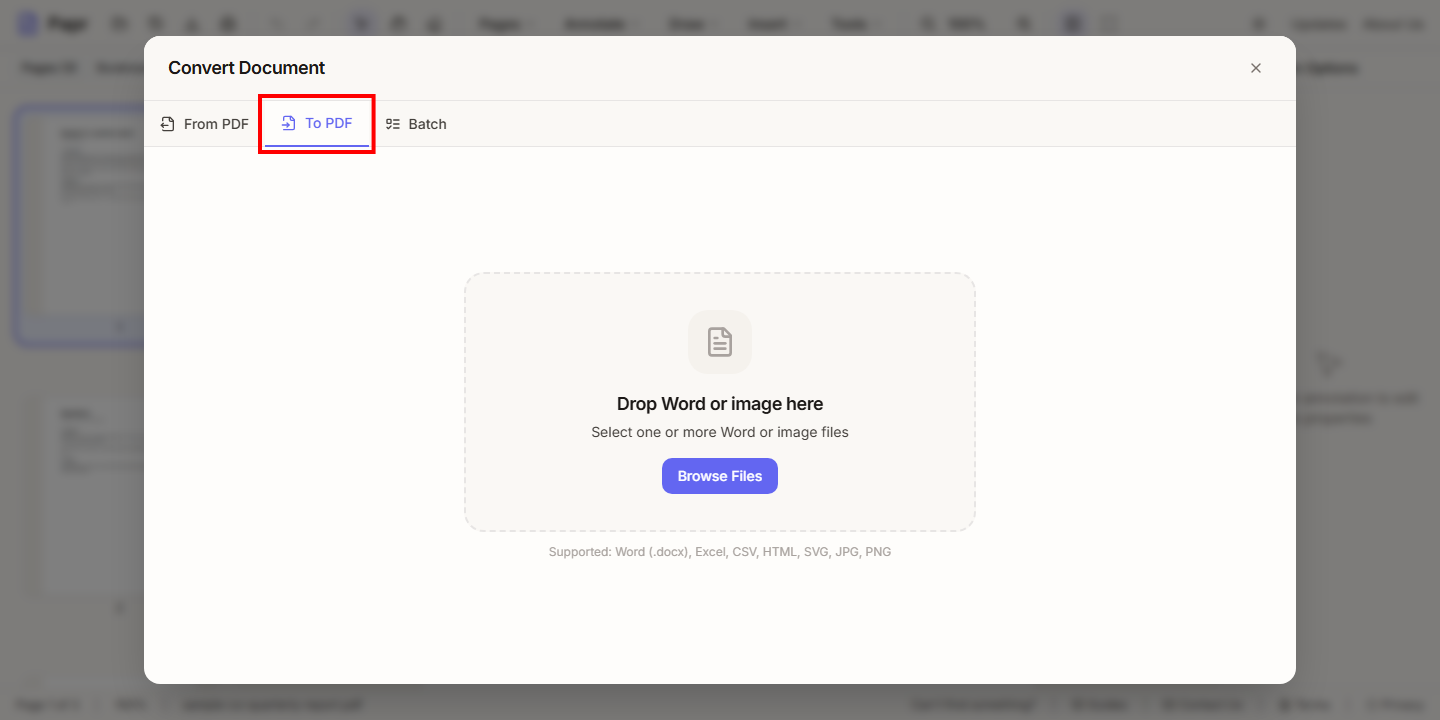
Open the To PDF tab to convert other files into a PDF: Word, Excel, CSV, HTML, SVG, JPG and PNG are supported.
7.Choose the files
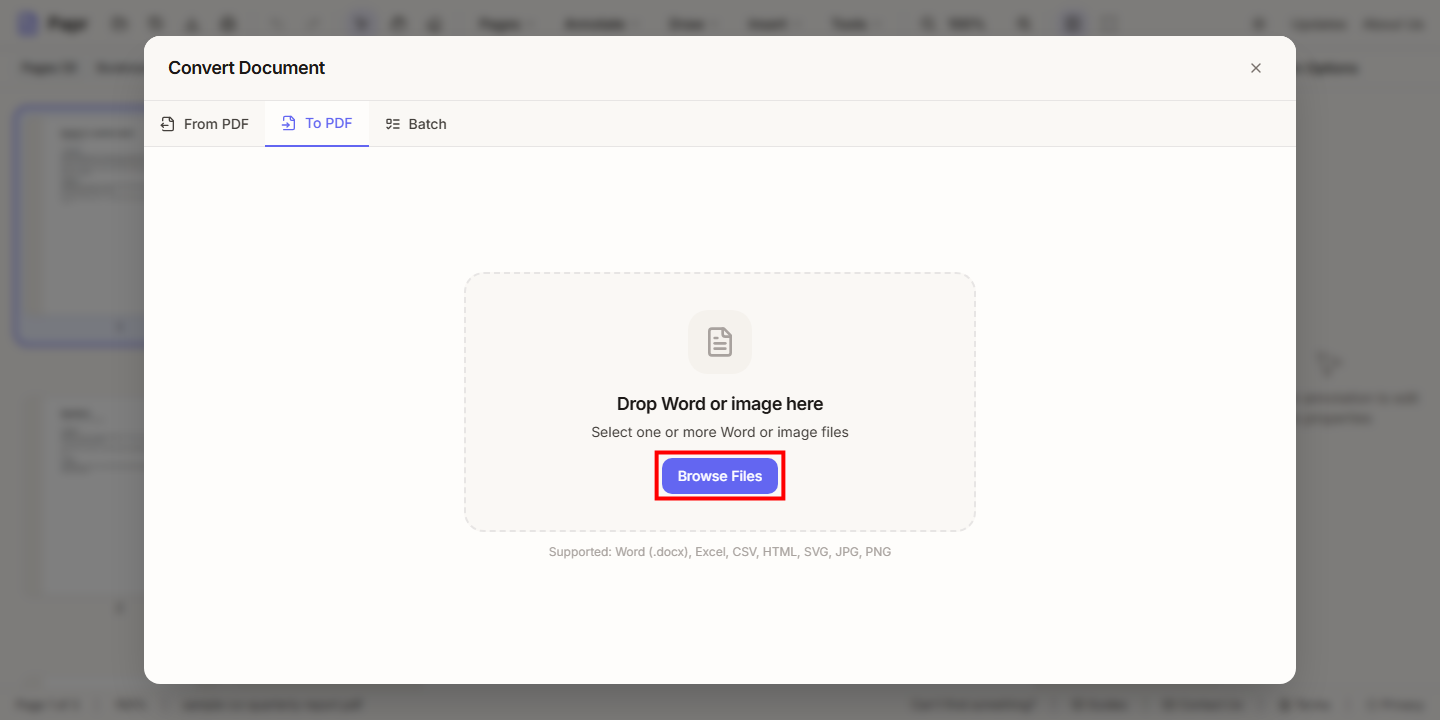
Drag files into the box, or click Browse Files and choose them. Papr works out the conversion from each file's type.
8.Choose what happens next
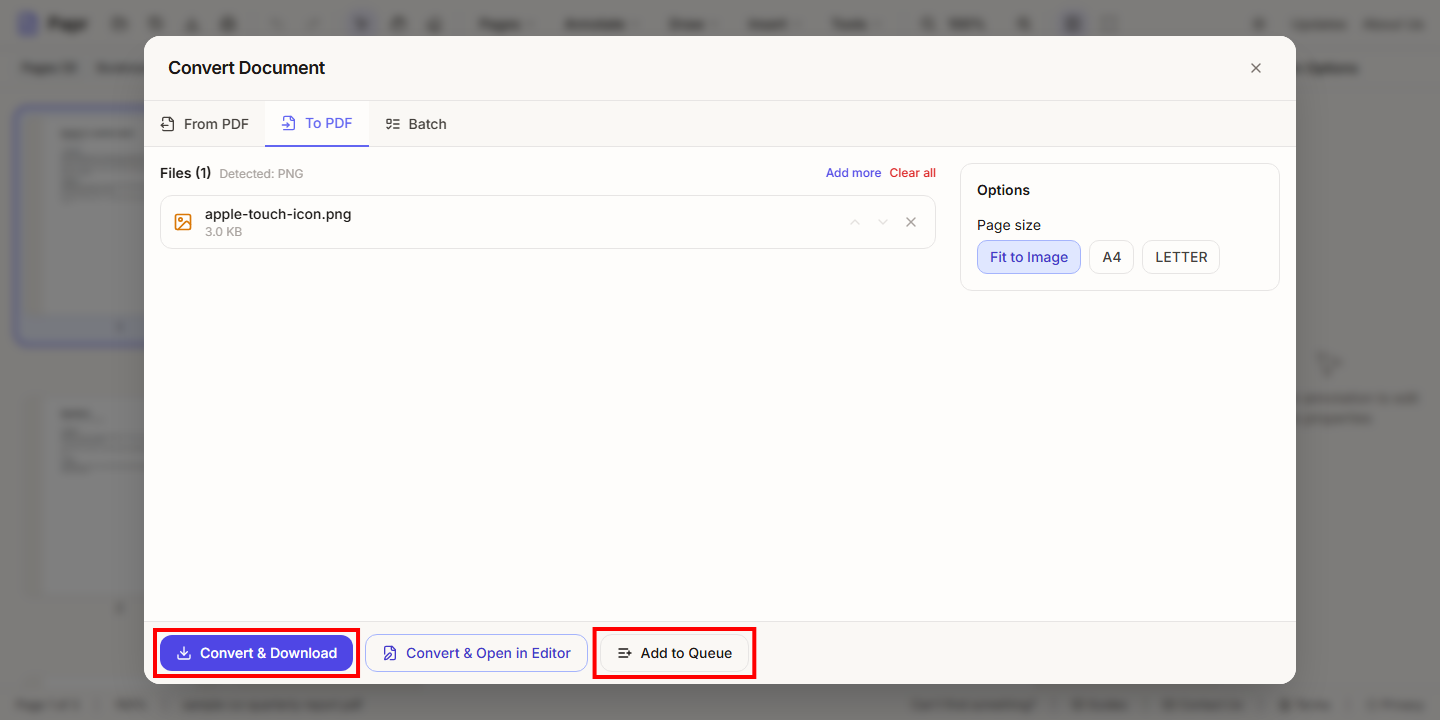
With a file in the list, the footer offers Convert & Download, Convert & Open in Editor and Add to Queue. Choose the one that fits.
9.Run the queue
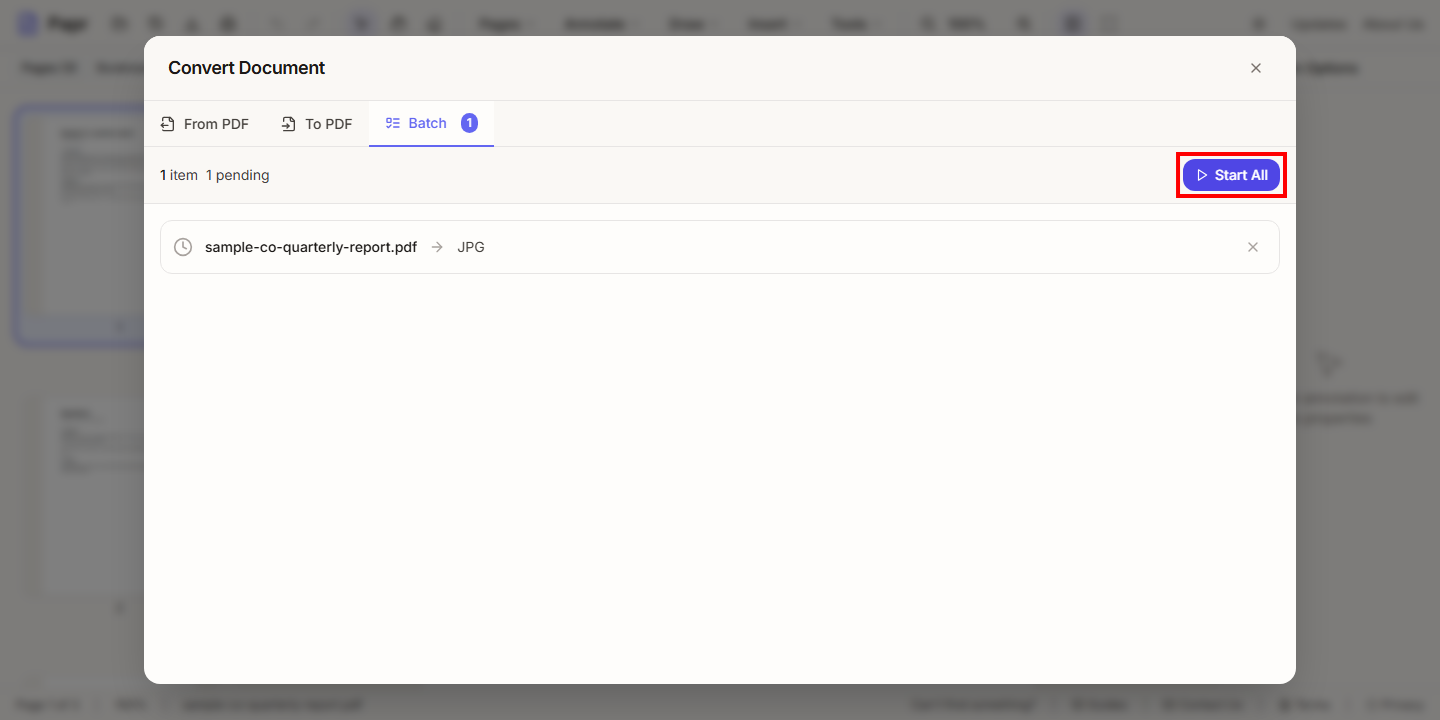
Open the Batch tab to see the jobs. Click Start All to run them. When the jobs are finished, the results can be downloaded together.
Tips
- Run OCR first when the text of a scanned PDF matters, so the Word or Excel result has words in it.
- For image output, a higher resolution gives sharper pictures and bigger files.
Try it on your own file
Everything in this guide happens in your browser tab. Your file stays on your device.
Open the PDF editor