How to OCR a PDF Online Free
Turn a scanned page into text you can select, search and copy. Papr runs the Tesseract OCR engine in your browser, and the document is not uploaded.
When you need OCR
OCR is for pages that are pictures of text, such as a scan or a photo of a page. A PDF that already has real text does not need it: Papr selects, searches, highlights, edits and translates that text directly. Papr asks you to run OCR when a file looks like a scan, and it shows a message for a single page with no text.
Step by step
1.Open the scan
Click Open file in the toolbar, or drop the PDF or an image onto the page. When the file is a scan, a dialog asks which languages the document is in.
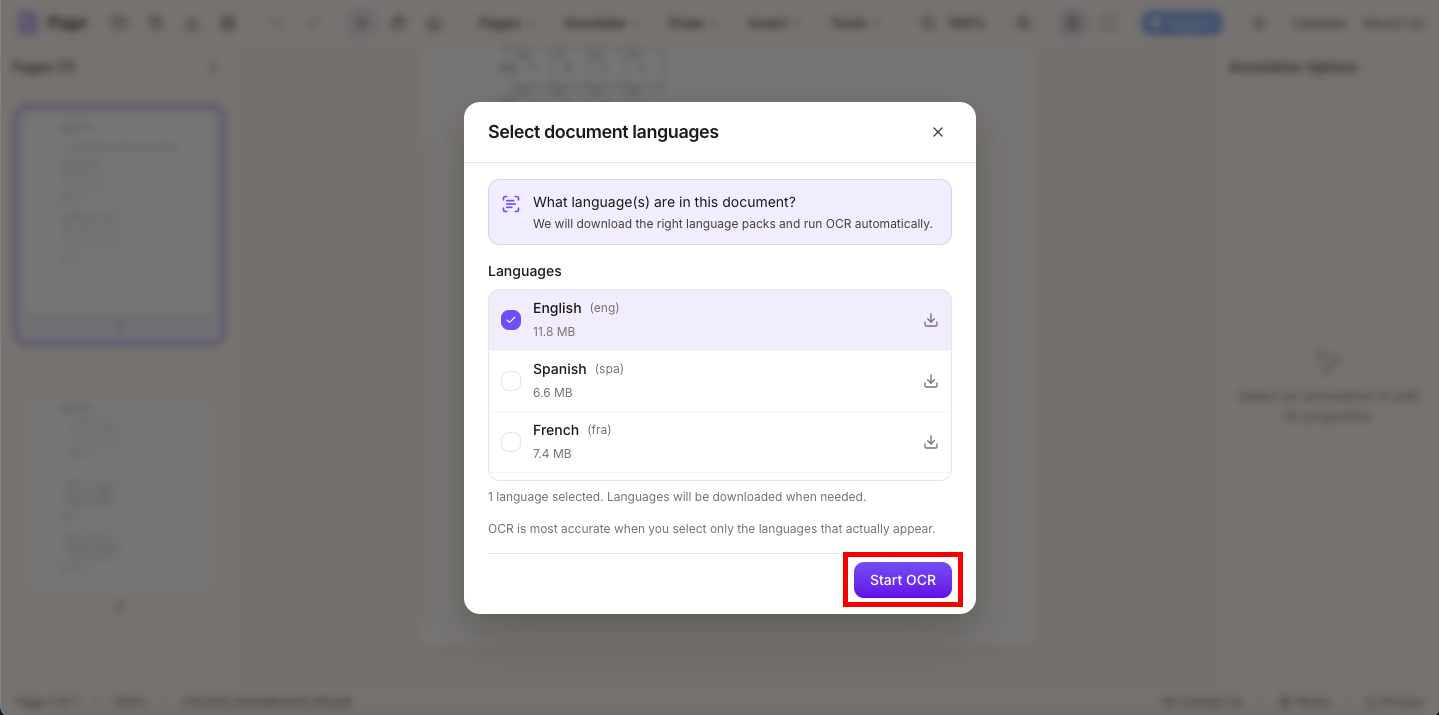
2.Open OCR / Extract Text
Open the Tools menu and click OCR / Extract Text.
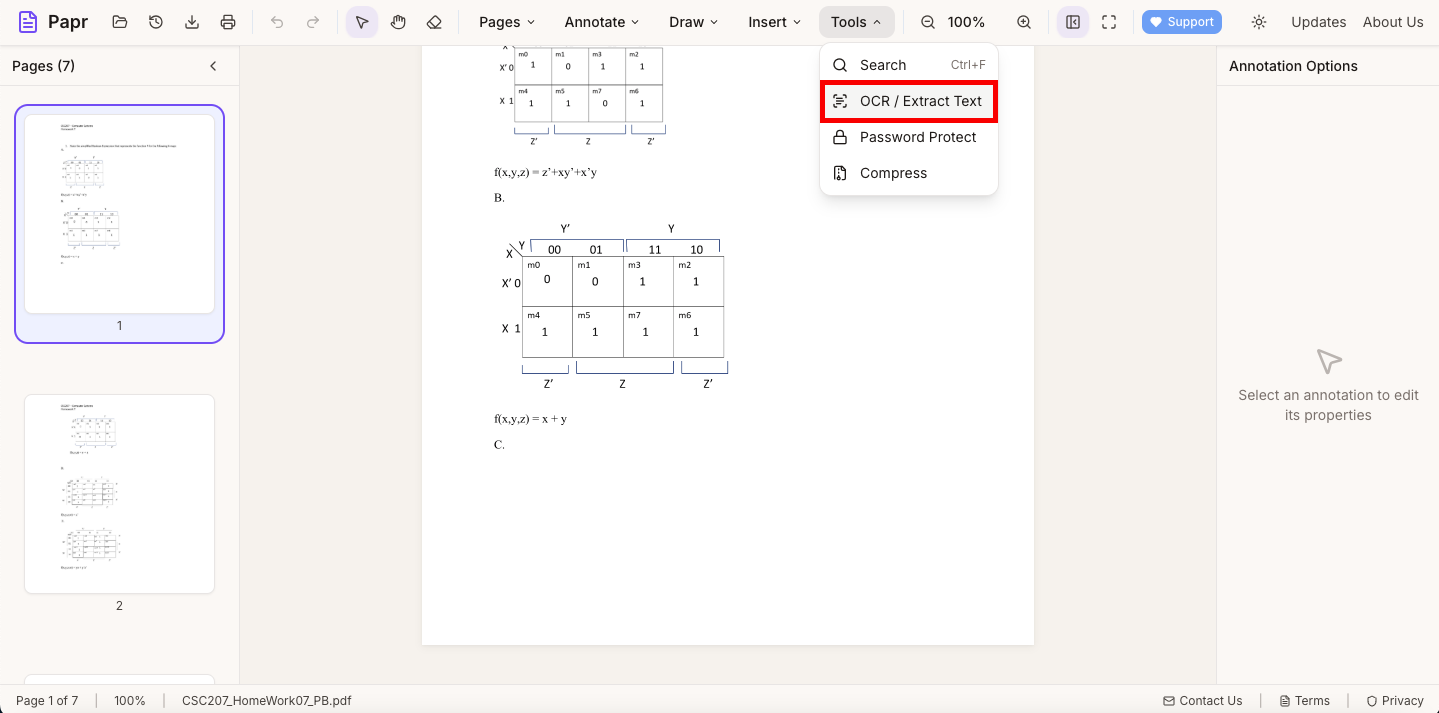
3.Choose the languages and pages
Tick each language the document uses. The size of each language pack is shown beside it. Under Pages to process, choose All pages, Current page only or Custom range.
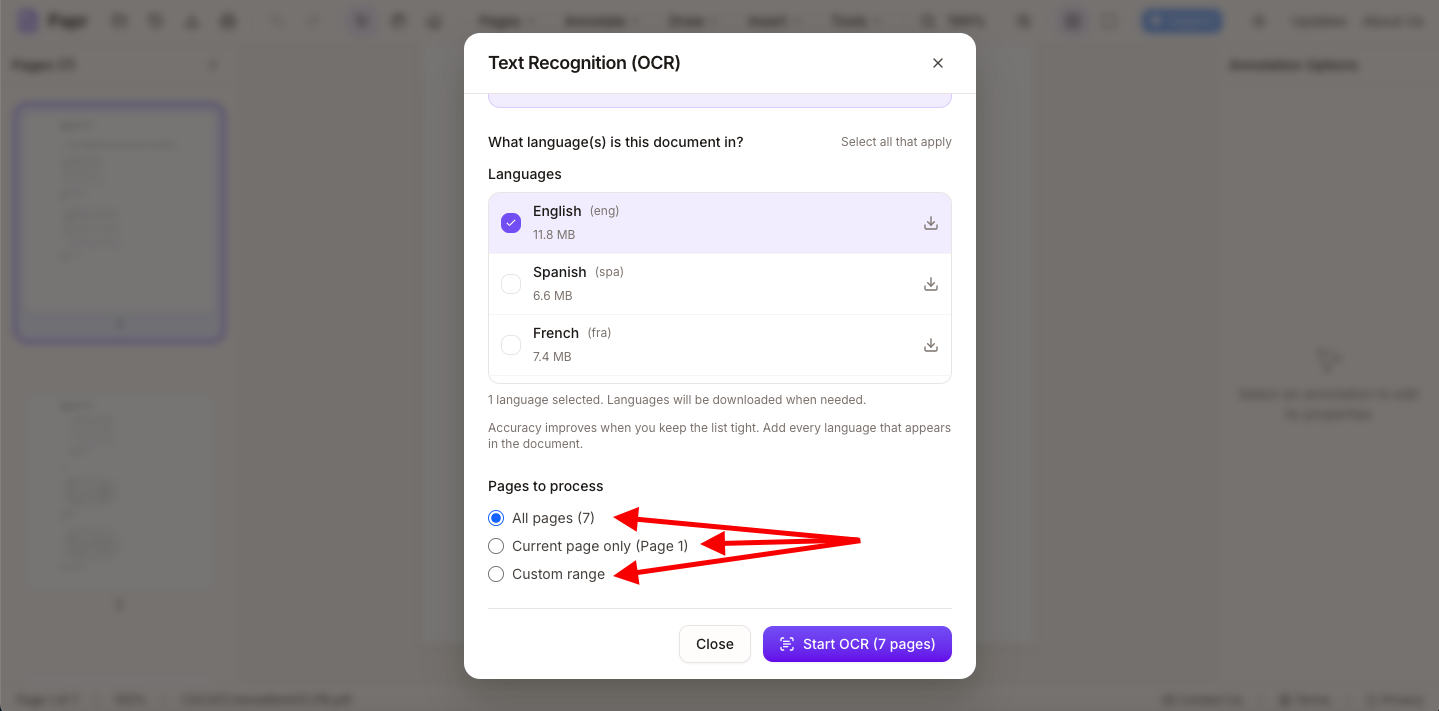
4.Start OCR
Click Start OCR, with the number of pages shown on the button. The first use of a language downloads its language pack. The packs are then kept in your browser.
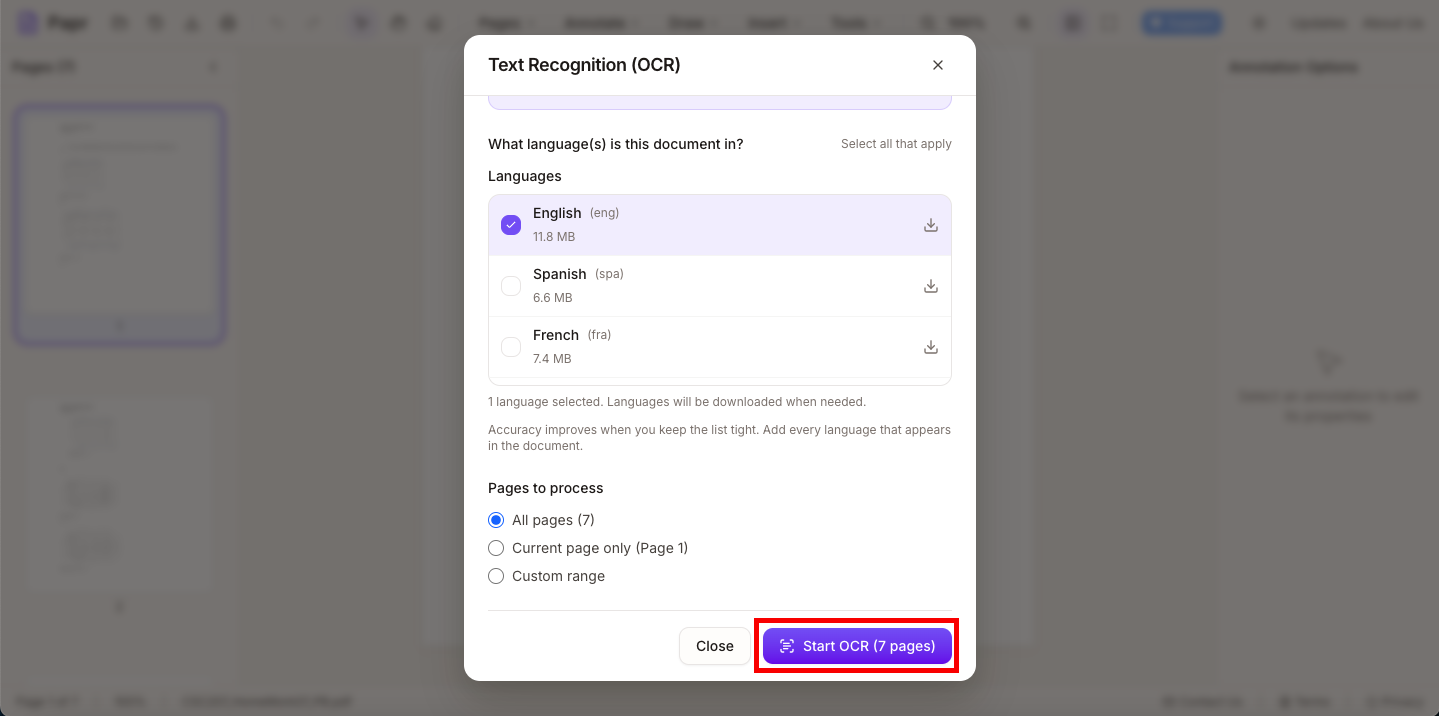
5.Check the text
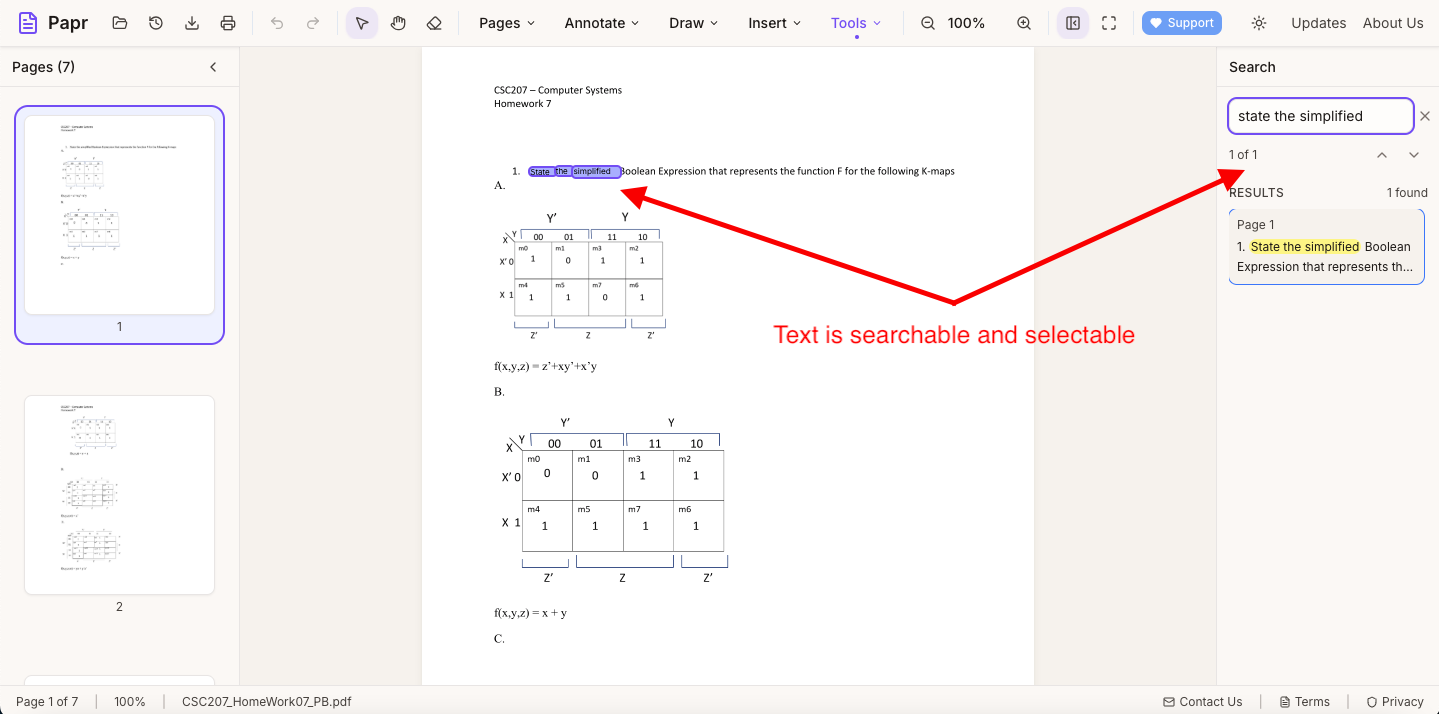
When OCR finishes, the page's words can be selected, copied and found with search. To keep the text in the exported file, leave Include OCR text ticked in the export dialog.
Get better results
- Scan at a good resolution. About 300 dots per inch or more is good for small type.
- Straighten skewed pages and keep the contrast high, with dark text on a light background.
- Choose every language the document uses. A page in two languages needs both.
What the text is used for
The OCR text is what Edit Text, search, Translate and Split View compare work with, so better OCR makes those tools more accurate too. Translate works on the words of the pages you choose: a PDF's own text where it has any, and OCR text on a scanned page. A page with neither is skipped.
Language packs
Papr downloads the language data the first time you use a language, and keeps it in your browser. After that, OCR of that language does not download it again. The language data is the only part of OCR that comes from the internet; your document never does.
Try it on your own file
Everything in this guide happens in your browser tab. Your file stays on your device.
Open the PDF editor