How to Compare PDFs Side by Side Online Free
Split View shows two PDFs next to each other, so you can read two versions together or compare them with Show Differences.
Step by step
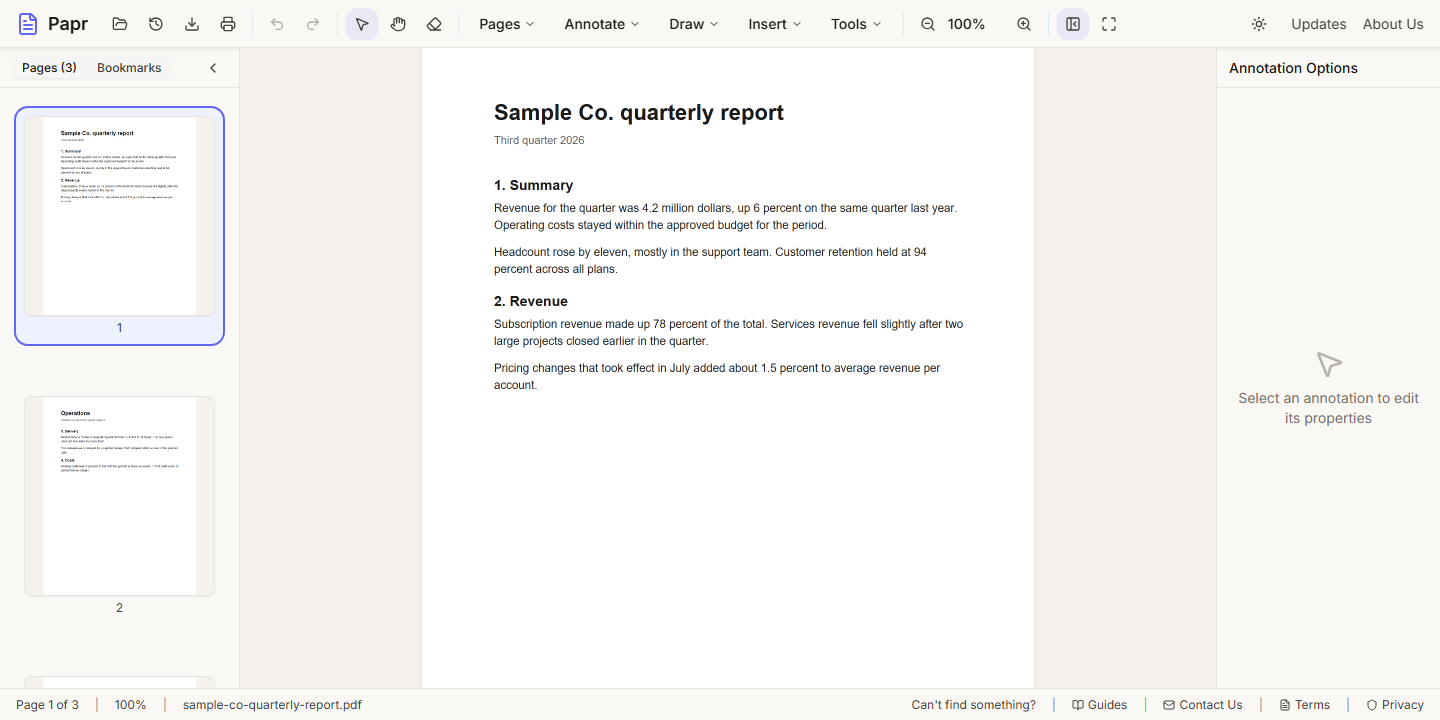
1.Open the first PDF
Click Open file in the toolbar, or drop the PDF onto the page. It is the document in the left pane when Split View is on.
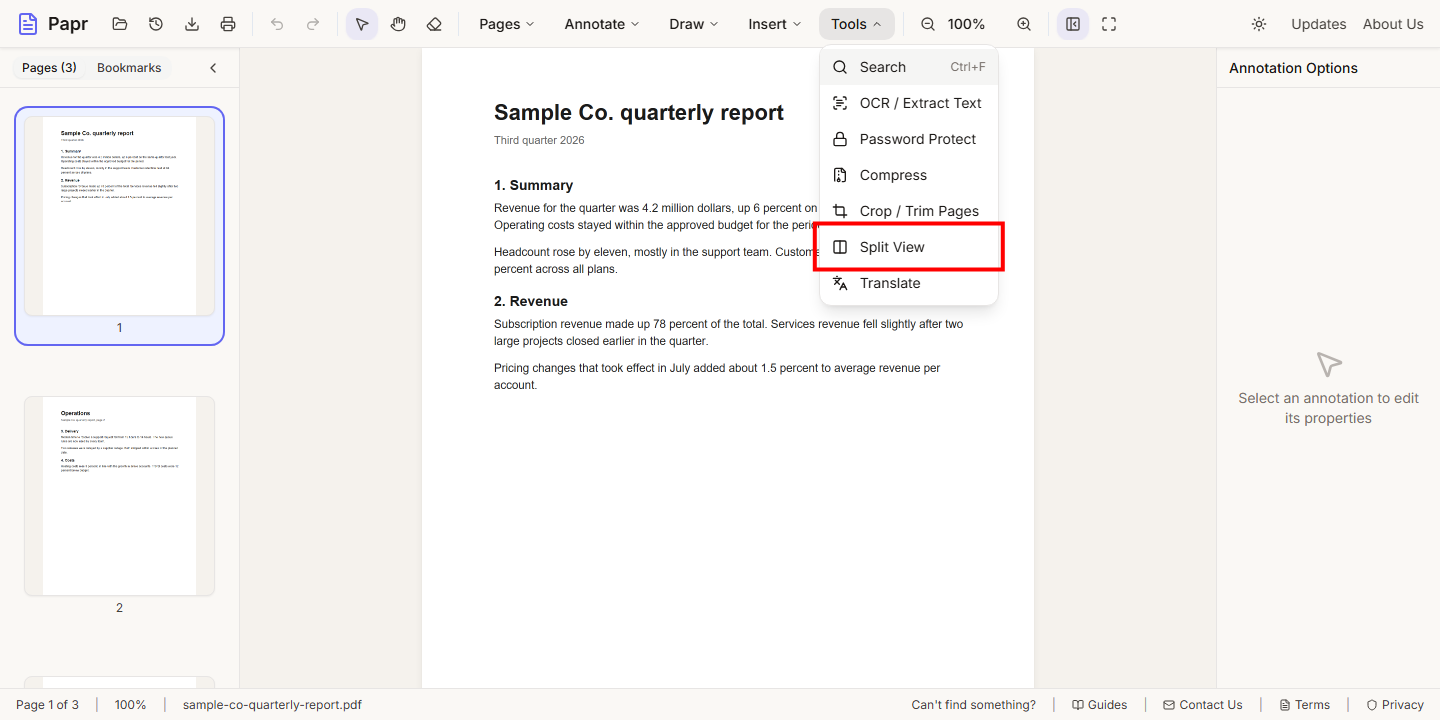
2.Turn on Split View
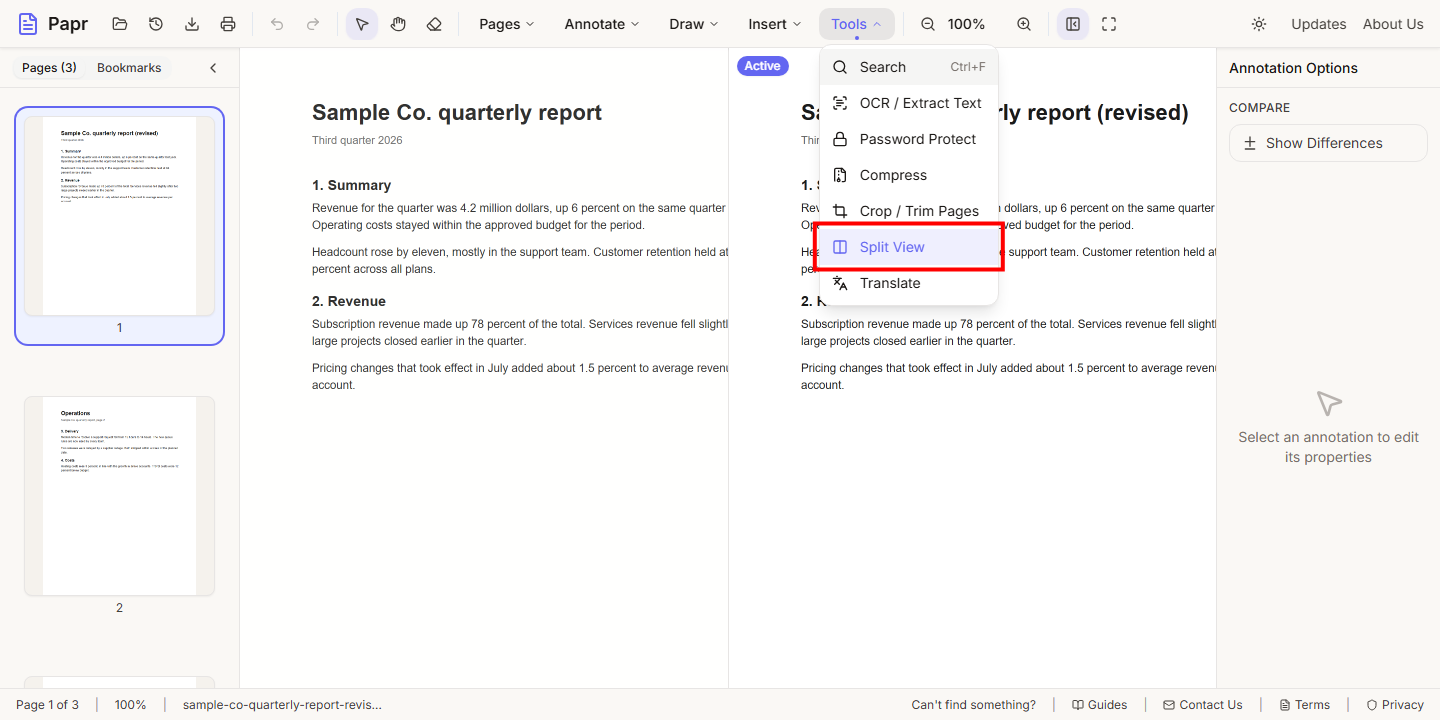
Open the Tools menu and click Split View.
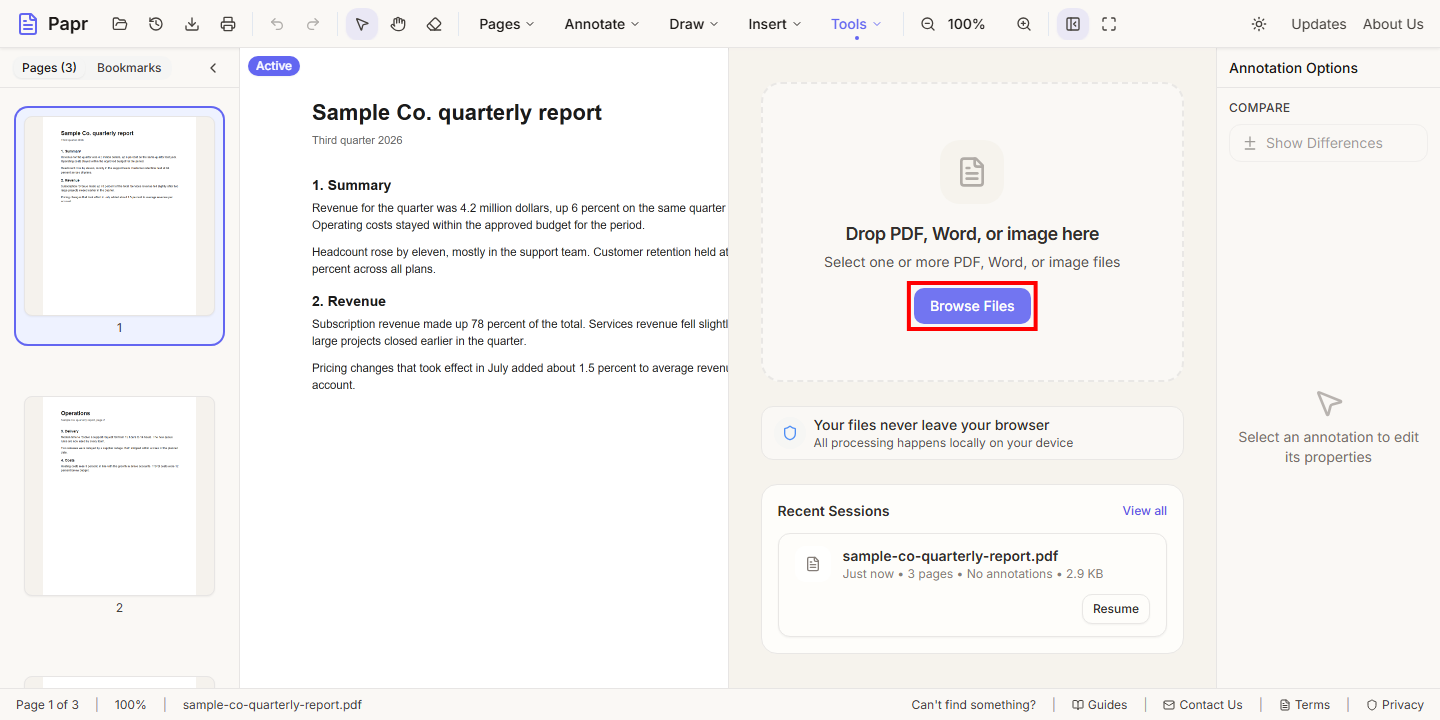
3.Choose the second file
The right pane is empty. Click Browse Files in it and choose the second PDF.
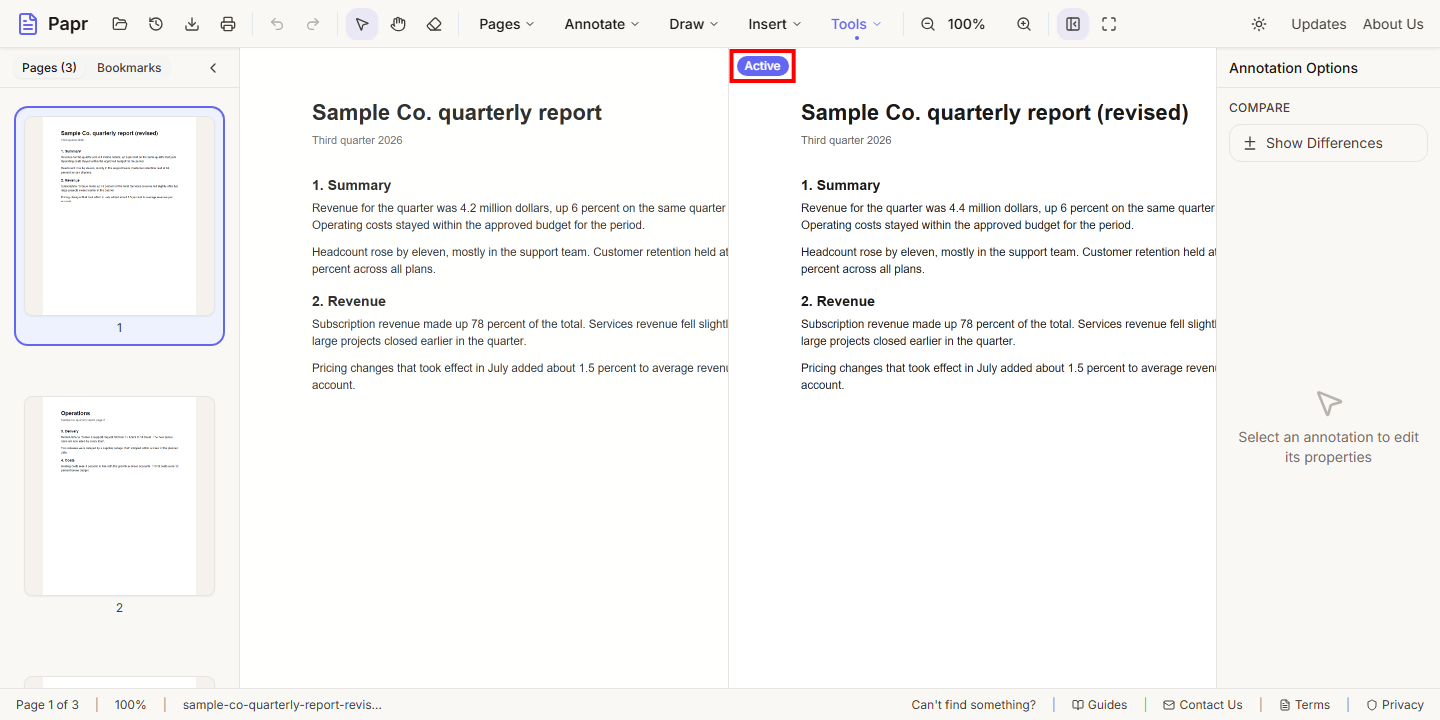
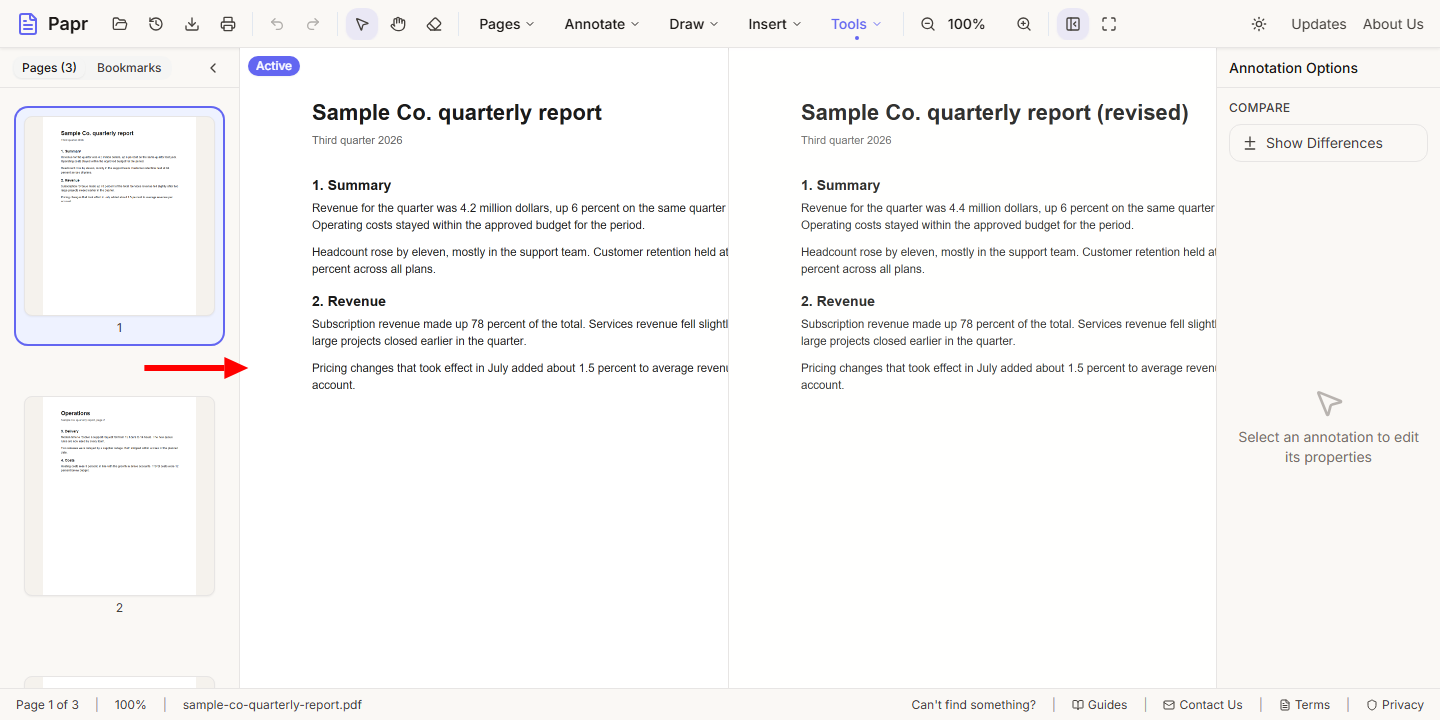
4.Check which pane is active
The second file opens in the right pane, and that pane is marked Active. The tools act on the active pane's document.
5.Switch panes
Click a pane to make it active. Its badge moves, and the tools now work on that document. Each pane shows its own page, so you can look at different parts of the two files.
6.Show the differences
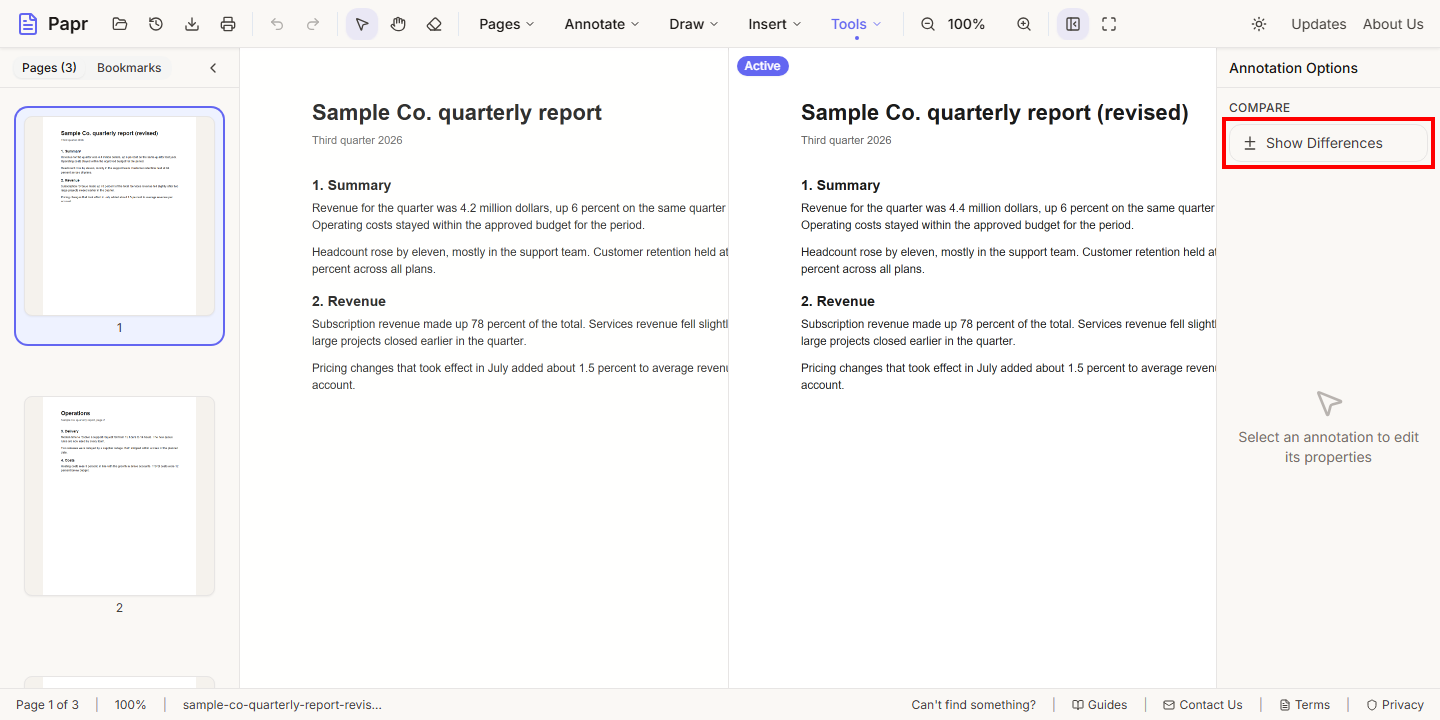
Look at the Compare section in the Annotation Options panel and click Show Differences. Papr marks the text that differs between the two documents.
7.Turn Split View off
Open Tools and click Split View again to return to a single document.
Tips
- Name the two files so the versions are easy to tell apart, for example with a date.
- Add bookmarks to both files to jump between the same sections quickly.
Try it on your own file
Everything in this guide happens in your browser tab. Your file stays on your device.
Open the PDF editor