How to Add Bookmarks to a PDF Online Free
Bookmarks are the outline a reader sees beside a long PDF. Add them in the Bookmarks panel, nest them under their sections, and they are saved with the file.
Step by step
1.Open the PDF
Click Open file in the toolbar, or drop the PDF onto the page.
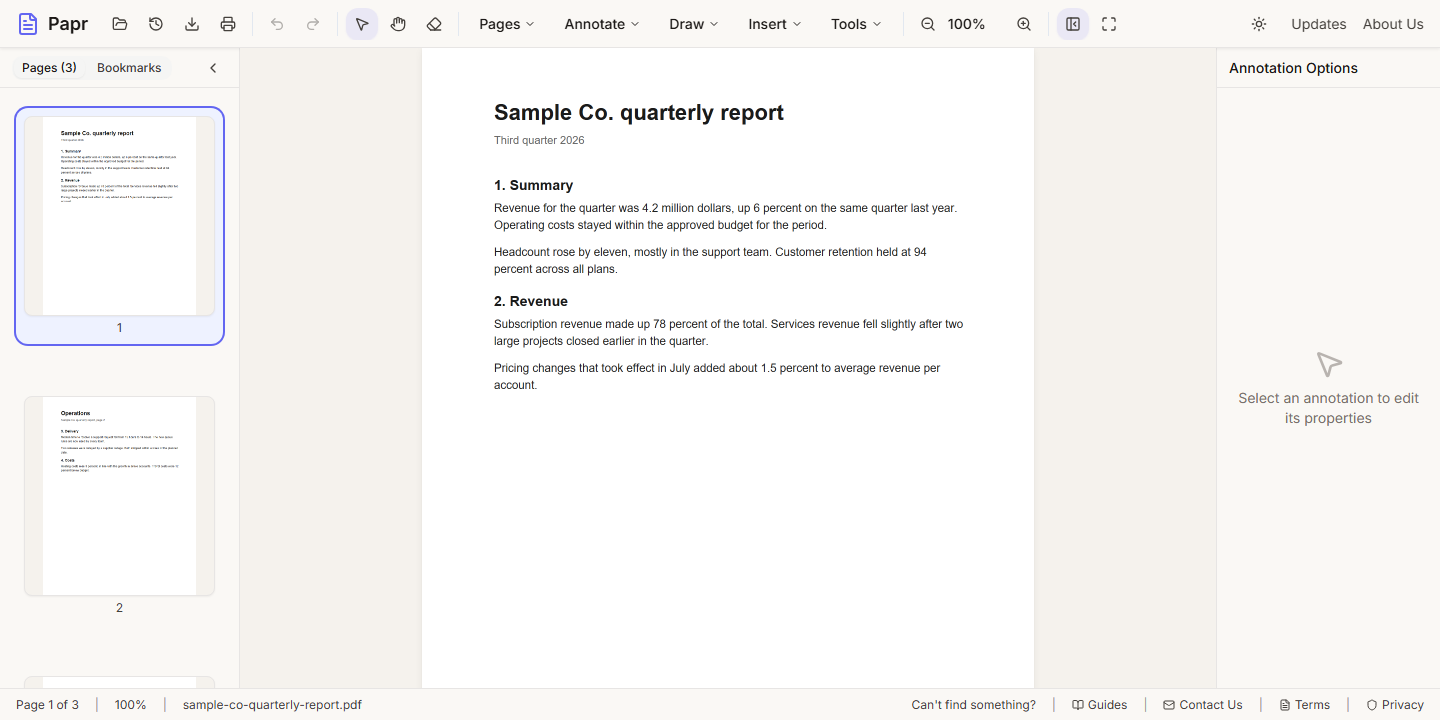
2.Open the Bookmarks panel
Open the Pages menu and click Bookmarks. The sidebar switches to the bookmarks list.
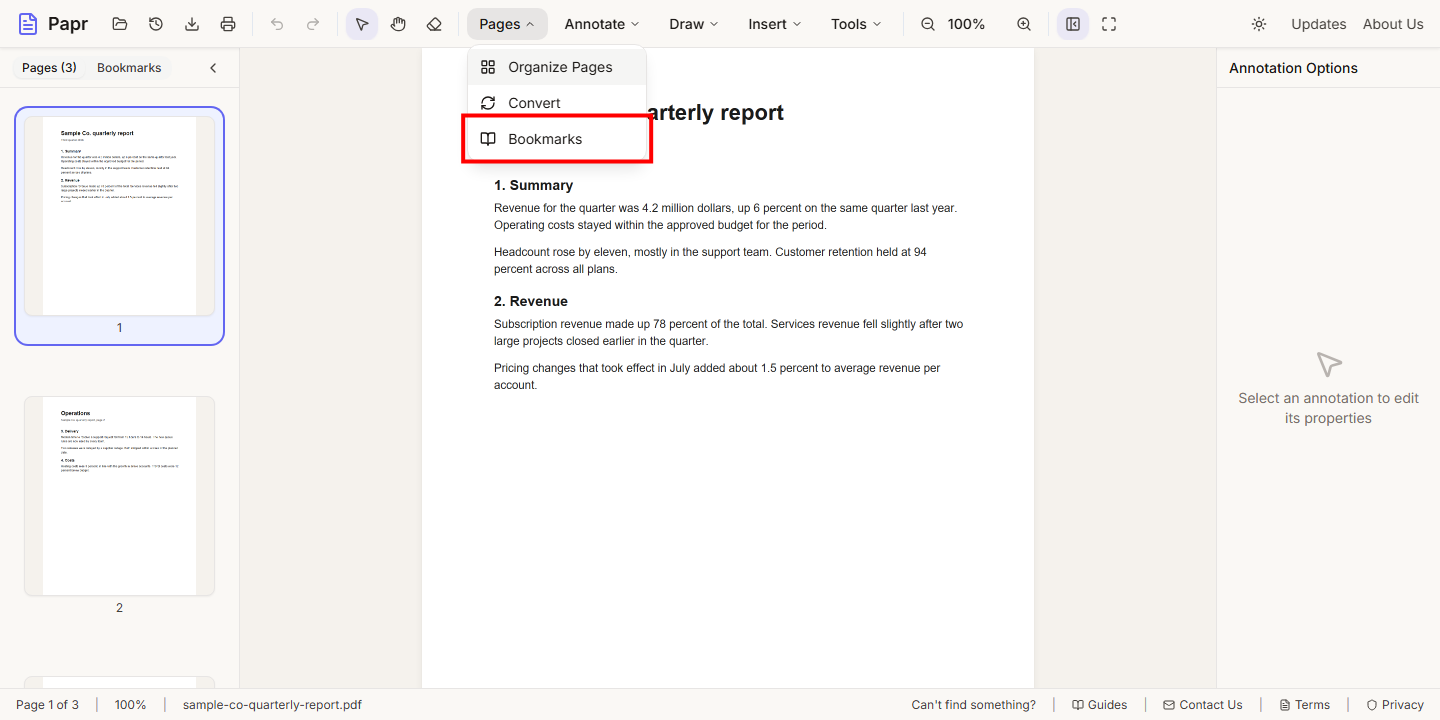
3.Start a bookmark
Click the + at the top of the list. The list is empty at first, so Papr also offers an Add Bookmark button there.
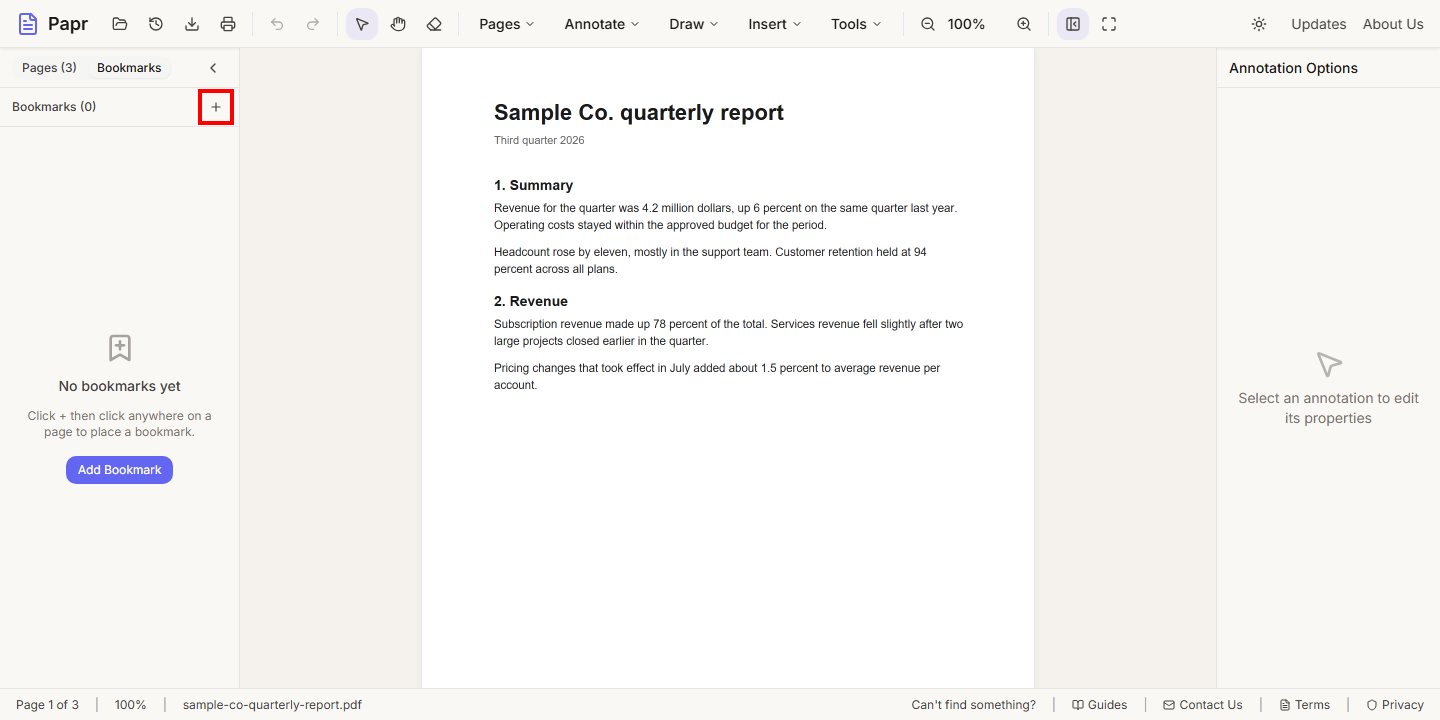
4.Place it and name it
Click the page where the section starts. The bookmark is placed there and its name is selected. Type the section title and press Enter.
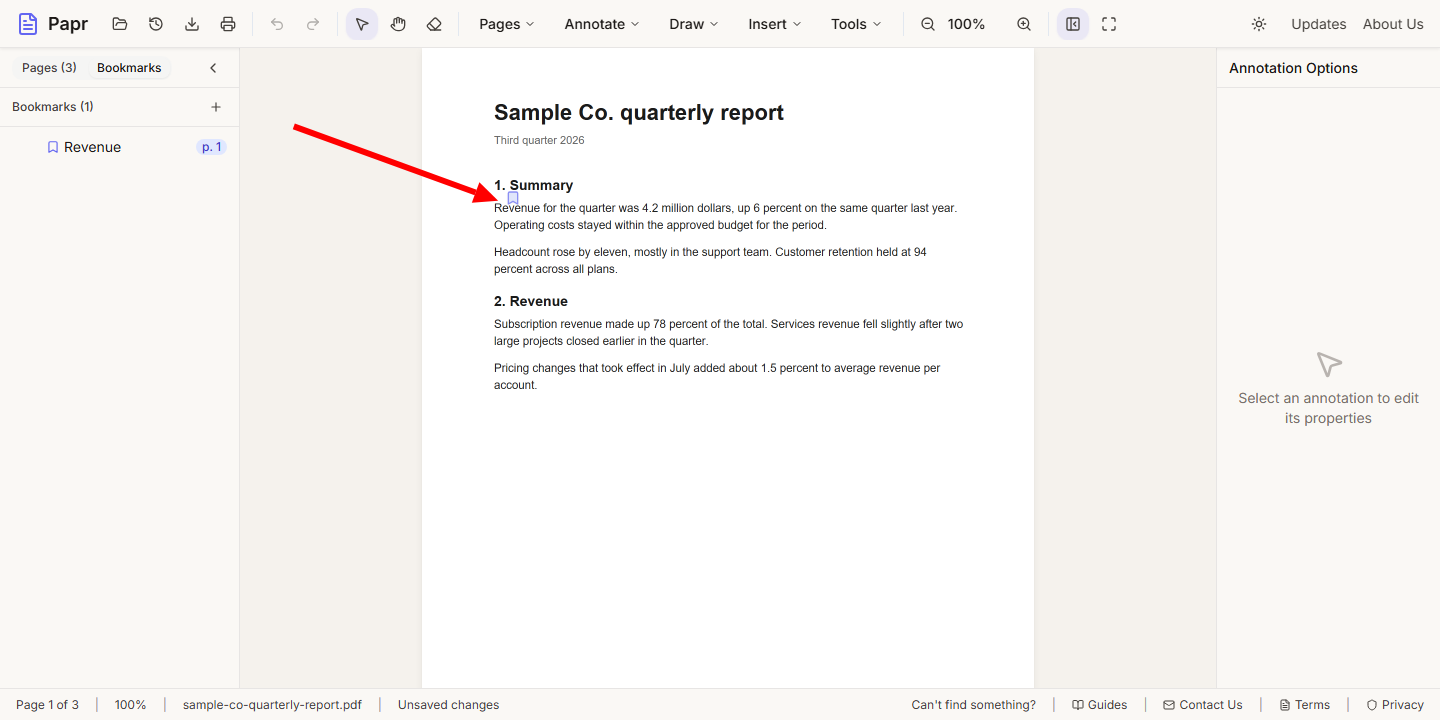
5.Add a bookmark under it
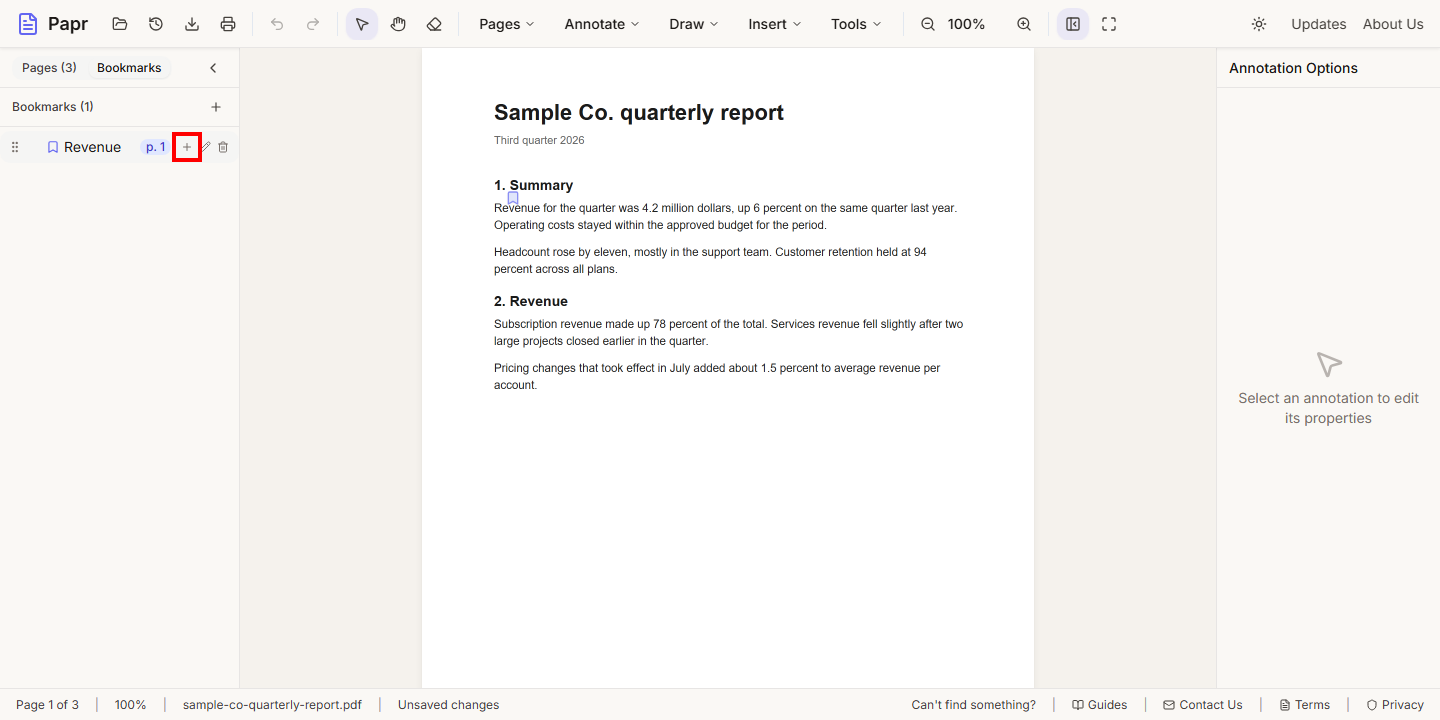
Move the pointer over a bookmark. Its buttons appear: Add sub-bookmark (the plus), Edit and Delete. Use the plus to nest a section under its chapter.
6.Jump to a bookmark
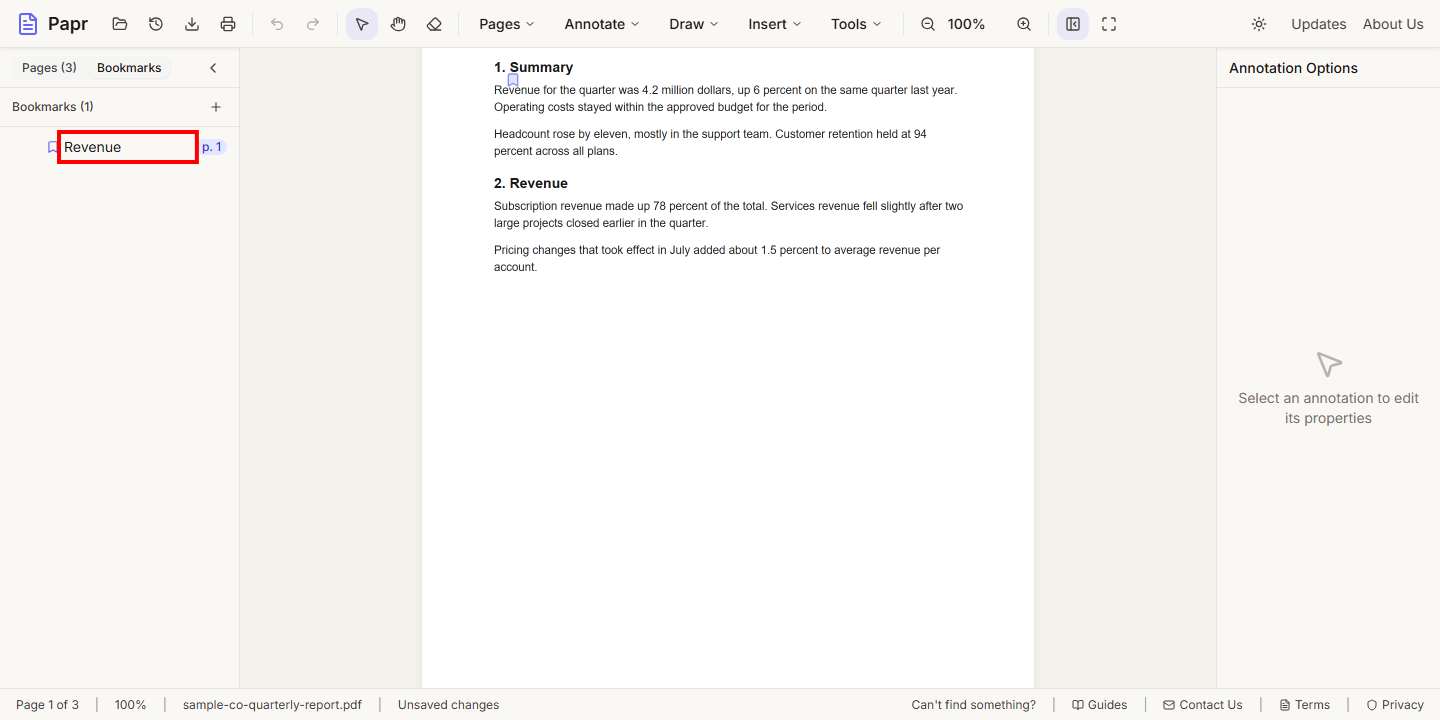
Click a bookmark's name. The viewer scrolls to the page where the bookmark is placed.
7.Export with the bookmarks
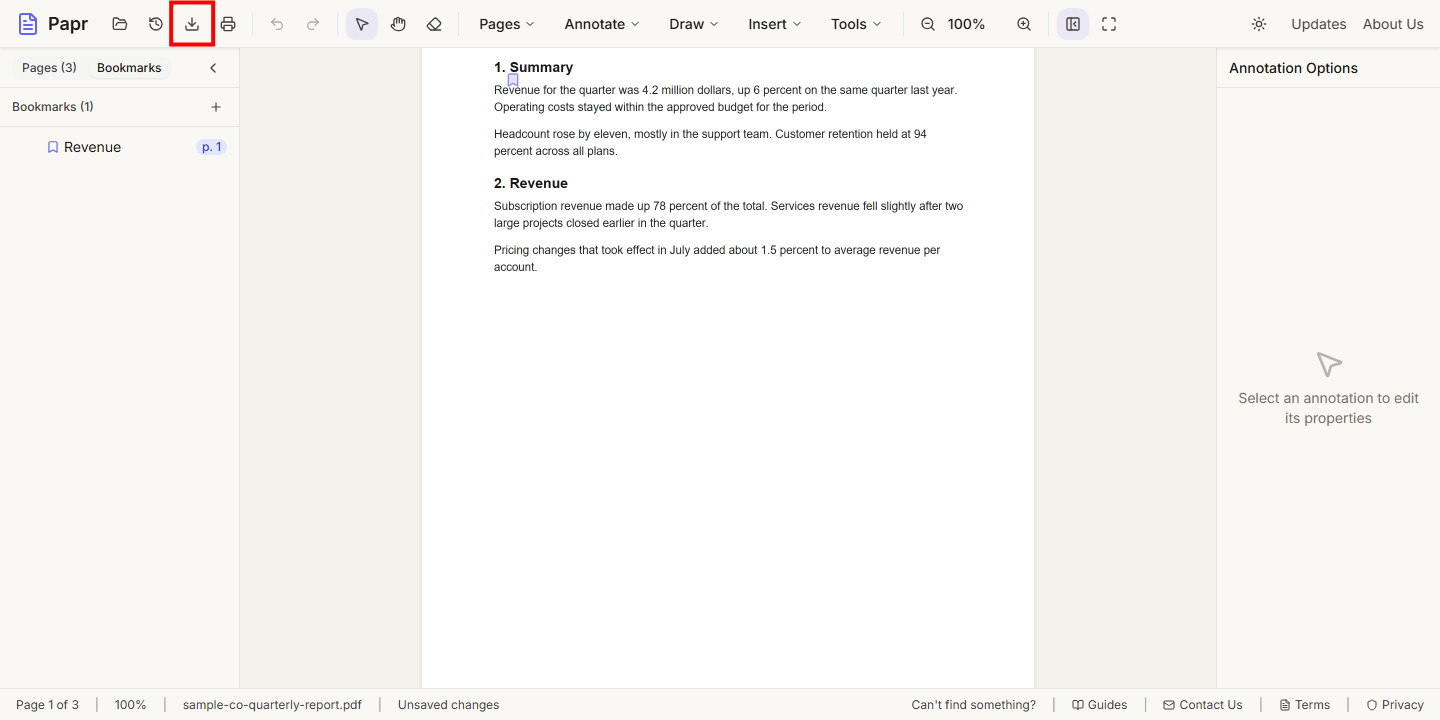
Click Export in the toolbar and save the file. The bookmark outline is written into the exported PDF.
Try it on your own file
Everything in this guide happens in your browser tab. Your file stays on your device.
Open the PDF editor