How to Add Links to PDFs Online Free
Make words in a PDF clickable, so they open a web address or jump to another page of the same document.
Step by step
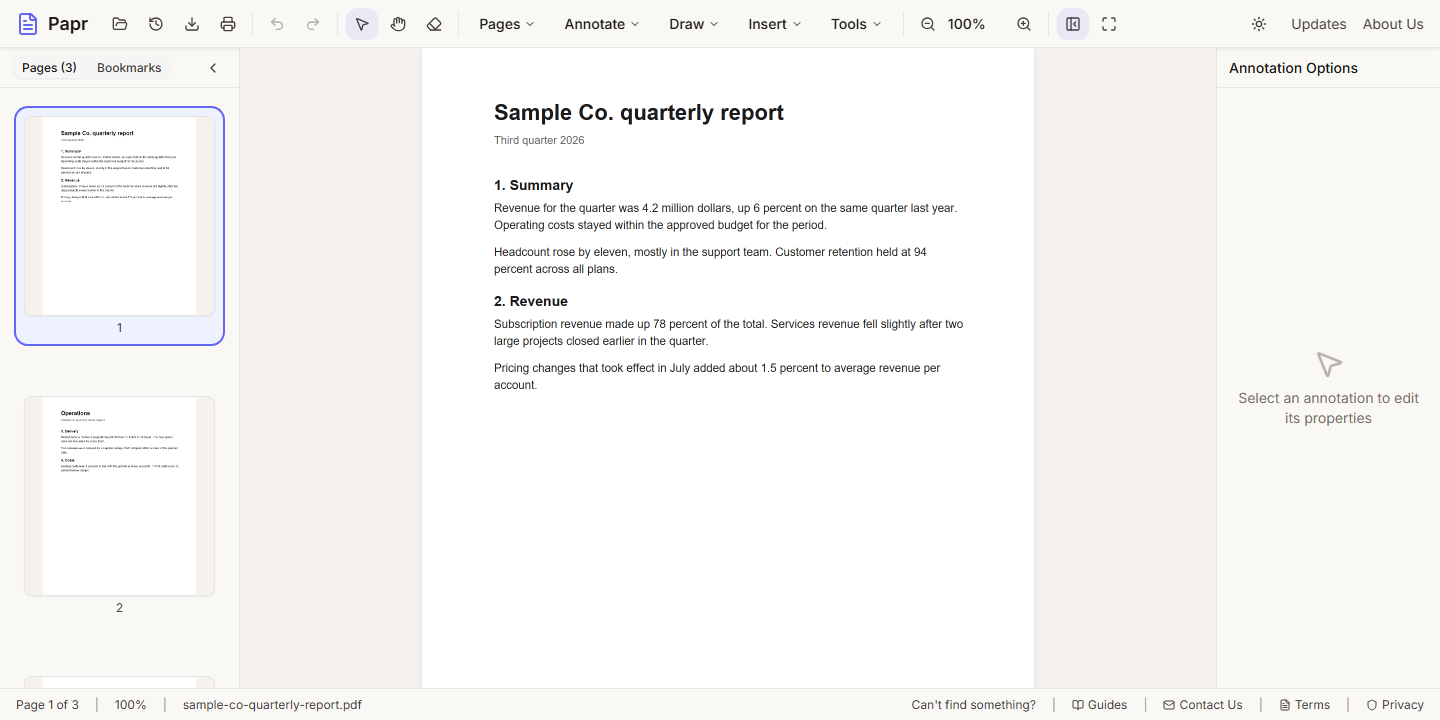
1.Open the PDF
Click Open file in the toolbar, or drop the PDF onto the page.
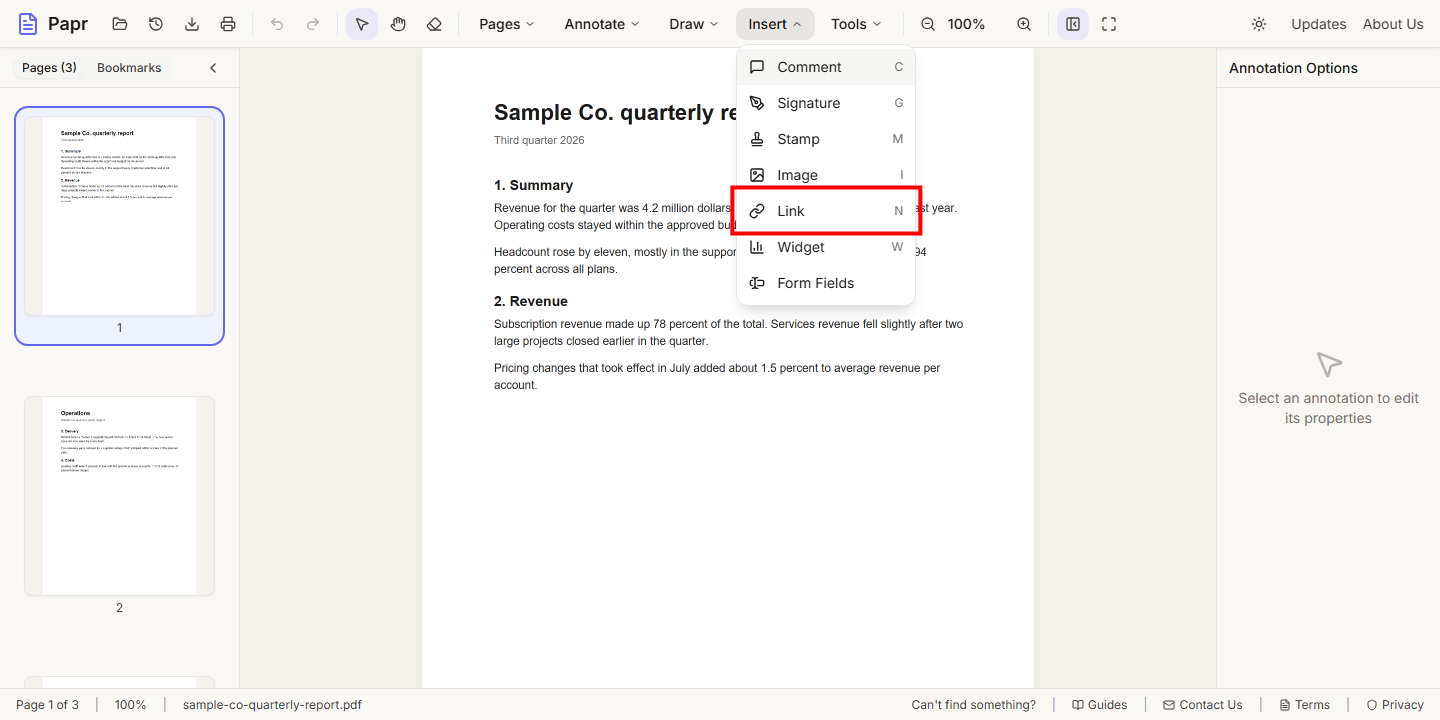
2.Choose Link
Open the Insert menu and click Link. The keyboard shortcut is N.
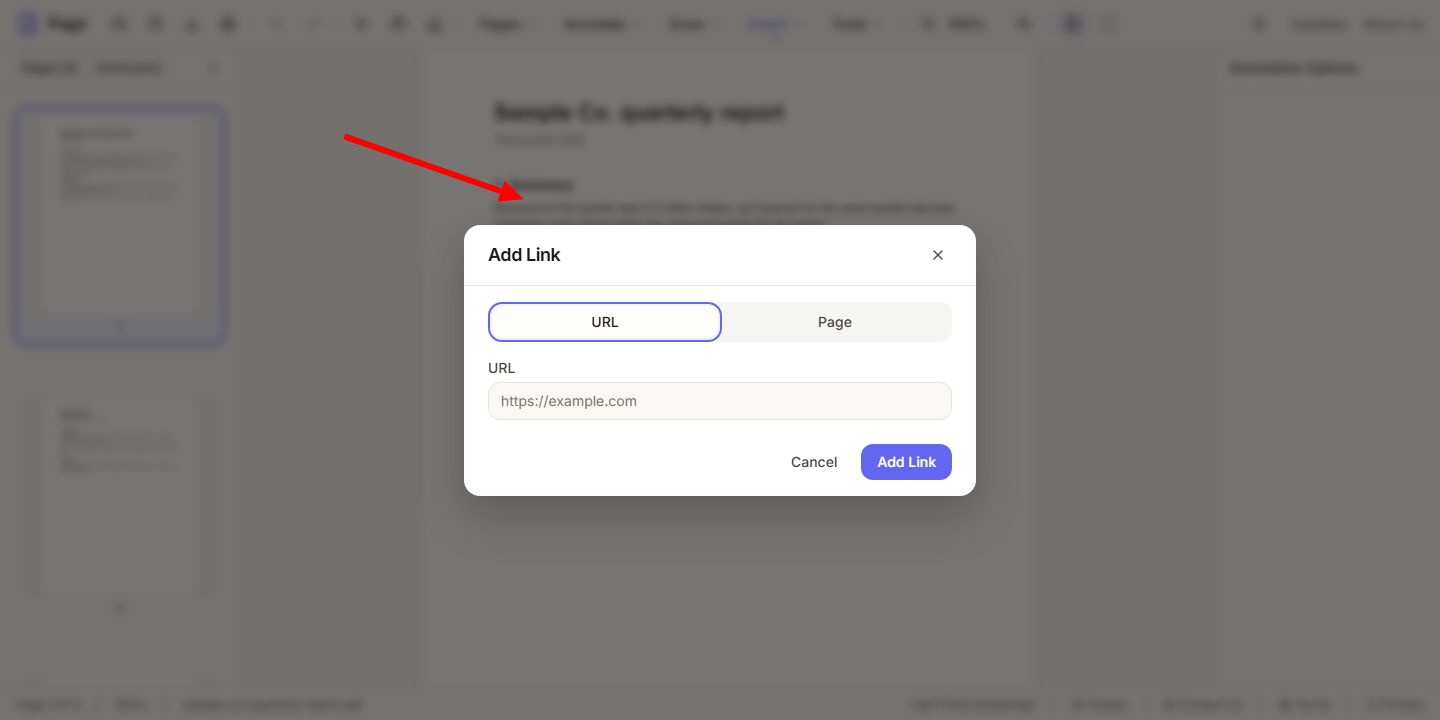
3.Select the words
Click the first word you want to link, then hold Shift and click the last word on the same line. Papr opens the Add Link dialog.
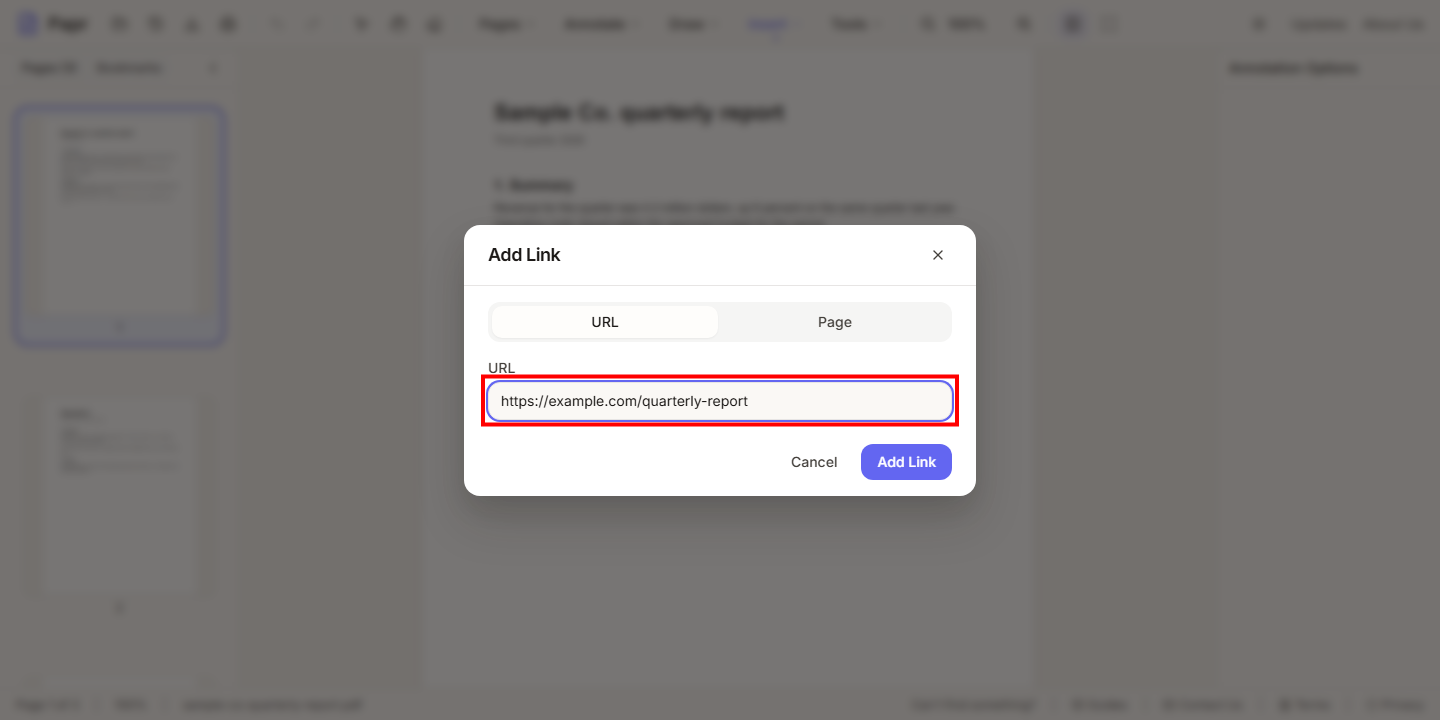
4.Choose where it goes
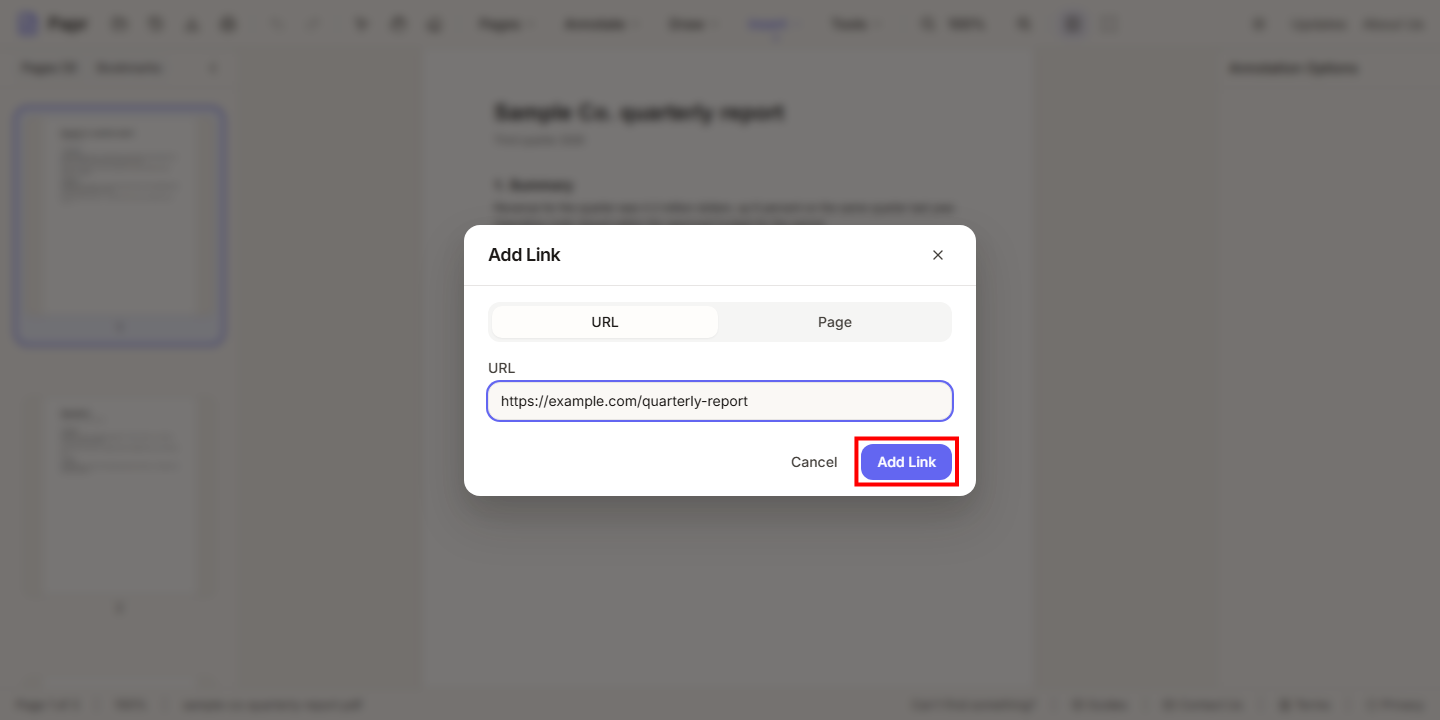
Under URL, type the web address, such as https://example.com. To jump to a page of this document instead, choose Page at the top of the dialog.
5.Add the link
Click Add Link. The words are now a link.
6.Change a link later
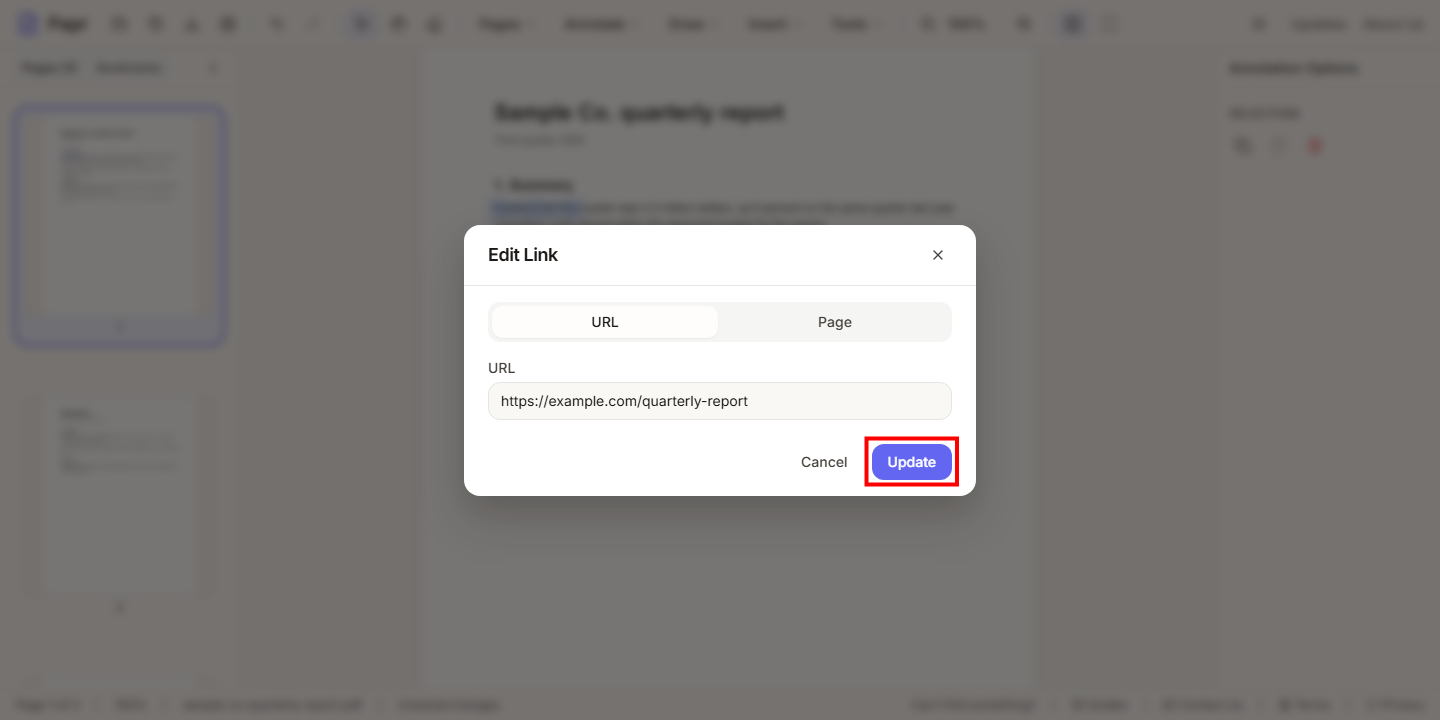
With the Select tool active, click the linked words. The Edit Link dialog opens. Change the address or the page, and click Update.
7.Export and test
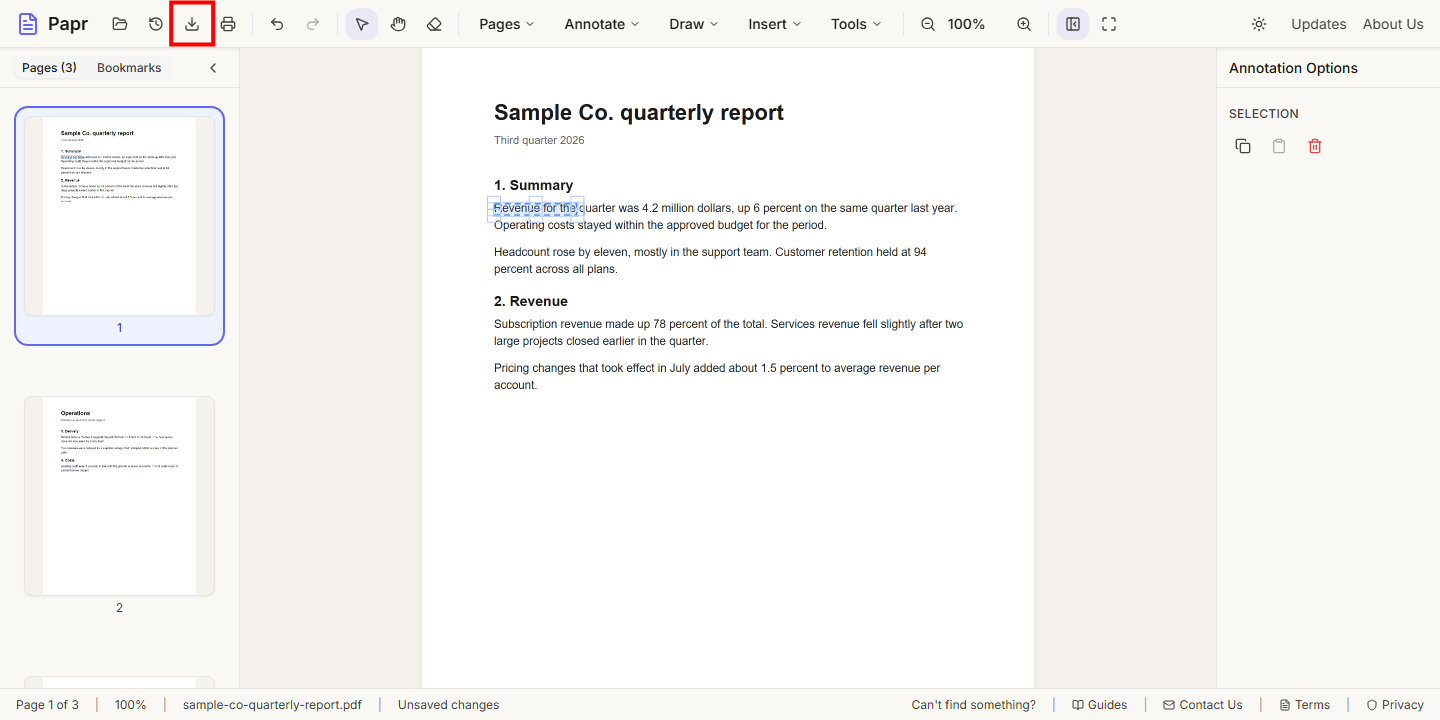
Click Export in the toolbar and save the file. Open the exported PDF in your viewer and click the link to check where it goes.
Try it on your own file
Everything in this guide happens in your browser tab. Your file stays on your device.
Open the PDF editor