How to Add Stamps to PDFs Online Free
Need to mark documents as Approved, Confidential, Draft, or with other status indicators? Papr offers 18 preset stamps in customizable colors to help you quickly communicate document status — all processing happens in your browser with no uploads required.
Why Use Stamps in Papr?
PDF stamps are a professional way to indicate document status, approvals, and confidentiality levels. Unlike handwritten marks, stamps provide a consistent, professional appearance across all your documents.
- 18 Preset Stamps: Including Approved, Rejected, Confidential, Draft, Final, and more
- Custom Colors: Choose colors to match your workflow or branding
- Resize and Position: Place stamps exactly where you need them
- 100% Private: Your documents never leave your device
Available Stamp Types
Papr includes a set of stamps for common workflows:
- Approval stamps: Approved, Rejected, Reviewed
- Status stamps: Draft, Final, Copy, Void
- Security stamps: Confidential
- Signature helpers: Sign Here, Sign Here ->, Initial Here, Date, Print Name
- Form helpers: Choose an Option, Check One, Fill In, Required, Attach File
Step-by-Step: Adding Stamps to PDFs
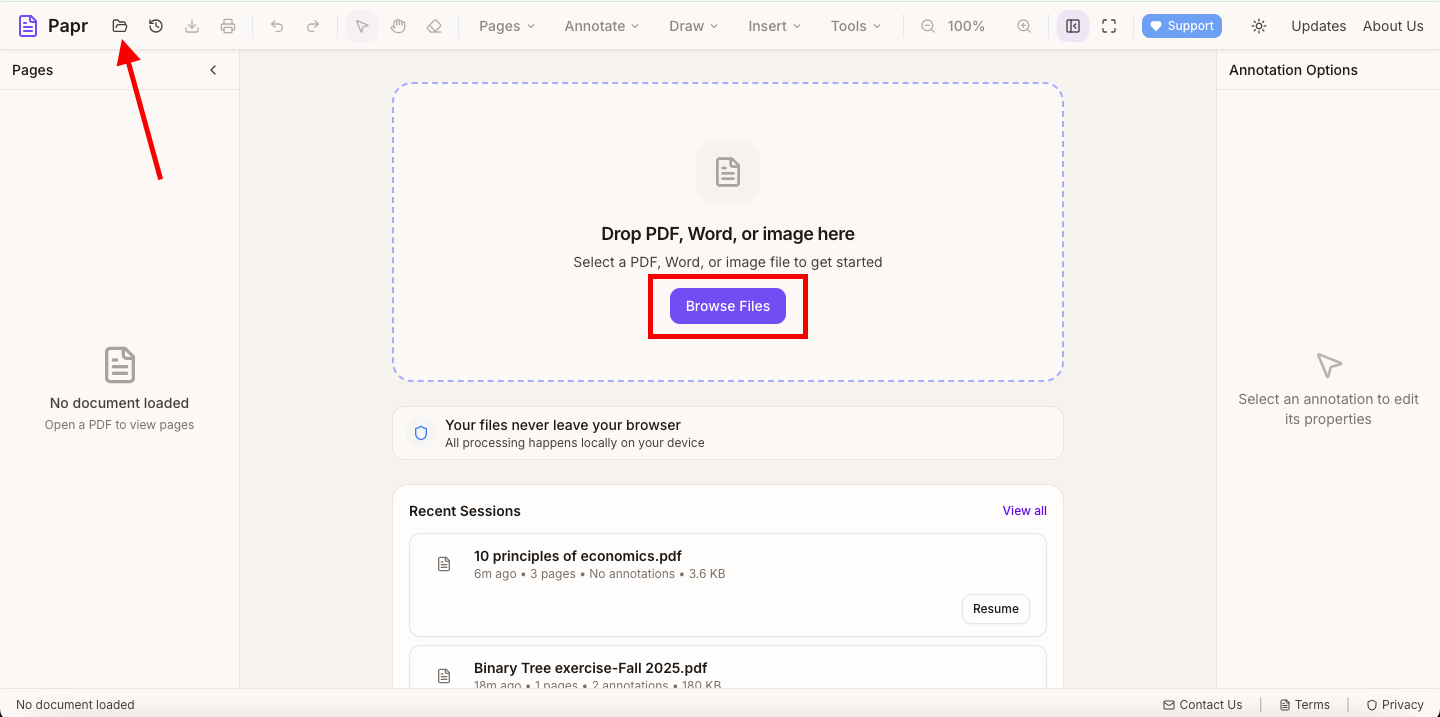
Step 1: Open Your PDF
Go to the Papr editor and click "Open file" or drag and drop your PDF onto the page. Navigate to the page where you want to add a stamp.
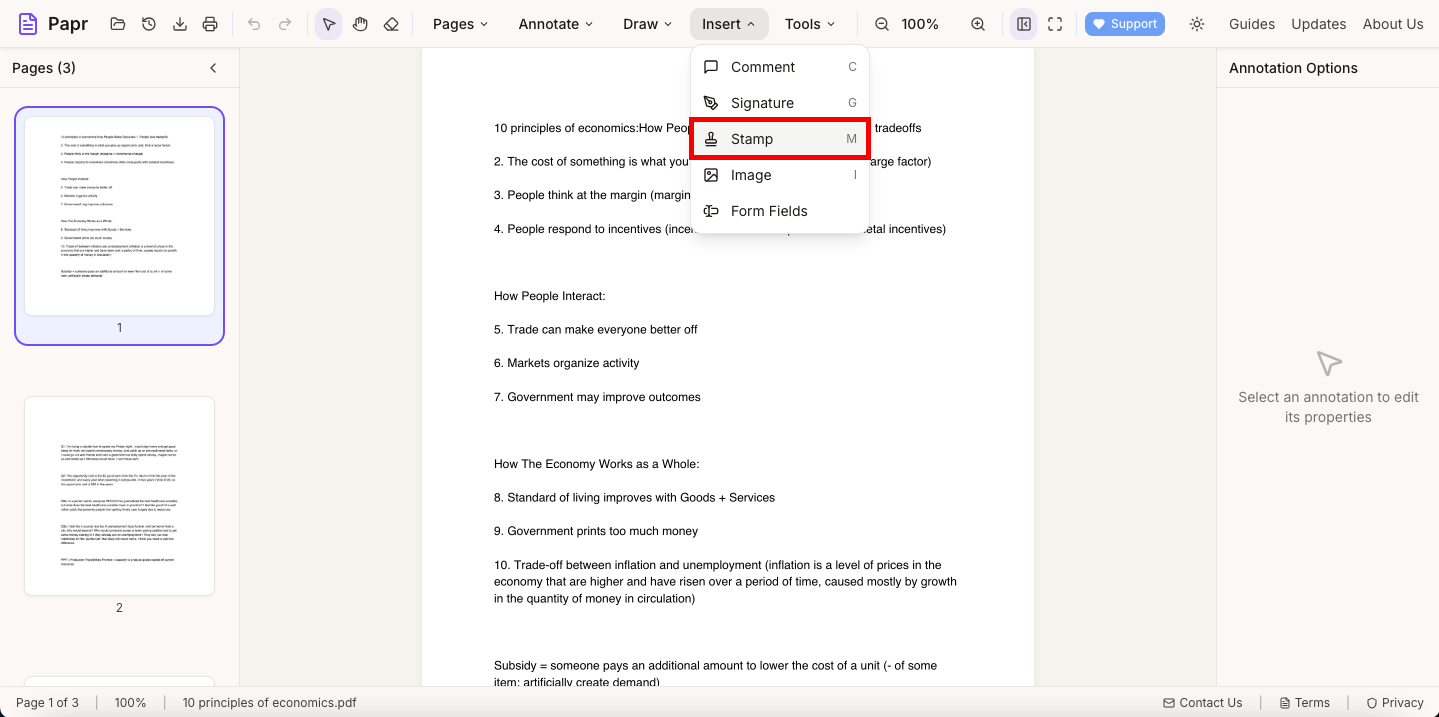
Step 2: Open the Stamp Tool
In the toolbar, open the Insert dropdown menu and select Stamp. This will open the stamp selection panel with all available preset stamps.
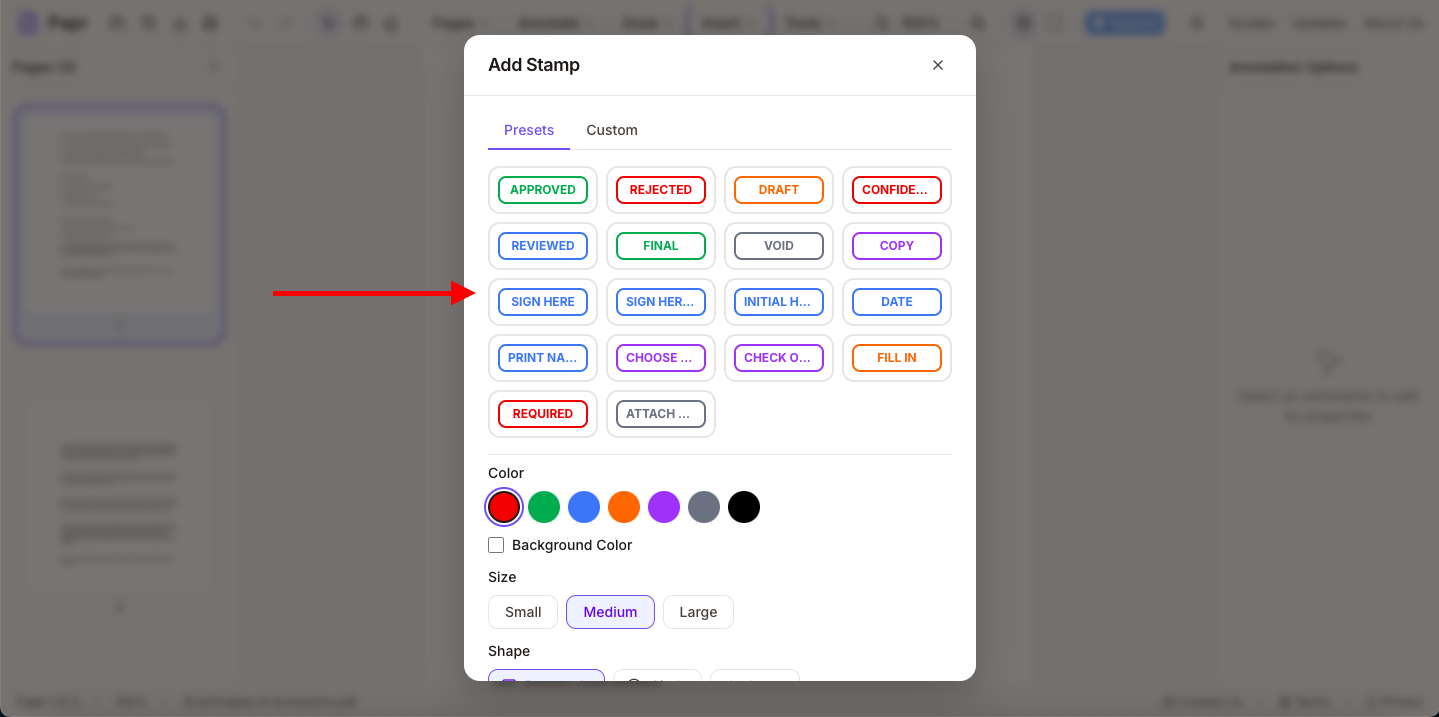
Step 3: Choose Your Stamp
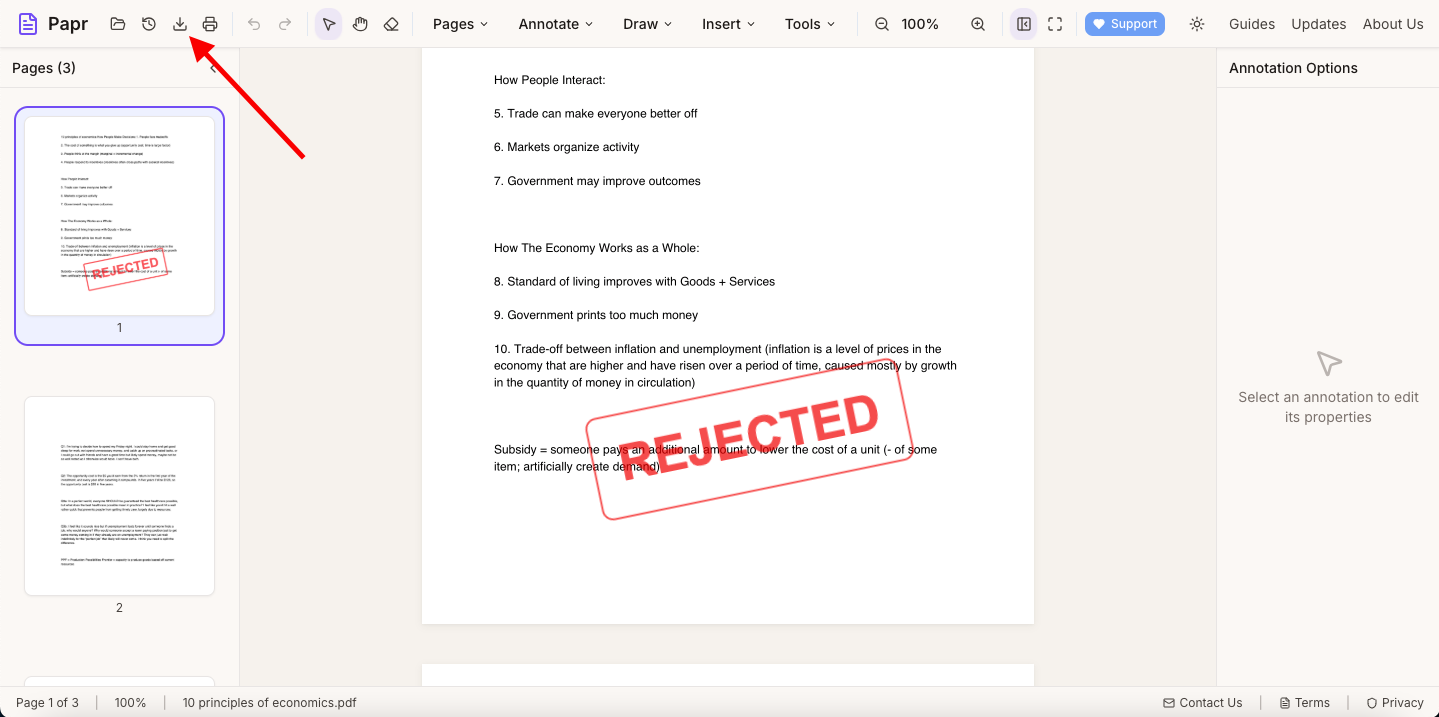
Browse through the available stamps and click on the one you want to use. You can also select a custom color for your stamp if the default doesn't match your needs.
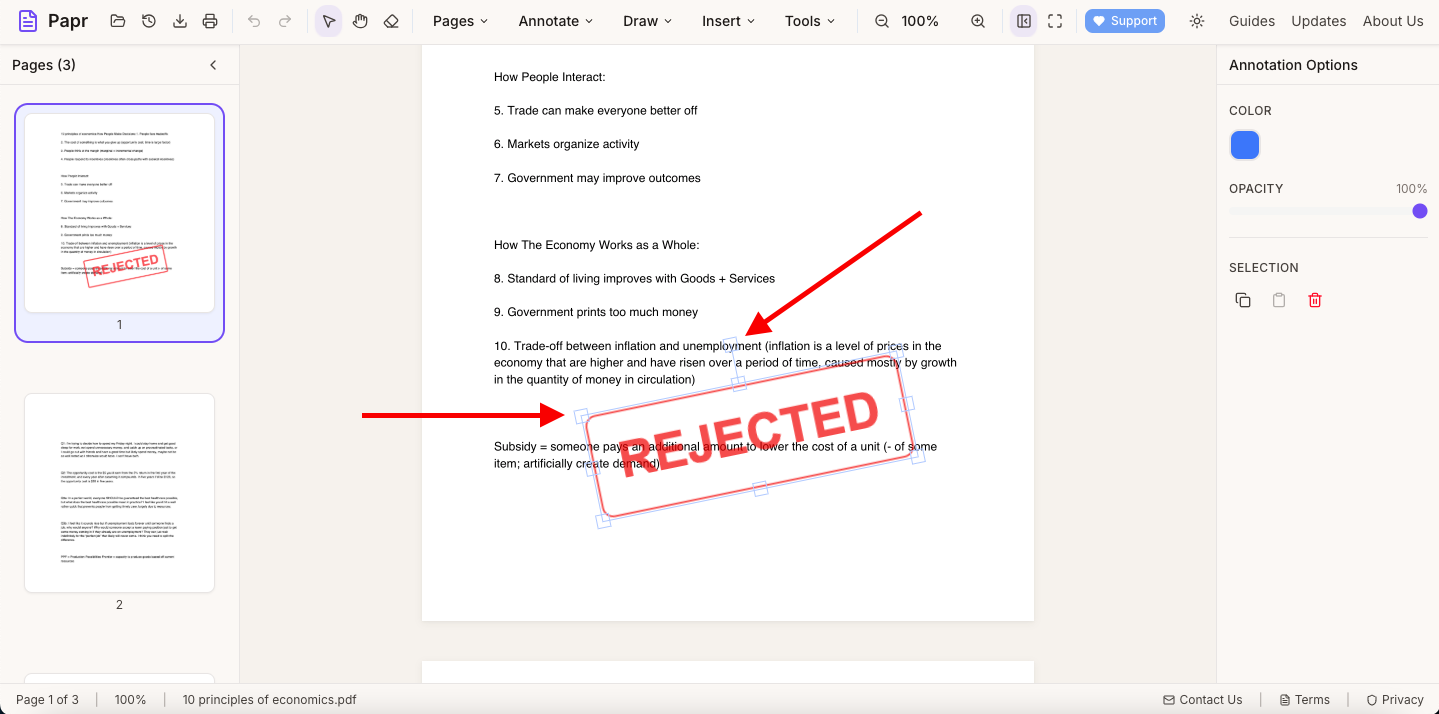
Step 4: Place and Resize Your Stamp
Click on the document where you want to place the stamp. Once placed, you can drag it to reposition and use the corner handles to resize it.
Step 5: Export Your Stamped PDF
When you're finished adding stamps, click the Export button to save your document. The stamps will be embedded in the PDF and visible in any PDF reader.
Tips for Using Stamps Effectively
- Use consistent colors: Establish a color system for your team (e.g., green for approved, red for rejected, yellow for pending)
- Place stamps strategically: Put approval stamps near signature lines or approval areas and status stamps in the header or footer area
- Size appropriately: Make stamps large enough to be noticed but not so large they obscure important content
- Combine with signature images: Use "Sign Here" stamps to indicate where signature images should go before sending documents for review or approval
Common Use Cases
PDF stamps are useful in many business scenarios:
- Marking contracts and agreements as approved or rejected
- Indicating draft documents that shouldn't be distributed
- Labeling confidential or internal-only documents
- Showing where signature images or initials are needed
- Voiding old versions of documents
- Prioritizing documents that need urgent attention
Ready to Add Stamps?
Try adding stamps to your PDFs now with Papr. It's free and your files stay private.
Open Papr Editor