How to Add a Watermark to PDF Online Free
Need to mark a document as draft, confidential, or add your company branding? Papr lets you add text or image watermarks to any PDF — all processing happens locally in your browser for complete privacy.
Why Add Watermarks with Papr?
Watermarks help protect your documents, indicate their status, and add branding. Unlike other tools that require uploads to external servers, Papr processes everything on your device — ideal for sensitive documents that need watermarking.
- Complete Privacy: Confidential documents stay on your device
- Flexible Options: Text or image watermarks
- Full Customization: Control size, position, opacity, and rotation
- No Cost: Free to use on most documents; very large files depend on browser limits
Step-by-Step: Adding a Watermark
Step 1: Open Your PDF
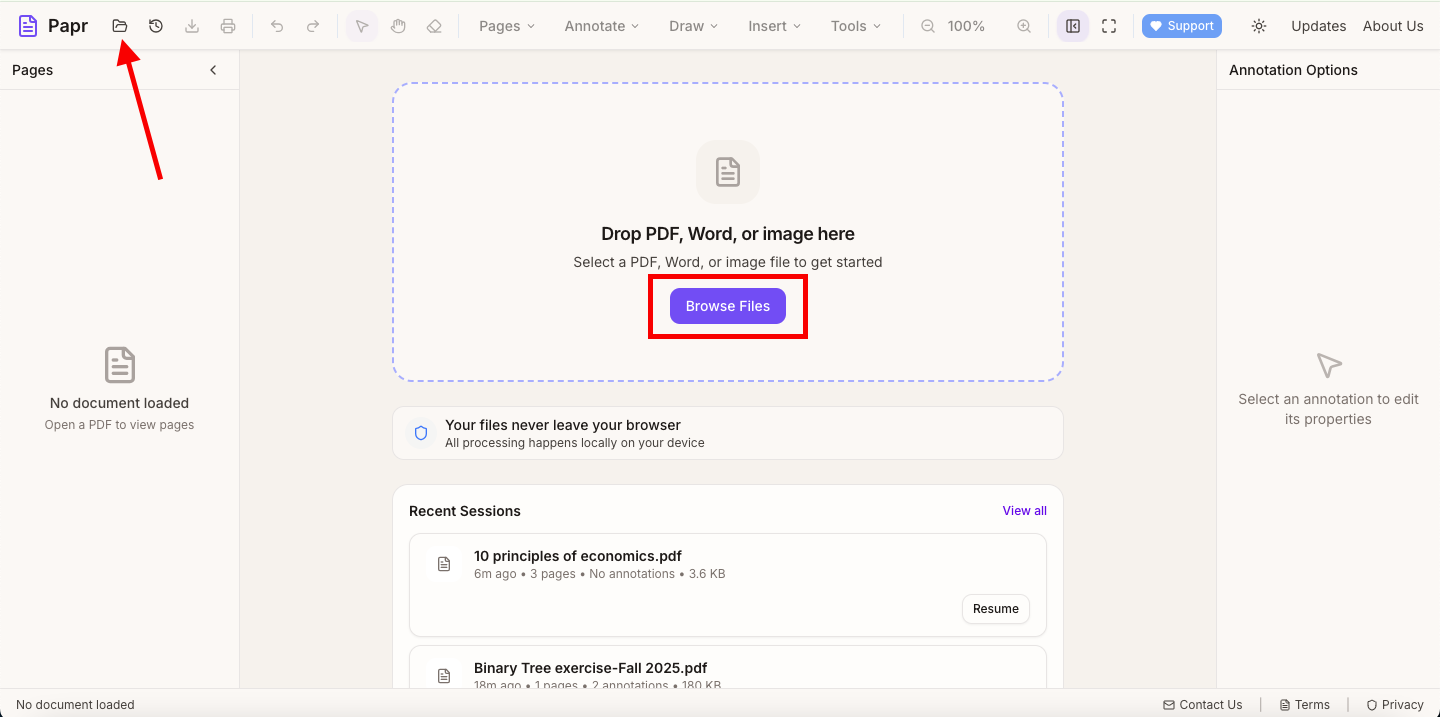
Launch the Papr editor and load your PDF by clicking the "Open file" button in the top toolbar or dragging the file onto the page.
Step 2: Open the Watermark Editor
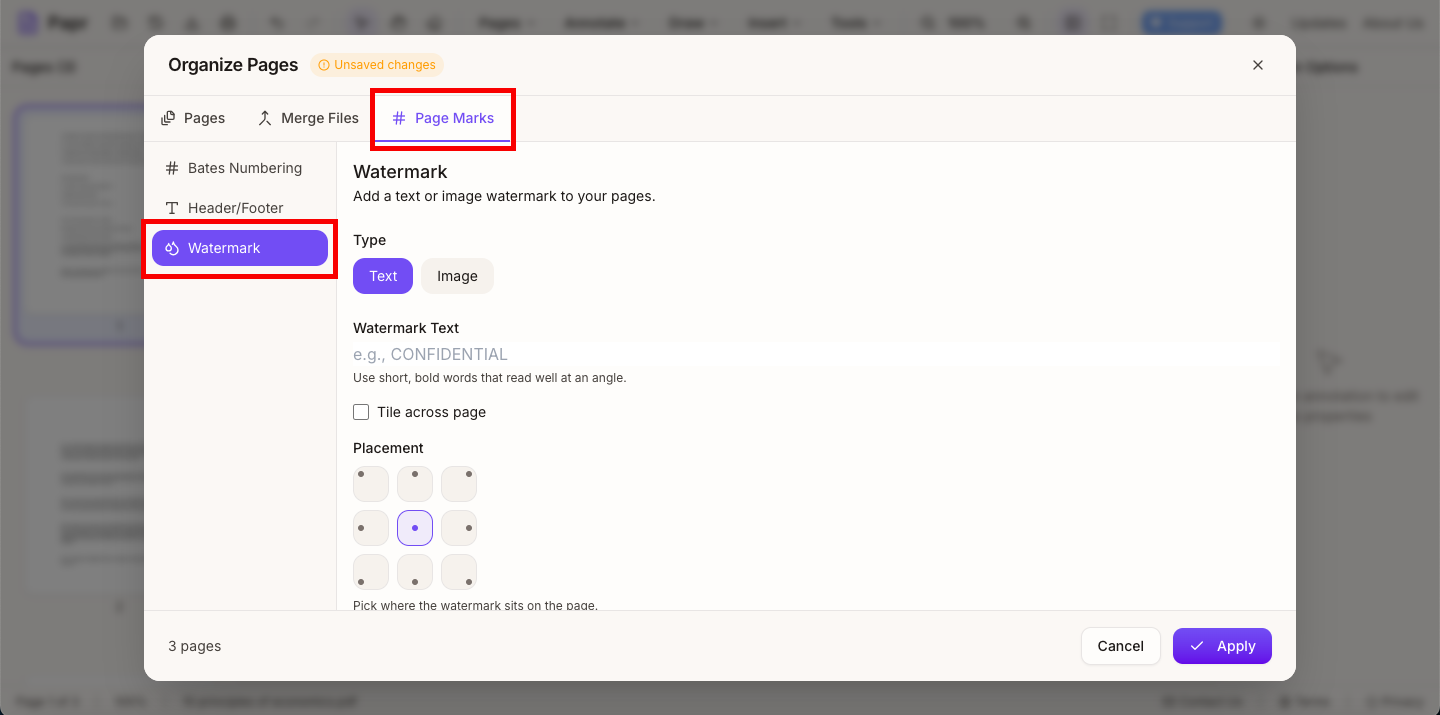
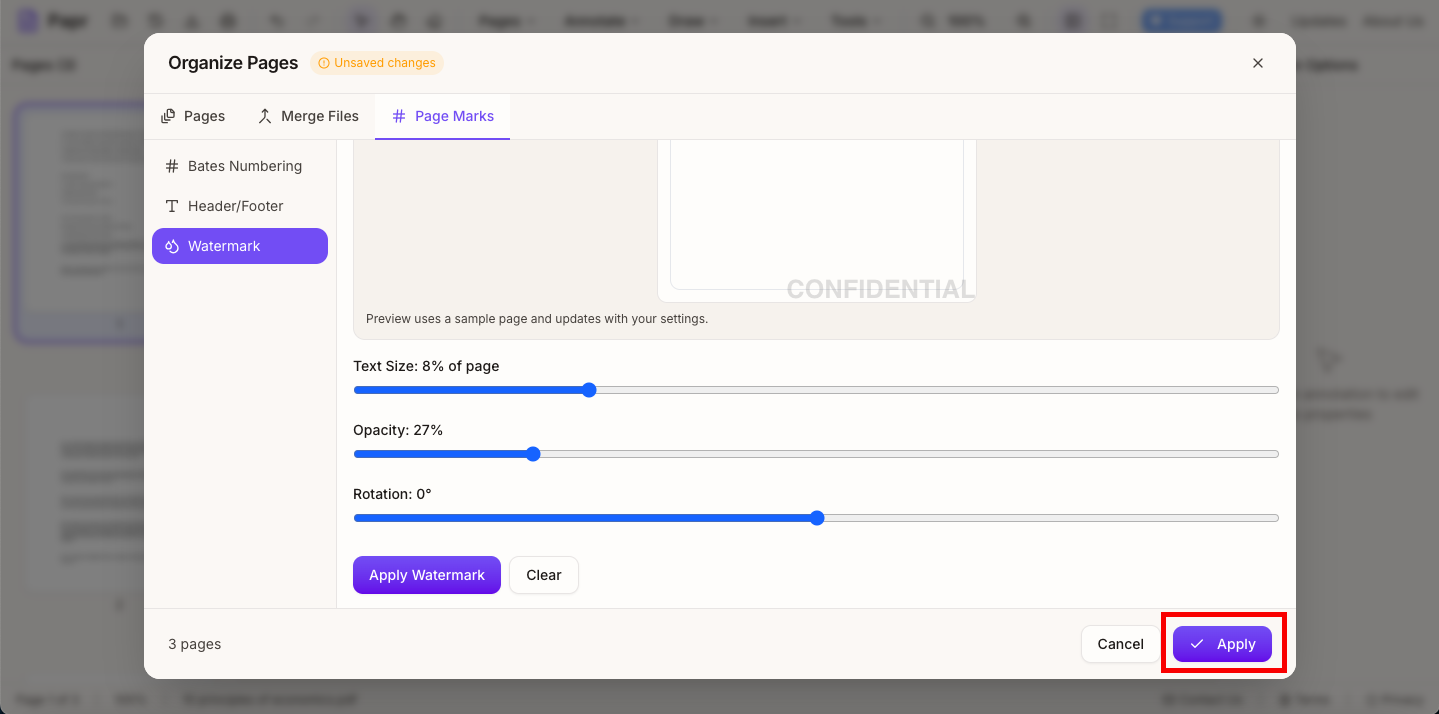
In the top toolbar, open the Pages dropdown and select Organize Pages. Then open the Page Marks tab and choose Watermark.

Step 3: Choose or Create Your Watermark
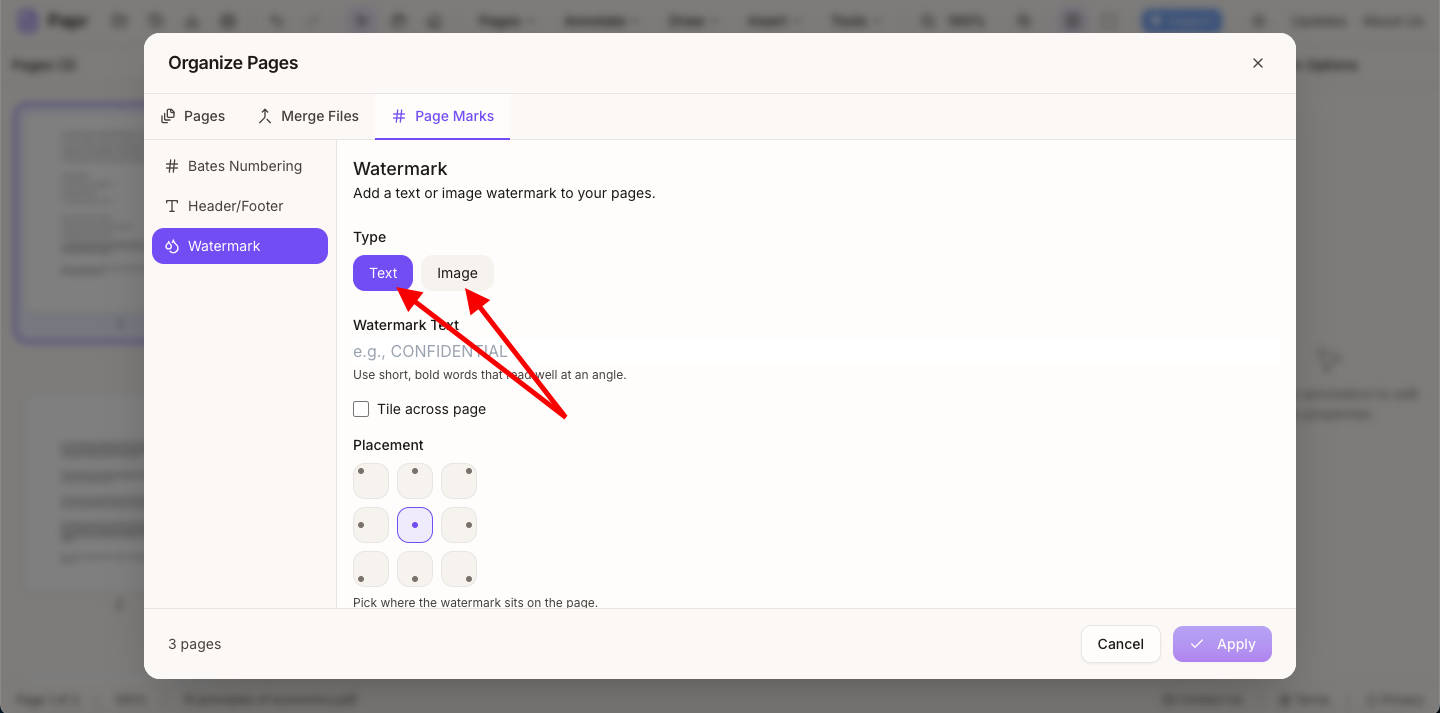
You have several options:
- Text watermark: Enter your own text with custom size, opacity, and rotation
- Image watermark: Upload a logo or custom graphic
Step 4: Position and Style
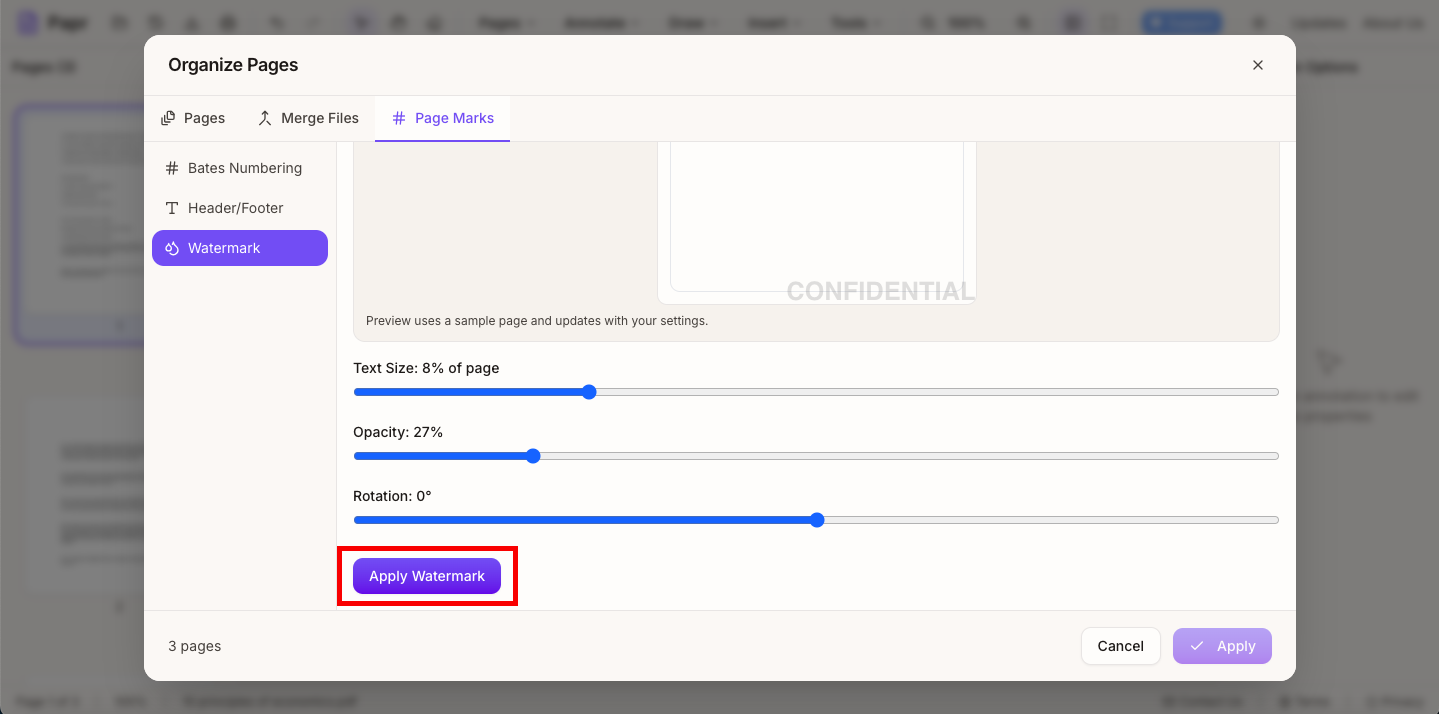
Use the placement options in the Watermark tab to position your watermark. Adjust the position, size, rotation, and opacity settings. For a classic watermark effect, use diagonal text at low opacity across the center of the page.
Step 5: Apply to Multiple Pages (Optional)
Click Apply Watermark in the watermark panel to apply it. For a single page, you can also use a Stamp instead of a full-page watermark (Insert > Stamp).
Step 6: Save Your Watermarked PDF
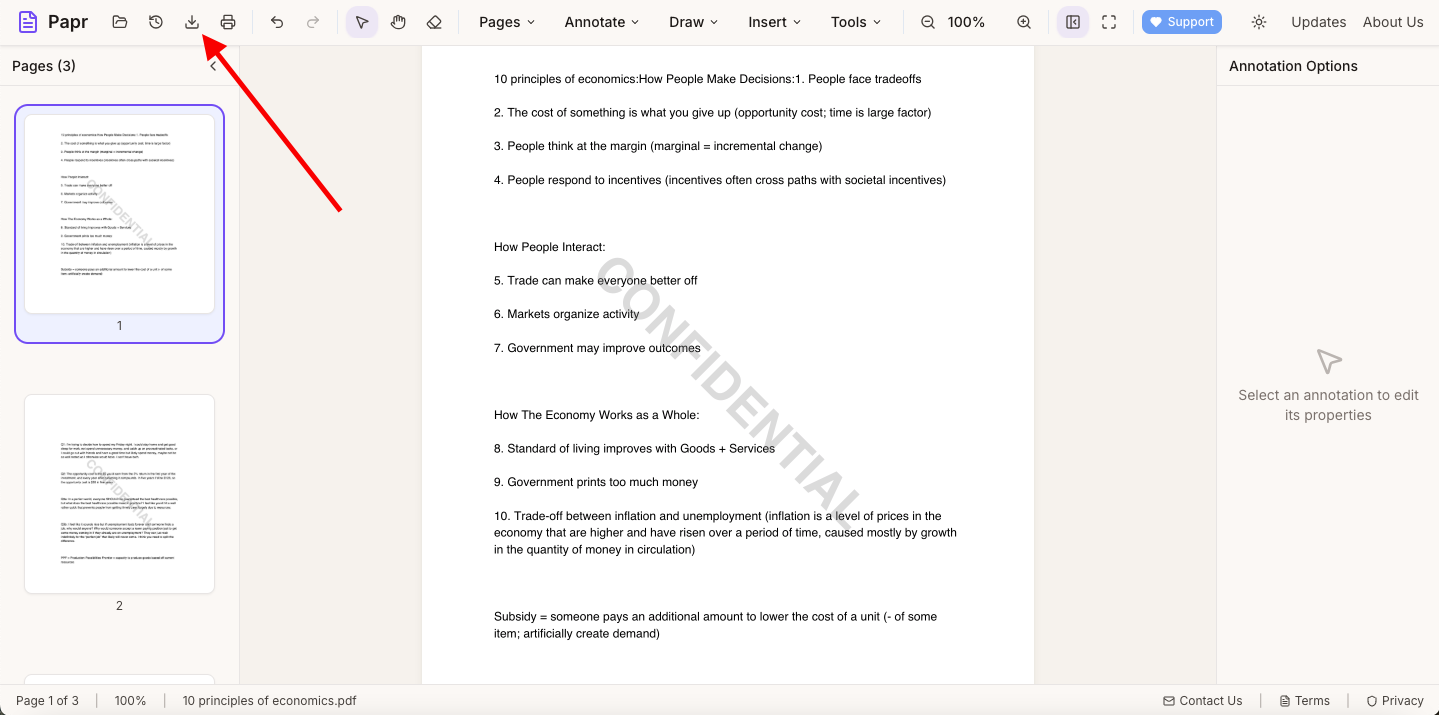
Click Apply in the Organize Pages modal, then use Export in the top toolbar to save your watermarked document. The watermark becomes embedded in the PDF.
Tips for Effective Watermarks
- Use appropriate opacity: 10-30% opacity for watermarks that shouldn't distract from content; higher opacity for stamps meant to be noticed.
- Consider placement: Center diagonal watermarks are hardest to remove; corner stamps are less intrusive but also easier to crop out.
- Match your purpose: Use red for warnings (CONFIDENTIAL), gray for status (DRAFT), or brand colors for logos.
- Test readability: Make sure the underlying document is still clearly readable after adding the watermark.
Types of Watermarks
Different watermarks serve different purposes:
- Status indicators: DRAFT, PENDING, APPROVED, FINAL
- Security labels: CONFIDENTIAL, INTERNAL ONLY, DO NOT COPY
- Ownership marks: Company logos, copyright notices
- Version control: Dates, version numbers, review copy indicators
Common Use Cases
- Marking draft documents to prevent premature distribution
- Adding confidentiality notices to sensitive materials
- Branding PDFs with your company logo
- Protecting photos and creative work with copyright watermarks
- Indicating document approval status in workflows
- Adding "SAMPLE" or "SPECIMEN" to example documents
Ready to Add a Watermark?
Try adding watermarks now with Papr. It's free and your files stay private.
Open Papr Editor