How to Compress PDFs Online Free
Make a PDF small enough to email or upload. Choose how much to compress, see the estimated size first, and compress the file in your browser.
Step by step
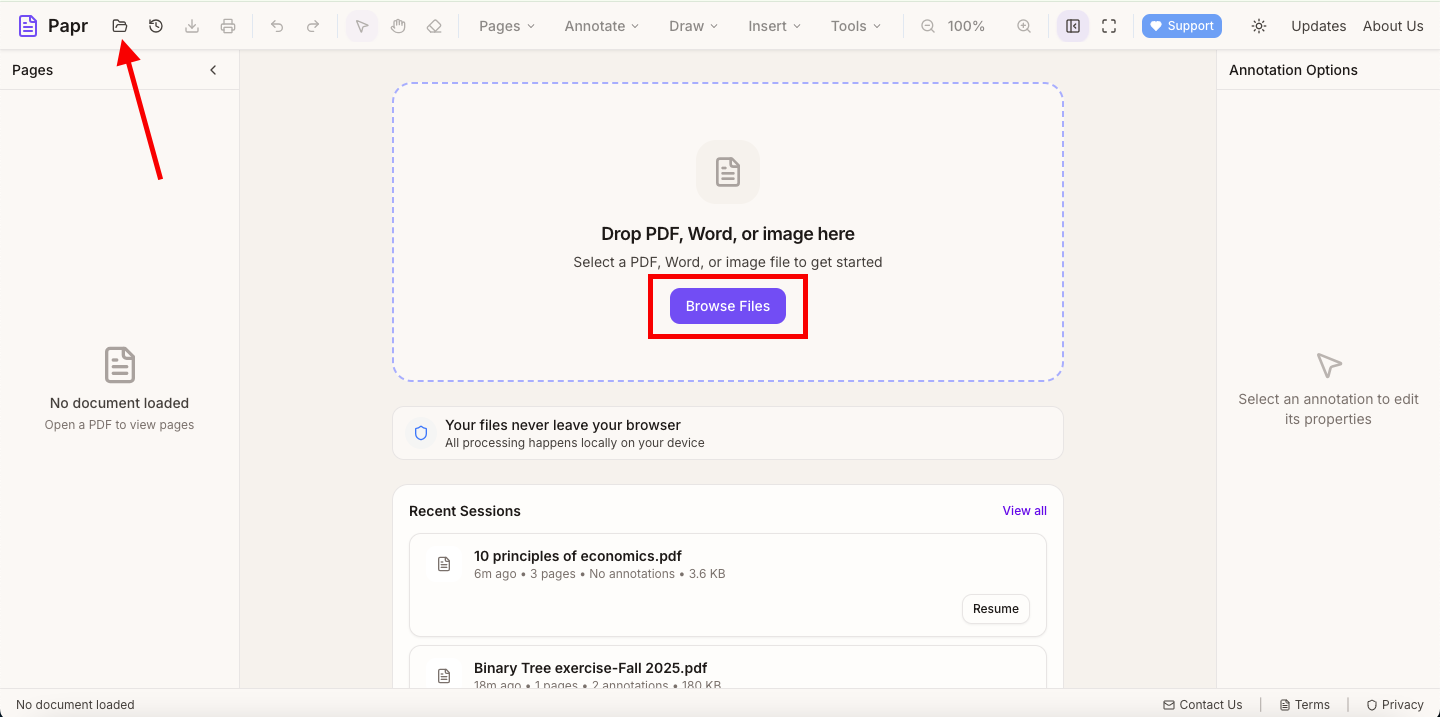
1.Open the PDF
Click Open file in the toolbar, or drop the PDF onto the page. The document opens in the viewer.
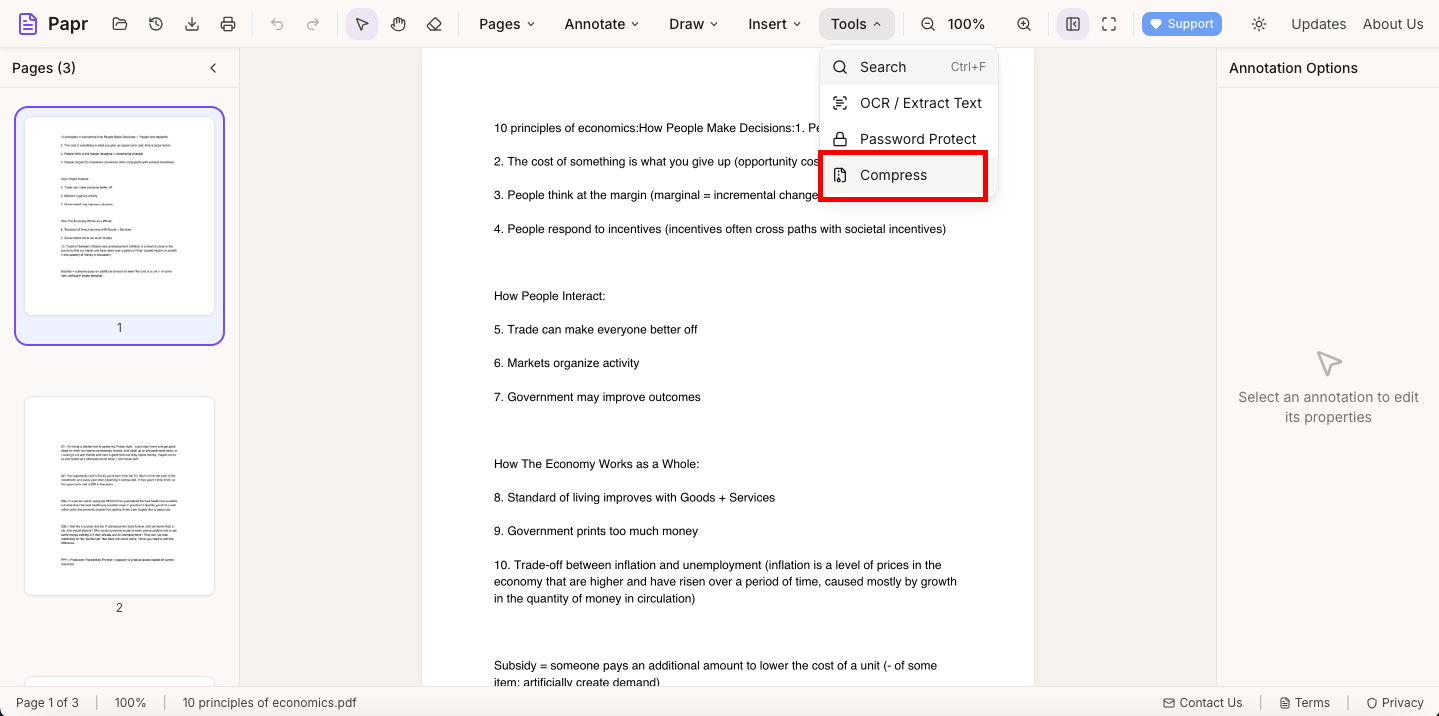
2.Open Compress
Open the Tools menu and click Compress.
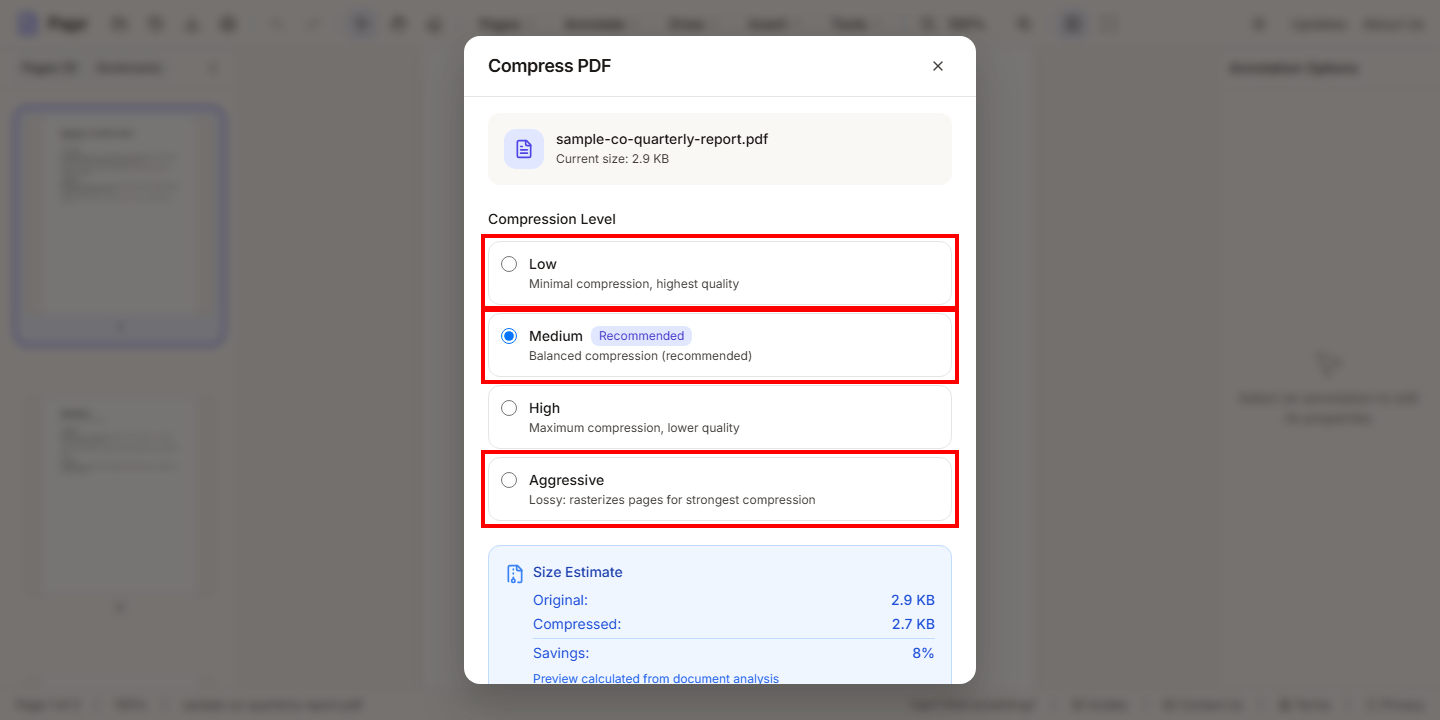
3.Choose a level
The Compress PDF dialog shows the file's current size and four levels. Low keeps the most quality. Medium is recommended and balances size and quality. High gives a smaller file with lower quality. Aggressive is lossy: it turns each page into an image, so the text can no longer be selected.
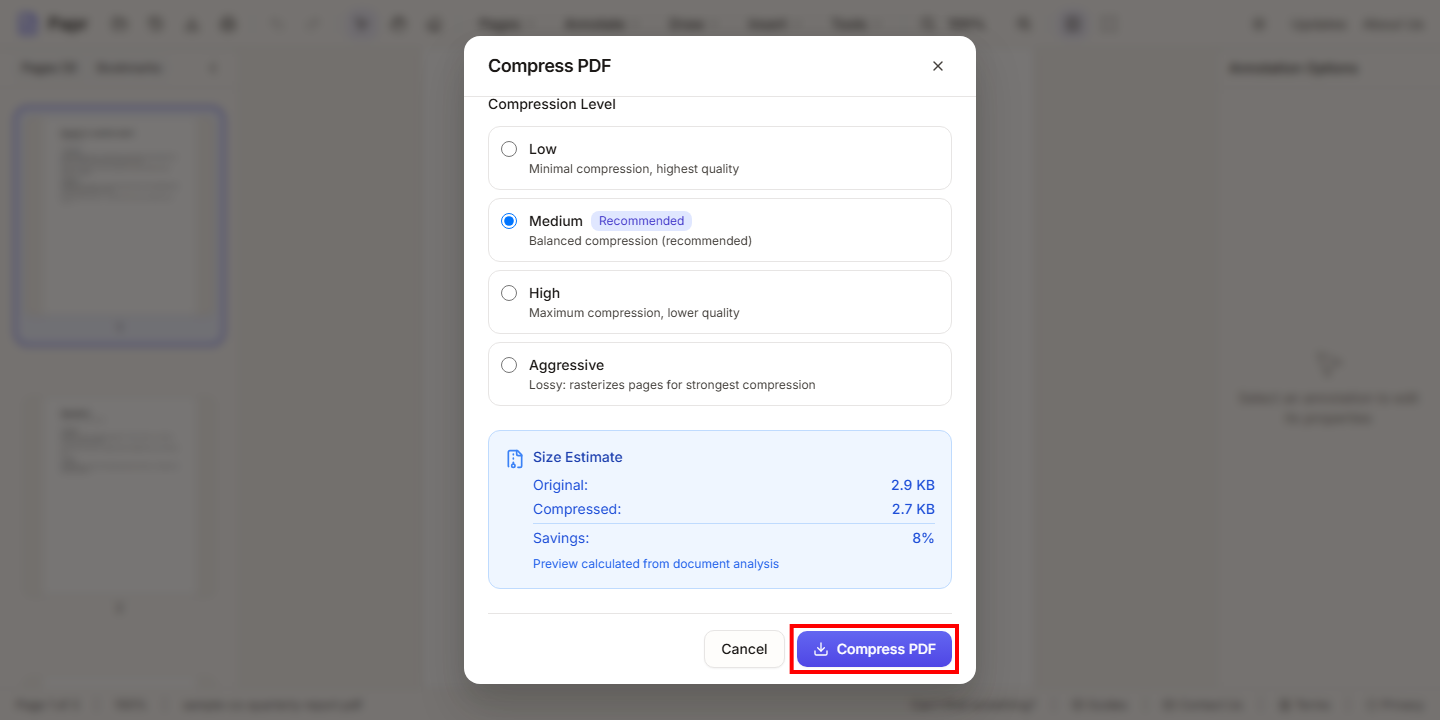
4.Compress the PDF
Click Compress PDF. Papr compresses the file in your browser. If the result is not smaller, Papr keeps the original file.
5.Export the compressed file
Click Export in the toolbar to save the compressed file. The export dialog also has a Compress PDF option, which applies medium compression to the copy you export.
Tips
- Remove the pages you do not need before you compress. Fewer pages means a smaller file.
- Text-heavy files shrink the most. Photos and scanned pages are what makes a file large.
- Keep the original. Save the compressed version under a new name.
Try it on your own file
Everything in this guide happens in your browser tab. Your file stays on your device.
Open the PDF editor