How to Split PDFs Online Free
Keep only the pages you need, such as one chapter or one invoice, and save them as a new PDF. Papr splits the file in your browser.
Step by step
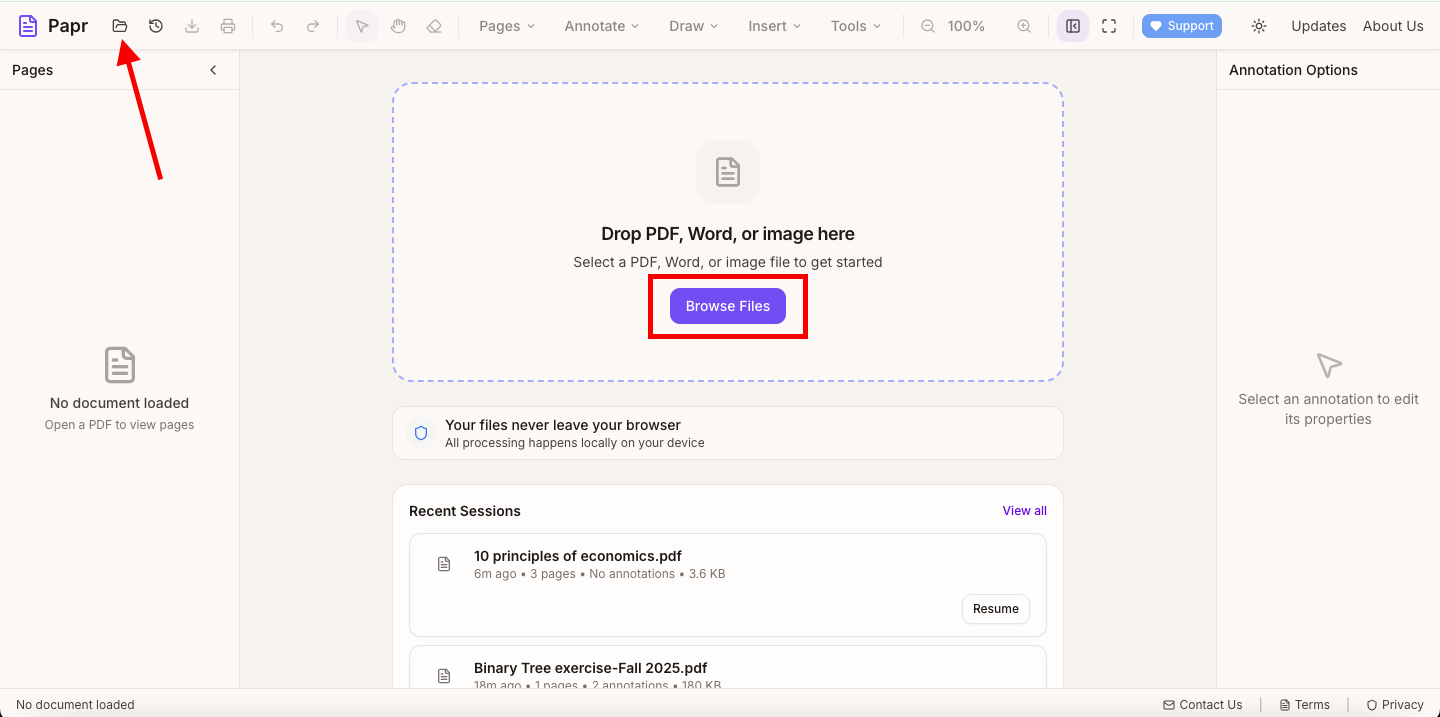
1.Open the PDF
Click Open file in the toolbar, or drop the PDF onto the page. The document opens with all of its pages.
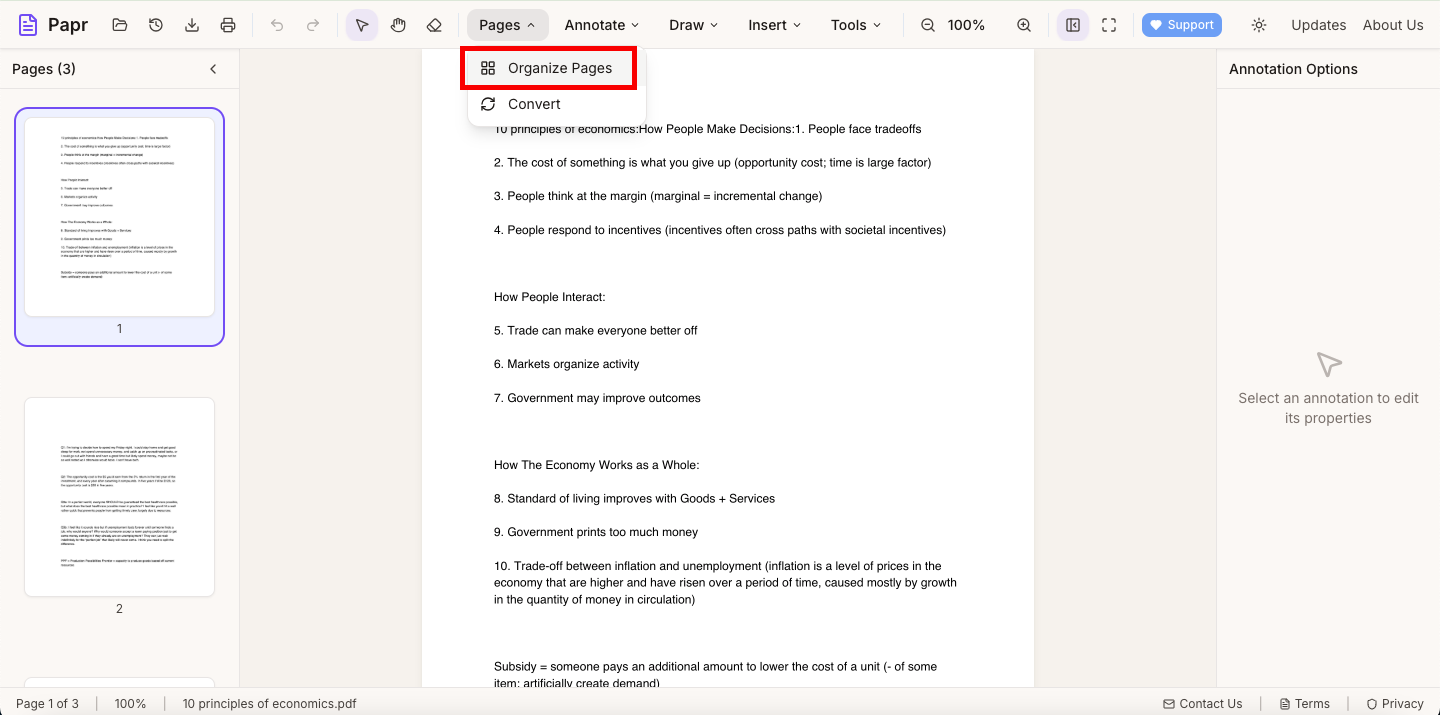
2.Open Organize Pages
Open the Pages menu and click Organize Pages. The pages appear as thumbnails.
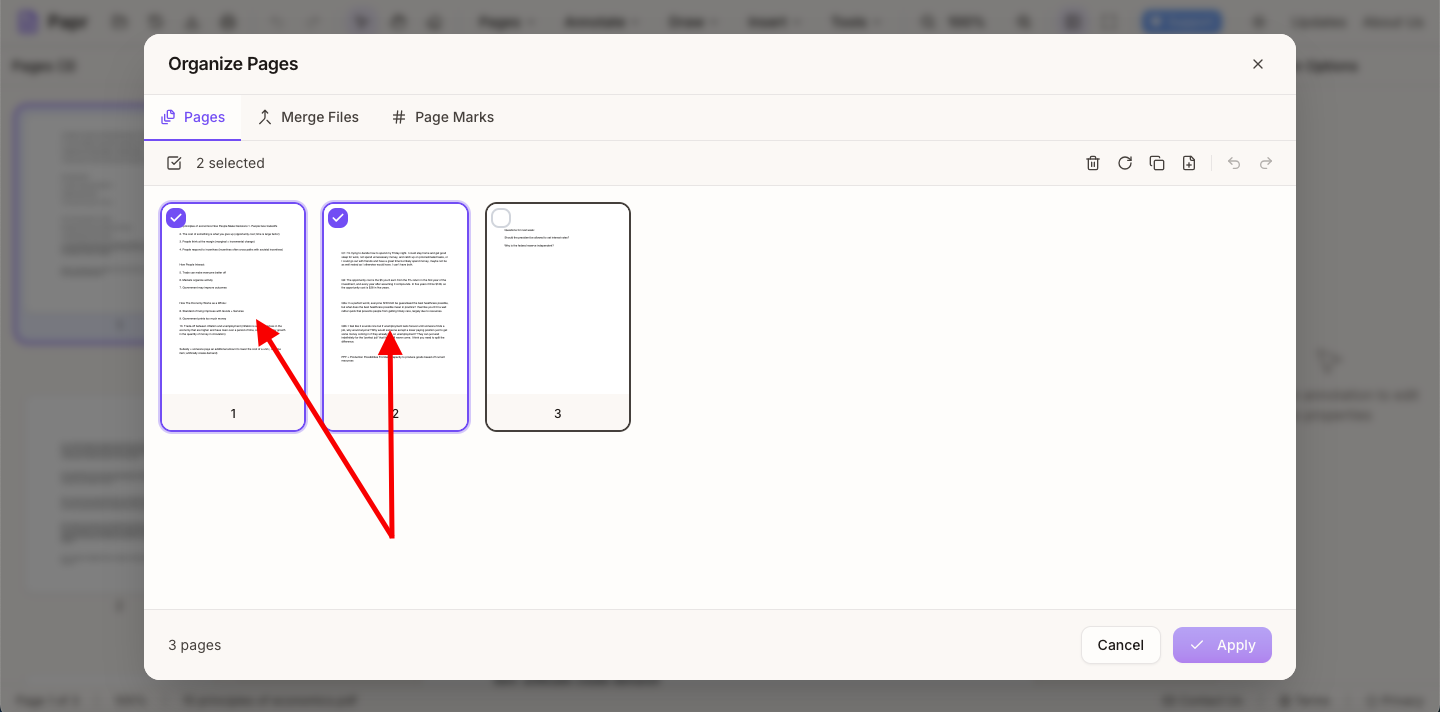
3.Select the pages to remove
Splitting keeps the pages that remain, so select the pages you do not want. Click a page to select it, and hold Shift while you click the last page of a run to select the whole run. The selected pages are counted at the top of the window.
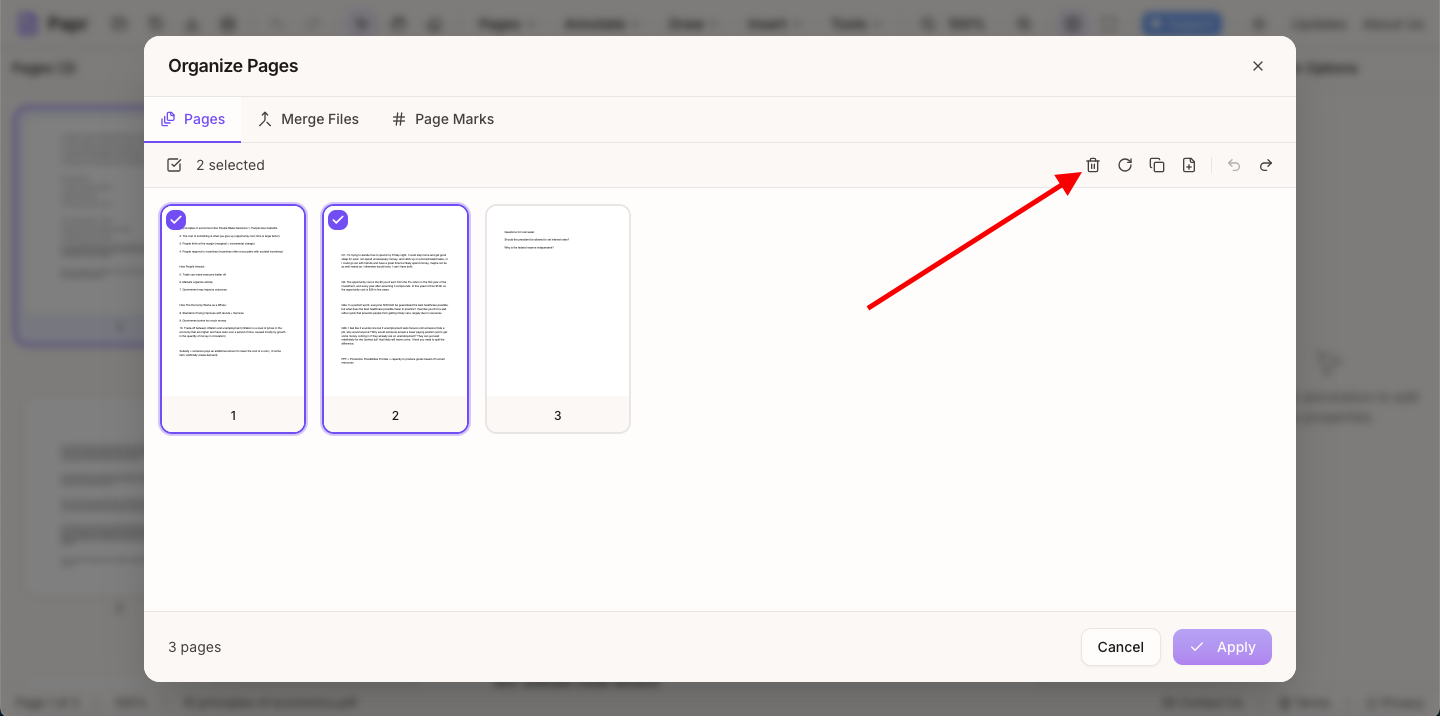
4.Delete them
Click the Delete button, the trash icon in the row above the thumbnails. The selected pages are removed from the list. The keyboard shortcut is Delete.
5.Apply and export
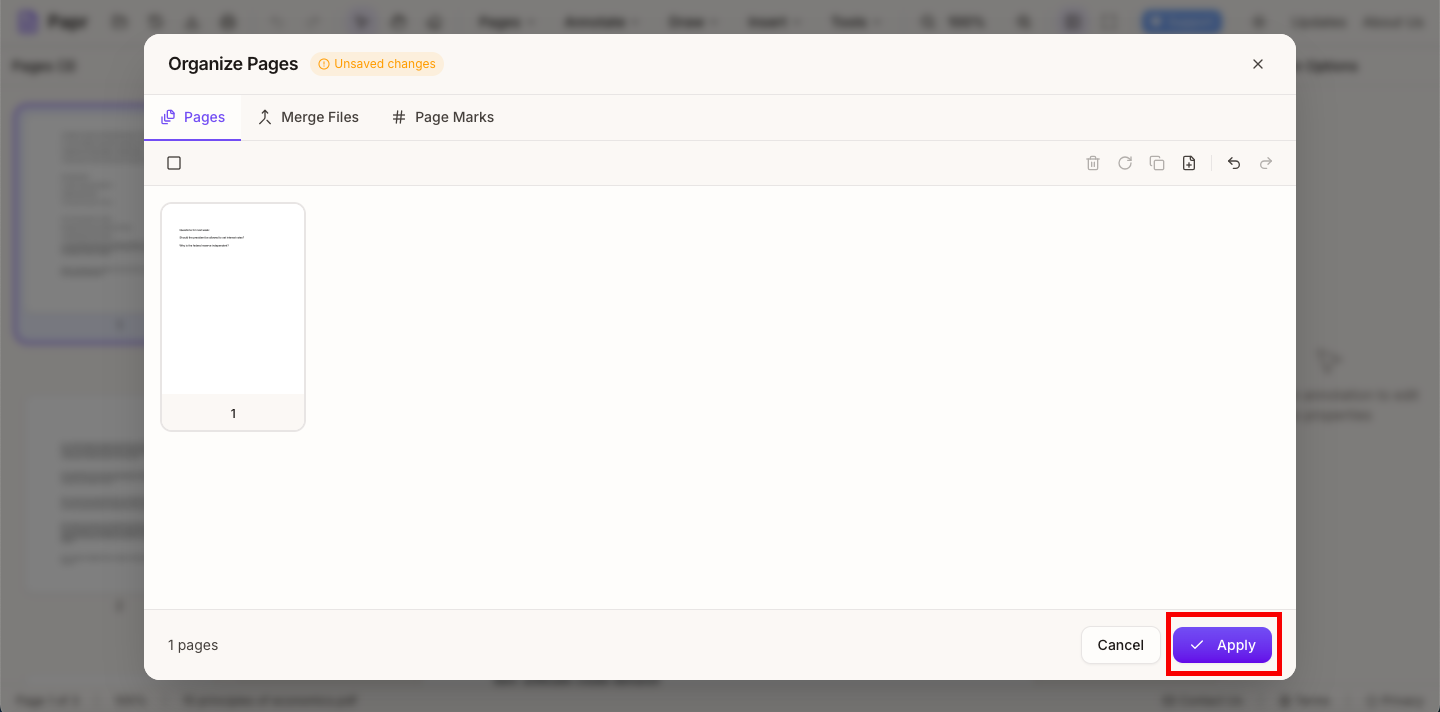
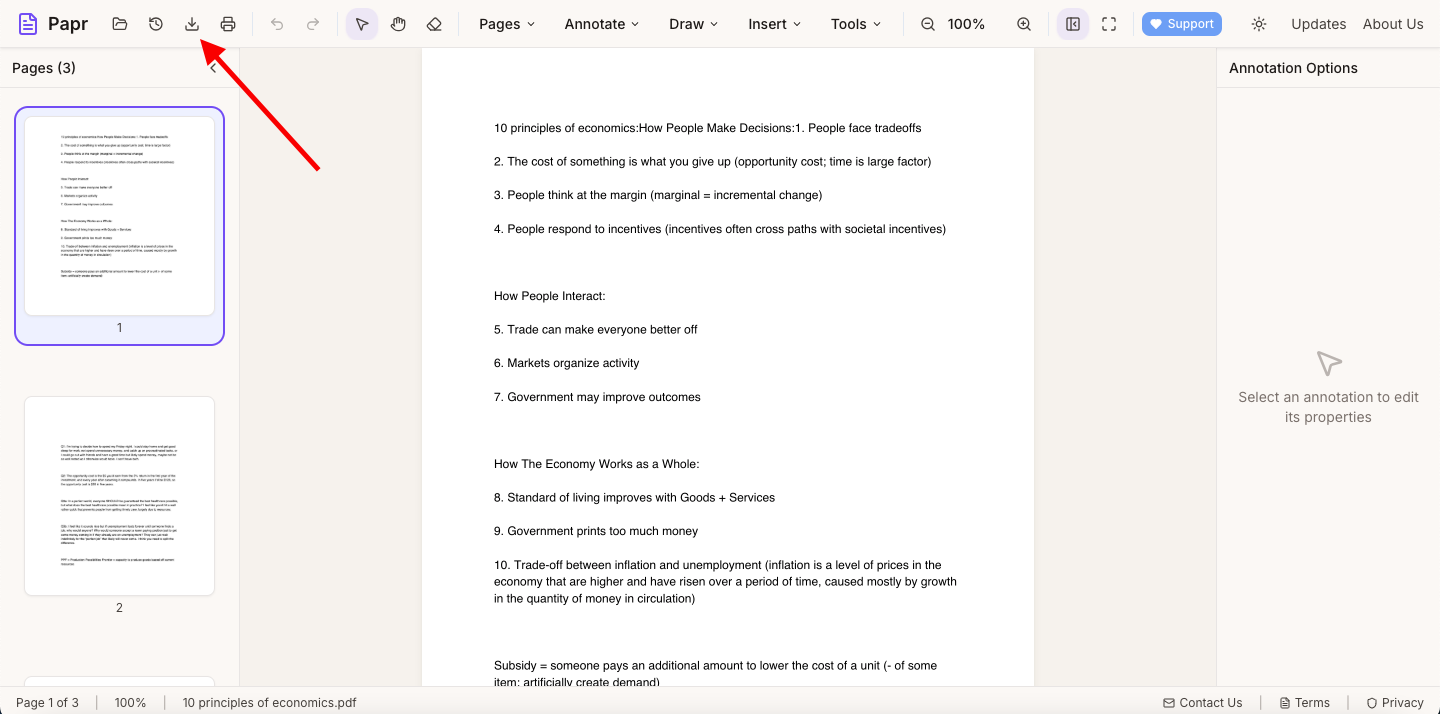
Click Apply at the bottom of the Organize Pages window. Then click Export in the toolbar to save the new, smaller PDF. To make another part, open the original again and repeat the steps.
Tips
- Check the pages before you delete them, so nothing you need is removed.
- Drag a page to a new place before you apply if you want to reorder the part you keep.
Try it on your own file
Everything in this guide happens in your browser tab. Your file stays on your device.
Open the PDF editor