How to Merge PDFs Online Free
Combine several PDFs into one document. Add the files, put the pages in the order you want, and export the result. The files are merged in your browser.
Step by step
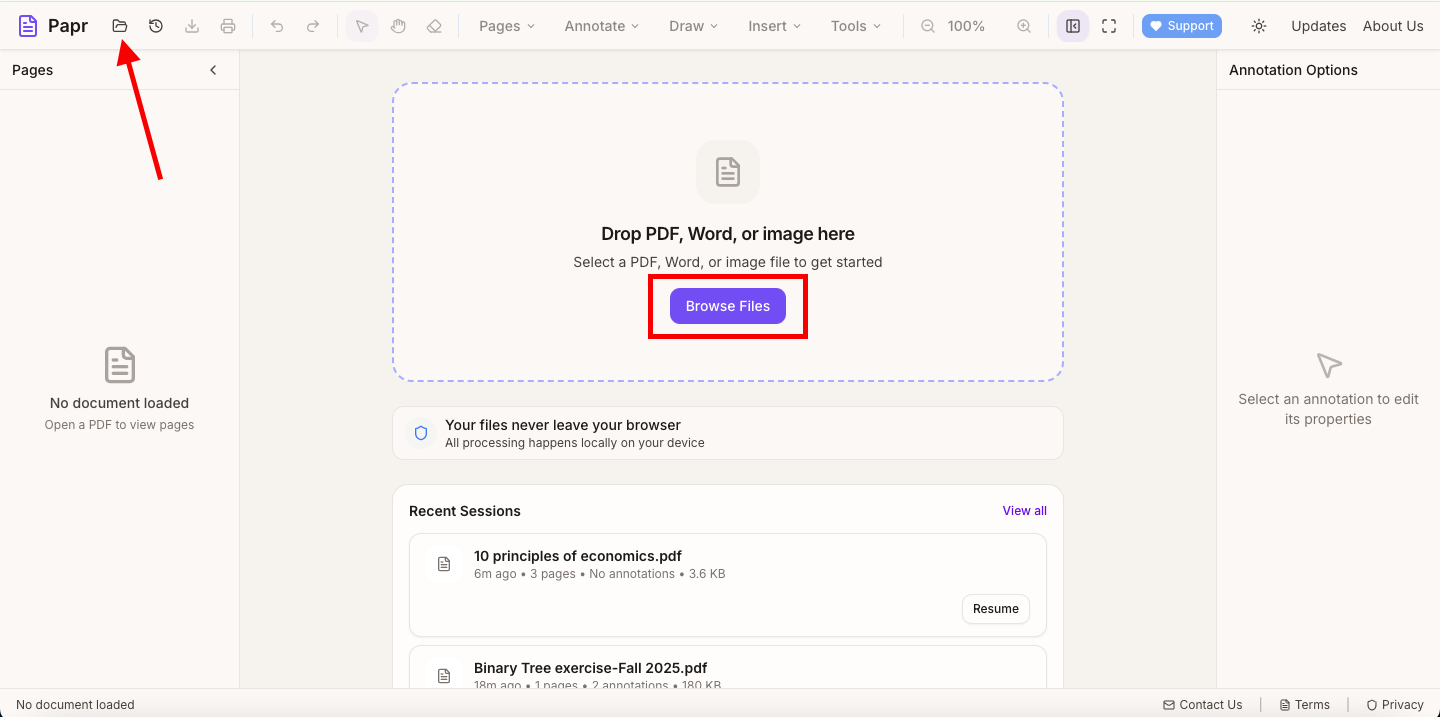
1.Open the first PDF
Click Open file in the toolbar, or drop the PDF onto the page. This file is the base document. Other files are added to it.
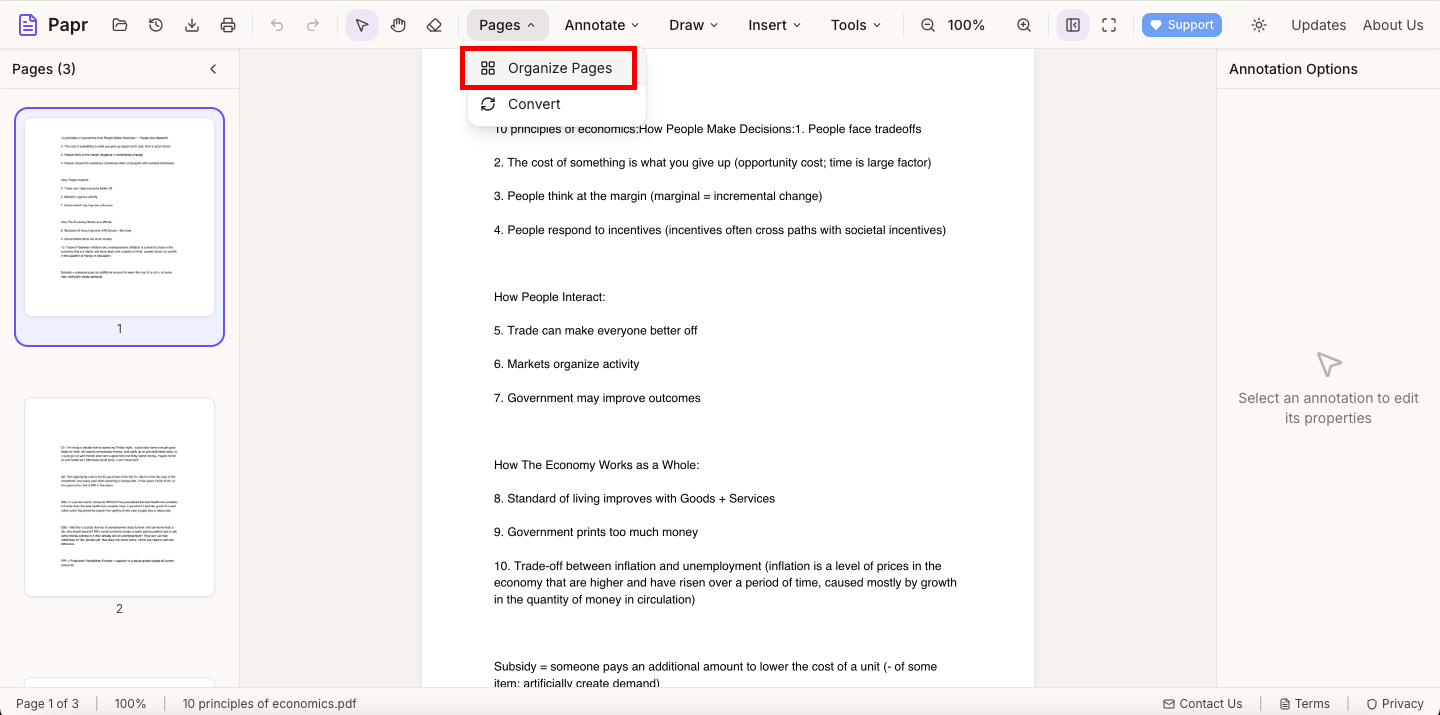
2.Open Organize Pages
Open the Pages menu and click Organize Pages.
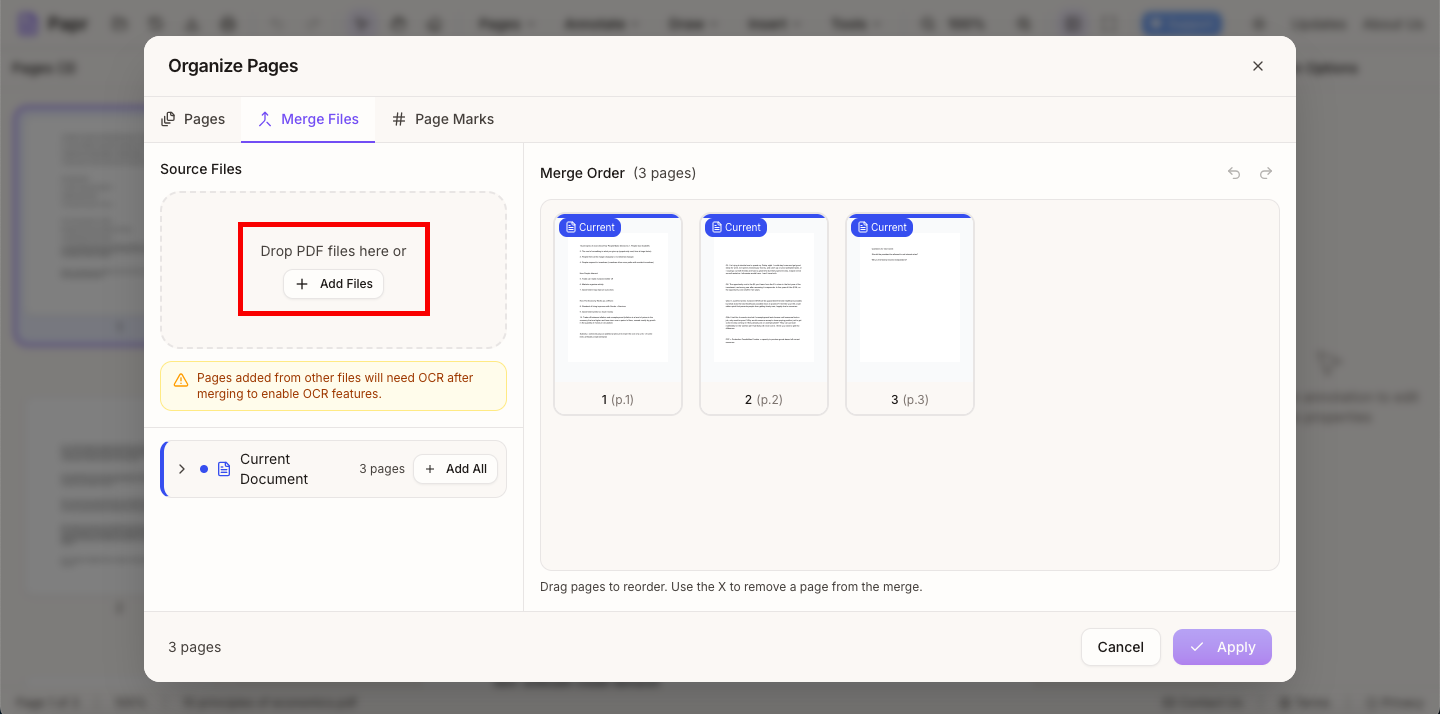
3.Add the other files
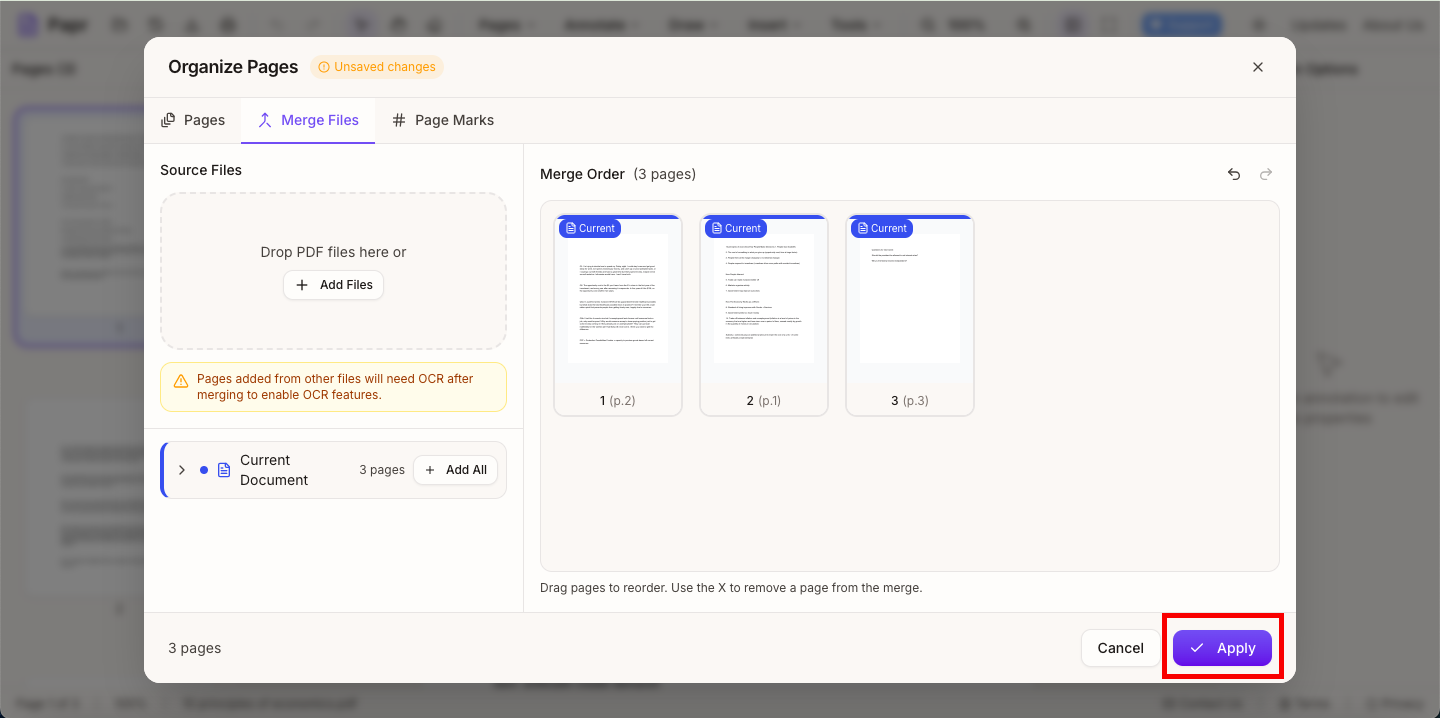
Click the Merge Files tab, then click Add Files and choose the PDFs. You can also drop them into the box. Each file's pages are listed in the merge order.
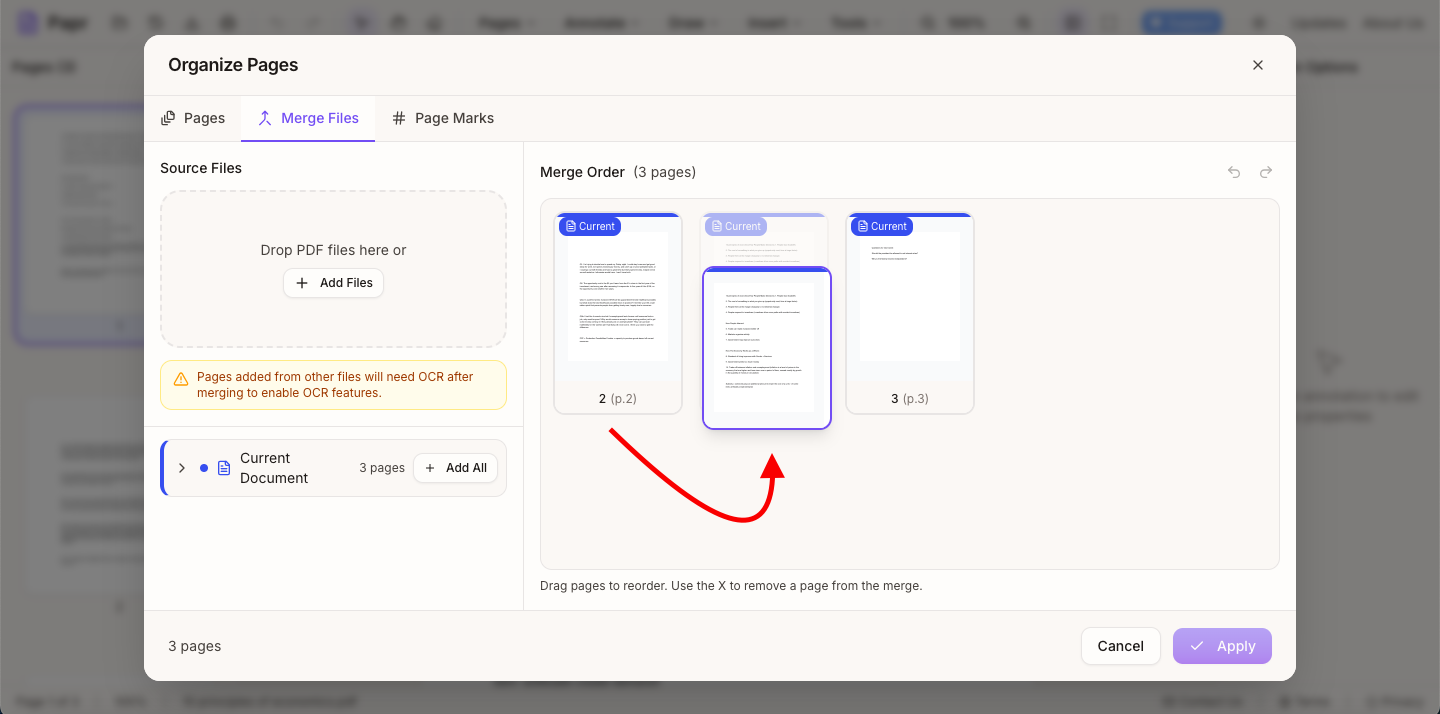
4.Put the pages in order
Drag the page thumbnails into the order you want. To leave a page out of the merge, use its X. Pages in the merge order are the pages of the new document.
5.Apply the merge
Click Apply at the bottom of the Organize Pages window. The merged document replaces the open one.
6.Export the merged PDF
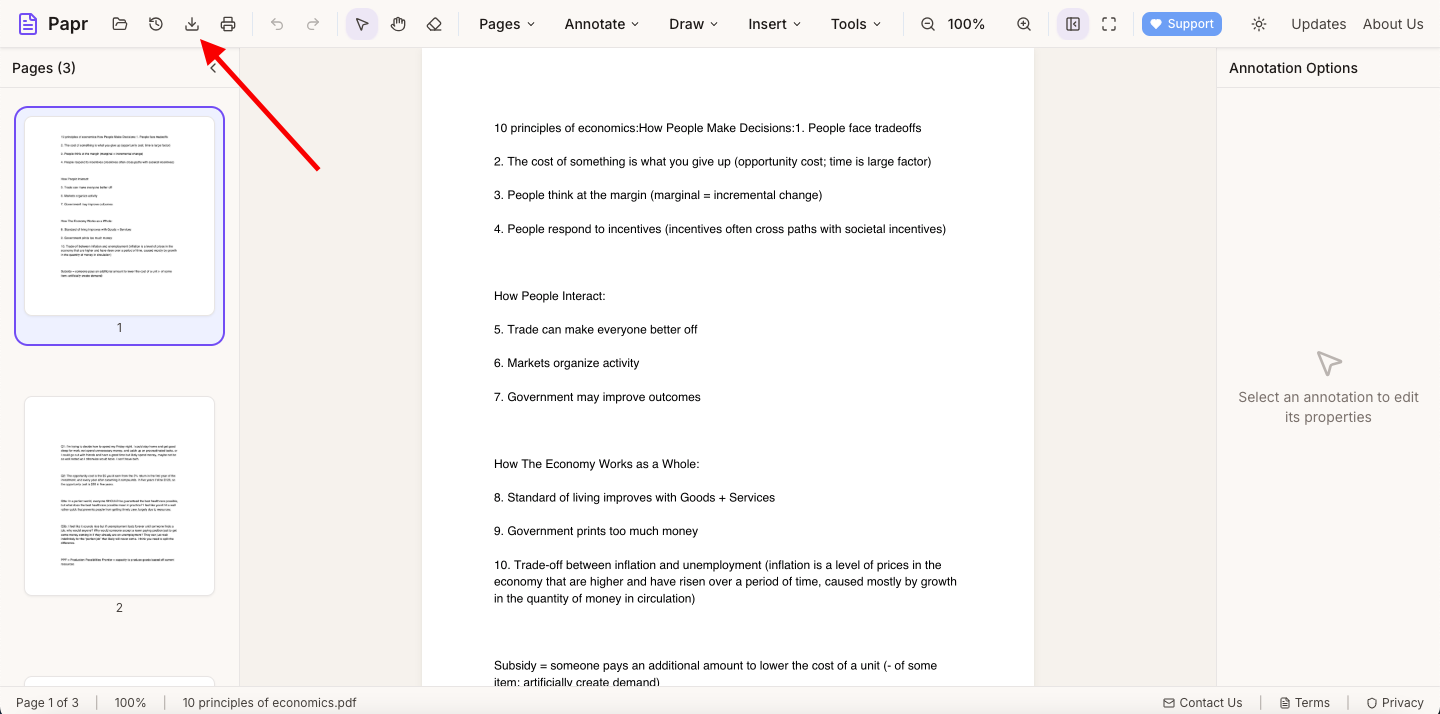
Click Export in the toolbar and save the combined PDF to your device.
Tips
- Remove the pages you do not need before you apply. A clean merge is smaller and easier to read.
- A merge of many large files makes a big document. Compress it afterwards if the size matters.
Try it on your own file
Everything in this guide happens in your browser tab. Your file stays on your device.
Open the PDF editor