How to Rotate PDF Pages Online Free
Fix pages that are sideways or upside down. Select the pages in Organize Pages, rotate them a quarter turn at a time, and export the corrected file.
Step by step
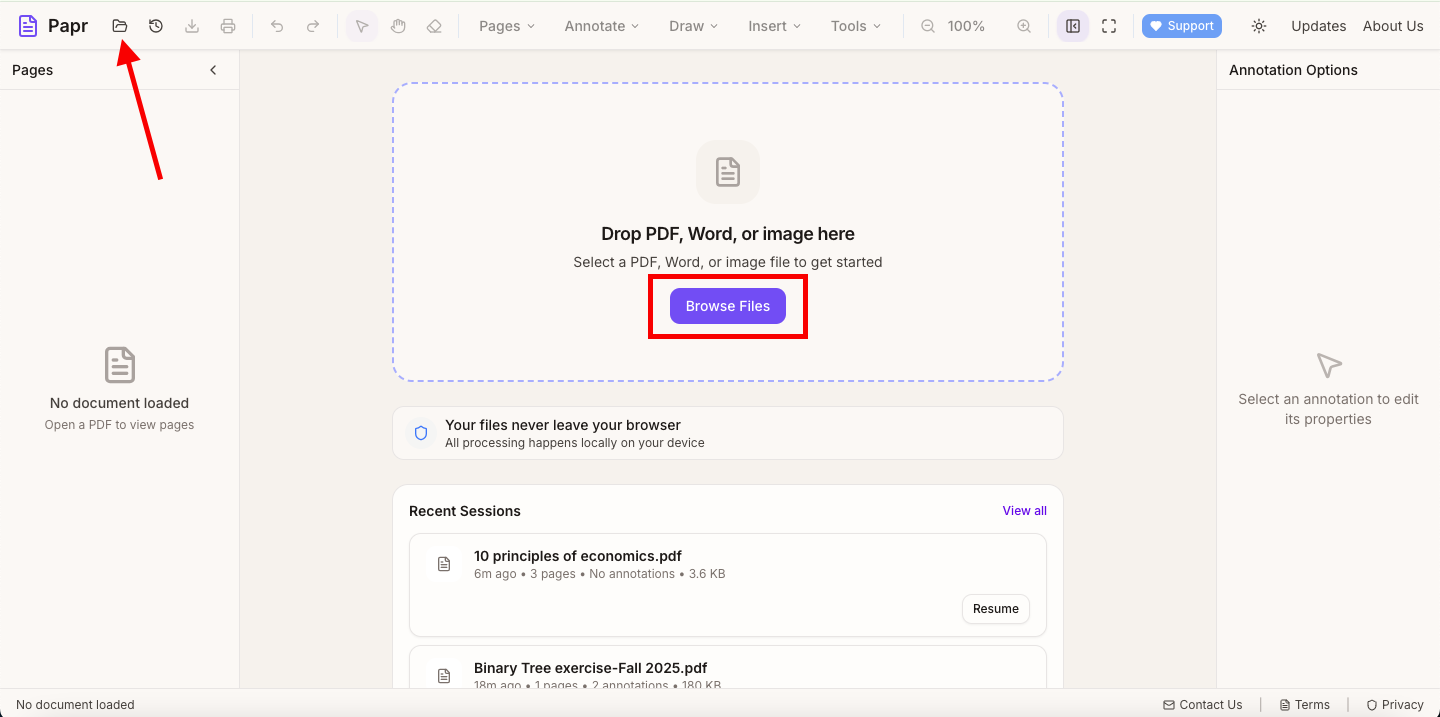
1.Open the PDF
Click Open file in the toolbar, or drop the PDF onto the page. Scroll through the document to find the pages that need turning.
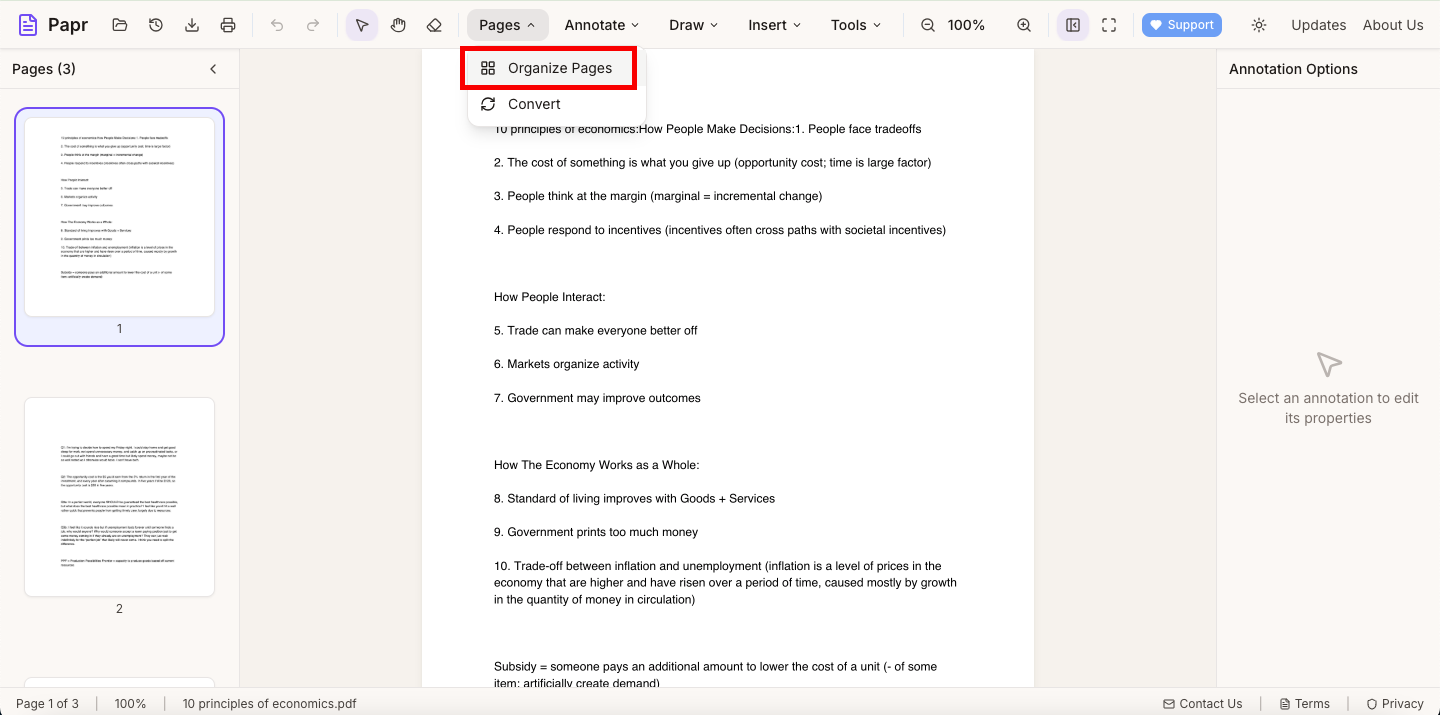
2.Open Organize Pages
Open the Pages menu and click Organize Pages. The pages appear as thumbnails, so you can see every page at once.
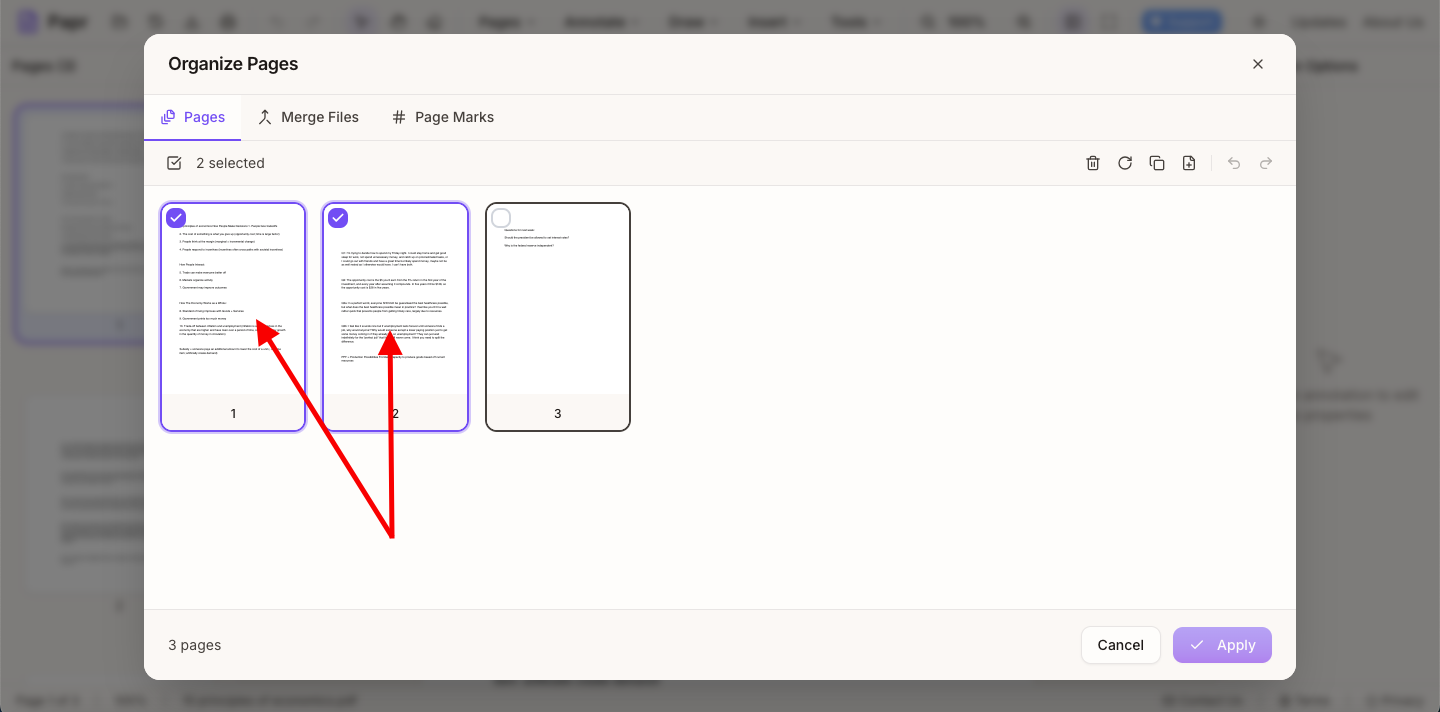
3.Select the pages
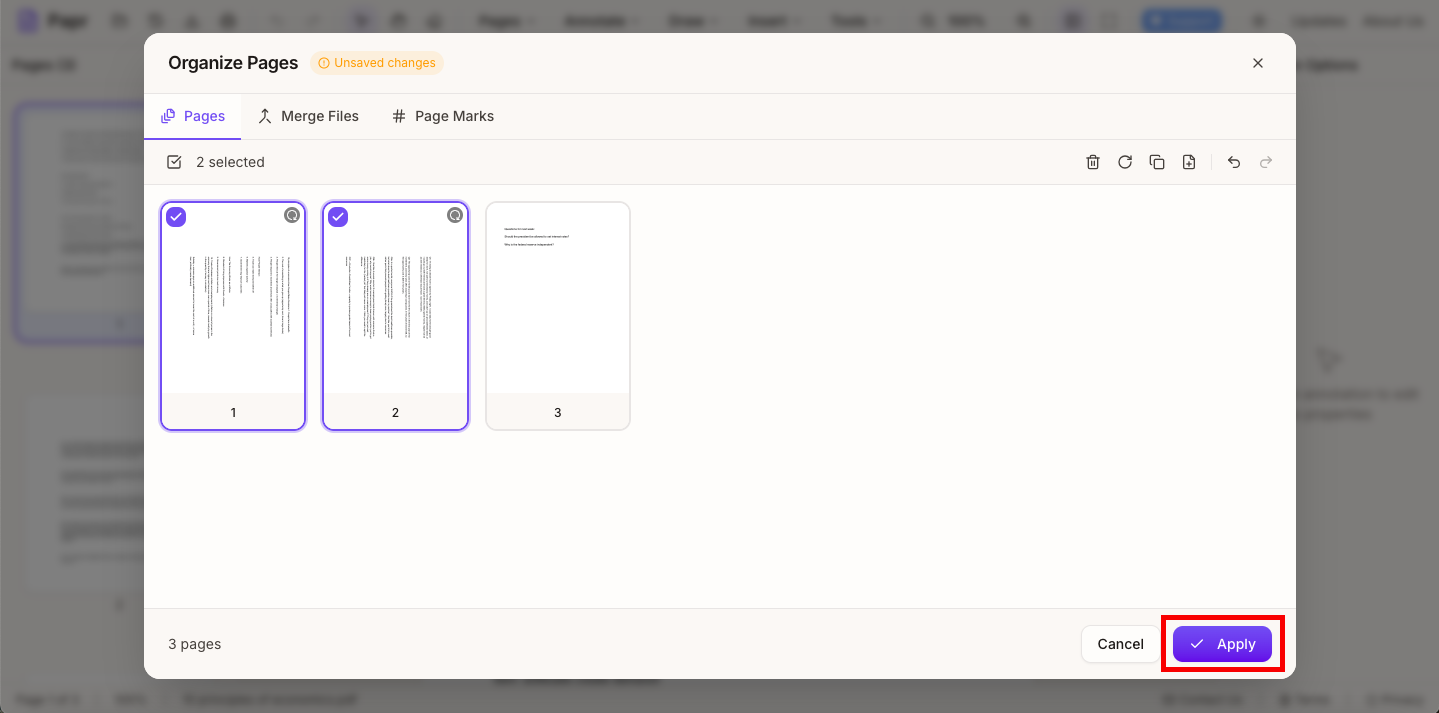
Click a page to select it, and click another page to add it. To select a run of pages, click the first and then hold Shift and click the last. The selected pages are counted at the top of the window.
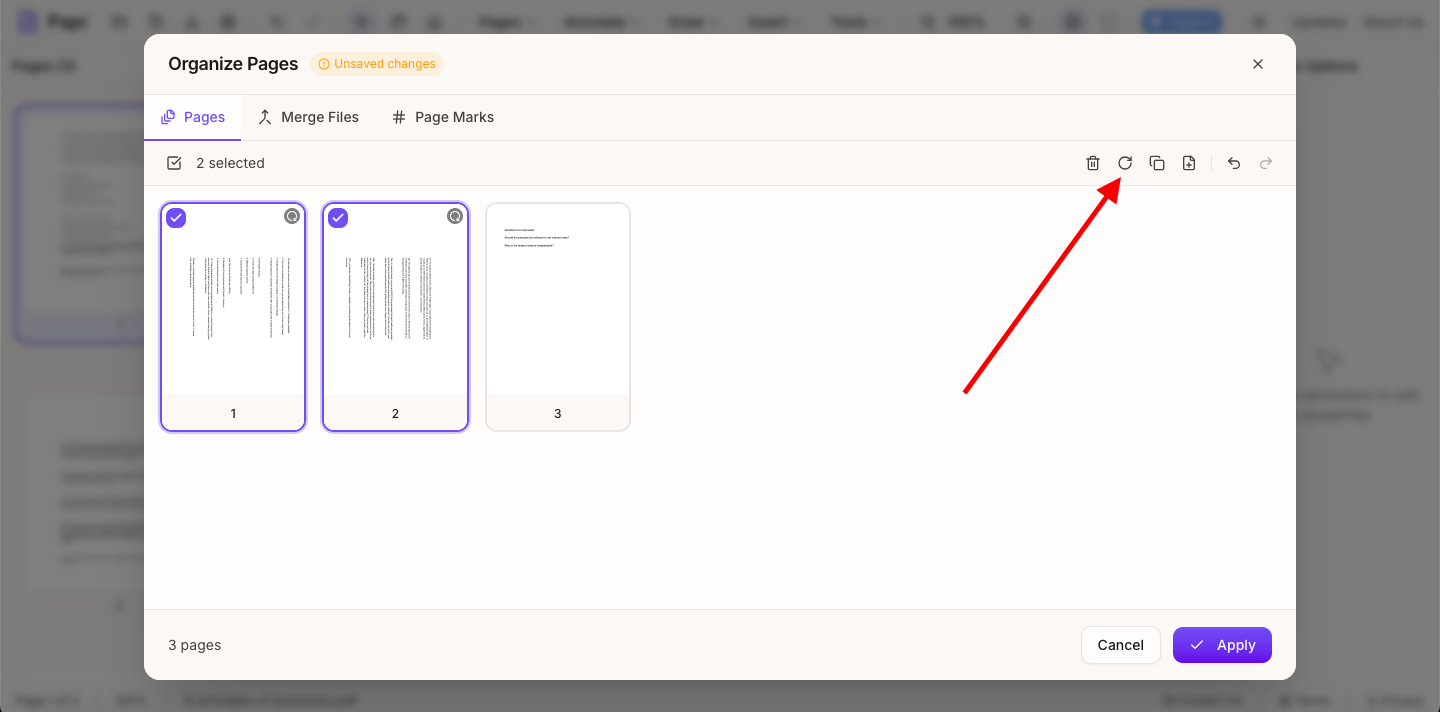
4.Rotate them
Click the Rotate selected pages 90 degrees button, the circular arrow in the row above the thumbnails. Each click turns the selected pages a quarter turn clockwise. Click again for 180 degrees, and again for 270. The keyboard shortcut is R.
5.Apply the change
Click Apply at the bottom of the Organize Pages window. The pages keep their new orientation in the document.
6.Export the corrected PDF
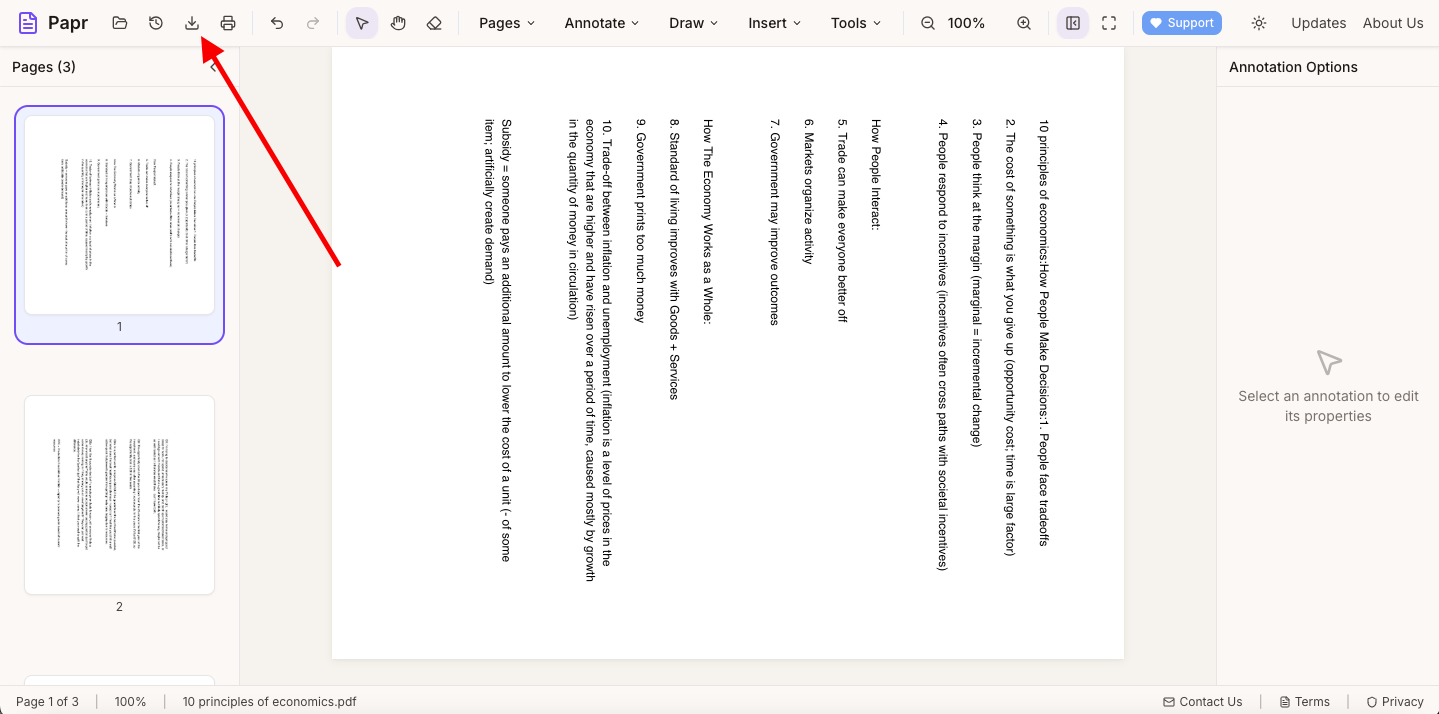
Check the pages in the viewer, then click Export in the toolbar to save the file.
Tips
- Rotate the pages in one go when they share the same problem, so one click fixes them all.
- Check the first rotated page in the main viewer before you export the whole document.
Try it on your own file
Everything in this guide happens in your browser tab. Your file stays on your device.
Open the PDF editor