How to Compress PDFs Online Free
Is your PDF too large to email or upload? Papr can help you reduce file size while maintaining quality — all processing happens in your browser, so your documents stay private.
Why Compress PDFs with Papr?
Large PDFs can be problematic — email attachments have size limits, cloud storage fills up quickly, and slow uploads waste time. Most compression tools require uploading your files to their servers, but Papr compresses everything locally on your device.
- Privacy First: Your files never leave your device
- Quality Control: Choose between maximum compression or higher quality
- Completely Free: Free to use; very large files depend on browser limits
- Instant Results: See a rough size estimate before exporting
Step-by-Step: Compressing PDFs in Papr
Step 1: Open Your PDF
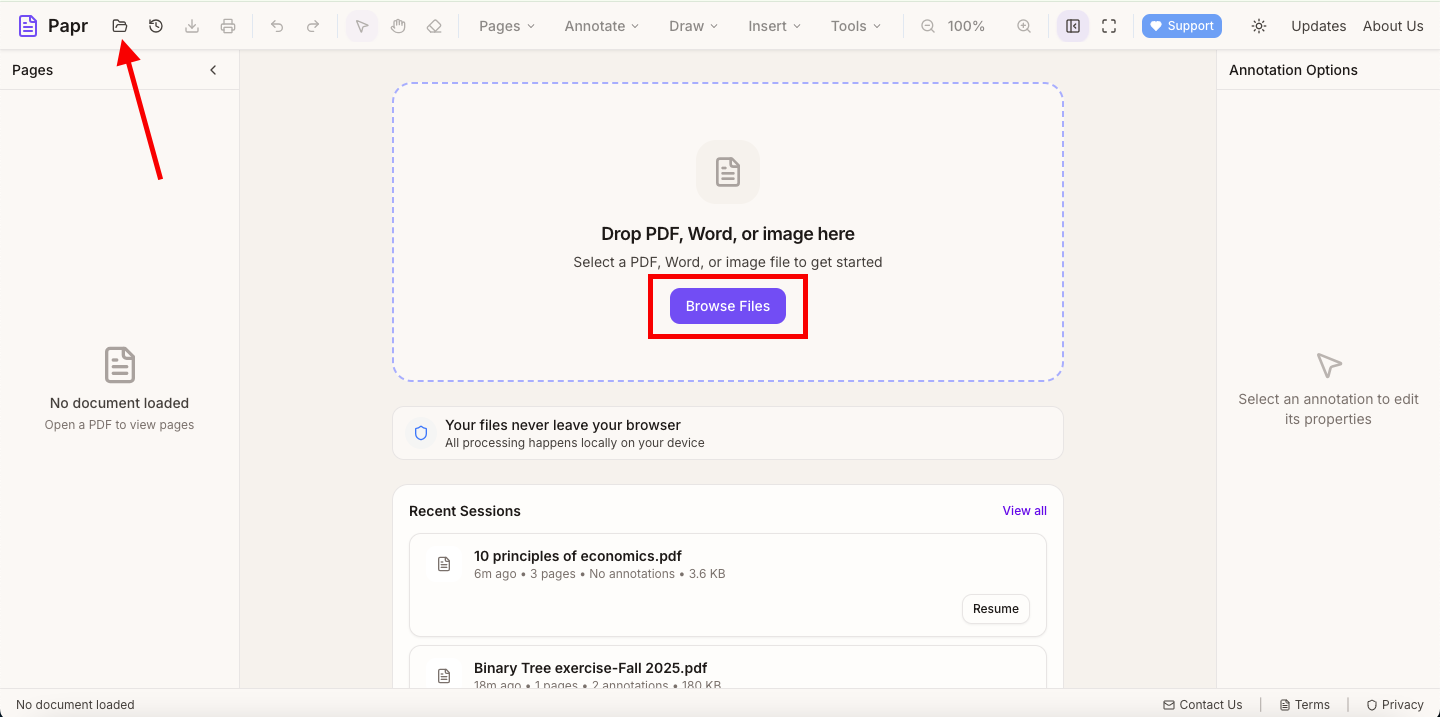
Go to the Papr editor and load your PDF by clicking the "Open file" button in the top toolbar or dragging the file onto the page. The document will open in the viewer.
Step 2: Open the Compress Tool
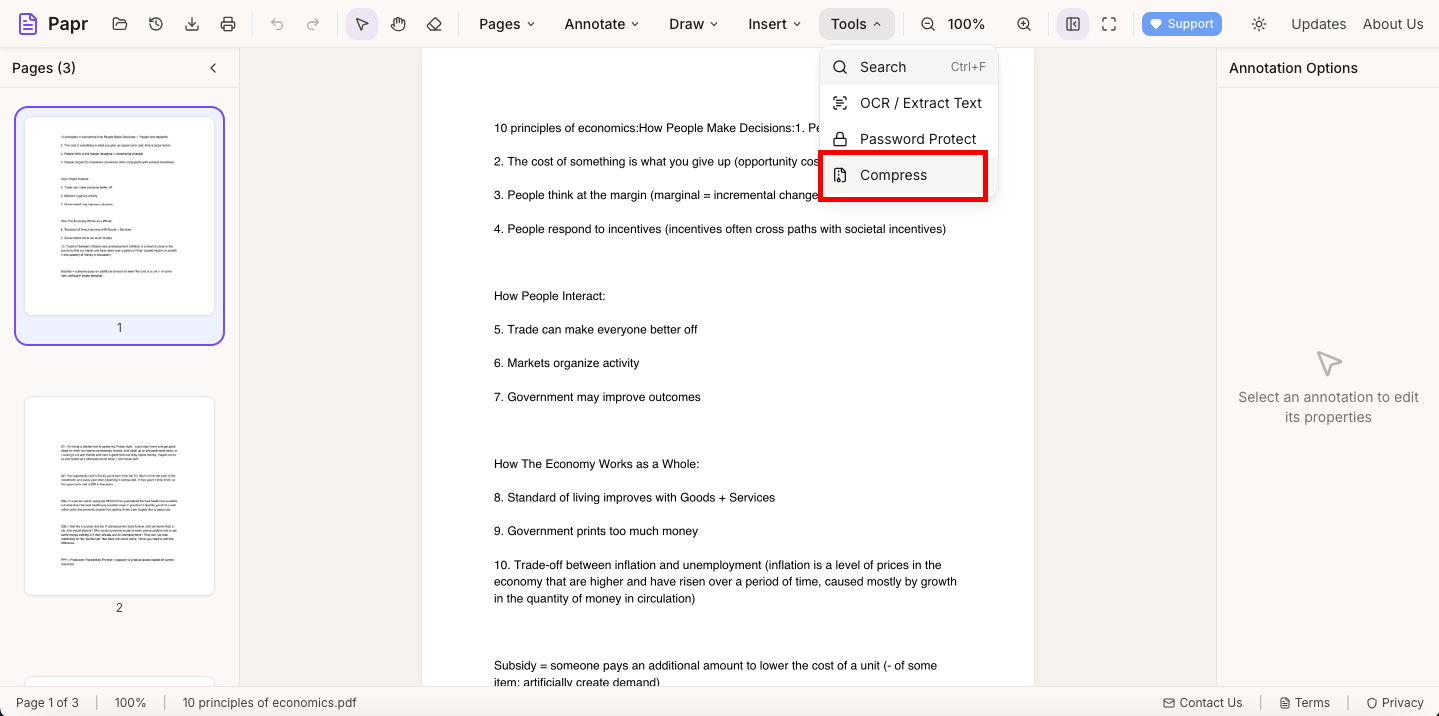
In the top toolbar, open the Tools dropdown and select Compress. This opens the compression dialog where you can choose a quality level.
Step 3: Choose Compression Level
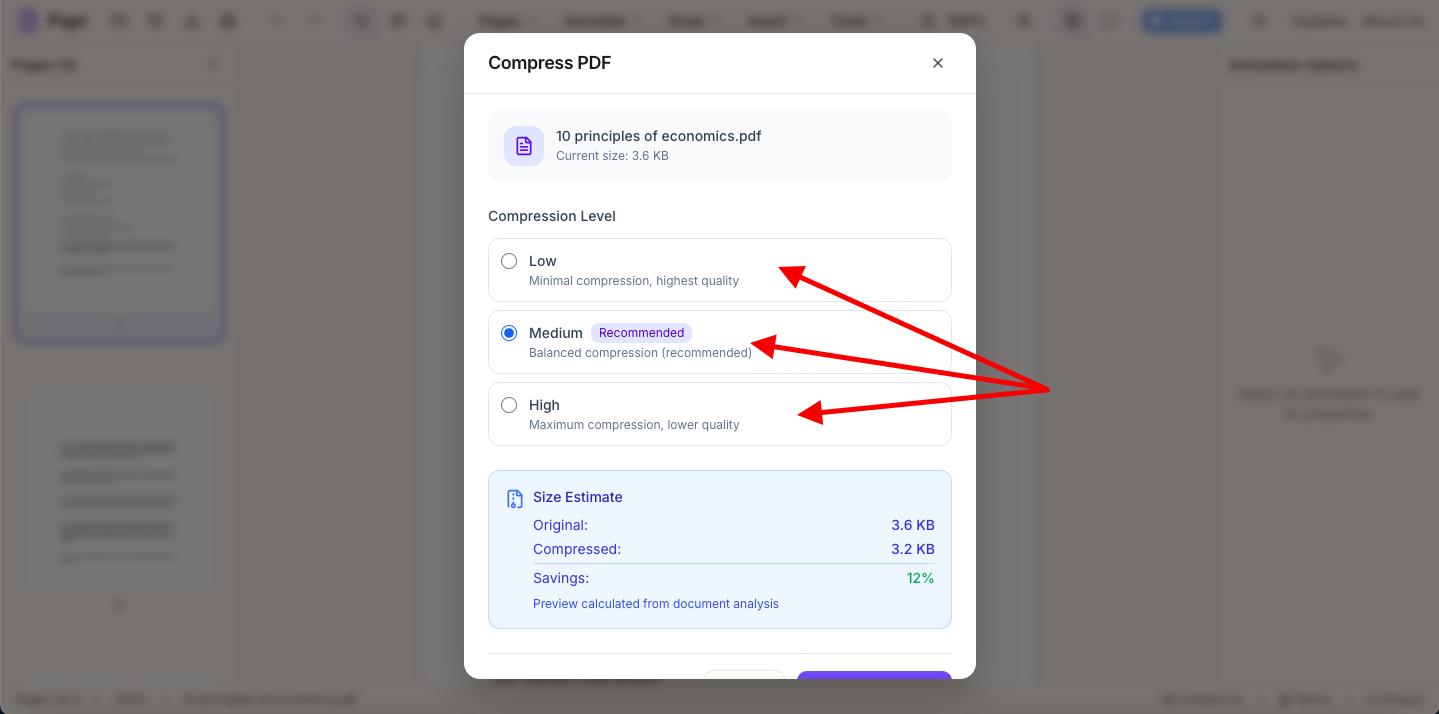
Select your preferred compression level. Lower quality means smaller file size, while higher quality preserves more detail. For most documents with text and simple graphics, medium compression works well. For photo-heavy PDFs, you may want to use lighter compression.
Step 4: Download Your Compressed PDF
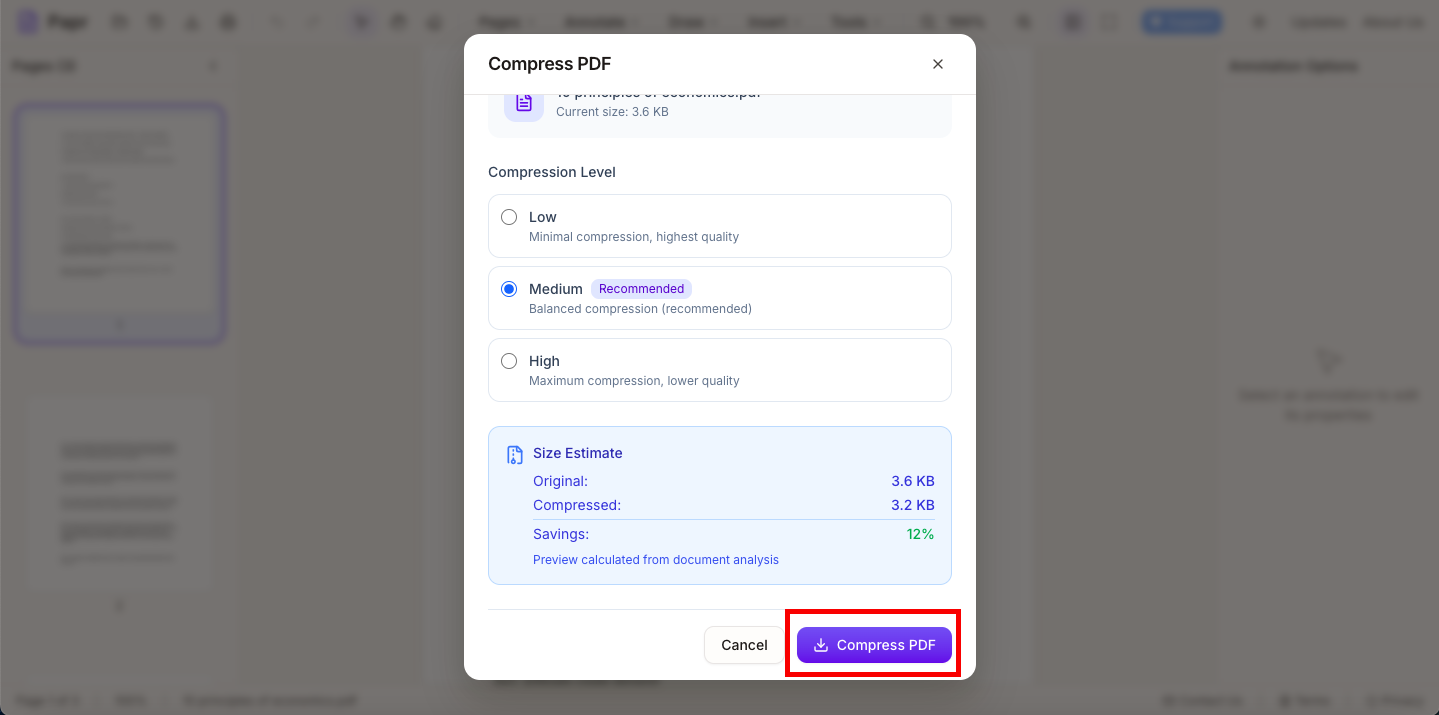
Click Compress PDF to apply the changes. When you're ready, use Export in the top toolbar to save the compressed file.
Tips for Better Compression
- Remove unnecessary pages: Delete pages you don't need before compressing to reduce size further.
- Consider the content: Text-heavy documents compress very well, while image-heavy PDFs may need lighter compression to stay readable.
- Test the result: Always open the compressed PDF to make sure everything looks acceptable before sending or uploading.
- Keep the original: Save your compressed version as a new file so you still have the high-quality original if needed.
Understanding PDF File Sizes
Several factors affect PDF file size:
- Images: High-resolution photos are the biggest contributors to file size
- Fonts: Embedded fonts add to file size but ensure consistent display
- Page count: More pages means larger files, especially with images
- Annotations: Comments, highlights, and form fields add some overhead
Common Use Cases
Compression is helpful when:
- Emailing documents that exceed attachment limits
- Uploading to websites with file size restrictions
- Saving storage space on your device or cloud
- Sharing files over slow internet connections
- Archiving large document collections
Ready to Compress?
Try compressing PDFs now with Papr. It's free and your files stay private.
Open Papr Editor