How to Create Fillable PDF Forms Online Free
Need to create a PDF form for clients, students, or your team? Papr lets you add fillable form fields to any PDF right in your browser — no uploads required, and your documents stay on your device.
Why Create Forms with Papr?
Fillable PDFs are great for collecting consistent information without printing or scanning. Papr lets you build form fields locally in your browser, keeping everything private and under your control.
- Total Privacy: Your documents stay on your device
- Flexible Fields: Add text, checkbox, radio, and dropdown fields
- Reusable PDFs: Save a copy and reuse it as a starting point
- No Software Needed: Works in any modern browser
Step-by-Step: Creating a Fillable PDF Form
Step 1: Open Your PDF
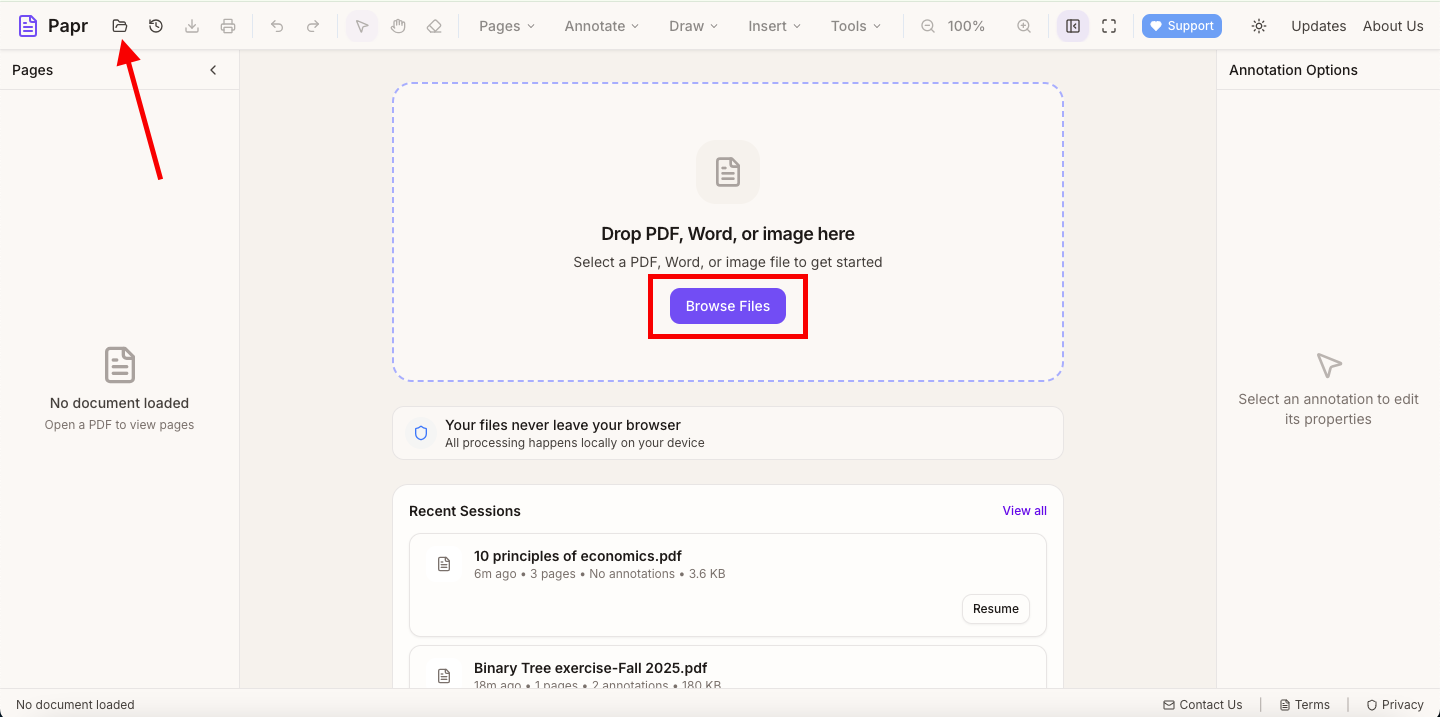
Launch the Papr editor and load your PDF by clicking the "Open file" button in the top toolbar or dragging the file onto the page.
Step 2: Choose a Form Field Tool
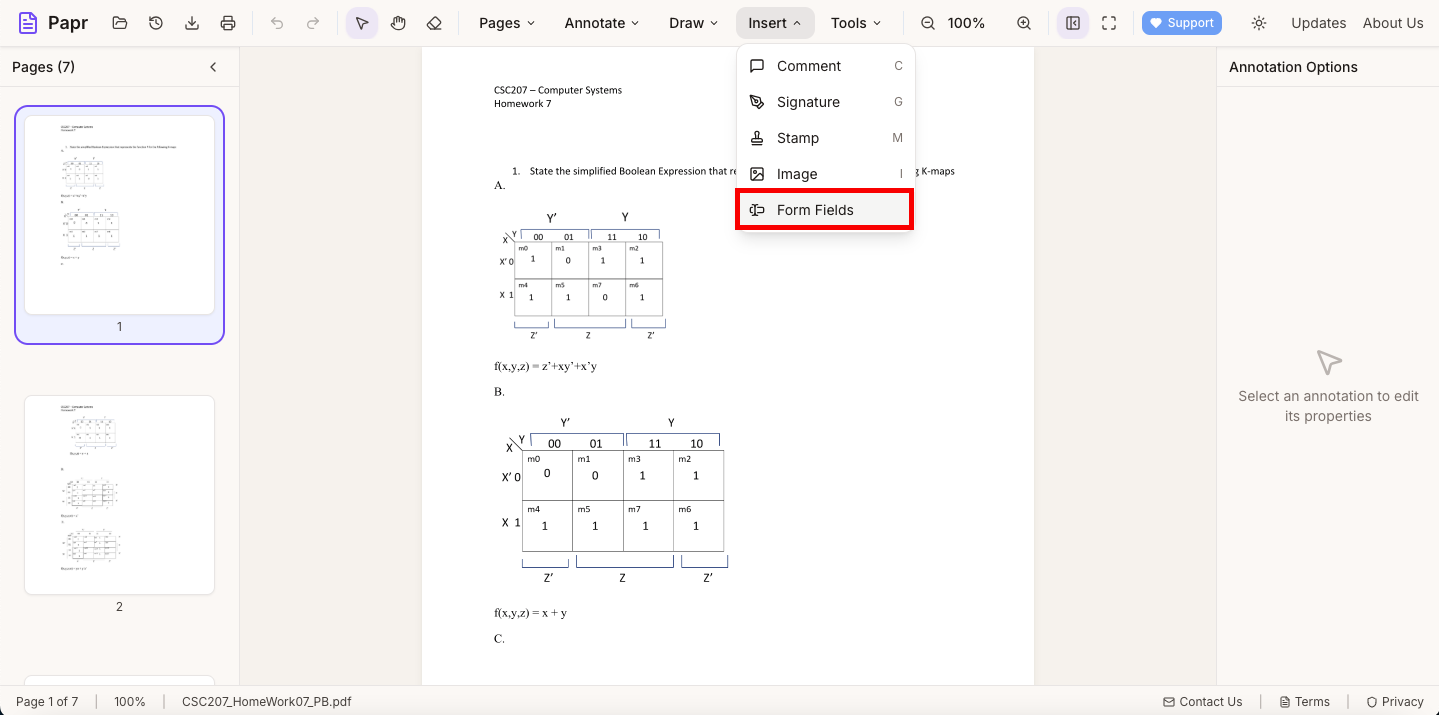
In the top toolbar, open the Insert dropdown and select Form Fields. This opens the “Insert Form Field” dialog where you pick the field type.
Step 3: Place Fields on the Page
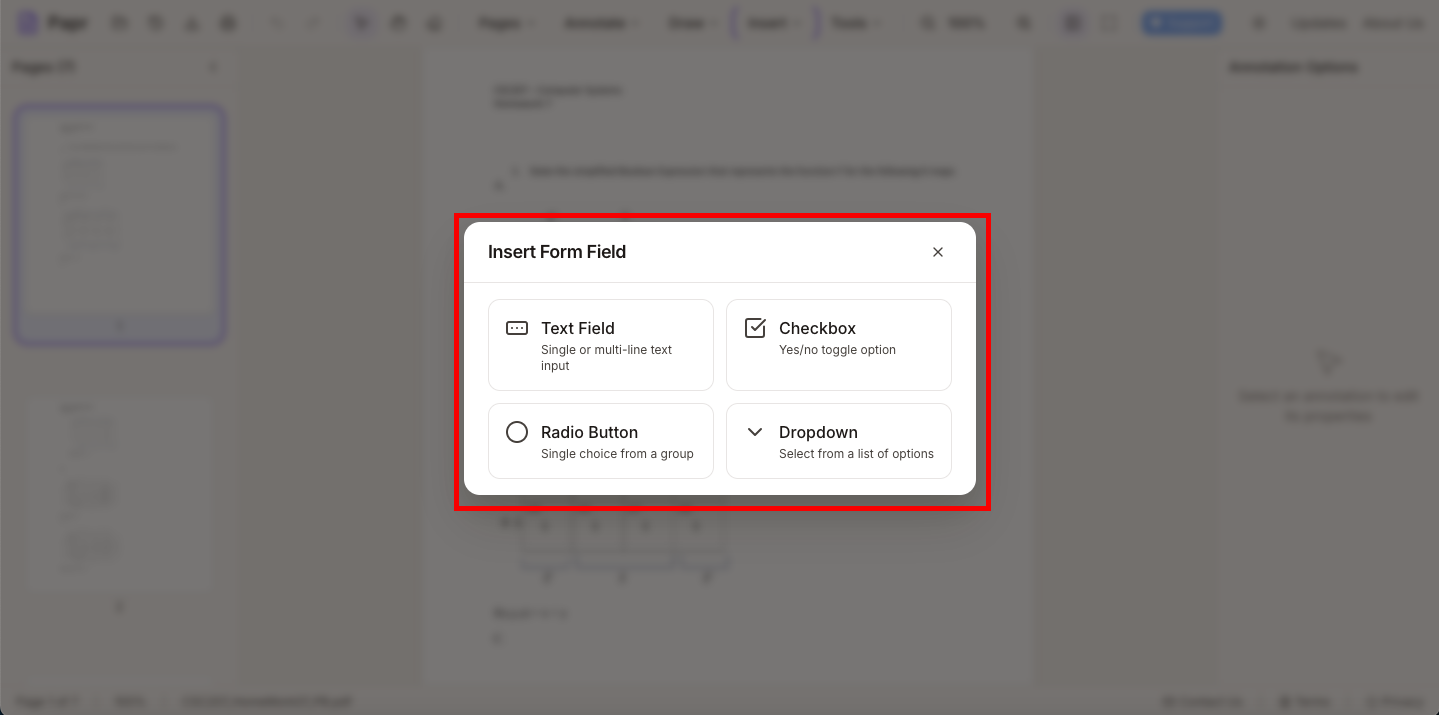
After selecting a field type (Text Field, Checkbox, Radio Button, or Dropdown), click anywhere on the page to place the field at that location. Drag to position or resize as needed, then repeat for each field.
Different field types include:
- Text fields: Single- or multi-line input
- Checkboxes: Yes/No or multi-select options
- Radio buttons: Select one option from a group
- Dropdown menus: Select from a list of options
Step 4: Edit Field Details
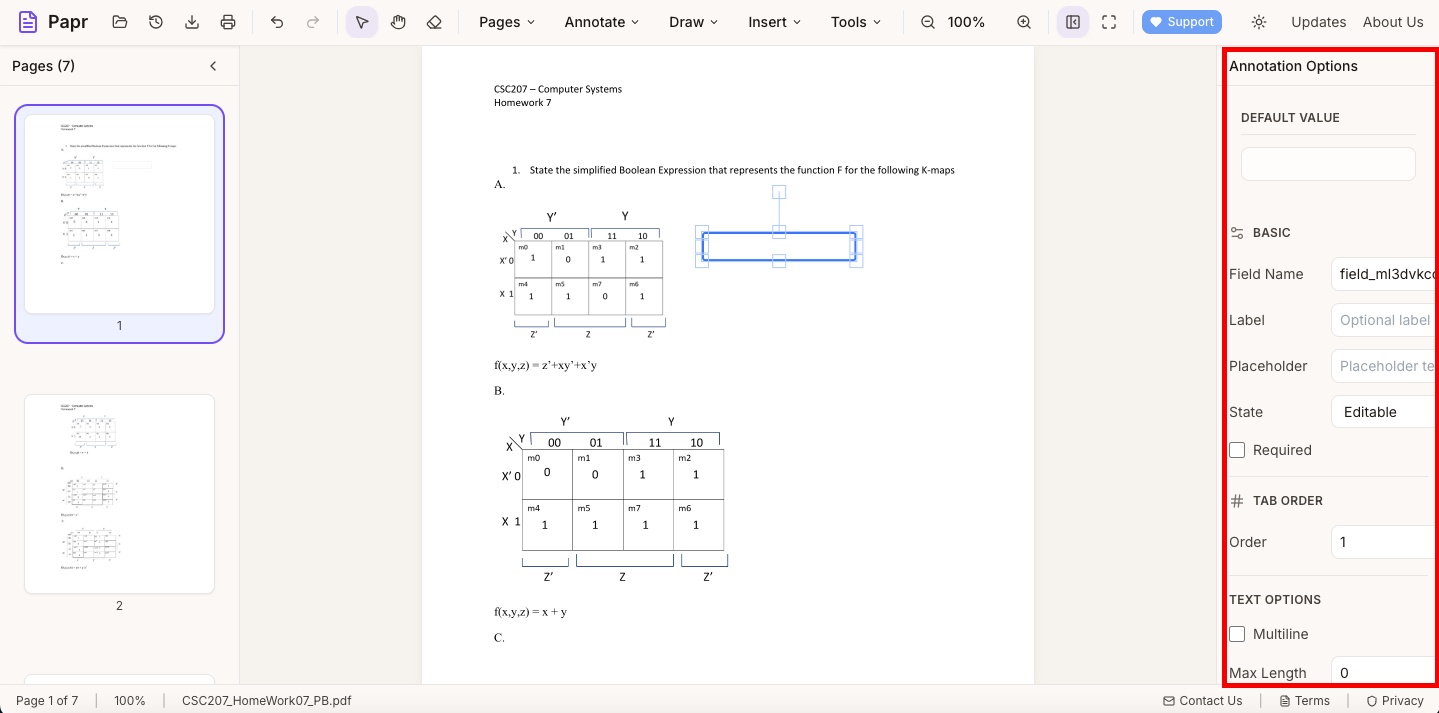
Select any field to edit its properties in the sidebar (or the field sheet on mobile). You can rename fields, set default values, and configure options for radios and dropdowns.
Step 5: Review Layout
Scroll through the entire document to make sure fields are aligned and clearly labeled.
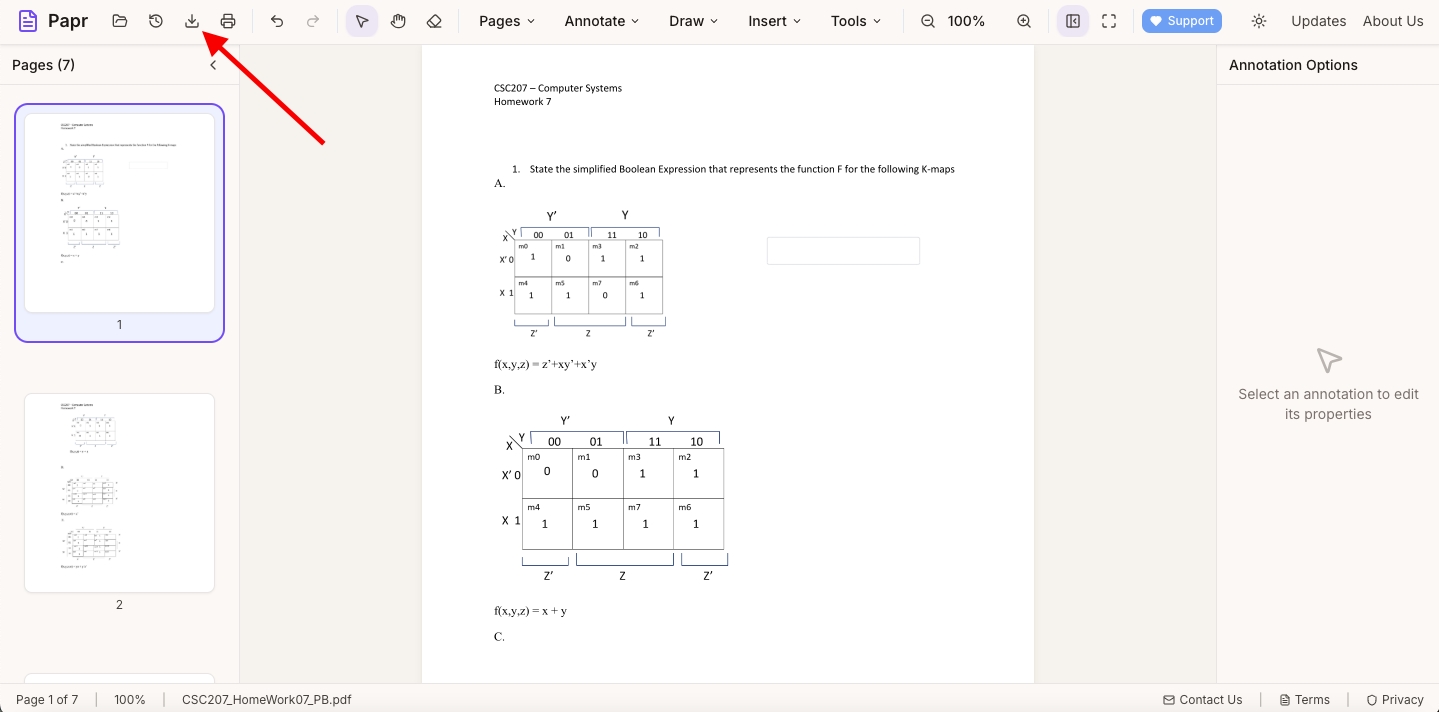
Step 6: Export the Form
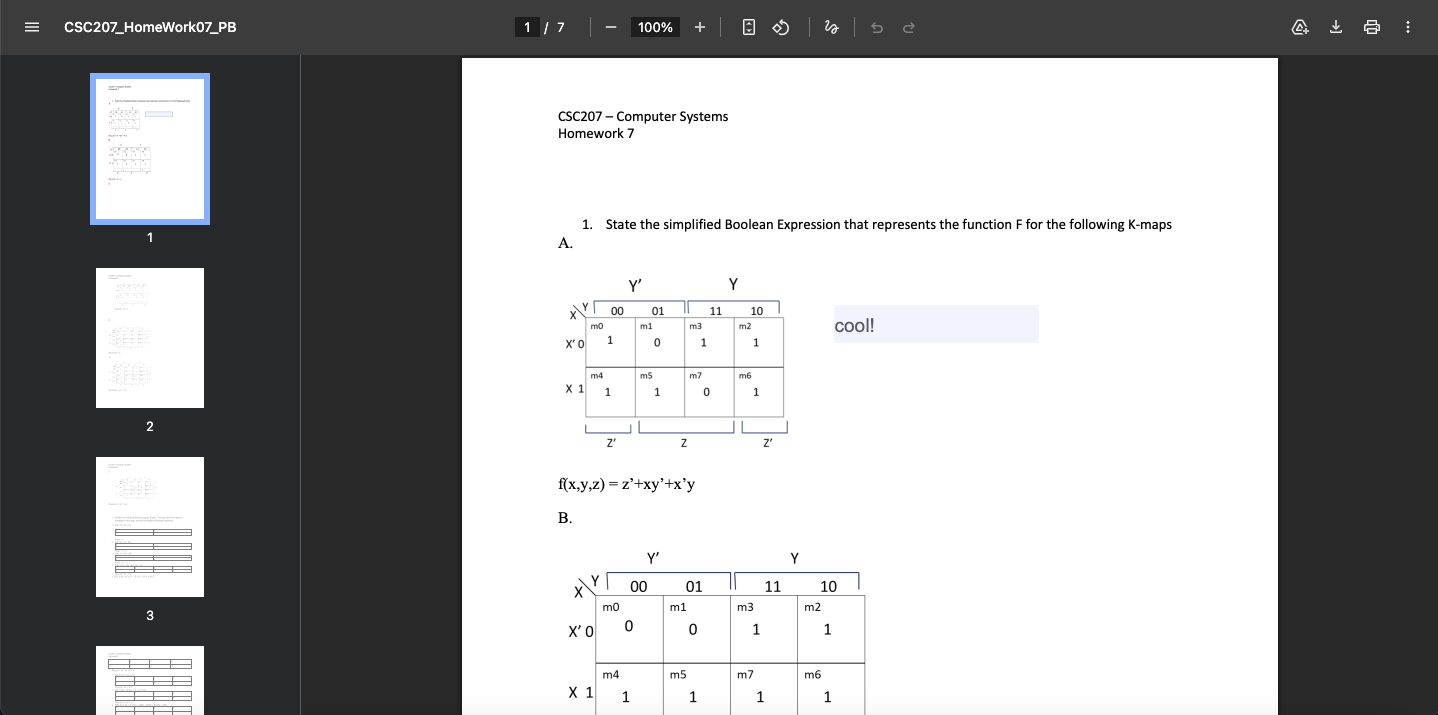
Click Export in the top toolbar to save your fillable PDF. Recipients can complete it in any standard PDF viewer (Chrome, Acrobat, etc.).
Tips for Creating Great Forms
- Use clear labels: Make it obvious what each field is for
- Keep spacing consistent: Align fields for readability
- Test in a viewer: Open the exported PDF in Chrome or Acrobat to verify the fill experience
- Name fields consistently: Especially when using formulas or radio groups
Filling the Form
After you export, fill in the PDF using your preferred viewer (Chrome, Acrobat, Preview, etc.). If you need to add a signature image, use Papr's Signature tool before exporting.
Common Use Cases
- Client intake and onboarding forms
- HR and employee paperwork
- Applications and registrations
- Checklists and internal workflows
- Surveys and feedback forms
- Consent and acknowledgment forms
Ready to Build a Form?
Create fillable PDF forms now with Papr. It's free and your files stay private.
Open Papr Editor