How to Merge PDFs Online Free
Need to combine multiple PDF files into a single document? Whether you're compiling reports, merging contracts, or organizing scanned pages, Papr makes it easy to merge PDFs directly in your browser — with no uploads to external servers.
Why Merge PDFs with Papr?
Most online PDF mergers require you to upload your files to their servers. This raises privacy concerns, especially for sensitive documents like contracts, financial records, or personal information. Papr is different — all processing happens locally in your browser. Your files never leave your device.
- 100% Private: Your PDFs are processed on your device, not uploaded
- Completely Free: No subscriptions, no watermarks, no hidden fees
- Flexible for most files: Very large PDFs depend on browser limits
- Works Offline (after first load): Can work offline once assets are cached in your browser
Step-by-Step: Merging PDFs in Papr
Step 1: Open Papr and Load Your First PDF
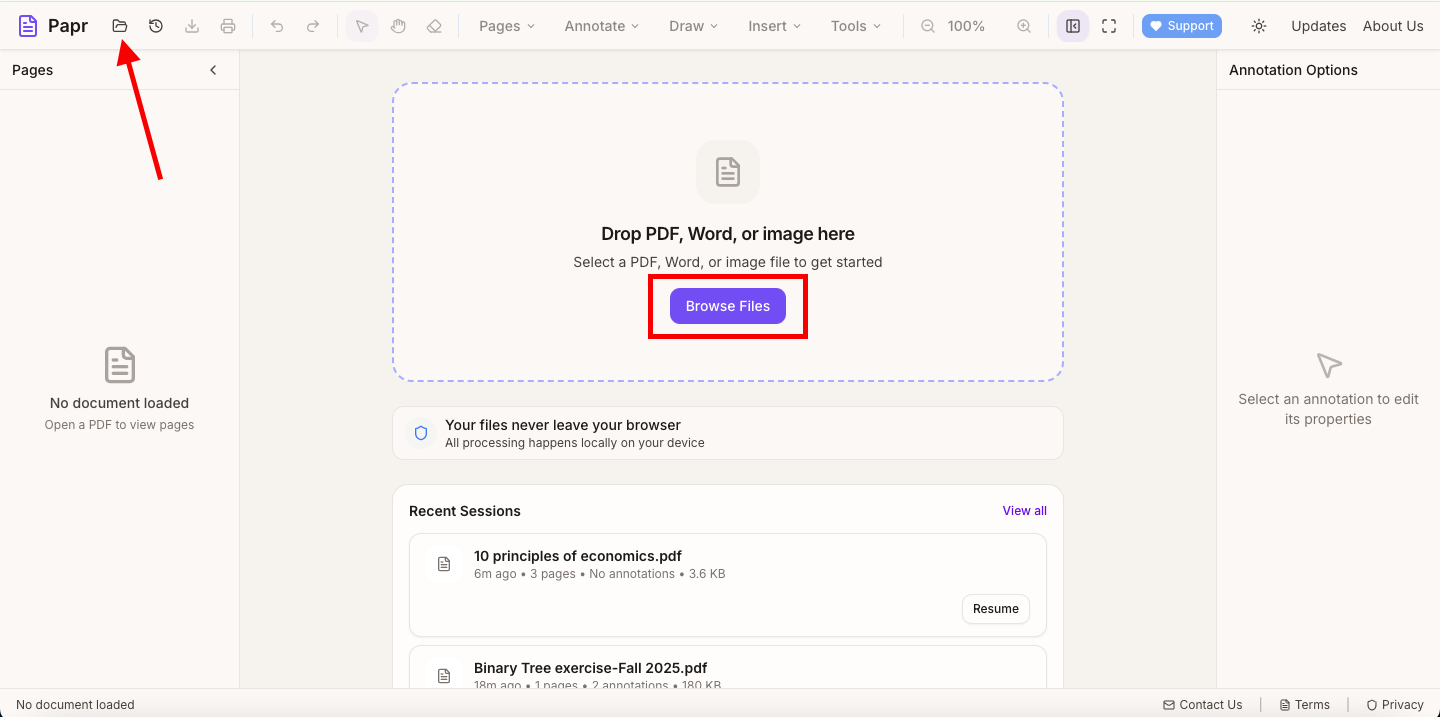
Go to the Papr editor and click the "Open file" button in the top toolbar or drag and drop your first PDF onto the page. This file will serve as the base document that you'll add other PDFs to.
Step 2: Open the Organize Pages Panel
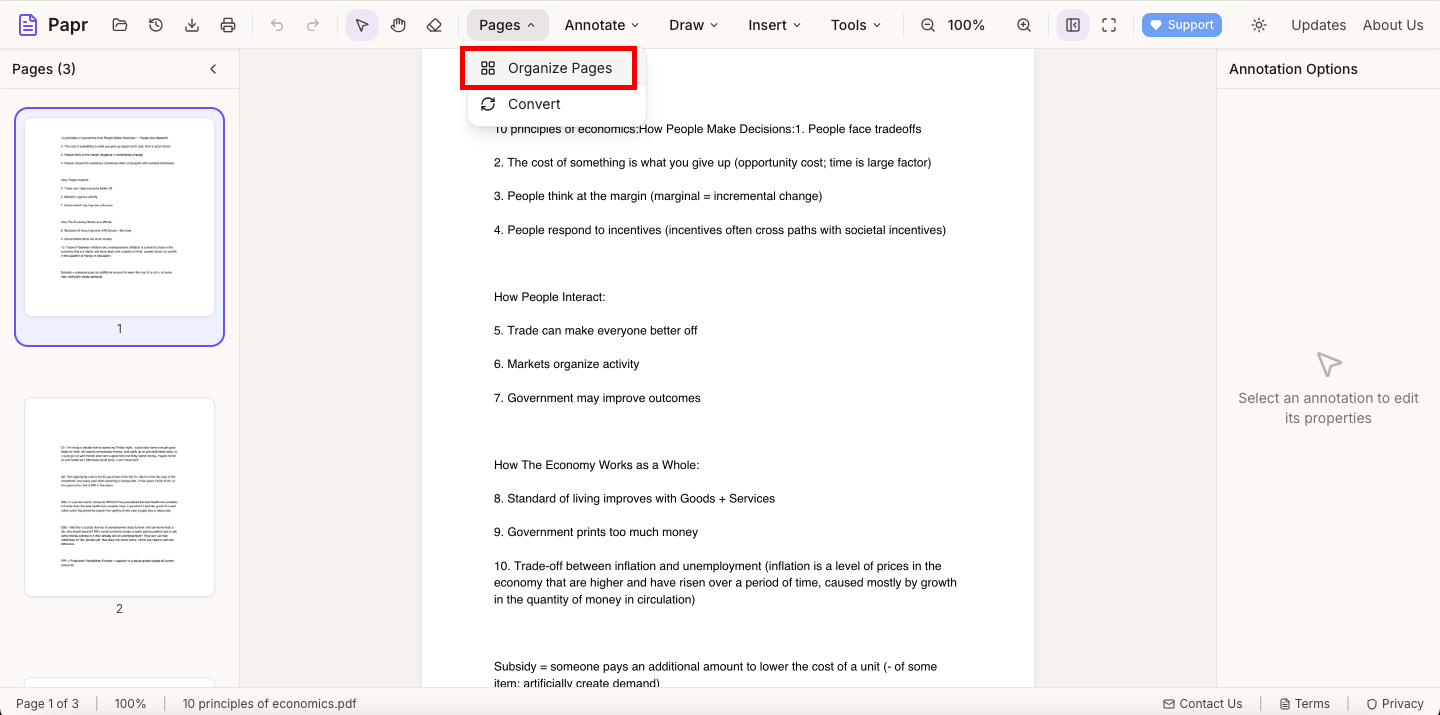
In the top toolbar, open the Pages dropdown and select Organize Pages. This opens the page management view with thumbnails.
Step 3: Add More PDFs
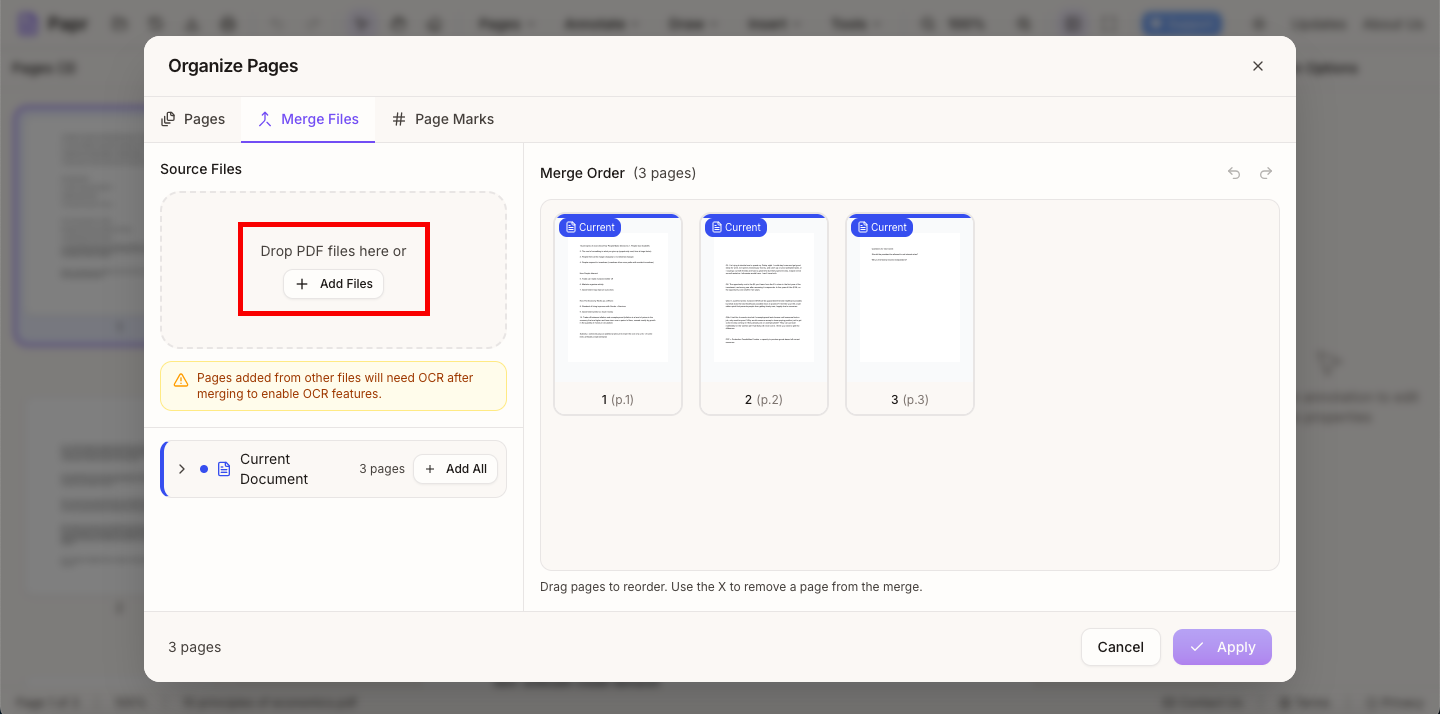
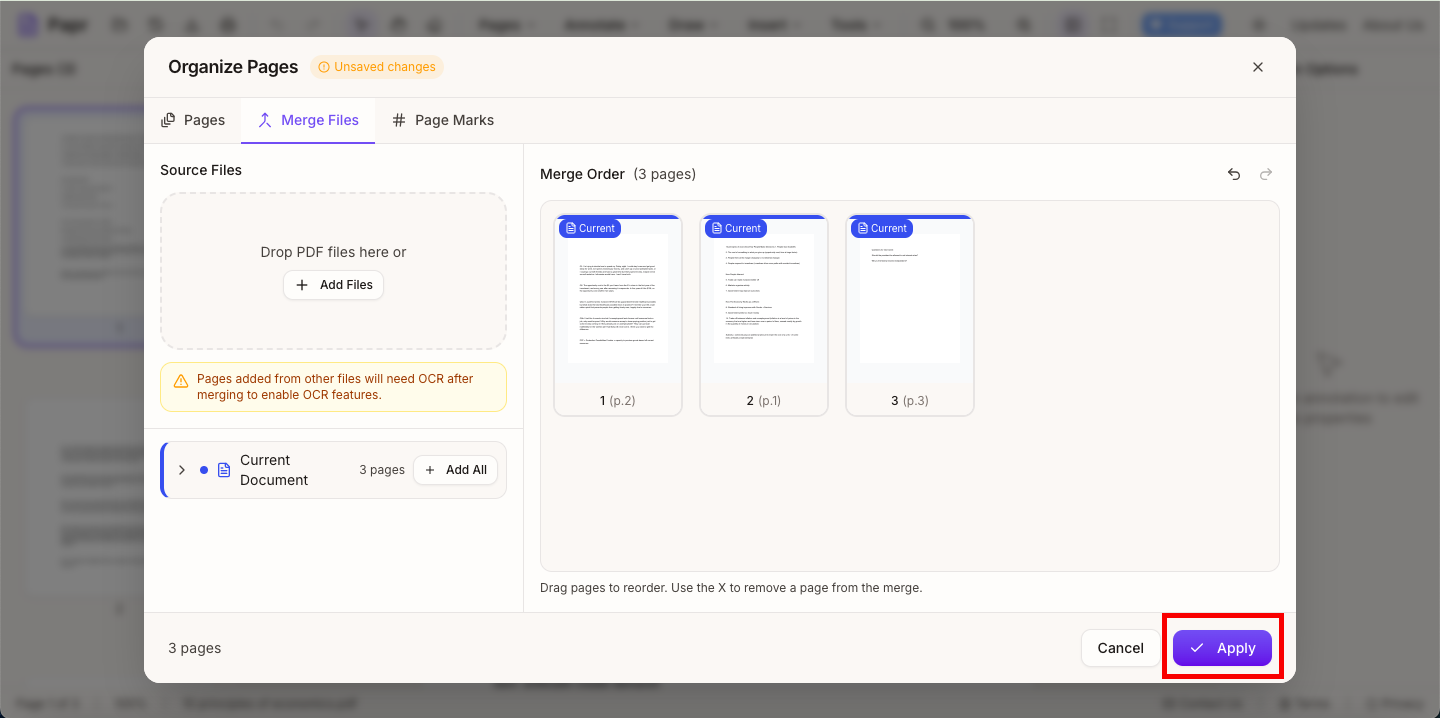
In the Organize Pages modal, switch to the Merge Files tab and click Add Files to choose additional PDFs. Each file is added as pages in the thumbnail list.
Step 4: Reorder Pages (Optional)
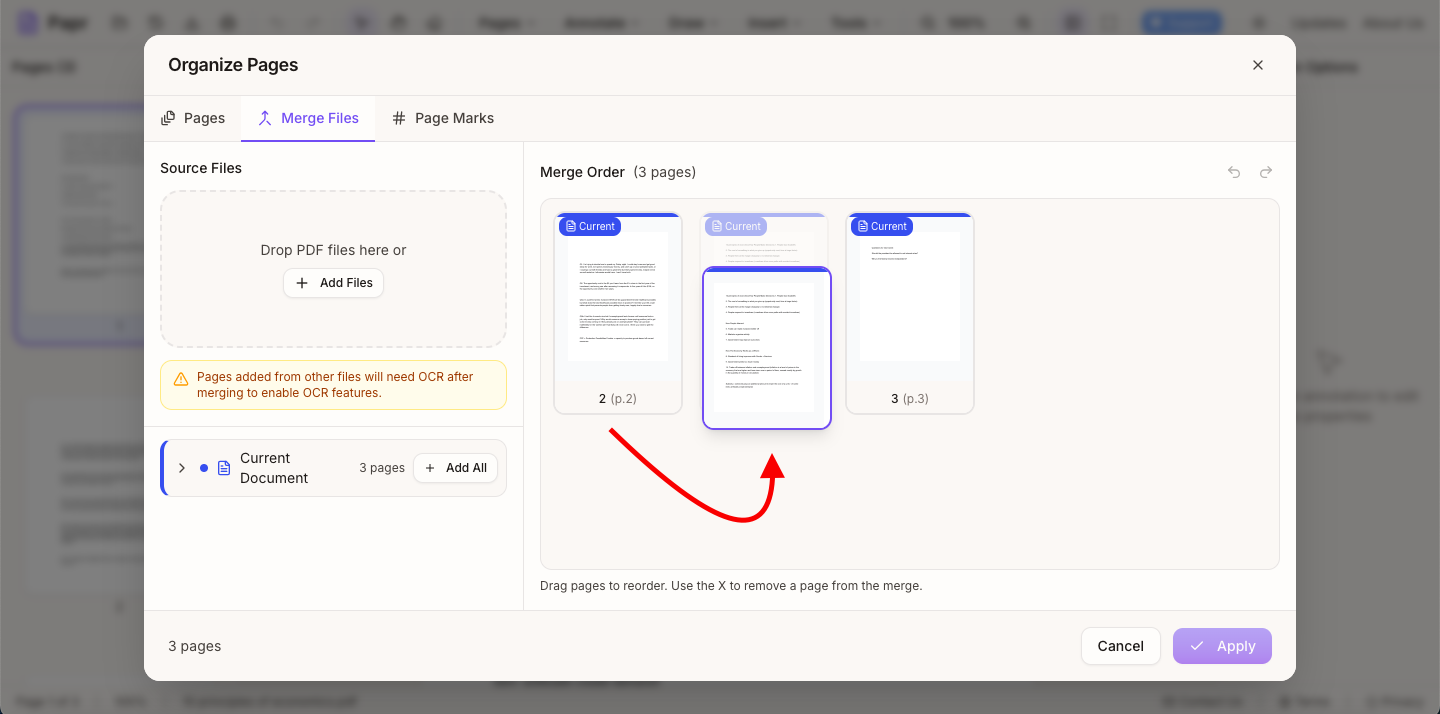
Drag and drop page thumbnails to rearrange them in your desired order. This is useful if you need specific pages from different documents to appear in a particular sequence.
Step 5: Save Your Merged PDF
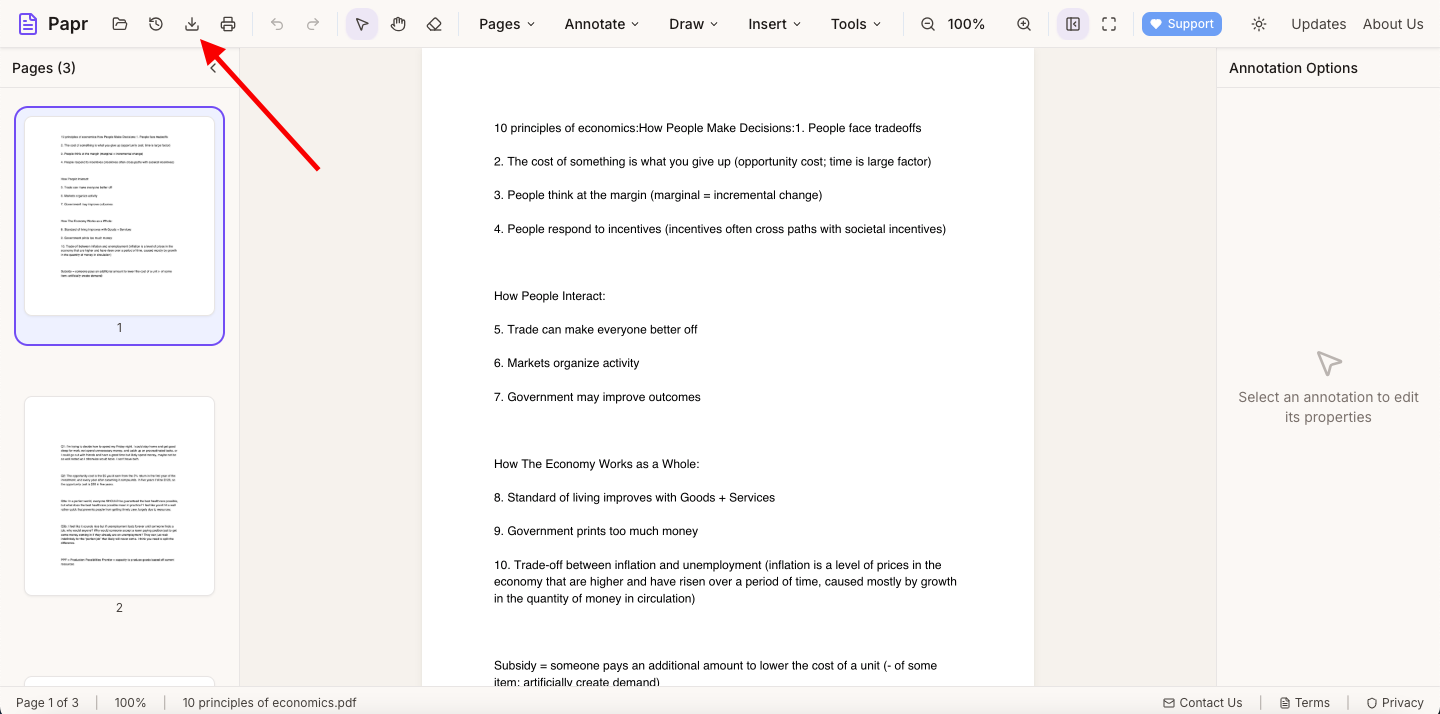
Once you're happy with the arrangement, click Apply in the Organize Pages modal. Then use the Export button in the top toolbar to save your combined PDF to your device.
Tips for Merging PDFs
- Check page orientation: If some pages appear sideways, you can rotate them before merging using Papr's rotate feature.
- Remove unwanted pages: Delete pages you don't need before saving to keep your final document clean.
- Large files: Merging many PDFs can create large files. Consider using Papr's compression feature afterward to reduce the file size.
Common Use Cases
People merge PDFs for many reasons. Here are some common scenarios where Papr's merge feature is helpful:
- Combining multiple scanned documents into one file
- Merging chapters or sections of a report
- Compiling receipts or invoices for expense reports
- Joining signed pages back into a complete contract
- Creating a single portfolio from multiple design files
Ready to Merge?
Try merging PDFs now with Papr. It's free and your files stay private.
Open Papr Editor