How to OCR a PDF Online Free
Have a scanned document or image-based PDF that you can't search or copy text from? Papr's OCR (Optical Character Recognition) feature can extract the text and make it searchable — all processing happens locally in your browser.
What is OCR?
OCR (Optical Character Recognition) is technology that recognizes text within images. When you scan a document, the result is essentially a picture of text — you can see the words but can't select, copy, or search them. OCR analyzes these images and converts the visual text into actual editable, searchable text.
Why Use Papr for OCR?
Most OCR services upload your documents to their servers for processing, which can be a concern for sensitive documents. Papr runs OCR entirely in your browser using advanced AI — your files never leave your device.
- Complete Privacy: Documents stay on your device
- High Accuracy: Modern AI-powered text recognition
- Multi-Language Support: Works with many languages
- Completely Free: Free to use; very large documents depend on browser limits
- Note: OCR processing uses significant memory; for best results, process large documents page by page or in sections
Step-by-Step: Using OCR in Papr
Step 1: Open Your Scanned PDF
Launch the Papr editor and load your scanned PDF by clicking the "Open file" button in the top toolbar or dragging the file onto the page. You can also drop image files (JPG, PNG) directly.
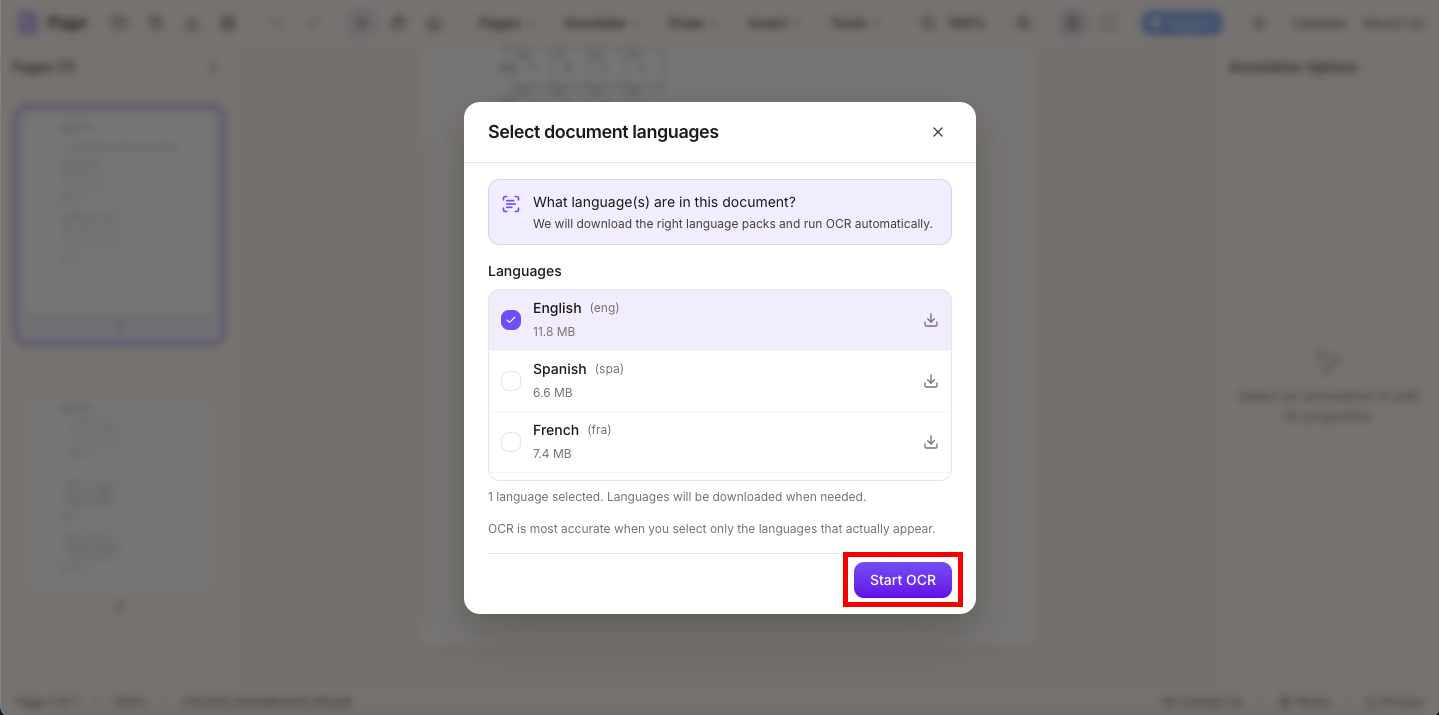
After a file loads, Papr will automatically prompt you to choose languages and start OCR. You can skip and run it later if you prefer.
Step 2: Access the OCR Feature
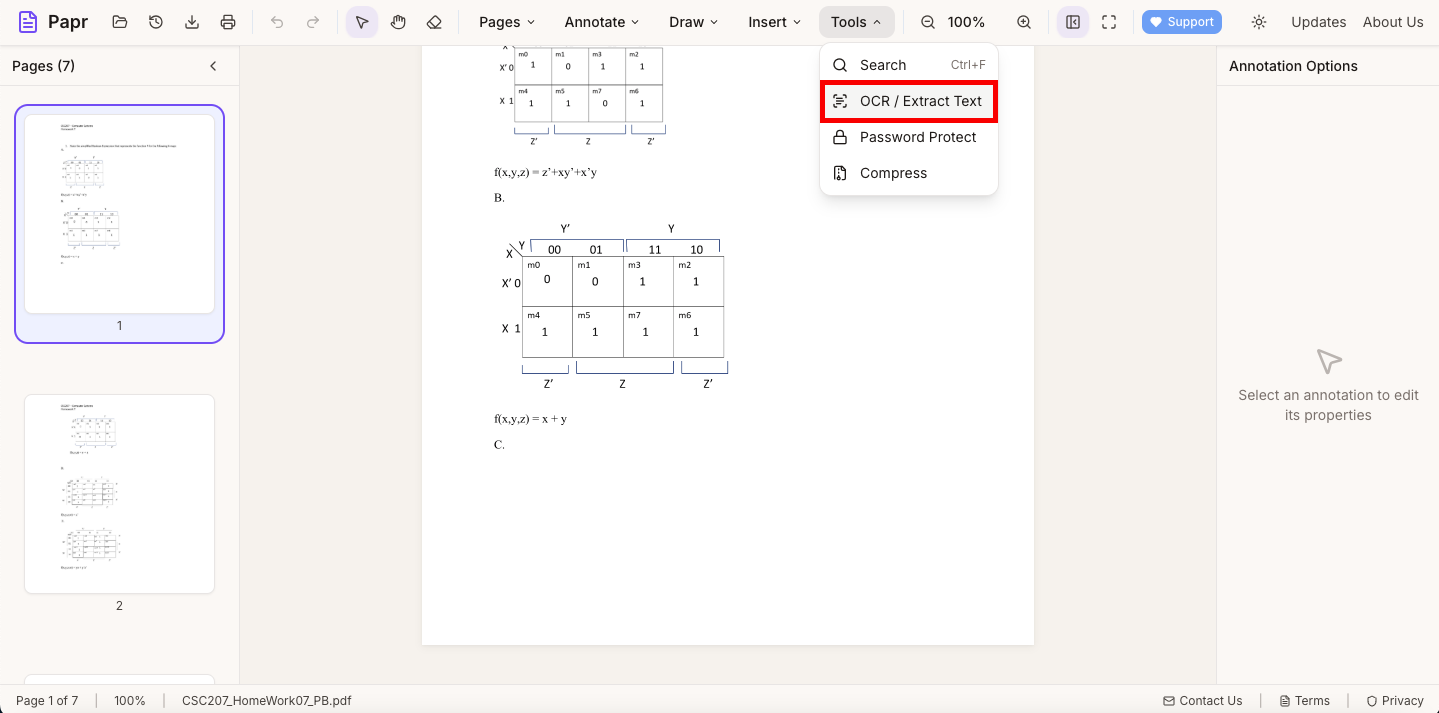
In the top toolbar, open the Tools dropdown and select OCR / Extract Text. This opens the OCR panel where you can configure recognition settings. If needed, language packs will download before processing.
Step 3: Select Pages to Process
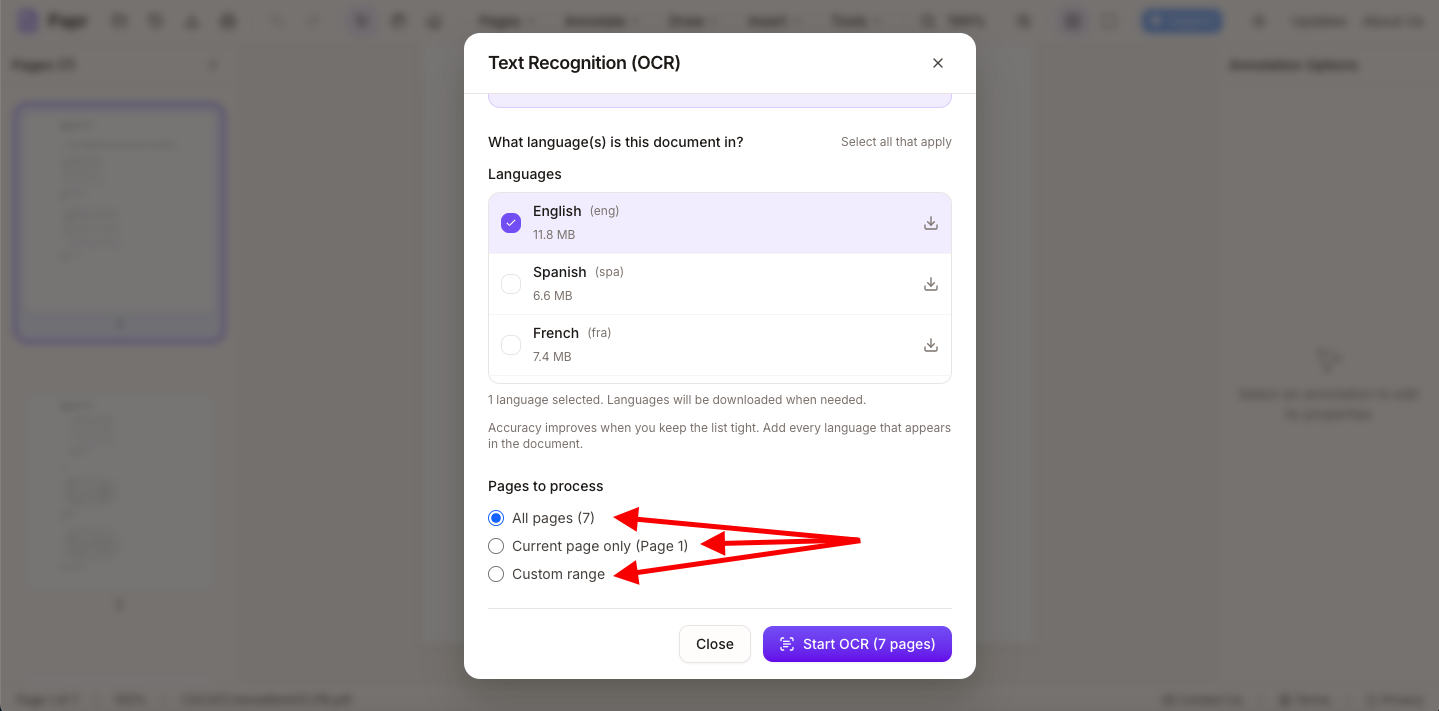
Choose whether to run OCR on the current page, specific pages, or the entire document. For long documents, processing individual pages can be faster for testing.
Step 4: Run OCR
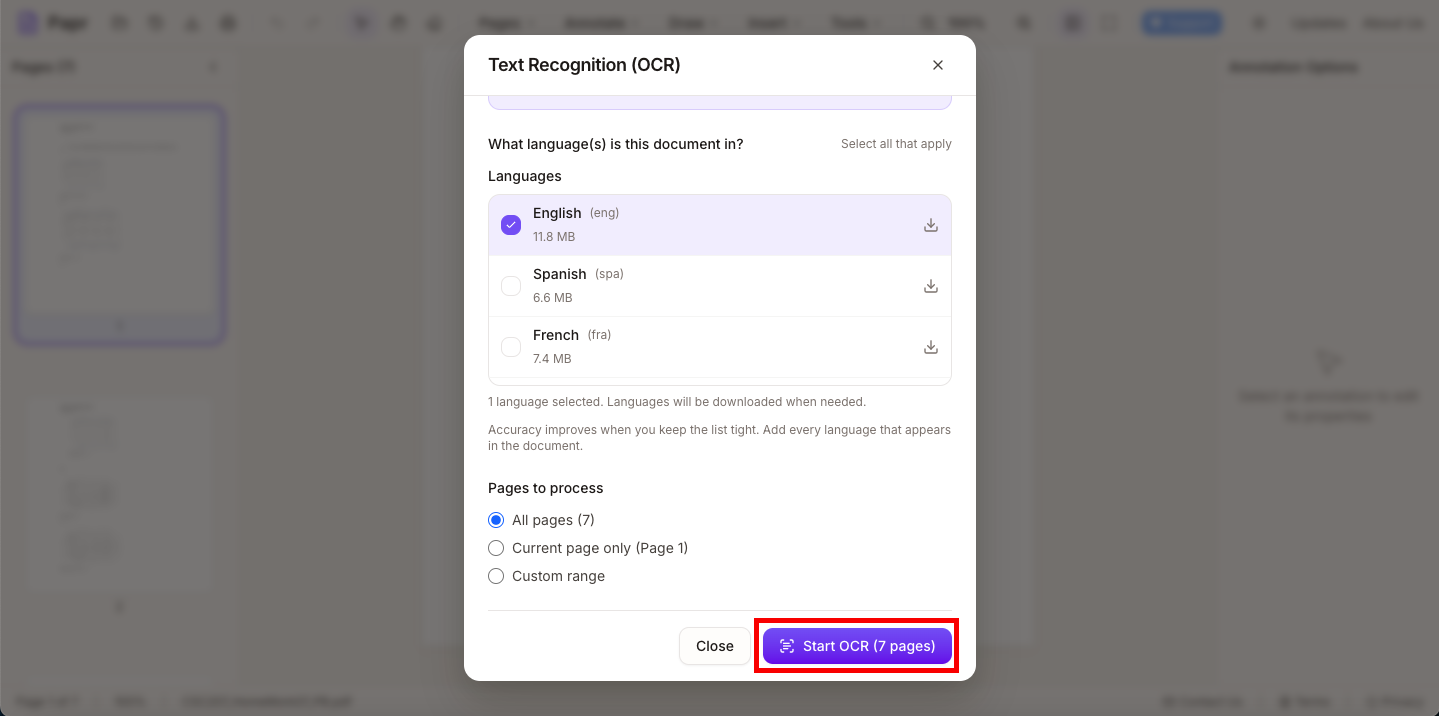
Click Start OCR in the OCR panel to begin processing. Papr will analyze the images and recognize the text. This may take a few moments depending on the document length and complexity.
Step 5: Review and Use the Text
Once OCR is complete, you can select and copy the recognized text. The text layer is added to the PDF, making it searchable.
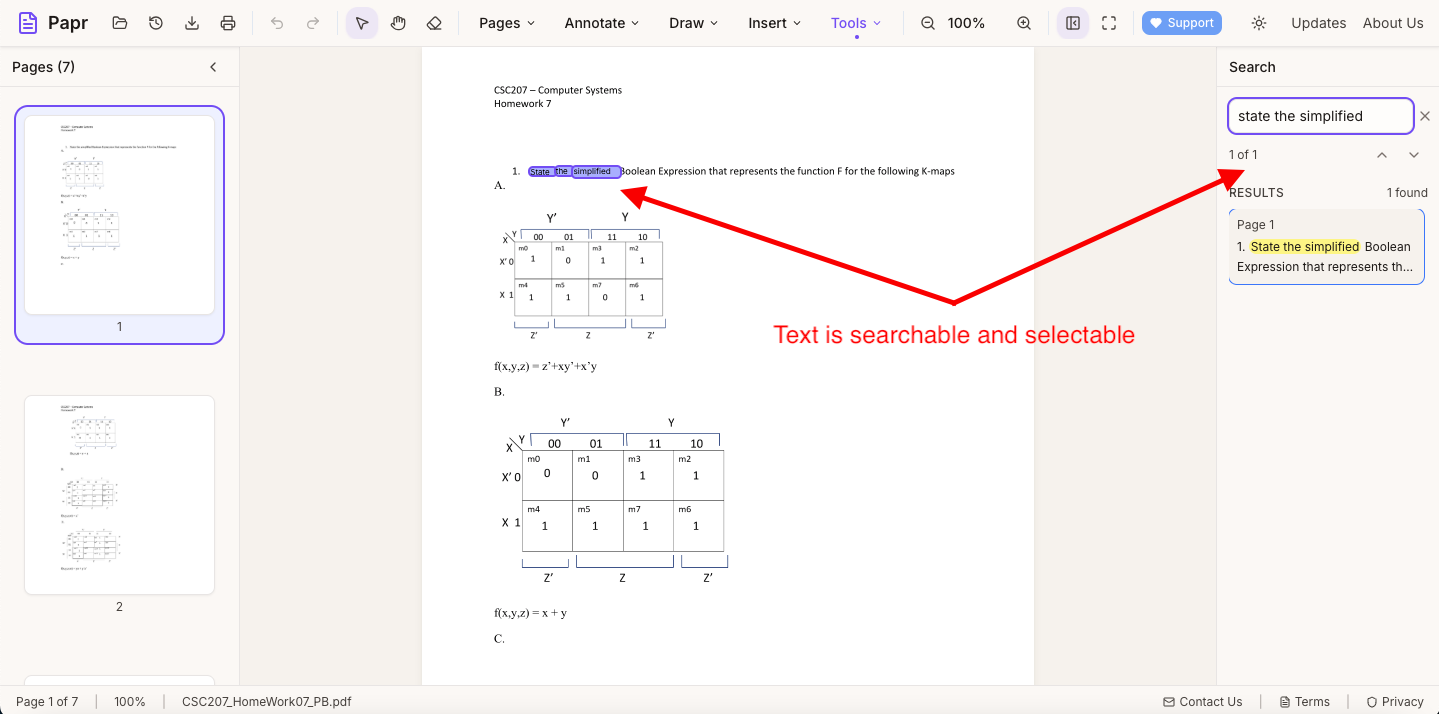
Tips for Better OCR Results
- Image quality matters: Higher resolution scans produce better results.
- Straighten skewed pages: If pages are tilted, straighten them first for improved accuracy.
- Clean backgrounds help: High contrast between text and background improves recognition.
- Check for errors: OCR isn't perfect — review important text for accuracy, especially numbers and unusual words.
- Font clarity: Clear, standard fonts are recognized better than decorative or handwritten text.
What OCR Can and Can't Do
OCR works well for:
- Printed text in standard fonts
- Typed documents and forms
- Business documents, contracts, and reports
- Books and articles
OCR may struggle with:
- Handwritten text (results vary by legibility)
- Very small or decorative fonts
- Low-quality or blurry images
- Complex layouts with overlapping elements
Common Use Cases
- Making scanned documents searchable
- Extracting text from old paper documents
- Converting image-based PDFs to editable text
- Digitizing receipts and invoices for record-keeping
- Archiving historical documents
- Extracting data from filled forms
Ready to OCR?
Try extracting text from scanned documents now with Papr. It's free and your files stay private.
Open Papr Editor