How to Password Protect a PDF Online Free
Need to secure a sensitive document before sharing? Papr lets you add password protection to any PDF — and because all processing happens in your browser, your confidential files never leave your device.
Why Password Protect PDFs with Papr?
When you need to share sensitive documents — financial records, contracts, personal information — password protection adds an essential layer of security. Most online tools require uploading your files, which defeats the purpose of securing them. Papr encrypts everything locally on your device.
- Maximum Privacy: Files are encrypted locally, never uploaded
- Strong Encryption: Industry-standard PDF encryption
- Completely Free: No subscriptions or per-document fees
Step-by-Step: Password Protecting a PDF
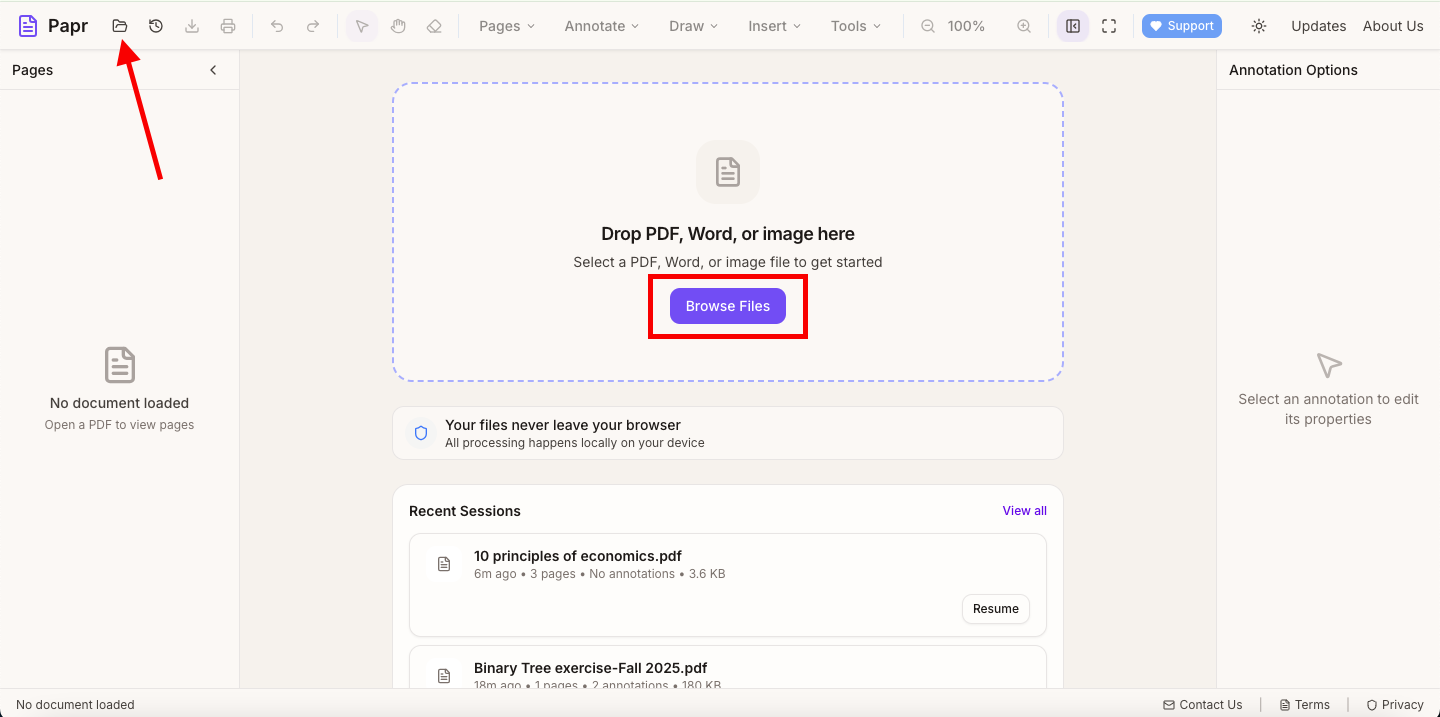
Step 1: Open Your PDF
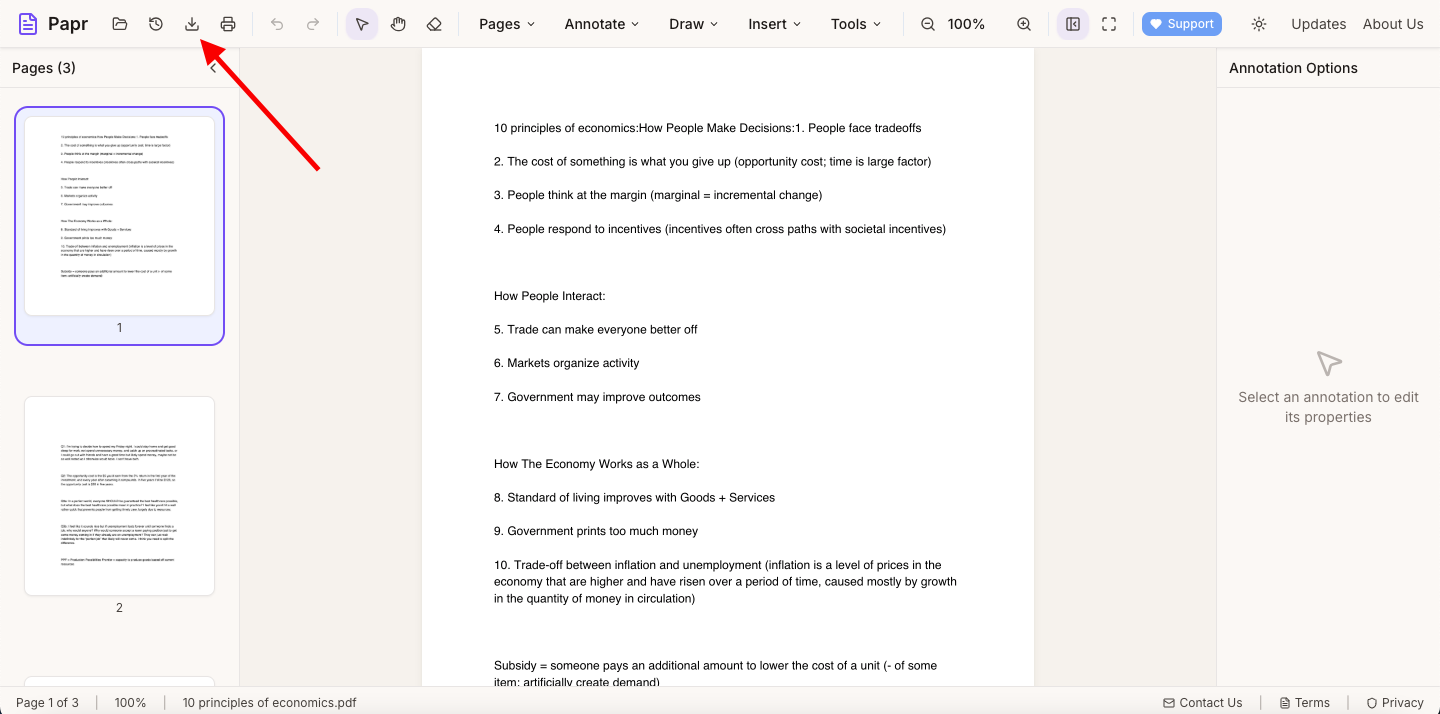
Launch the Papr editor and load the PDF you want to protect. Click the "Open file" button in the top toolbar or drag your file onto the page.
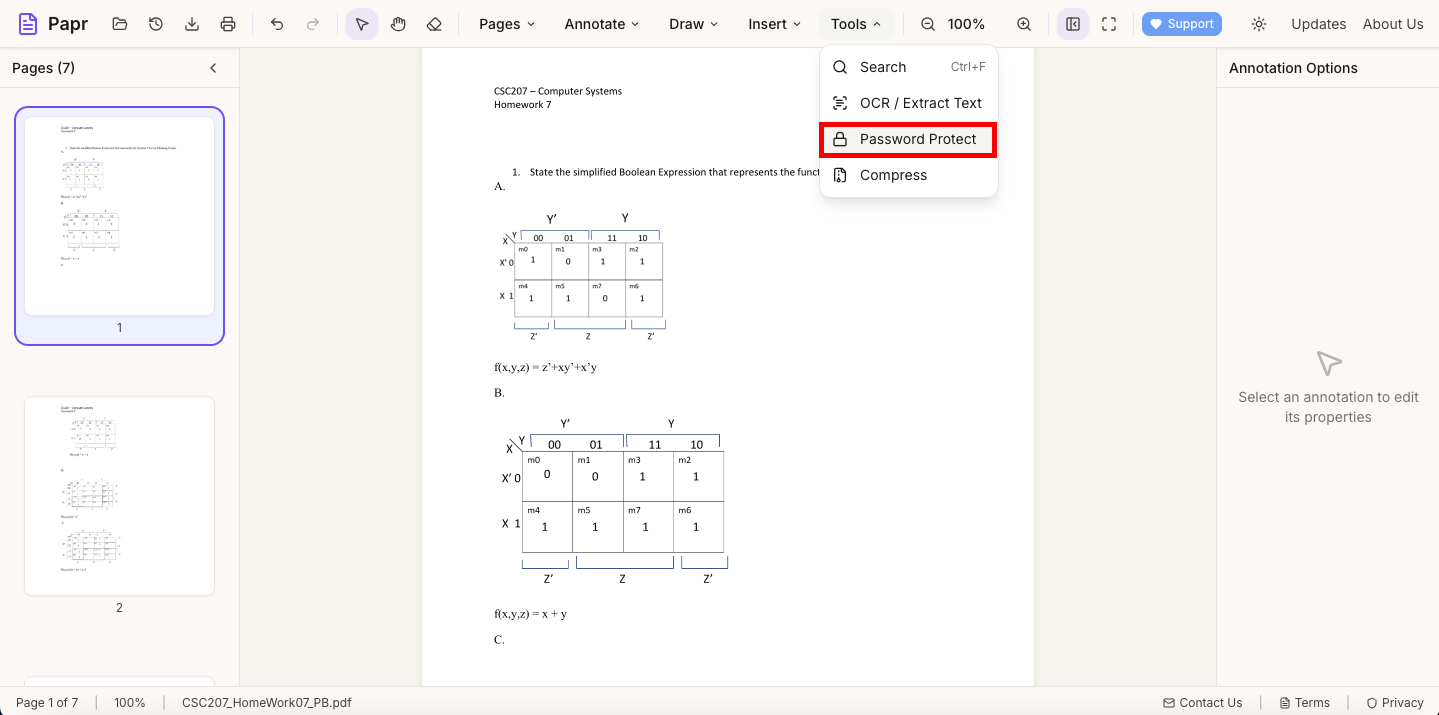
Step 2: Open the Password Protect Tool
In the top toolbar, open the Tools dropdown and select Password Protect. This opens the export dialog with password settings.
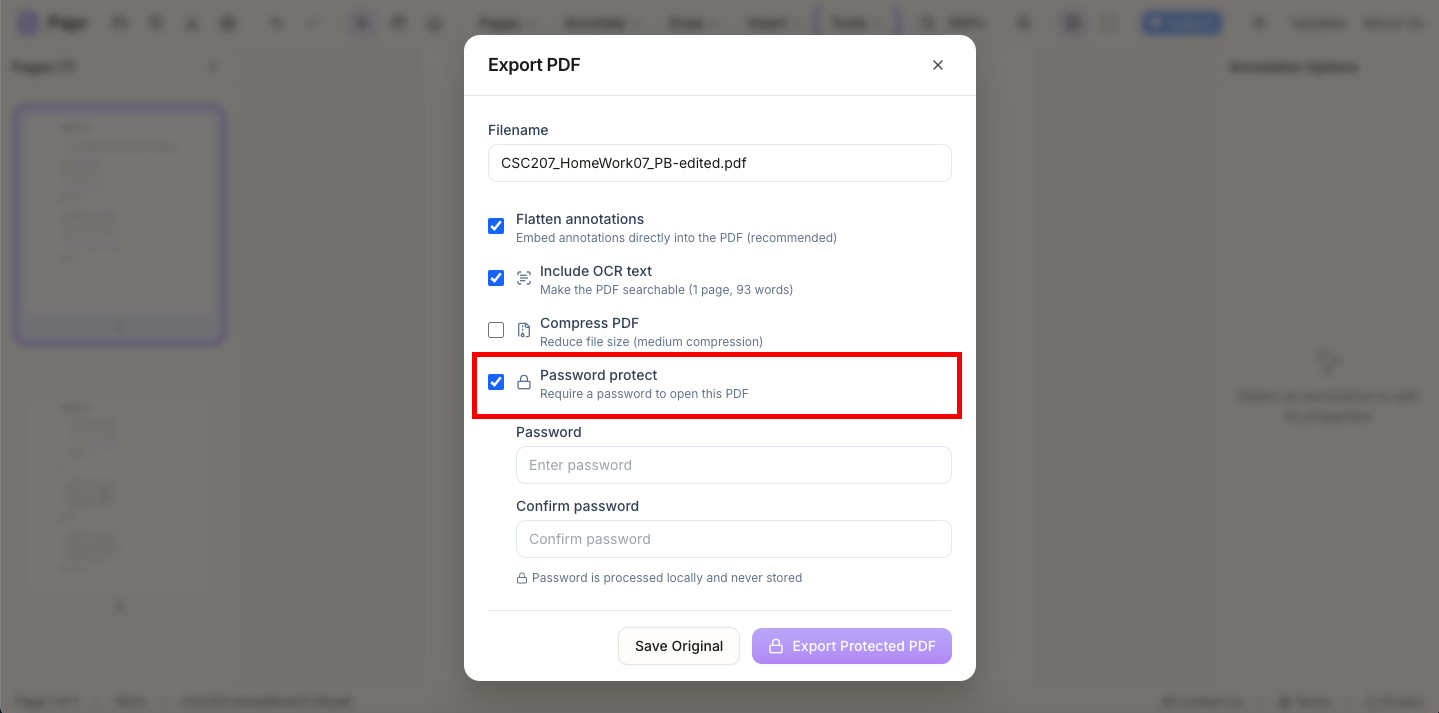
Step 3: Enable Password Protection
In the export dialog, make sure Password protect is enabled to reveal the password fields.
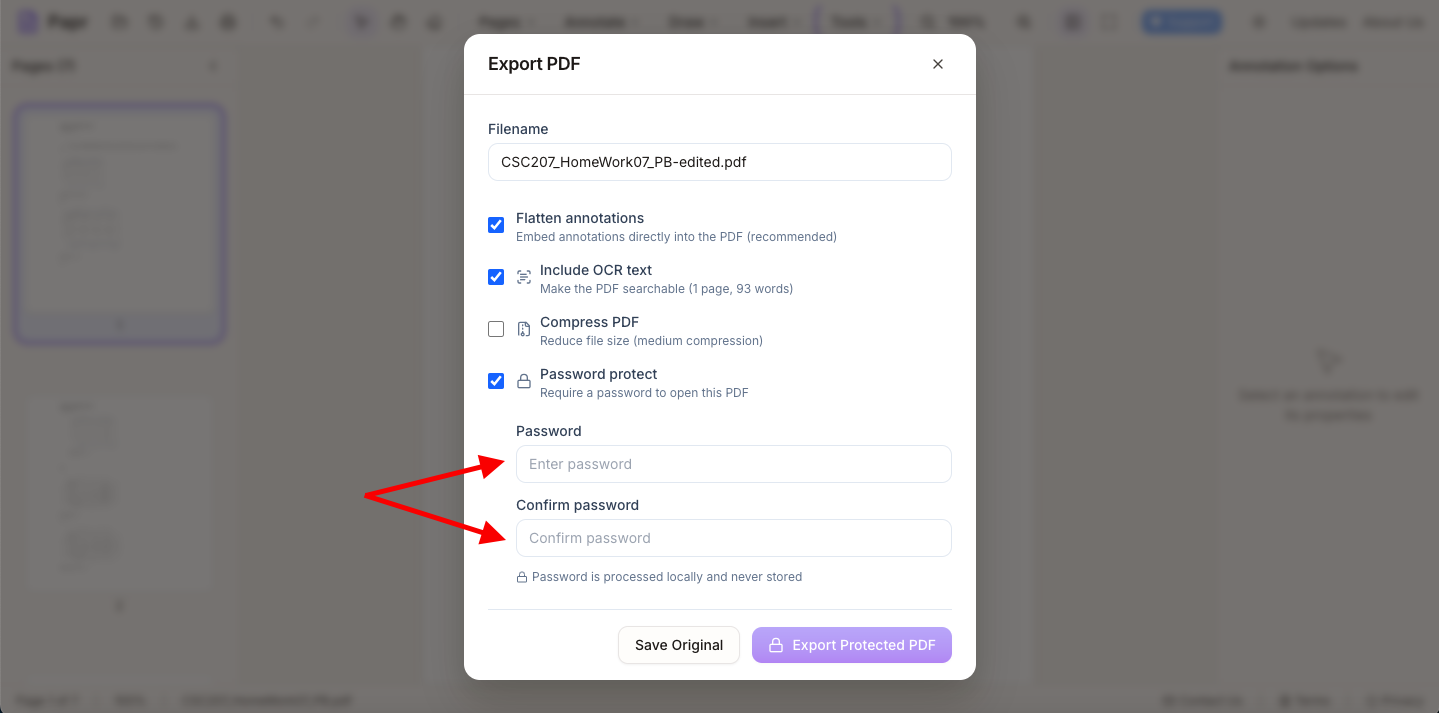
Step 4: Set Your Password
Enter a strong password. Anyone opening this PDF will need it to view the document.
Step 5: Export Your Protected PDF
Click Export in the dialog to generate the password-protected file. The encrypted PDF will download to your device.
Tips for Strong Passwords
- Length matters: Use at least 12 characters for strong security
- Mix character types: Combine letters, numbers, and symbols
- Avoid common words: Don't use dictionary words or personal info
- Remember it: There's no way to recover a forgotten PDF password — store it safely
- Share securely: Send the password separately from the document (e.g., via text if emailing the PDF)
Understanding PDF Security
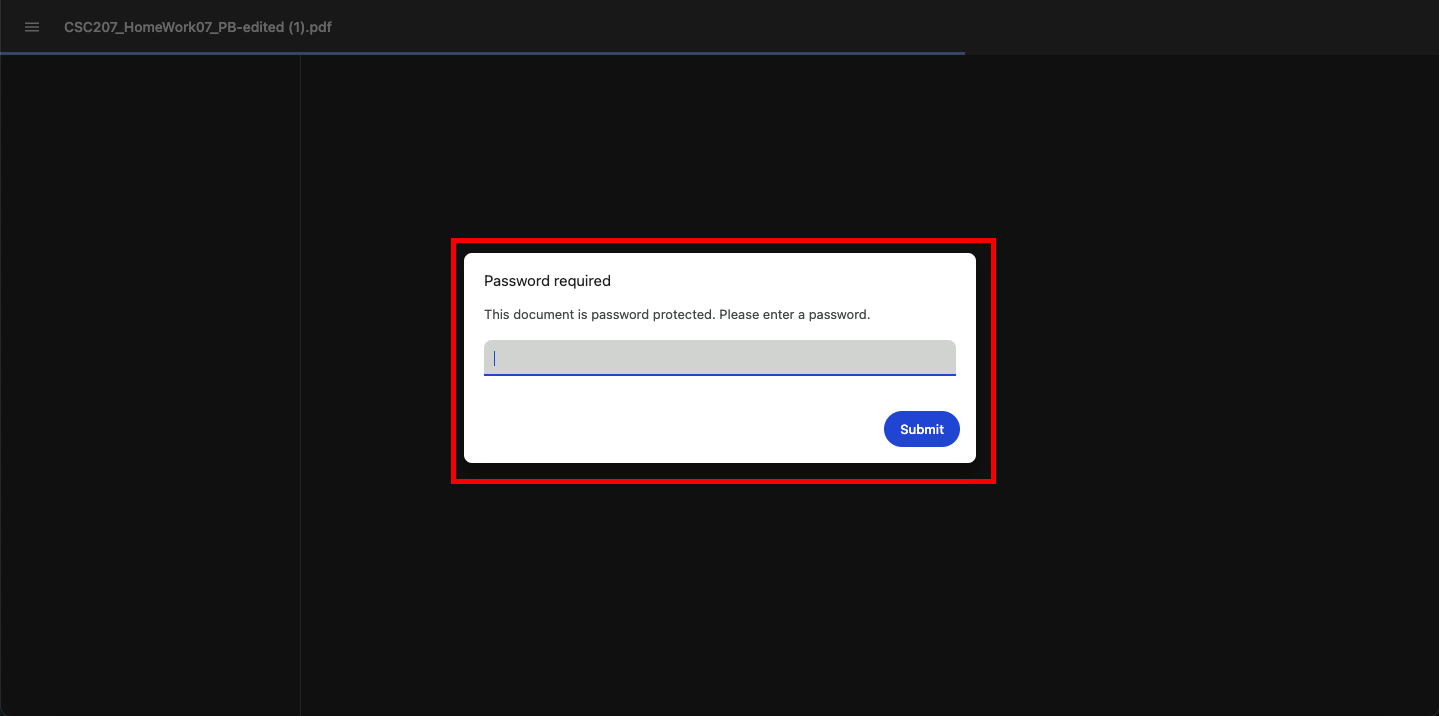
PDF password protection uses encryption to scramble the document contents. Without the correct password, the file cannot be opened or read.
Common Use Cases
- Securing financial documents before emailing
- Protecting contracts and legal agreements
- Sharing personal information securely
- Distributing confidential business reports
- Protecting intellectual property and proprietary information
- Securing medical records and health information
Ready to Protect Your PDF?
Try adding password protection now with Papr. It's free and your files stay private.
Open Papr Editor