How to Redact Sensitive Information in PDFs Online Free
Need to permanently remove confidential information from a PDF? Whether you're preparing legal documents, sharing reports with sensitive data removed, or complying with privacy regulations, Papr makes it easy to redact PDFs directly in your browser — with no uploads to external servers.
Why Redact PDFs with Papr?
Redaction is critical for protecting sensitive information like names, addresses, social security numbers, financial data, and confidential business information. Unlike simply drawing black boxes over text (which can often be removed), Papr's redaction tool permanently removes the underlying content.
- 100% Private: Your PDFs are processed on your device, not uploaded
- Permanent Removal: Redacted content is completely removed, not just hidden
- GDPR & Compliance Ready: Meet privacy requirements for document sharing
- Completely Free: No subscriptions, no watermarks, no hidden fees
Step-by-Step: Redacting Information in Papr
Step 1: Open Your PDF in Papr
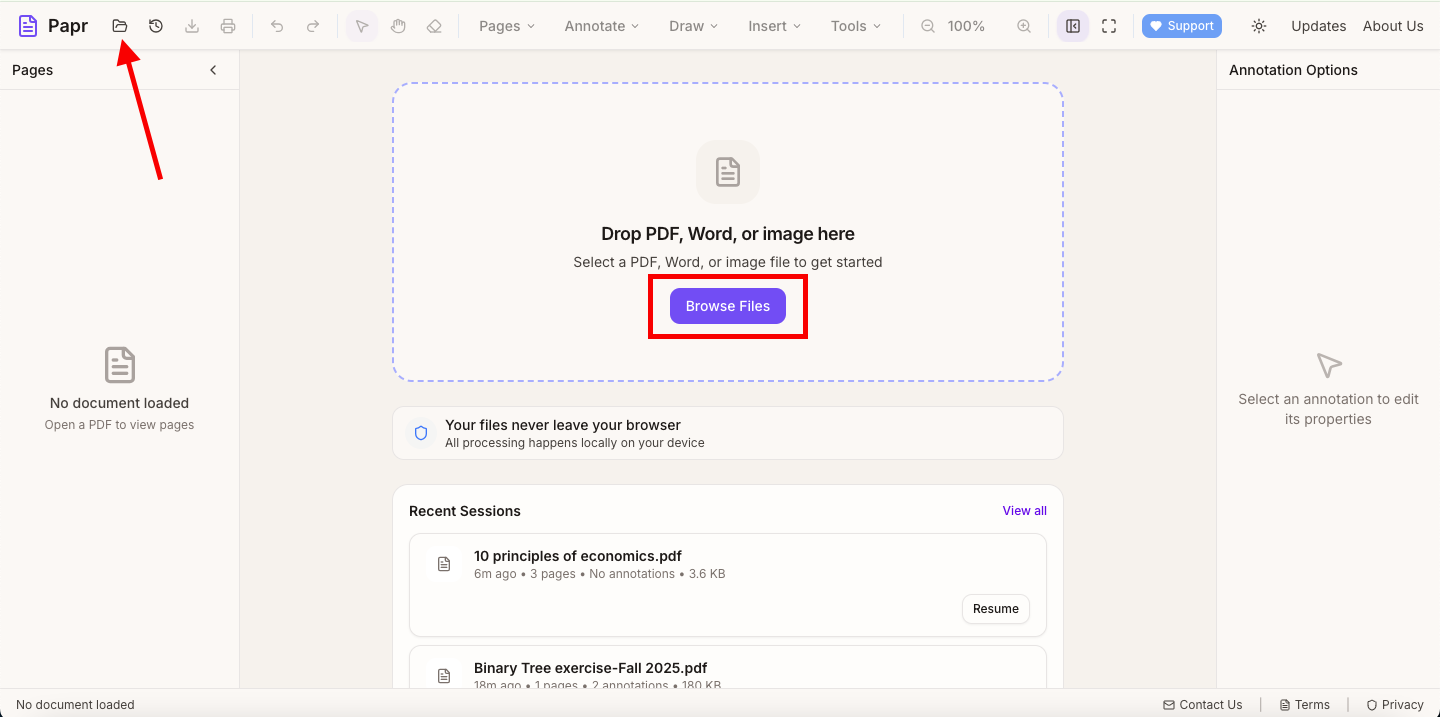
Go to the Papr editor and click the "Open file" button in the top toolbar or drag and drop your PDF onto the page. It's recommended to work on a copy of your document since redaction is permanent.
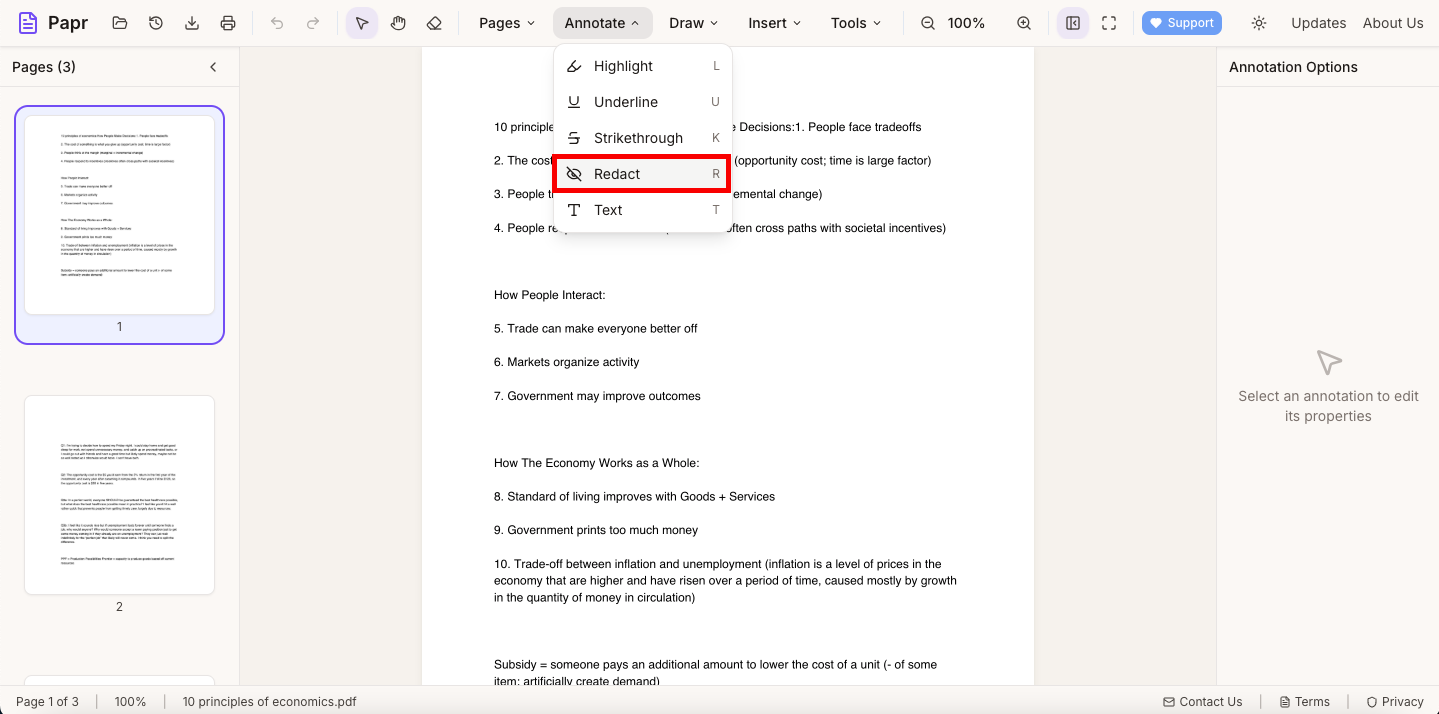
Step 2: Select the Redact Tool
In the top toolbar, open the Annotate dropdown menu and select Redact. Your cursor will change to indicate you're in redaction mode. You can draw redaction boxes freely anywhere on the page, or select text first and then apply redaction to the selected area.
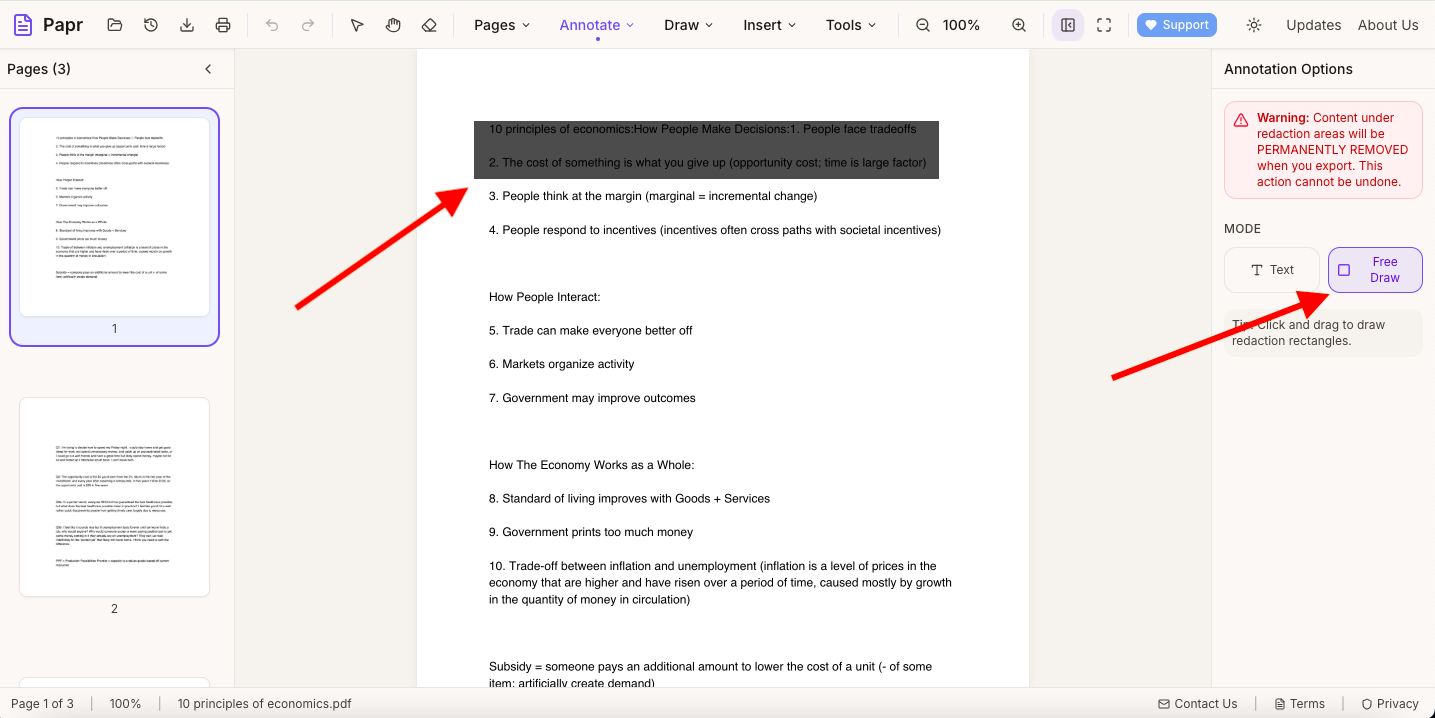
Free redaction mode
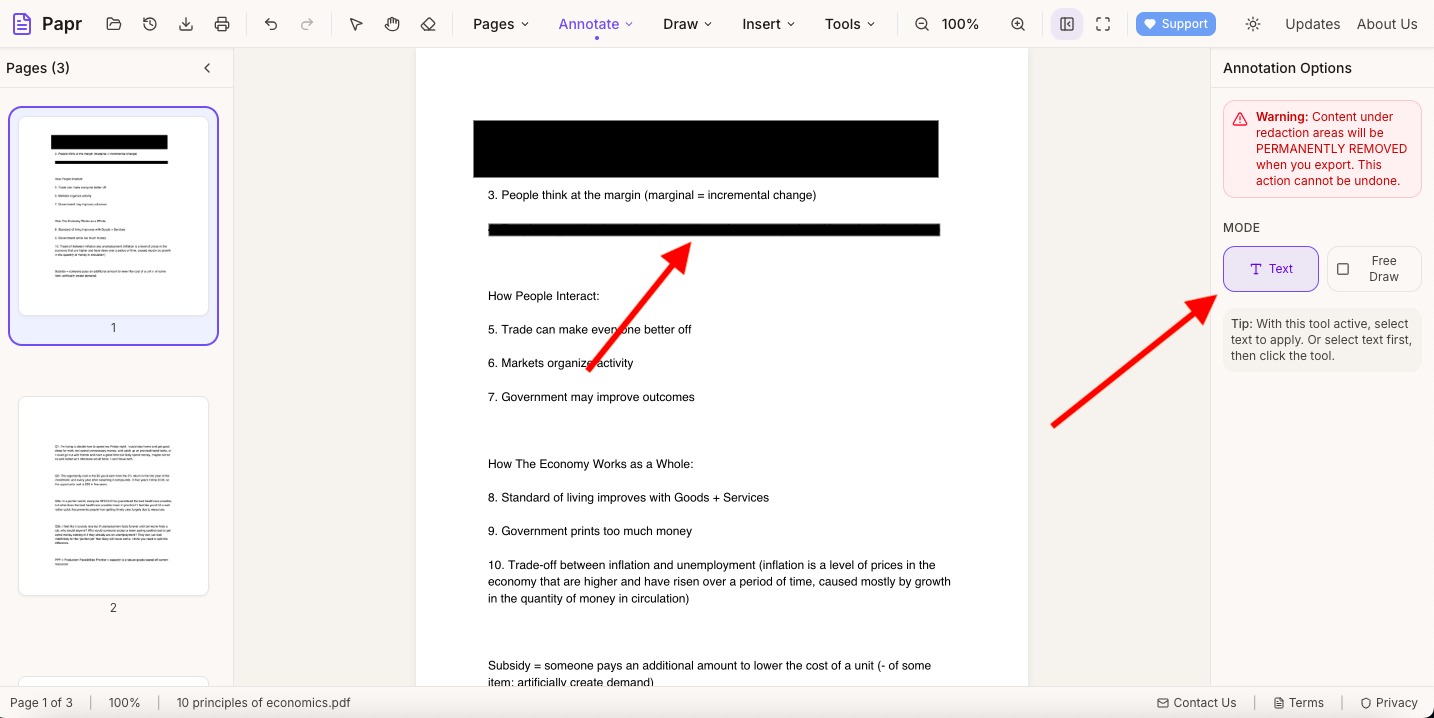
Redact from selected text
Step 3: Draw Redaction Boxes Over Sensitive Content
Click and drag to draw rectangles over the text, images, or areas you want to redact. You'll see a preview of the redaction area. Continue selecting all the content that needs to be removed throughout your document.
Step 4: Review Your Redactions
Before applying, scroll through your document to verify all sensitive information is marked for redaction. You can remove individual redaction marks if you made a mistake by selecting them and deleting.
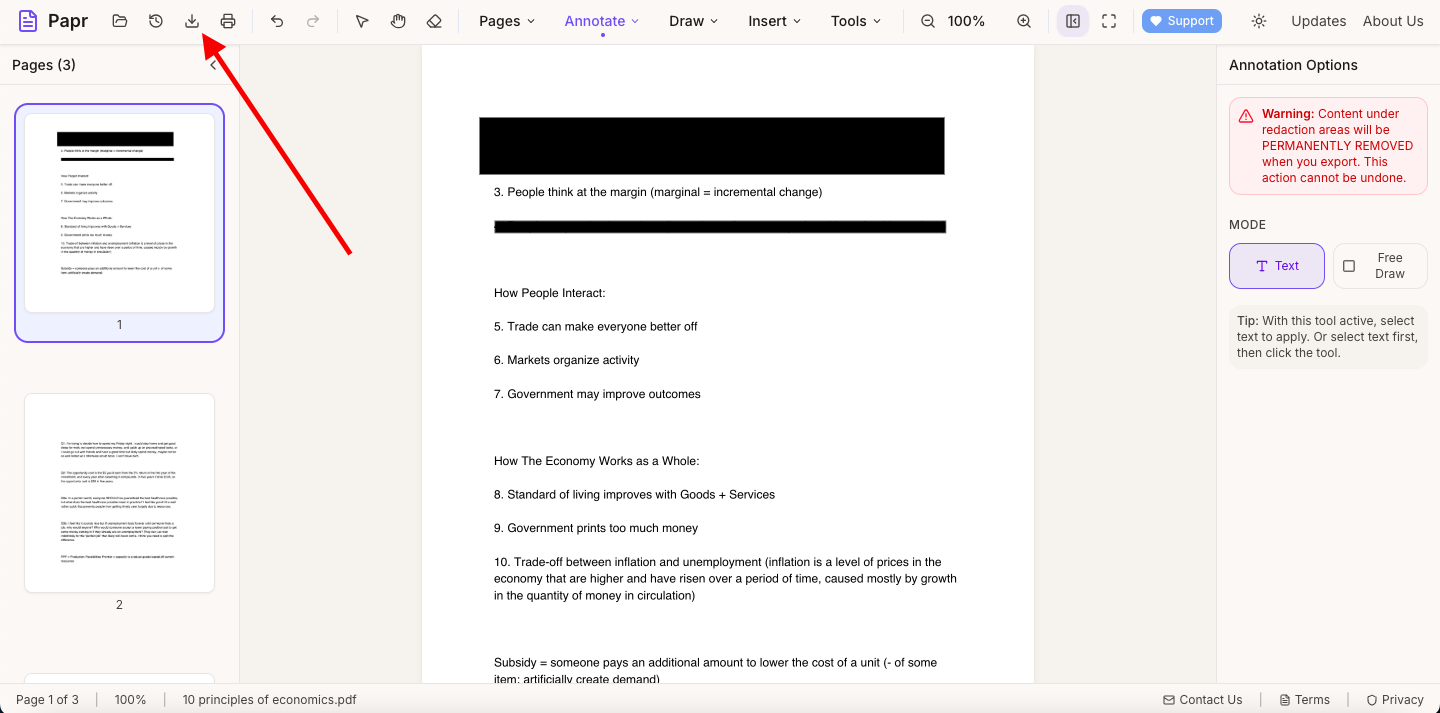
Step 5: Export Your Redacted PDF
Once you're satisfied with your redactions, click the Export button in the toolbar to save your redacted PDF. The exported file will have all marked content permanently removed — it cannot be recovered.
Tips for Effective Redaction
- Always work on a copy: Redaction is permanent. Keep your original file safe in case you need to create a different redacted version later.
- Check all pages: Sensitive information may appear in headers, footers, or appendices. Review the entire document carefully.
- Consider metadata: PDFs can contain hidden metadata with author names, comments, or revision history. Consider using additional tools if metadata is a concern.
- Test before sharing: After exporting, open the redacted PDF and try to select or copy text from redacted areas to confirm the content is truly removed.
Common Use Cases
Redaction is essential in many professional and personal scenarios:
- Legal document preparation and discovery responses
- GDPR and privacy compliance for data subject requests
- Removing personal information before sharing resumes or applications
- Protecting confidential business information in shared reports
- Sanitizing medical records or financial statements
- Government and FOIA document releases
Ready to Redact?
Try redacting sensitive information now with Papr. It's free and your files stay private.
Open Papr Editor