How to Rotate PDF Pages Online Free
Have pages that are sideways or upside down in your PDF? Papr makes it easy to rotate individual pages or entire documents — all in your browser, with no file uploads required.
Why Rotate PDFs with Papr?
Scanned documents often end up with pages in the wrong orientation. Rather than rescanning or using complicated desktop software, Papr lets you quickly fix page rotation right in your browser — and your files stay completely private.
- Instant Results: Rotate pages with a single click
- Complete Privacy: Files are processed locally, never uploaded
- Flexible Options: Rotate 90° at a time and repeat if you want 180° or 270°
- Batch or Individual: Rotate all pages or just specific ones
Step-by-Step: Rotating PDF Pages
Step 1: Open Your PDF
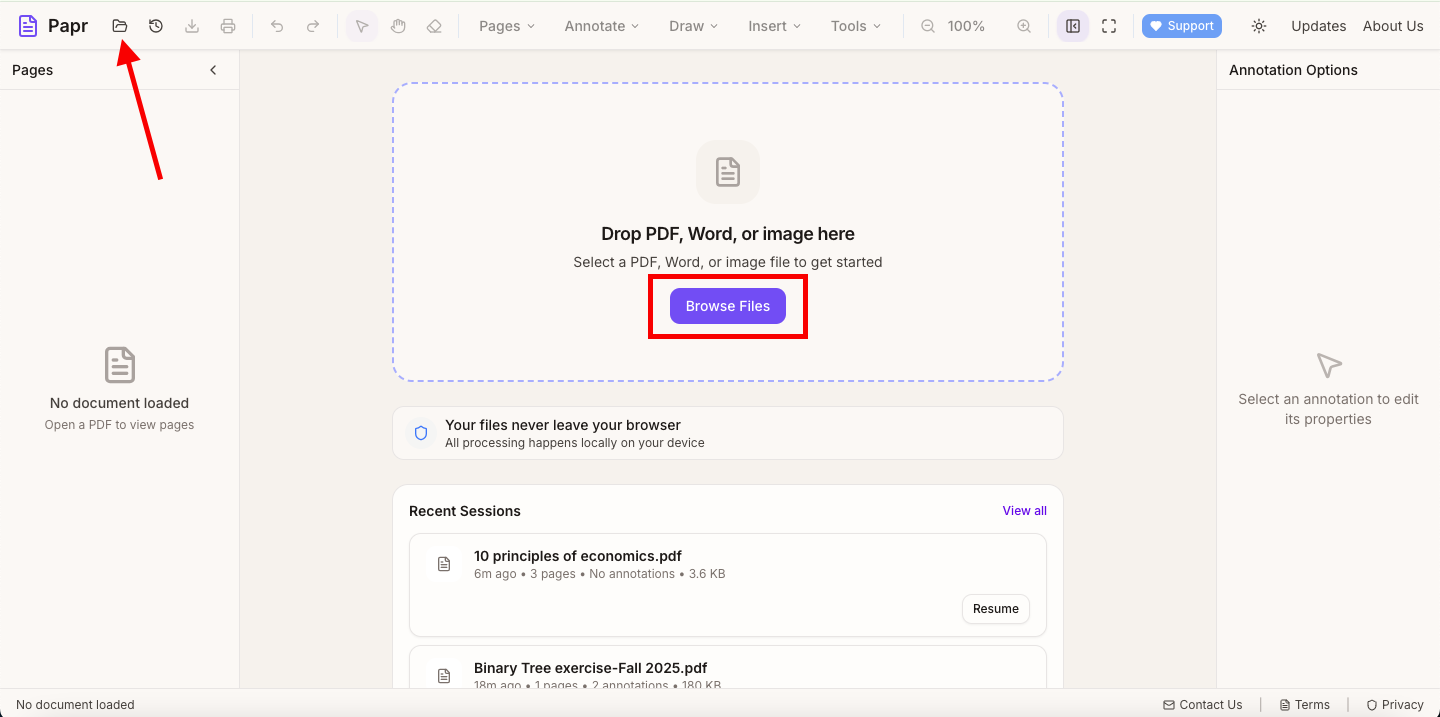
Go to the Papr editor and load your PDF by clicking the "Open file" button in the top toolbar or dragging the file onto the page. Navigate through the document to identify which pages need rotation.
Step 2: Open the Organize Pages Panel
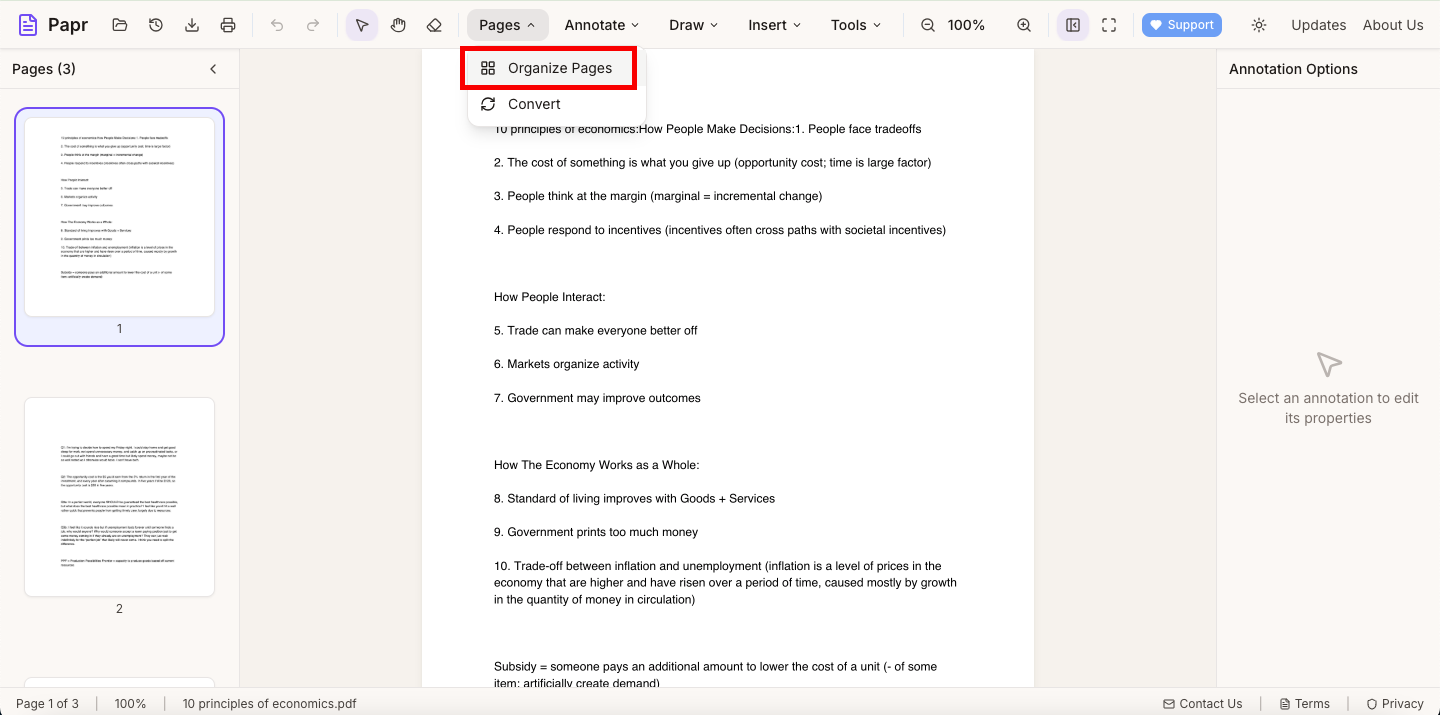
In the top toolbar, open the Pages dropdown and select Organize Pages. This opens the page management view with thumbnails so you can spot mis-rotated pages.
Step 3: Select Pages to Rotate
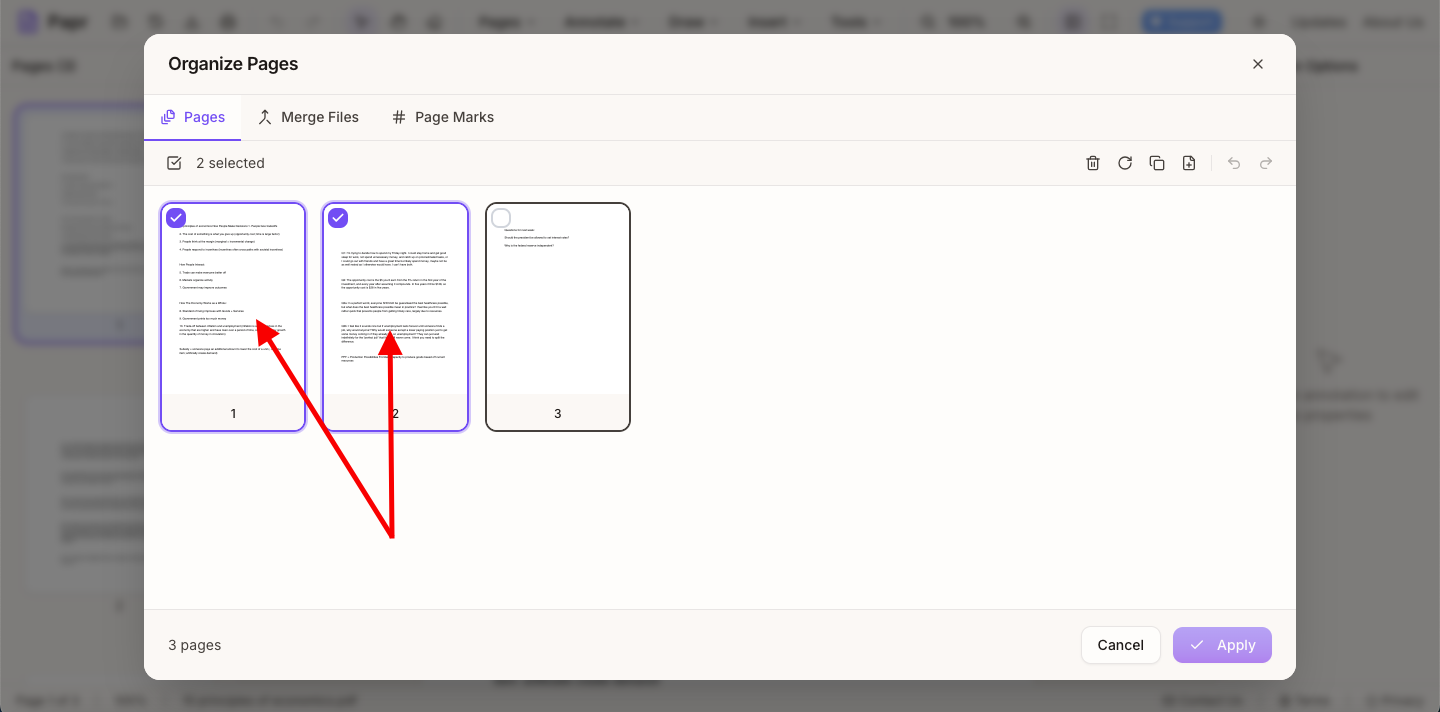
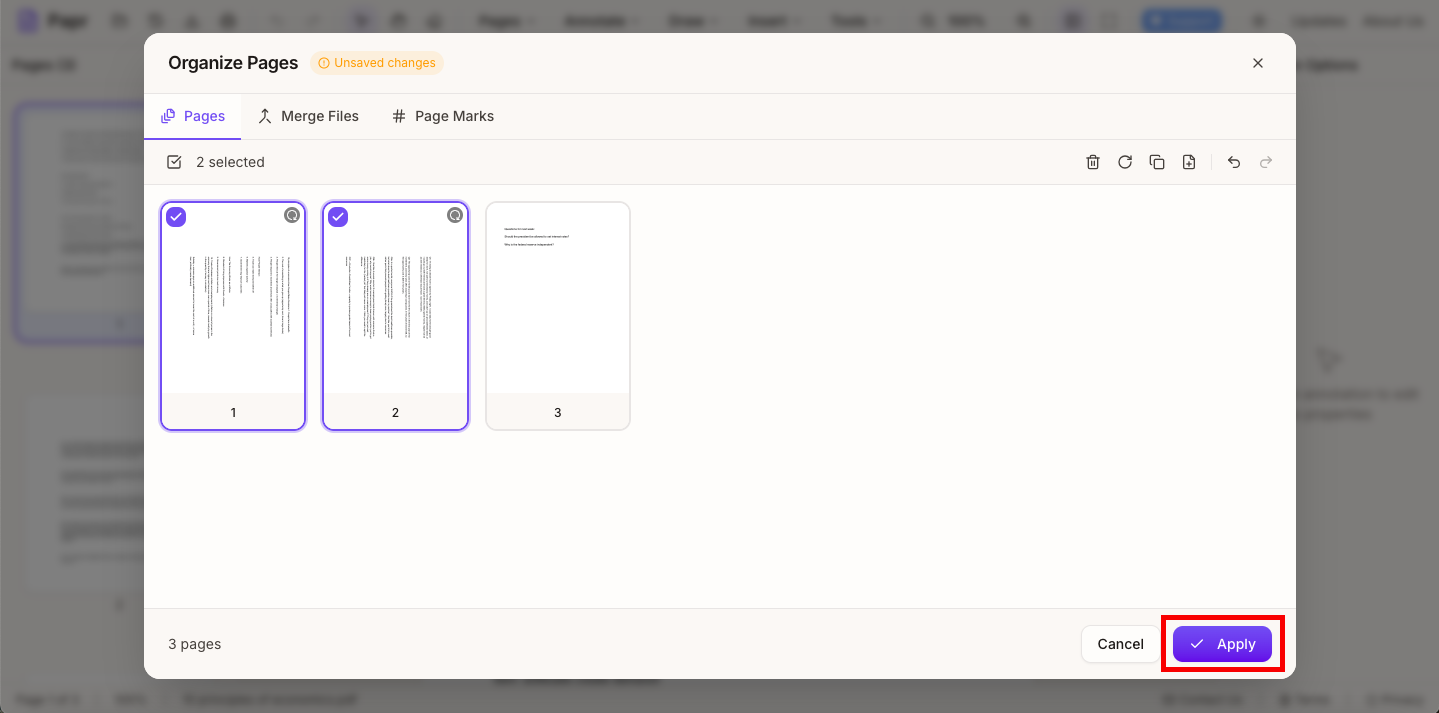
You can click pages to toggle selection. Selected pages will be highlighted. To select a range, click the first page, then Shift-click the last page.
Step 4: Apply Rotation
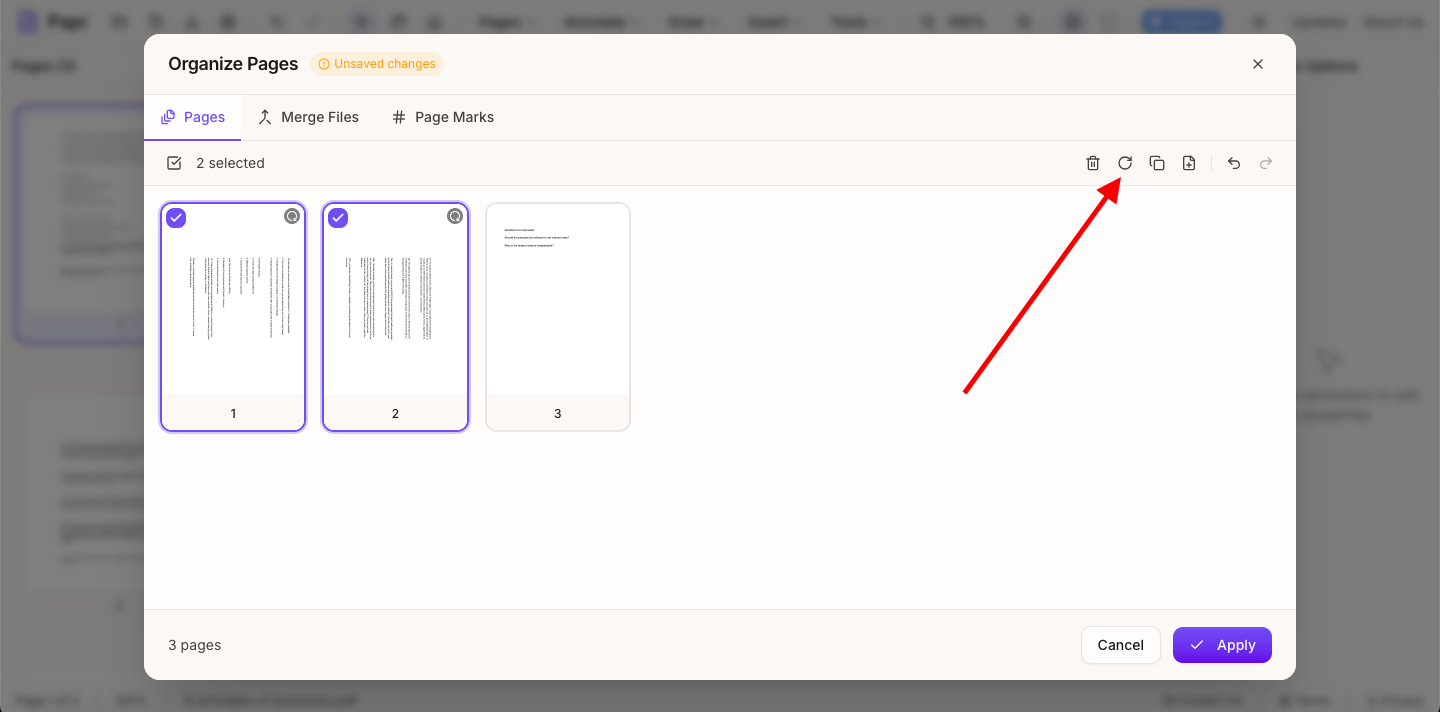
Use the Rotate 90° button (circular arrow icon) in the Organize Pages toolbar. Each click rotates the selected pages 90 degrees clockwise. Click multiple times to reach 180° or 270°.
Step 5: Save Your Changes
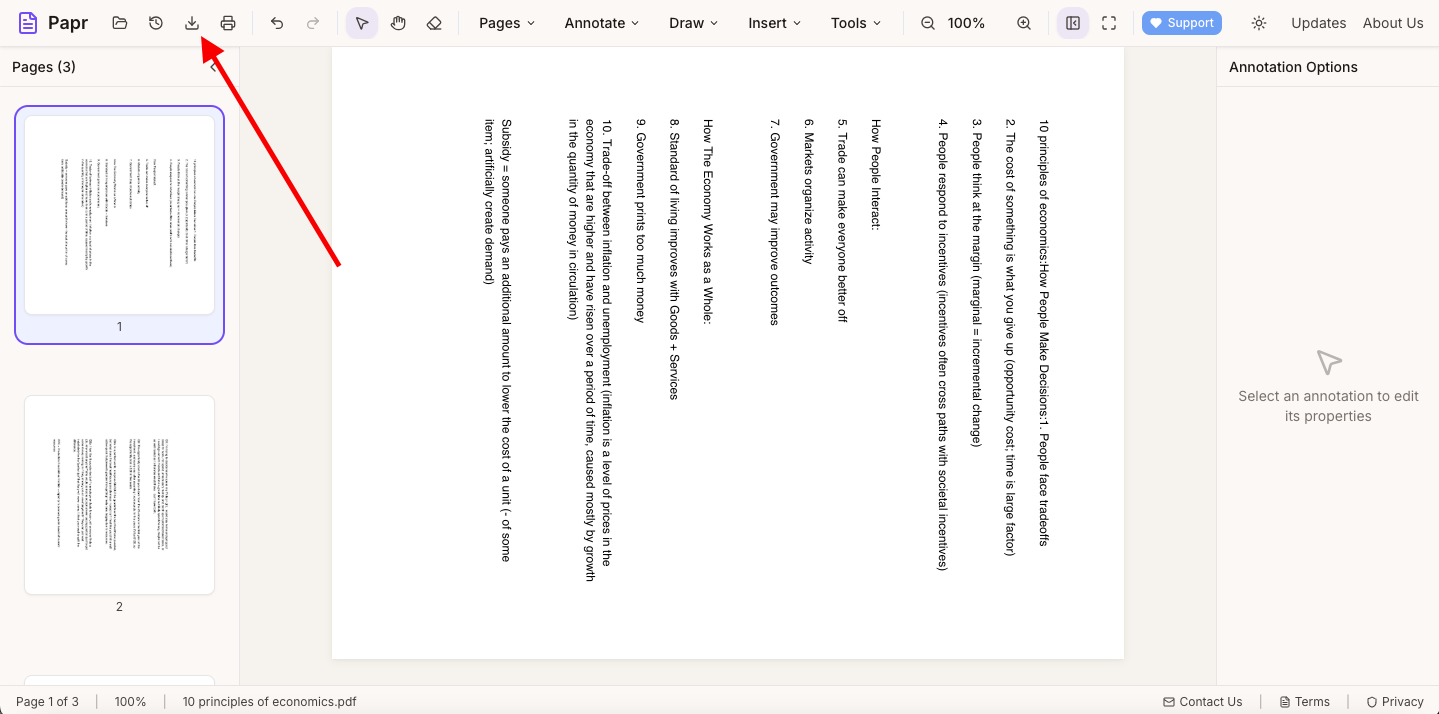
Click Apply in the Organize Pages modal to confirm your changes. Then use Export in the top toolbar to save the corrected PDF to your device.
Tips for Rotating Pages
- Check all pages first: Scroll through the entire document before rotating to identify all pages that need fixing.
- Rotate in batches: Select all sideways pages at once and rotate them together for efficiency.
- Mind mixed orientations: Some documents intentionally have landscape pages (like wide tables). Make sure you're only rotating pages that are actually wrong.
- Preview before saving: Check the rotated pages in the main viewer before exporting to make sure they're correct.
Understanding Page Orientation
PDFs can contain pages in different orientations:
- Portrait: Taller than wide (standard letter orientation)
- Landscape: Wider than tall (common for spreadsheets and slides)
When scanning documents, pages can accidentally be captured at 90° or 180° from their intended orientation. This is especially common with:
- Mixed document batches on automatic scanners
- Photos taken of documents with phone cameras
- PDFs created from images with incorrect EXIF rotation data
Common Use Cases
- Fixing scanned documents with mixed page orientations
- Correcting photos of documents taken at the wrong angle
- Adjusting PDFs created from incorrectly oriented images
- Preparing documents for printing in the correct orientation
- Cleaning up merged PDFs where source files had different orientations
Ready to Rotate?
Try rotating PDF pages now with Papr. It's free and your files stay private.
Open Papr Editor