How to Split PDFs Online Free
Need to extract specific pages from a PDF or break a large document into smaller files? Papr makes it easy to split PDFs directly in your browser — no uploads to external servers, completely free.
Why Split PDFs with Papr?
Many online PDF splitters require uploading your documents to remote servers, which can be a concern for sensitive files like legal documents, financial statements, or personal records. Papr processes everything locally in your browser, so your files never leave your device.
- Complete Privacy: Your PDFs stay on your device
- Flexible for most files: Very large PDFs depend on browser limits
- Totally Free: No subscriptions, watermarks, or hidden costs
- Works Offline (after first load): Can work offline once assets are cached in your browser
Step-by-Step: Splitting PDFs in Papr
Step 1: Open Your PDF in Papr
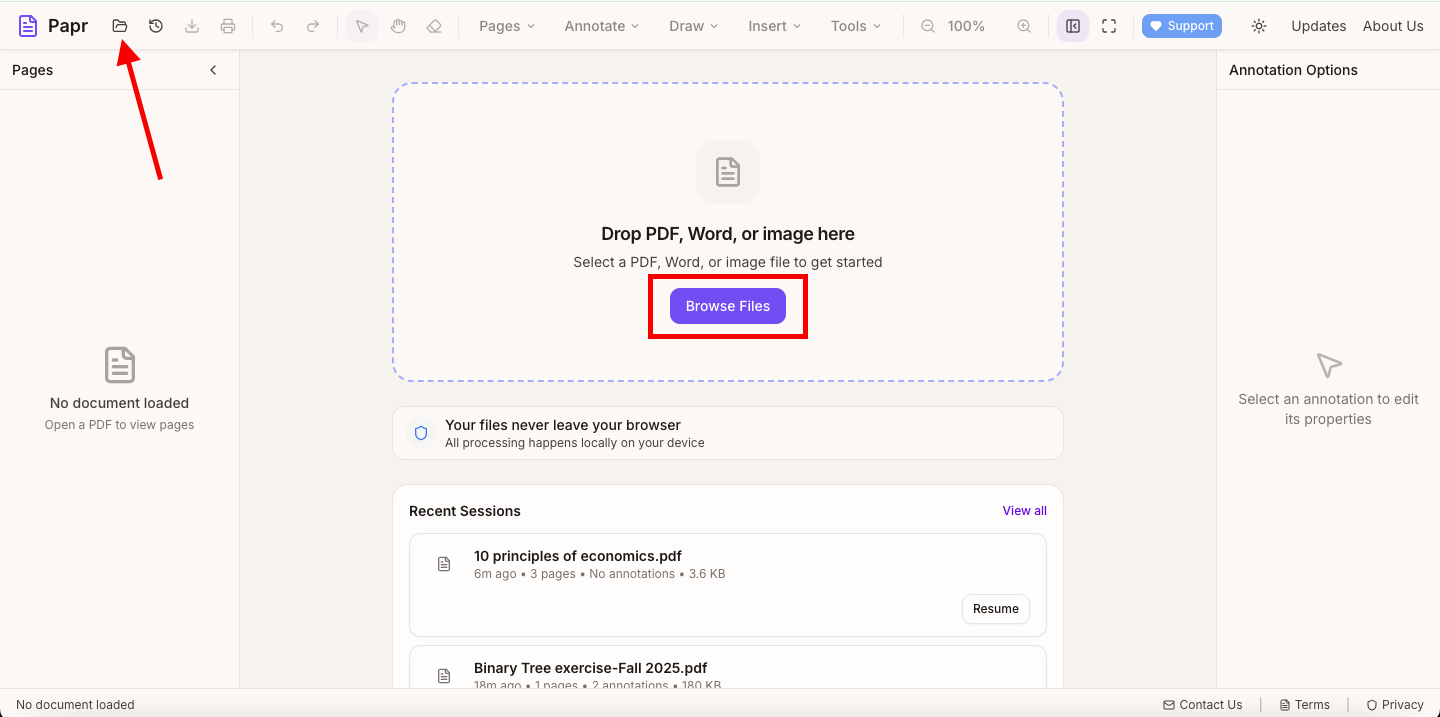
Launch the Papr editor and click the "Open file" button in the top toolbar or drag and drop your file onto the page. Your document will load with all pages visible in the viewer.
Step 2: Open the Organize Pages Panel
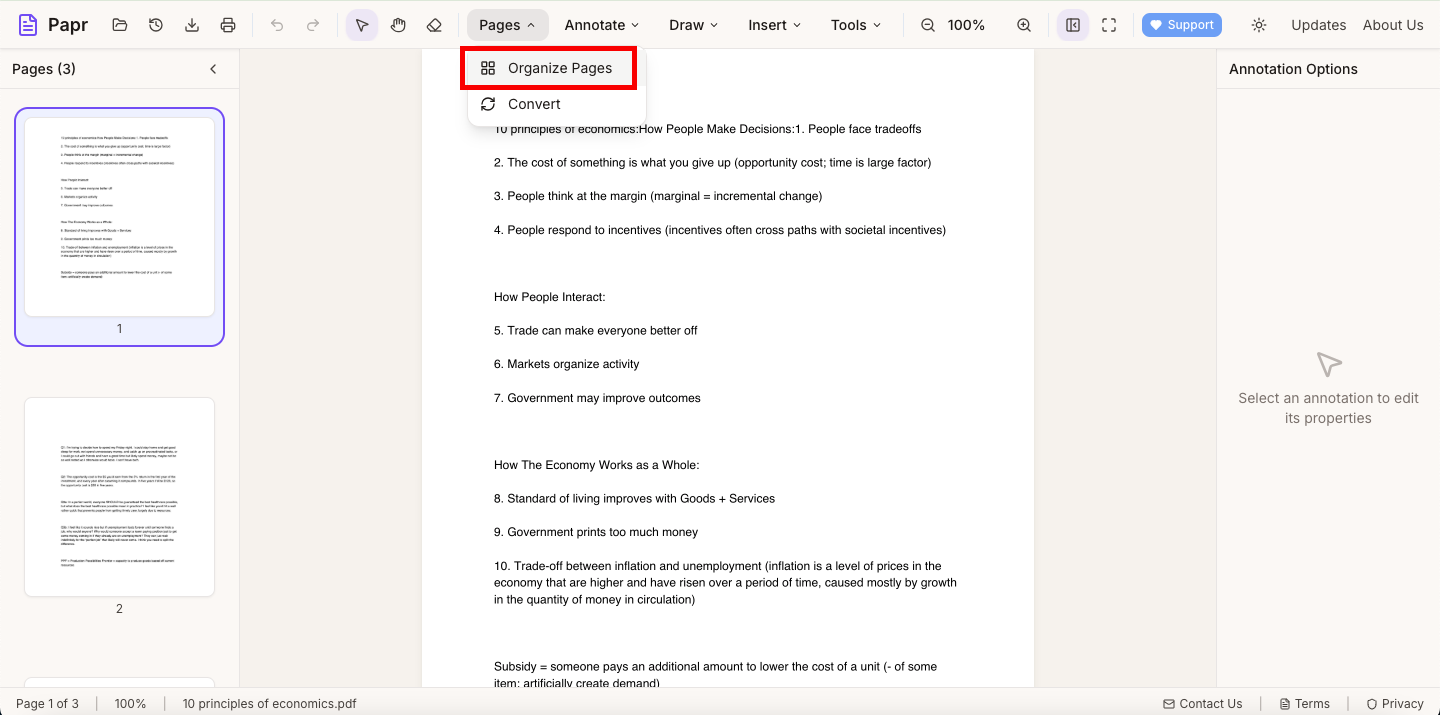
In the top toolbar, open the Pages dropdown and select Organize Pages. This opens a thumbnail view of all pages, making it easy to select which pages to keep.
Step 3: Select Pages to Extract
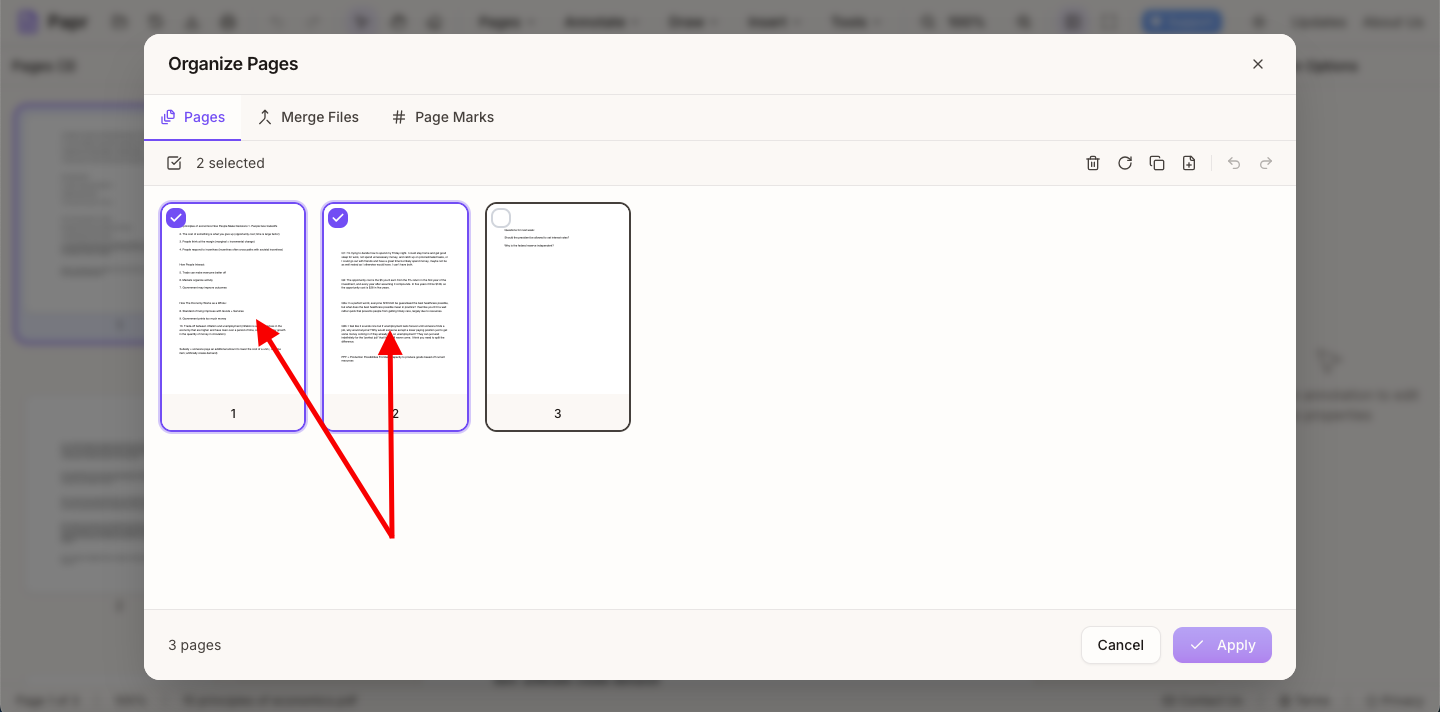
You can click pages to toggle selection. Selected pages will be highlighted. To select a range, click the first page, then Shift-click the last page.
Step 4: Delete Unwanted Pages
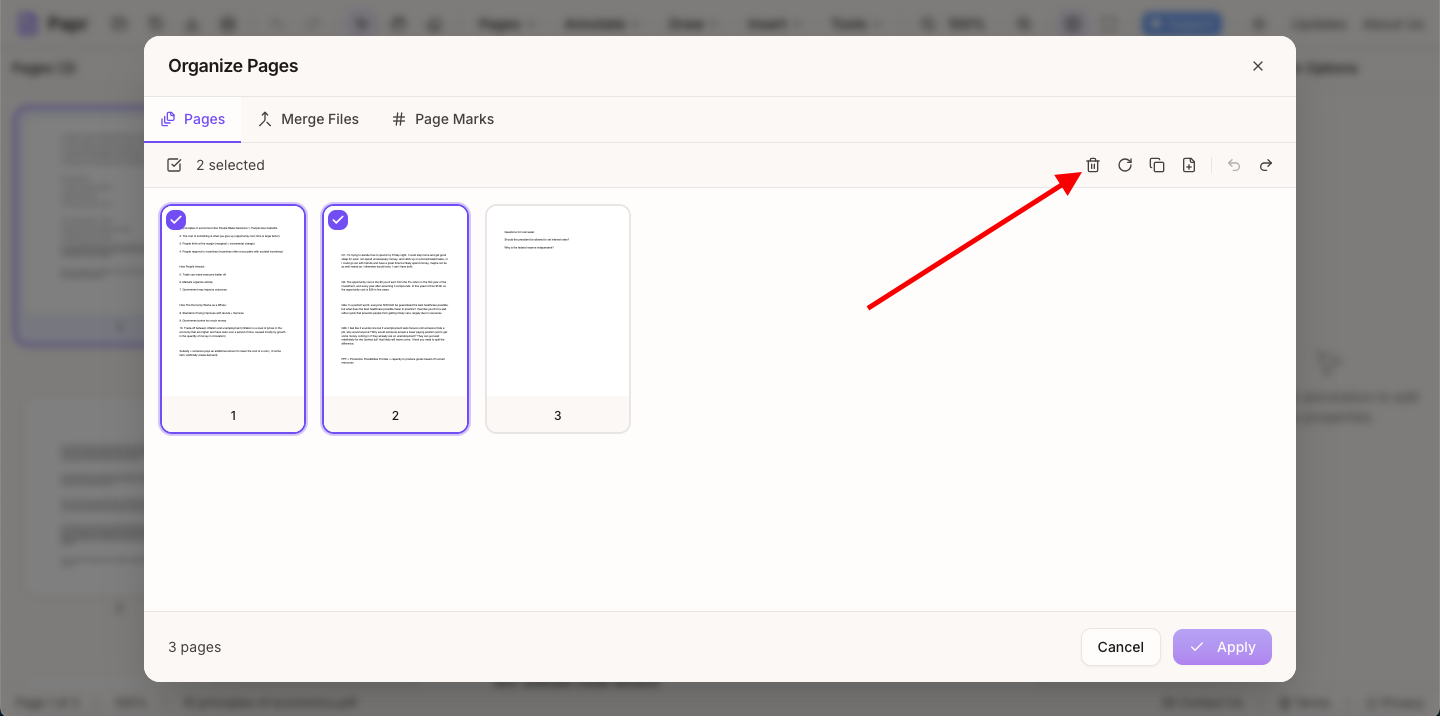
With the pages you want to remove selected, click the Delete button (trash icon) in the Organize Pages toolbar. This leaves only the pages you want to keep in the document.
Step 5: Save Your Split PDF
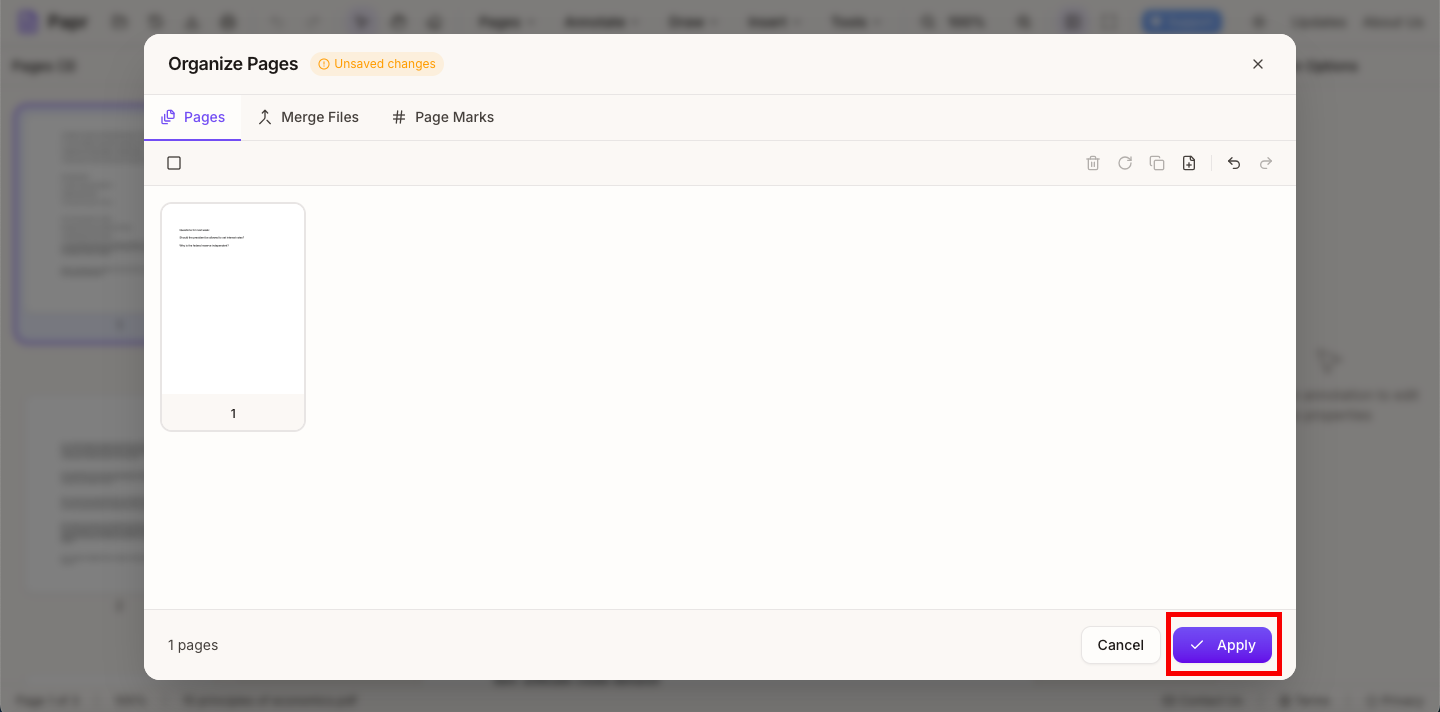
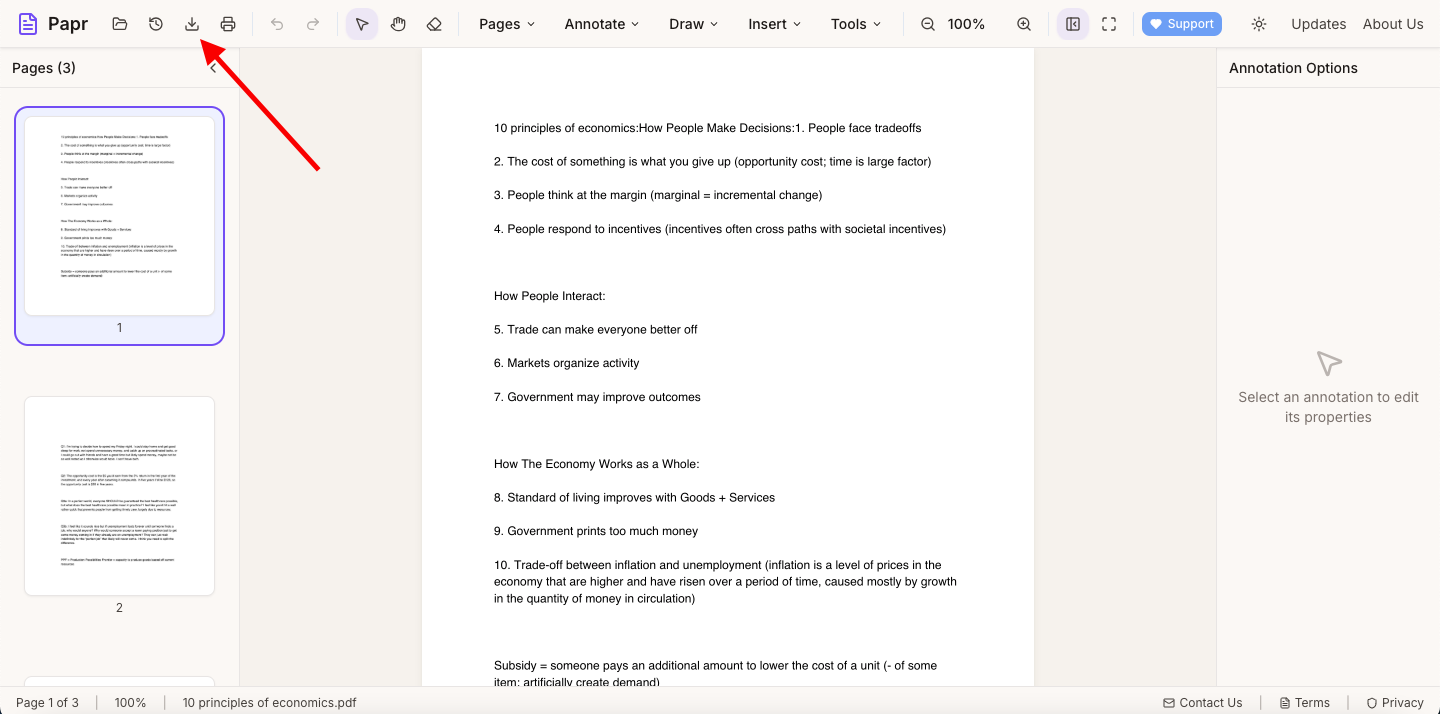
Once you have only the pages you need, click Apply in the Organize Pages modal to confirm your changes. Then use Export in the top toolbar to save your new, smaller PDF. If you need multiple split files, reopen the original and repeat the process.
Tips for Splitting PDFs
- Create multiple files: Split a document into several parts by repeating the process — extract pages 1-10, then reopen the original and extract 11-20, etc.
- Check before deleting: Preview pages before removing them to make sure you're keeping everything you need.
- Reorder while splitting: You can drag pages to rearrange them before saving, combining splitting and reorganizing in one step.
Common Use Cases for Splitting PDFs
Splitting PDFs is useful in many situations:
- Extracting a single chapter from an ebook or manual
- Separating individual invoices from a batch export
- Pulling out specific pages to share without revealing the entire document
- Breaking up large scanned documents for easier handling
- Creating handouts from presentation slides
Ready to Split?
Try splitting PDFs now with Papr. It's free and your files stay private.
Open Papr Editor