How to Add Stamps to PDFs Online Free
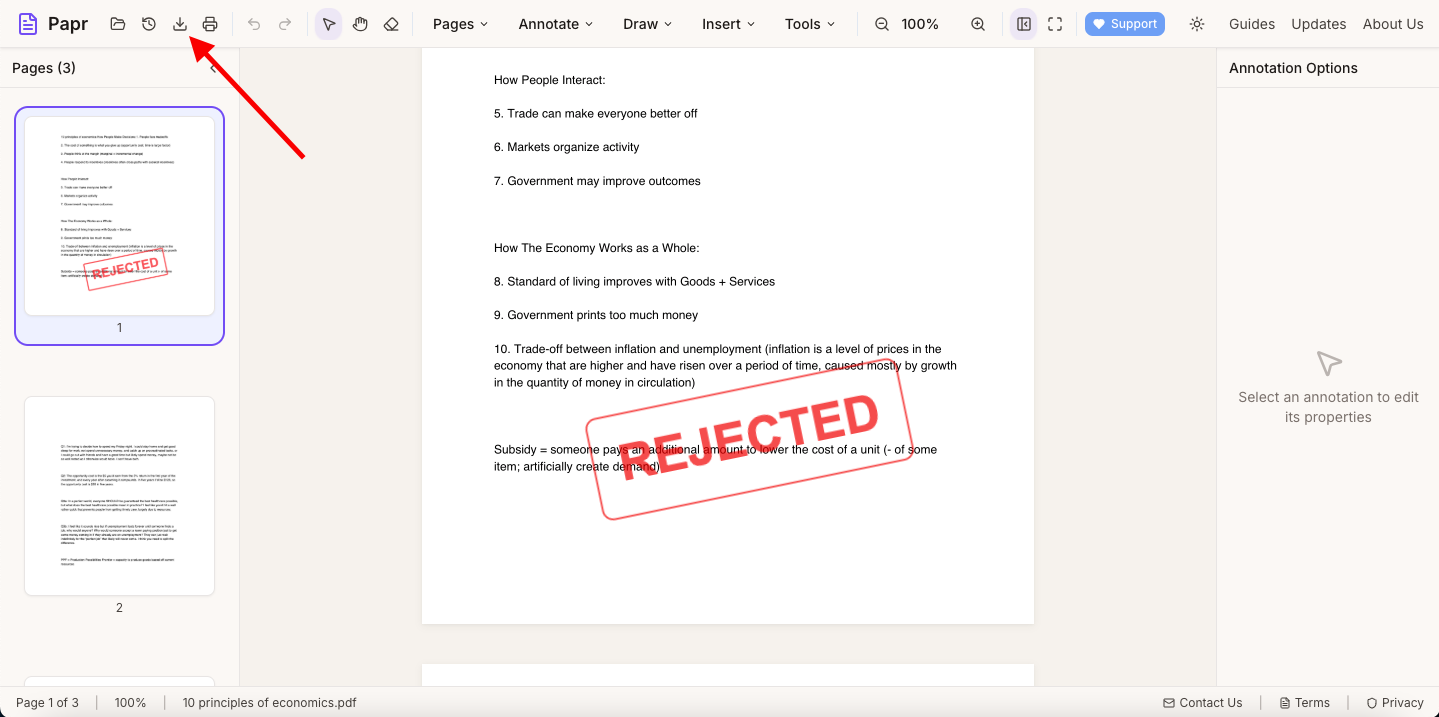
Need to mark a document as Approved, Confidential, Draft, or with another status? Papr has 18 preset stamps, each in a colour you can change. The stamp is added in your browser, and the file is not uploaded.
What you can stamp
- 18 preset stamps in the Presets tab, such as Approved, Rejected, Confidential and Draft.
- Your own text in the Custom tab, when no preset fits.
- Colour, size and shape chosen before you place the stamp.
- Move and resize after you place it, with the handles on the stamp.
The preset stamps
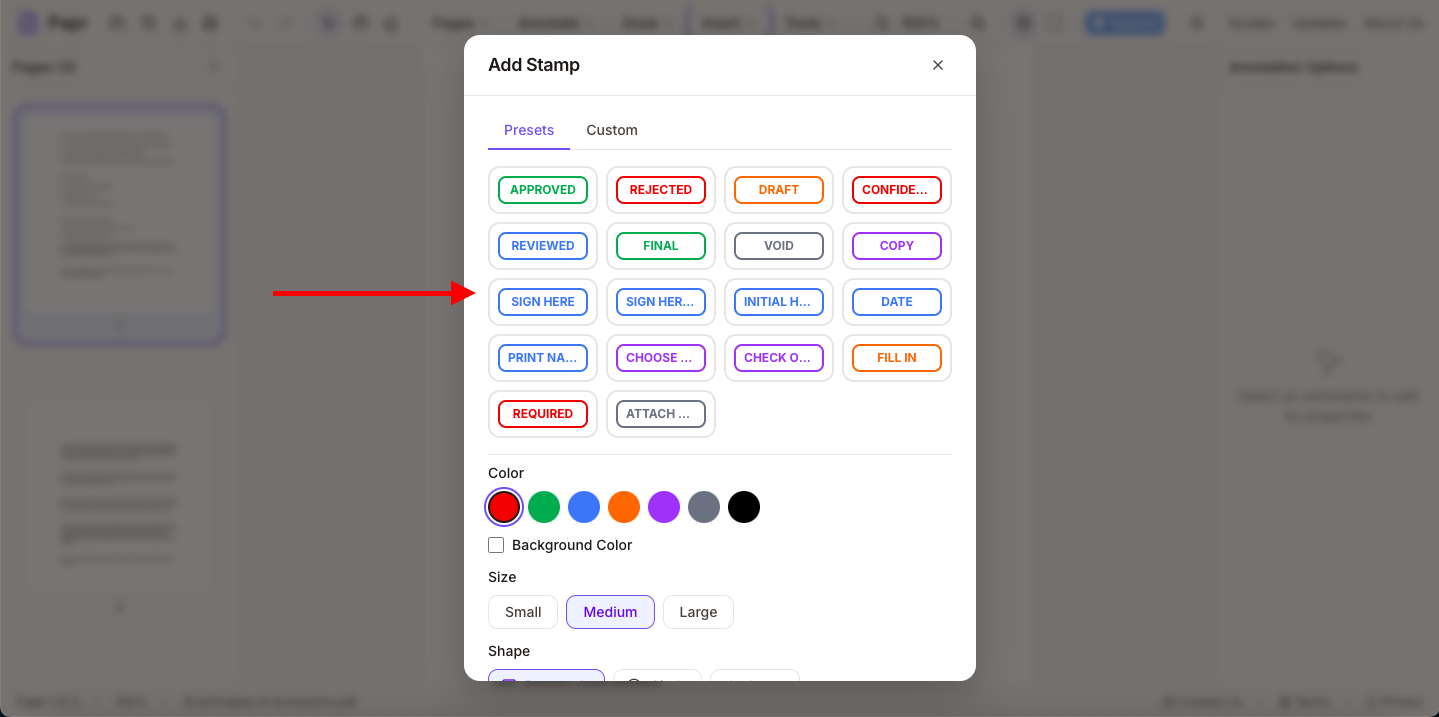
- Approval: Approved, Rejected, Reviewed
- Status: Draft, Final, Copy, Void
- Security: Confidential
- Signature helpers: Sign Here, Sign Here ->, Initial Here, Date, Print Name
- Form helpers: Choose an Option, Check One, Fill In, Required, Attach File
Step by step
1.Open the PDF
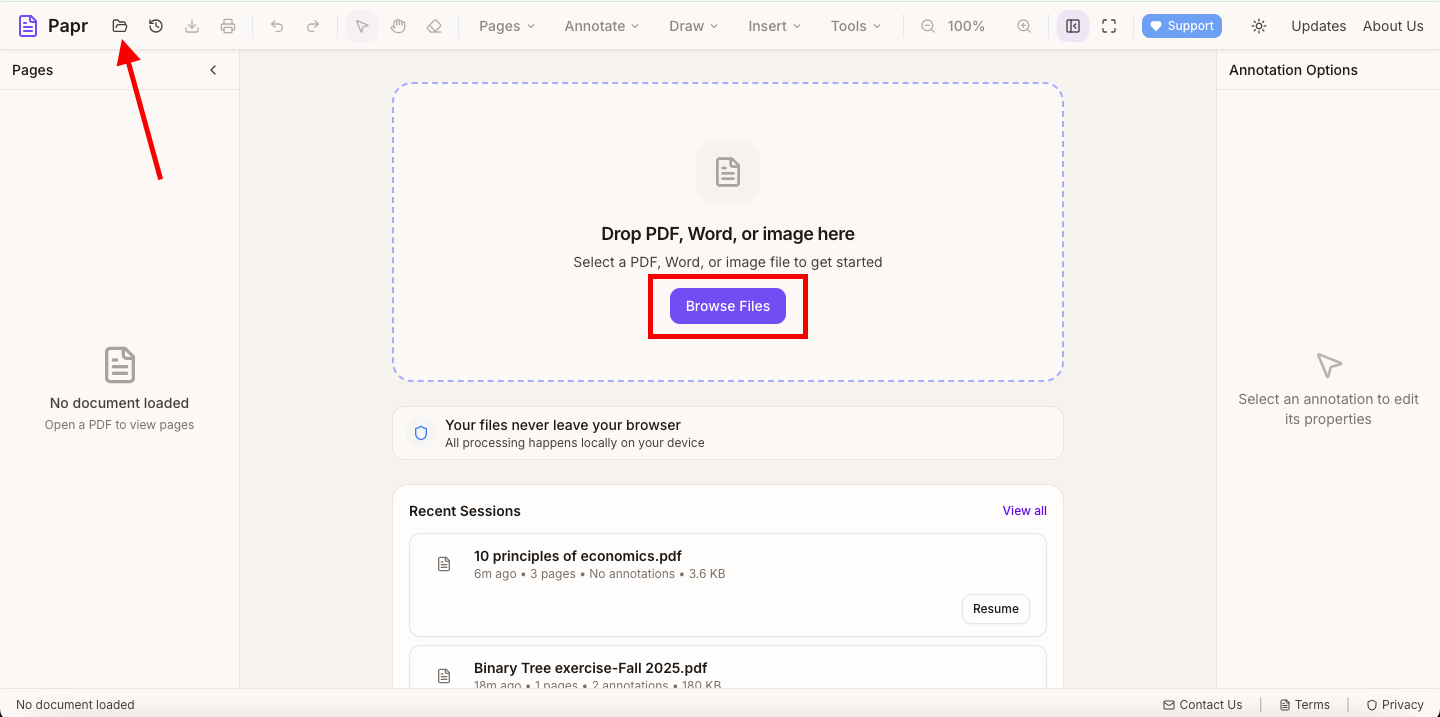
Click Open file in the toolbar, or click Browse Files in the middle of the screen. You can also drop the PDF onto the page. Then go to the page where the stamp should go.
2.Open the Add Stamp dialog
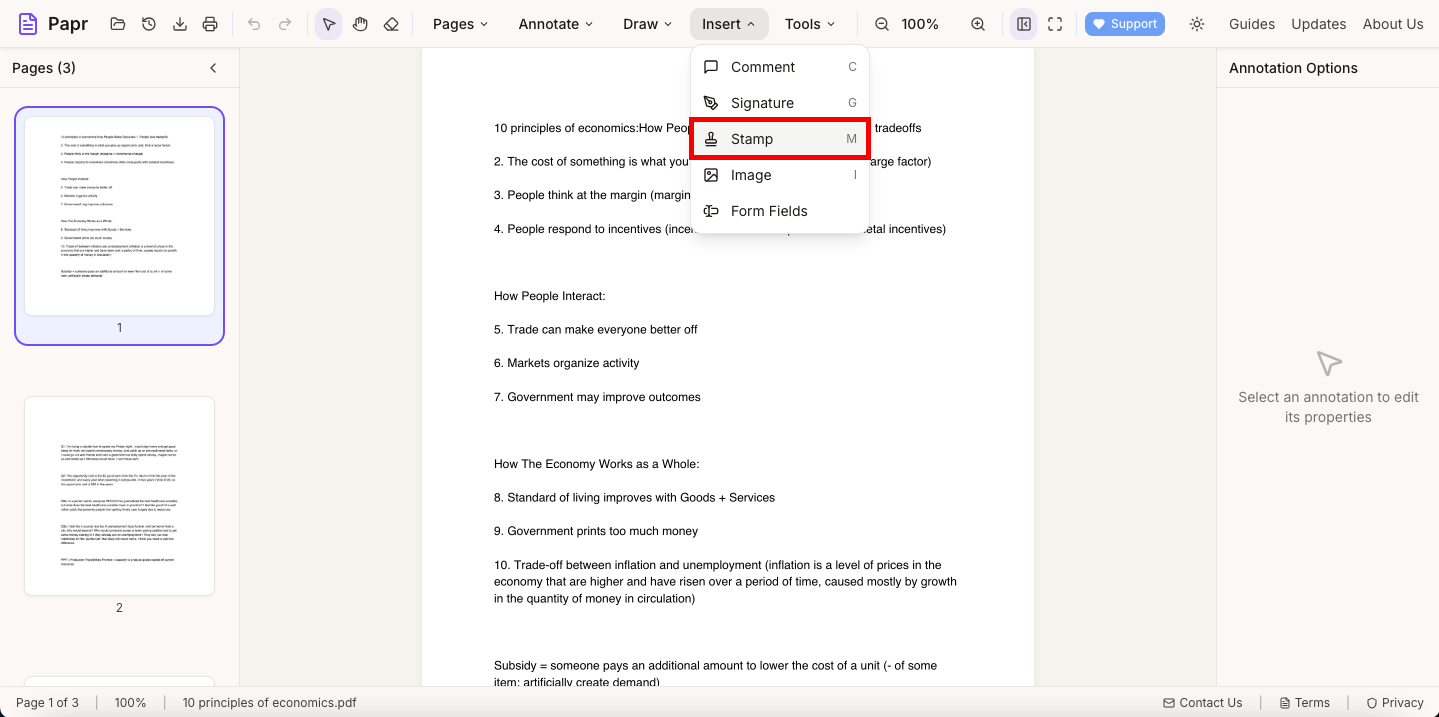
Open the Insert menu and click Stamp. The keyboard shortcut is M. Papr opens the Add Stamp dialog.
3.Choose the stamp
On the Presets tab, click the stamp you want. Pick a colour from the colour row, and set the size and shape if the defaults do not suit you. To write your own words, open the Custom tab and type them under Stamp Text. Then click Add Stamp.
4.Click the page to place it
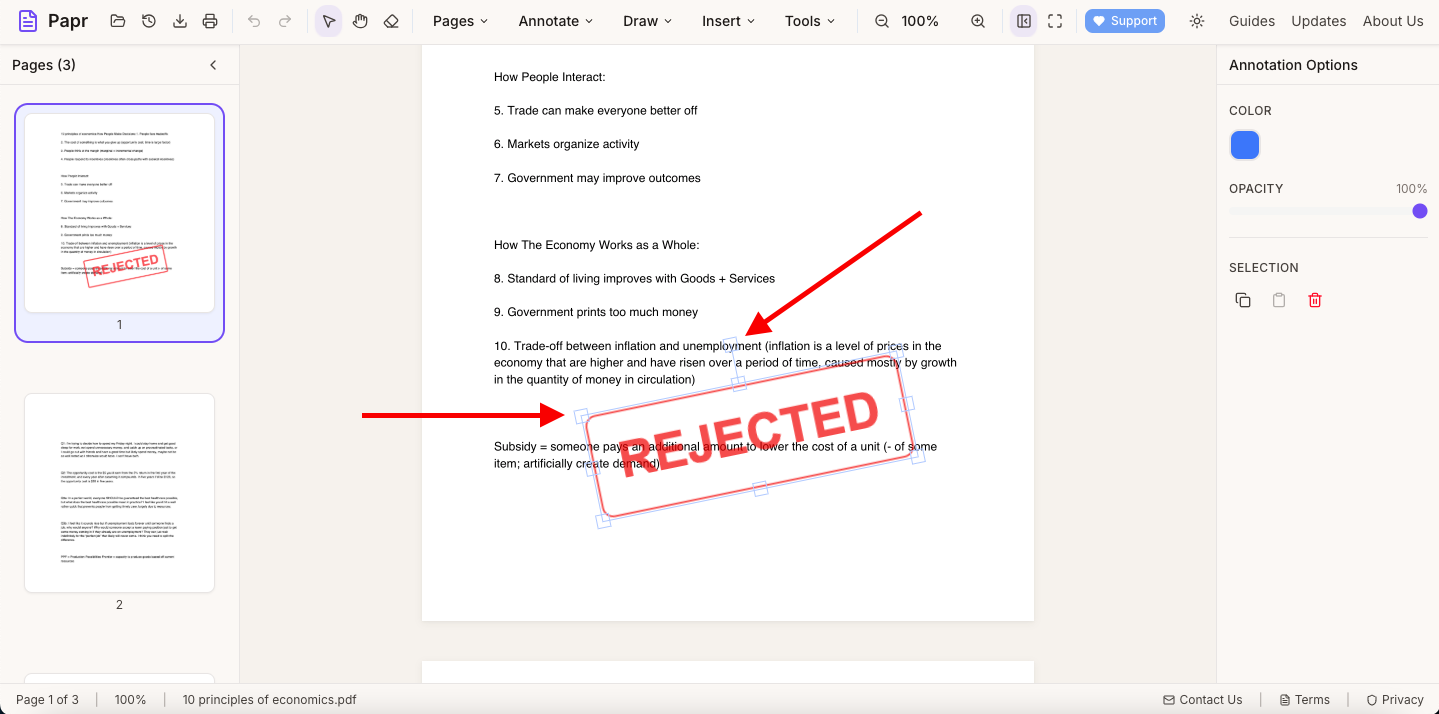
Papr now shows that it is placing the stamp. Click the page where the stamp should go, and it is centred on the click. Press Esc to cancel instead.
The stamp is selected after it is placed. Drag it to move it, or drag one of its corner handles to resize it.
5.Export the stamped PDF
Click Export in the toolbar and save the file. The stamps are part of the exported PDF, so any PDF reader shows them.
Tips for using stamps
- Use the same colour for the same meaning. For example, green for approved and red for rejected, for everyone on your team.
- Place approval stamps near the signature line, and status stamps at the top or bottom of the page.
- Size stamps to be noticed without covering the text you need to read.
- Use Sign Here stamps to show where a signature goes, before you send the document for review.
Common uses
- Marking contracts and agreements as approved or rejected
- Indicating drafts that should not be shared yet
- Labelling confidential or internal-only documents
- Showing where a signature or initials are needed
- Voiding an old version of a document
Try it on your own file
Everything in this guide happens in your browser tab. Your file stays on your device.
Open the PDF editor