How to Crop / Trim PDF Pages Online Free
Remove wide margins, scanner borders or empty edges from a page. Set the amounts as percentages or drag the handles, and choose which pages the trim applies to.
Step by step
1.Open the PDF
Click Open file in the toolbar, or drop the PDF onto the page. Go to the page you want to trim first.
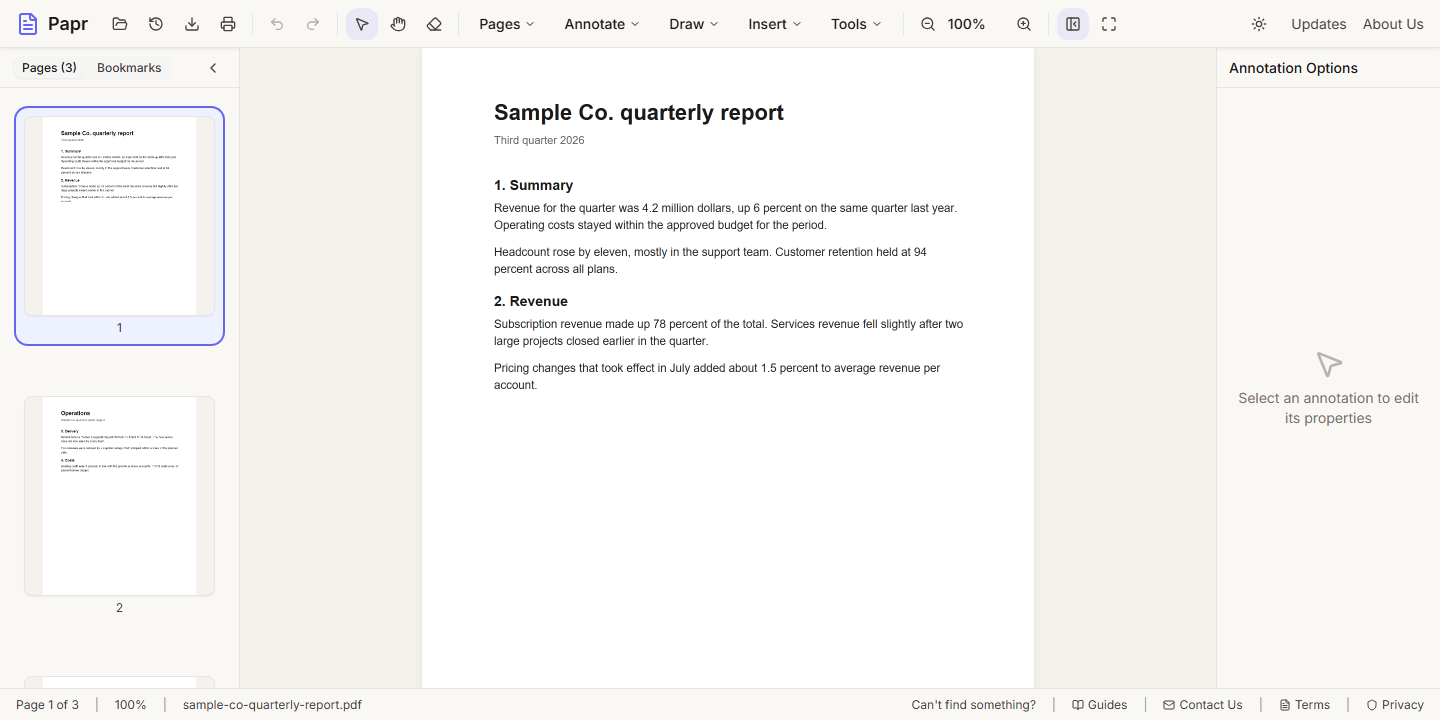
2.Open Crop / Trim Pages
Open the Tools menu and click Crop / Trim Pages.
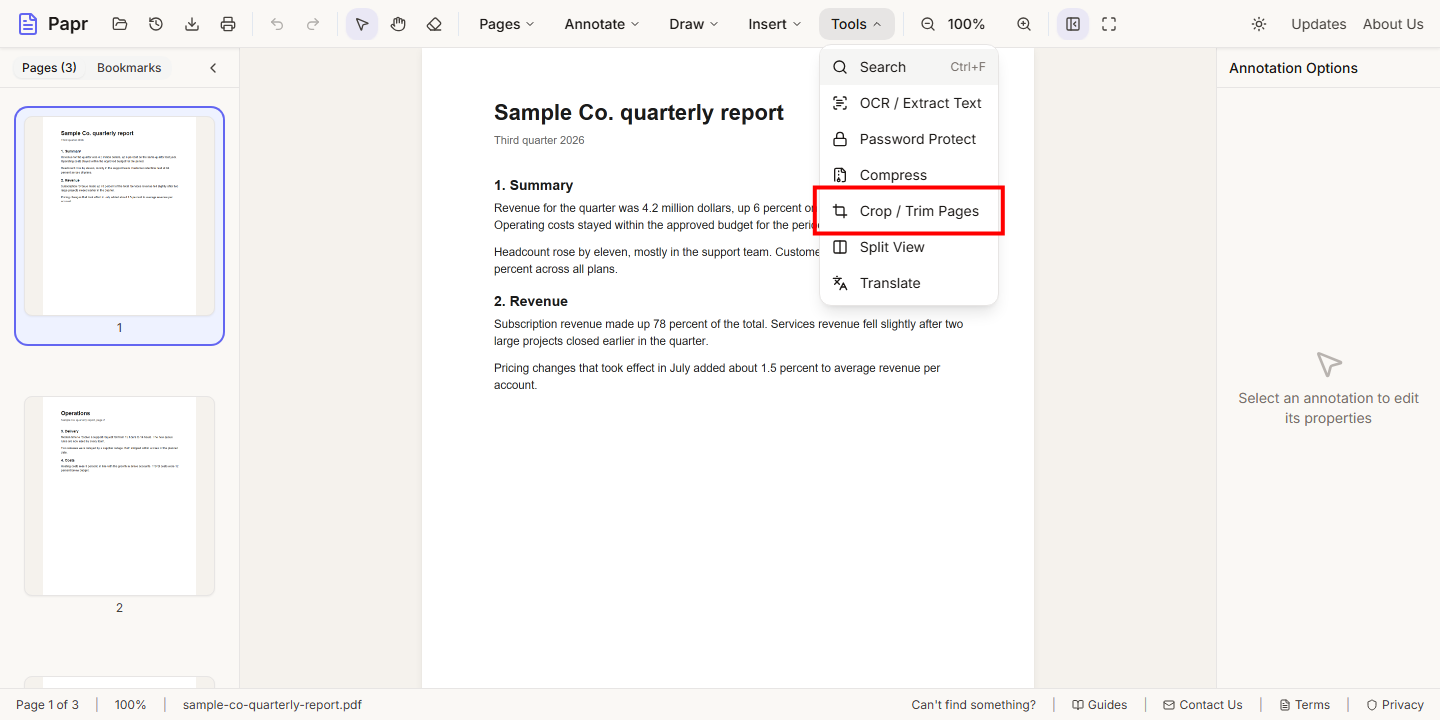
3.Set the margins
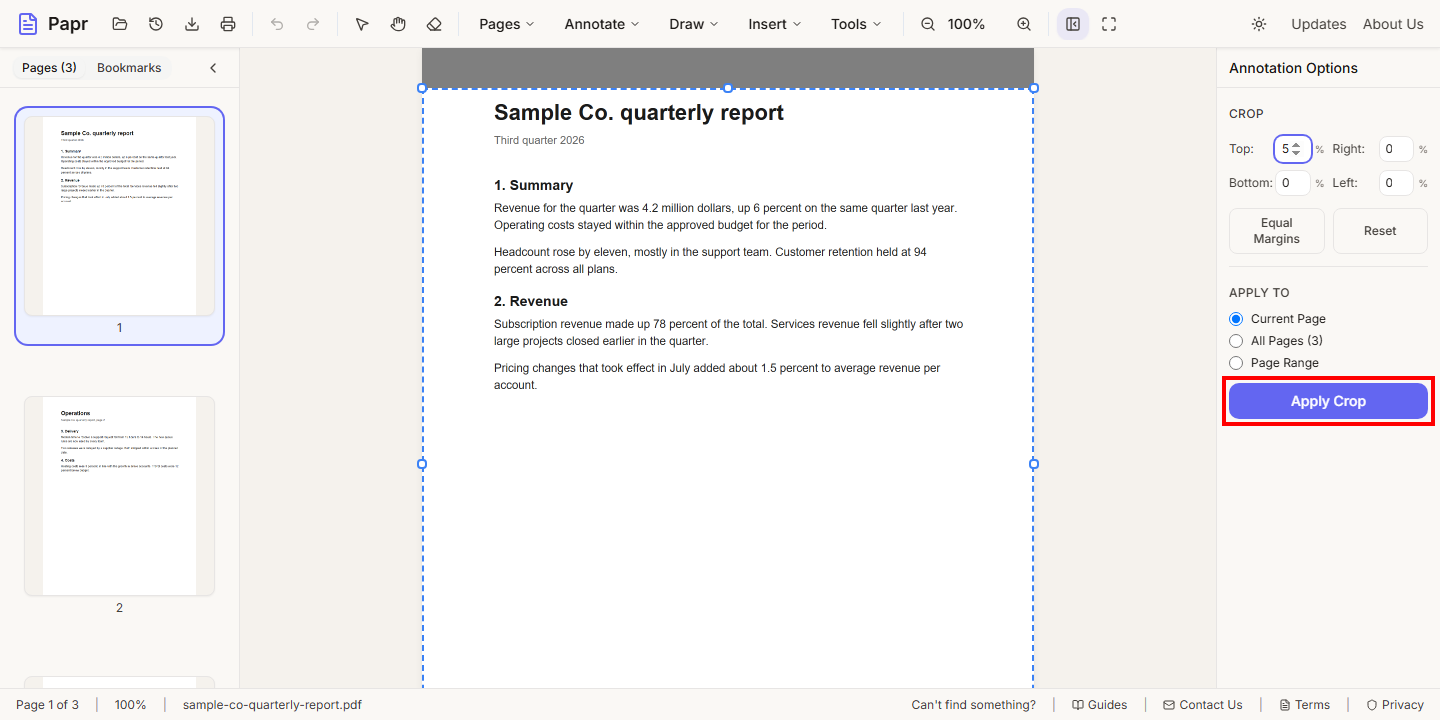
In the Crop panel, type a percentage for Top, Right, Bottom and Left. You can also drag the handles on the page. The dashed outline shows the area that will be kept.
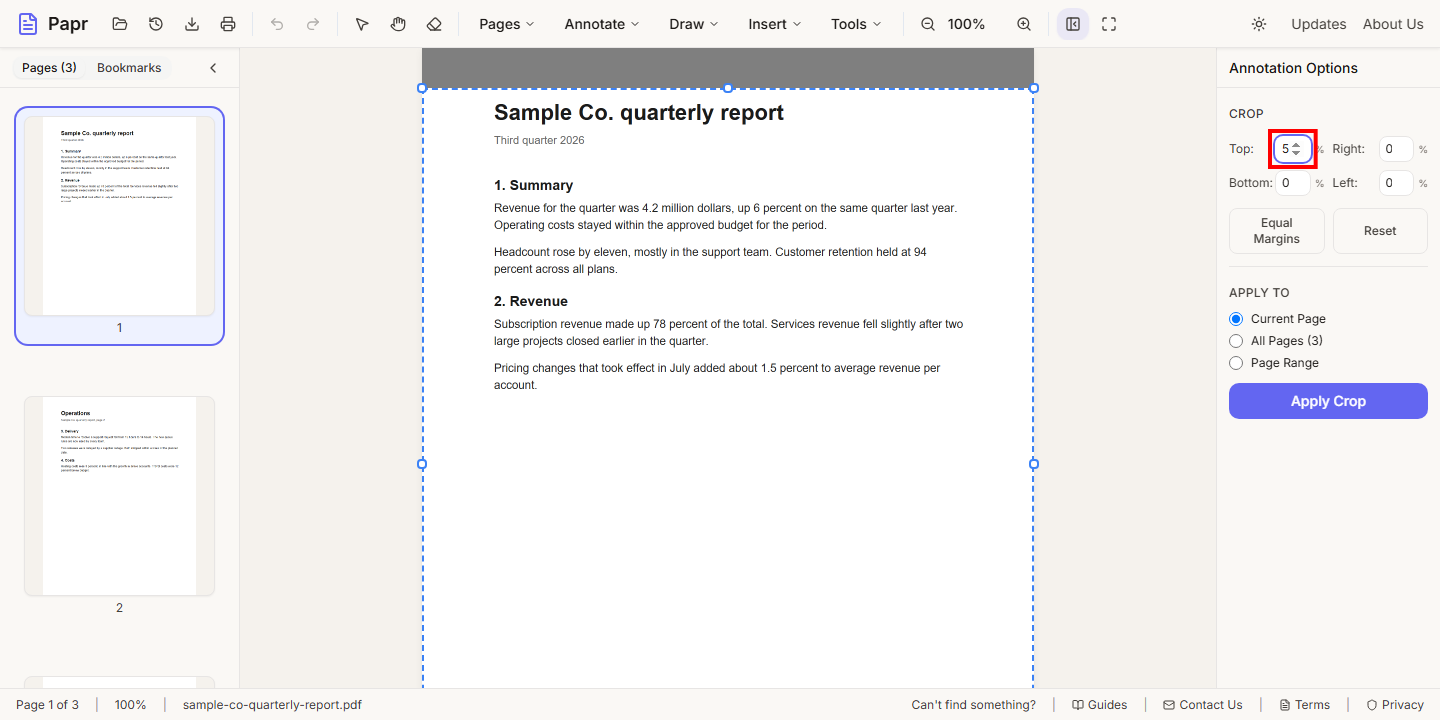
4.Choose the pages
Under Apply To, choose Current Page, All Pages (the number of pages in the document is shown) or Page Range. For a range, type the pages, such as 1-3, 5.
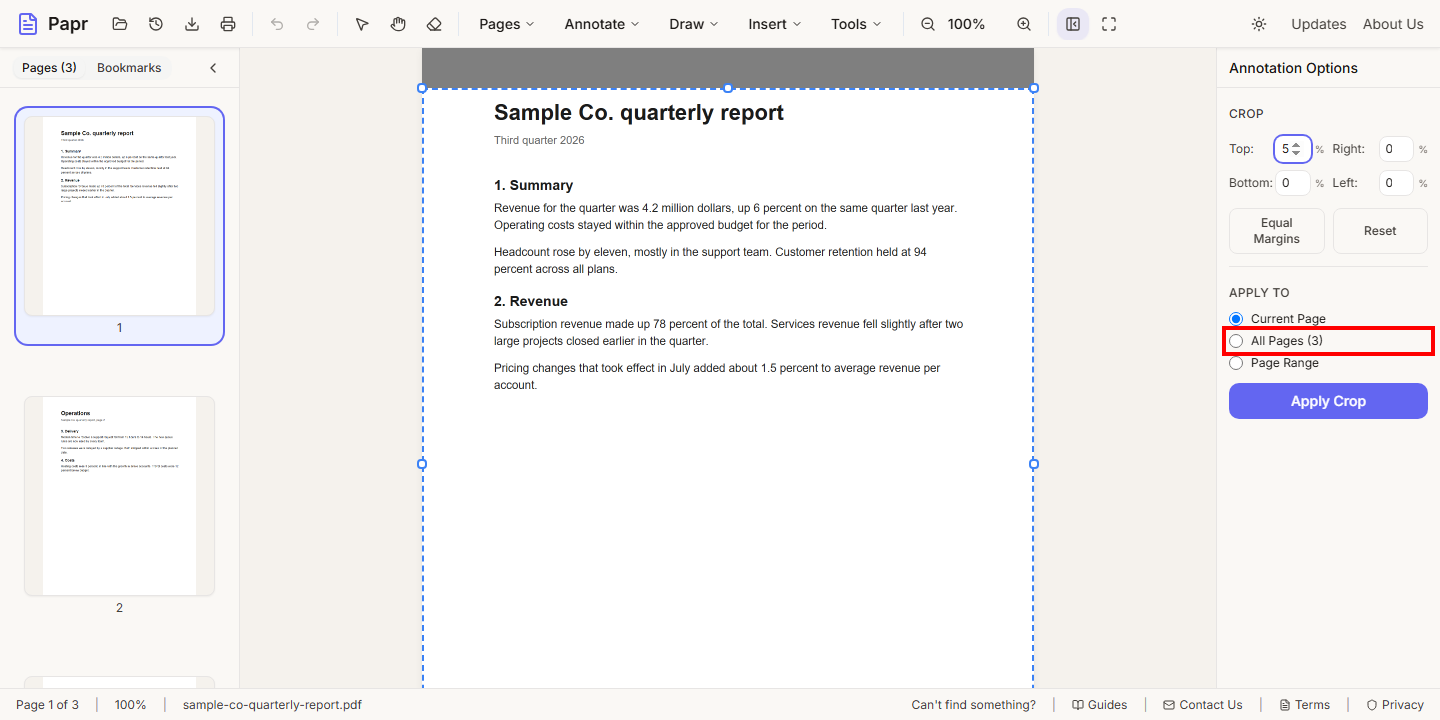
5.Apply the crop
Click Apply Crop. The pages are trimmed to the area inside the dashed outline.
6.Export the result
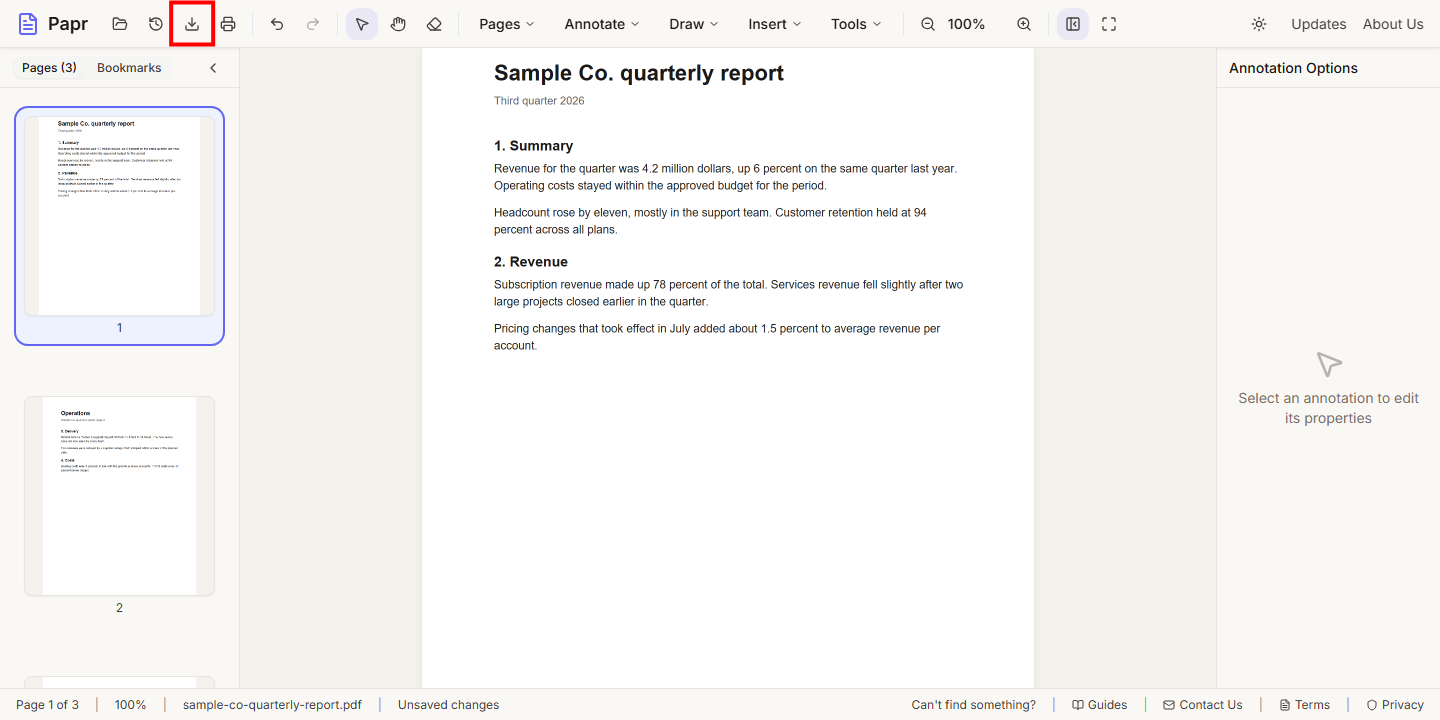
Check the trimmed pages, then click Export in the toolbar to save the file.
Try it on your own file
Everything in this guide happens in your browser tab. Your file stays on your device.
Open the PDF editor