How to Add Data Widgets to PDFs Online Free
A data widget places a chart or a table on a page. The small badge shows where it is, and a box you draw sets where the full chart opens. Papr offers 13 kinds, from bar charts to timelines.
Step by step
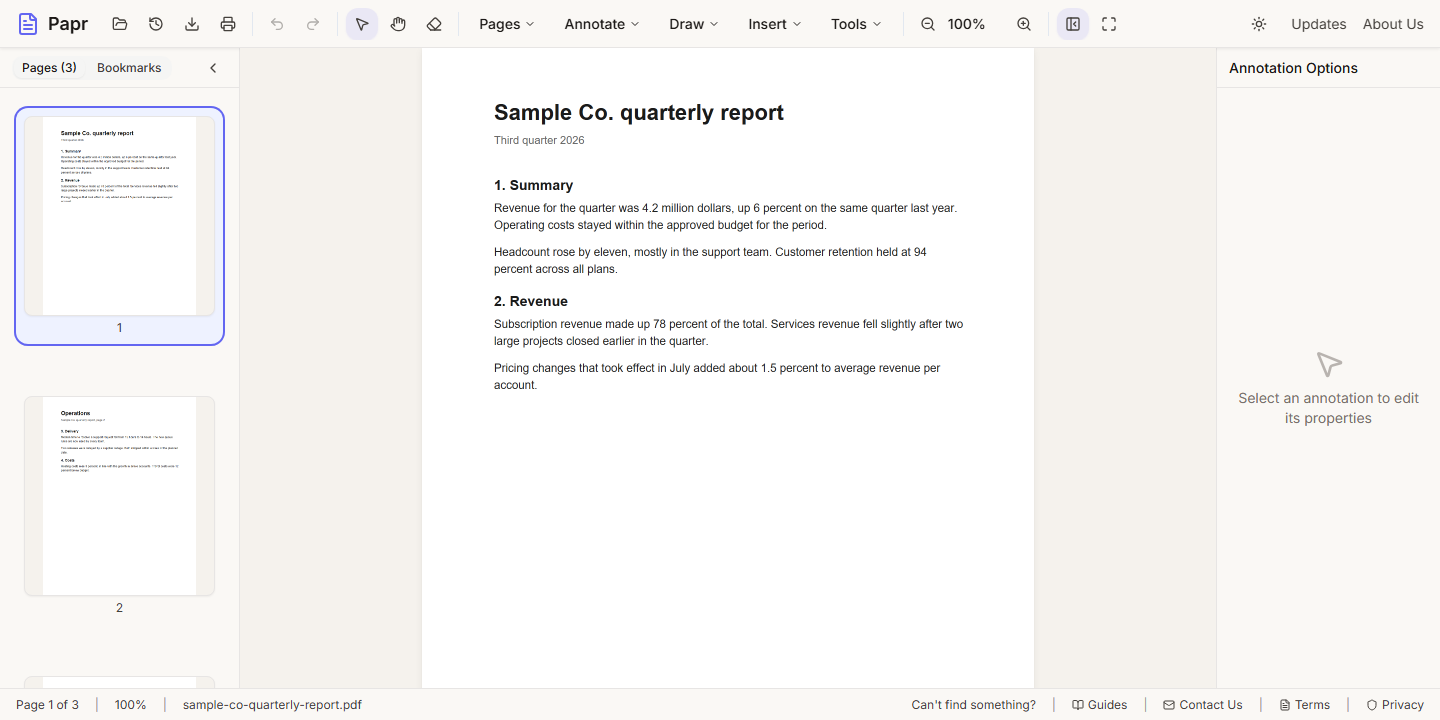
1.Open the PDF
Click Open file in the toolbar, or drop the PDF onto the page. Widgets can go on any page.
2.Choose Widget
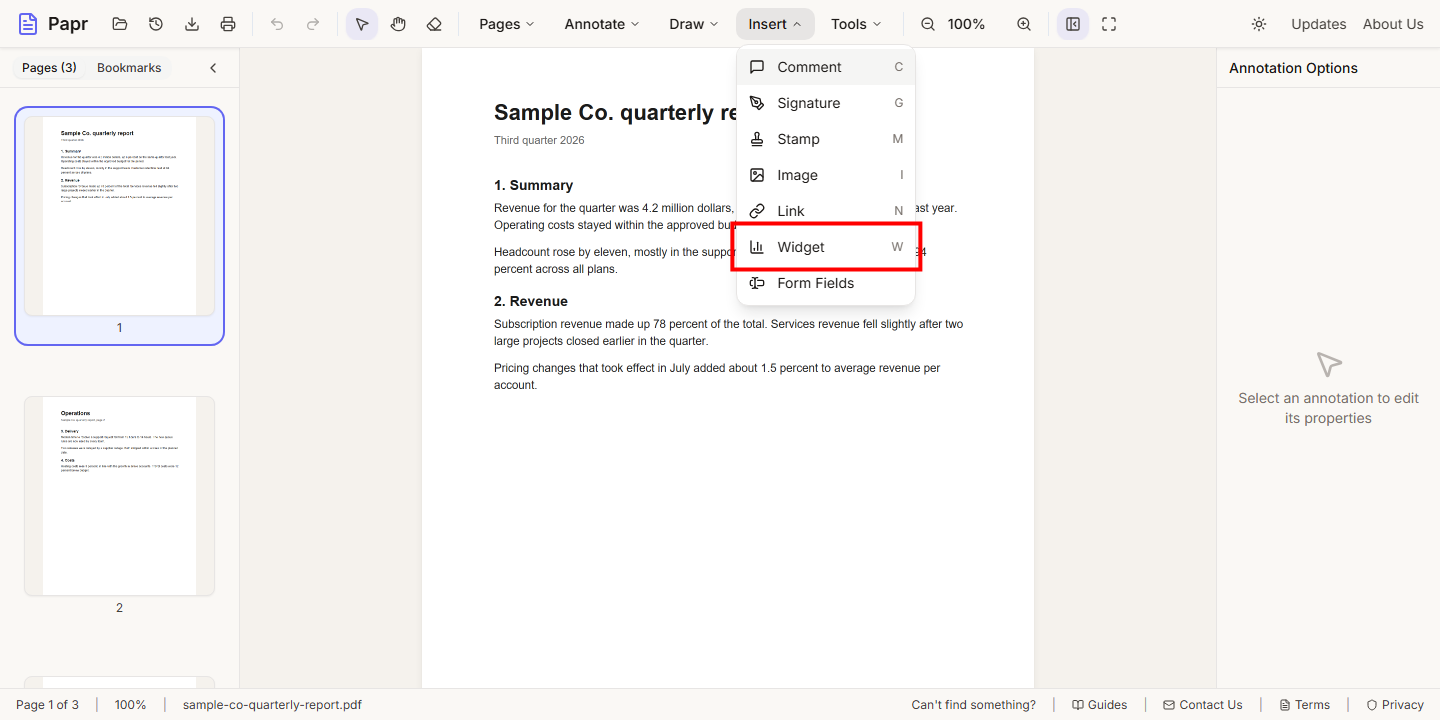
Open the Insert menu and click Widget. The keyboard shortcut is W.
3.Choose a kind
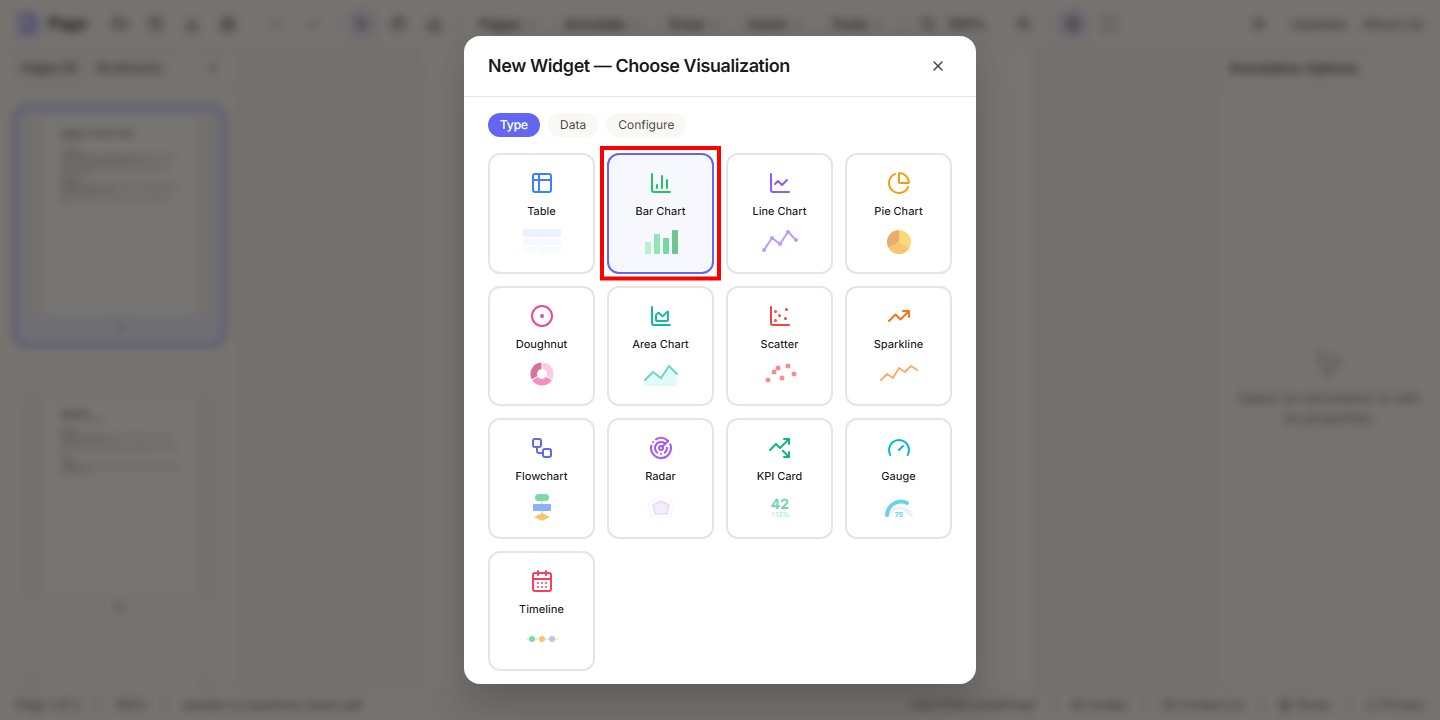
The dialog opens on the Choose Visualization step. Click one of the 13 kinds: Table, Bar Chart, Line Chart, Pie Chart, Doughnut, Area Chart, Scatter, Sparkline, Flowchart, Radar, KPI Card, Gauge and Timeline.
4.Enter the data
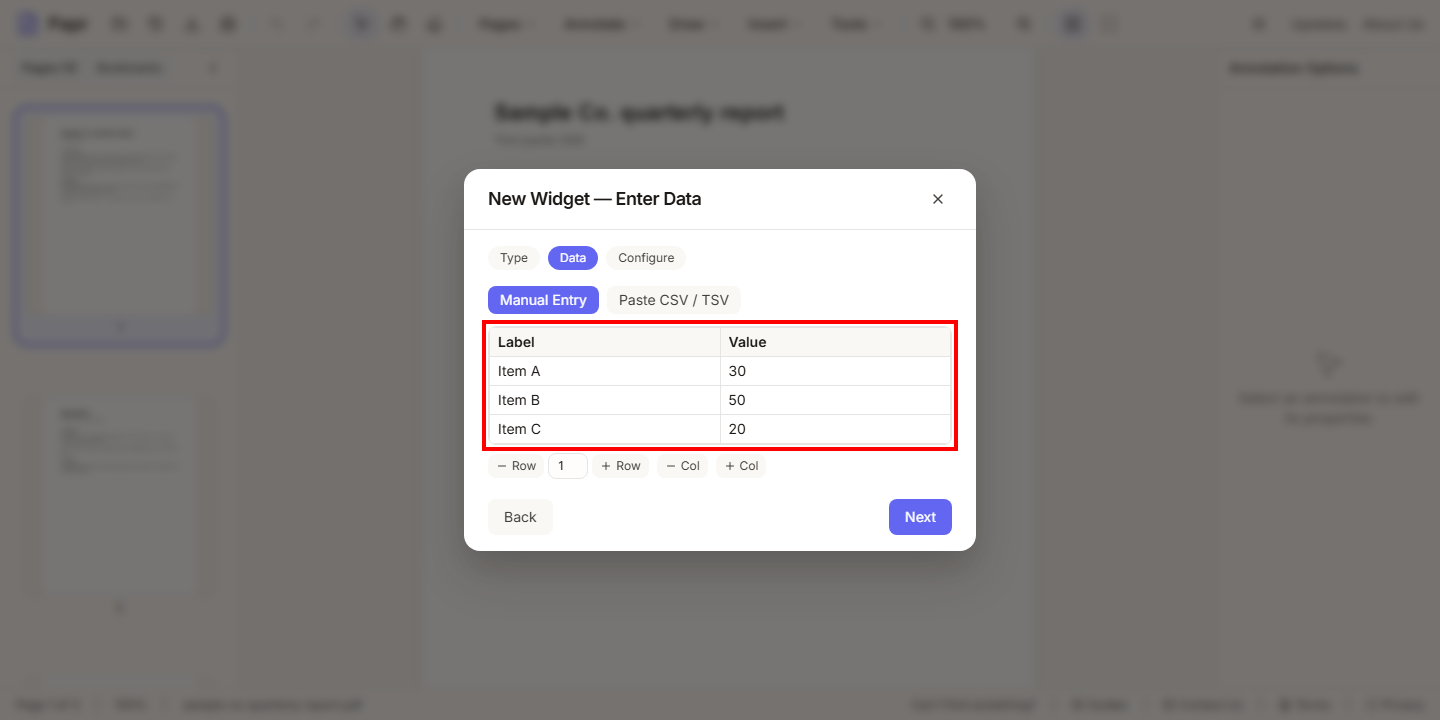
The Data step is a table. Type the labels and values into it, or use Paste CSV / TSV to paste rows copied from a spreadsheet.
5.Preview the chart
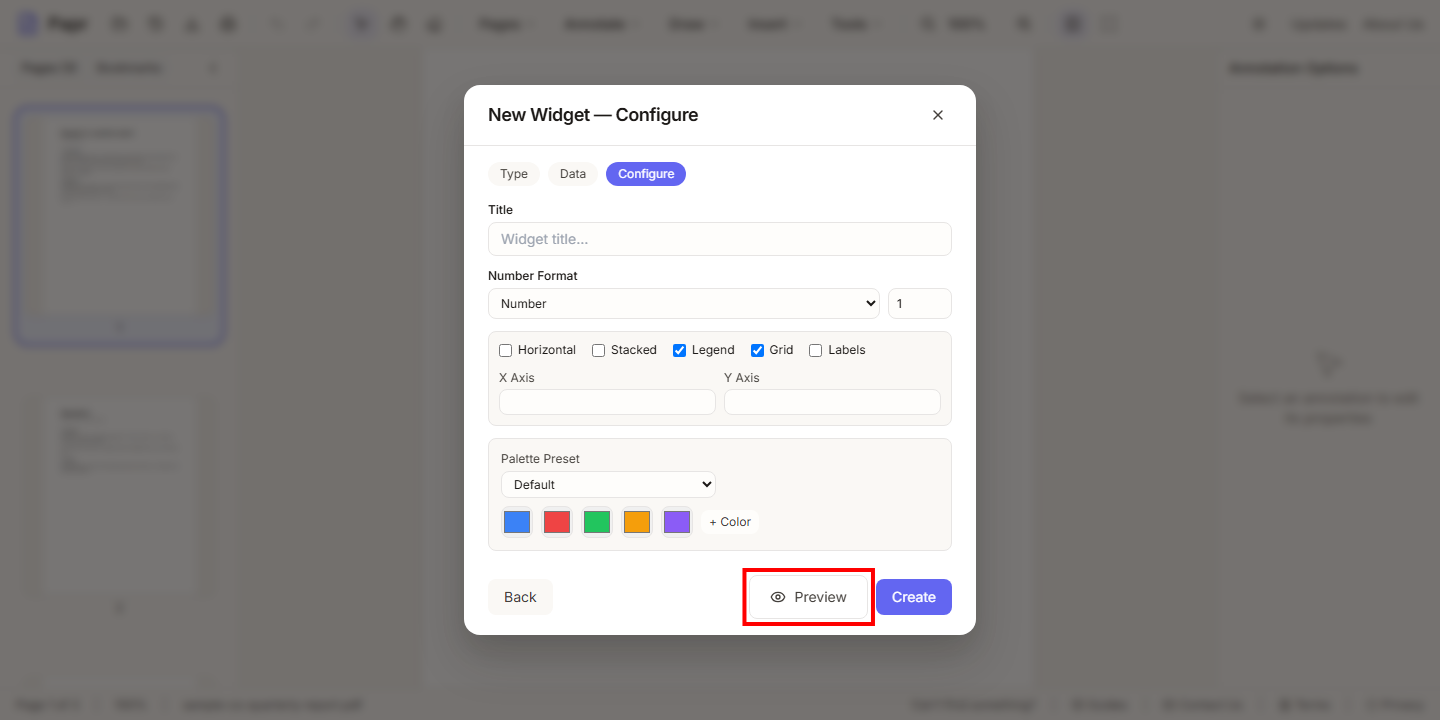
Click Next to set the options, such as the title, the number format and the colors. Then click Preview to see the chart as it will look.
6.Place the widget
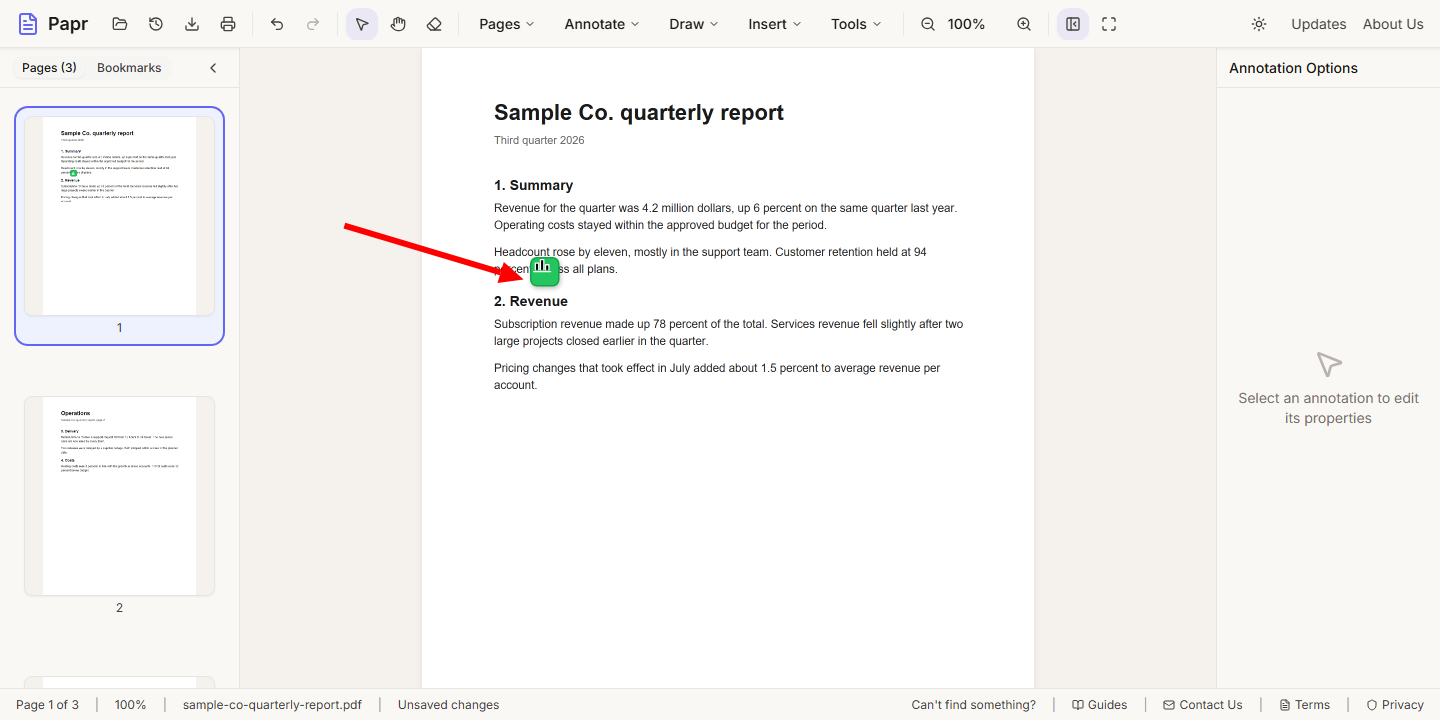
Click Create, then click the page where the badge should go. Papr then asks for the box where the full chart opens: drag it out on the page. The arrow points at the badge.
7.Check the popup box
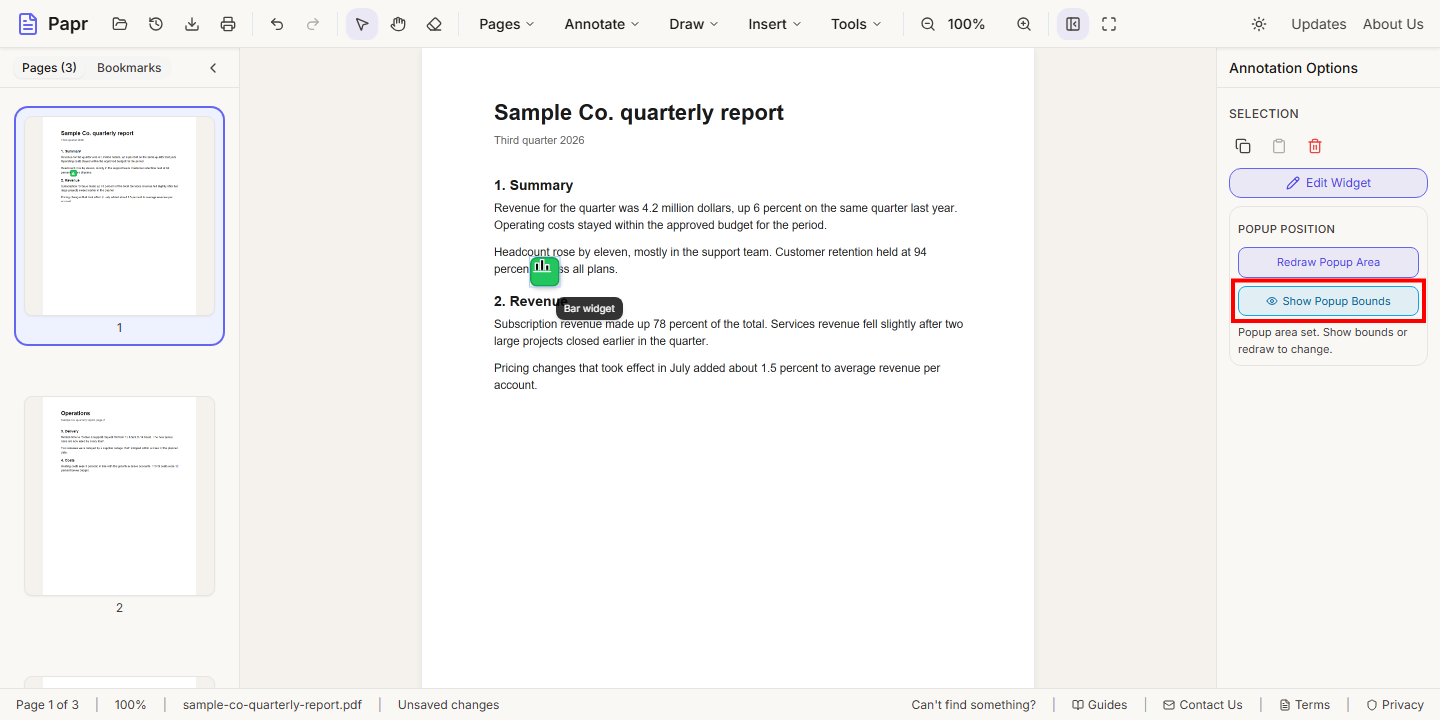
Click the badge to select the widget. Under Popup Position in the Annotation Options panel, Show Popup Bounds outlines the box. Redraw Popup Area lets you draw it again.
8.Export the PDF
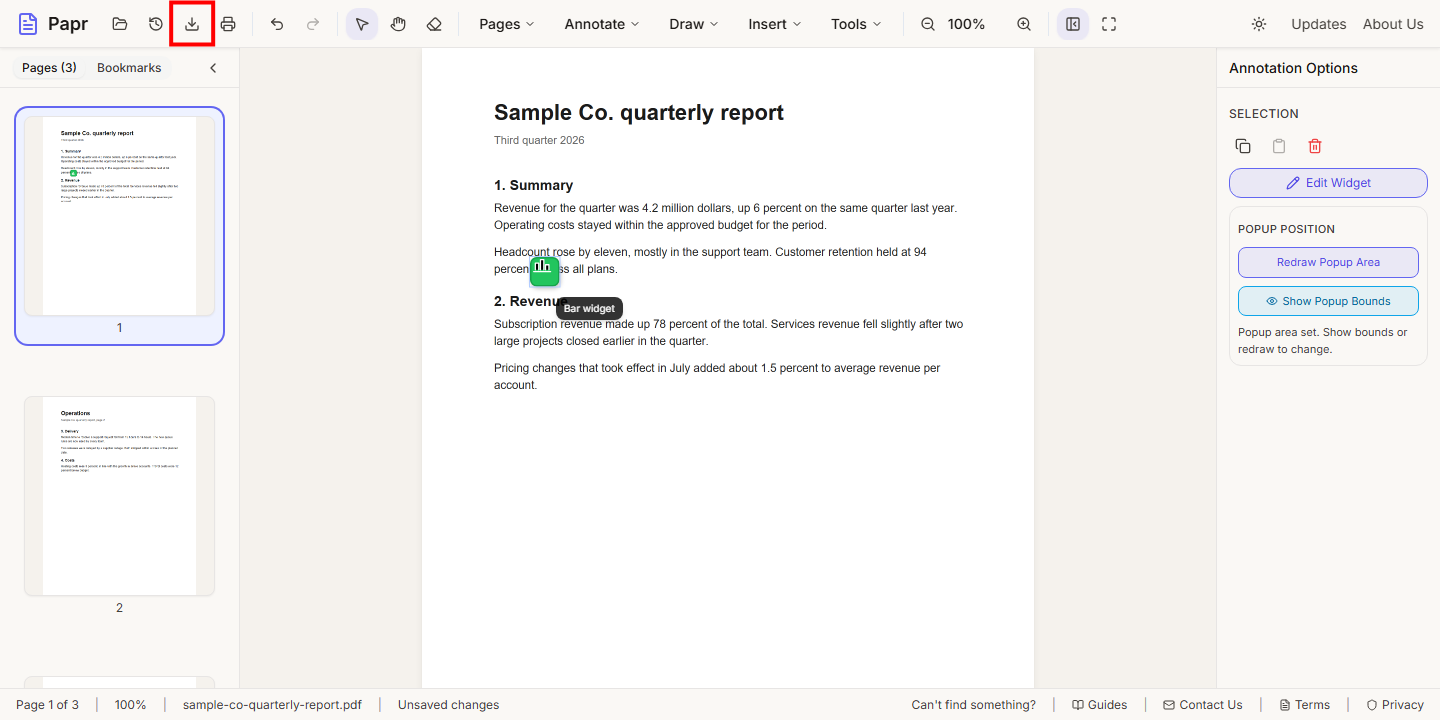
Click Export in the toolbar and save the file. The chart is included in the exported PDF.
Tips
Try it on your own file
Everything in this guide happens in your browser tab. Your file stays on your device.
Open the PDF editor