How to find and replace text in a document
Find a word, see how many times it appears, and change it everywhere in one step. The search bar stays open while you edit, and it runs in your browser on the text of your document.
Step by step
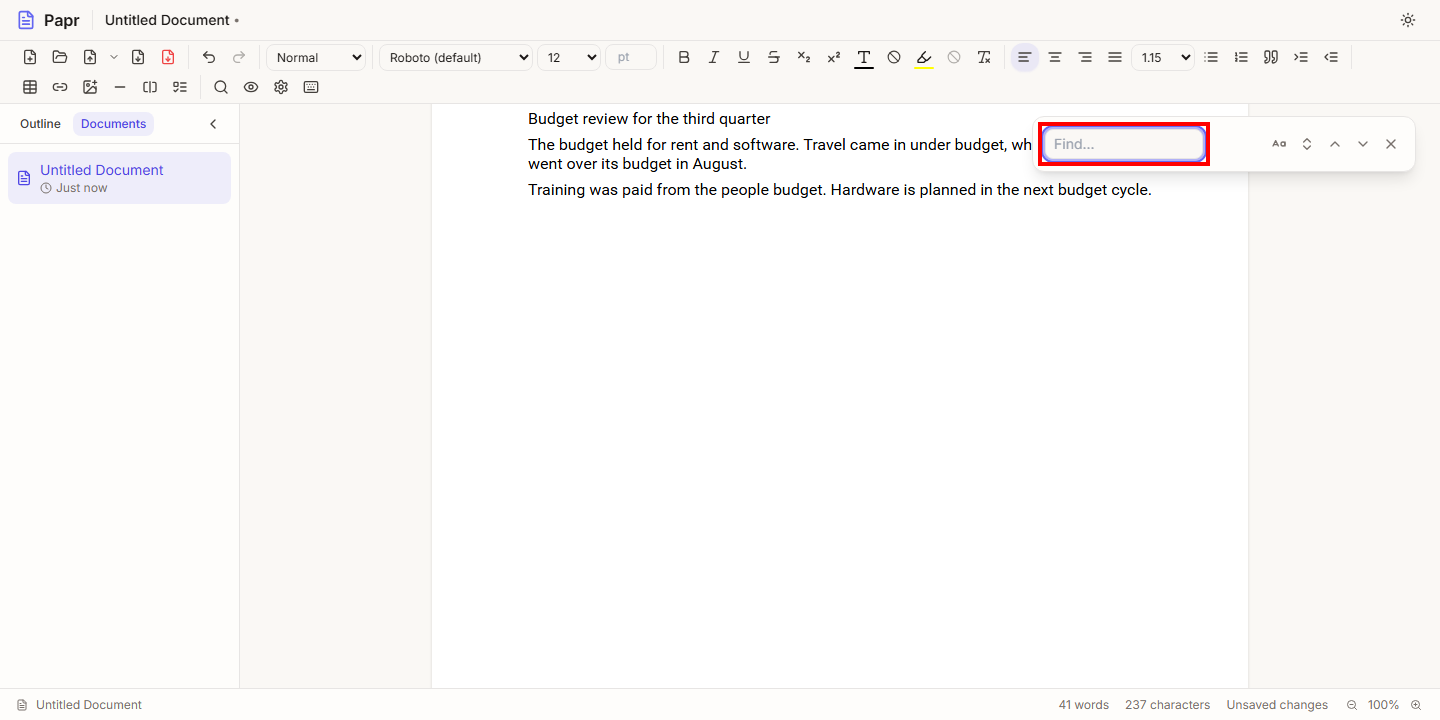
1.Open the find bar
Press Ctrl+F, or click the magnifying glass in the toolbar. The find bar opens at the top right of the page, with the cursor in the Find field. Press Ctrl+F again at any time to select the search text.
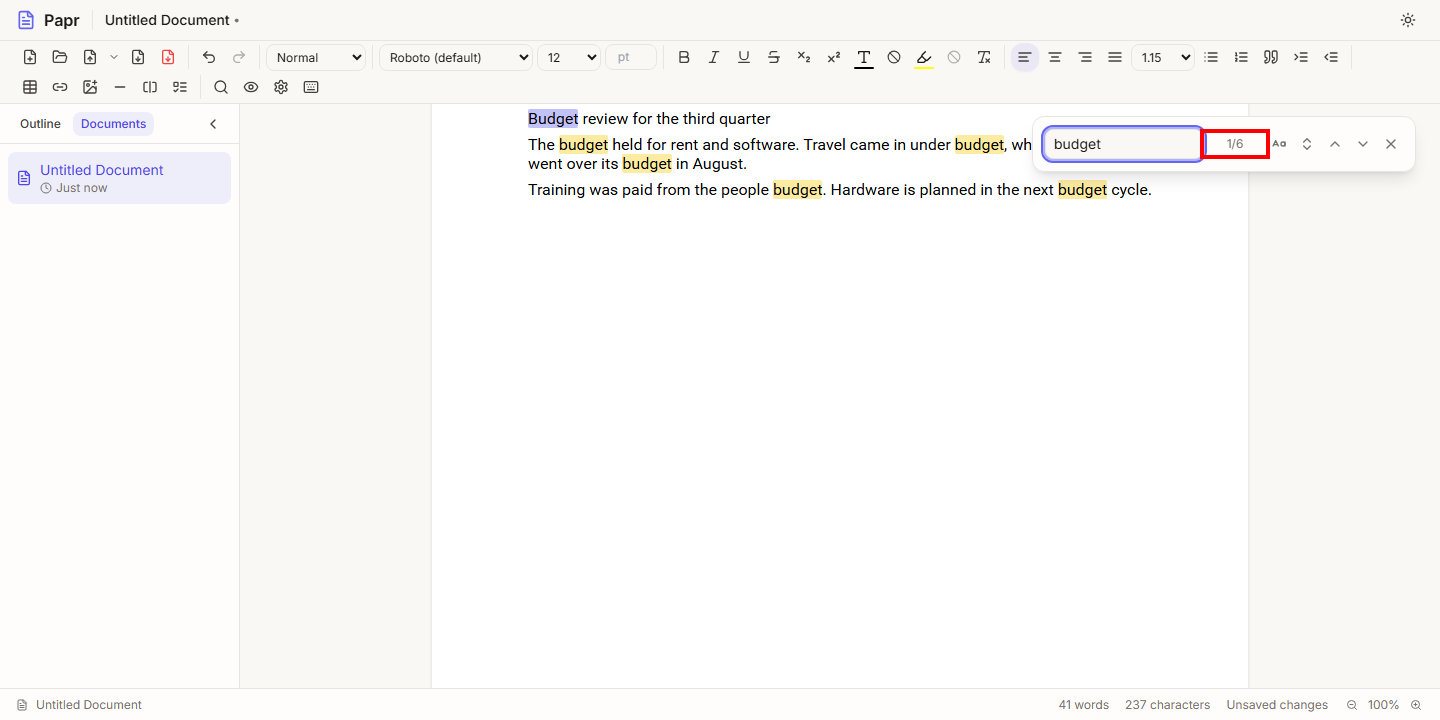
2.Type the word and read the count
Type the word or phrase. Papr highlights every match and shows the current match and the total, such as 1/5. If nothing matches, the count says No results. Press Enter to go to the next match, and Shift+Enter to go to the previous one.
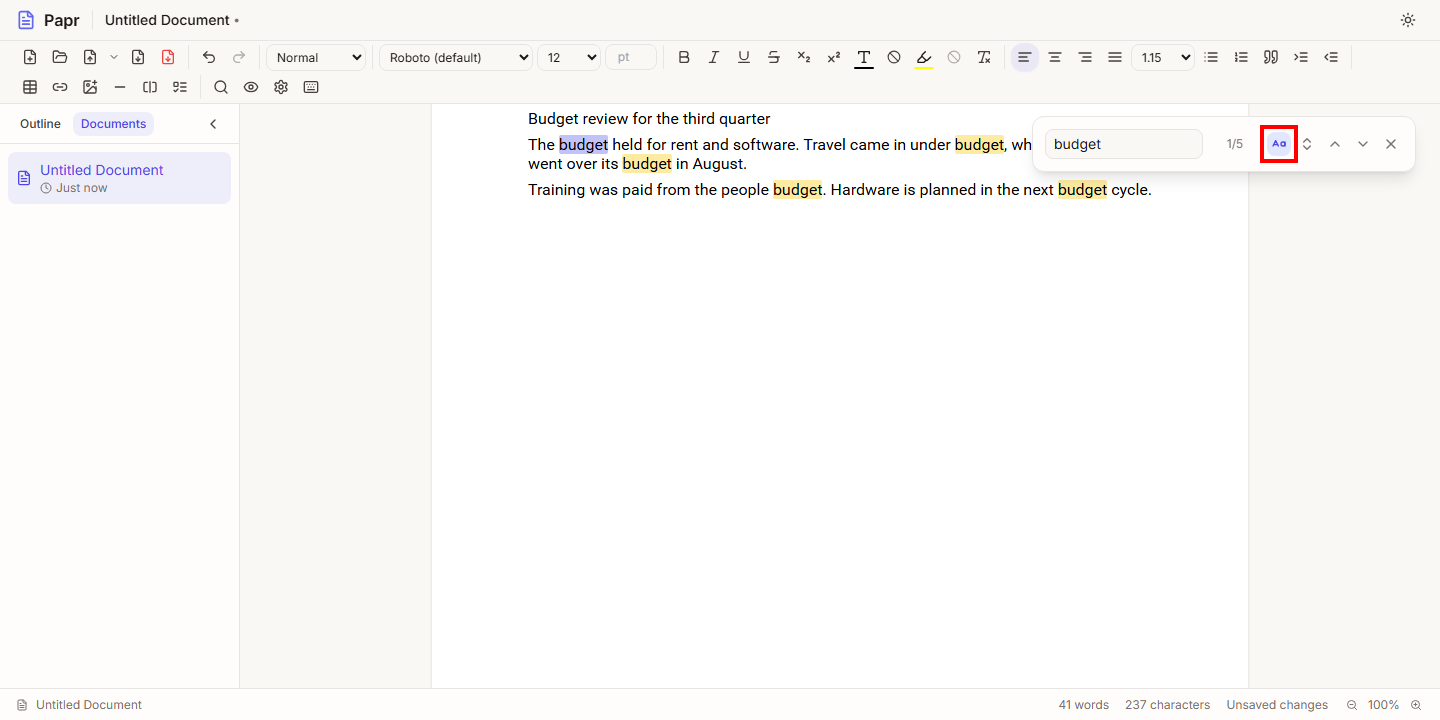
3.Match the case
By default, a search finds budget and Budget alike. Click the Match case button, the Aa icon, to find only the exact capitals you typed. The button is shaded while it is on.
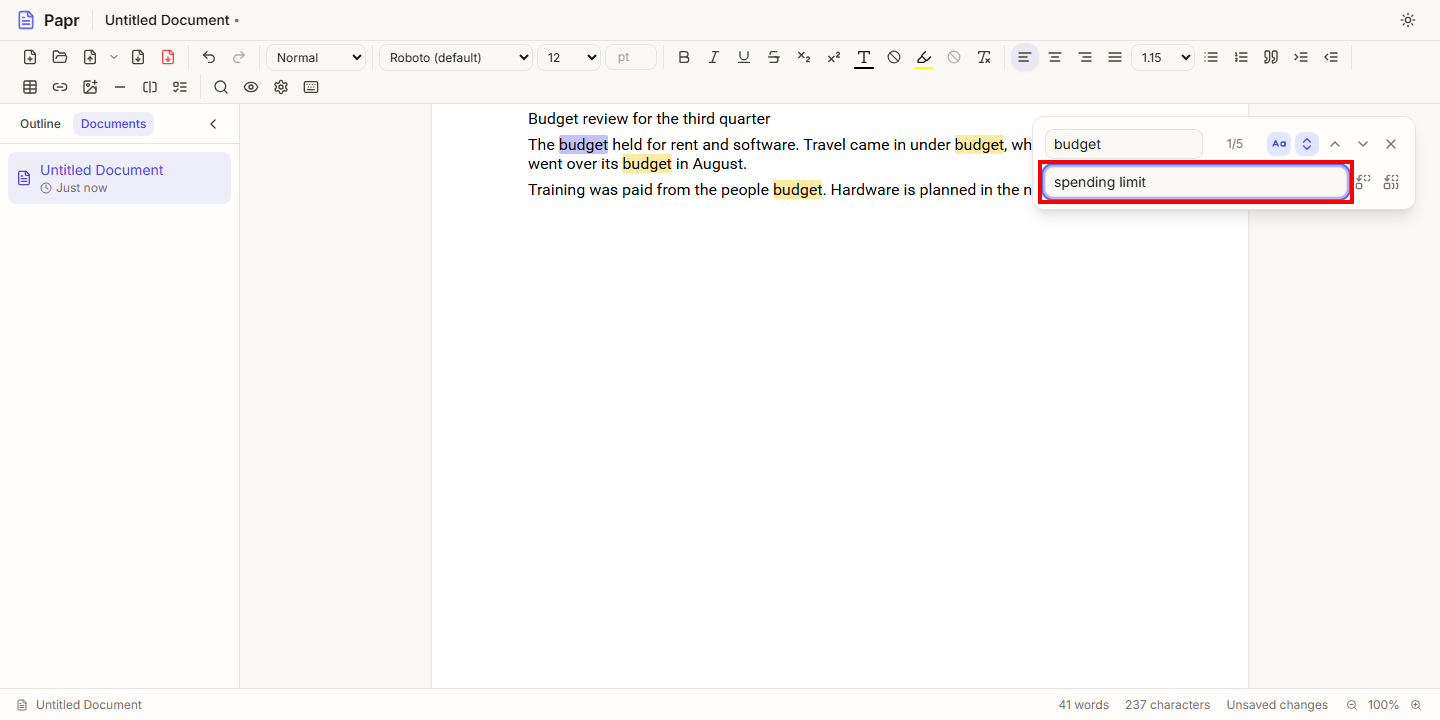
4.Open the replace field
Click the up-and-down arrows icon, Show replace. A second field, Replace with, appears under the search field. Type the new text there.
5.Replace one match or all of them
Click Replace to change the current match and move on to the next one. Click Replace all to change every match in the document at once.
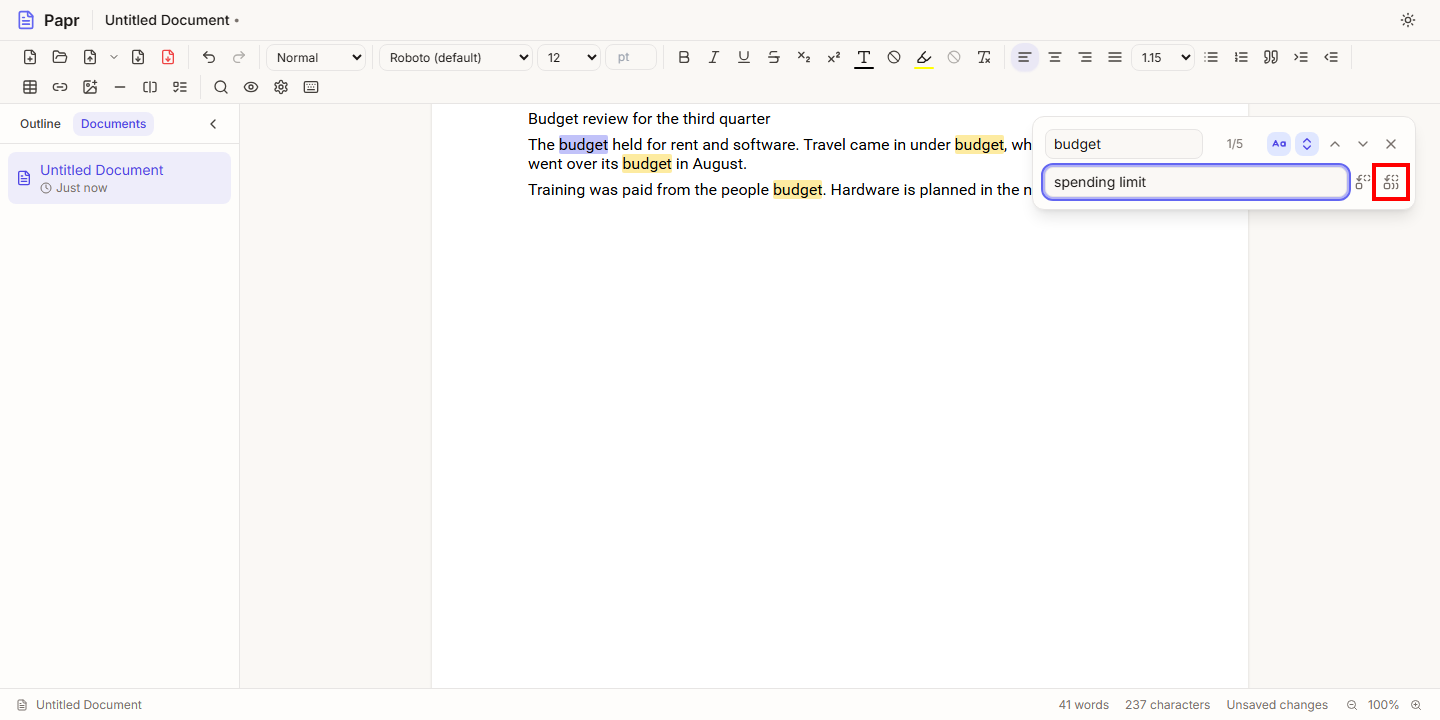
6.Check the result and close the bar
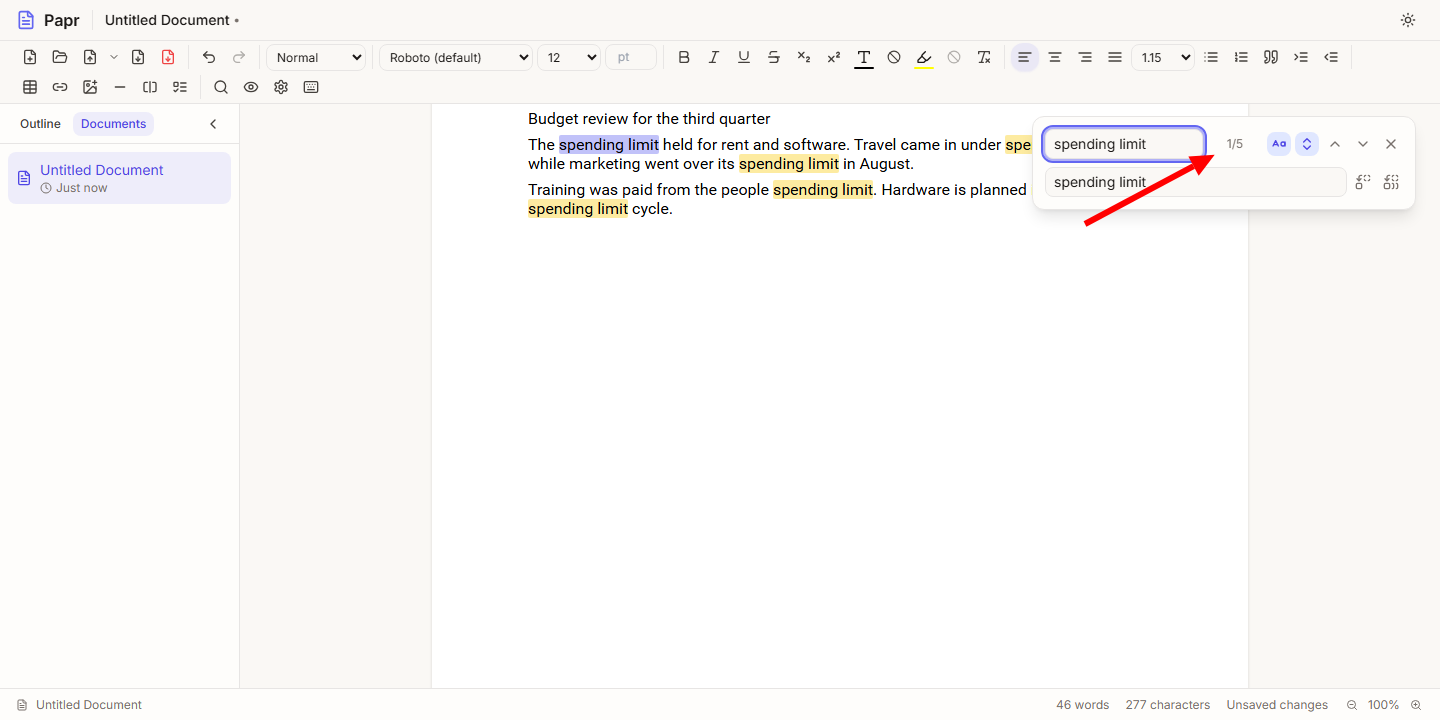
After a replacement, the count shows the matches that are left. Search for the new text to check it. Press Escape, or click the × at the end of the bar, to close it. The cursor goes back to the document.
How matches are found
- A match is found within one paragraph, heading or table cell. A search does not match text across two paragraphs.
- Bold, italic and other formatting inside a word does not stop it from being found.
Try it on your own file
Papr Docs runs in your browser. Your document stays on your device.
Open Papr Docs