How to work with tables in Papr Docs
A table lays out figures, dates and short lists in rows and columns. This guide shows how to insert one, change its rows and columns, merge cells and use the header row.
Step by step
1.Open the table picker
Put the cursor where the table should go. Click Insert Table in the toolbar. A grid of squares opens. Move the pointer over the squares to choose the size: the number at the top of the grid shows the rows and columns under the pointer.
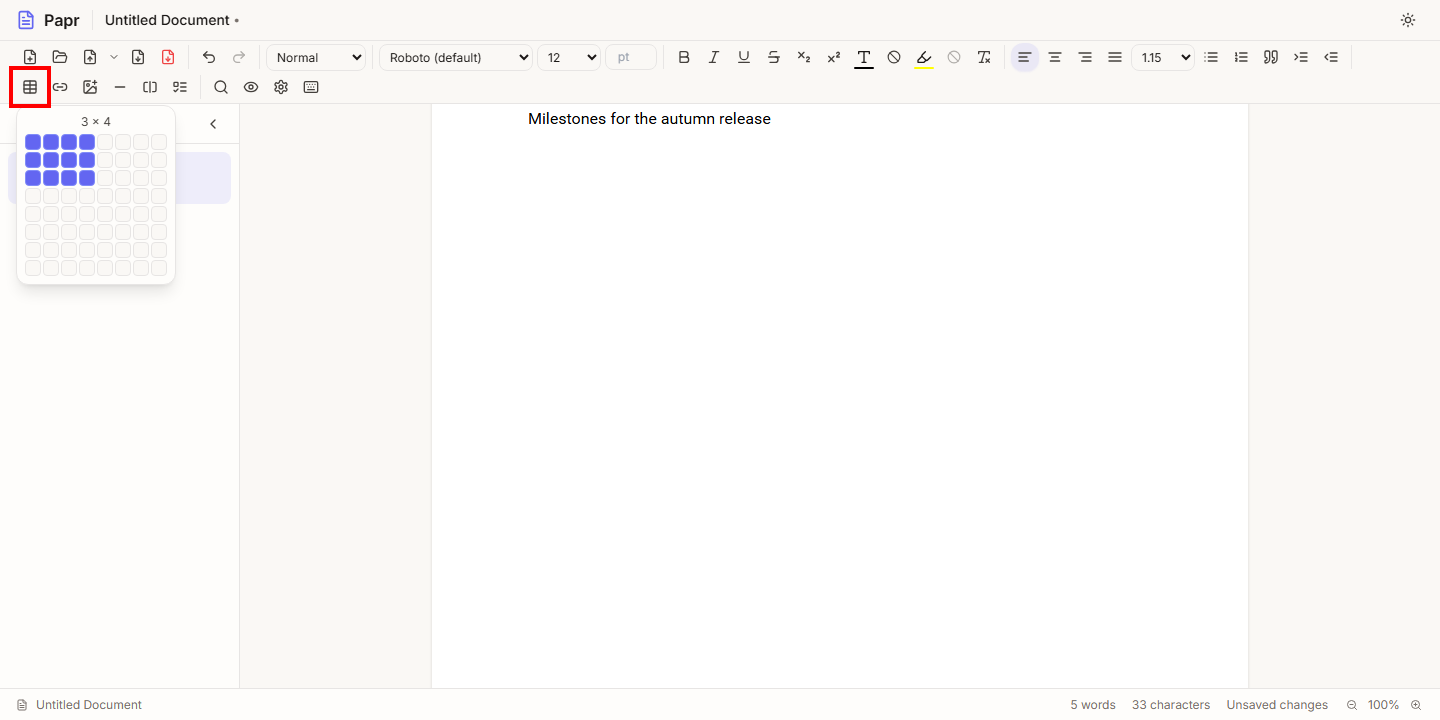
2.Click to insert and type
Click the square at the bottom right of the size you want. A three-by-four table appears, with its first row in bold. That first row is the header row. Click a cell and type. Click the next cell to move on.
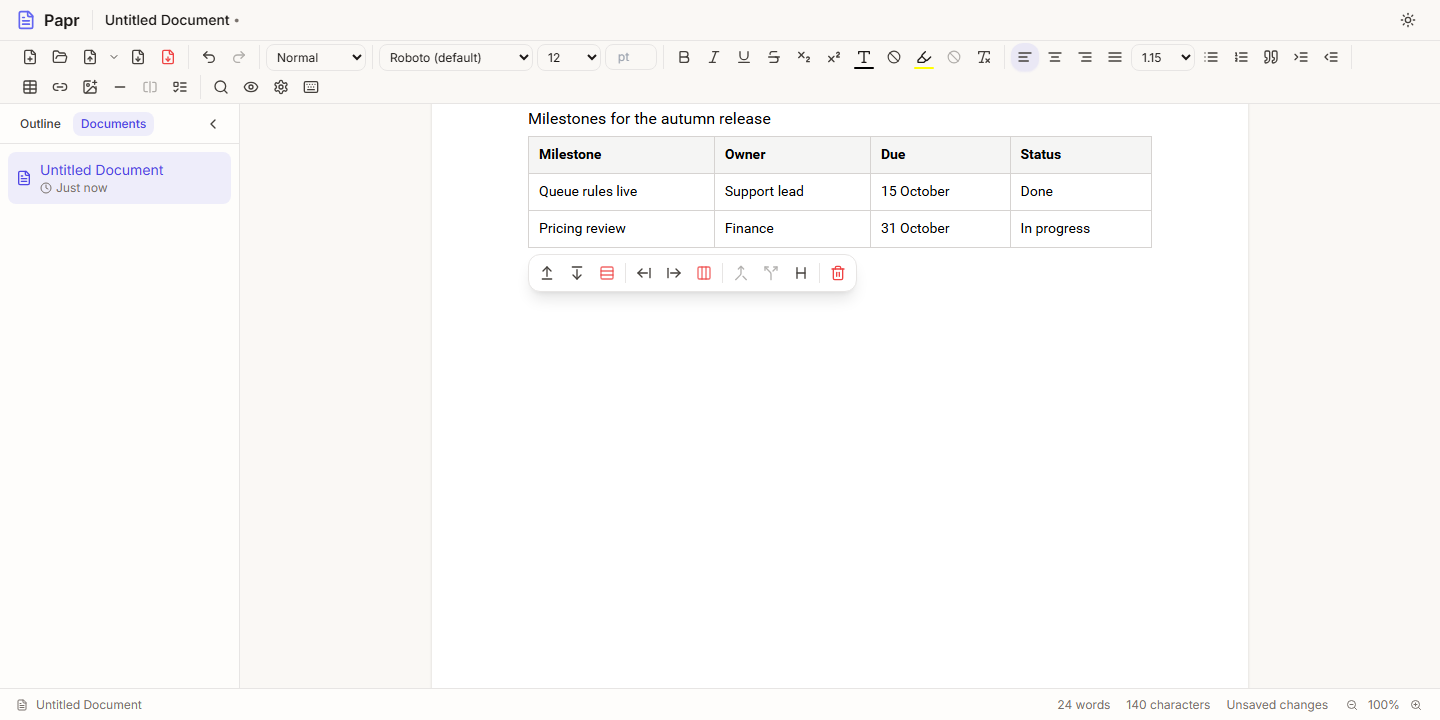
3.Use the table actions
When the cursor is in a table, a bar of table actions appears above it. Click a cell in the row you want to change, then use the bar. Add row above and Add row below insert a row next to the cursor’s row. Here the cursor is in the last row, so Add row below adds a new row under it.
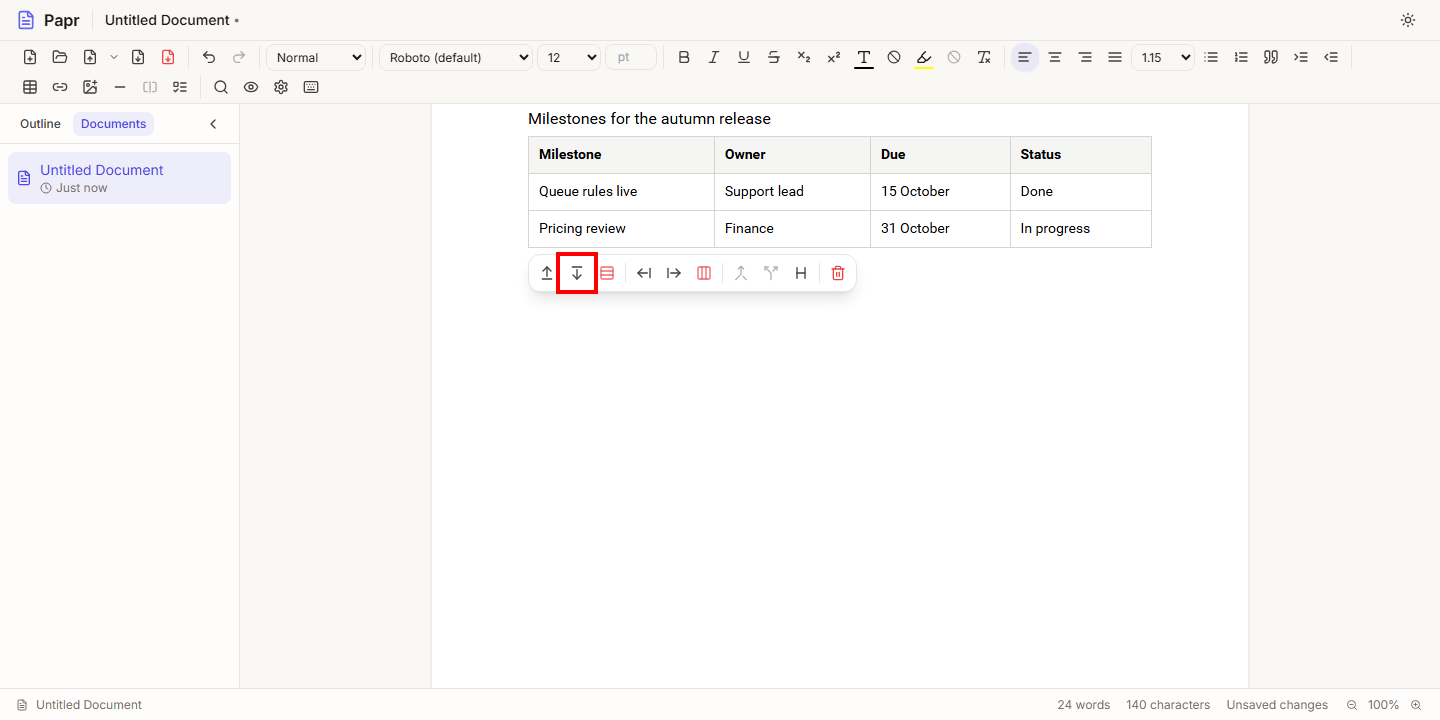
4.Add and delete rows and columns
Add column before and Add column after insert a column left or right of the cursor. Delete row and Delete column remove the row or column the cursor is in. Papr does not ask before a row or column is deleted, so use Undo (Ctrl+Z) to bring it back.
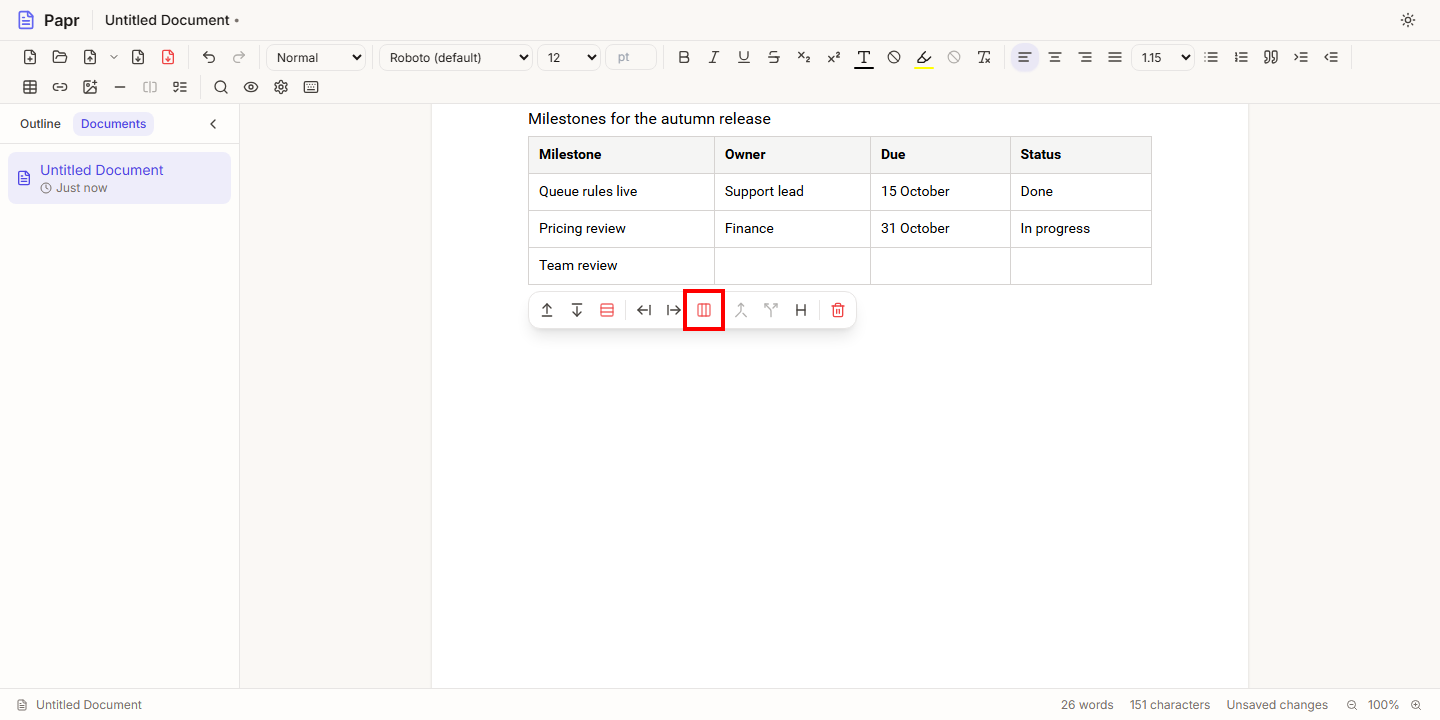
5.Merge cells
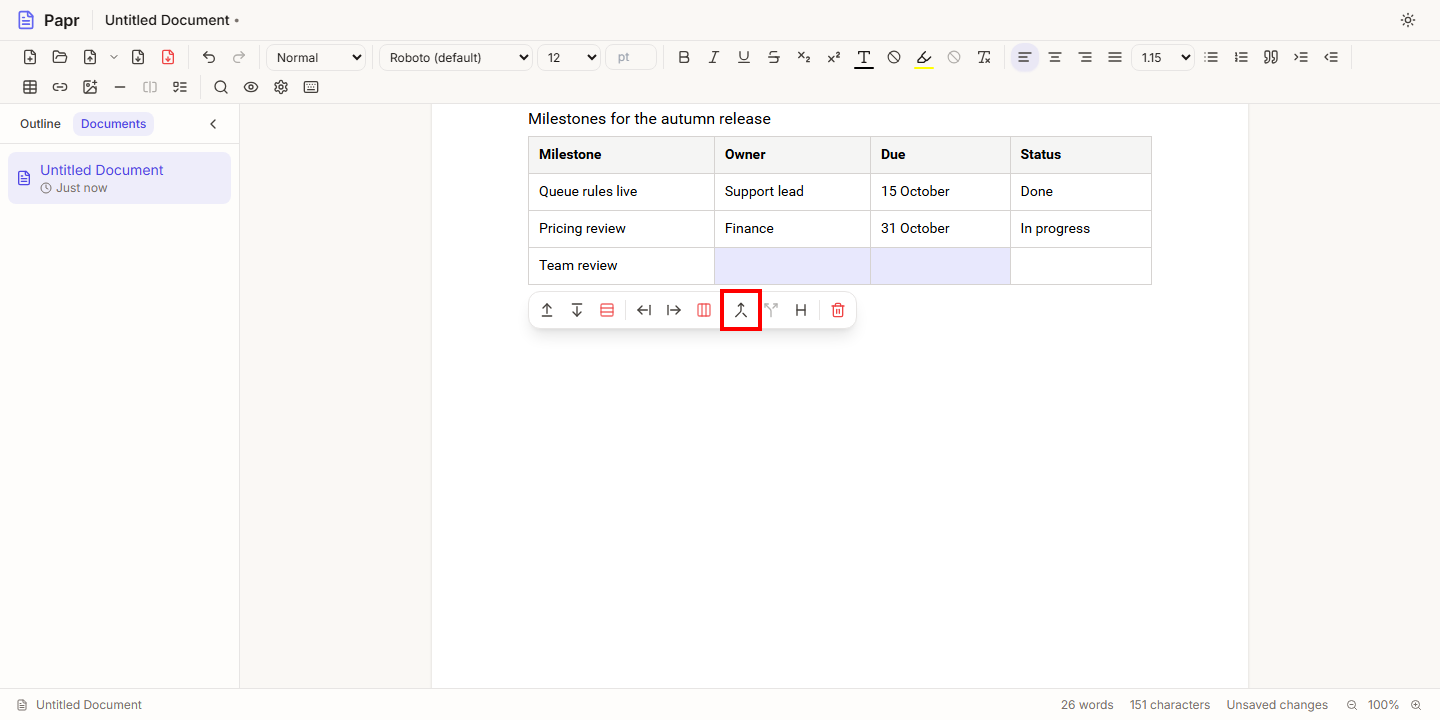
To combine cells, drag across them with the mouse to select a block of cells. Then click Merge cells. The merged cell keeps the text of every cell in it. It is greyed out until more than one cell is selected. To split a merged cell again, put the cursor in it and click Split cell.
6.Turn the header row on or off
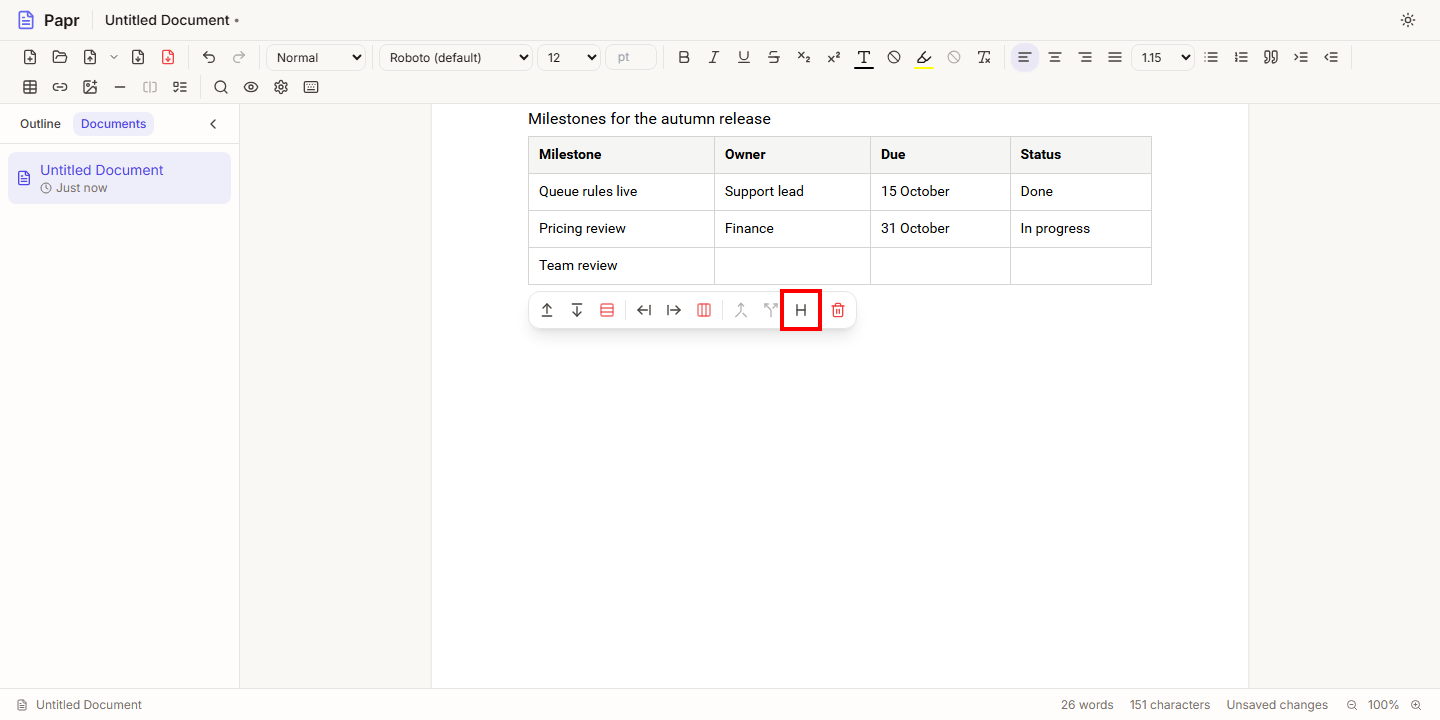
Click a cell and then Toggle header row to switch the first row between a header and an ordinary row. A header row is bold and shaded, so the labels of the columns stand out.
Good to know
- On screen, a table that does not fit in the space left on a sheet moves to the next sheet as a whole. The PDF export can split a long table between rows, keeping each row whole.
- A page break cannot be placed inside a table, so move the cursor out of the table first.
Try it on your own file
Papr Docs runs in your browser. Your document stays on your device.
Open Papr Docs