Getting started with Papr Docs
Papr Docs is a word processor that runs in your browser tab. This guide covers the first document: naming it, typing and formatting text, how it saves, and how to export it.
Step by step
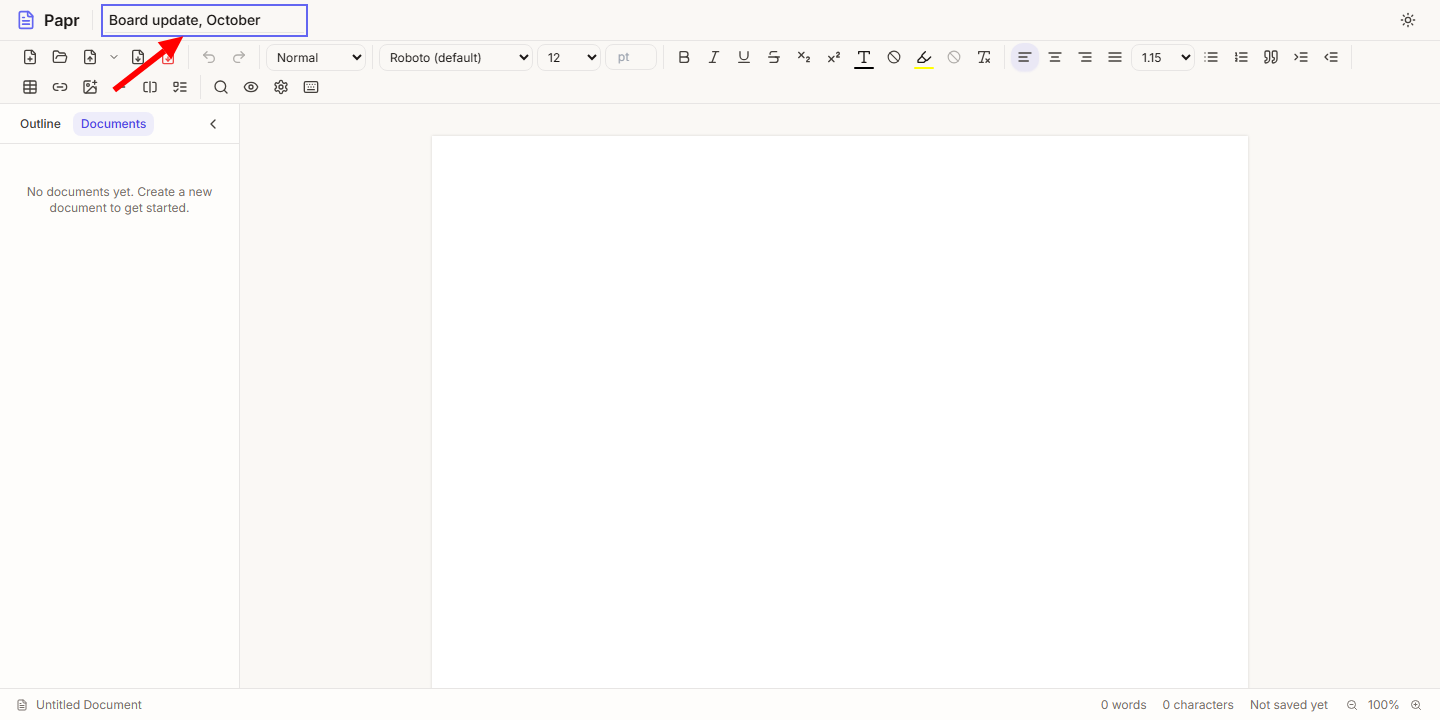
1.Name the document
Papr opens a blank document, or the one you had open last. Click the title at the top of the screen, type a name and press Enter. To start another document, click New Document in the toolbar.
2.Type your text
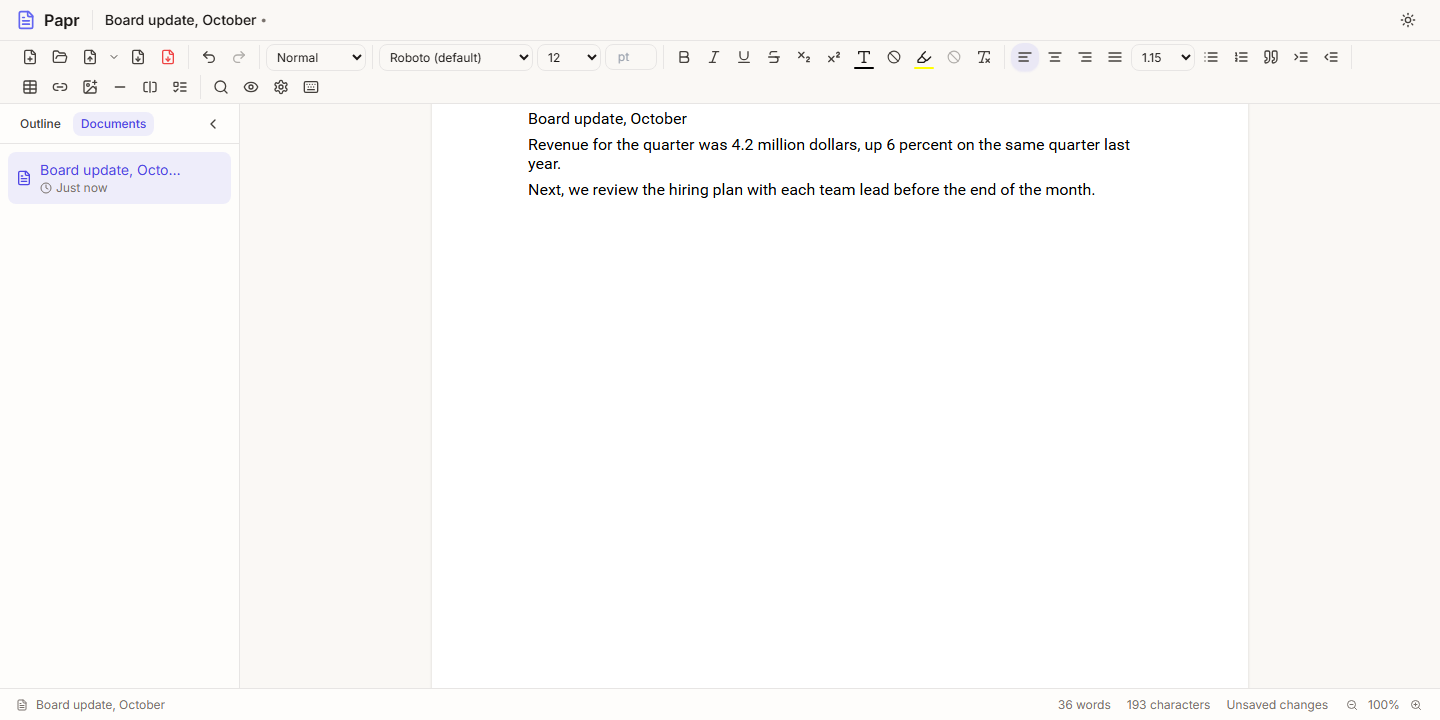
Click in the page and type. Press Enter to start a new paragraph. The text wraps to the width of the page, and a longer document continues on the next sheet.
3.Choose a text style
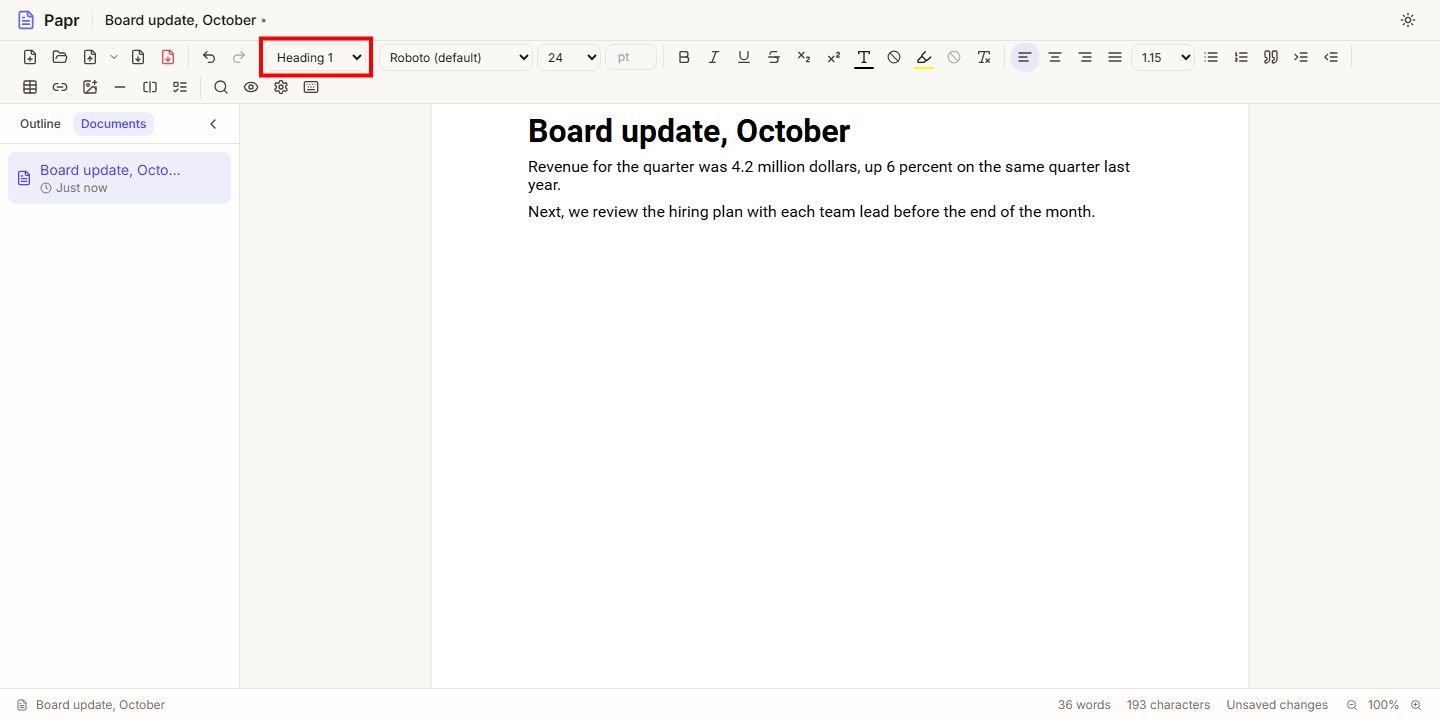
Put the cursor in a line and open the Text style list. Choose Heading 1 to make the line a heading. Normal turns it back into body text. The list also has headings 2 to 6, Quote and Code Block.
4.Make words bold or italic
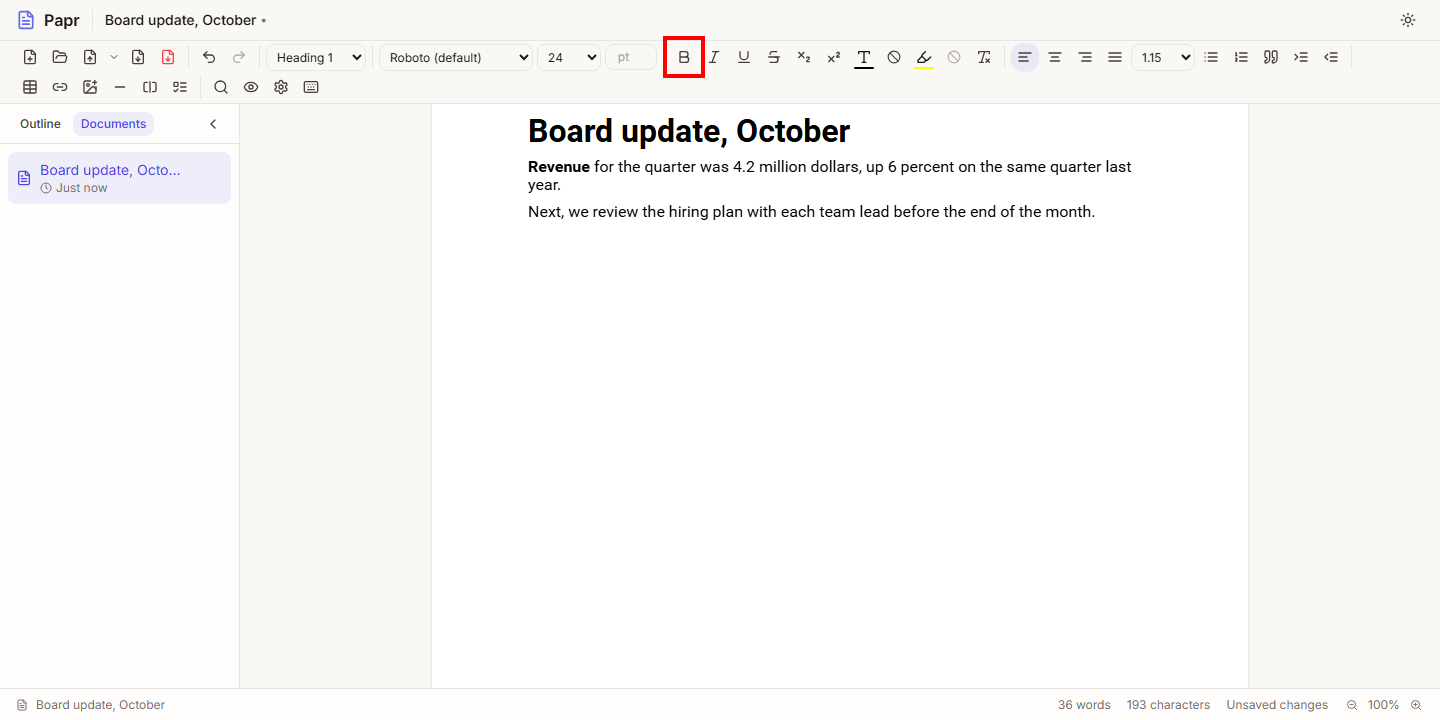
Select a word, then click Bold, Italic or Underline in the toolbar. The keyboard shortcut for bold is Ctrl+B (⌘+B on a Mac). The button is pressed while the cursor is in bold text.
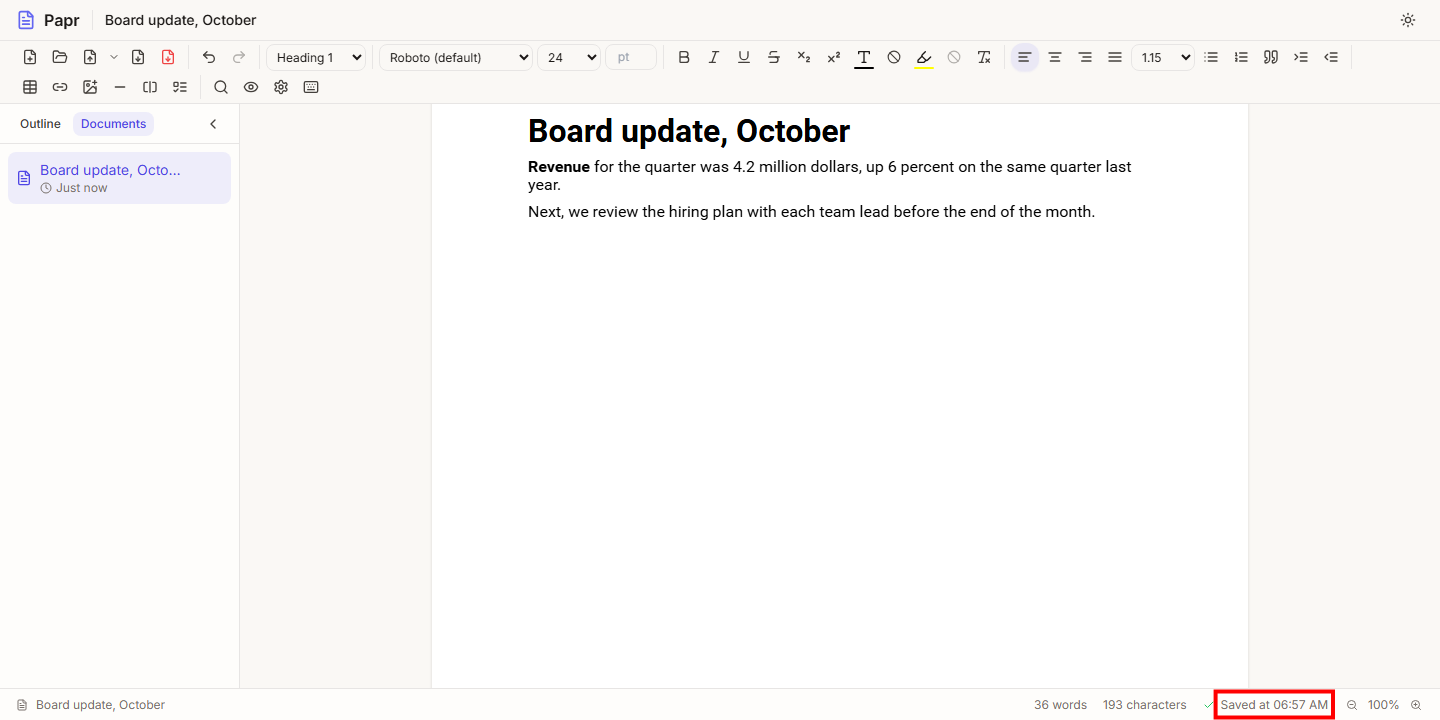
5.Let Papr save for you
Papr saves the document about five seconds after your last change. The status bar at the bottom shows Unsaved changes while it waits, then Saved at and the time. To save straight away, press Ctrl+S.
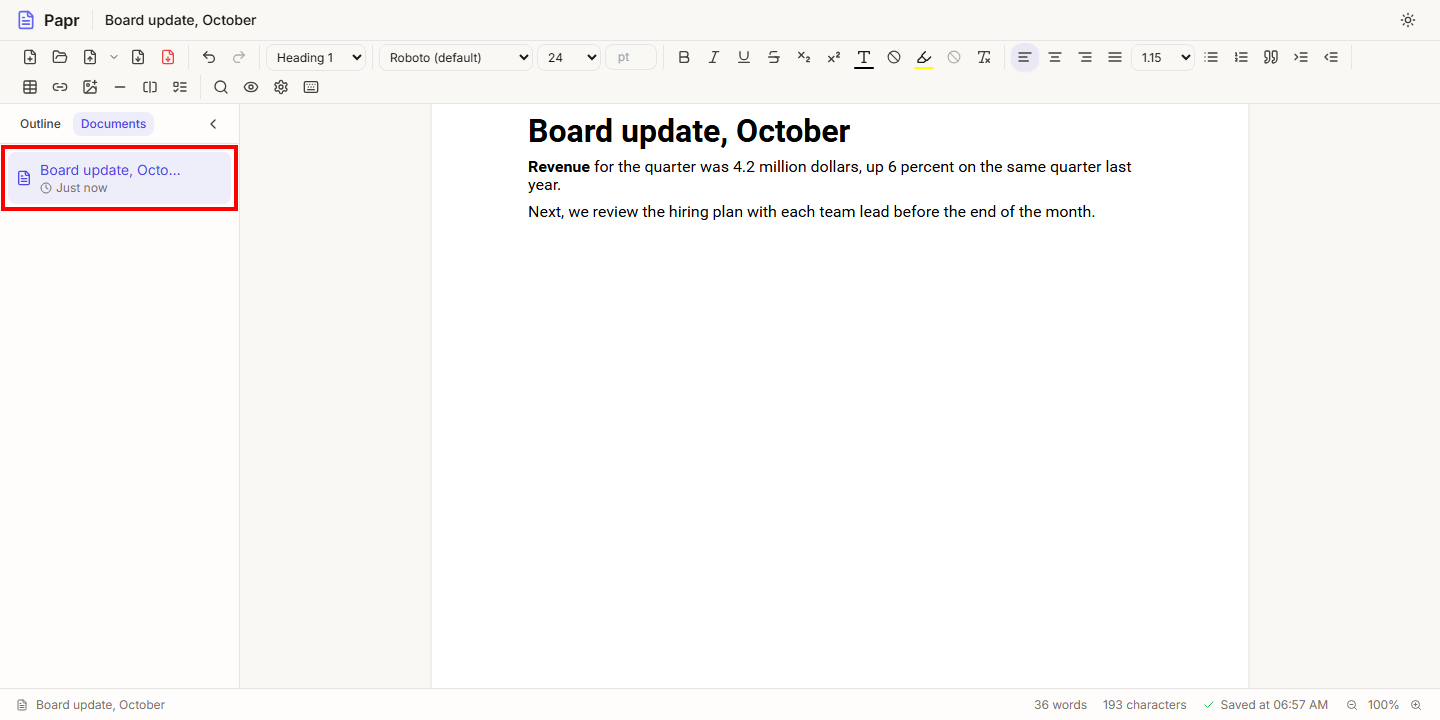
6.Find your documents in the sidebar
The sidebar on the left has two tabs. Documents lists the documents saved in this browser, with the time each one changed. Click a document to open it. Outline lists the headings of the open document, and clicking one moves to it.
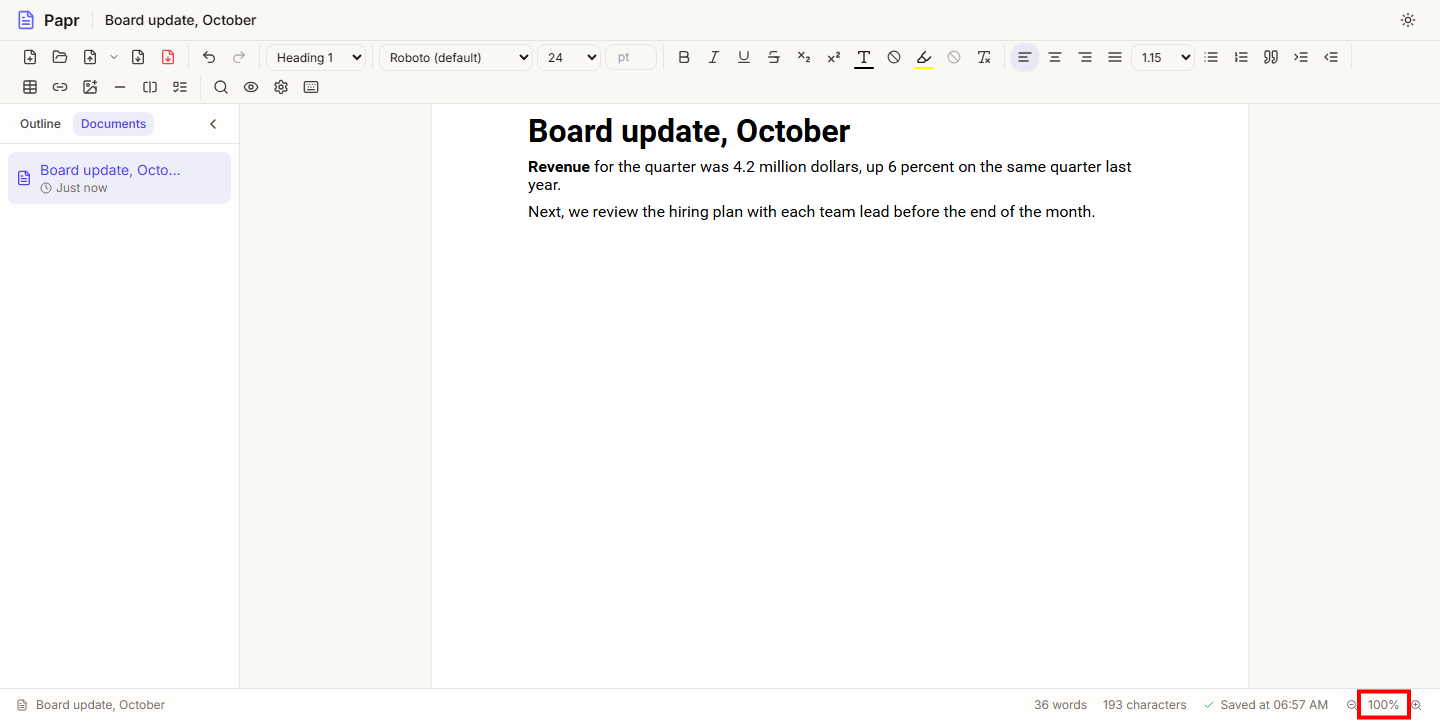
7.Change the zoom
The percentage in the status bar shows the zoom. Use the − and + buttons beside it to make the page smaller or larger. Click the percentage to go back to a zoom that fits the screen.
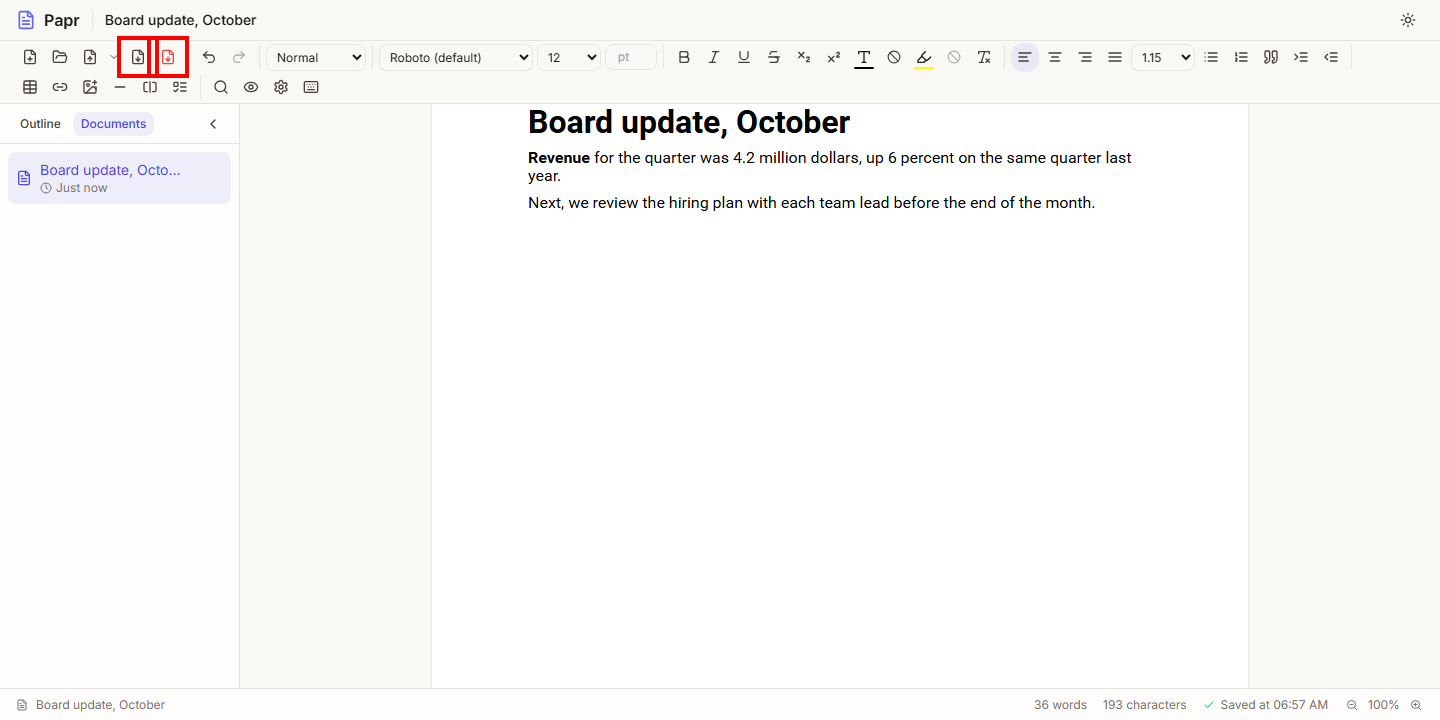
8.Export the document
Click Export as DOCX to download a Word file, or Export as PDF to download a PDF. Both files are made in your browser and downloaded to your device.
Keyboard shortcuts
- Ctrl+S saves now. Ctrl+Z and Ctrl+Y undo and redo.
- Ctrl+F finds text, and Ctrl+H finds and replaces it.
- Ctrl+/ lists every shortcut. On a Mac, use ⌘ in place of Ctrl.
Try it on your own file
Papr Docs runs in your browser. Your documents are saved in this browser and never uploaded.
Open Papr Docs