Page setup, headers, footers and page numbers
Page Setup sets the paper, the margins and what appears at the top and bottom of every page. The page on screen, the Print preview and the exported PDF and Word files all follow these settings.
Step by step
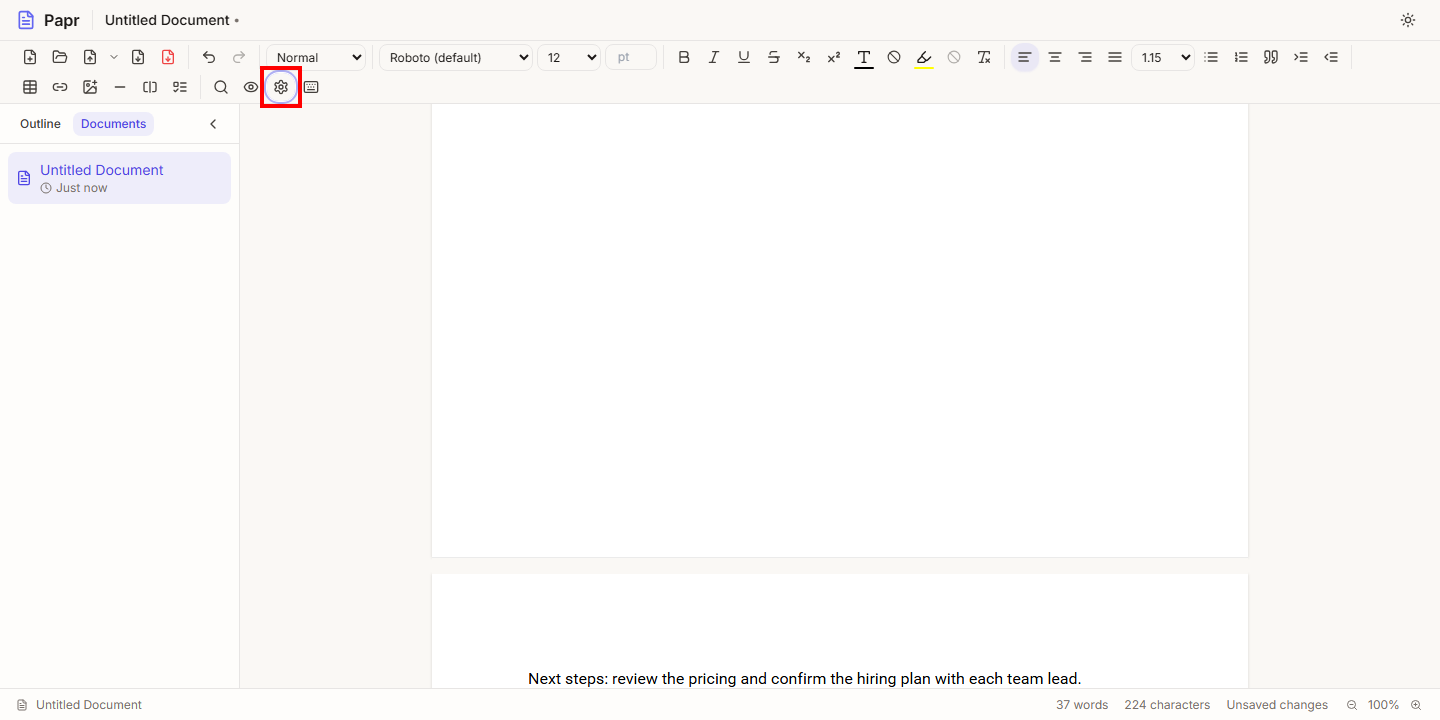
1.Open Page Setup
In the toolbar, click the gear icon labelled Page Setup. The dialog opens over the page, and Cancel closes it without changes.
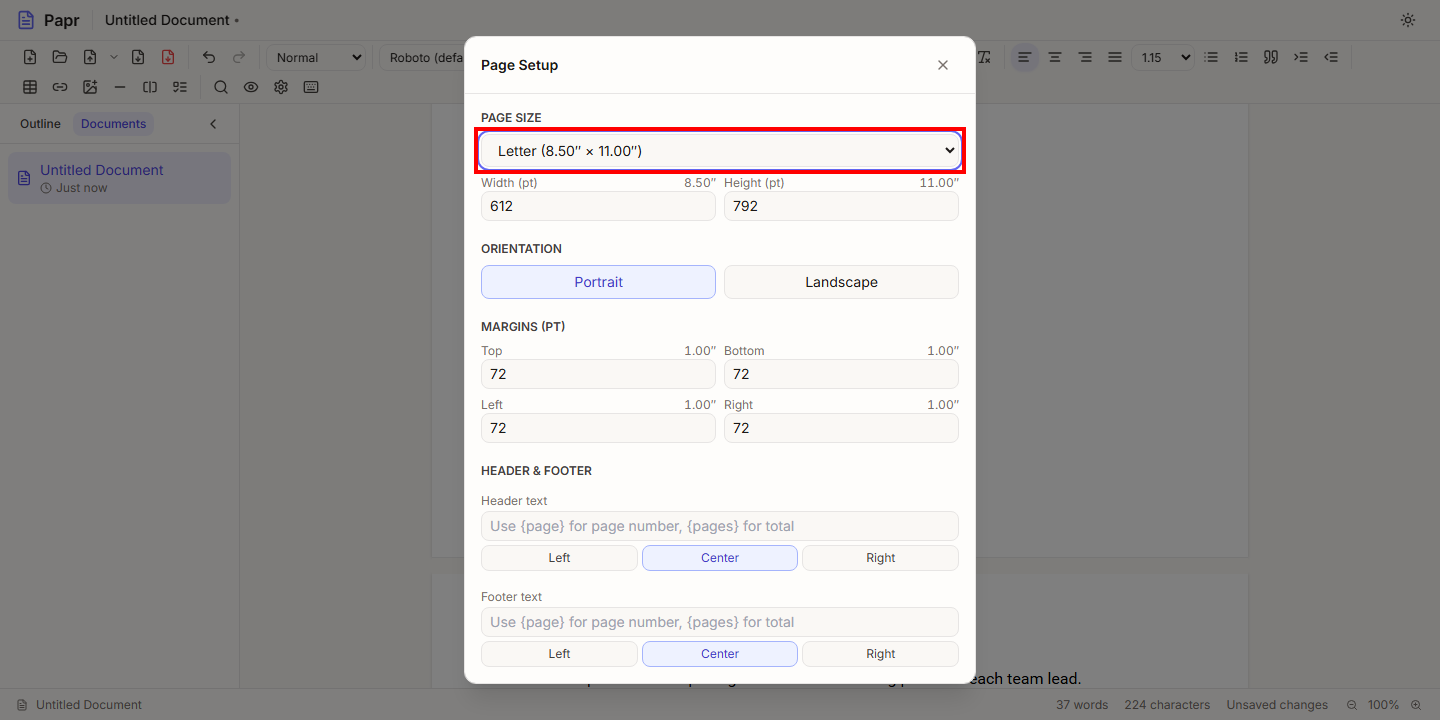
2.Choose the page size and orientation
Open the Page Size list and choose Letter, A4 or Legal. Under Orientation, choose Portrait or Landscape. Landscape turns the page on its side, so the long edge becomes the width.
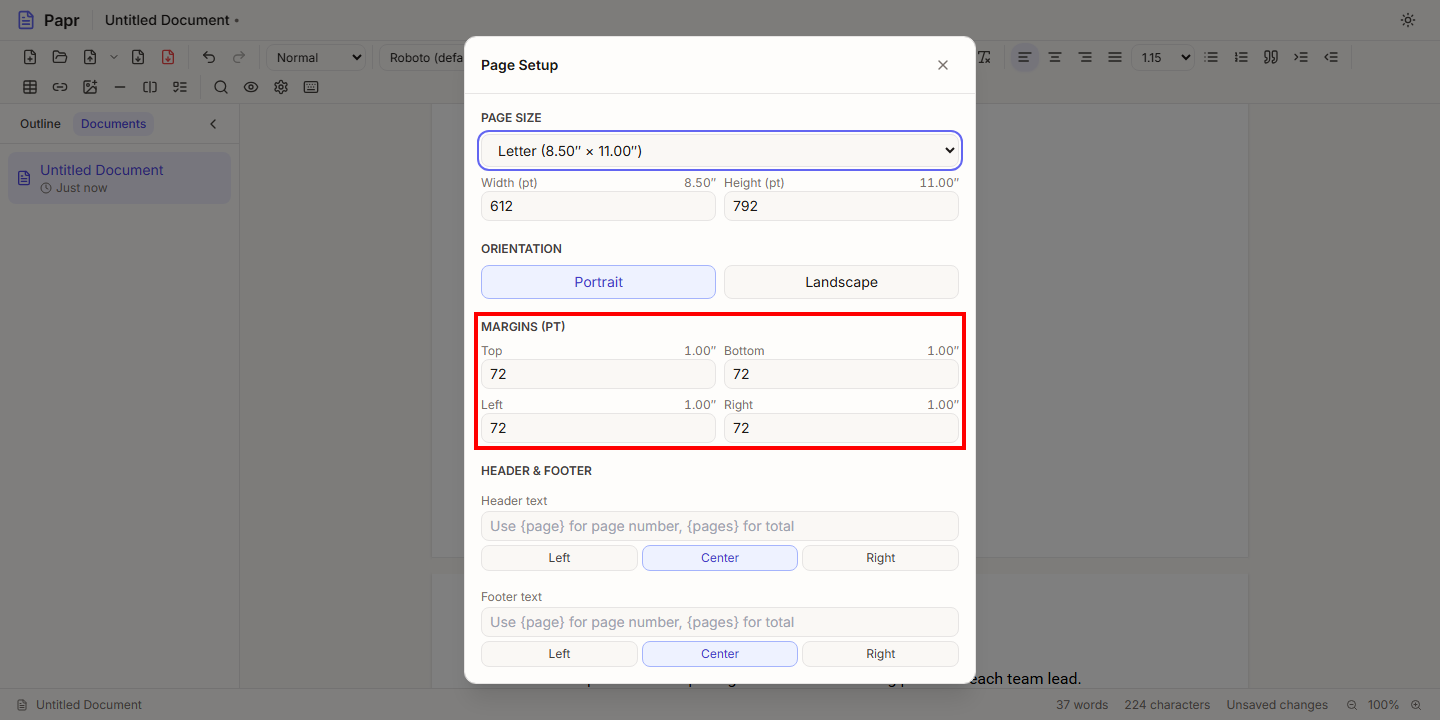
3.Set the margins
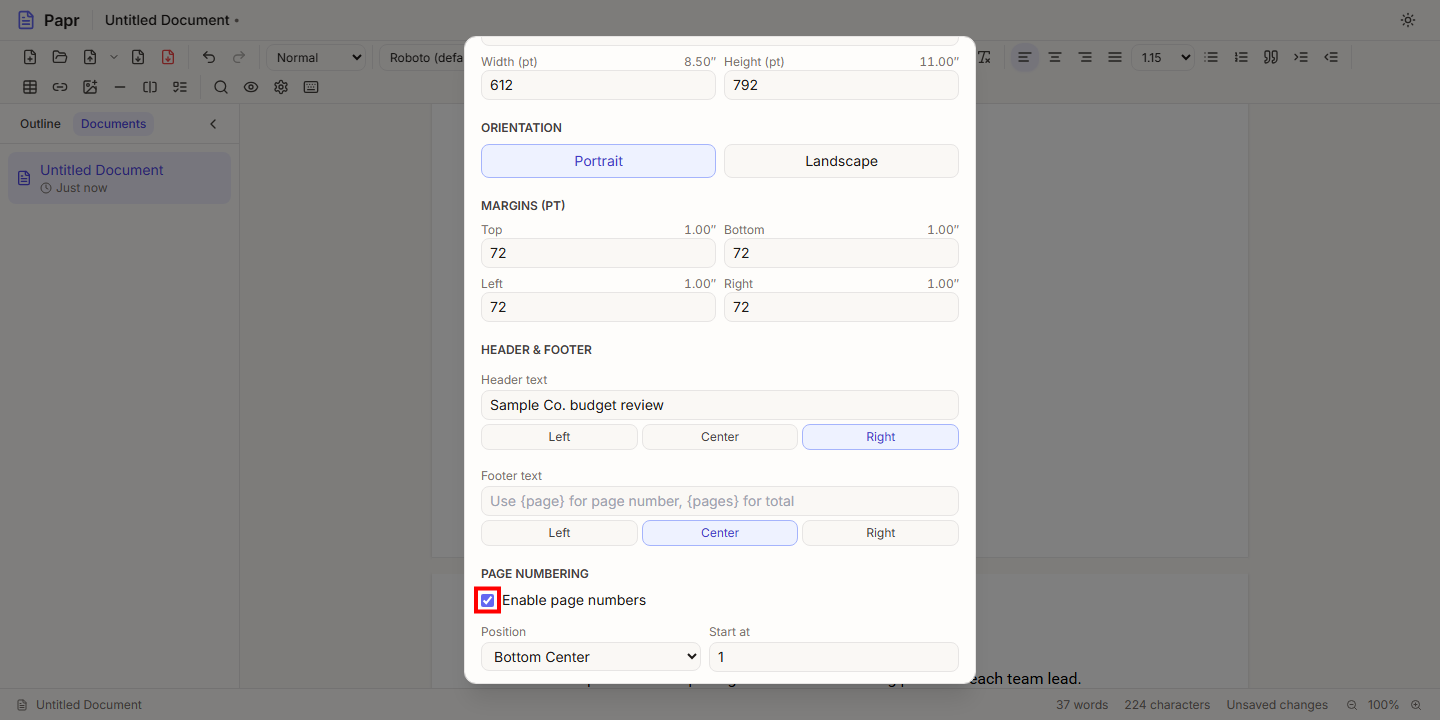
Type the Top, Bottom, Left and Right margins in points. There are 72 points to an inch, so 72 is one inch. A margin of 0 is allowed.
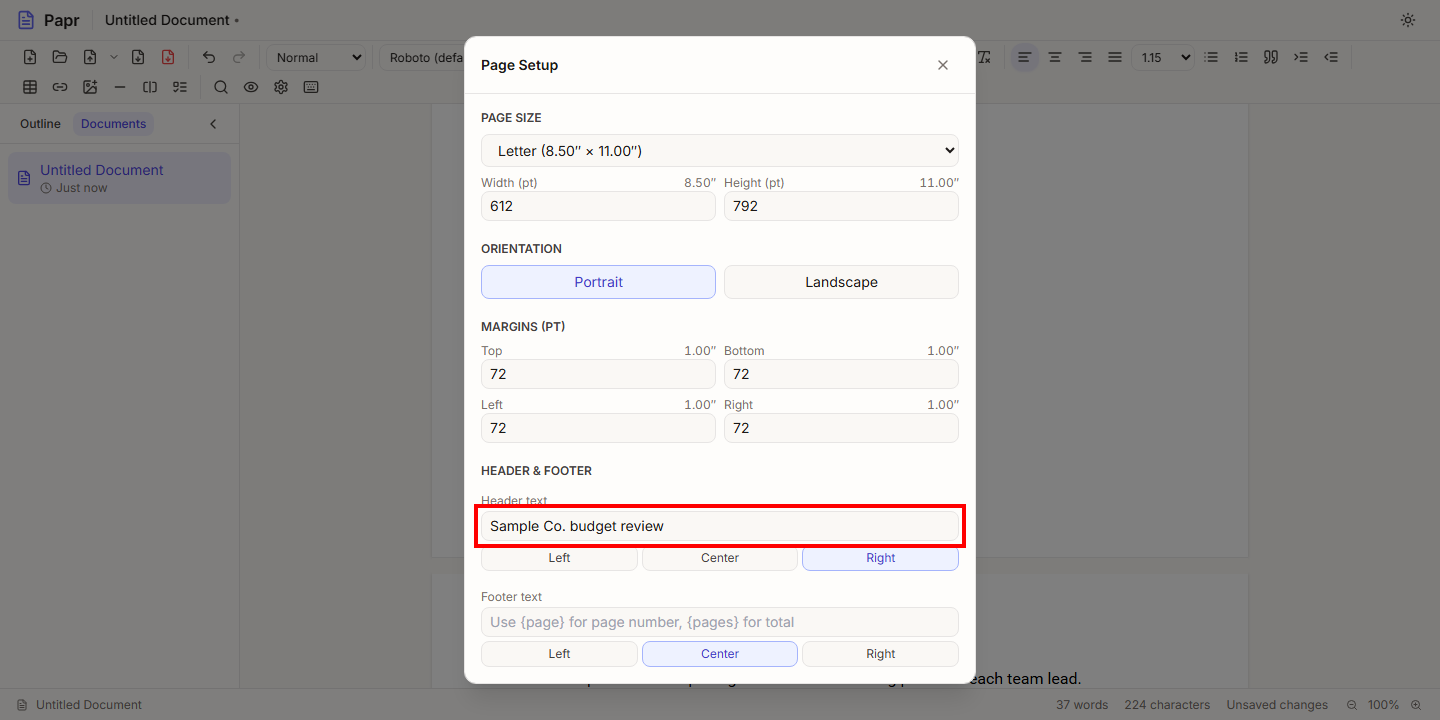
4.Write a header
Type the text in Header text. It appears at the top of every page. Pick Left, Center or Right under the field to set where it sits.
5.Turn on page numbers
Tick Enable page numbers. Choose a Position, such as Bottom Center or Top Right, and the number of the first page in Start at. To write the number yourself, put {page} in the header or footer text, and {pages} for the total, as in “Page {page} of {pages}”.
6.Apply and check the sheets
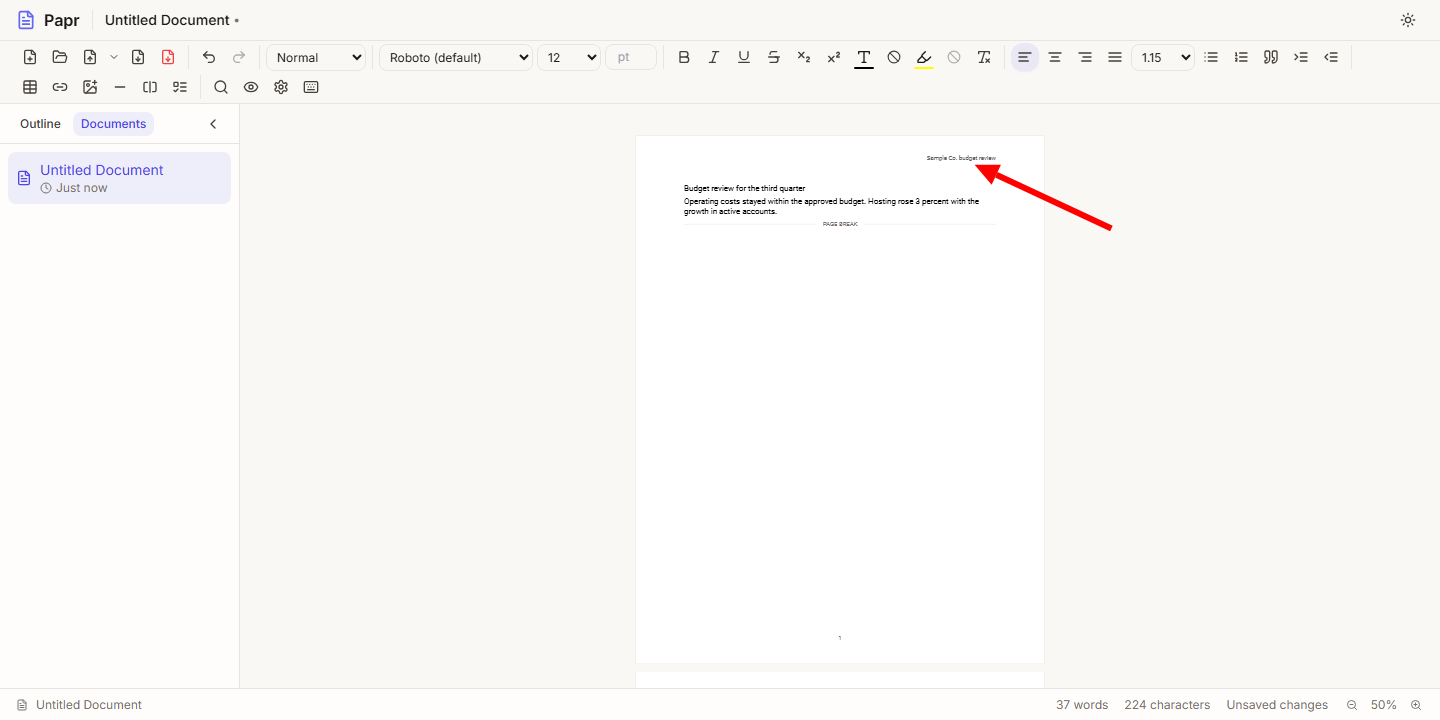
Click Apply. The header and the page numbers appear on each sheet, and a page break starts a new sheet. Papr also places them in the PDF and Word export and in Print preview.
Good to know
- Headers and footers are up to 500 characters long. They are plain text: formatting such as bold does not apply to them.
- Start a new sheet on purpose with Ctrl+Enter, which inserts a page break.
- The sheets on screen are close to the exported pages. A line can fall differently on the screen and in the PDF, so check the last line of a page in Print preview.
Try it on your own file
Papr Docs runs in your browser. Your document stays on your device.
Open Papr Docs