How to import and export Word documents
Open a Word file in Papr Docs, check what came across, and send your document back out as DOCX or PDF. The file is read in your browser, and nothing is uploaded.
Import a Word file
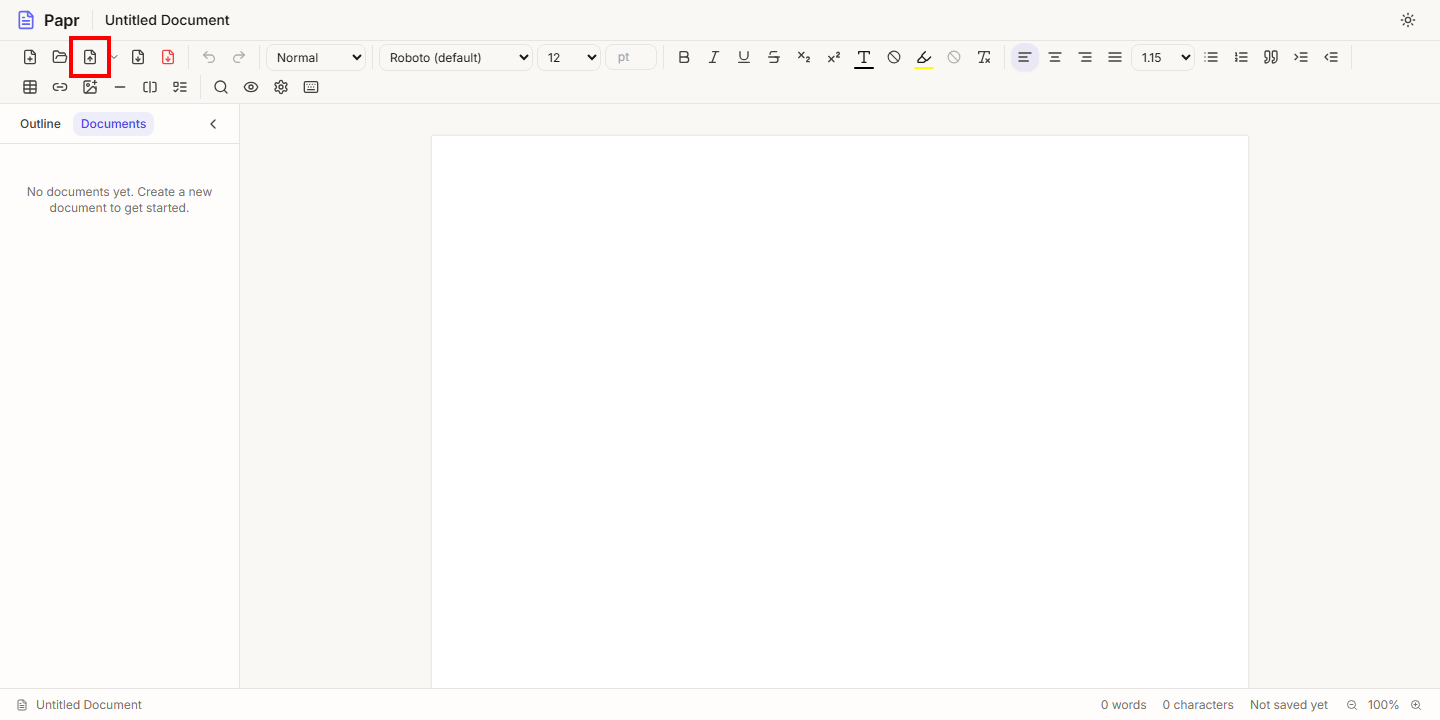
1.Click Import DOCX
In the toolbar of Papr Docs, click Import DOCX. Choose a file that ends in .docx. Papr reads the file in your browser.
2.Choose how the file opens
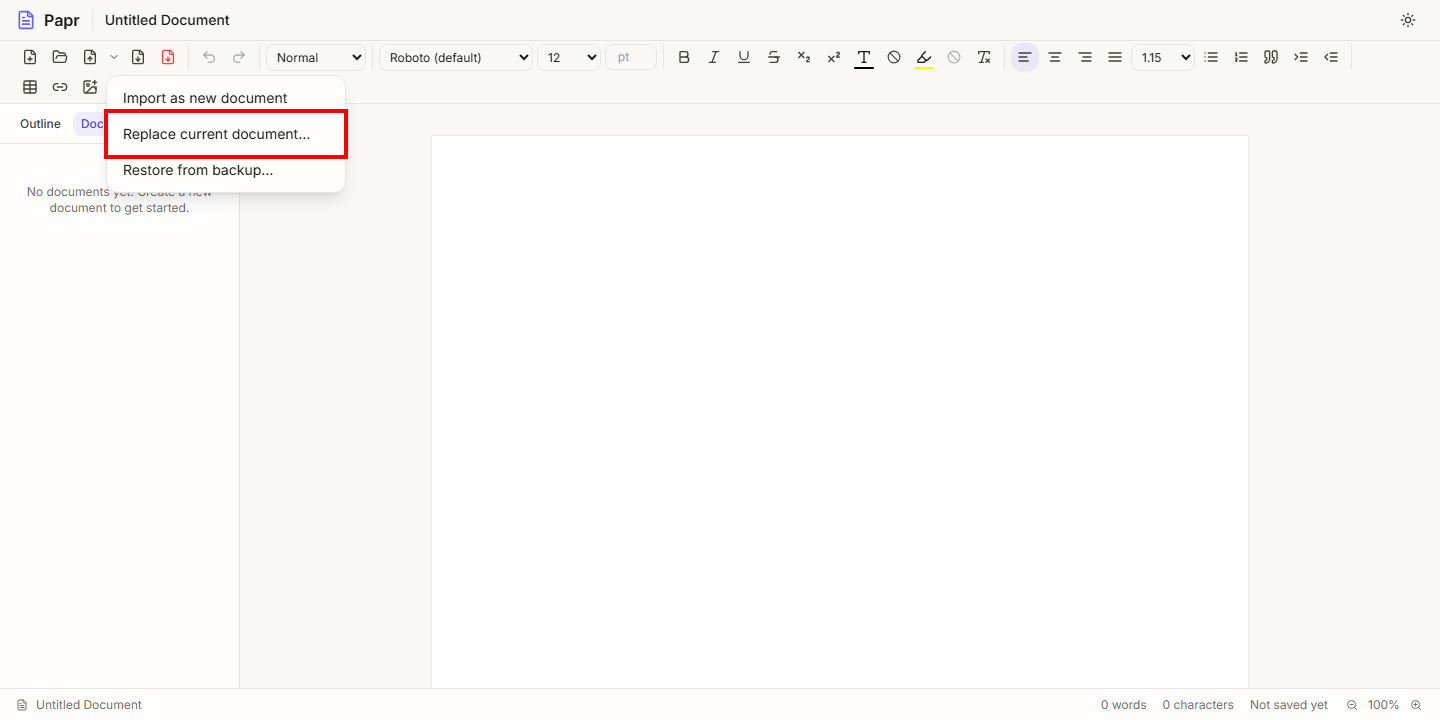
Click the small arrow beside Import DOCX to see the import options. Import as new document opens the file in its own document, and the document you had open is saved first. This is the one to use most of the time.
Replace current document… puts the file’s text into the document you have open. Papr asks for confirmation first.
3.Check the imported document
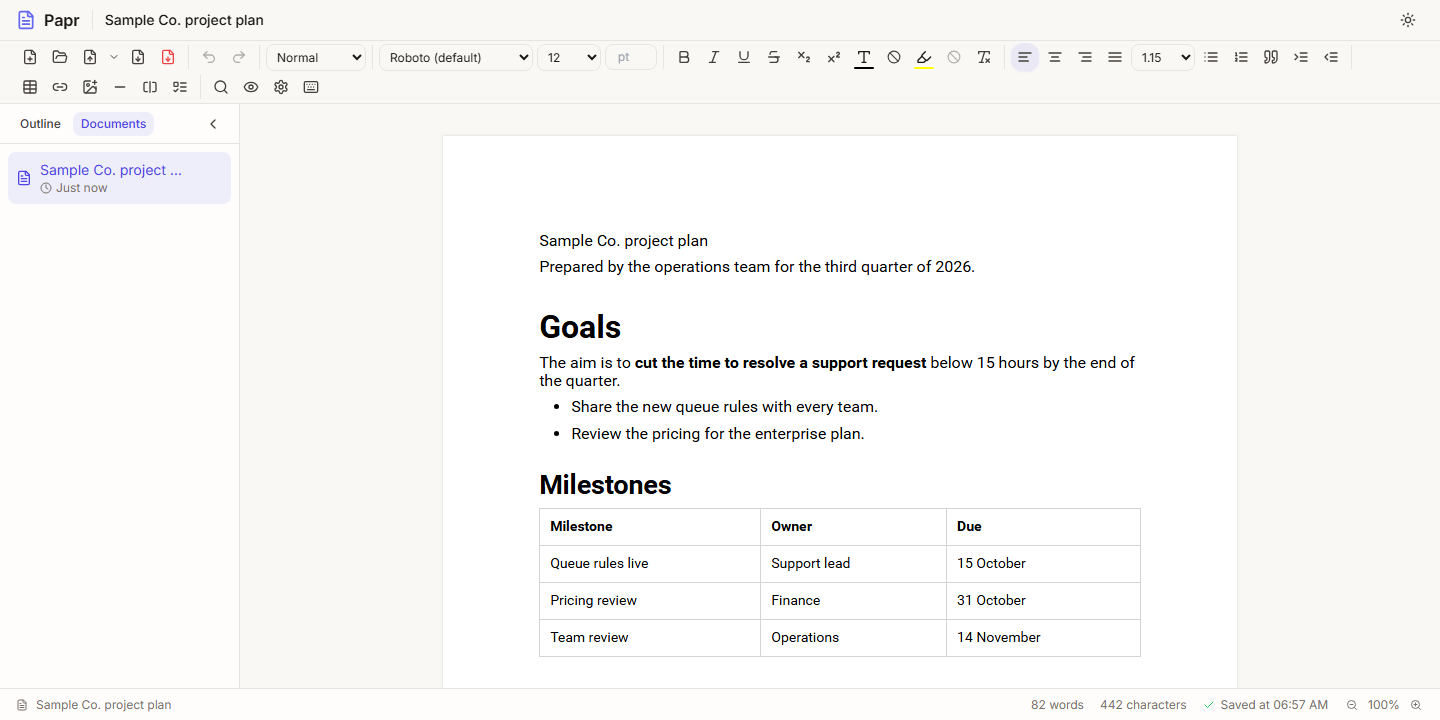
A new document takes its name from the file name, here Sample Co. project plan. The headings, paragraphs, bold and italic text, lists, tables and links are kept. Look through the document to check it. If something was not imported, Papr lists it in a message after the import.
4.Replace a document on purpose
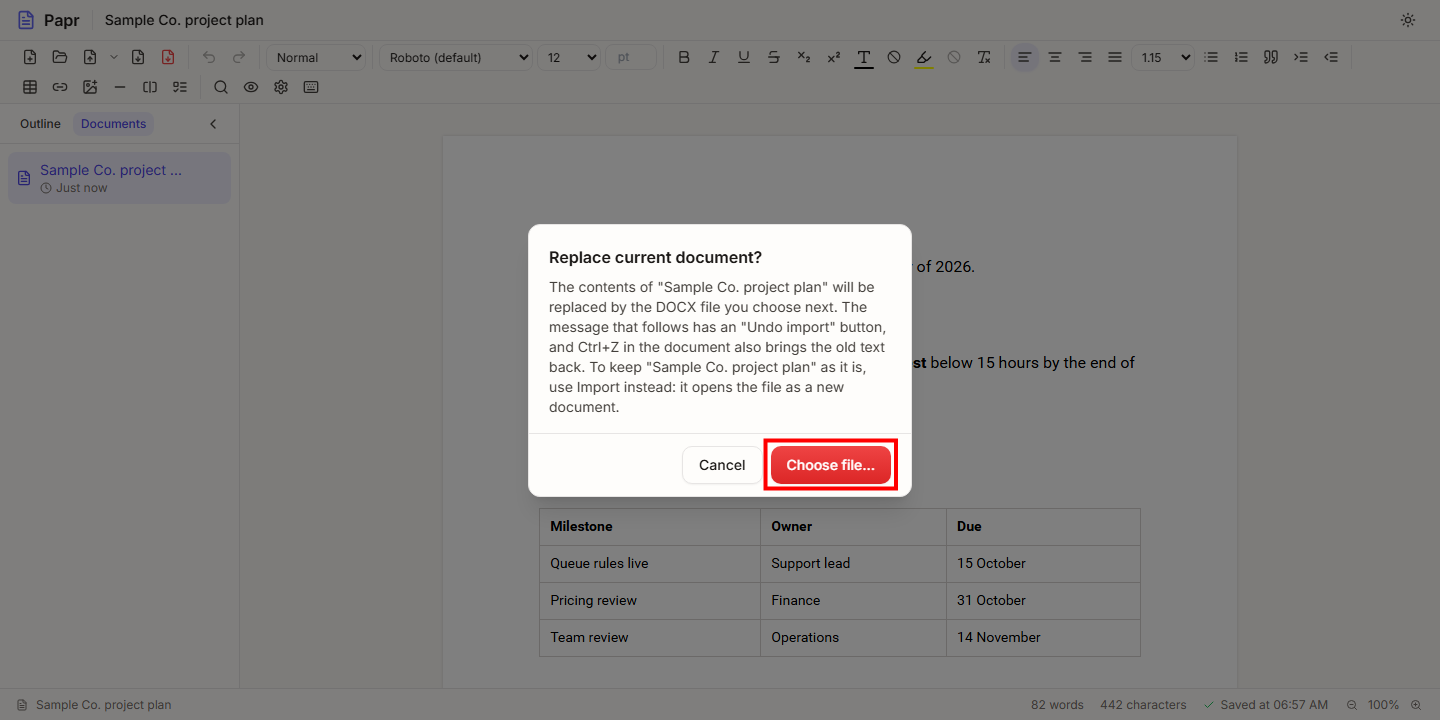
Choose Replace current document… only when you want the open document to take the file’s content. The confirmation explains that the message after the import has an Undo import button, and that Ctrl+Z also brings the old text back. To keep the open document, use Import as new document instead. Click Cancel to stop.
What comes across
Papr keeps the text and the common formatting of a Word file. The list below is what matters most.
- Headings, paragraphs, and bold, italic and underlined text.
- Bulleted and numbered lists, quotes and tables.
- Links, and PNG or JPEG pictures up to 5 MB each.
- Footnotes and endnotes, moved to a Notes section at the end of the document.
Word bookmarks and links to them come across too. To add a bookmark, put the cursor where the section starts and click Insert bookmark. To link to it, open Insert link and pick the bookmark under Bookmarks in this document.
Export a document
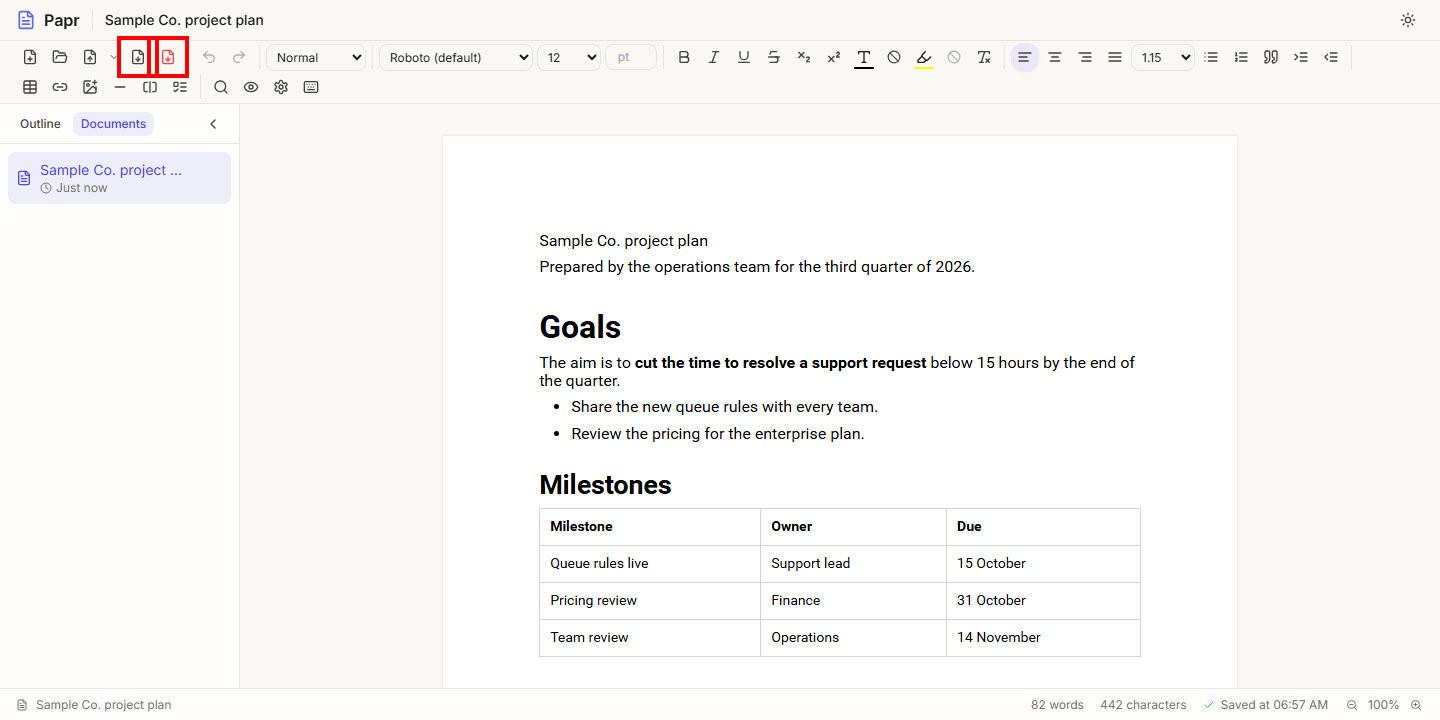
5.Export as DOCX or PDF
Click Export as DOCX for a Word file, or Export as PDF for a PDF. Papr downloads the file. The export keeps the page size, the margins, and the headers and footers you set.
Try it on your own file
Papr Docs runs in your browser. Your Word file never leaves your device.
Open Papr Docs