Links and Bookmarks in Papr Docs
A link can open a web address, or jump to a bookmark elsewhere in the same document. This guide shows how to add a link, insert a bookmark, link to it, and what each export keeps.
Add a link
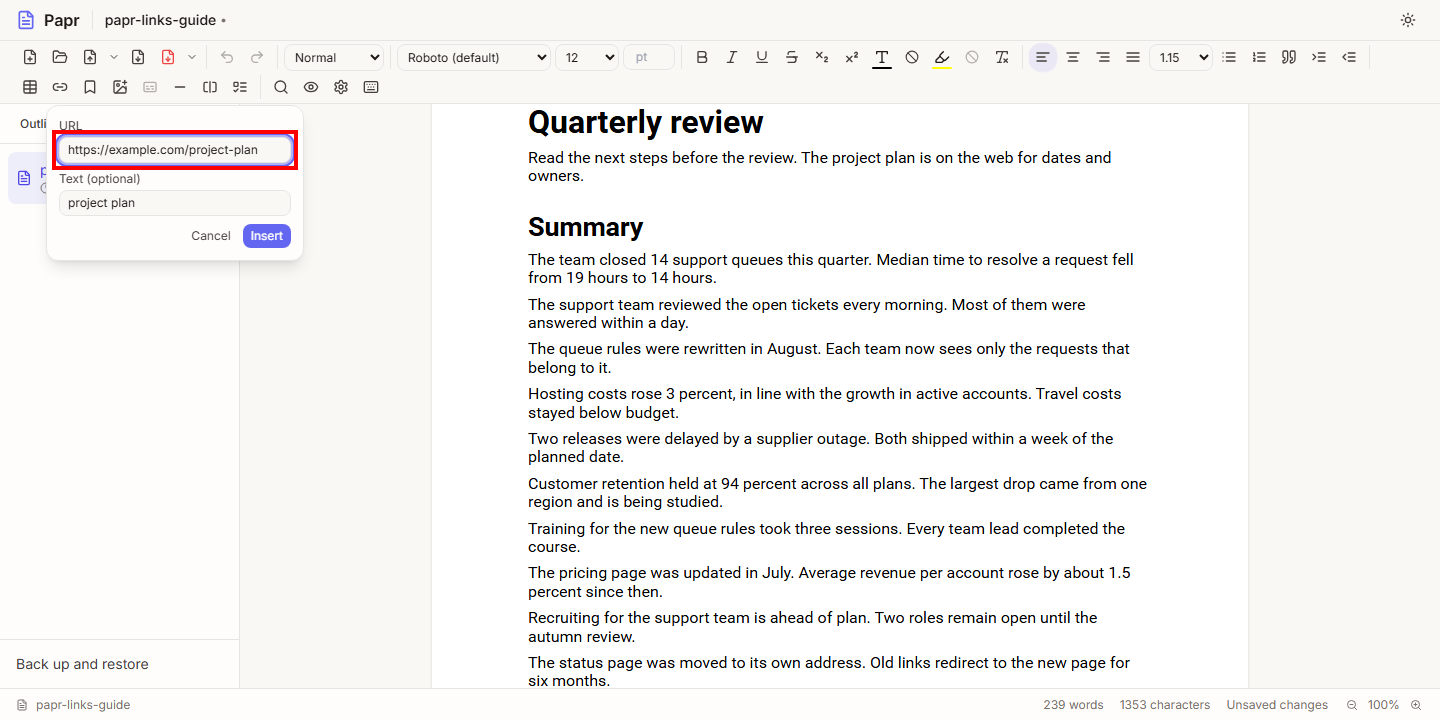
1.Select the text and enter the address
Select the words to turn into a link, such as project plan. Choose the Insert Link button in the toolbar, or press Ctrl+K. The popover fills the Text (optional) field with the selected words. Type the address in the URL field. The field starts with https://, so you only add the rest. Choose Insert.
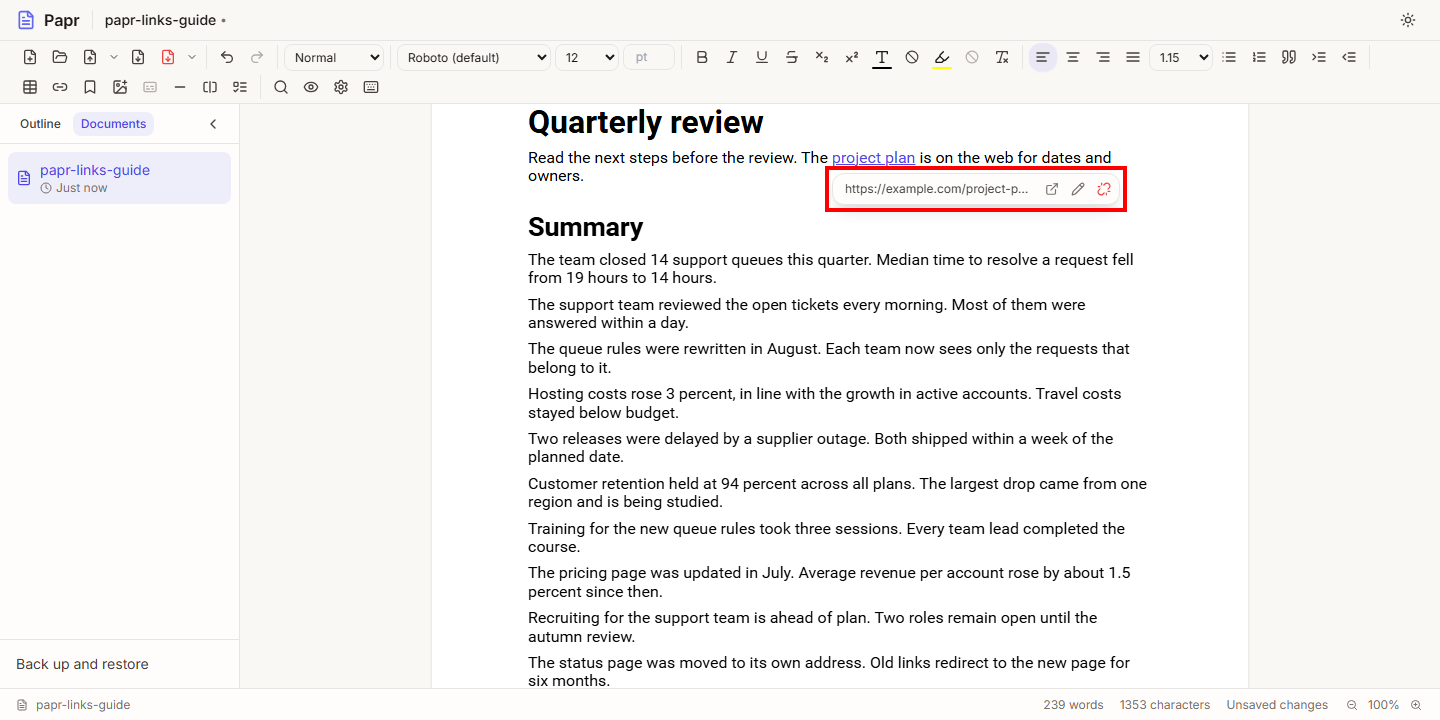
2.Open, edit or remove the link
Click in a link to show the bar under it. The bar shows the address and three buttons. Open link opens the address in a new window. Edit link opens the popover with the address filled in. Remove link takes the link off and keeps the words as plain text.
Add a bookmark
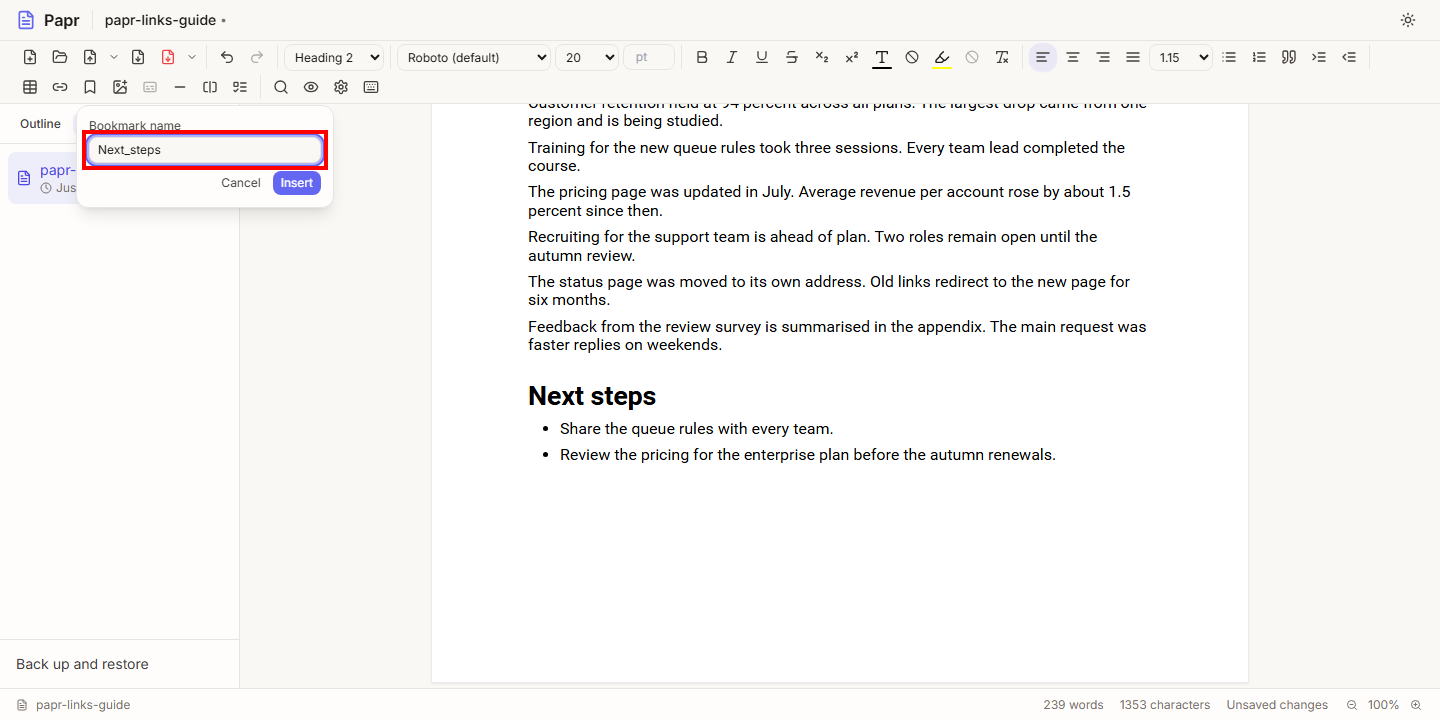
3.Name the bookmark
Put the cursor where the bookmark should go, such as the start of a heading. Choose the Insert bookmark button in the toolbar. Type a name in the Bookmark name field, and choose Insert. A space becomes an underscore as you type, so Next steps becomes Next_steps.
A name uses the letters A to Z, digits and underscores. It starts with a letter or an underscore, and it has at most 40 characters. A name that another bookmark in the document already uses, ignoring capitals, is refused. The reason appears under the field, and Insert stays off until the name can be used.
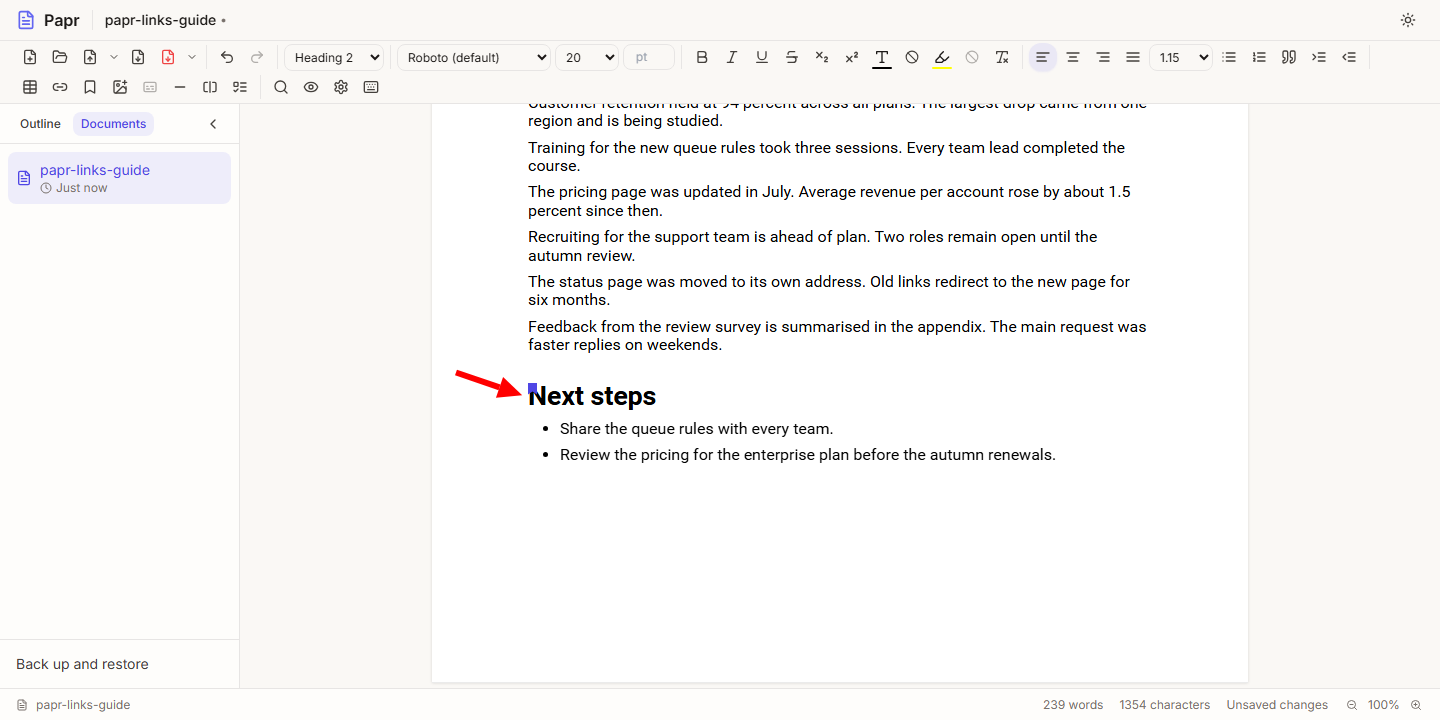
4.Find the bookmark flag
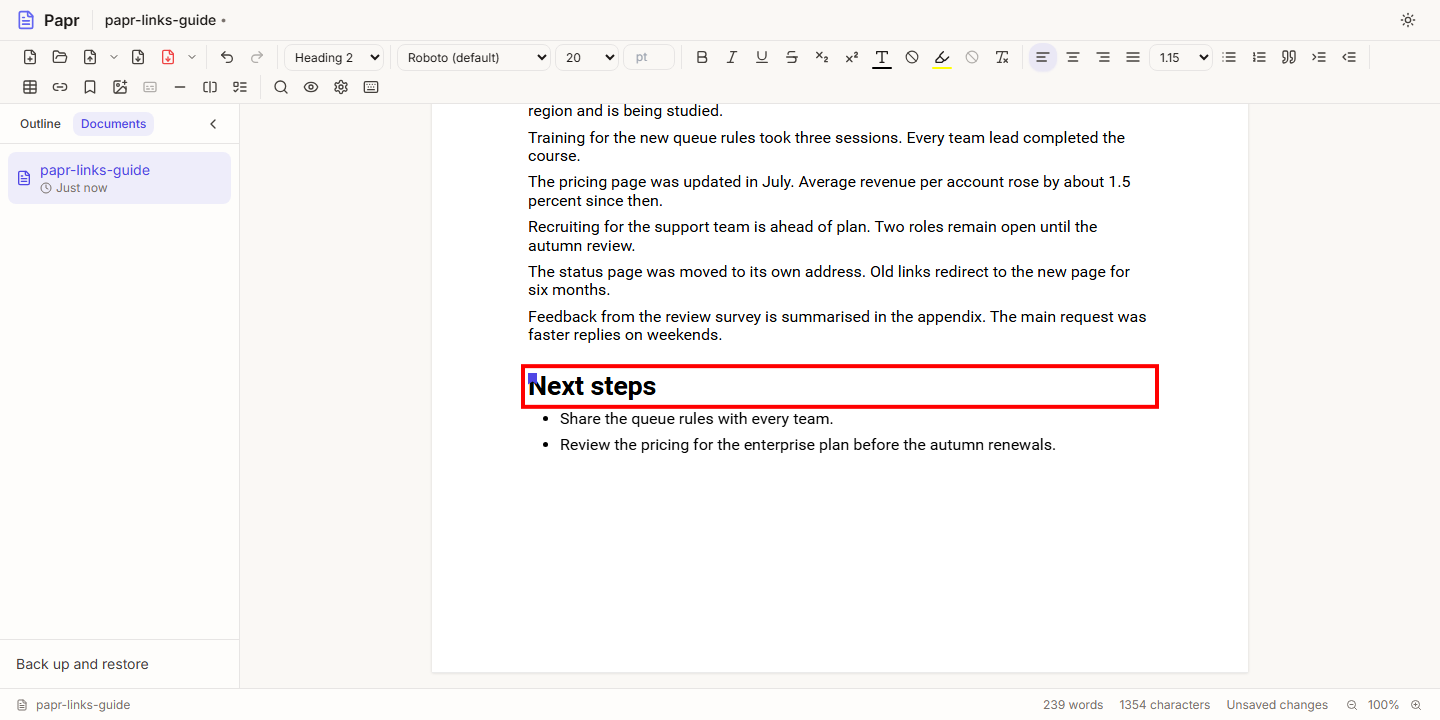
A bookmark has no text and takes no space. The editor shows a small flag where it is, at the start of the Next steps heading in this example. Point at the flag to see the bookmark name. The flag is only an editing aid, and it does not print.
Link to a bookmark
5.Choose the bookmark
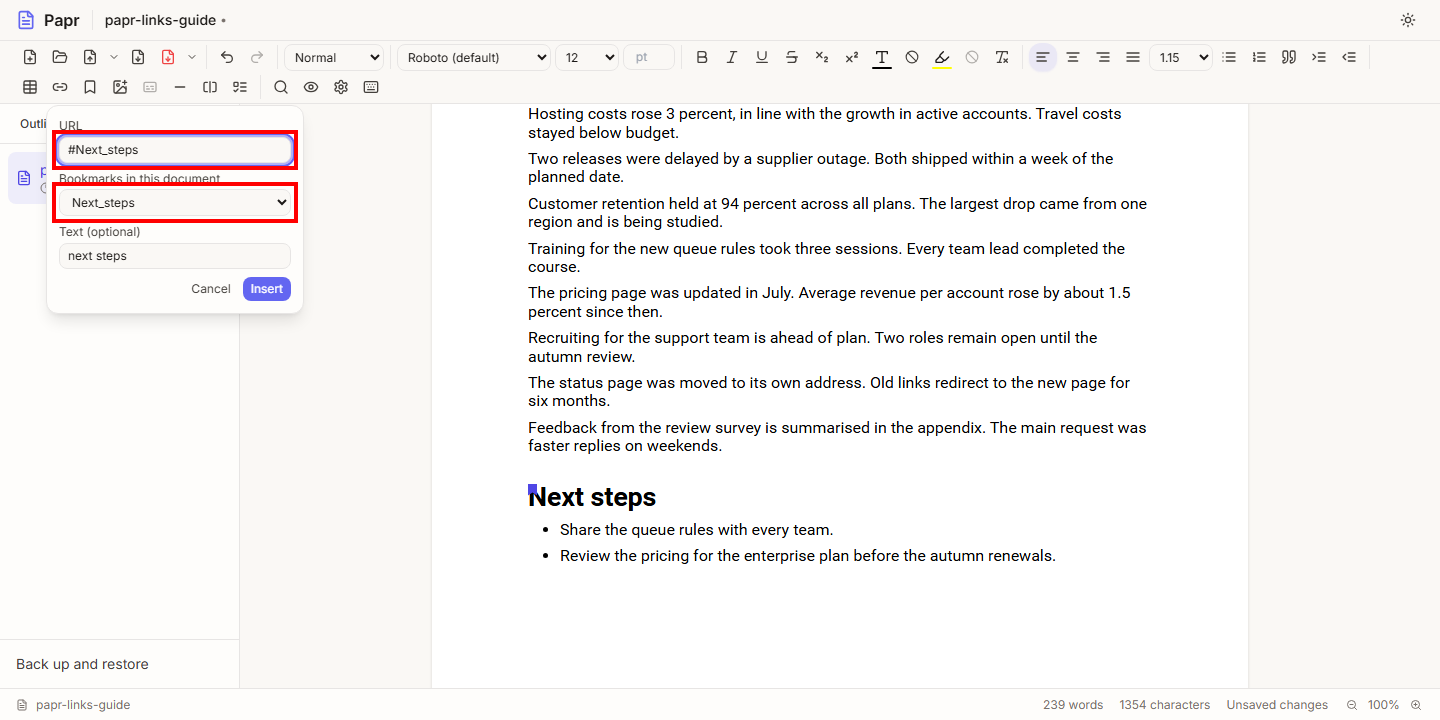
Select the words to link, such as next steps, and choose the Insert Link button. Open the Bookmarks in this document list and choose Next_steps. The URL field fills with #Next_steps, and the list keeps Next_steps visible as the chosen bookmark. Choose Insert.
You can also type # and the bookmark name in the URL field. Papr refuses a name that is not a bookmark of the document.
6.Ctrl+click to follow the link
Hold Ctrl, or Cmd on a Mac, and click the link. The editor scrolls to the bookmark and puts the cursor there. A plain click only places the cursor in the link. The Open link button in the link bar also goes to a bookmark.
What the exports keep
- Word (.docx). A bookmark becomes a Word bookmark, and a link to it stays a link that jumps to the bookmark in Word. Web links stay links.
- PDF. A web link opens its address. A link to a bookmark jumps to the place of the bookmark in the PDF.
- Markdown (.md). The words and the web links stay. Bookmarks are left out, and a link to a bookmark keeps its words as plain text. The export lists what it left out.
Try it on your own file
Papr Docs runs in your browser. Your documents are saved in this browser and never uploaded.
Open Papr Docs