Getting started with Papr Sheets
Papr Sheets is a spreadsheet that runs in your browser tab. This guide covers the basics: typing into cells, using the formula bar, working with several sheets in one workbook, and where your saved workbooks are.
Step by step
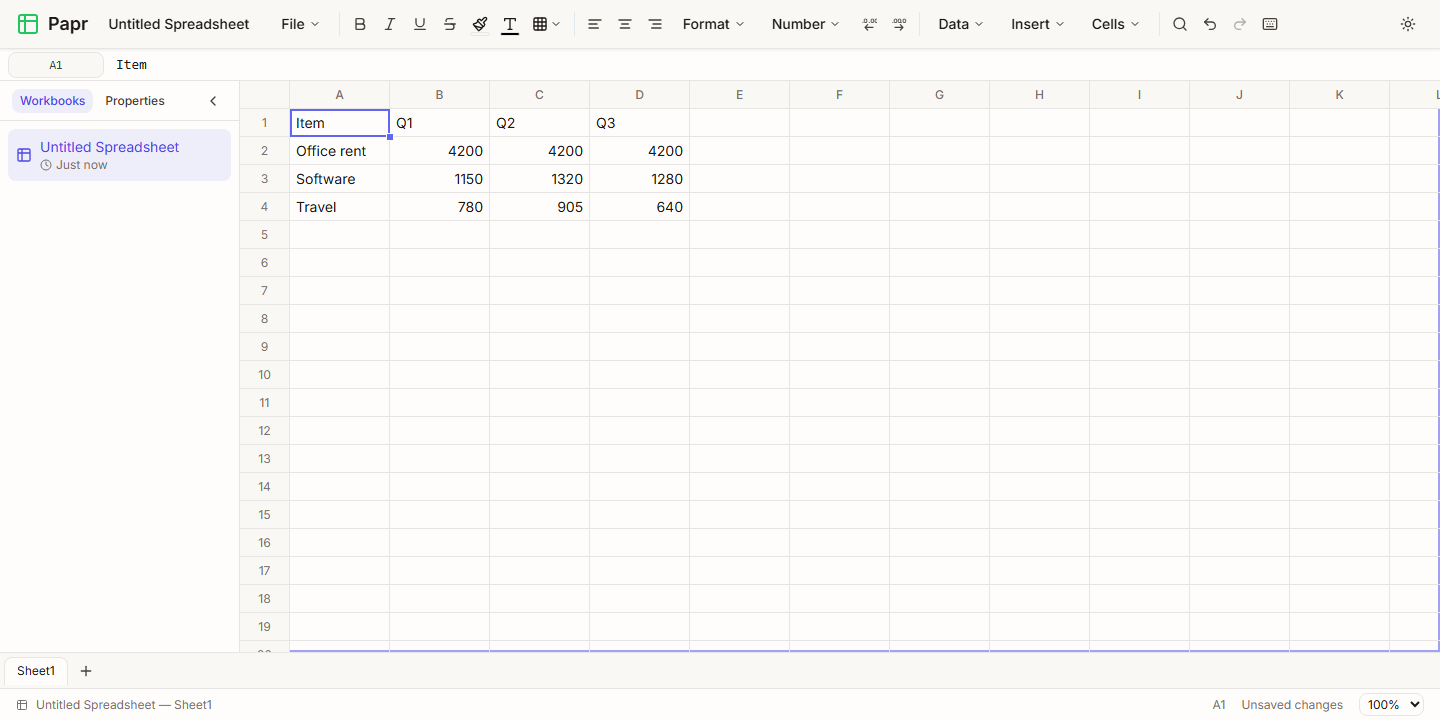
1.Type into cells
Click a cell and type. Press Enter to save the value and move down, or Tab to save it and move right. Press Escape to cancel. Numbers stay numbers, so they can be added up later. Text in the first row is usually the column headings.
2.Read a cell in the formula bar
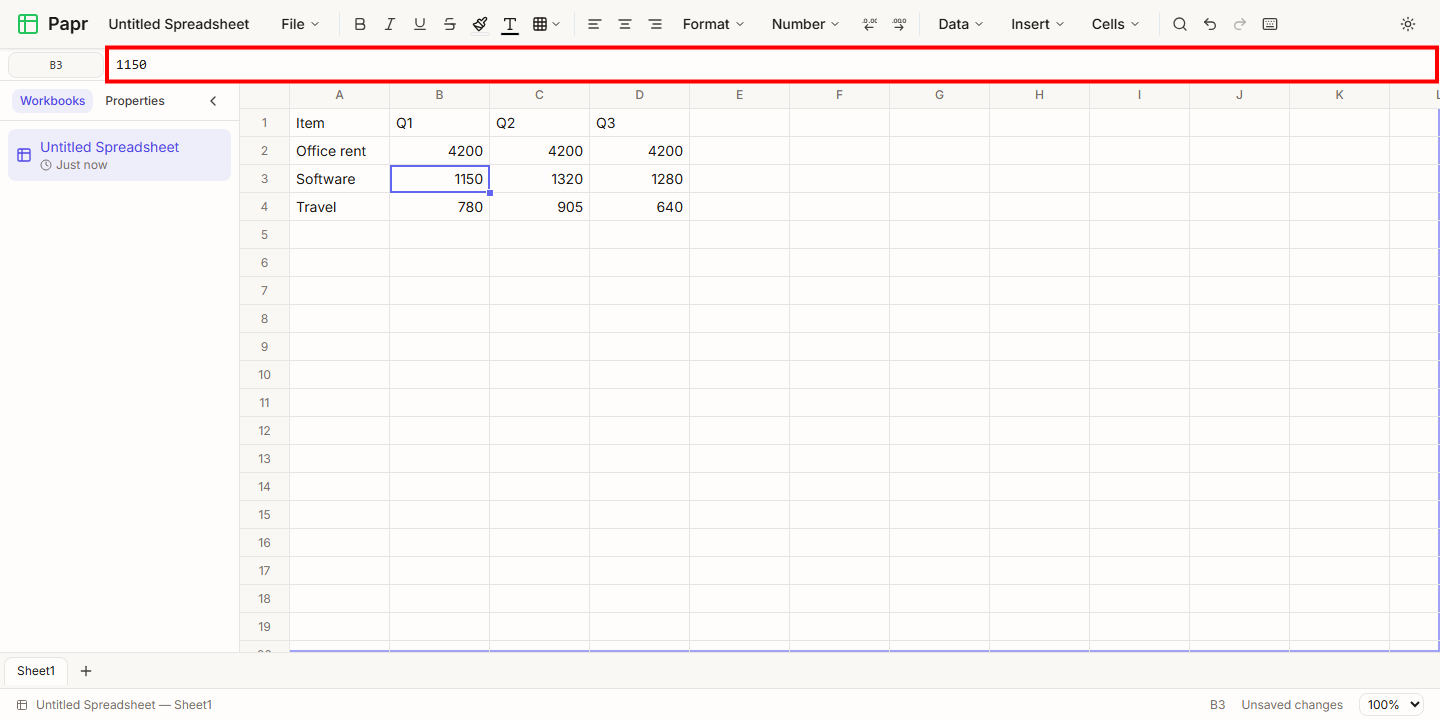
Select a cell, and the formula bar above the grid shows what the cell holds. The box at its left, the name box, shows the address of the selected cell, such as B3. Type an address in the name box and press Enter to jump to that cell.
3.Add a sheet
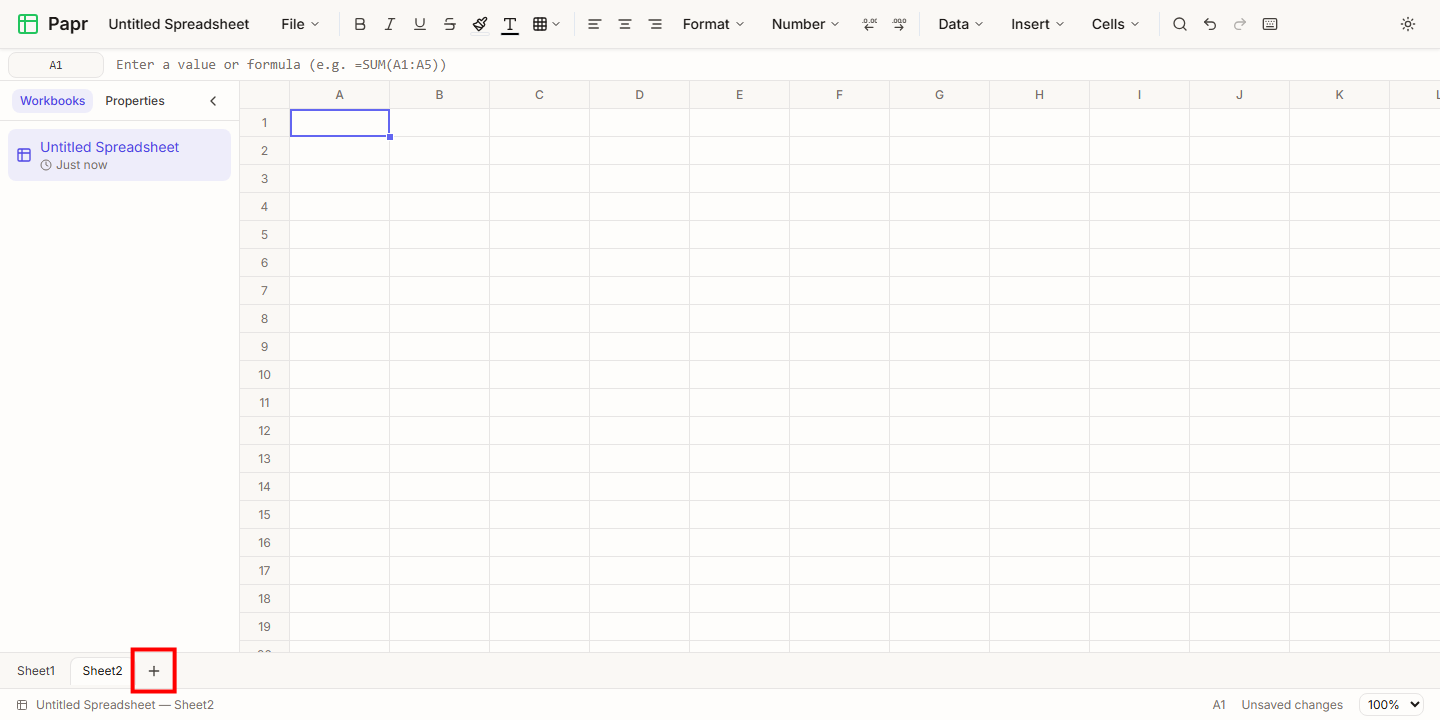
A workbook can hold several sheets. Click Add sheet, the plus sign beside the sheet tabs at the bottom. The new sheet opens with an empty grid.
4.Rename a sheet
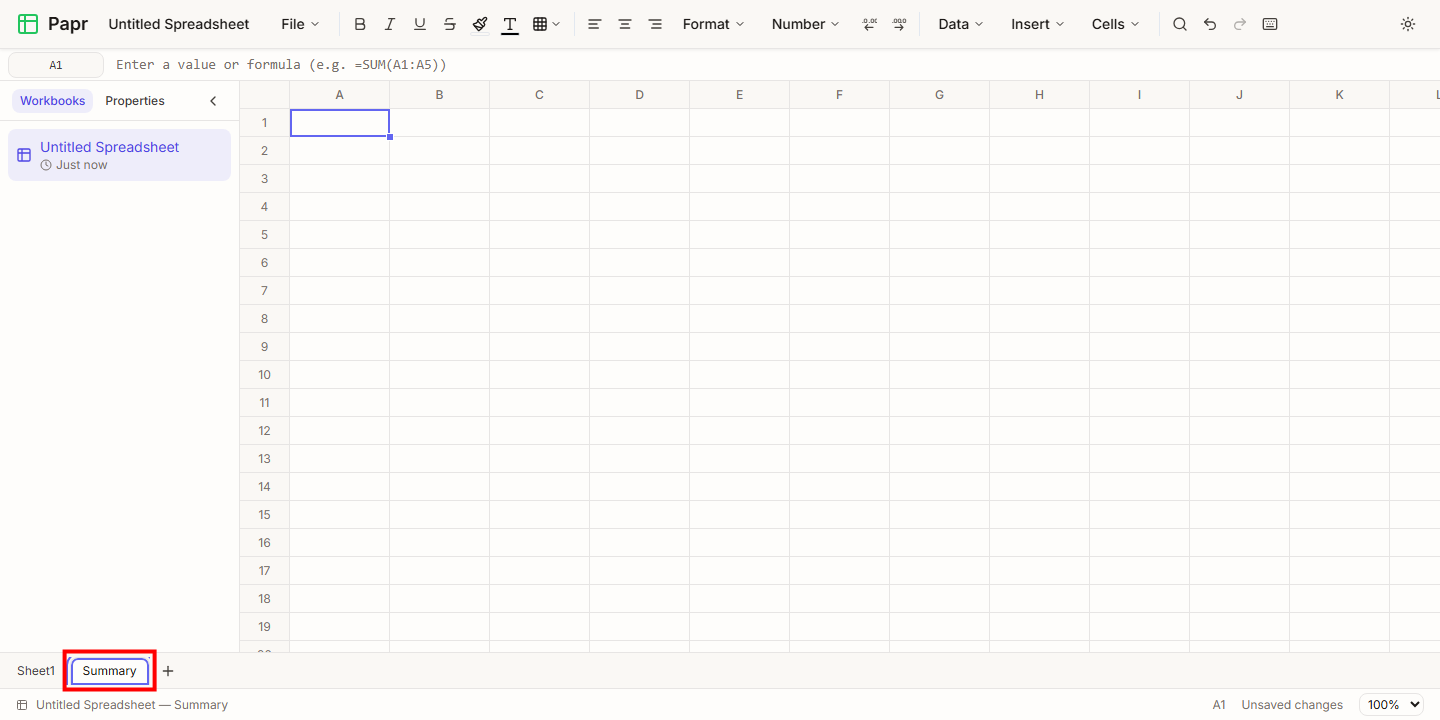
Double-click a sheet tab, type a name and press Enter. You can also right-click a tab and choose Rename. A name can be up to 31 characters long and cannot contain the characters : \ / ? * [ ].
5.Find your workbooks
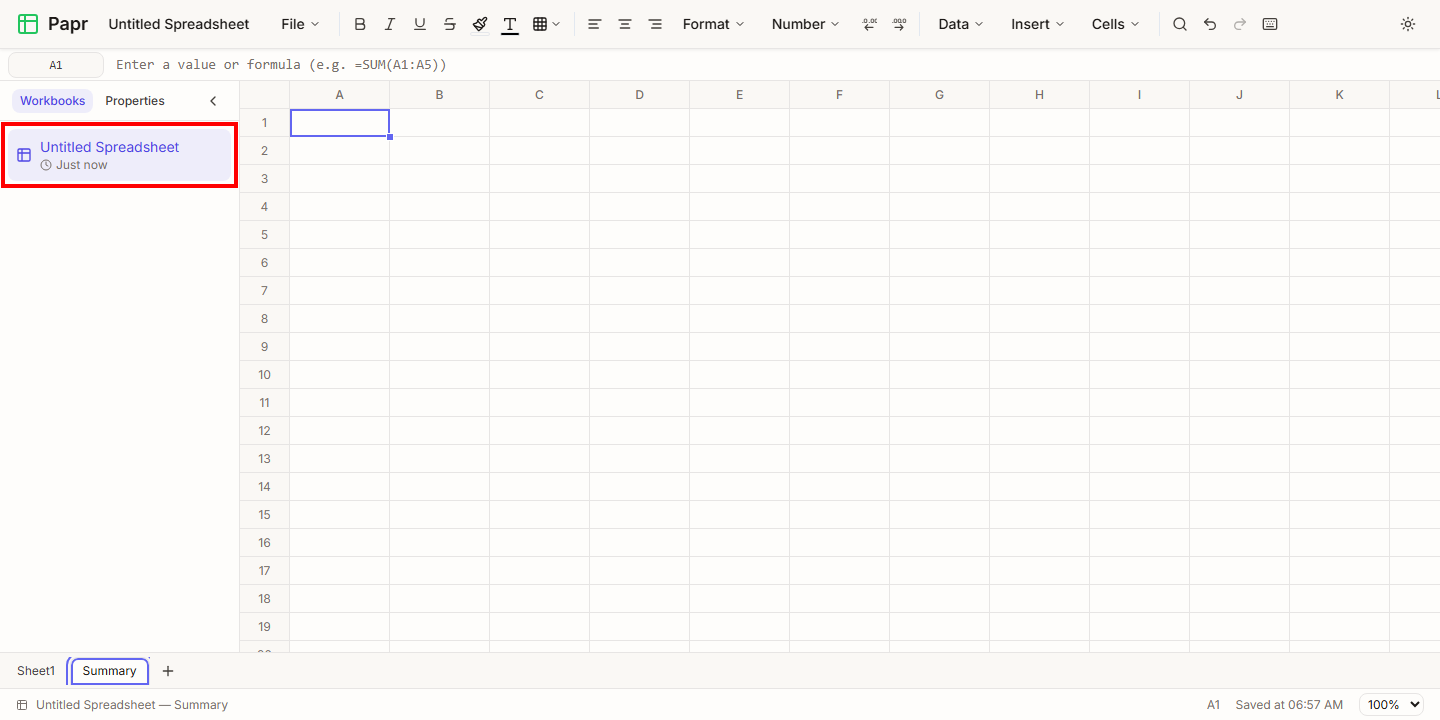
The sidebar on the left lists the workbooks saved in this browser, with the time each one was last changed. Click a workbook to open it. Click the Workbooks tab if the list is not showing. The title of the open workbook is at the top, and you can click it to rename the workbook.
6.Check that it is saved
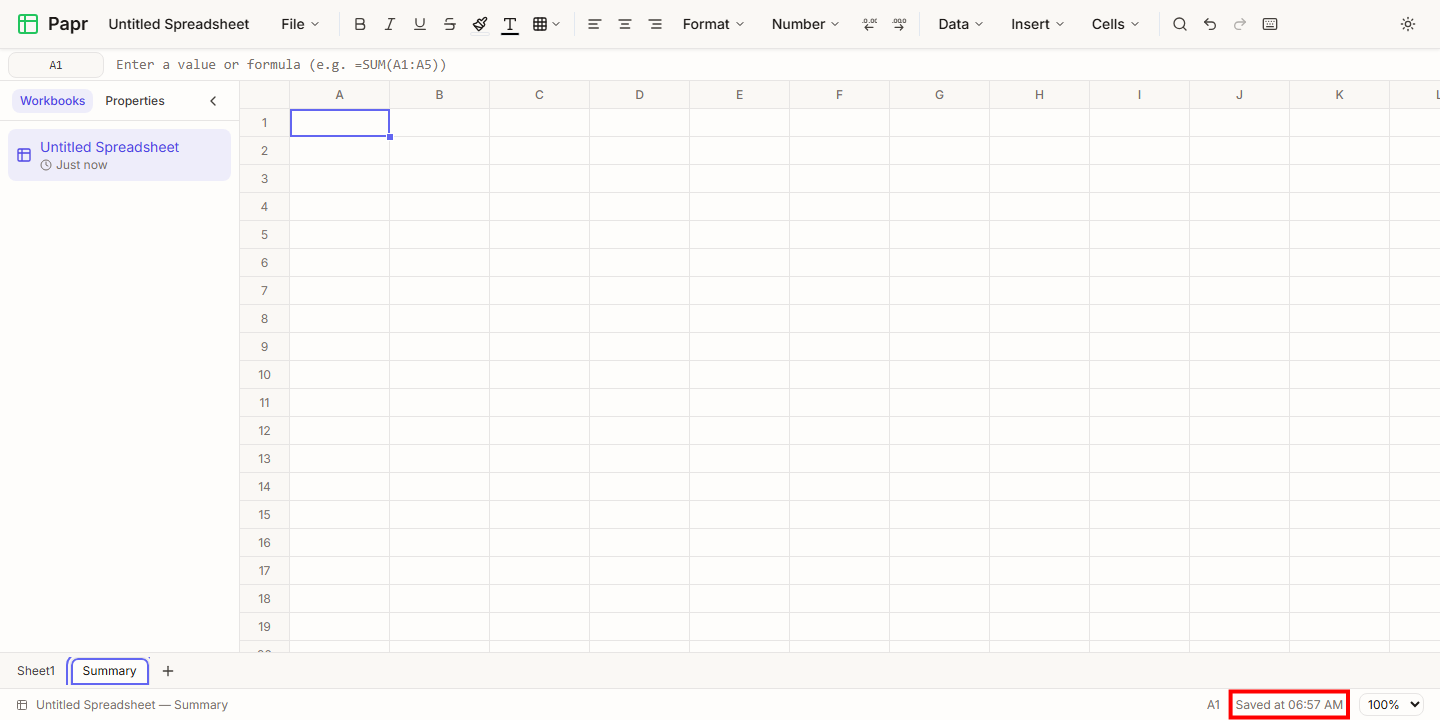
Papr saves a workbook about five seconds after your last change. The status bar at the bottom shows Saved at and the time. While a change waits to be saved, it shows Unsaved changes. Press Ctrl+S to save straight away.
Good to know
- Ctrl+Z undoes your last change, and Ctrl+Shift+Z redoes it. On a Mac, use ⌘ in place of Ctrl.
- The grid grows as you move past its last row or column, so you do not need to plan its size.
- Ctrl+/ lists the keyboard shortcuts of the sheet editor.
Try it on your own file
Papr Sheets runs in your browser. Your workbooks are saved in this browser and never uploaded.
Open Papr Sheets