How to use formulas in Papr Sheets
A formula calculates a value from other cells, and it updates when they change. This guide shows how to start a formula, point at cells instead of typing their addresses, copy a formula down a column, and read an error.
Step by step
1.Start with an equals sign
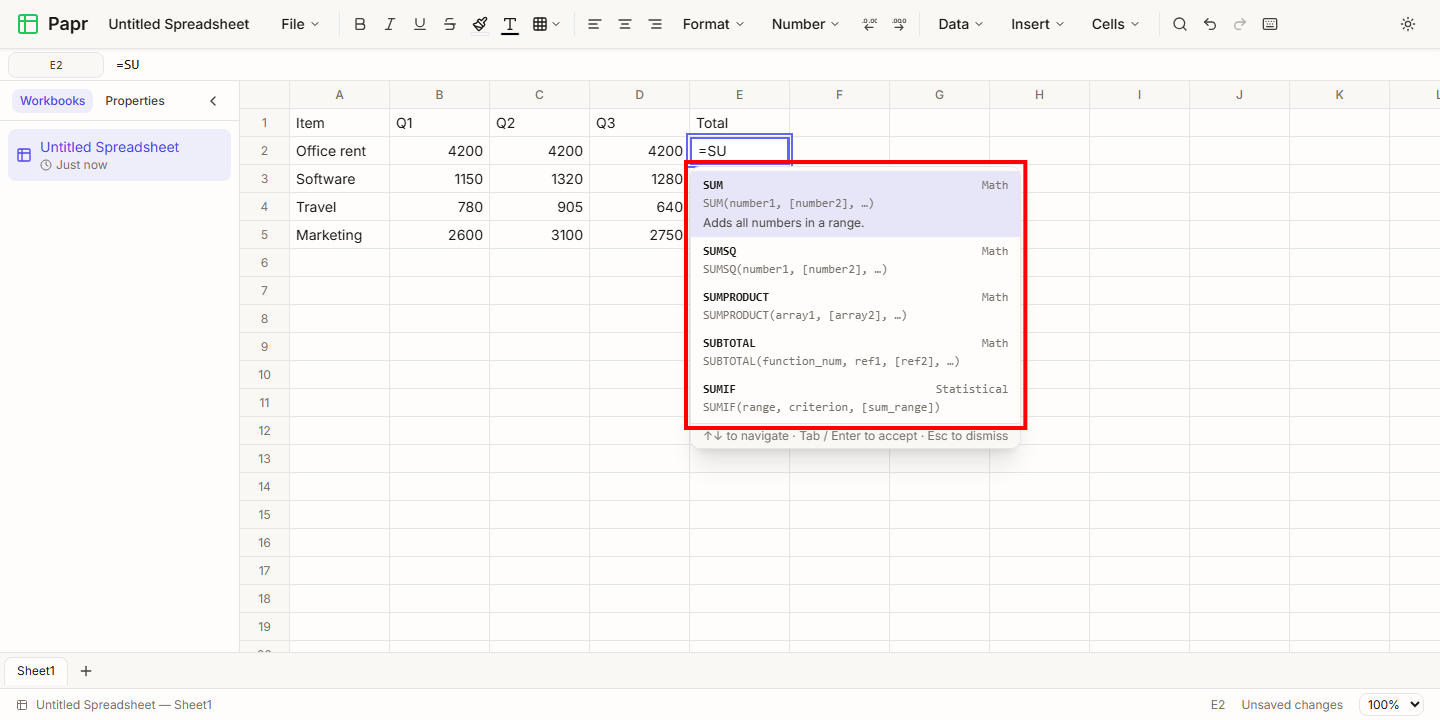
Every formula starts with =. Click the cell where the result should go, type =SU, and a list of matching functions opens. Use the arrow keys to choose one, then press Tab or Enter to add it to the formula. Esc closes the list.
2.Point at the cells
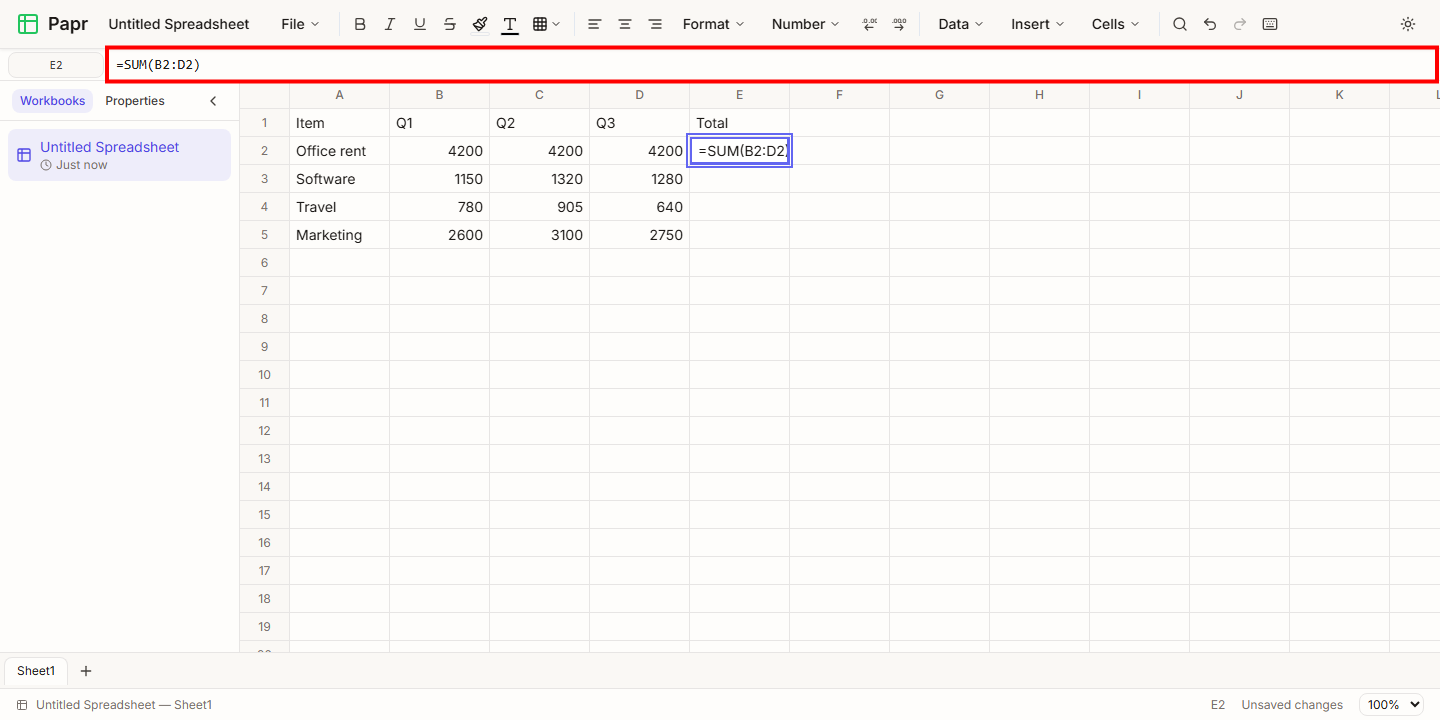
Instead of typing addresses, finish the formula with the mouse. Type =SUM(, click the first cell, and drag to the last one. Papr writes the range, here B2:D2, into the formula. Type ) and press Enter. The formula bar shows the whole formula while you type.
3.Find the fill handle
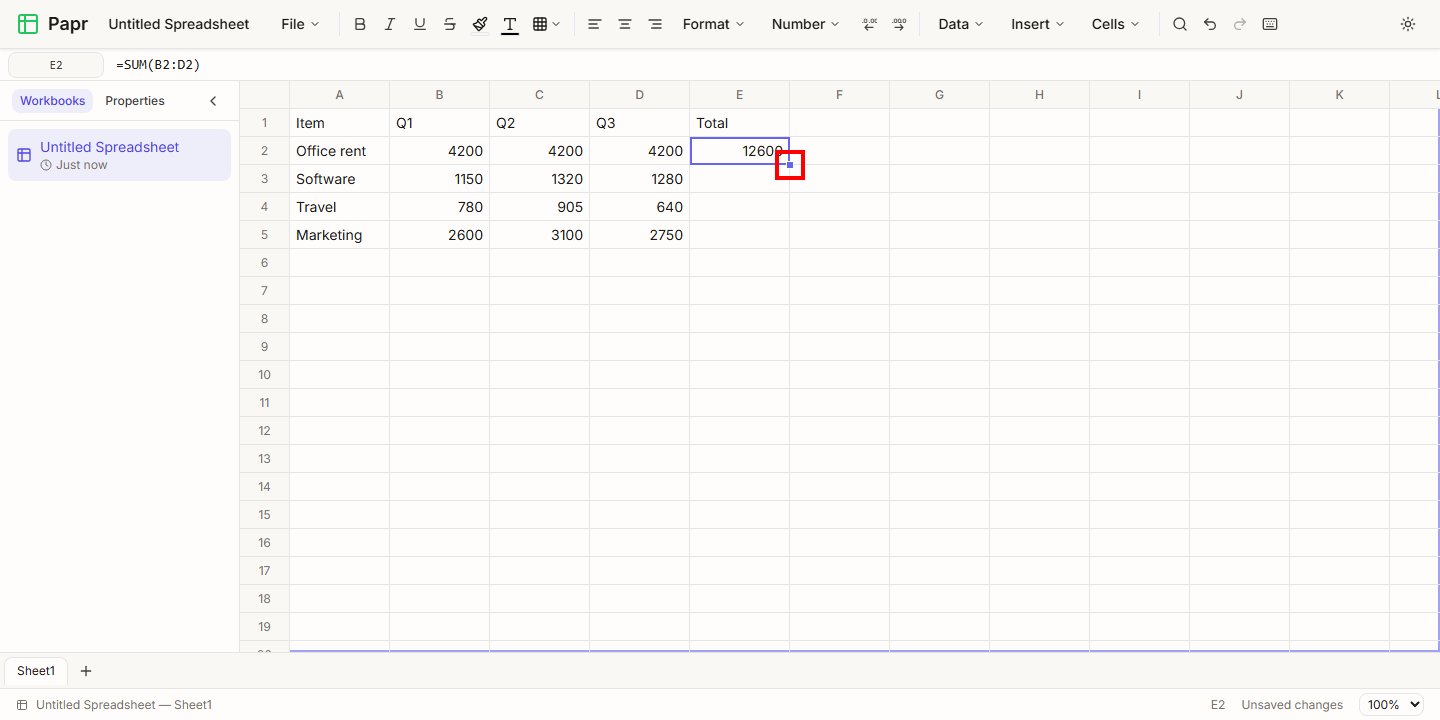
Select the cell with the formula. A small square sits at its bottom right corner. That square is the fill handle.
4.Copy the formula down a column
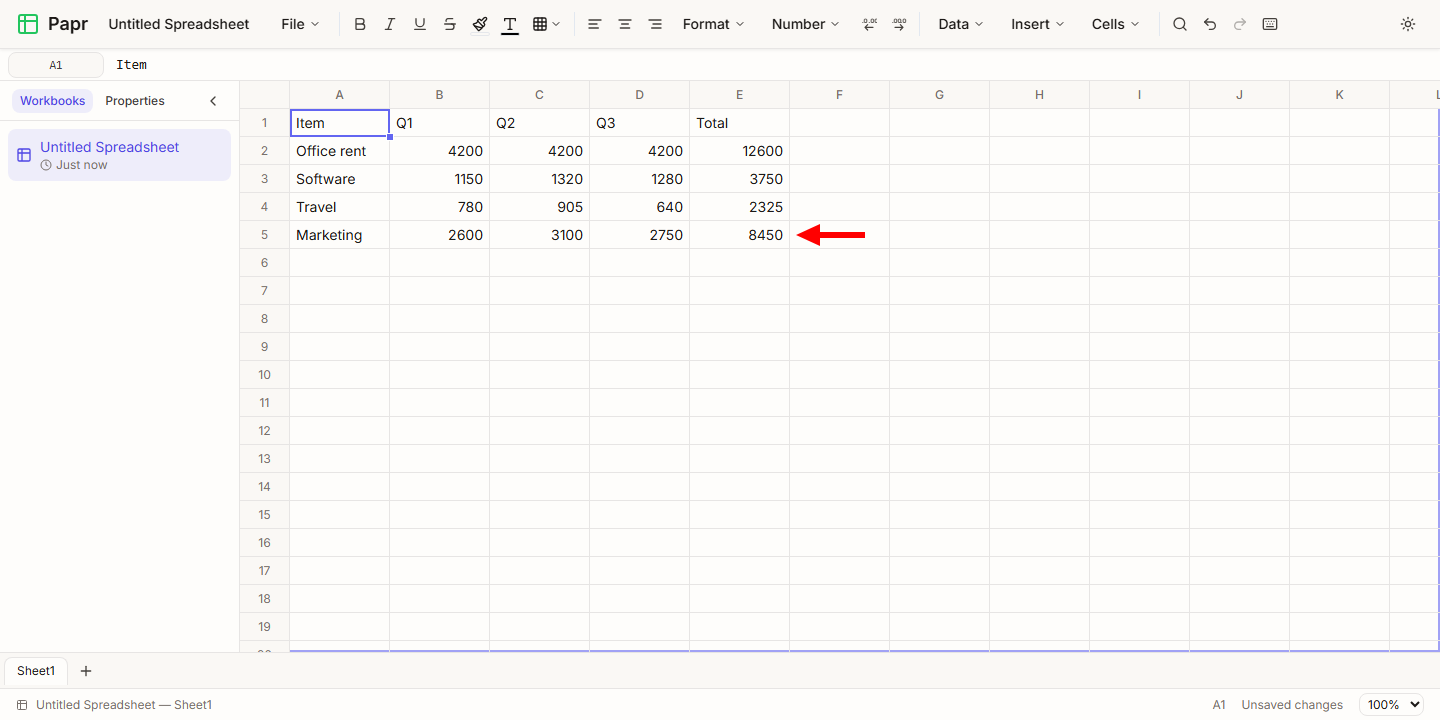
Drag the fill handle down over the cells that need the same formula. Papr copies the formula into each one and moves the references with it: the formula in row 3 adds up row 3, the formula in row 4 adds up row 4, and so on.
5.Use a cell from another sheet
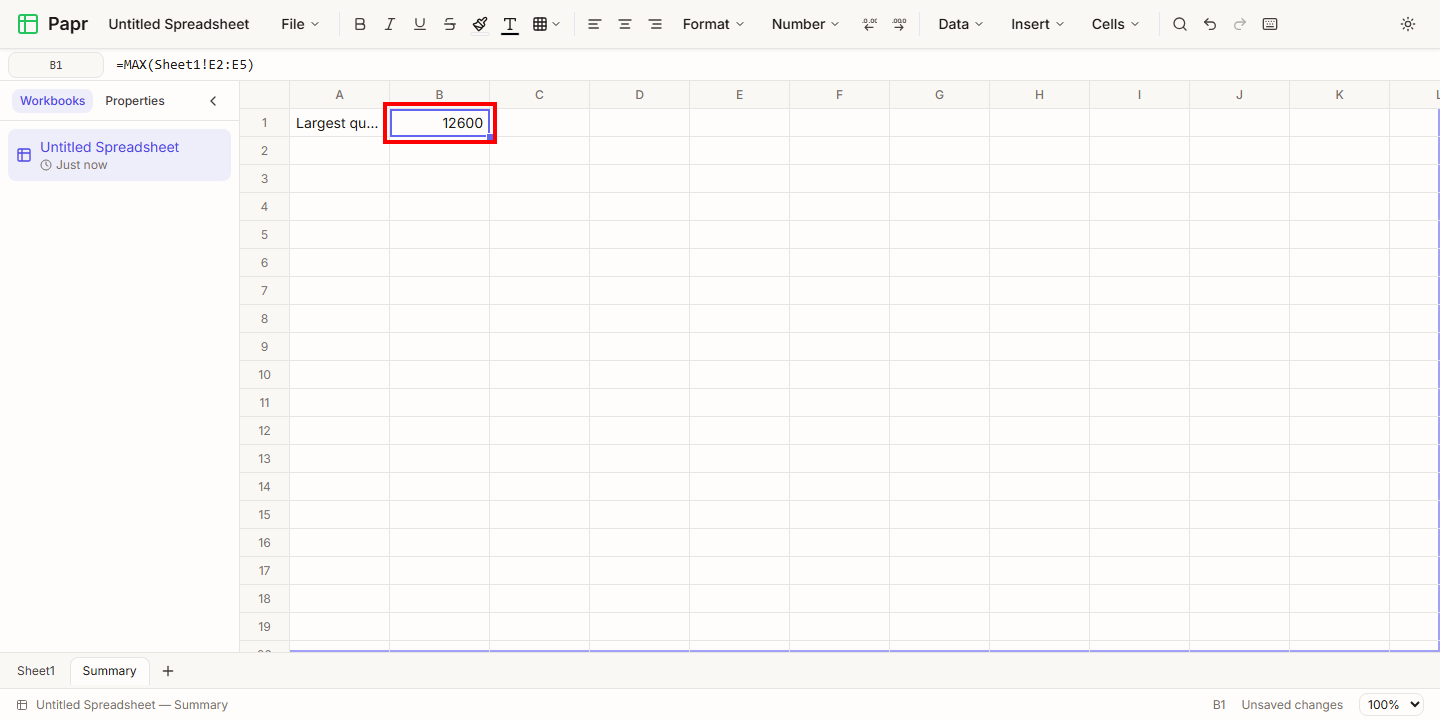
To use a cell from another sheet, write the sheet’s name, an exclamation mark and the address, as in =MAX(Sheet1!E2:E5). A sheet name with spaces goes in apostrophes, as in ‘Q3 totals’!B2. If you rename a sheet, Papr updates the formulas that use it.
6.Read an error
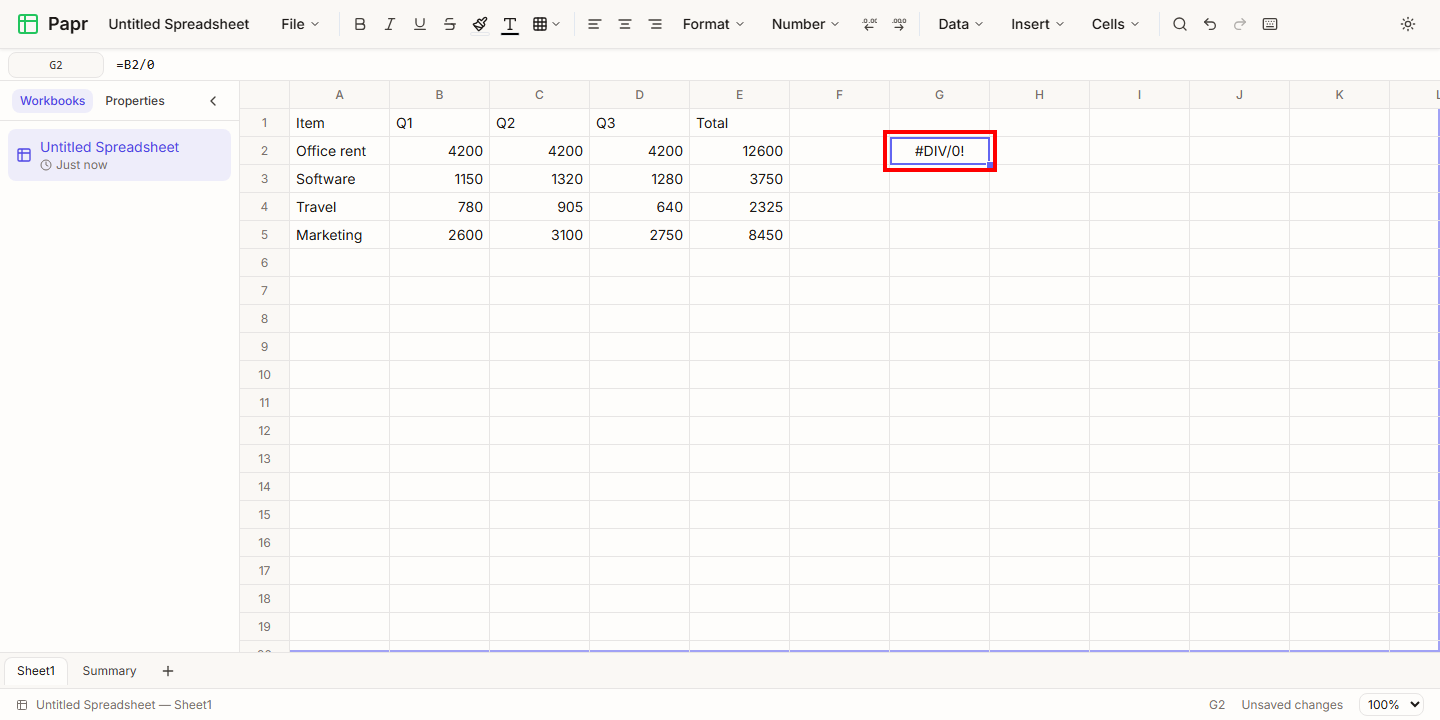
When a formula cannot give a value, the cell shows an error code instead of a number. Here, dividing by the zero in B2/0 gives #DIV/0!. Hover over the cell to read a short explanation of the error.
Functions you can use
Papr has a large set of functions. Start typing a name, and the list shows the ones that match. Common ones include:
- SUM, AVERAGE, MIN, MAX and COUNT for totals and counts.
- SUMIF, COUNTIF and SUMIFS for totals and counts with a condition.
- IF, IFERROR and ROUND for decisions and rounding.
- VLOOKUP, XLOOKUP, INDEX and MATCH to find a value in a table.
- TODAY for the current date.
Try it on your own file
Papr Sheets runs in your browser. Your workbooks stay on your device.
Open Papr Sheets