Number formats, currencies and dates
A number format decides how a value looks: with a dollar sign, a percent sign, two decimal places or as a date. The value stays the same, so formulas still work. This guide shows the formats and how to apply them.
Step by step
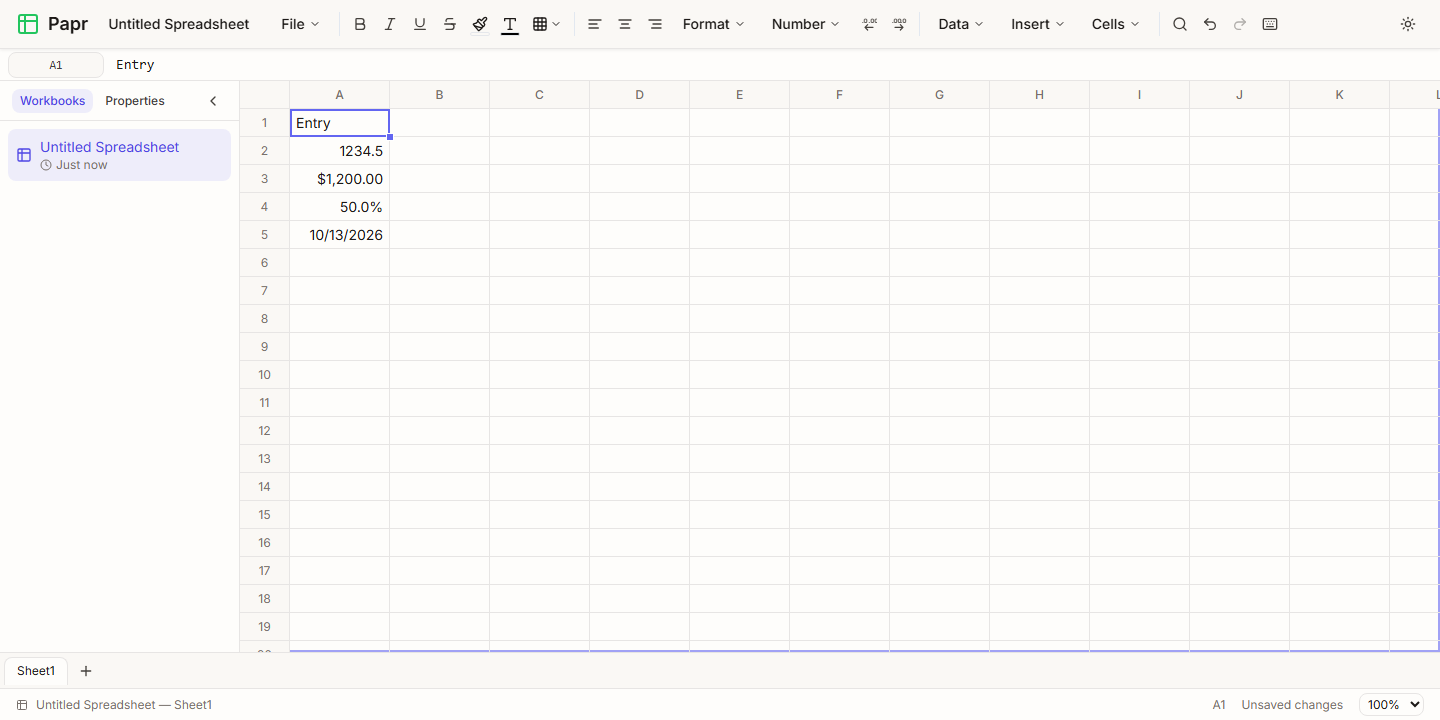
1.Type numbers, currencies, percentages and dates
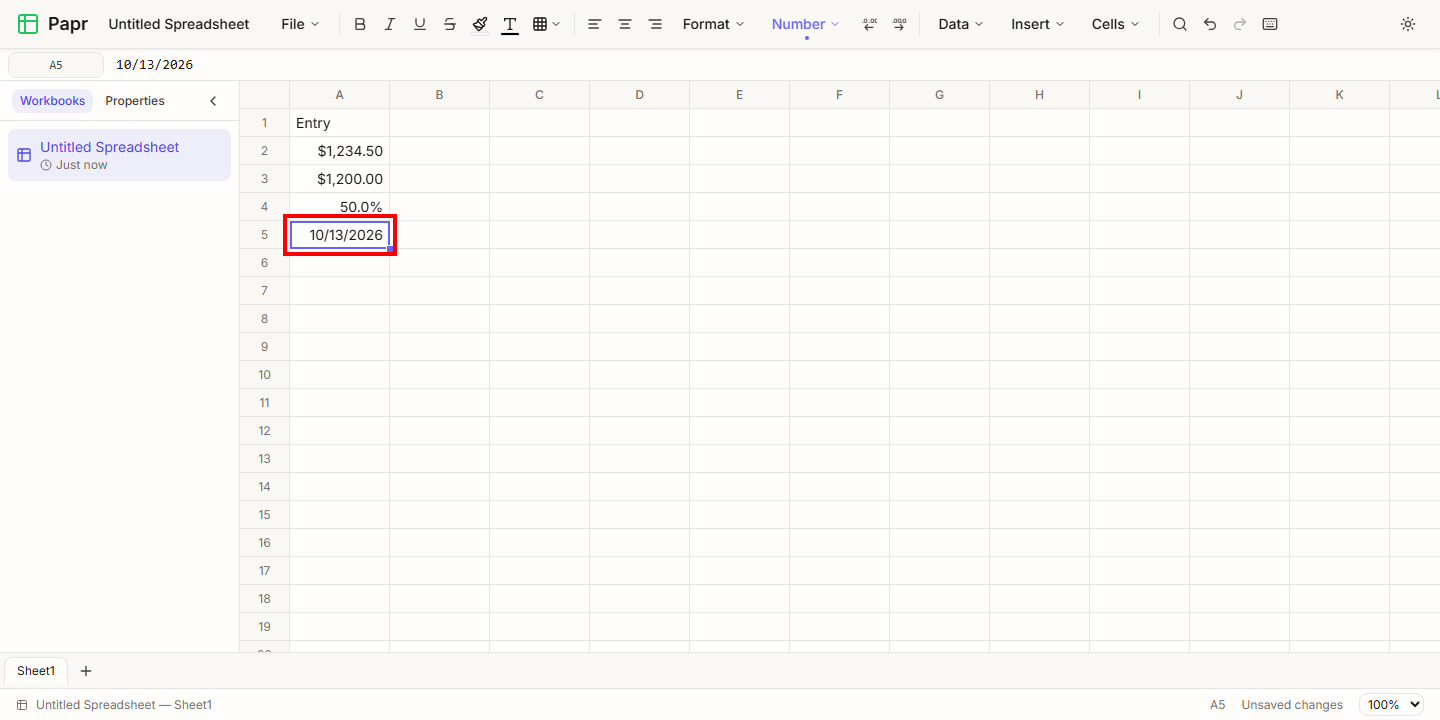
Papr reads what you type. 1234.5 is a number. $1,200 is an amount in dollars, and the cell gets a currency format. 50% is a percentage, stored as 0.5. A date such as 2026-10-13 is stored as a date and shows in your browser’s short date style, here 10/13/2026. Anything else, such as 5garbage, stays as text.
2.Open the Number menu
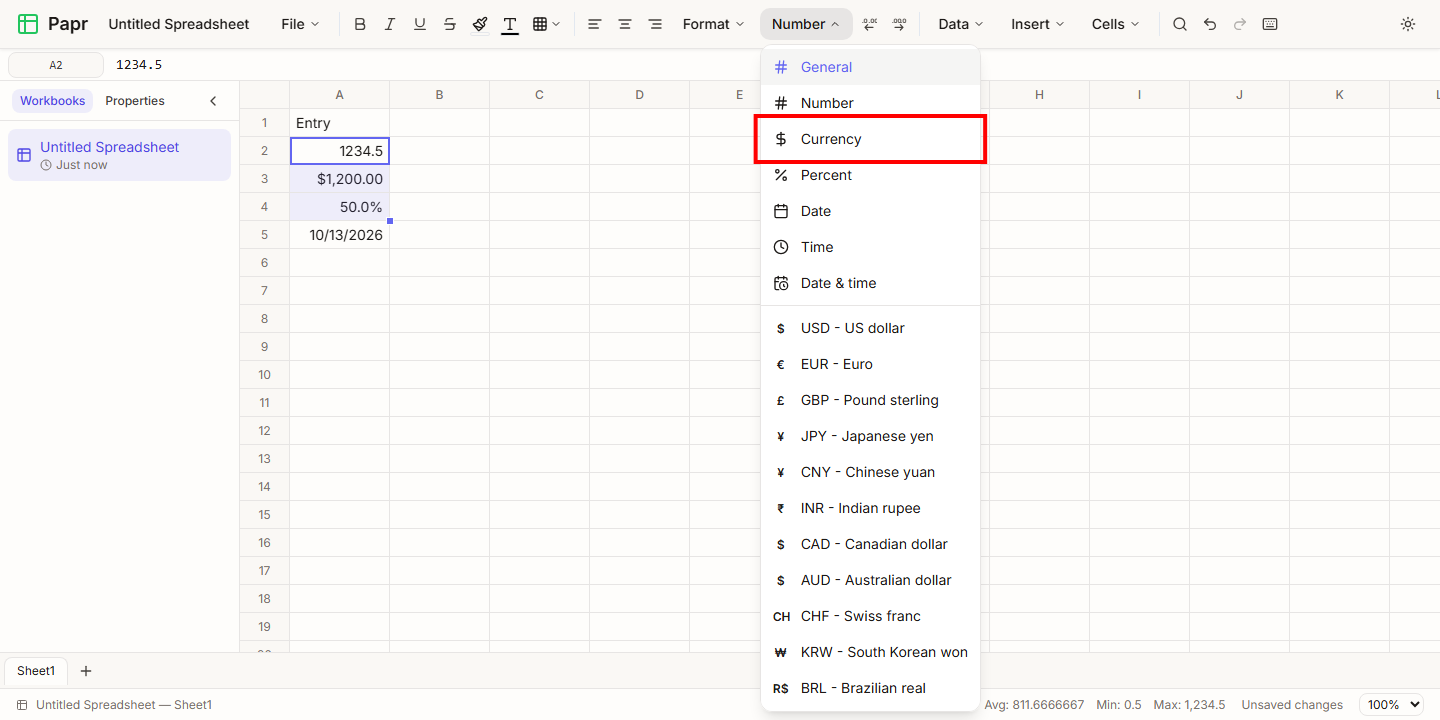
Select the cells, then open the Number menu. It lists General, Number, Currency, Percent, Date, Time and Date & time. Below them, the menu lists currencies such as USD - US dollar and EUR - Euro.
3.Change the decimal places
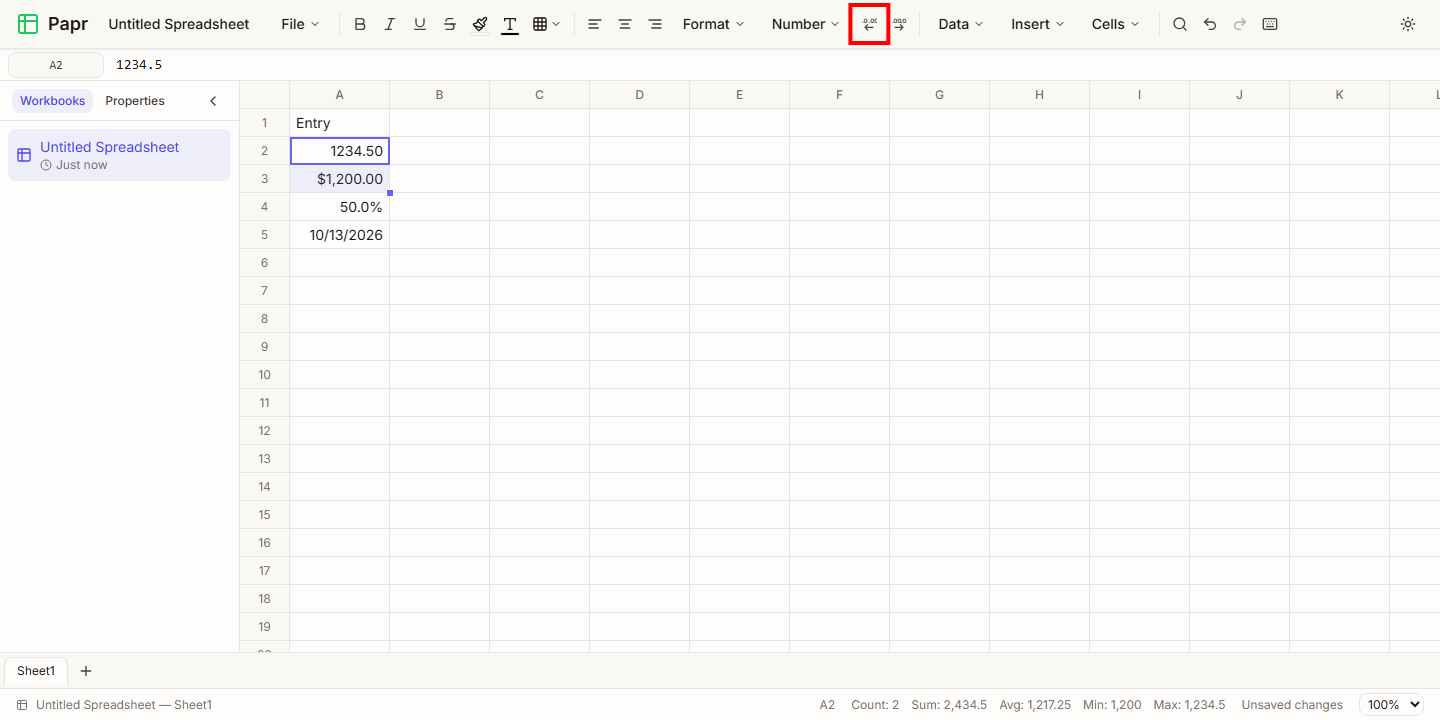
Select the numbers, then click Increase Decimal to show one more digit after the point, or Decrease Decimal to show one fewer. The buttons count from the digits the cells show now. Each click is one step you can undo.
4.Apply a currency
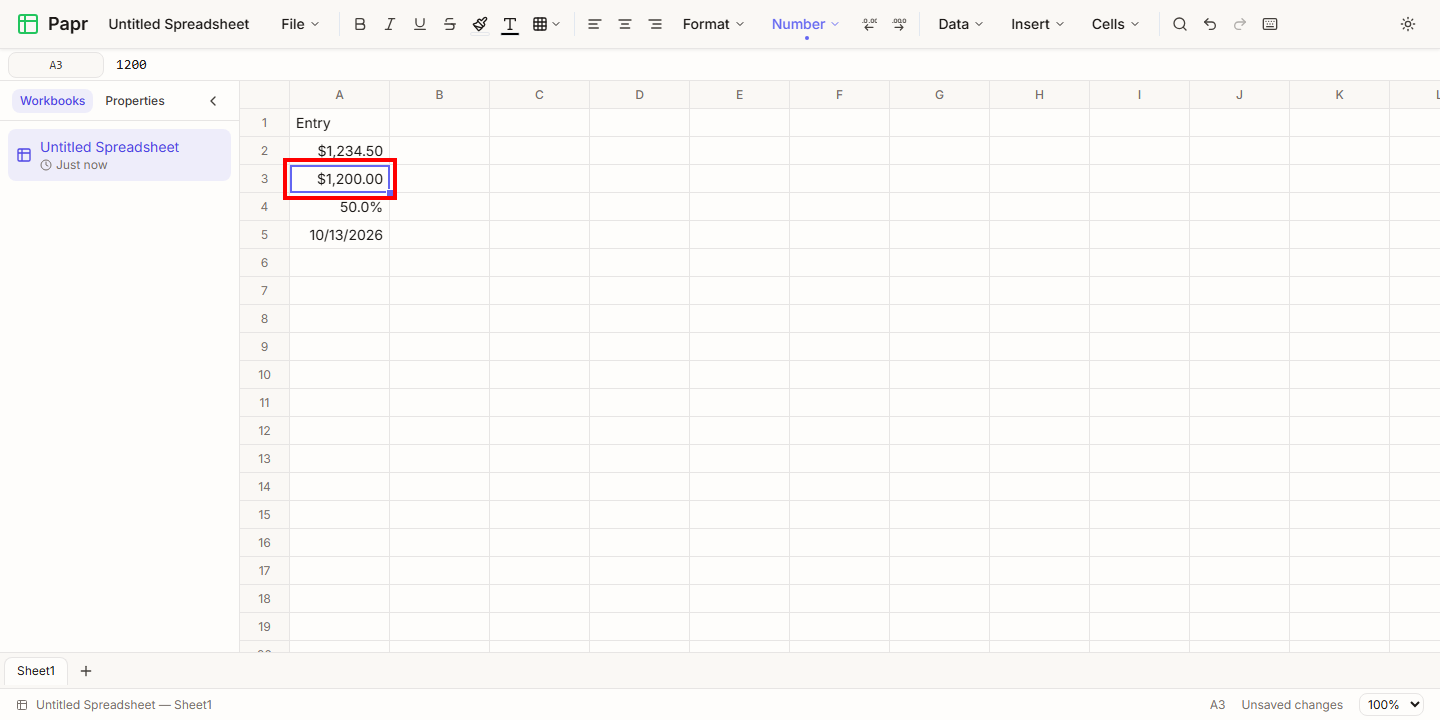
Select the amounts, open the Number menu and choose a currency. The amounts show the currency’s sign, with the usual number of decimal places for it, two for dollars. Choosing a format sets the decimal places back to the format’s own, so change the decimal places after you choose the currency.
5.Read dates
A date is stored as the number of days since a fixed starting day, so it can be subtracted from another date. The cell shows it in your browser’s short date style, and the formula bar shows the same text. The TODAY() function gives the current date in your own time zone.
Good to know
- The formats are kept when you export to XLSX, so Excel shows the same currency and decimal places.
- A format that Papr does not have, such as scientific notation or a fraction, is imported from an Excel file as a plain number, and the value is kept.
Try it on your own file
Papr Sheets runs in your browser. Your workbook stays on your device.
Open Papr Sheets