How to sort and filter data
Sorting puts the rows of a table in order, such as the largest revenue first. A filter hides the rows you do not need right now, and the rows come back when you clear it. Both work in your browser on your own data.
Step by step
1.Start with a table that has a header row
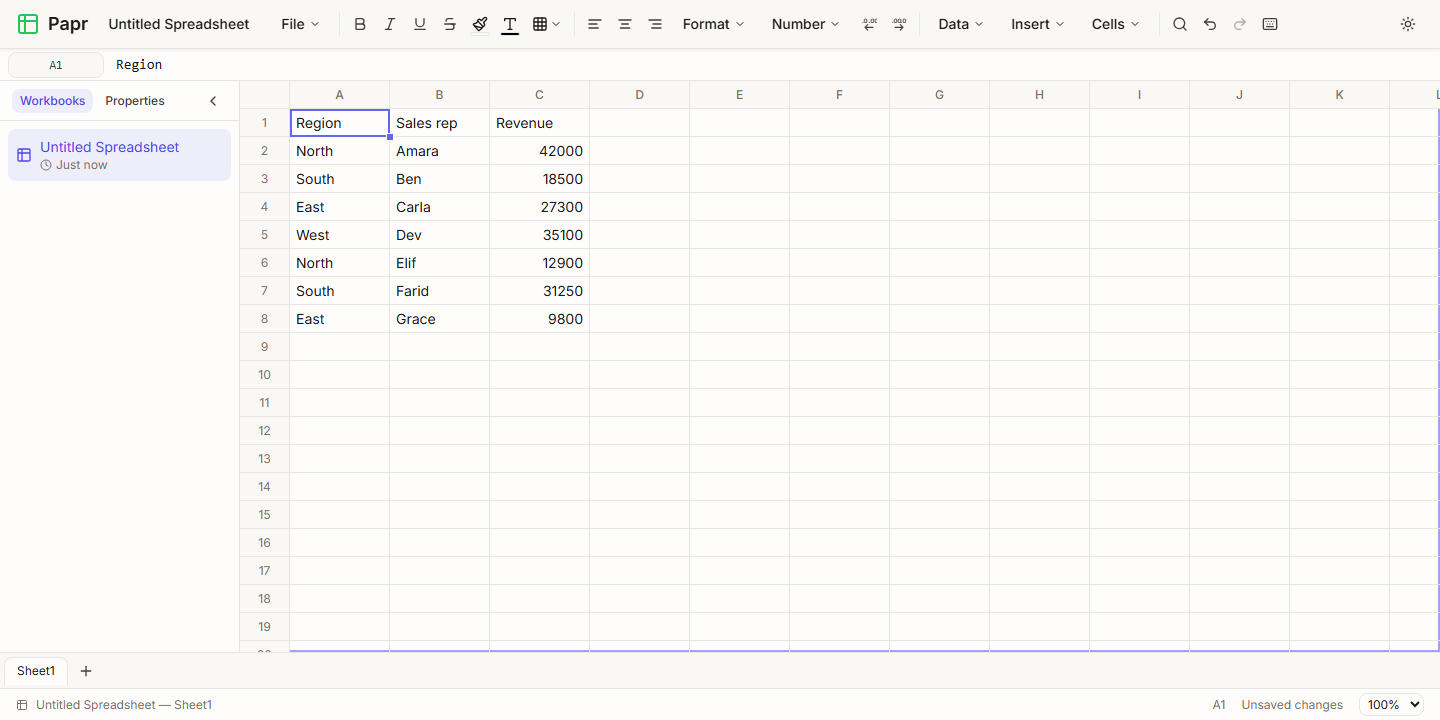
Put a heading in the first row of each column, and one record in each row below it. This example has a region, a sales representative and the revenue for each sale.
2.Select the table
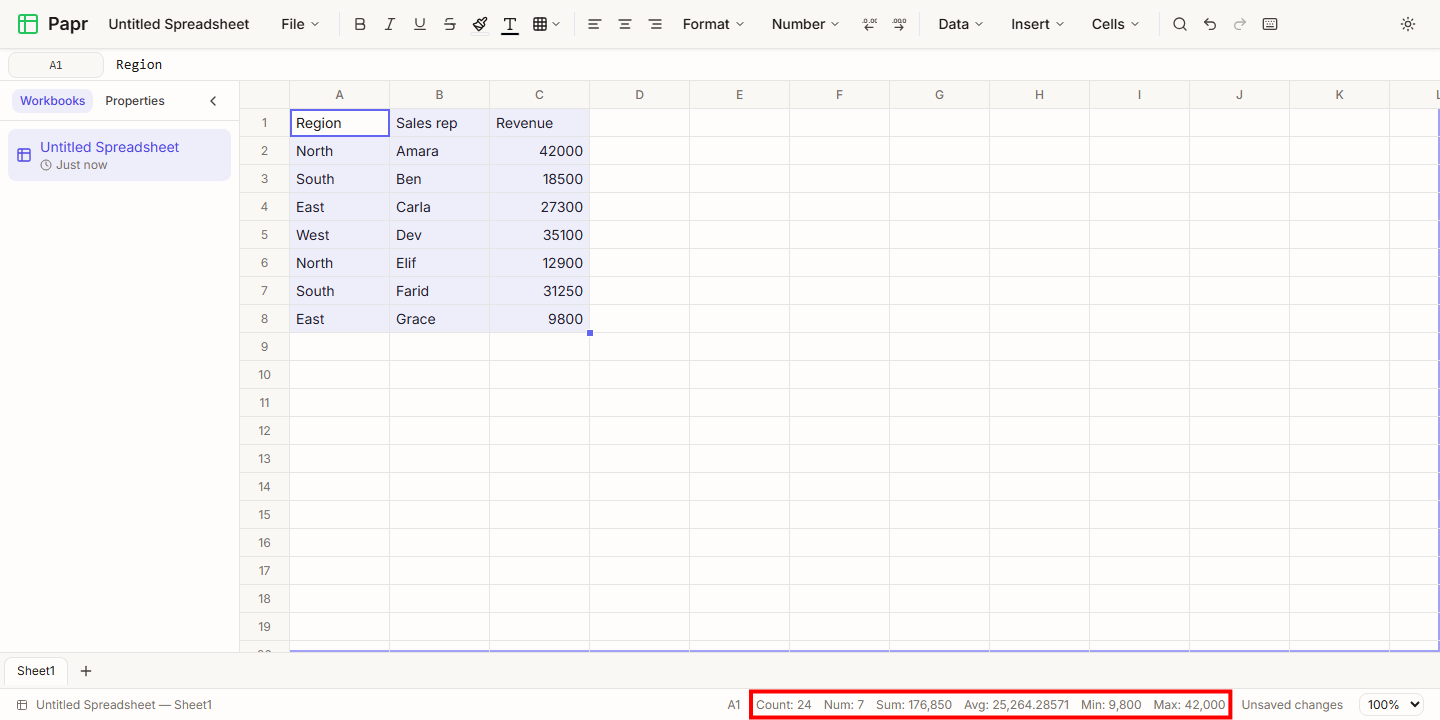
Click the top left cell, then hold Shift and click the bottom right cell. The status bar shows the count, sum, average, minimum and maximum of the numbers you selected.
3.Choose Sort range
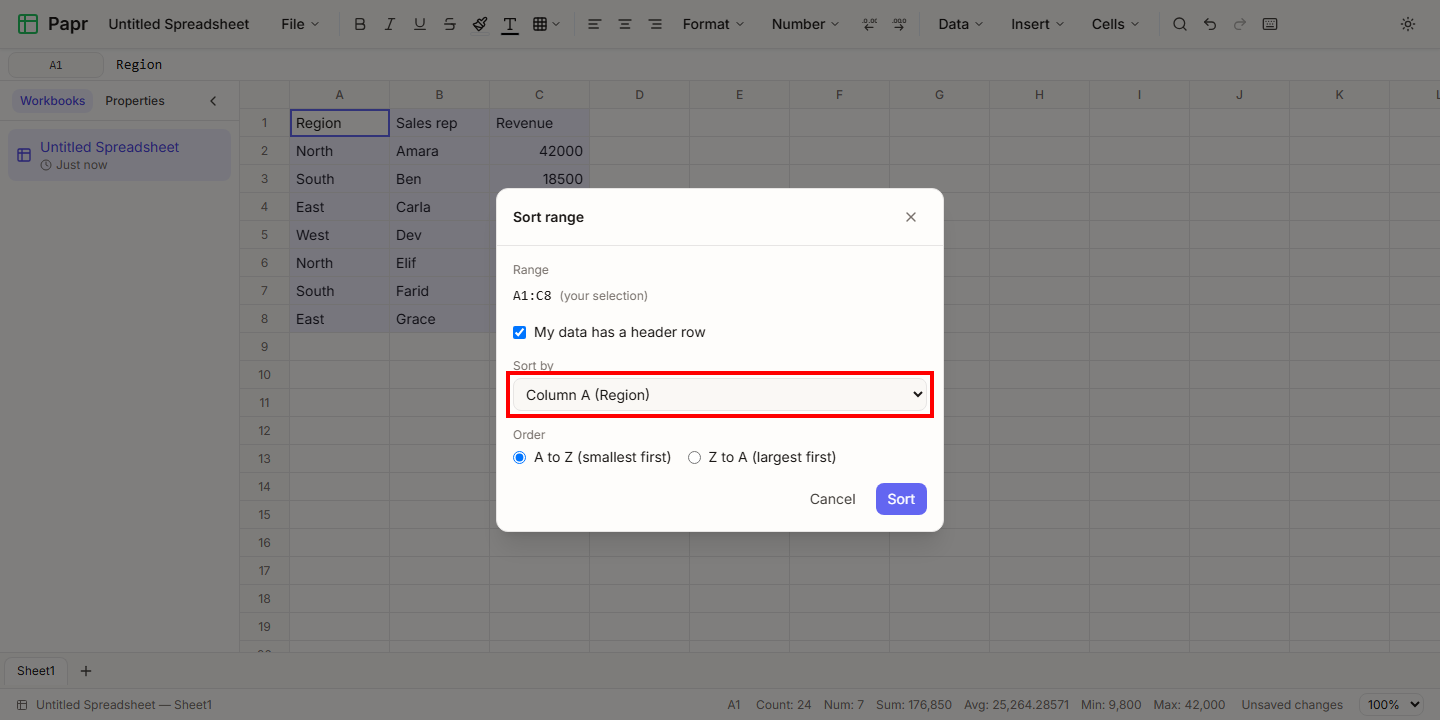
Open the Data menu and choose Sort range…. In the dialog, tick My data has a header row so the headings are not sorted with the data. Open Sort by and choose the column, here Column C (Revenue).
4.Choose the order and sort
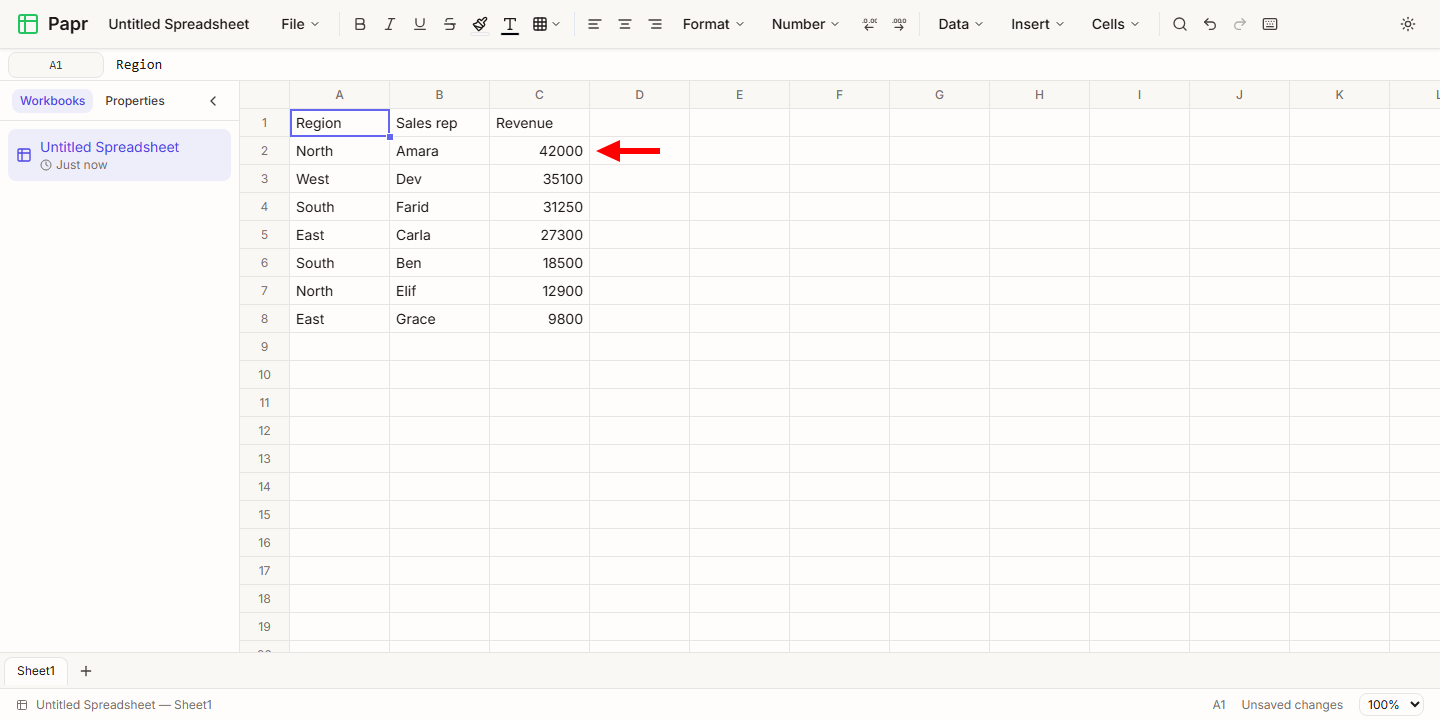
Choose Z to A (largest first) to put the biggest numbers at the top, or A to Z (smallest first) for text in alphabetical order. Click Sort. Each row moves as a whole, so every sales representative stays with their own revenue.
5.Turn on the auto filter
Select a cell in the table and choose Auto Filter from the Data menu. A small arrow appears on each heading. Click the arrow of a column to see the values in that column.
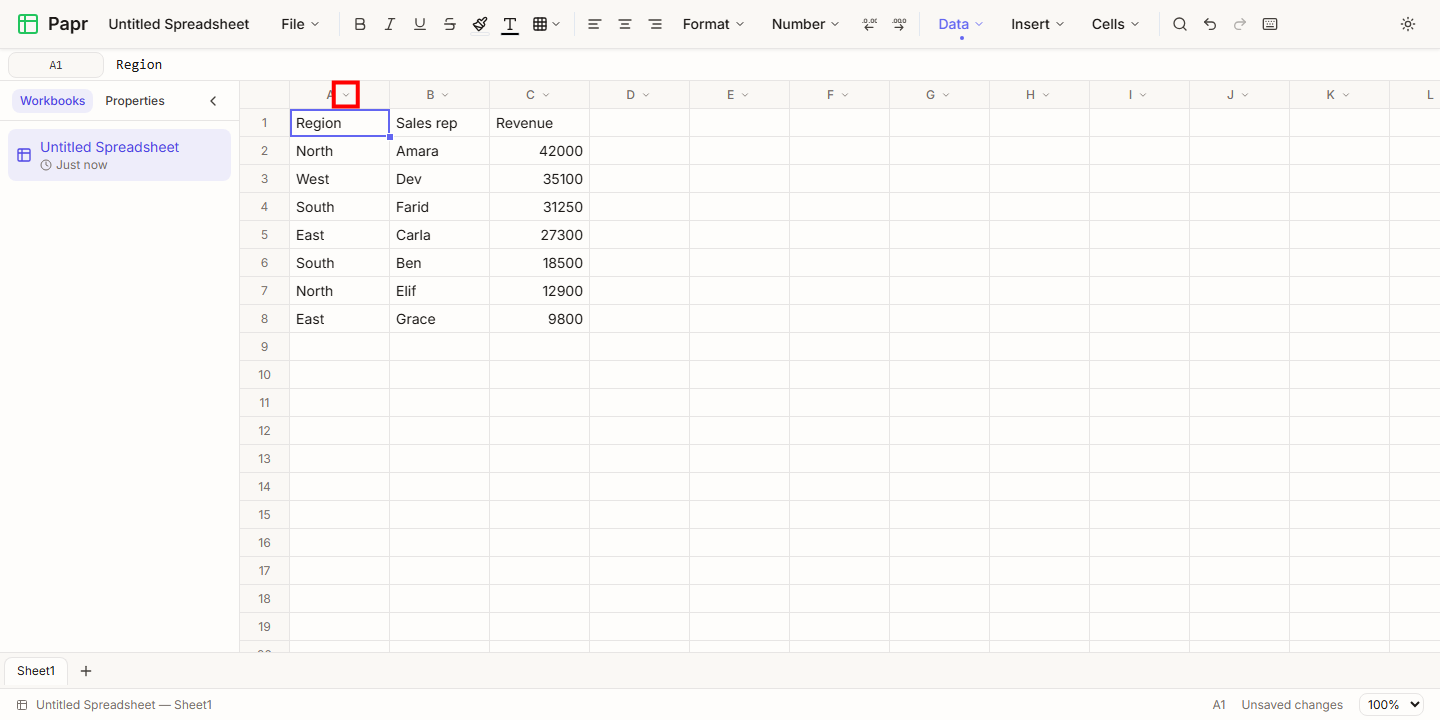
6.Choose the values to show
In the list, tick the values you want to keep and untick the others. Select All ticks every value and Clear unticks them all. Click OK to apply the filter. Rows with a value you did not tick are hidden.
Good to know
- Numbers sort by size, and text sorts alphabetically. Empty cells go last, whichever order you choose.
- A formula that refers to cells in its own row still refers to its own row after the sort.
- A sort clears any filter on the table. Ctrl+Z undoes a sort and brings the rows back into their old order.
Try it on your own file
Papr Sheets runs in your browser. Your workbook stays on your device.
Open Papr Sheets