How to freeze rows and columns
In a long sheet the headings scroll out of view. Freezing rows and columns keeps them on screen while the rest of the sheet moves, so you always know what each column holds.
Step by step
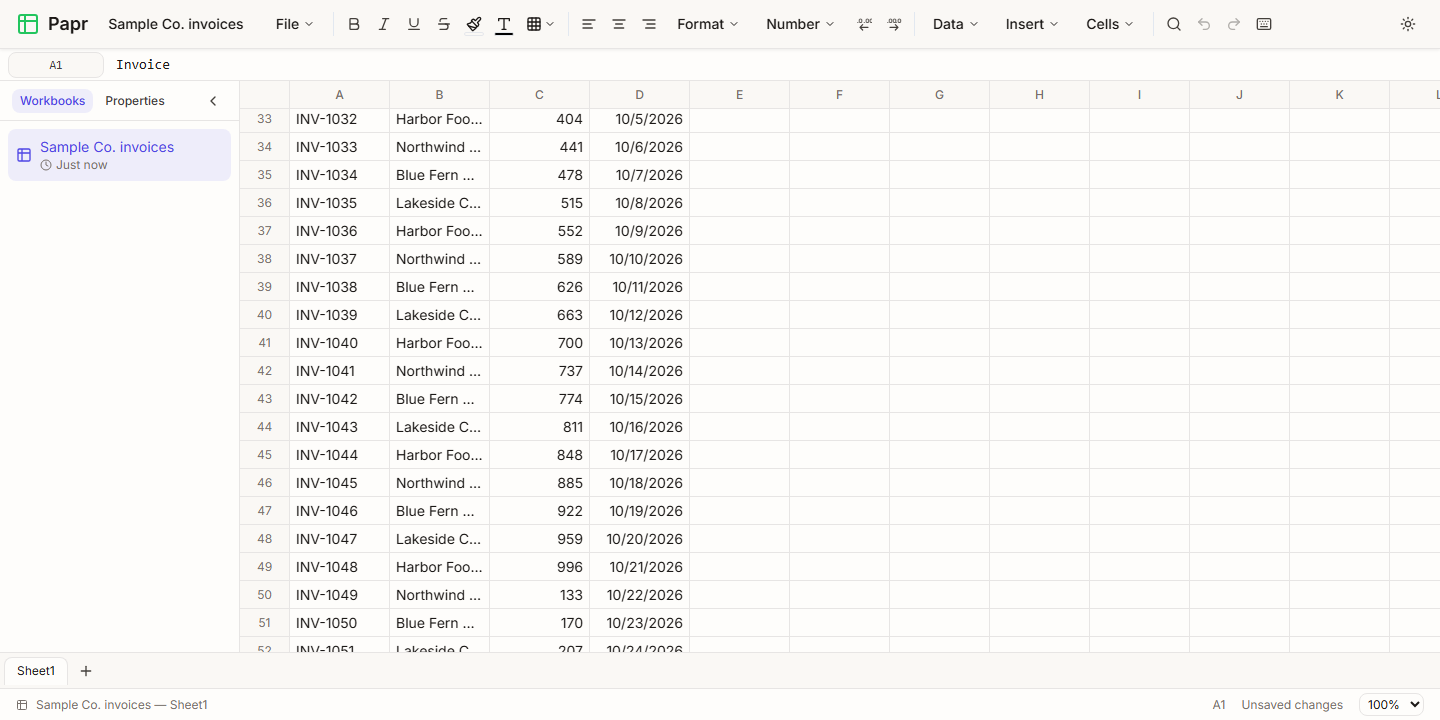
1.Scroll down a long sheet
This example is an invoice list with 60 rows. Scroll down, and the heading row goes out of view, so the columns are no longer labelled. Scrolling is with the mouse wheel, the scroll bar, or a finger on a phone.
2.Choose Freeze Top Row
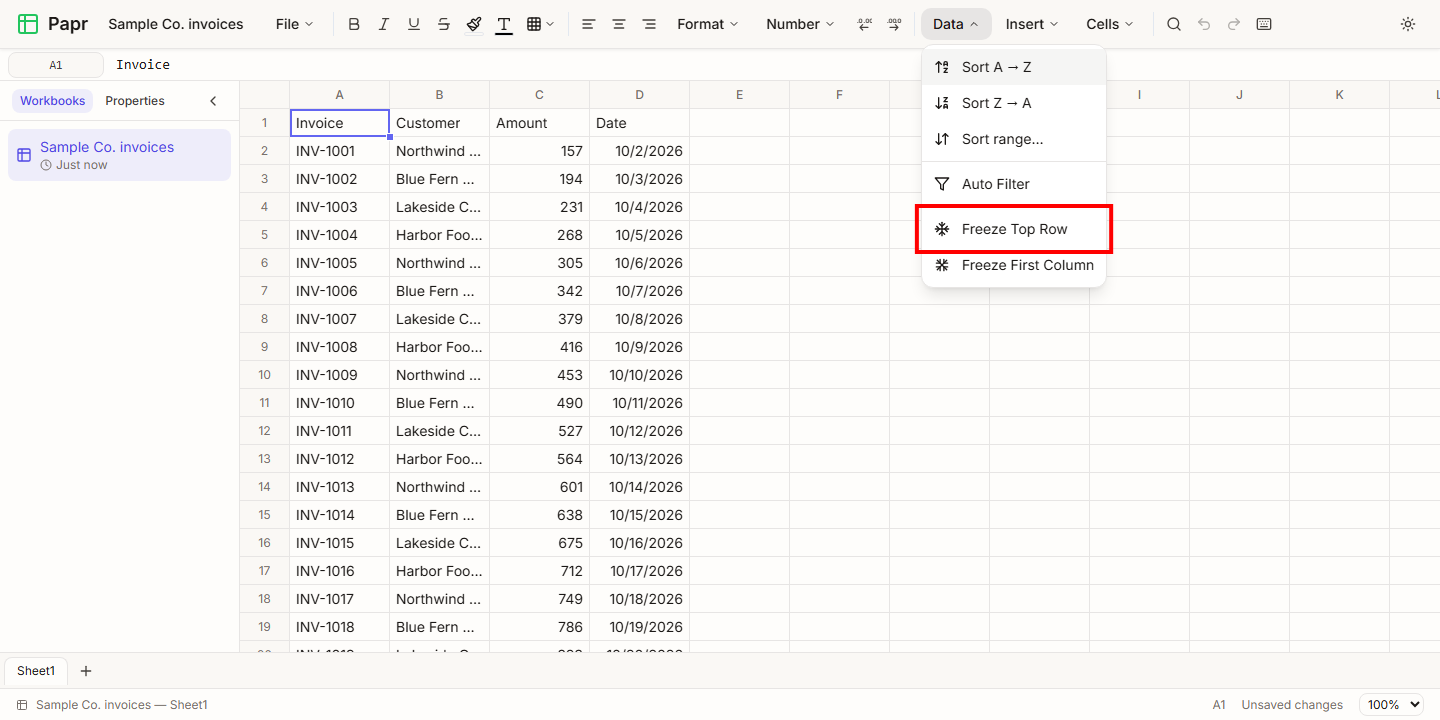
Open the Data menu and choose Freeze Top Row. The menu also has Freeze First Column for a sheet that is wide.
3.Scroll with the heading in place
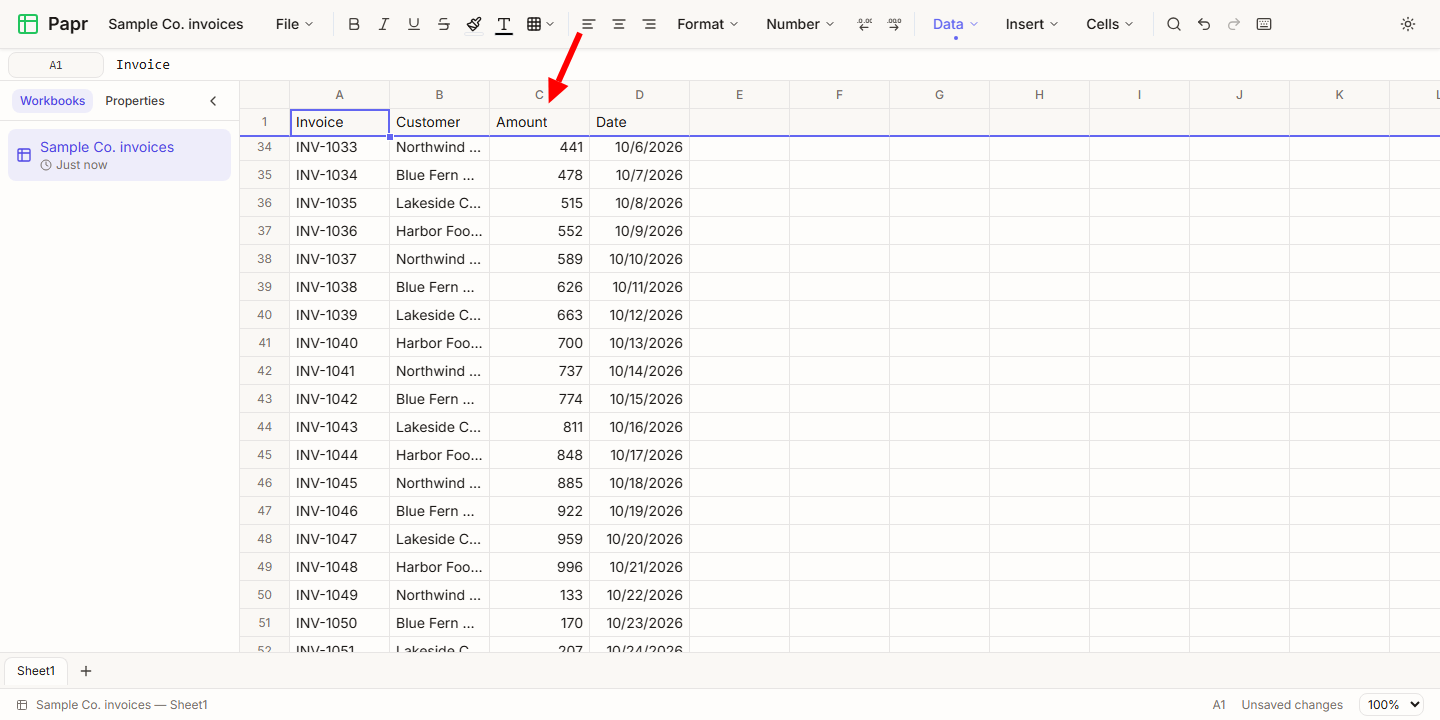
Scroll down again. The first row stays at the top of the grid, with a line under it, and the other rows scroll beneath it. The heading of each column is always visible.
4.Freeze up to the active row
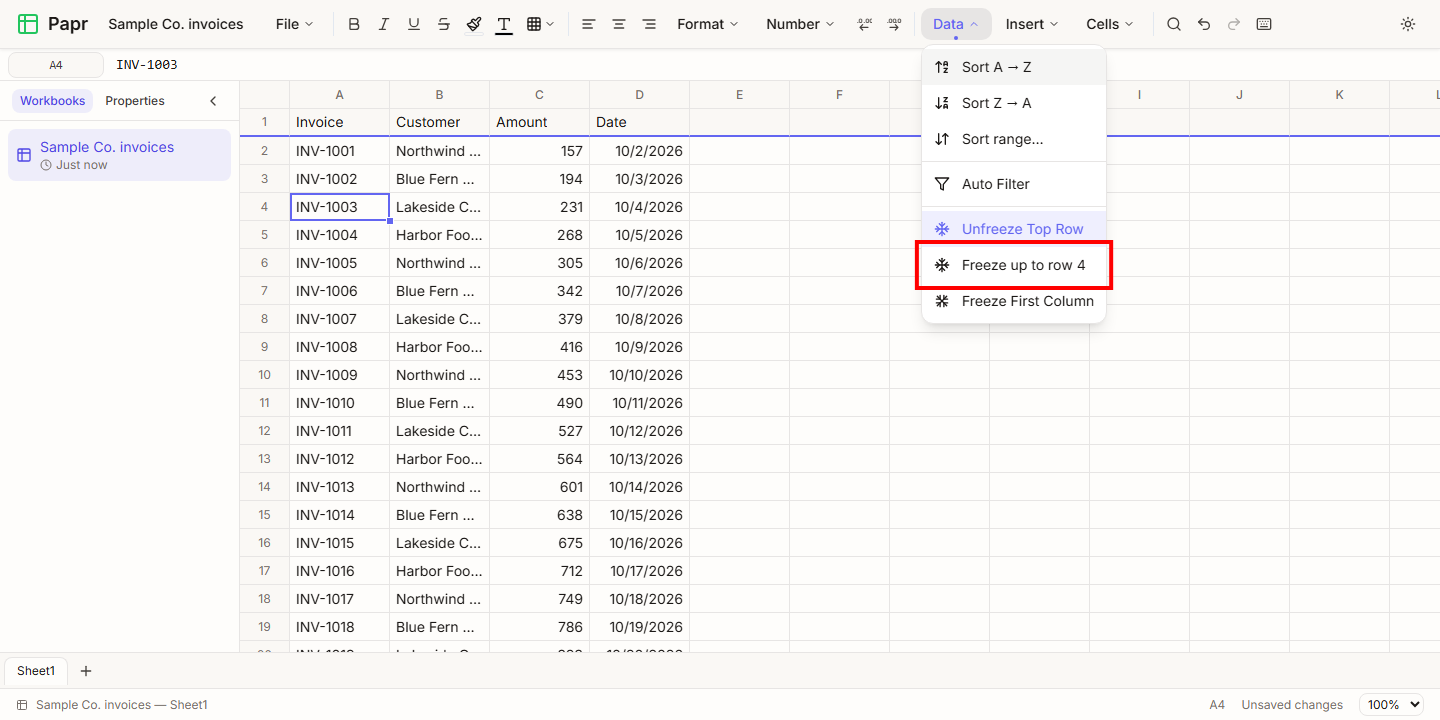
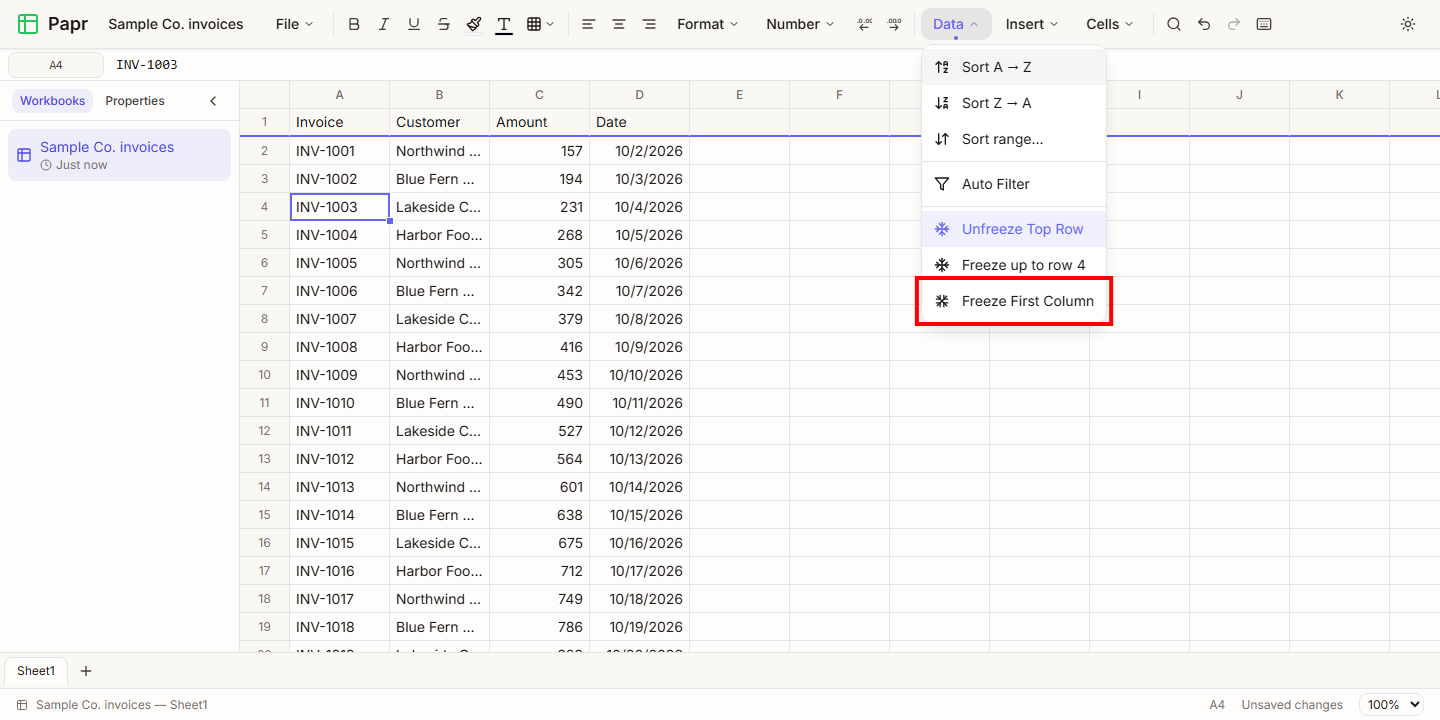
To keep several rows on screen, click the first cell below them, such as A4. Open the Data menu and choose Freeze up to row 4. The item shows the number of the row you selected, and it keeps rows 1 to 4 visible.
5.Freeze the first column
A wide sheet can also keep its first column on screen. Choose Freeze First Column from the Data menu, so the names in column A stay in view while you scroll to the right. To keep more columns in view, select a cell in the last column you want to keep on screen, and choose Freeze up to column from the same menu.
Try it on your own file
Papr Sheets runs in your browser. Your workbook stays on your device.
Open Papr Sheets