Format Cells, Merge Cells and Hide Rows in Papr Sheets
Merge cells to make one title across a table, hide the rows you do not need on screen, colour the cells that meet a rule, and limit a column to a list of values.
Merge cells
1.Select the cells to merge
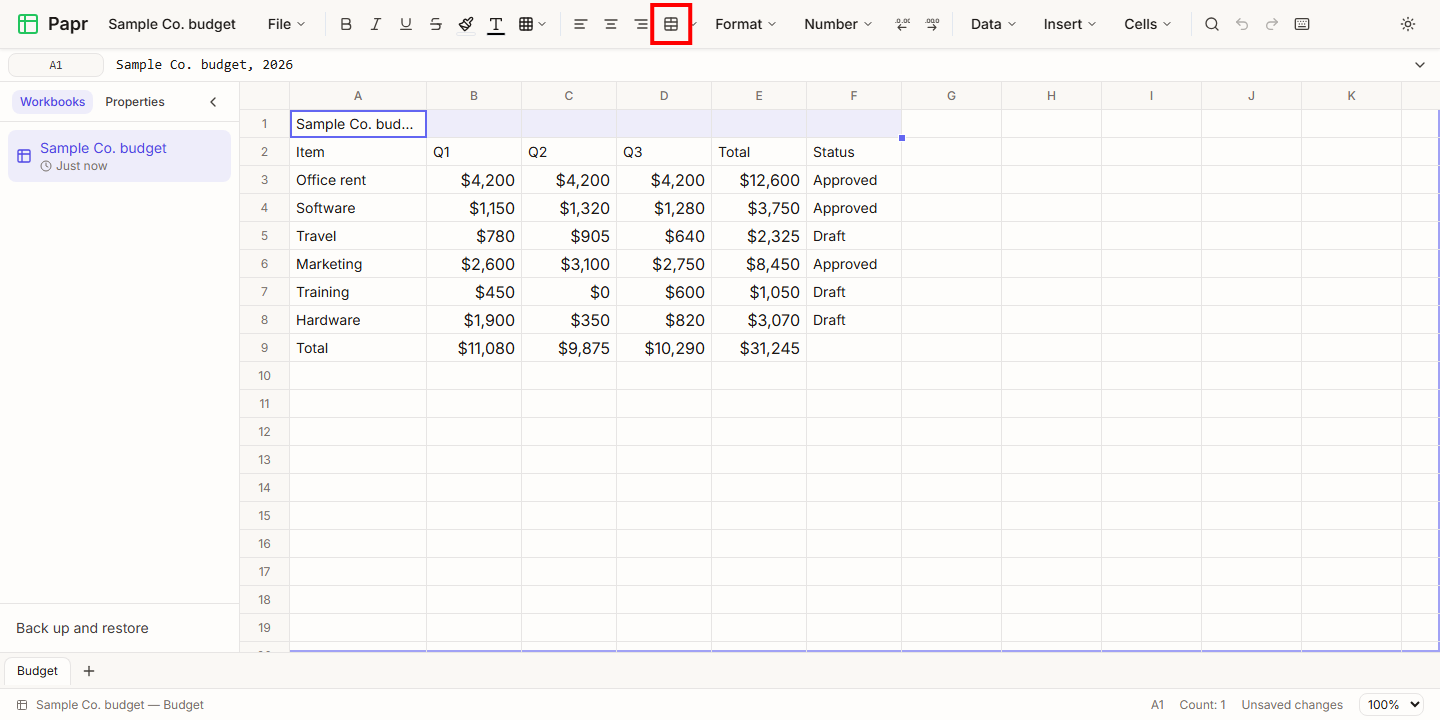
This example is a budget with a title in row 1 and a Status column in F. To put the title across the whole table, click A1, then hold Shift and click F1. The range A1 to F1 is selected. Click the Merge & Center button in the toolbar.
2.Open the Merge options menu
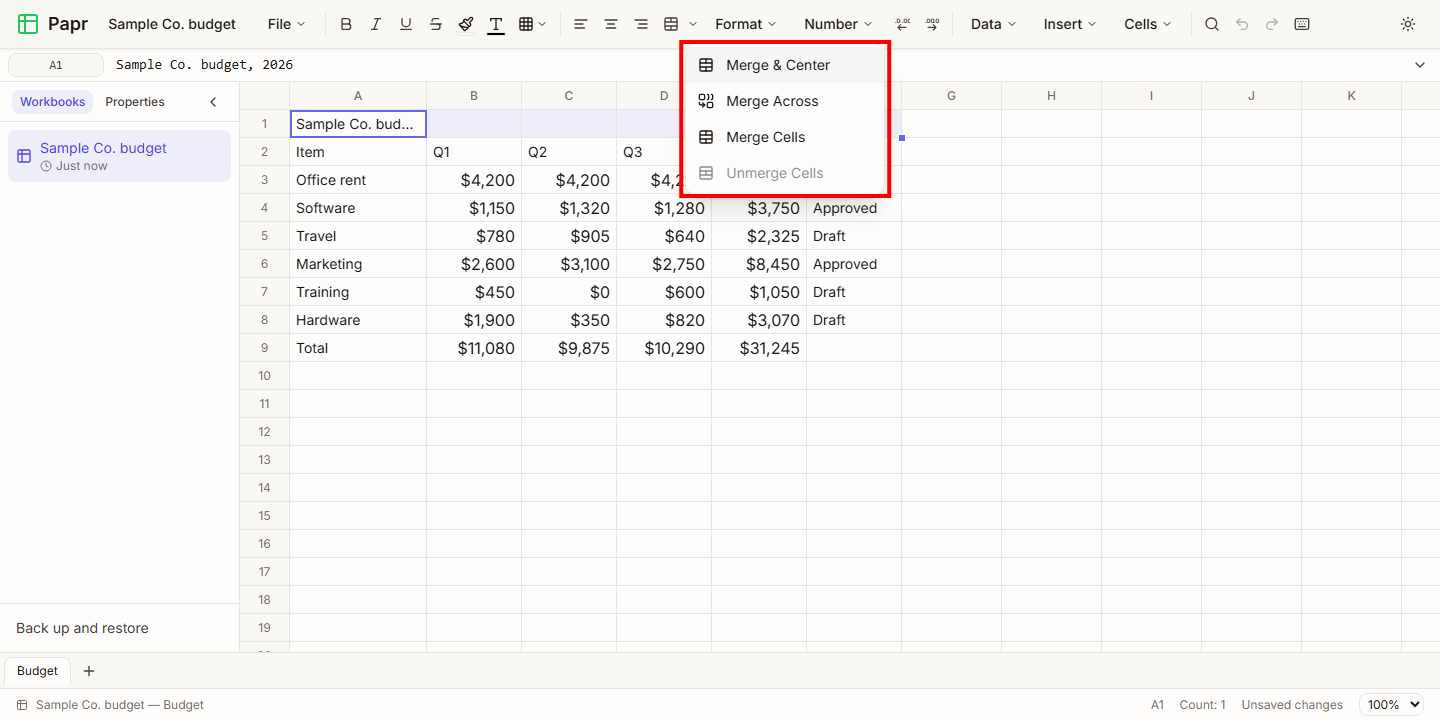
The small arrow next to the button opens the Merge options menu. It has four commands:
- Merge & Center joins the selection into one cell and centres its text.
- Merge Across joins the cells of each row on their own. A block of three rows becomes three merged rows.
- Merge Cells joins the selection and leaves the alignment as it is.
- Unmerge Cells splits a merged cell again. It is greyed out when the selection holds no merged cell.
3.Check the merged cell
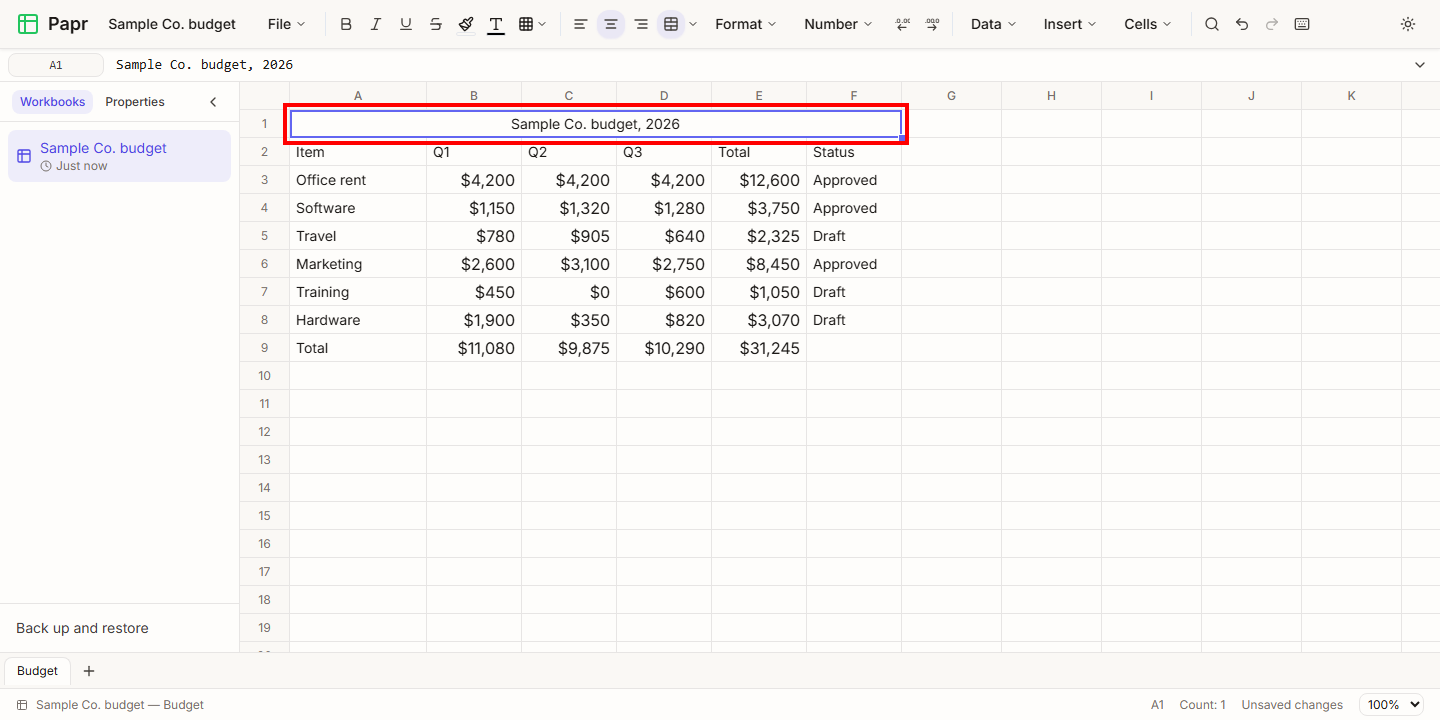
The title is now one cell across the table, and its text is centred. The merged cell keeps the value of its upper-left cell. The other cells of the range are part of the merge and hold nothing.
To undo a merge, select the merged cell and choose Merge & Center, or open the menu and choose Unmerge Cells. The value stays in the upper-left cell.
4.Confirm when merging deletes values
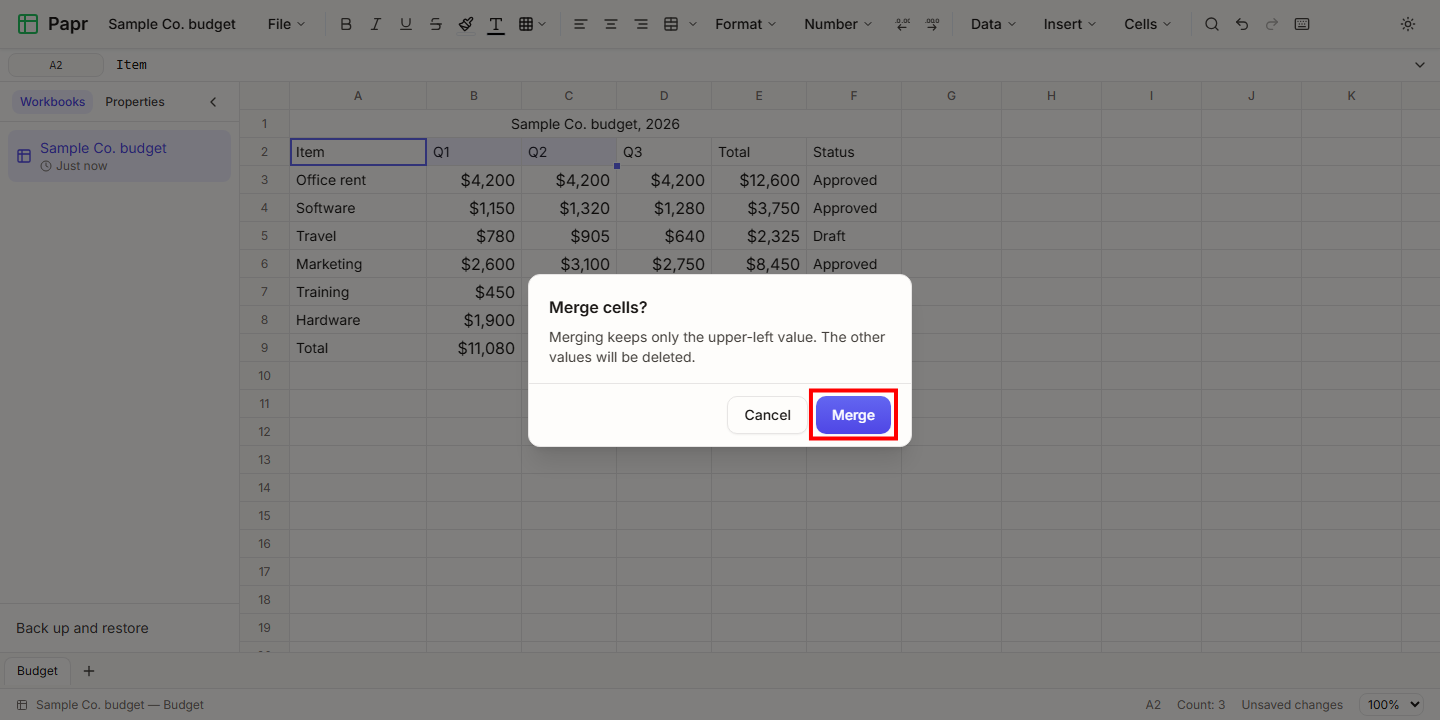
Merging keeps only the upper-left value, so the other values in the range are lost. Here A2 to C2 hold Item, Q1 and Q2. Select the range, choose Merge Cells, and Papr asks first. Choose Merge to go ahead, or Cancel to keep the values.
Hide and unhide rows and columns
5.Select the rows and choose Hide
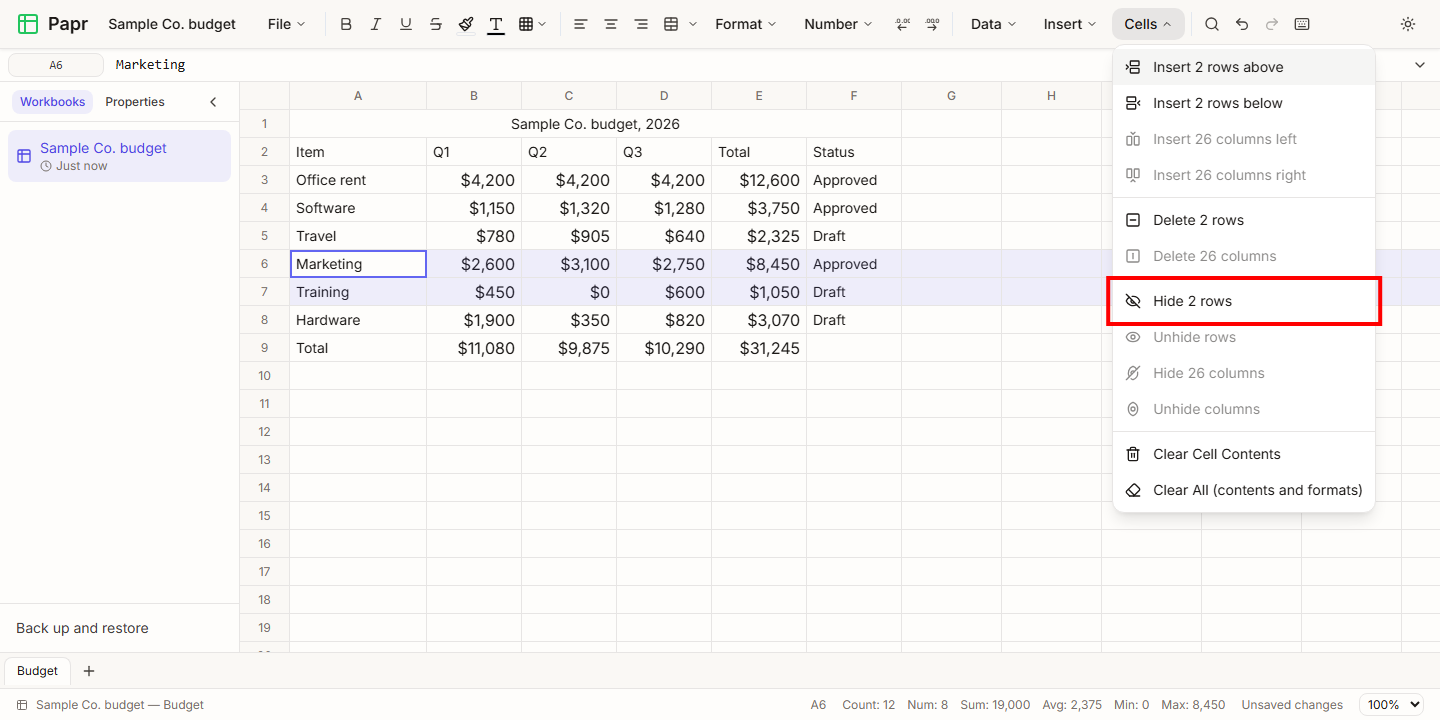
Click the number 6, then hold Shift and click the number 7. Both rows are selected. Open the Cells menu and choose Hide 2 rows.
The Name box, at the left end of the formula bar, does the same job: type 6:7 in it. The menu says Hide row for one row and Hide 2 rows for two. With whole rows selected, the column commands are greyed out. For columns, click a column letter, then Shift+click the last column letter you want, and choose Hide 2 columns.
6.Find the mark where lines are hidden
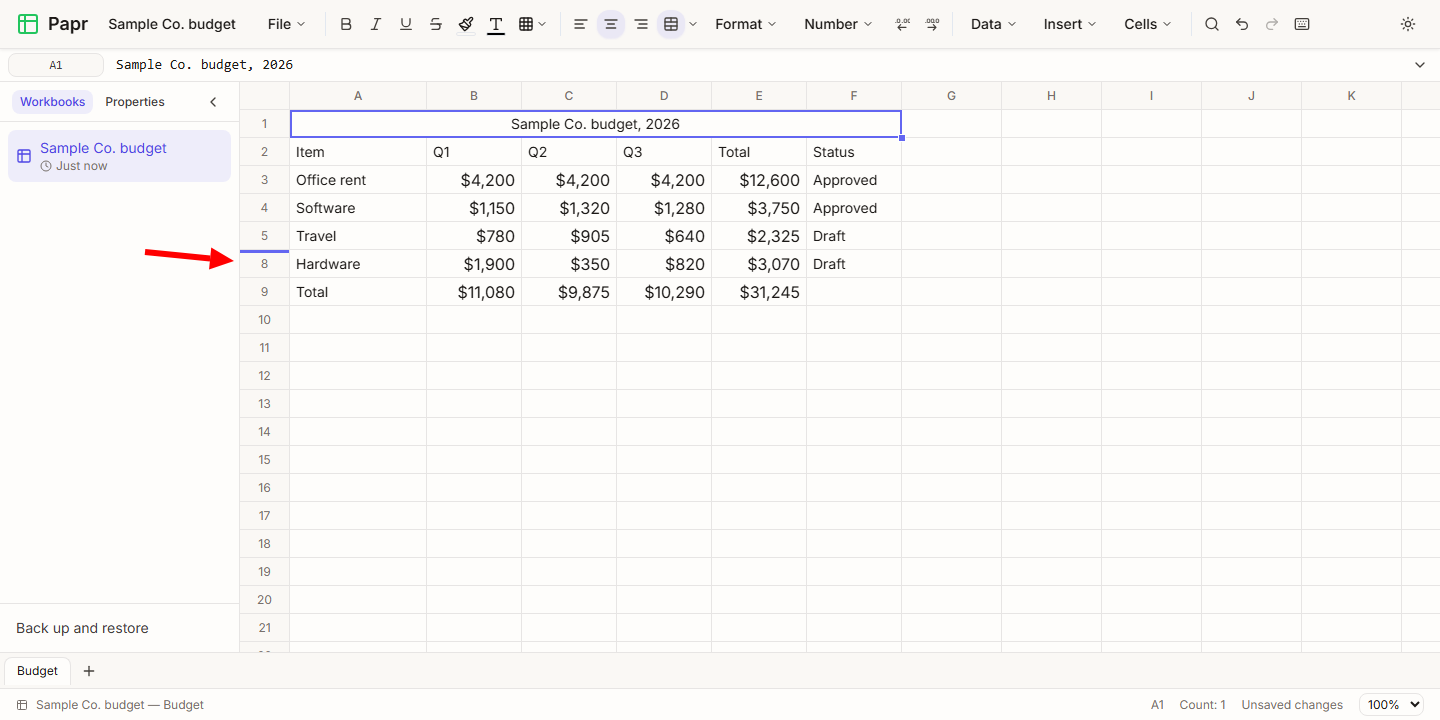
The row numbers now run from 5 to 8. A blue bar on the top edge of row 8 shows where rows are hidden. Columns get the same bar on the left edge of the column letter after the hidden columns. Point at the number to see how many rows or columns are hidden there.
7.Unhide rows and columns
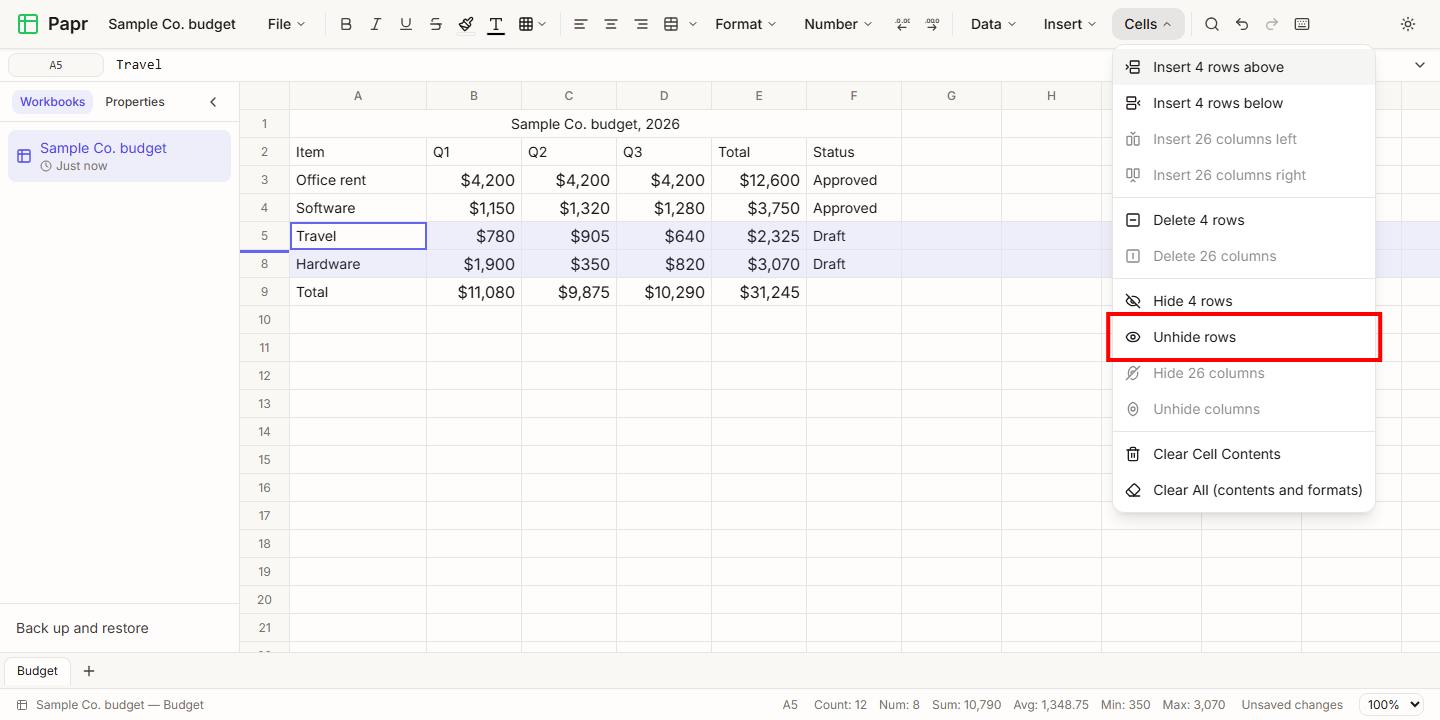
Select the rows on both sides of the gap: click the number 5, then Shift+click the number 8. The Name box works too, with 5:8. Open the Cells menu and choose Unhide rows. The item is offered only when the selection spans hidden rows. For columns, select the columns on both sides and choose Unhide columns.
Conditional formatting
8.Add rules to a range
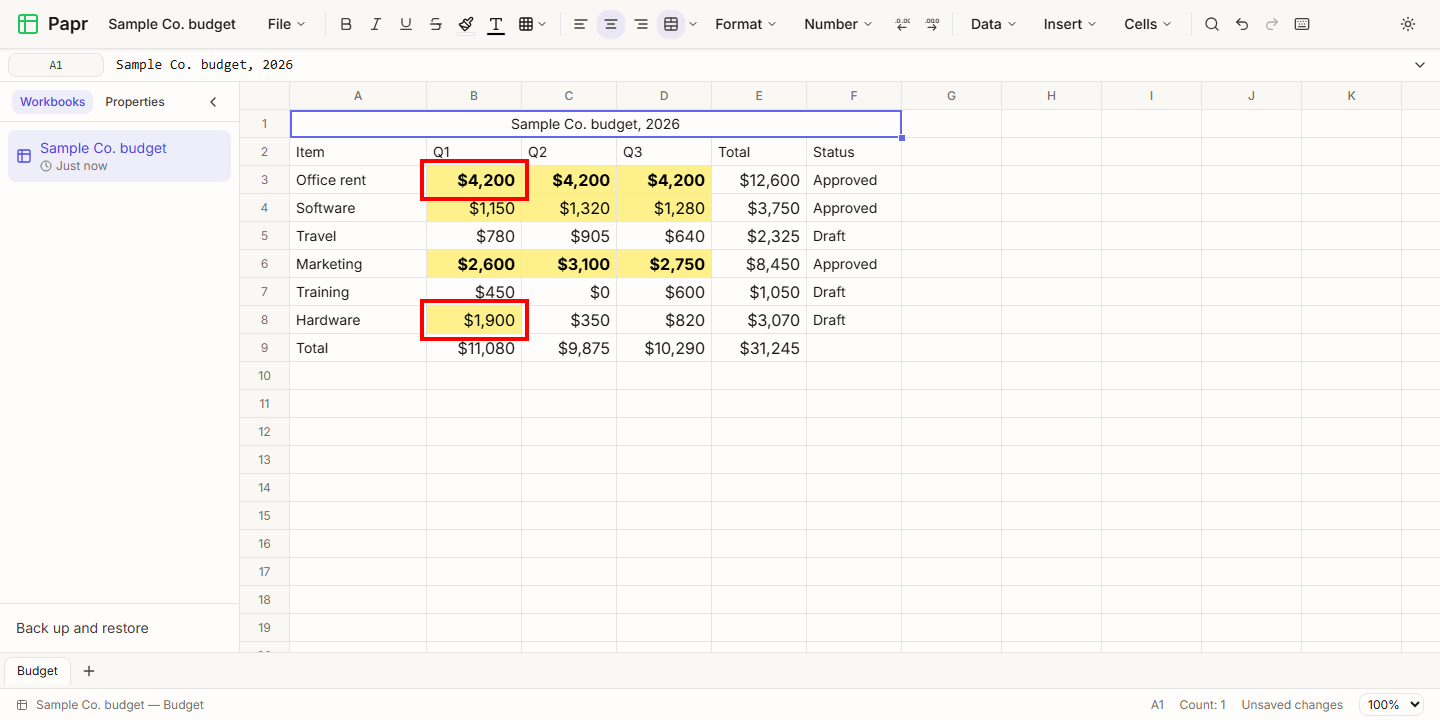
Select the quarter figures, B3 to D8. Open the Insert menu and choose Conditional Formatting. Under Add Rule, choose Greater than and type 1000. Fill is ticked by default, so the rule colours the matching cells yellow. Choose Add rule.
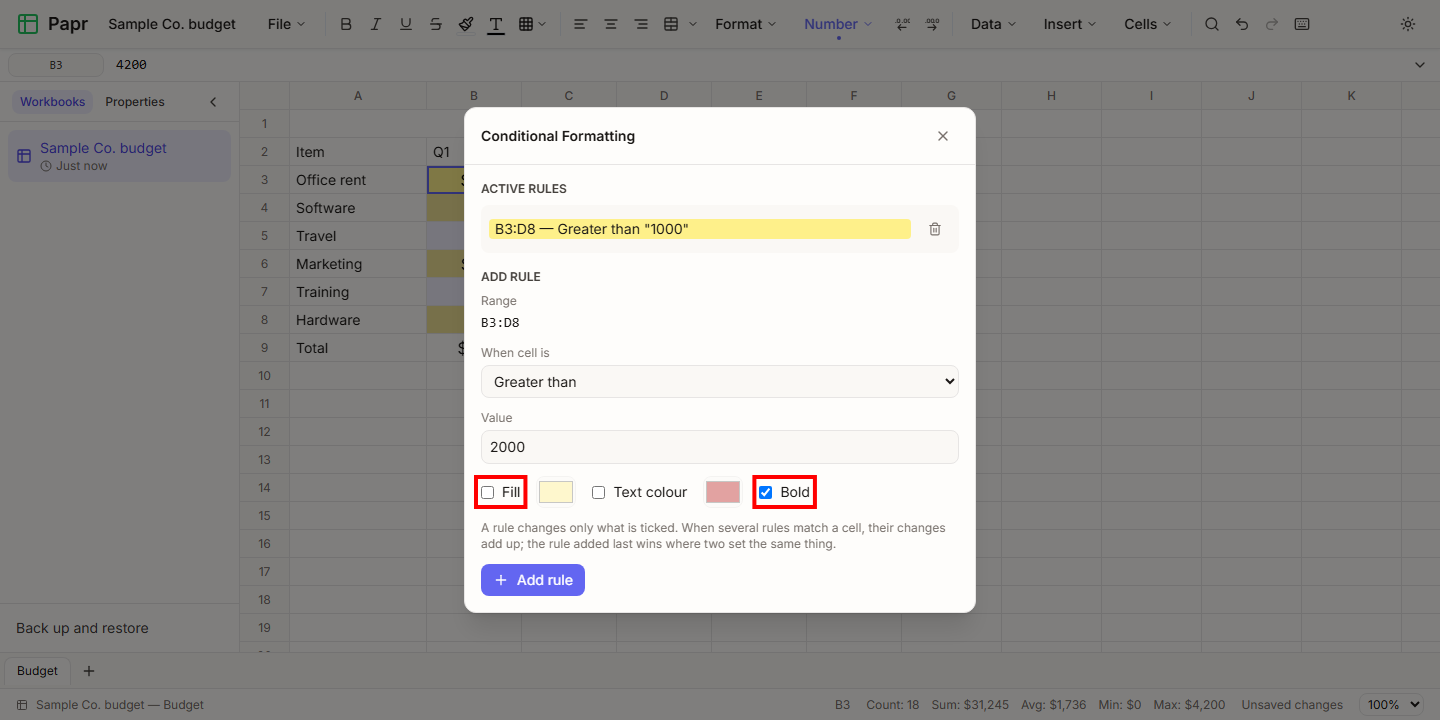
A rule sets only what is ticked. Fill, Text colour and Bold are each optional, and Text colour starts unticked. For the second rule, type 2000, untick Fill and tick Bold. This rule then adds bold and leaves the yellow fill of the first rule alone. Choose Add rule to list it under Active Rules.
9.See the rules combine
Choose Add rule for the second rule, then Close. Office rent in Q1 (B3) is over 2000, so both rules match it. It keeps the yellow fill of the first rule and gains bold from the second. Hardware in Q1 (B8) is over 1000 but not over 2000, so only the first rule applies: a yellow fill with normal text.
When two rules set the same thing, the rule added later wins. These two rules set different things, so their changes add up.
Data validation
10.Limit a column to a list
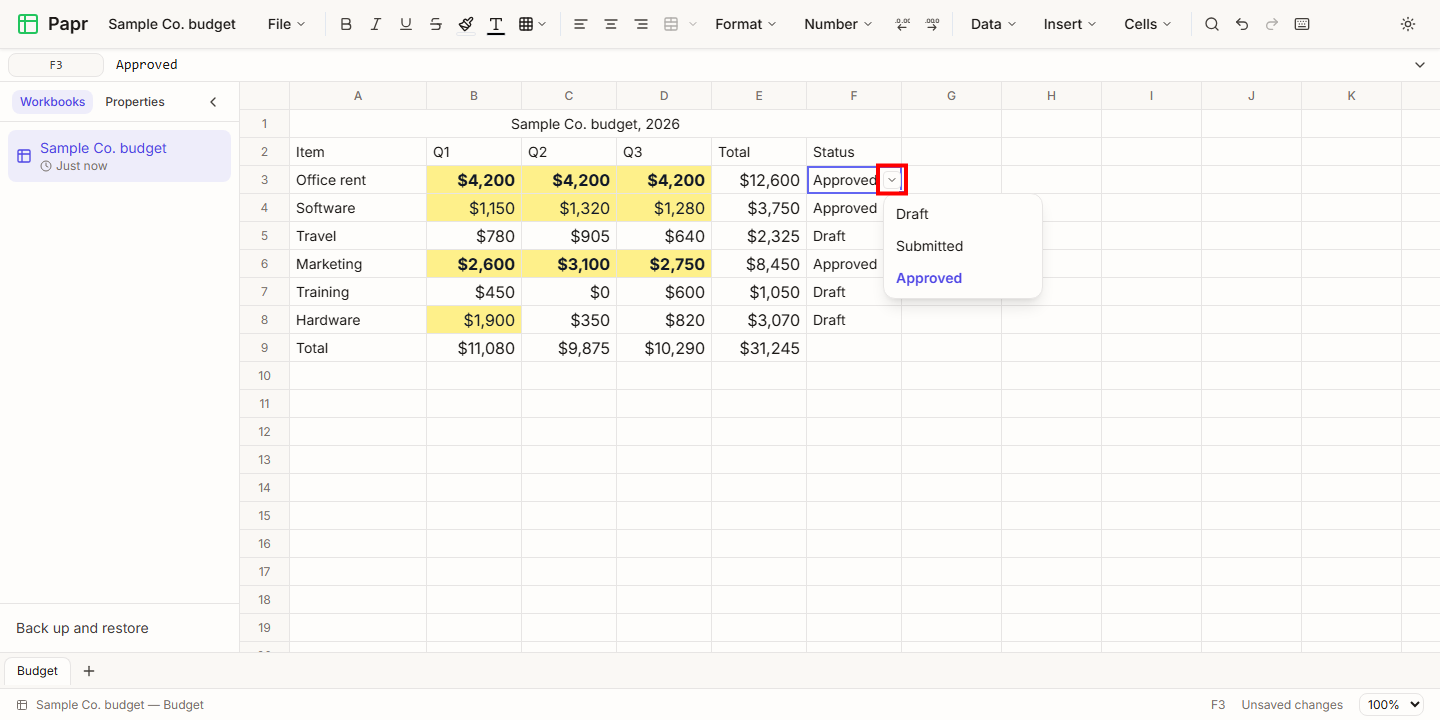
Select F3 to F8, the Status column. Open the Insert menu and choose Data Validation. Under Validate as, keep List of values (dropdown). Type the allowed values in Allowed values (comma-separated), such as Draft, Submitted, Approved. Choose Add rule, then Close.
Click F3. A small arrow button appears at the right edge of the cell. Choose it to open the list, and pick a value. When a typed value is not in the list, Papr refuses it and names the allowed values, as in "Value must be one of: Draft, Submitted, Approved".
Try it on your own file
Papr Sheets runs in your browser. Your workbooks are saved in this browser and never uploaded.
Open Papr Sheets