How to search a PDF
Type a word or phrase and Papr finds every place it appears in the document, on every page. The matches are listed with the text around them, so you can go straight to the one you need. The search runs in your browser.
Step by step
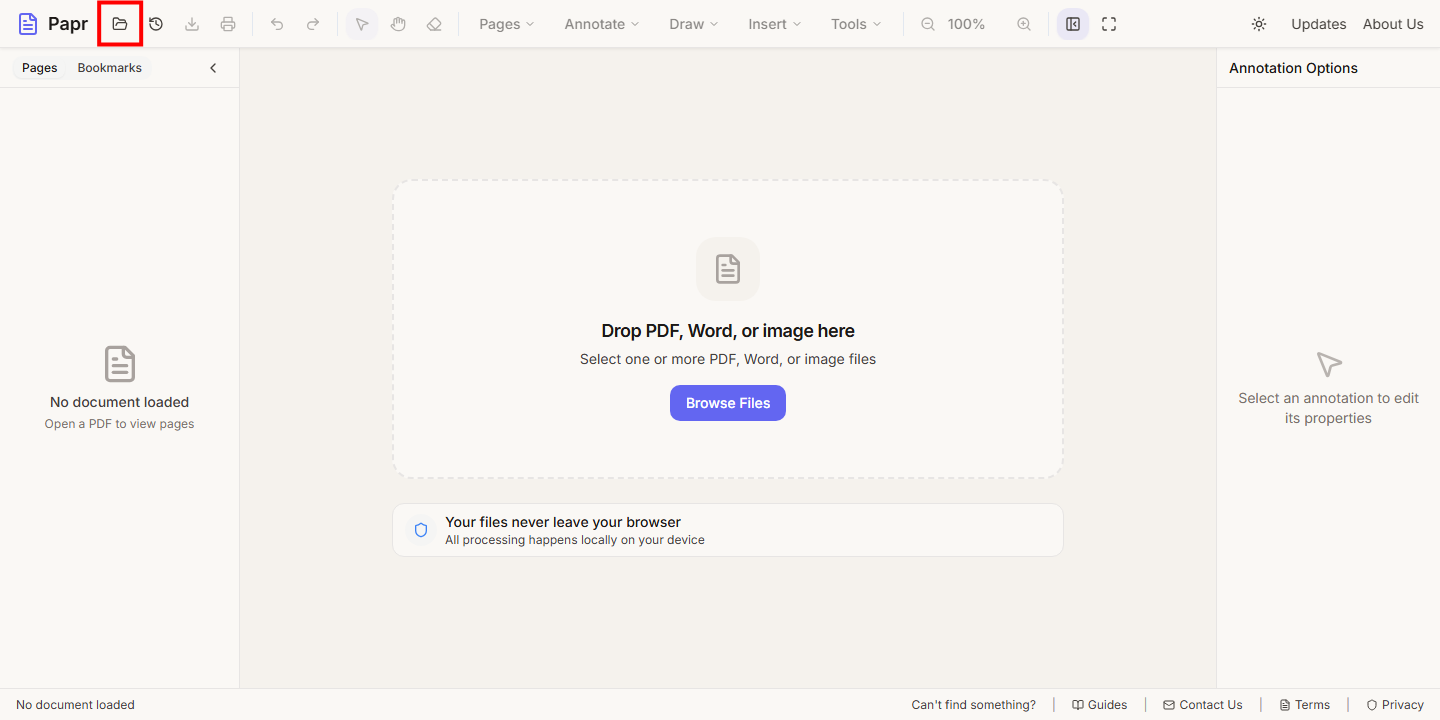
1.Open the PDF
Click Open file in the toolbar, or click Browse Files in the middle of the screen. You can also drop the PDF onto the page.
2.Open the search panel
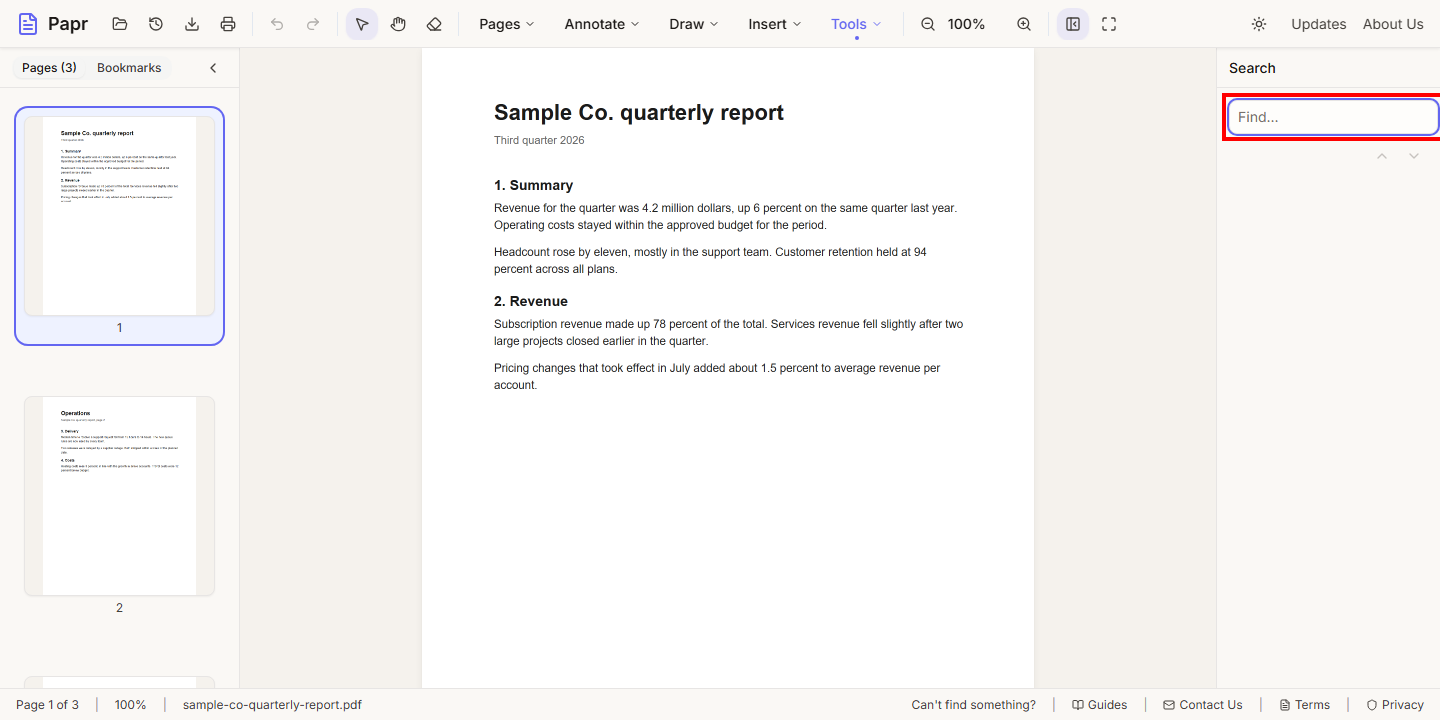
Press Ctrl+F, or open the Tools menu and choose Search. A search box opens in the panel on the right of the editor, with the cursor in it.
3.Type the word and read the results
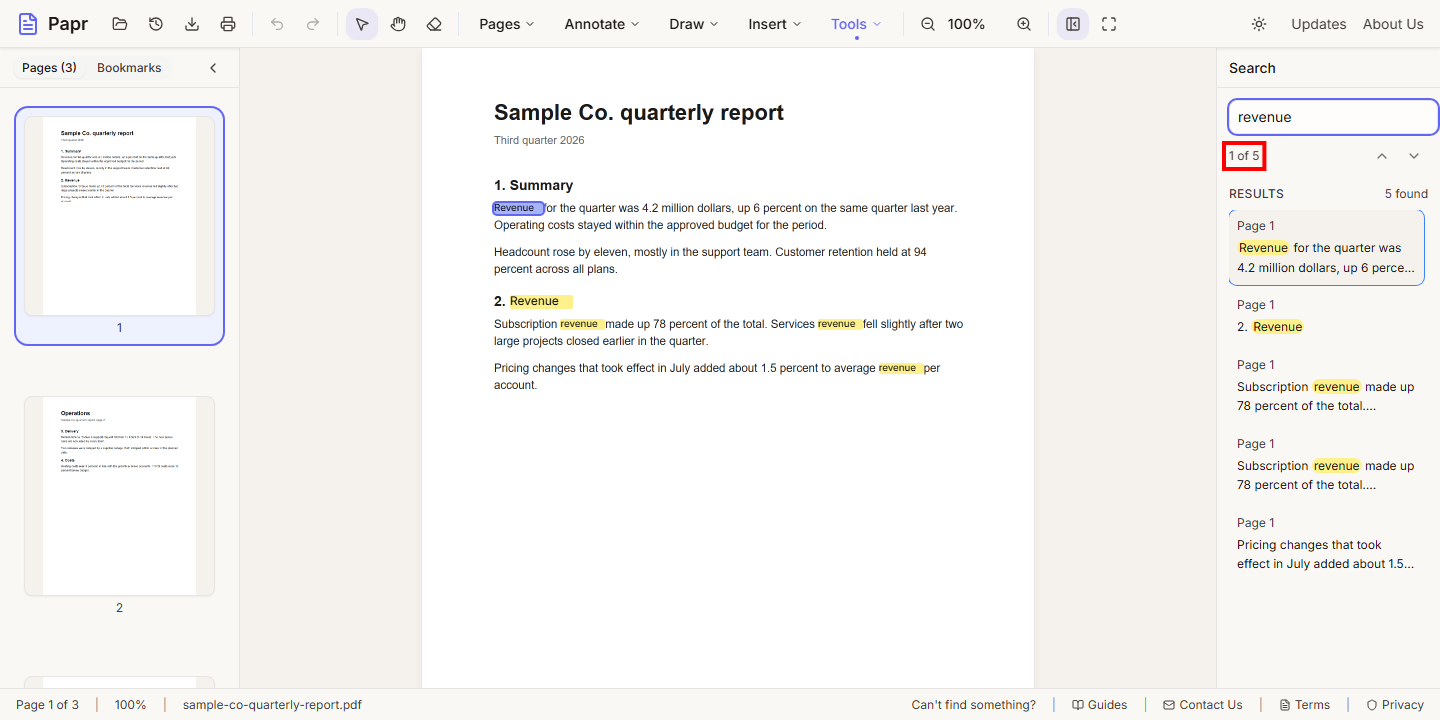
Type the word or phrase. The panel shows how many matches there are and which one is selected, such as 1 of 5. Below it, the Results list gives the page and the text around each match, with the word highlighted. The search ignores capital letters, so revenue also finds Revenue.
4.Jump from one match to the next
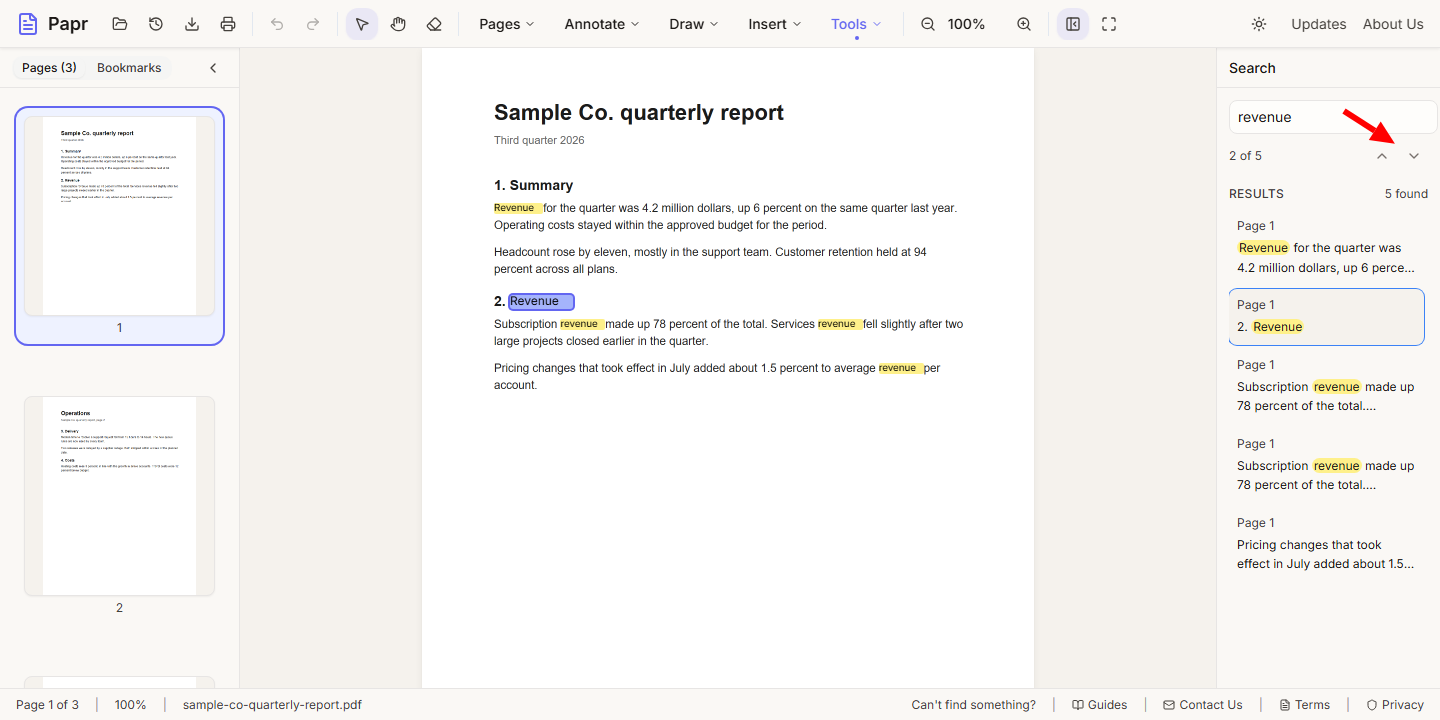
Press Enter to go to the next match, and Shift+Enter to go back. You can also click the arrows beside the count, or click a match in the results list to go straight to it. The page and the highlight move with the match.
What the search can find
- Papr searches the text that is already in the PDF. A digital PDF, such as one saved from Word, usually has all of its text ready to search.
- A page that is a scan has no selectable text. The search box then says No selectable text - run OCR first. Run OCR from the Tools menu, and then search the recognised words.
Try it on your own file
Everything in this guide happens in your browser tab. Your file stays on your device.
Open the PDF editor