How to set paragraph spacing and indents in Papr Docs
Paragraph spacing sets the space above and below each paragraph and heading, and the indent of a paragraph’s first line. This guide shows where to set them, how the sheet and the PDF show them, and what the exports keep.
Step by step
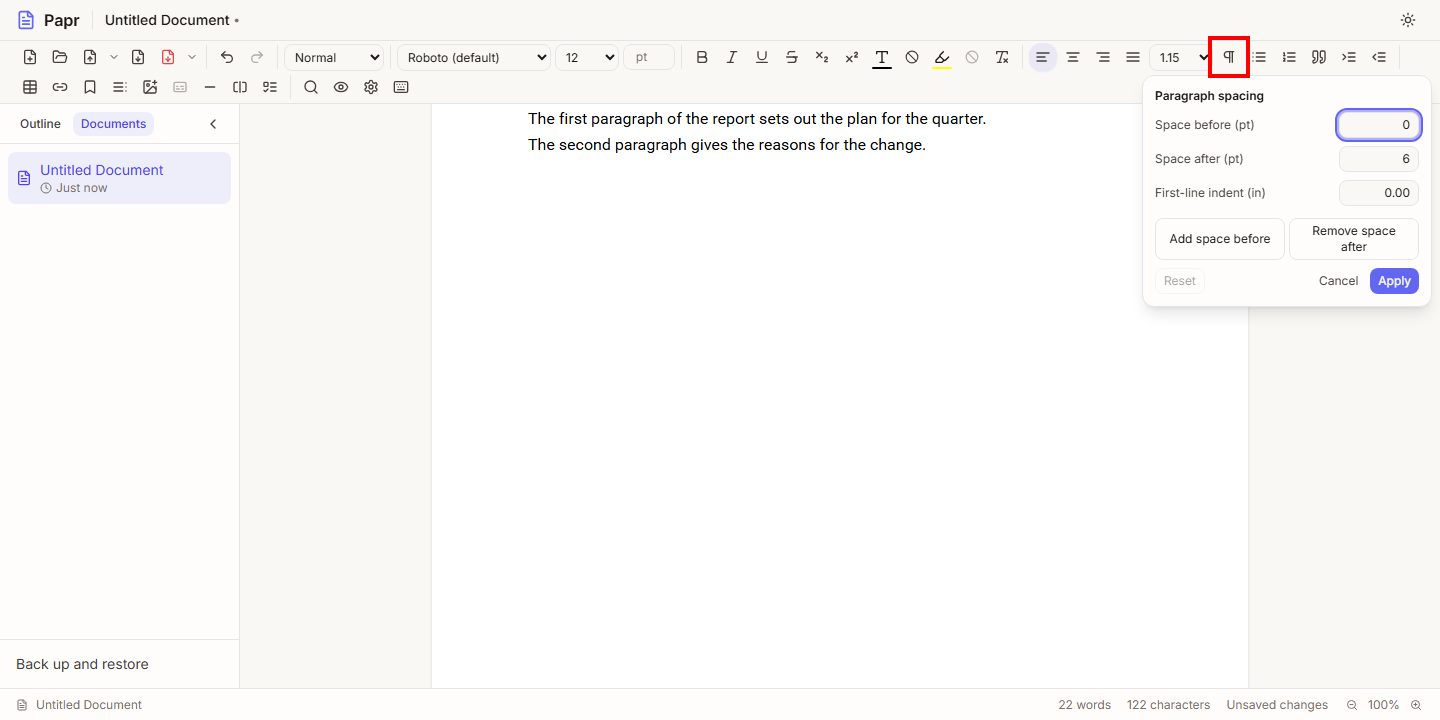
1.Open the Paragraph spacing panel
Put the cursor in a paragraph, or select several paragraphs. On a wide screen, click the Paragraph spacing button in the toolbar, next to the line spacing list. On a phone, open the More menu and choose Paragraph spacing…. The panel opens from the button, or from the More button on a phone. If the cursor is not in a paragraph or a heading, the panel says so, and its fields stay empty.
2.Type the space and the indent
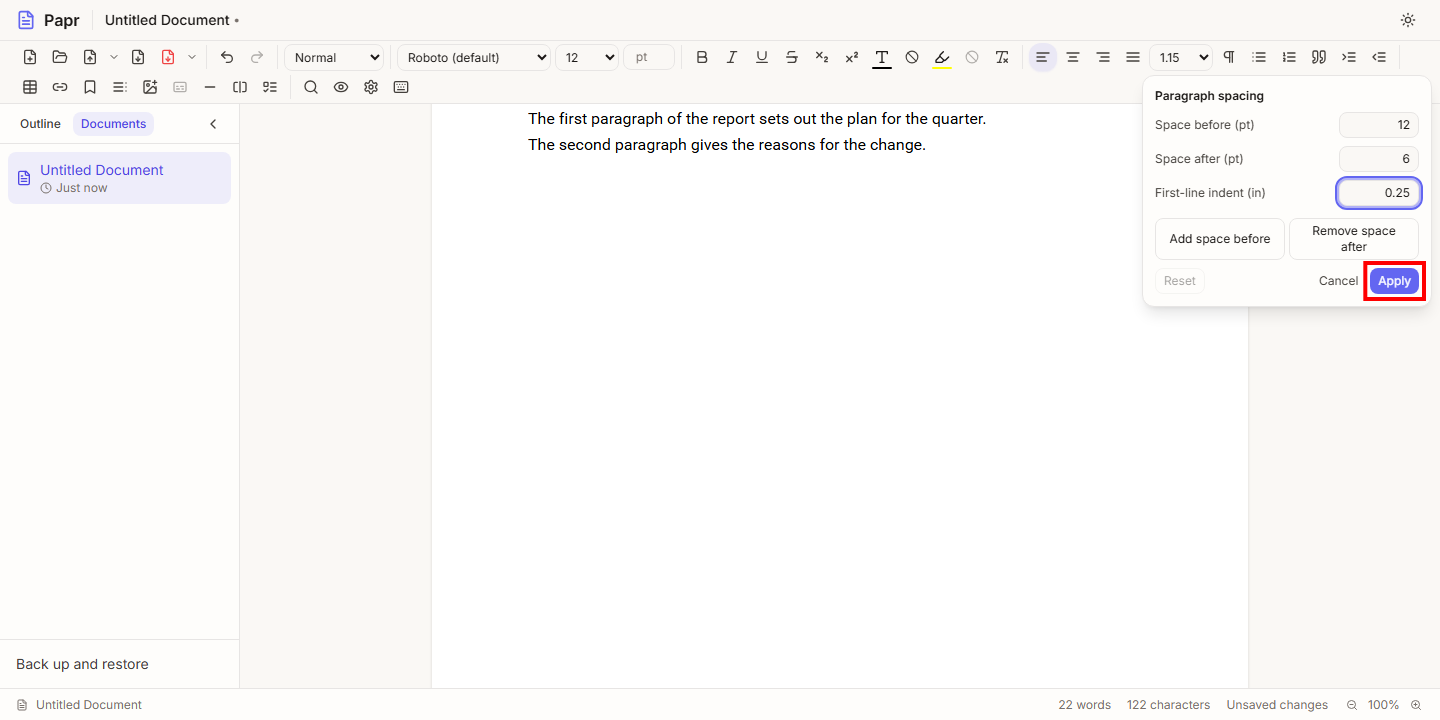
The panel has three fields: Space before (pt), Space after (pt) and First-line indent (in). Type points for the spaces, from 0 to 144, and inches for the indent, up to 2. Press Enter, or click Apply, to set the values you typed. Papr changes every paragraph and heading in the selection in one step. A field you did not change stays as it is.
When the selected paragraphs have different values for a field, the field is empty and shows Mixed. It stays as it is until you type a value. If a value is not a number in range, the field says why in red, and nothing changes until you fix it.
3.Use the quick actions
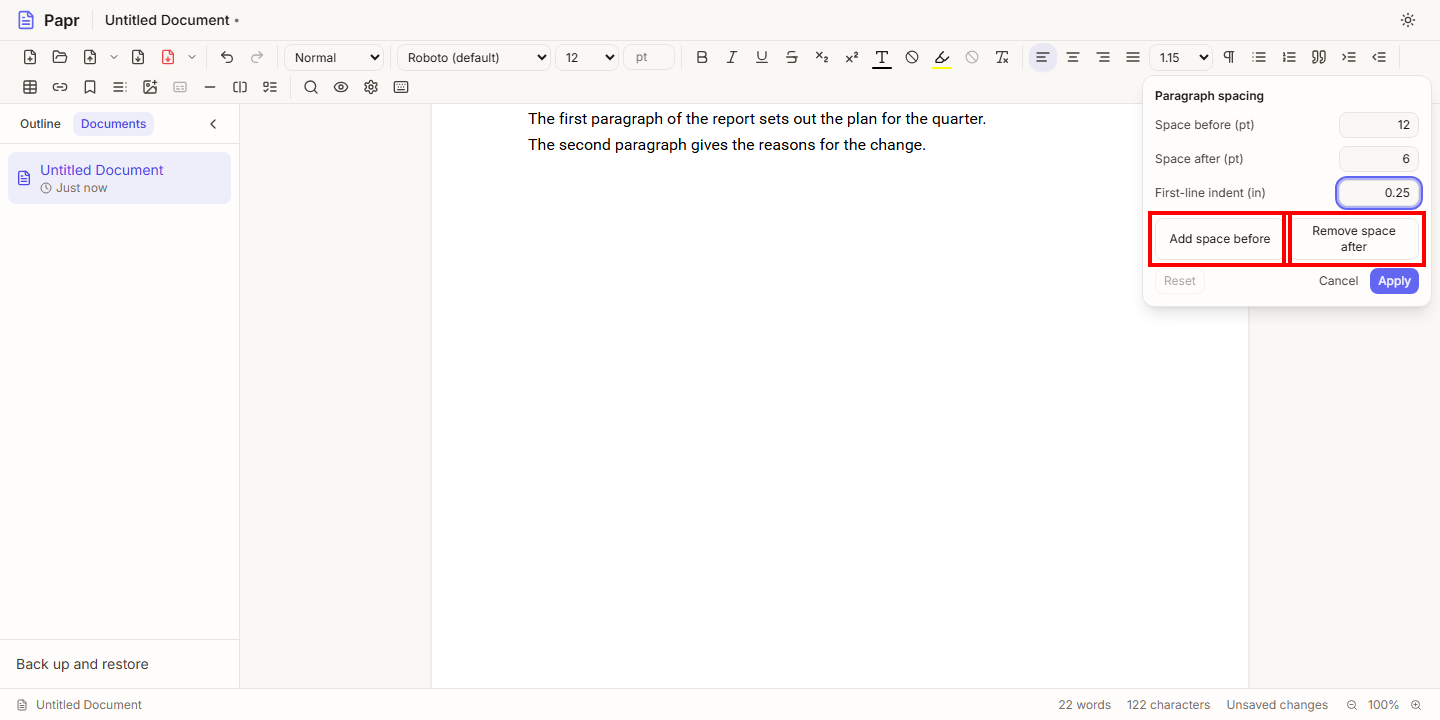
Add space before gives the selected paragraphs 12 points of space above them, and Remove space before takes it away again. The space after works the same way, with Add space after and Remove space after. A paragraph starts with 6 points of space after it, so its button reads Remove space after until that space is taken away. The quick actions apply at once, and the panel stays open. Reset returns the selected paragraphs to the usual spacing and first-line indent. It is available once the selection has spacing or an indent of its own.
How the spacing shows
- Paragraphs have 6 points of space after them and none before. Headings have their own space above them.
- Between two paragraphs, the space is the larger of the space after the first and the space before the second. The two are not added together. The sheet and the PDF do the same.
- The first paragraph of the document has no space above it. In a table cell, the first paragraph has no space above it, and the last paragraph has no space below it.
What the exports keep
- Word (.docx). The space before and after each paragraph, and the first-line indent, are written to the file. Word combines the space between two paragraphs by its own rules, so the result can differ a little from the page.
- PDF. The space and the first-line indent are drawn as they are set.
- Markdown (.md). A Markdown file cannot hold them. The export notes list paragraph spacing and first-line indent.
Try it on your own file
Papr Docs runs in your browser. Your document stays on your device.
Open Papr Docs