How to resize and align pictures in Papr Docs
A picture in Papr Docs can be made larger or smaller, aligned to the left, center or right, and given an exact width. This guide shows how to insert a picture and change it, and what the Word, PDF and Markdown exports keep.
Step by step
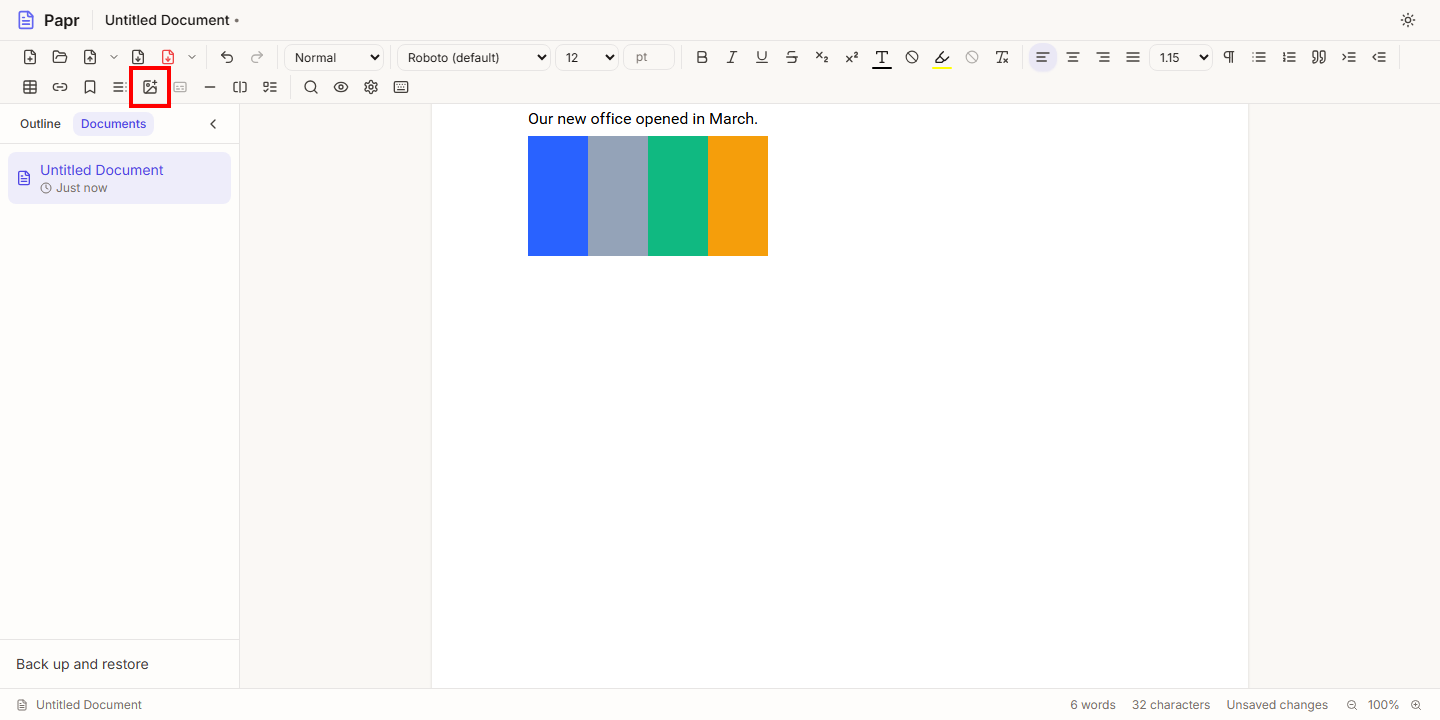
1.Insert a picture
Put the cursor where the picture should go. Click the Insert Image button in the toolbar and choose a PNG or JPEG file. The picture goes in at the cursor. You can also paste a PNG or JPEG file into the document, or drop one onto it. On a phone, the button is in the More menu.
2.Select the picture
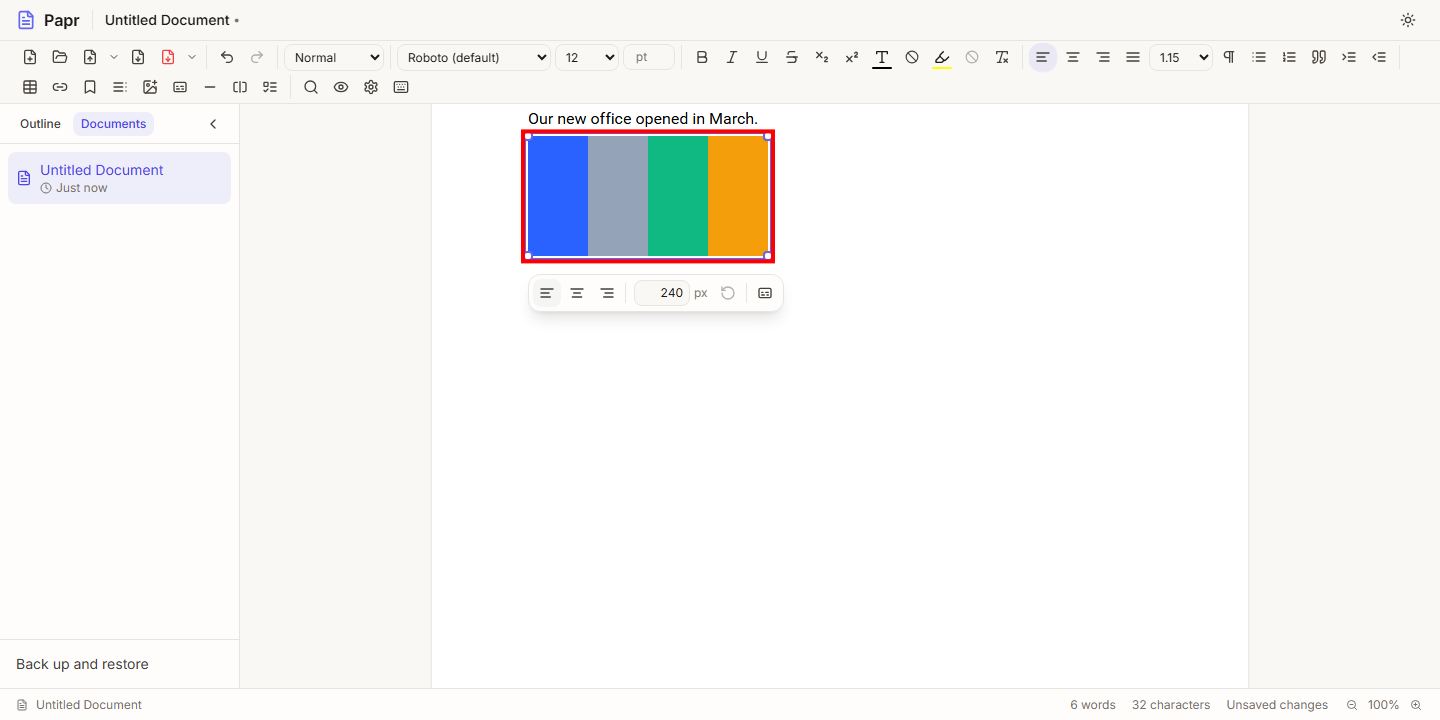
Click the picture. A thin outline goes round it, four small squares appear at its corners, and a bar appears under it. The squares are the corner handles. The bar is the picture options bar, described in step 4.
3.Drag a corner handle
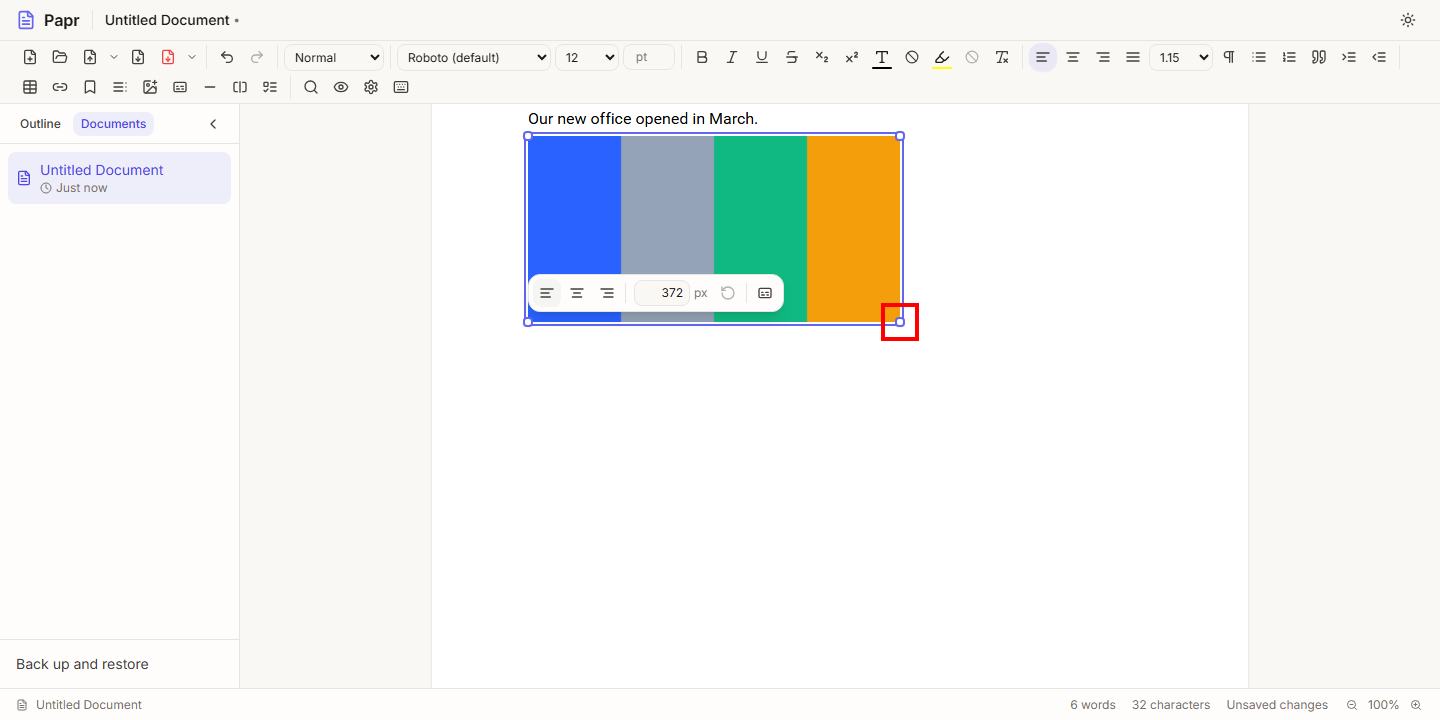
Drag a corner handle to make the picture larger or smaller. The picture keeps its proportions, so it does not stretch. Papr writes the new size when you let go, so one Undo takes the whole drag back. To stop a drag before you let go, press Escape, and the picture goes back to the size it had. On a touch screen the handles are larger, so a finger can reach them.
4.Align the picture and set its width
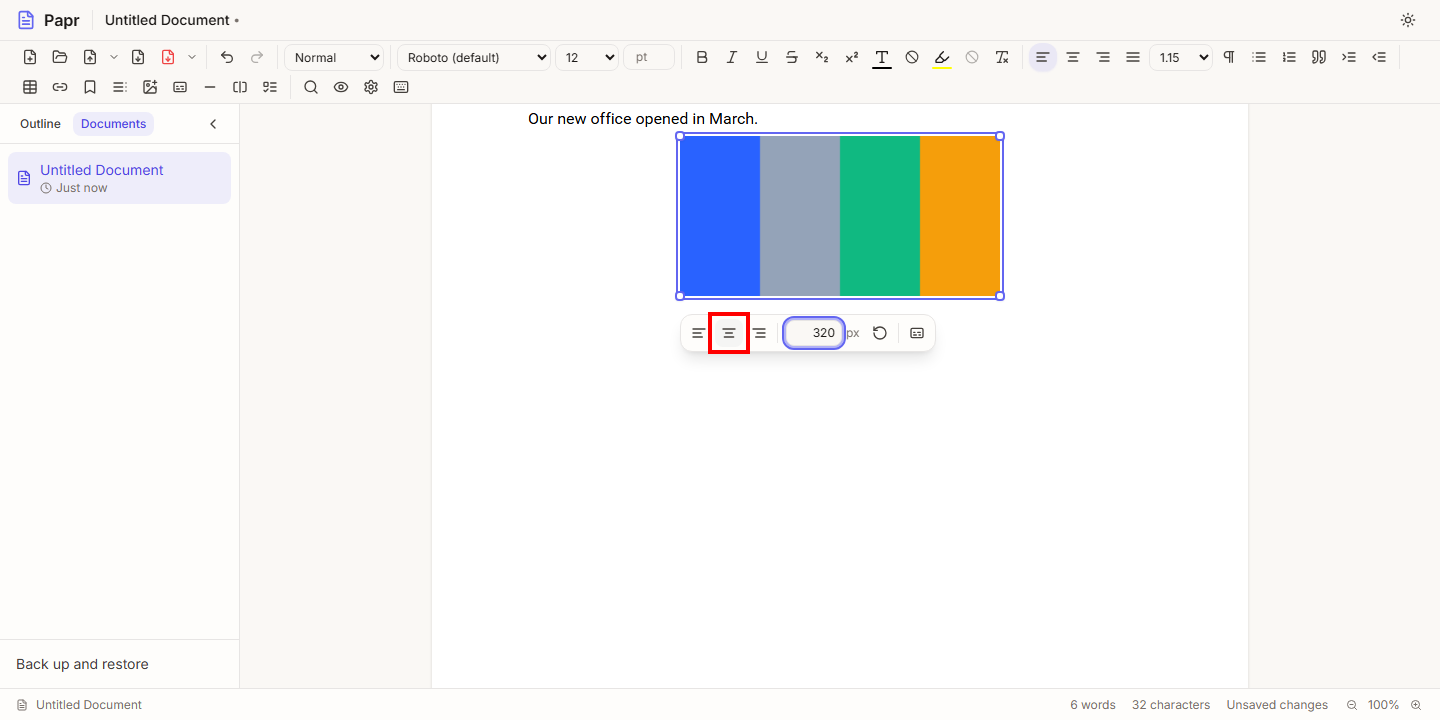
The picture options bar has three alignment buttons: Align picture left, Align picture center and Align picture right. The button for the current alignment is shaded. A picture starts on the left. Next to the buttons is a width field, followed by px. Type a width in pixels and press Enter, or click somewhere else, and the picture takes that width. Reset picture size gives the picture its own size again, up to the width of the text. Picture alt text opens the dialog where you describe the picture.
5.Use the keyboard
Select the picture, then press Alt+F10 to move into the picture options bar. The arrow keys move between its buttons and the width field. Press Escape to go back to the document.
What the exports keep
- PDF. The picture keeps the size and alignment you set.
- Word (.docx). The picture keeps its size and alignment. A picture from a Word file comes in at the size and alignment it has in Word.
- Markdown (.md). A Markdown file has no size or alignment for a picture. The picture is written at its natural size, at the left, and the export notes say so.
Limits
- A picture cannot be narrower than 24 pixels, or wider than the space it has: the text area of the page, or the table cell or list item it is in.
- A picture taller than the text area of a sheet is shown smaller, so that it fits on the sheet.
- A picture is not cropped or rotated. It sits on a line of its own, and text does not wrap around it.
Try it on your own file
Papr Docs runs in your browser. Your document stays on your device.
Open Papr Docs