How to add a table of contents in Papr Docs
A table of contents lists the headings of a document, with the sheet each heading starts on. Papr Docs builds it from your headings, so it changes when you change a heading. This guide shows how to insert one, choose how many levels it lists, go to a heading from it, and what the Word, PDF and Markdown exports keep.
Step by step
1.Insert the table of contents
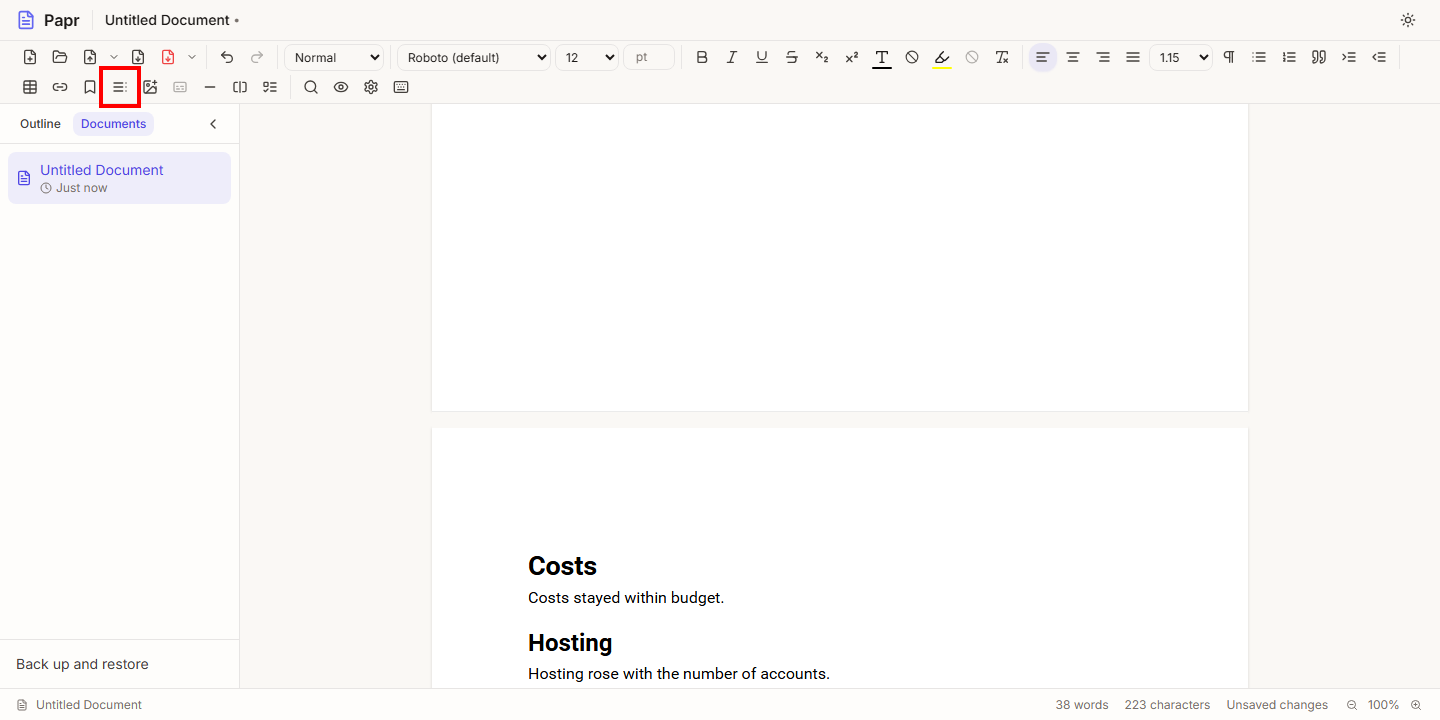
Put the cursor where the table should go. Click the Table of contents button in the toolbar, next to the Insert Table and Insert Link buttons. On a phone, open the More menu and choose Table of contents in its Insert section. If the cursor is in a paragraph, the table goes after it. If the cursor is at the start of a paragraph or a heading, the table goes in front of it. The table is selected as soon as it is inserted, and the bar described in step 3 appears above it. Undo takes the insertion back in one step.
2.See what the table lists
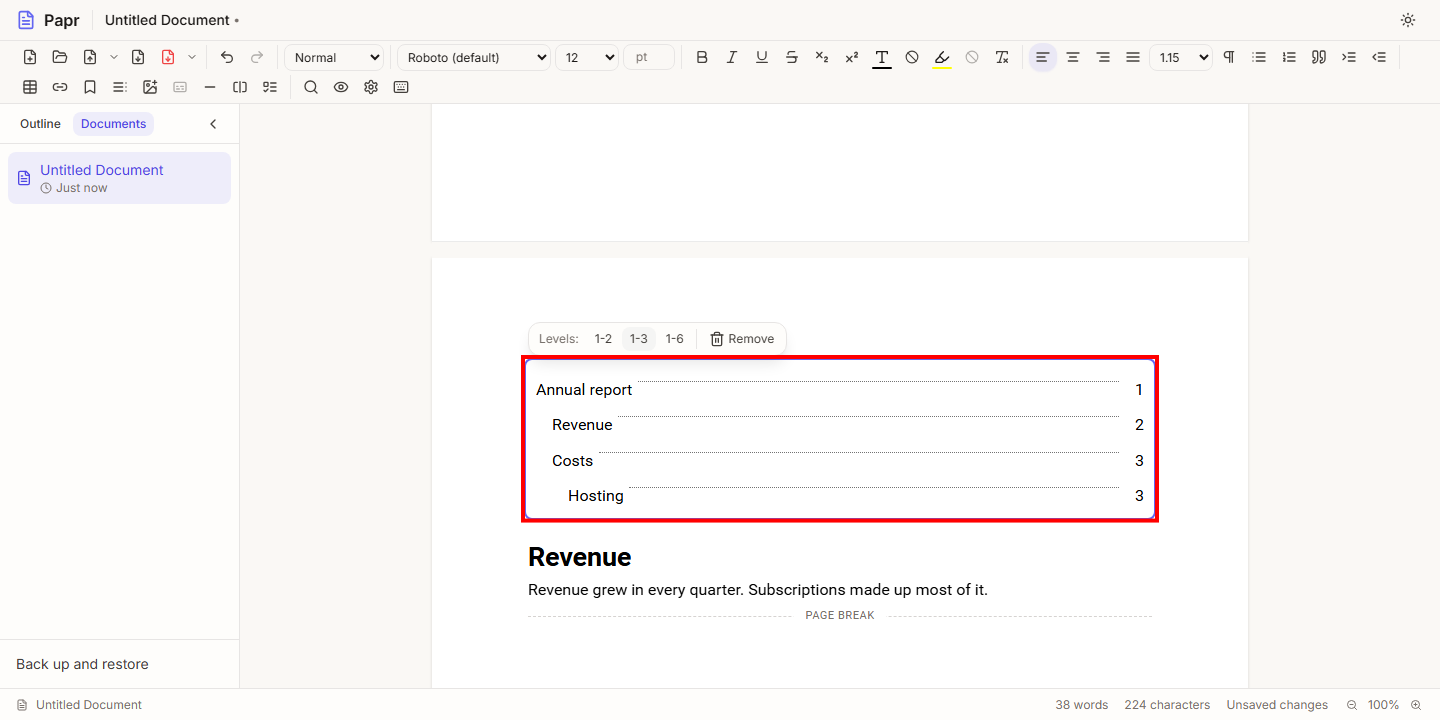
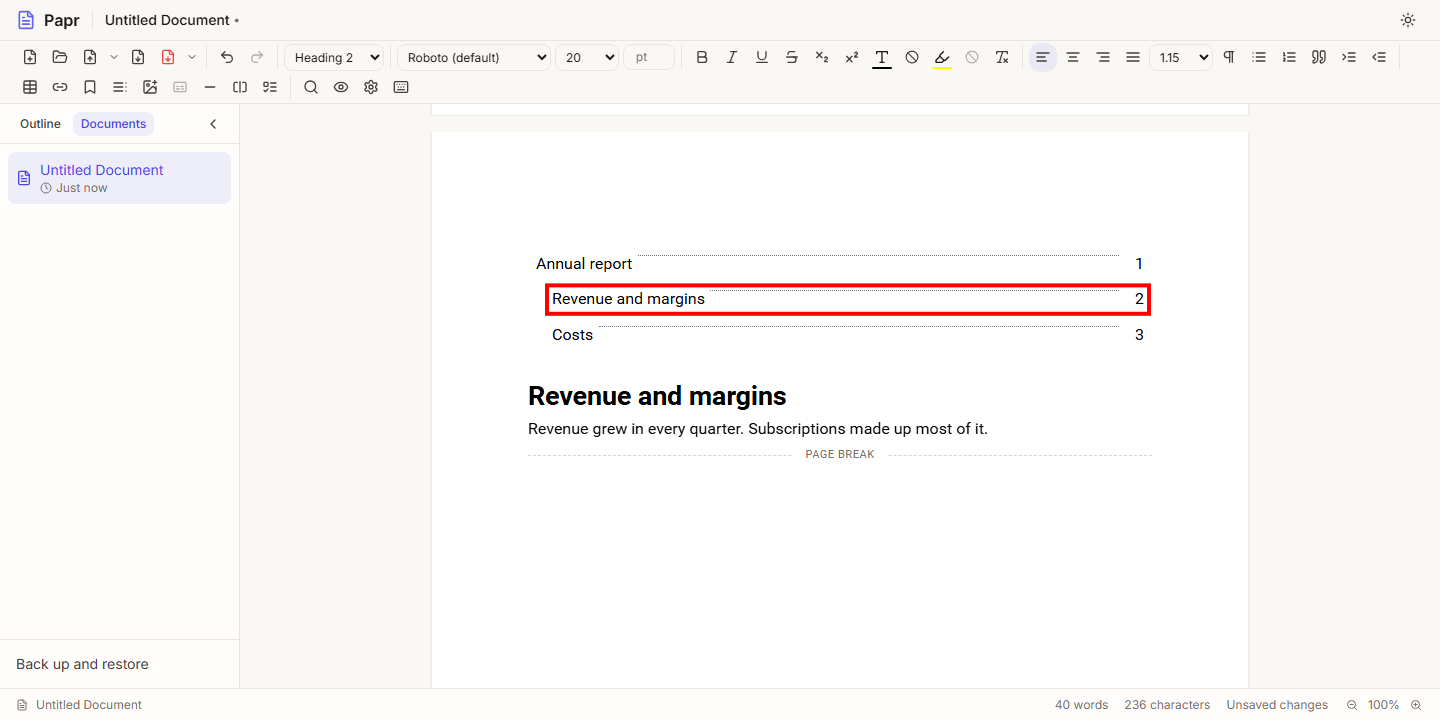
The table lists every heading in the document that has text, in the order the headings come. Headings in lists, quotes and table cells are listed too. Each entry is indented by its level, so a Heading 2 sits under the Heading 1 before it. The number at the right of each entry is the sheet the heading is on. A heading with no text is left out. While the document has no headings, the table says Add headings to fill the table of contents.
3.Choose how many levels it lists
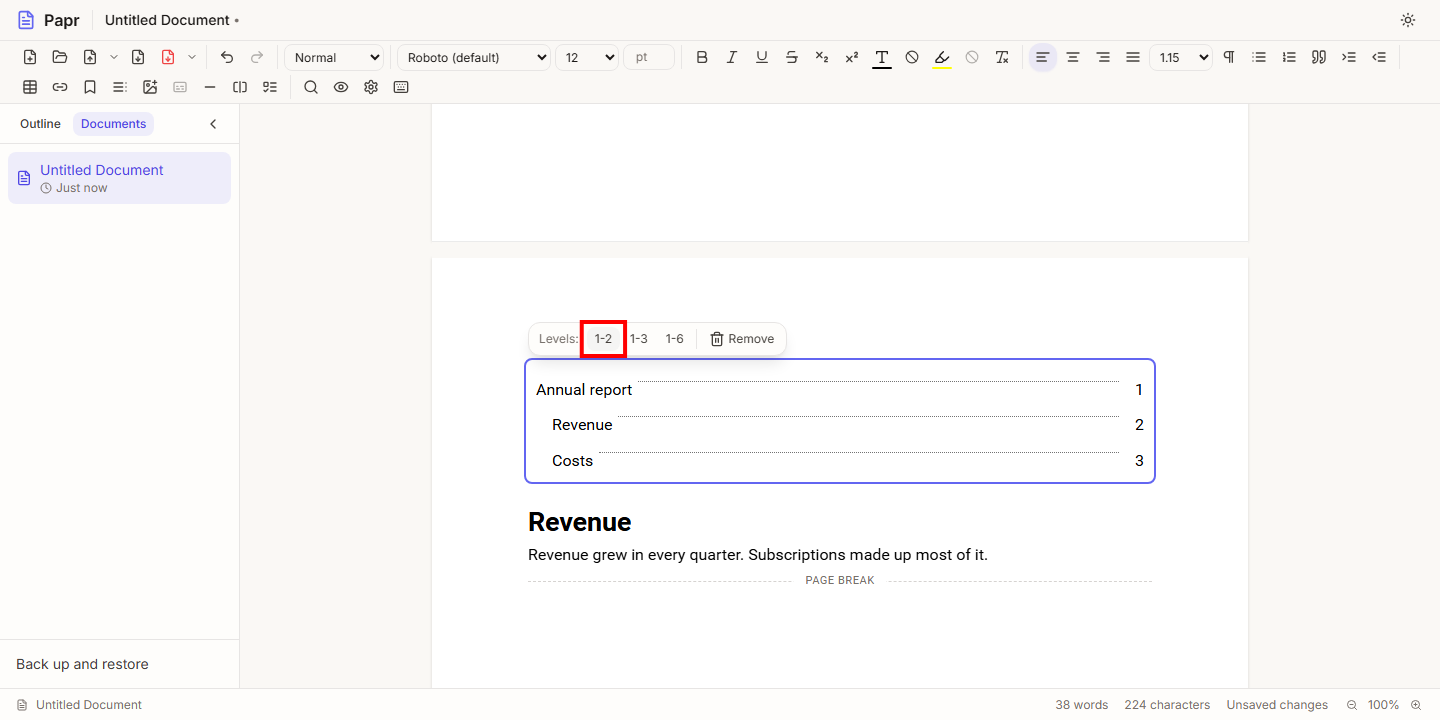
The bar above the table has Levels: and three choices: 1-2, 1-3 and 1-6. The number is the deepest heading level the table lists. 1-2 lists Heading 1 and Heading 2 only, and 1-6 lists every heading. A new table starts at 1-3, and the choice you pressed is shown as pressed. Remove takes the table out of the document. Each choice, and the removal, is one step for Undo.
4.Go to a heading
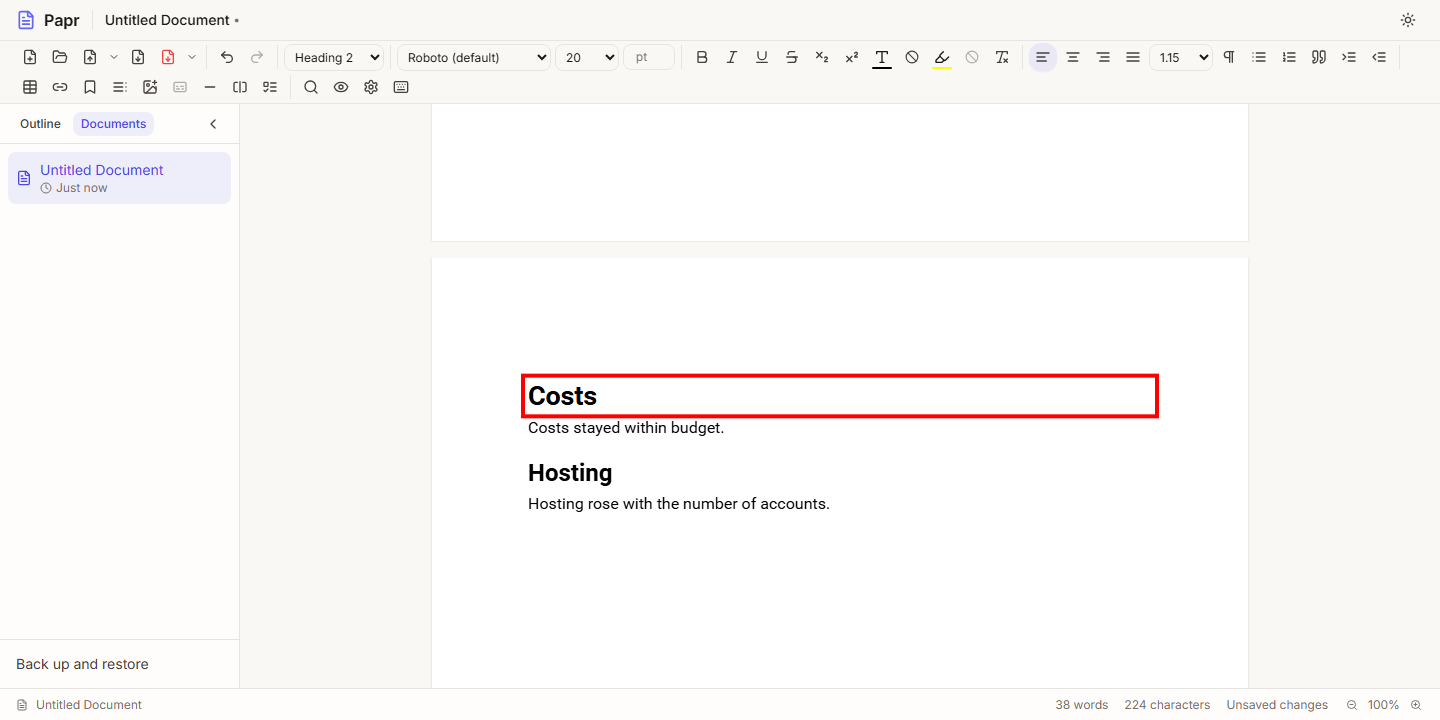
Click an entry to go to its heading. Papr puts the cursor at the start of the heading and scrolls the heading to the middle of the window. Going to a heading does not change the document, so Undo does not record it.
From the keyboard, select the table and press Enter. The focus moves to its first entry. Press Tab to move from one entry to the next, and Enter or Space to go to the heading. Press Alt+F10 to move into the bar, and Escape to come back to the document.
5.Let the table follow the headings
The table is redrawn as you work. When you add a heading, rename one, remove one or change its level, the entries change at once. You do not insert the table again. Papr does not store the entries in the file. It reads them from the headings each time, so the table cannot fall out of date with the document.
What the exports keep
- PDF. The table keeps its entries, indented by level, with the page number of each heading. Each entry is a link to its heading. When page numbers are on, the numbers in the table are the ones the pages show.
- Word (.docx). The table is a real Word table of contents, so Word can update it. When the file opens, Word asks whether to update the fields. Choose Yes and Word rebuilds the table from the headings, with its own page numbers. Choose No and the table keeps the entries and numbers Papr wrote. Those numbers come from the PDF layout of the same document, so Word’s may differ a little.
- Markdown (.md). Markdown has no page numbers and no links to headings, so the table is written as a nested list of its headings, without numbers. The export notes list the table of contents as an element that was simplified.
Good to know
- Word tables of contents come in as live tables. A table of contents in a Word file becomes a table of contents in Papr Docs. It lists this document’s headings, so its entries and numbers can differ from the Word file’s, and the import says so. A title above it, such as “Contents”, stays as ordinary text.
- Numbers on screen follow the editor’s sheets. The PDF has its own layout, so a number can differ by a page from the number in the PDF. Check the numbers in Print Preview before you share a file.
- A table with no headings to list draws nothing in the PDF. On the sheet it shows the hint instead.
Try it on your own file
Papr Docs runs in your browser. Your document stays on your device.
Open Papr Docs